When you’re scrolling through social media, what actually makes you stop? Most of the time, it’s not a long caption; it’s the visuals.
Short Summary
- Strong visuals are essential for capturing attention on social media, and Canva makes high-quality design accessible to everyone.
- Using platform-specific templates and proper export settings helps your posts look polished and professional across all networks.
- Consistent branding, clean typography, and high-quality visuals improve recognition and build trust with your audience.
- Canva’s AI tools, animations, and reusable templates save time while enhancing creativity and design efficiency.
- Combining Canva with Social Champ streamlines design, scheduling, and publishing for a smoother social media workflow.
Images, graphics, and videos grab attention fast, and there’s a reason for that. The human brain processes visual content 60,000 times faster than plain text.
People are increasingly turning to visual-first content because it fits how they consume information today: fast, on the go, and often on mobile.
This shift toward visual-centric content means you need a tool that makes creating great visuals simple, and Canva does just that.
This tool appeals to many users because it simplifies design and social media storytelling with minimal effort.
You can jump in, choose a template, tweak a few things, and suddenly your post looks like it came from a professional brand.
In this guide, you’ll learn practical Canva tips that help you level up your social media posts without overthinking the design process.
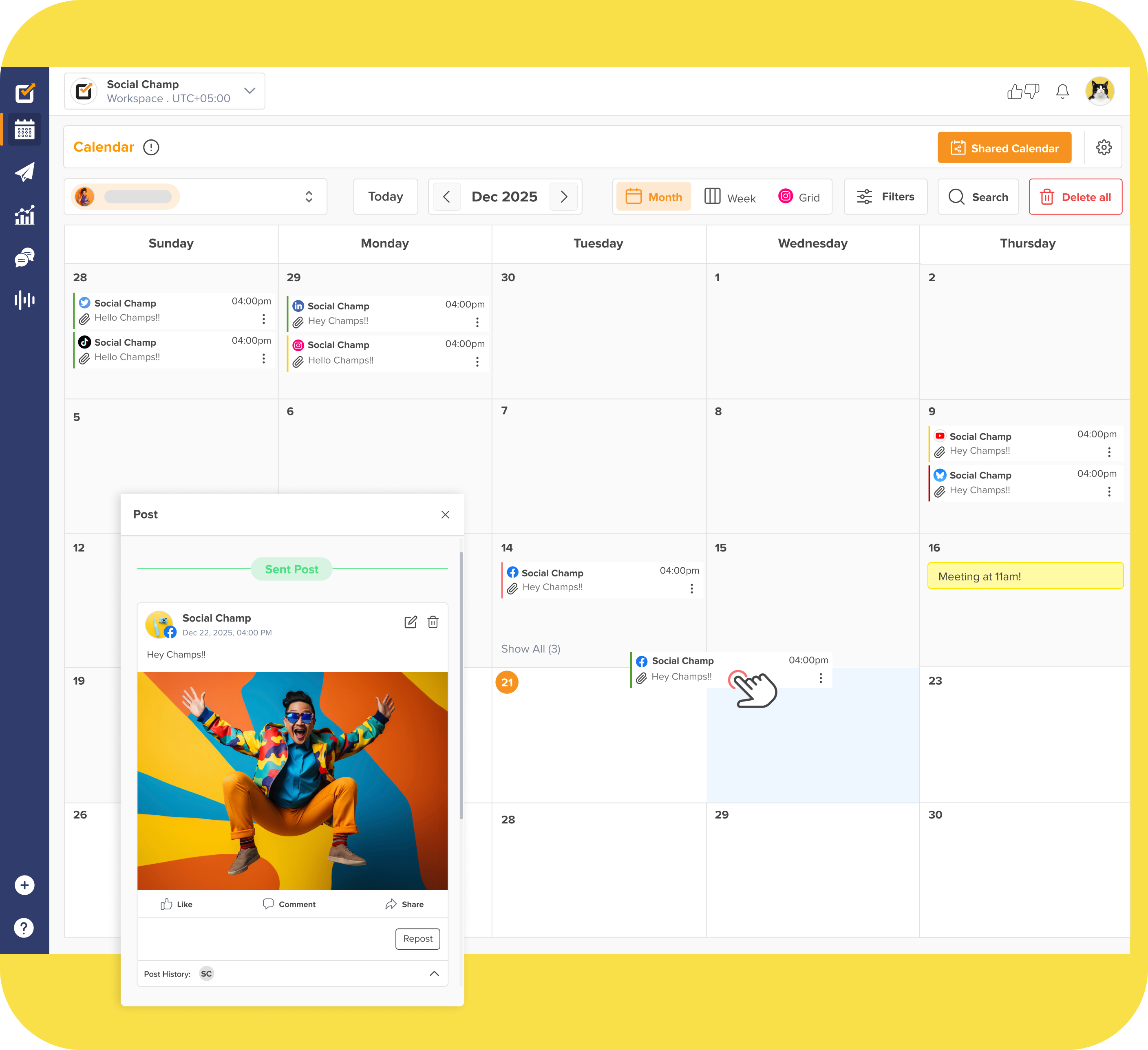
Plan, design, schedule, analyze, and engage through a single dashboard. Social Champ makes social media a breeze!
Why Canva Is a Go-To Tool for Social Media Creators
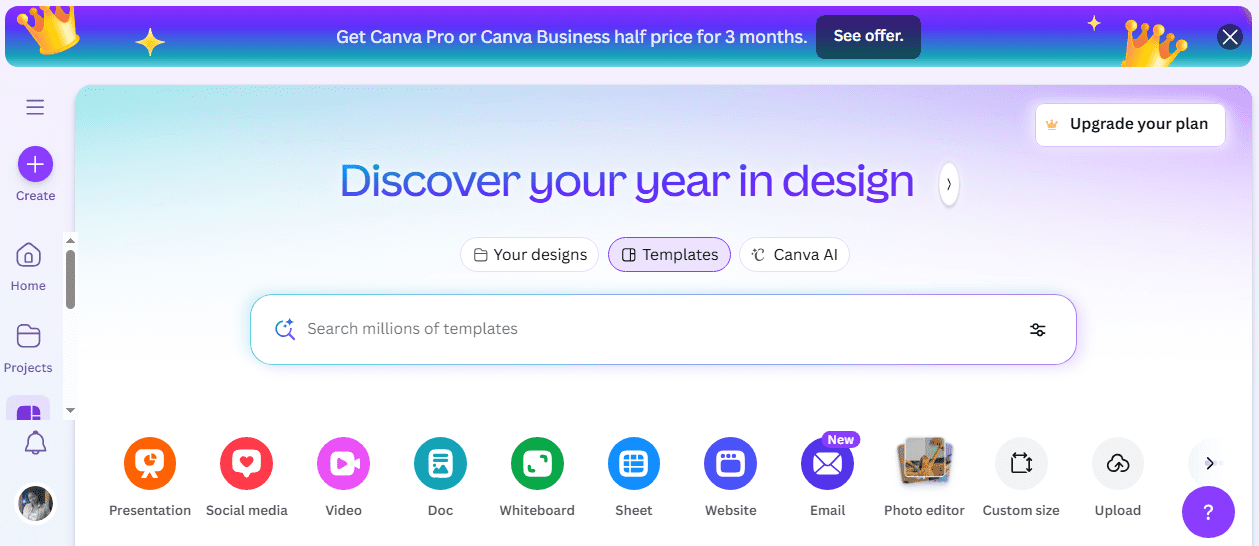
If you’ve ever wanted to create social media posts that actually catch people’s attention without spending hours learning complicated design software, Canva is your go-to option.
Here are some of the biggest reasons why so many people rely on it (and so should you):
-
Ease of Use
Canva is designed so that anyone can jump in and start creating. You don’t need design experience to make something look professional.
The interface is intuitive, everything is labeled clearly, and you can figure things out as you go.
-
Templates for Every Platform
Whether you’re posting on Instagram, Facebook, TikTok, LinkedIn, or Pinterest, Canva has you covered.
There are thousands of pre-sized templates for every platform, so you don’t have to waste time figuring out dimensions or layout. Just pick one that fits your vibe, tweak it, and you’re ready to post.
-
Drag-and-Drop Design
One of the things that makes Canva so addictive is its drag-and-drop functionality. You can move text, images, icons, and shapes exactly where you want them with a simple click and drag.
It makes experimenting with your design fast and fun, as there are no complicated menus or layers to worry about.
-
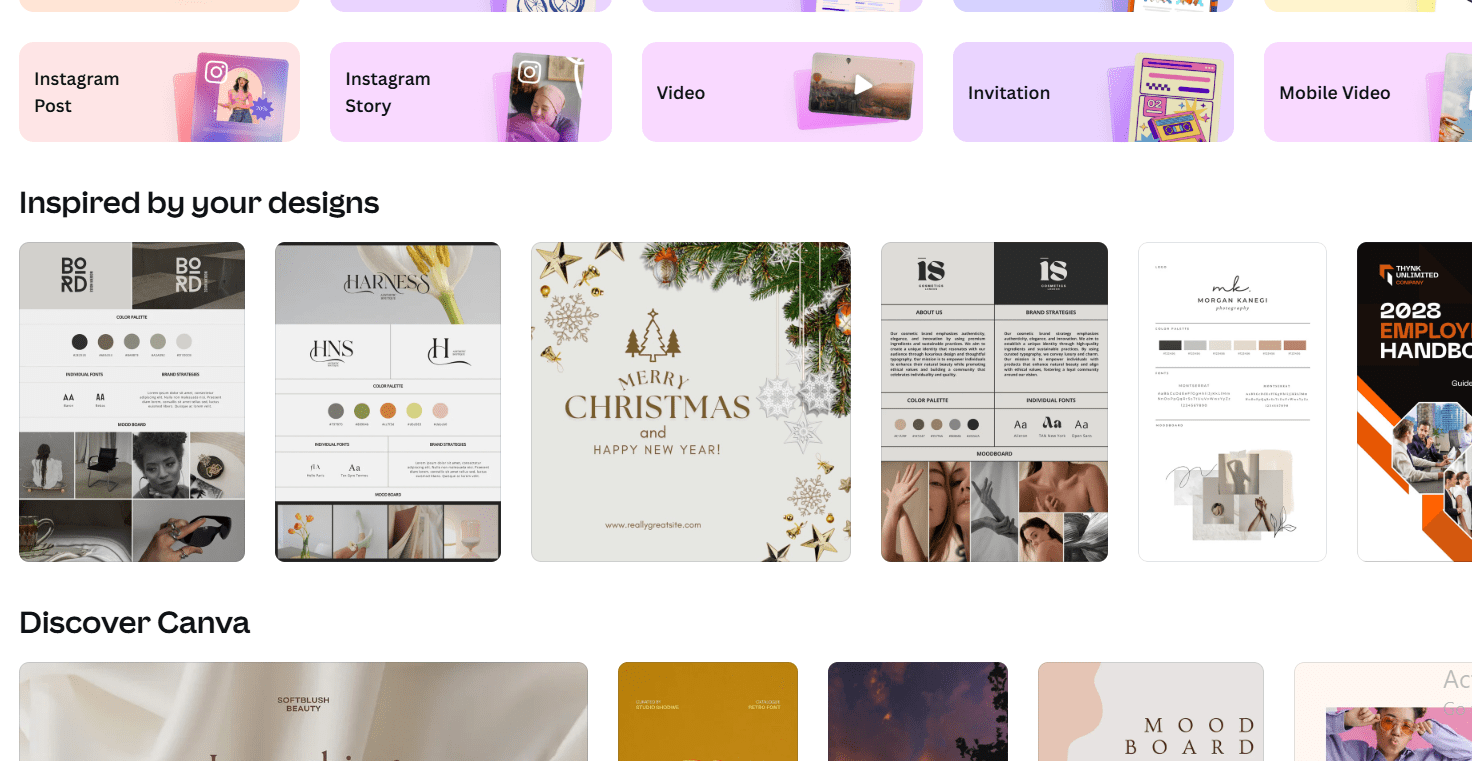
A Library at Your Fingertips
Need a beautiful photo, a quirky icon, or a short video to make your post pop? Canva has a huge library of free and premium content you can use.
You don’t have to go hunting online for images, icons and videos, or worry about licensing. Everything is ready to drop into your design.

Canva’s Library -
Perfect for Everyone
Whether you’re a marketer, a small business owner, or part of a social media team, Canva works for you.
Even better, it scales with your needs, whether you’re making a single post or designing an entire content calendar. Everyone can get professional-looking results without hiring a designer.
Top 10 Canva Tips for Creating Stunning Social Media Posts
Creating social media posts that really stand out doesn’t have to be complicated. With a few smart Canva tricks, you can make your visuals pop and save a ton of time in the process.
Here are 10 practical tips to help you level up your designs:
-
Tip #1: Start With Platform-Specific Templates
One of the easiest ways to make your posts look professional is to start with a template that’s already sized for the platform you’re posting on.
For example, Instagram posts work best at 1080×1080 pixels, while Instagram stories or TikTok videos need 1080×1920 pixels.
Choosing the right template from the start helps you avoid cropping issues, ensures your text isn’t cut off, and keeps your visuals looking balanced and polished.
-
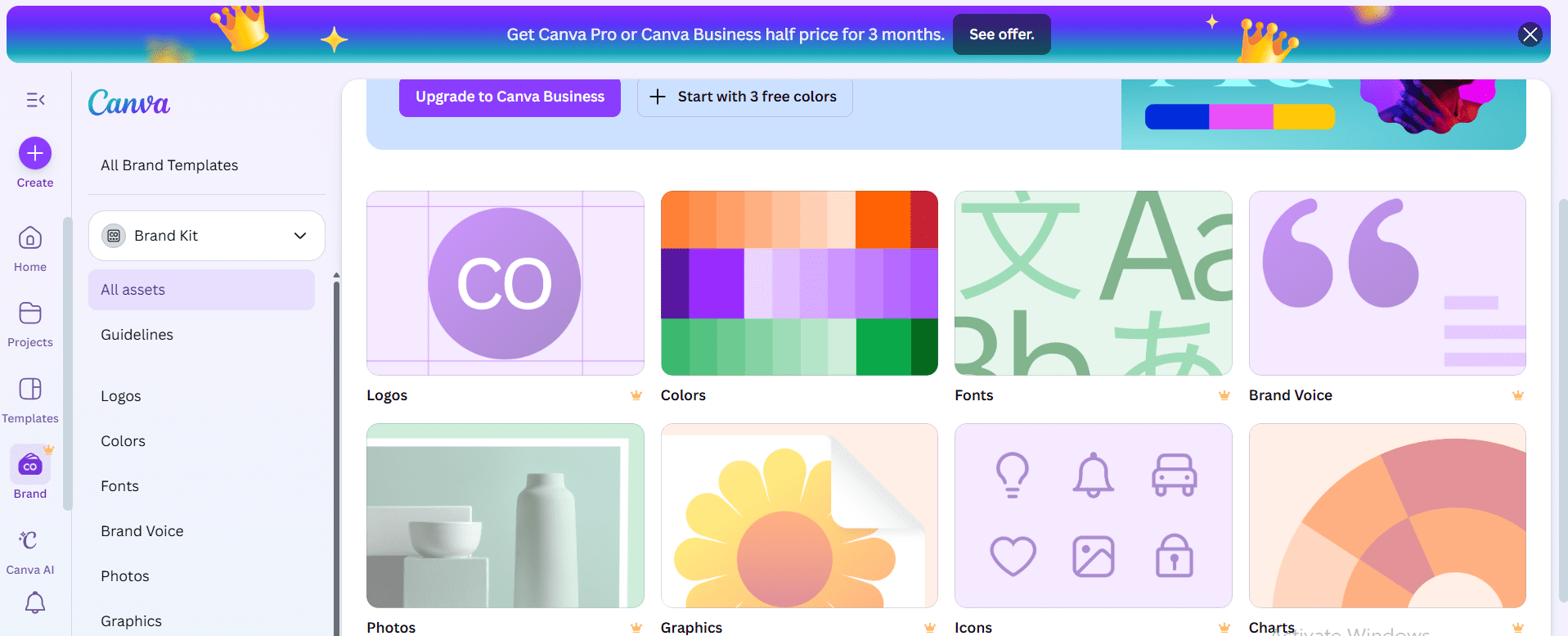
Tip #2: Use Brand Kits to Maintain Consistency
With Canva’s Brand Kit, you can save your brand colors, fonts, and logos in one place. This makes it easy to apply them to every post and ensures a consistent look across all your content.
Canva’s Brand Kit And why should brand consistency matter? Well, consistent branding can boost brand recognition by up to 80%, making your content instantly recognizable and trustworthy to your audience.
-
Tip #3: Utilize Canva’s Magic Resize for Multi-Platform Posting
Canva’s Magic Resize tool is a huge time-saver. Instead of creating separate designs for Instagram, Facebook, LinkedIn, or Pinterest, you can resize a single post to fit multiple platforms in just a few clicks.
This is perfect because it allows you to repurpose content and guarantees that your visuals look sharp on every platform.
-
Tip #4: Stick to the Rule of Thirds for Better Composition
The rule of thirds is a basic design and photography principle that helps create balanced and visually appealing compositions.
You divide your canvas or image into nine equal parts by drawing two equally spaced horizontal lines and two equally spaced vertical lines, forming a 3×3 grid.
The idea is to place important elements along these lines or at their intersections, rather than centering everything. This creates natural visual interest and guides the viewer’s eye through the design.
Here’s a tutorial by @bizdesignacademy:
https://www.youtube.com/shorts/0Scgmhwqnow
This approach works especially well for product photos and announcements because it helps viewers focus on the key elements of your visuals.
-
Tip #5: Take Advantage of Canva’s AI Tools
Canva offers a range of AI-powered tools that make designing faster and easier. These tools help you create content, edit images, and adapt your designs for different audiences without extra effort.
They are:
- Magic Write for captions: It generates engaging captions quickly for any social media post.
- Magic Eraser: It removes unwanted objects from your images seamlessly.
- Background Remover: It deletes backgrounds to highlight your subject or create transparent images.
- Magic Switch: It translates text or converts it into different formats for multiple platforms.
-
Tip #6: Use High-Quality Photos and Elements
Once your layout is set, the next step is to make your visuals stand out with high-quality images.
Canva’s photo library offers thousands of professional photos you can use to give your posts a polished look. You can also add icons, gradients, and shapes to enhance the overall style and make your design more visually appealing.
However, it’s important to avoid clutter. Stick to no more than two to three elements per post. This keeps your message clear and ensures your audience focuses on the key parts of your design.
-
Tip #7: Keep Typography Clean and Readable
The fonts you choose play a big role in how your audience perceives your message.
To keep your posts looking clean and professional, use no more than two fonts per design. You should also establish a clear hierarchy by separating headlines from subtext.
Furthermore, you should highlight keywords with bold text, uppercase letters, or color.
Following these steps makes your content easy to read and visually appealing.
-
Tip #8: Leverage Canva’s Animation Features
Adding motion can make your posts more engaging and help them stand out in crowded feeds.
Canva makes this easy by letting you create motion graphics for Instagram Reels, Stories, and TikTok with just a few clicks.
To keep your content professional, stick to subtle animations like gentle fades or slides, which add visual interest without overwhelming your design.
-
Tip #9: Use Canva’s Templates for Faster Workflow
Canva lets you save and reuse custom templates, which makes creating content faster and easier.
Instead of starting from scratch for every post, you can build a base design and adjust it for different topics, campaigns, or platforms.
This method helps you maintain consistency in your weekly posts, keeps your visuals on brand, and ensures your audience immediately recognizes your style.
It also reduces the time and effort spent on repetitive design tasks, allowing you to focus on creativity and strategy rather than rebuilding layouts for every post.
-
Tip #10: Export Settings That Work Best for Social Media
Different formats work best depending on the type of content you’re sharing, so it’s important to know which to use. For instance:
- PNG for posts: This format preserves image quality and supports transparency, making your graphics sharp and clear.
- MP4 for videos: Use this format for animations, Reels, and Stories to ensure smooth playback across platforms.
- JPEG for lighter file sizes: Ideal for faster loading times without sacrificing too much quality, especially for image-heavy posts.
- Ensure high resolution for professional quality: Always export at the highest resolution possible to make your visuals stand out and maintain a polished look.
Using these AI tools saves time and allows you to focus on creating content that stands out.
Choosing the right export settings ensures your designs look crisp and professional across all platforms.
And there you have it! 10 Canva tips to help you create social media posts that grab attention, stay on brand, and look polished every time.
Featured Article: 10 Free & Paid Social Media Template Resources
Advanced Canva Tips to Spruce Up Your Social Media Designs
Once you’re comfortable with Canva’s basics, a few advanced techniques can significantly improve both your design quality and efficiency.
These tips are especially useful for brands, marketers, and teams managing content at scale.
-
Tip #1 Use Layers and Positioning for Precise Layouts
Many creators overlook Canva’s layering tools, but they’re essential for polished designs.
Use Position → Forward / Backward and alignment tools to stack elements cleanly, center content, and create depth. Group related elements together so you can move or resize them without breaking your layout.Pro tip: Lock background elements once your layout is set to avoid accidental edits.
-
Tip #2 Create Content Series With Page Styles
If you publish recurring content like quotes, tips, or announcements, use Page Styles to apply the same fonts, colors, and elements across multiple designs.
This keeps your feed visually cohesive while speeding up production.
-
Tip #3 Apply Color Styles Instead of Manual Changes
Instead of manually changing colors on each element, use Styles → Color Palettes to instantly recolor your design.
This is especially useful when:- Adapting designs for campaigns
- Testing alternate brand color variations
- Creating content for different audiences
-
Tip #4 Use Smart Mockups for Product and App Previews
Canva’s Smart Mockups allow you to place designs inside realistic frames like phones, laptops, or posters.
This is perfect for:
- App screenshots
- Website previews
- Product announcements
-
Tip #5 Build a Master Template for Batch Content Creation
Instead of designing each post individually, create a master template with placeholders for text, images, and icons. Duplicate it for each new post and simply swap the content.
This approach:- Saves hours every month
- Keeps branding consistent
- Makes team collaboration easier
-
Tip #6 Use Brand Controls for Team Consistency
If you’re working with a team, enable Brand Controls in Canva to limit fonts, colors, and logos to approved options only.
This prevents off-brand designs and keeps everyone aligned without constant revisions. -
Tip #7 Optimize Designs for Mobile Viewing
Most social media content is consumed on mobile. Always zoom out and preview your designs at a smaller scale to ensure:
- Text remains readable
- Buttons and CTAs are clear
- Key visuals aren’t too small
Mockups make your content look more professional and help audiences visualize real-world use.
If it’s easy to read on a phone, it’ll perform better in feeds.
Once your designs are optimized and ready, pairing Canva with a social media scheduler like Social Champ helps you publish faster and stay consistent without extra effort.
How to Use Canva Directly Inside Social Champ
Social Champ integrates seamlessly with a wide range of apps, including Canva, so you can create and schedule your social media content all in one place.
To use Canva inside Social Champ, follow these steps:
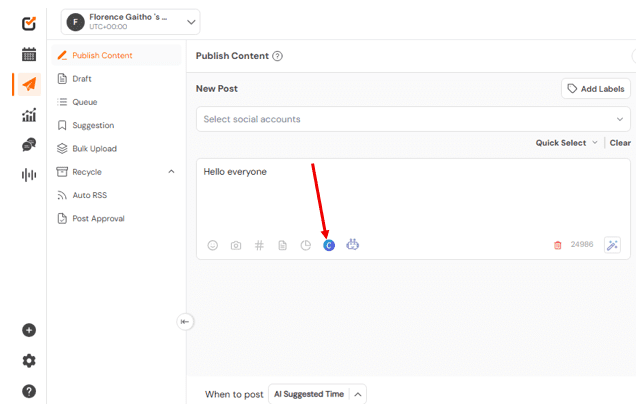
- Create a new post in Social Champ.
- Select the Canva option.
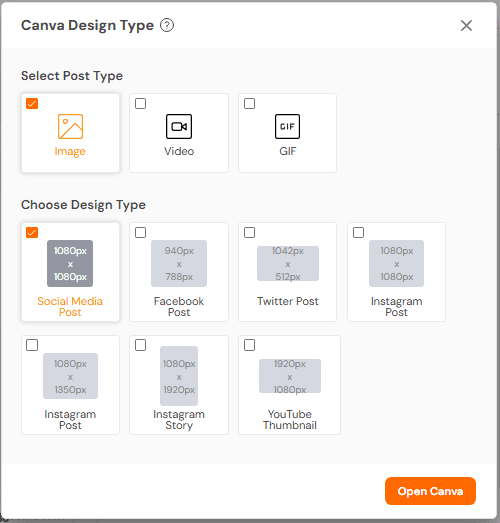
- Select post type and design type, then click “Open Canva.”
- Log into your Canva account or sign up.
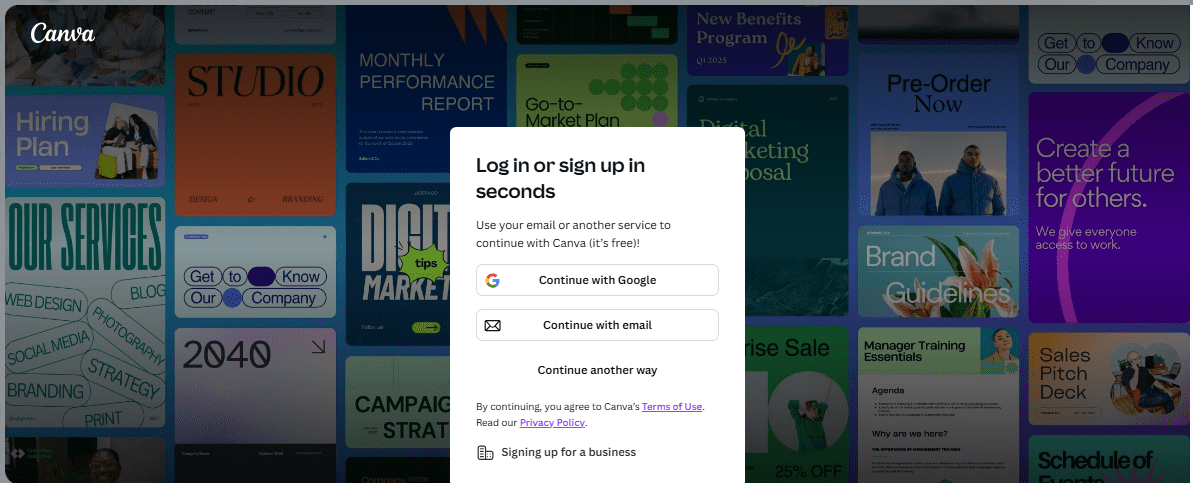
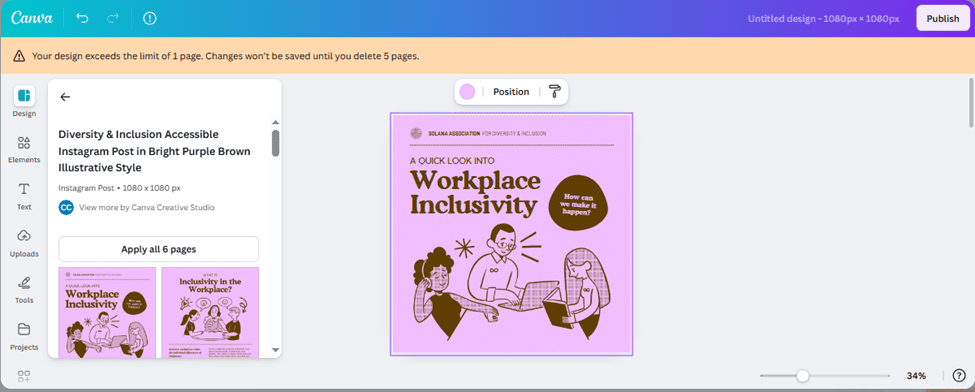
- Design your content directly within the Social Champ interface using Canva’s tools and templates.
- Schedule or publish your post as usual without leaving Social Champ.
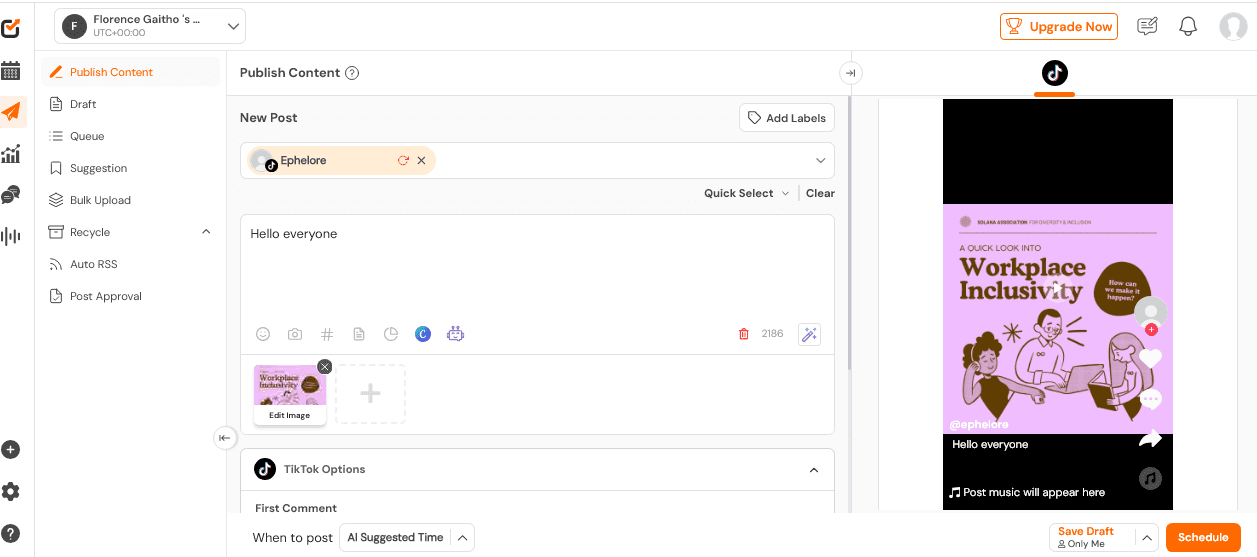
And that’s it. That’s how to use Canva directly inside Social Champ.
This integration comes with several key benefits:
- Saves time switching between tools: You no longer need to bounce between Canva and your scheduler, which speeds up content creation.
- Streamlines your design + publish workflow: You can design, edit, and schedule posts without leaving the platform, keeping everything organized in one place.
This integration is perfect for both teams and solo creators. Teams can collaborate efficiently with shared access to designs and scheduled posts.
Solo creators, on the other hand, can handle every step of their content process quickly and effortlessly.
What You Can Do With the Canva X Social Champ Integration
The Canva integration with Social Champ makes it simple to create, edit, and schedule visuals all in one place. This combination saves time and keeps your social media workflow smooth.
Here’s how it can help you:
-
Design Graphics Directly Inside Social Champ’s Content Composer
You can create eye-catching visuals without leaving Social Champ. The Canva editor is built right into the content dashboard, so you can design posts while staying in one place.
-
Access Canva Templates Without Leaving the Dashboard
You can browse thousands of templates for any platform or purpose. This makes it easy to keep your content professional and fresh without switching between tools.
-
Instantly Edit or Update Designs
You can change text, colors, or layouts quickly. Every update is immediate, so your designs are always ready when you need them.
-
Save Final Graphics Straight Into Your Drafts or Scheduled Posts
After finishing a design, you can save it directly to your drafts or schedule it for posting. This keeps everything organized and eliminates extra steps.
-
Preview and Schedule Across All Platforms in One Click
You can see how your posts will look on different social media platforms and schedule them instantly. This ensures consistent branding and perfect timing for every post.
How It Helps Your Social Media Strategy
Integrating Canva with Social Champ can transform the way you manage your social media content. Here are the main ways it can improve your strategy:
- Faster Workflow = More Consistent Posting: Creating and scheduling posts in the same platform reduces delays, allowing you to maintain a regular posting schedule and keep your audience engaged.
- No Need to Download/Upload Files Repeatedly: You can design and save graphics directly in Social Champ, eliminating the extra steps of exporting and uploading files between platforms.
- Smooth Team Collaboration: Your team can work together easily, with shared access to designs and scheduled posts. This can reduce miscommunication and improve
- Perfect for Batch-Creating Content: You can create multiple posts at once, schedule them in advance, and ensure consistent branding across all your social media channels.
It’s not hard to see that the Canva-Social Champ integration streamlines your design and scheduling process.
It helps you save time, stay organized, and maintain a consistent, professional presence across all your social media channels.
Design in Canva, schedule instantly, and publish effortlessly with Social Champ
How to Schedule Your Canva Designs Using Social Champ
Scheduling your Canva designs with Social Champ is simple and helps you keep your social media strategy organized. Here’s how to make the most of it:
-
Upload/Sync Content
Upload your Canva designs directly into Social Champ or sync them from your Canva account. Refer to the steps I outlined earlier.
This ensures all your visuals are ready to post without extra downloads or uploads.
-
Use Calendars and Queues
Plan your content using Social Champ’s calendar or queue system. This lets you schedule posts in advance, visualize your posting schedule, and maintain a consistent flow of content.
-
Analyze Performance of Your Canva-Made Posts
Track engagement metrics for your posts created in Canva. Understanding what works helps you refine your content strategy and improve future designs.
-
Repurpose or Reshare Designs Effortlessly
You can reuse your Canva graphics for different campaigns or platforms. Social Champ makes it easy to reshare content, saving time and maximizing the value of your designs.
Conclusion
Mastering visual content can make a huge difference in your social media performance, and these Canva tips are designed to help you create posts that grab attention, stay on brand, and look professional.
From using platform-specific templates to leveraging animations and AI tools, each tip gives you practical ways to elevate your designs.
Pairing Canva with Social Champ takes it a step further, allowing you to design, schedule, and manage your posts all in one platform, streamlining your entire social media strategy.