Have you ever logged into your Google My Business profile and felt overwhelmed by what you see?
Well, here’s something important to know: Google My Business is now called Google Business Profile. It’s a bit of a name change, but the platform still serves the same purpose.
I’ve definitely felt that frustration myself. Once, I helped a client who had three locations and two people managing listings. No one knew who updated what, and reviews went unanswered.
Short Summary
- When you use one clear system for all locations, you can easily manage multiple Google My Business accounts.
- Keeping business details consistent across locations helps build trust with customers and Google.
- Posting updates regularly matters more when you manage multiple locations on Google My Business.
- Automation removes the stress of logging into each account one by one.
- The right setup keeps every location active, visible, and under control as your business grows.
Then we came across a stat which said 64% of people use Google Business Profile to find a business’s contact information.
That means more than half of your potential customers are actively looking at your listings to decide what to do next.
So if you want to manage multiple Google My Business accounts without wasting hours or letting leads drop through the cracks, stick with me.
I’ll tell you every step so you can stay in control and actually see results.
Still Switching Accounts One by One?
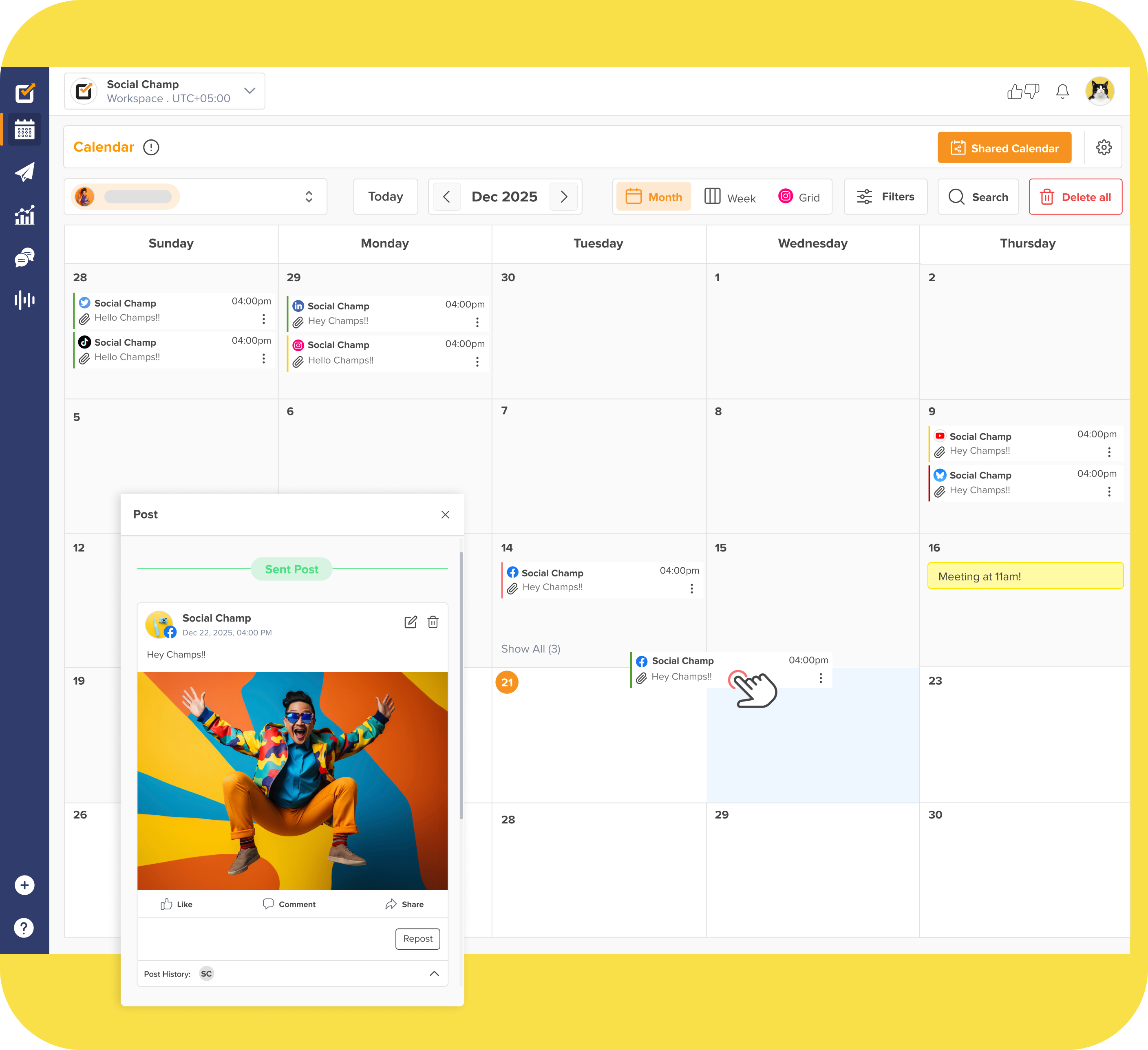
That works until it doesn’t. Social Champ gives you one place to plan and publish updates before things spiral.
Why Businesses Struggle to Manage Multiple Google My Business Accounts
If you manage one location and it takes a lot of effort already, then imagine when you manage more than one, how overwhelming it can feel.
Usually, when businesses try to manage multiple Google My Business accounts, small issues pile up and turn into daily friction.
-
Inconsistent Information Across Locations
This usually starts small. One location updates its hours, another forgets, and a third one still shows an old phone number.
When you manage multiple Google My Business accounts, these gaps show up fast. Customers notice these gaps first, and Google notices next. And when trust drops, visibility follows.
This becomes harder when you handle multiple locations on Google My Business without a single place to review changes.
-
Too Many Logins, Not Enough Time
I have watched many teams wasting hours switching between accounts only.
Different emails. Different passwords. Different access levels. What should take five minutes stretches into half an hour.
When you manage more than one Google My Business account, login chaos eats into the time you could spend on actual growth.
-
Team Access Creates More Confusion Than Help
When you give access to every teammate one by one, it can create more confusion.
You give access to one team member, then another. Someone posts from the wrong profile while someone else removes access by mistake.
And suddenly, no one knows who owns what. Updates happen without context: a photo gets added, and a description changes, and no one tracks it.
-
Growth Makes the Problem Worse
I once worked with a brand that added two new locations in six months. Individually, each location performed well. Together, things slipped.
Reviews went unanswered. Posts slowed down. Direction requests dropped, and the system did not scale.
Don’t Let Missed Updates Cost You Customers!
Keep every location active and visible with Social Champ, even if you manage multiple Google My Business accounts.
The Smart Way to Organize and Manage Multiple Google My Business Accounts
Once you accept that growth adds complexity, things get easier. The goal is not to work harder.
The goal is to build a system that helps you manage multiple Google My Business accounts without second-guessing every update.
-
Create One Source of Truth
The first shift I always recommend is simple. You should decide where all changes start, such as phone numbers, hours, categories, and descriptions.
Everything should live in one place before it goes live.
When you manage multiple locations in Google My Business, scattered notes can cause errors. A single document or dashboard keeps everyone aligned and avoids mixed signals.
Here, if you use a Google Business Profile scheduler, it can save you hours by keeping posts and updates organized.
-
Assign Clear Roles for Each Account
It’s not necessary to provide full access to everyone. You can assign clear roles like some people handle reviews, some manage posts, and some oversee accuracy.
As a result, mistakes drop fast. When roles stay clear, each Google My Business account stays clean.
-
Group Locations by Region or Purpose
Do you know that folders matter more than people think?
You can group locations by city, state, or brand line to make it easier to review performance and spot issues early.
I’ve even seen many teams cut their review time in half simply by organizing their accounts properly.
-
Set a Weekly Review Habit
You do not need daily check-ins. A short weekly review works better. Scan updates. Check reviews. Confirm nothing changed without context.
Considering this habit, your listings stay accurate without constant effort. Over time, managing my business presence feels predictable again.
-
Keep Naming and Formatting Consistent
Keep everything aligned, such as location names, descriptions, and services, as slight differences confuse customers and search results alike.
Consistency helps your Google Business Profile look reliable across locations. It also reduces support issues later.
Quick Tip!
Keep your posting consistent by using a Google Business Profile scheduler. It saves time and ensures every location stays active.
Featured Article: How to Add a Collaborator on Instagram
Step-By-Step Guide: Add, Verify, and Optimize Multiple Locations on Google My Business
Managing multiple locations on Google My Business can feel tricky at first, but if you break it down step by step, you can do it.
Let’s walk through the process that I follow with clients to keep everything organized, optimized, and visible.
-
Add Additional Locations
The first thing you should do is log in to your Google My Business account, click “Add Location,” and follow the prompts.
If you have multiple branches, it’s better to create a profile for each. Keep your naming consistent so customers and search engines recognize each location as part of your brand.
-
Verify Each Location
Verification is a crucial step you can’t ignore. If you don’t verify each location, Google won’t show a listing properly without it.
You can verify by mail, phone, or email, whichever option is available to you. I recommend doing all verifications in one session to avoid confusion and missed steps.
-
Optimize NAP (Name, Address, Phone)
Consistency always wins. You should keep your location’s name, address, and phone number the same across all profiles, as small differences can confuse Google and customers.
This is part of Google Business Profile optimization that ensures each location ranks correctly.
-
Add Photos and Business Details
Photos help listings stand out. You can add high-quality images for each location, like interior, exterior, staff, and products, if applicable.
Update business hours, services, and descriptions. A complete profile encourages trust and more customer actions.
-
Monitor and Respond to Reviews
When you make your listing live, reviews start coming in. You can assign someone to monitor and reply promptly.
If your responses are quick, it can improve your local reputation and signal to Google that your profiles are active.
-
Track Performance
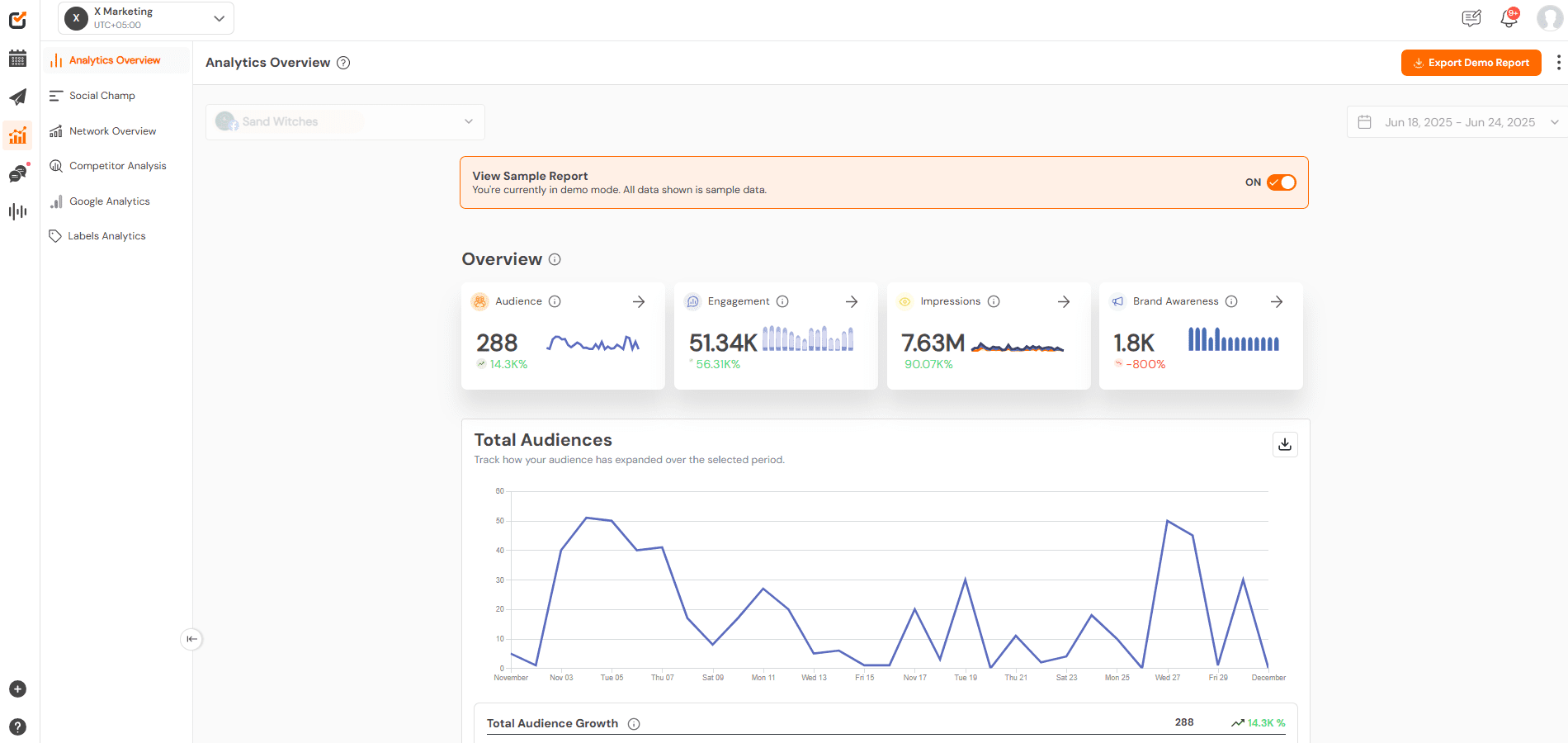
Now the most important part is to track your performance and keep an eye on insights. Check how many calls, direction requests, and clicks each location receives.
This way, you can easily understand which locations need more attention and which posts work best.
Social Champ’s Analytics
Are Your Locations Getting the Attention They Deserve?
Social Champ helps you schedule and track updates across multiple Google Business profiles so nothing slips through the cracks.
Automate and Schedule Google Business Posts Across Accounts With Ease
Now you’ve learned the steps to add, verify, and optimize your locations, the next step is to stay active and post regularly, which is a real challenge.
That’s where many businesses struggle when they try to manage multiple Google My Business accounts.
I’ve seen many teams with this repetitive pattern. They start with good intent, and even the first few weeks look good, but then posting slows down.
Sometimes one location stays active while others go quiet. That happens not because the business stopped craung but because manual posting doesn’t scale.
Why Manual Posting Breaks Over Time
If you post manually, that’s totally fine, but only if you have one location. But if you add a second in the future, it will feel heavier.
And when you add five, it will become unrealistic.
Each post needs a login. Each login needs focus. One interruption, and the task gets pushed.
Over time, your Google Business presence starts to look uneven. Customers notice which locations feel active and which do not.
As a result, trust drops before you even get the chance to make a sale.
Create a Repeatable Posting Routine
If you think that posting more often can fix the problem, it doesn’t. It fixes when you post with intention.
In my opinion, you should plan one week at a time. Pick two or three post types such as announcements, offers, and local updates.
You can rotate them across locations with minor adjustments.
If you schedule Google Business Profile posts ahead of time, you can easily maintain consistency, and nothing will feel last-minute.
This matters even more when you handle multiple locations on Google My Business and want each one to stay visible.
Manage Everything From One Place
Switching multiple tabs at once can drain your energy and break your focus, leading to mistakes.
This is where Social Champ fits naturally into the workflow.
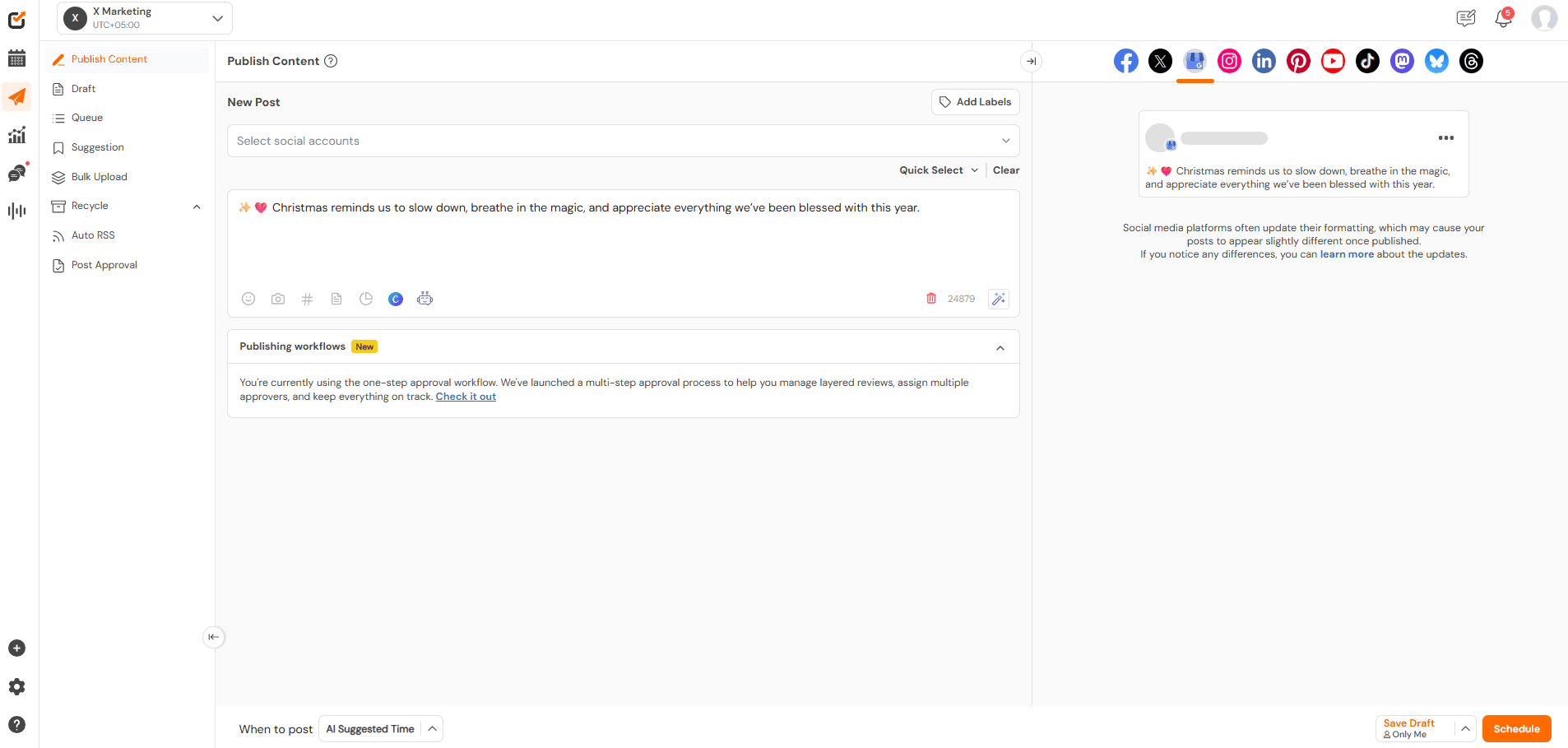
With Social Champ, you can schedule posts, monitor insights, and manage multiple Google Business accounts from one unified dashboard, and you don’t have to jump between profiles and guess what already went live.
I’ve watched teams cut their posting time in half once they stopped managing updates location by location.
You can consider Social Champ as your social media management software for small businesses, so your Google updates sit alongside your other channels.
That also keeps your messaging aligned without extra effort.
Review Results Without Overthinking
When you automate your Google Business Profile posts, it doesn’t mean you ignore performance.
A quick weekly check is essential.
Look at your clicks, calls, and direction requests. Notice which locations respond better to certain updates and then adjust next week’s posts.
Considering this habit, your Google Business Profile activity improves steadily instead of randomly.
Protect Your Brand Voice Across Locations
When many people post at once, tone tends to drift.
But when you automate, it keeps your language consistent, offers sound aligned, and updates feel familiar.
That consistency builds trust across all your Google Business Profiles, even as your business grows.
Quick Tip!
If you’re unsure what to post, check out a guide to Google Business Profile posts. It gives easy ideas for updates that engage customers.
How Long Can You Keep Doing This Manually?
Manual posting breaks as you grow. Social Champ helps you stay ahead as your locations increase.
Final Thoughts: Simplify Multi-Account Management With Automation
If there is one thing that you should remember from this guide, it’s this:
Trying to manage multiple Google My Business accounts without a clear plan makes everything harder than it needs to be.
I’ve seen this happen to many teams often. As a business grows, new locations open, and suddenly updates feel confusing and time-consuming.
As we’ve discussed about staying organized, keeping your business details the same, and building a posting routine that actually works.
So when you follow these steps, you won’t feel overwhelming while managing multiple locations on Google My Business.
With automation, you can stay in control, and you don’t have to log in all day or worry about missing updated.
Your growth feels exciting, not stressful, and the right setup makes that possible.