


Pinterest, the visual wonderland that captivates millions, boasts over 465 million active users worldwide. According to the platform, users spend an average of 16 minutes per visit pinning recipes, DIY crafts, travel aspirations, and more.
Pinterest also offers bloggers an exceptional opportunity to captivate audiences through eye-catching images, infographics, and curated content. Most avid Pinterest bloggers expertly schedule their pins with a powerful Pinterest scheduler to ensure they go out at optimal times.
Yet, for some, the time may come to part ways with their virtual pinboards. If you’re ready to bid farewell to your Pinterest journey and are wondering how to delete a Pinterest account, I’ll walk you through the process in a simple, step-by-step manner.
Let’s get right to it, shall we?
How to Delete a Pinterest Account on a Computer
With a few clicks, you can initiate the closure of your Pinterest profiles, bidding farewell to your pins, boards, and associated data. Navigating through the account settings provides an easy pathway to commence the account deletion or deactivation journey directly from your computer.
Here’s how to delete a Pinterest account on a computer:
- Login to Pinterest
Open your preferred web browser and visit the Pinterest website. Log in to your Pinterest account using your credentials (email/username and password).
- Access Settings

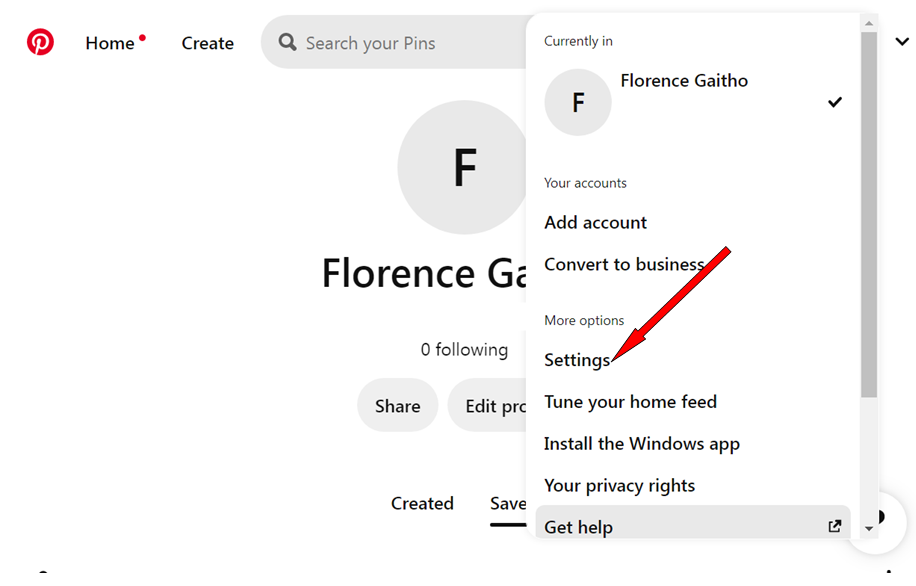
Click on the arrow next to your profile picture at the top-right corner of the screen to access the drop-down menu.
- Select “Settings” from the options available
 Delete Pinterest Account – Step
 - Access Account Settings
 Delete Pinterest Account – Step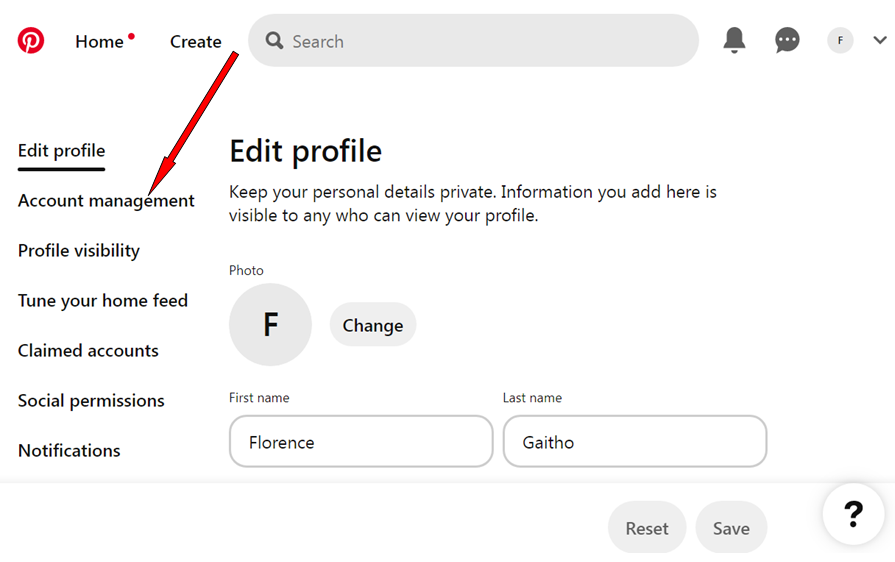
Within the Settings menu, choose “Account Management.”
- Deactivate/Delete Account
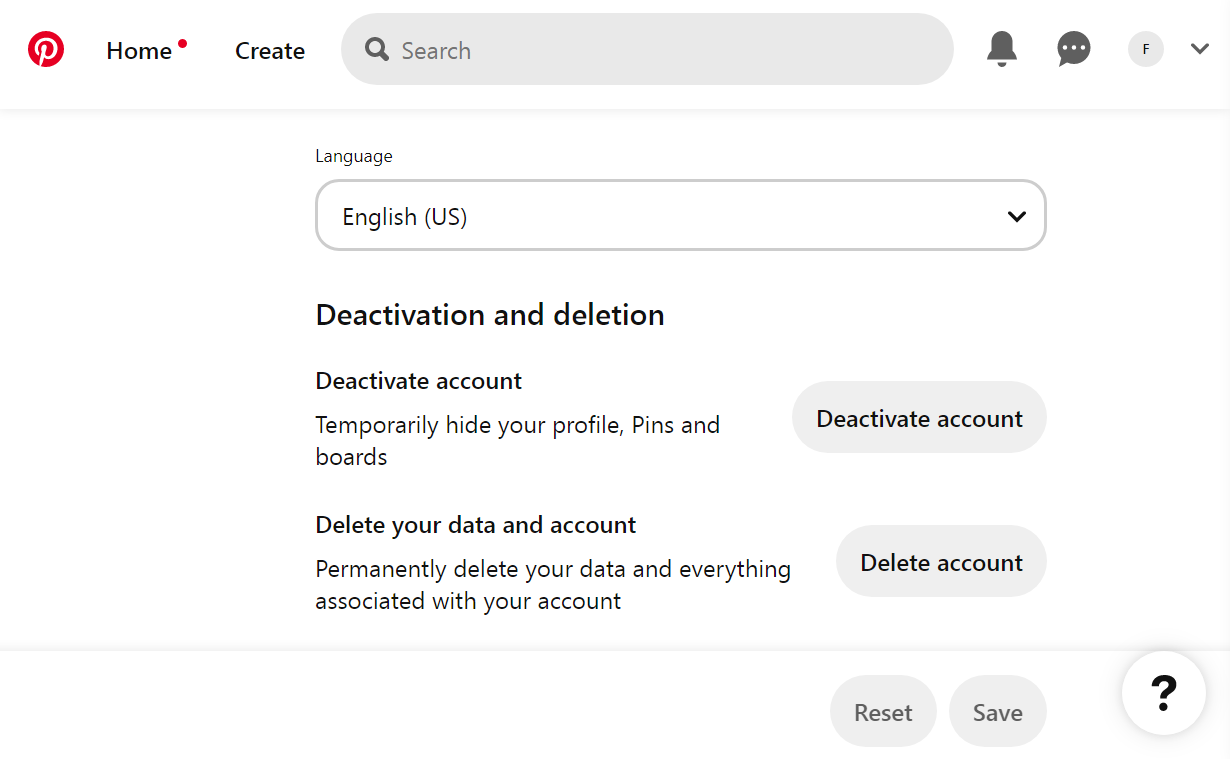
In the Account section, click on “Deactivate Account” or “Delete Account” near the bottom of the page.
- Confirmation and Reason
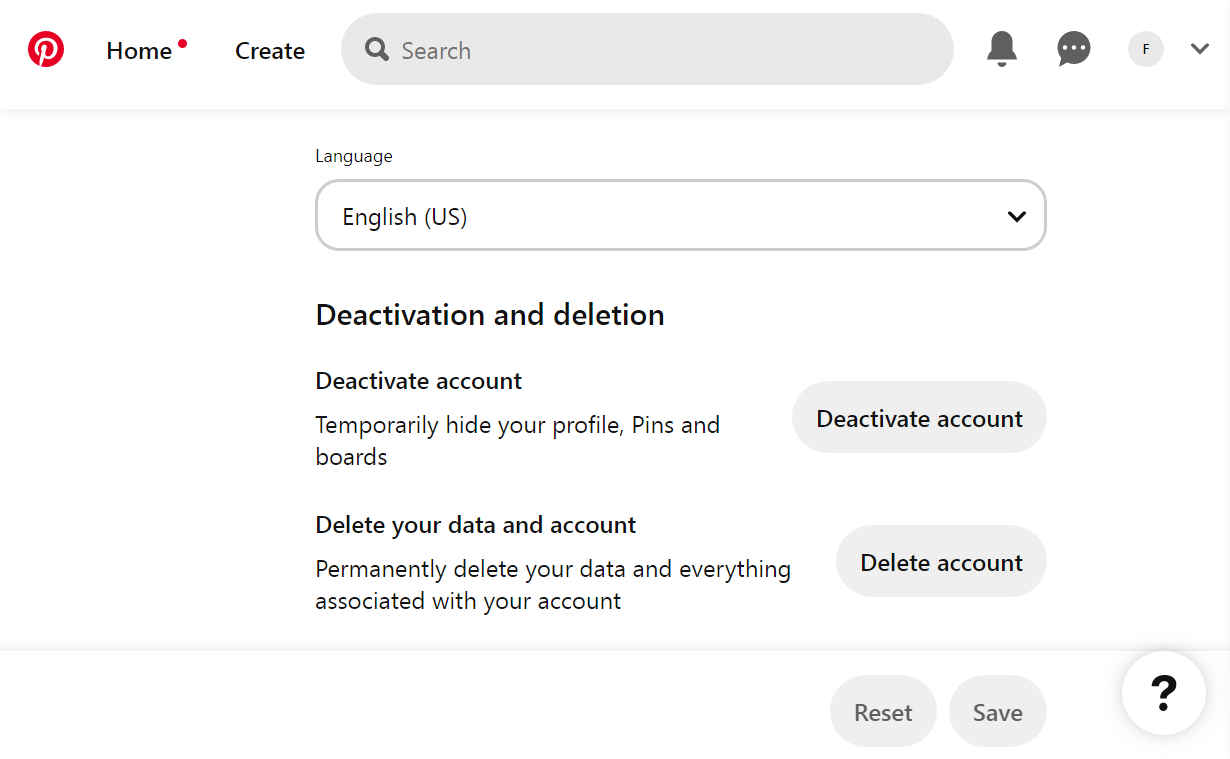
If you intend to deactivate your account, Pinterest will ask you to confirm your decision to deactivate the account. Click “Continue.”
If you intend to delete your account, Pinterest will provide information about permanent account deletion. Ensure this is what you want.
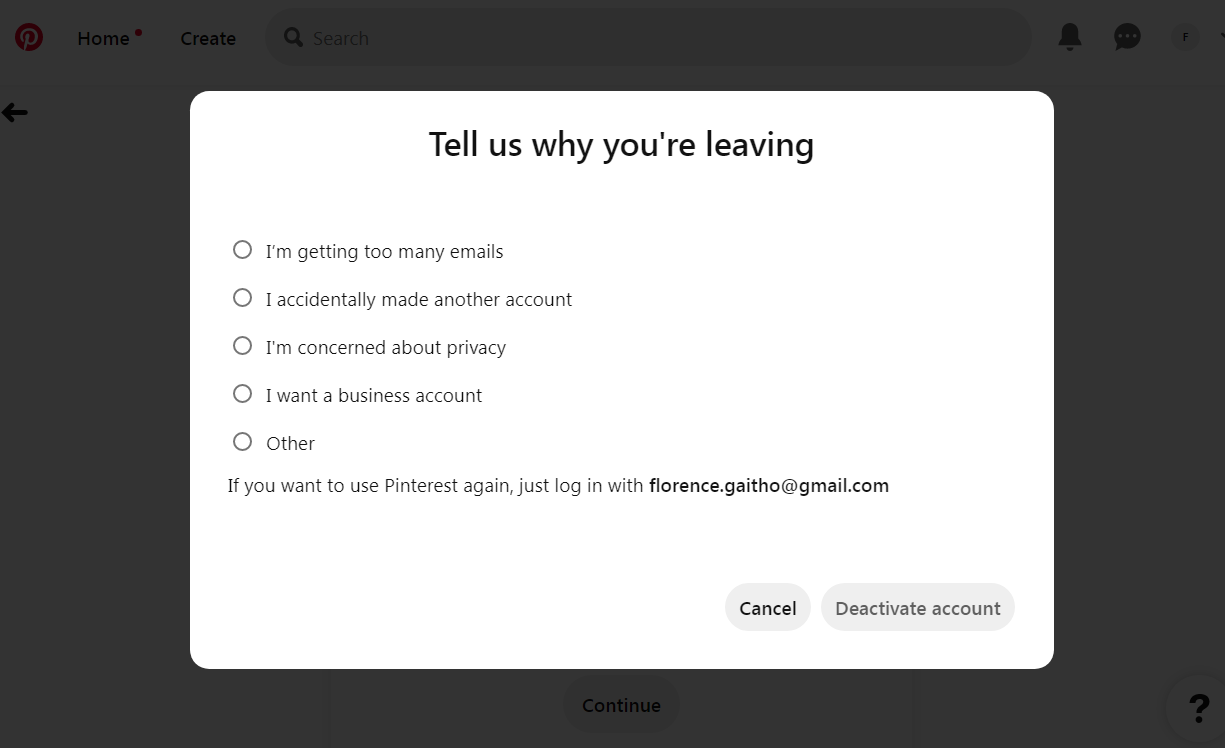
Select the reason for leaving Pinterest from the provided options.
Confirm your choice by entering your password. Click the “Deactivate account” or “Delete account” button to confirm and deactivate/delete your Pinterest account.
That’s how to delete a Pinterest account using a computer.
Please note, the steps might slightly vary based on Pinterest’s interface changes, but generally, these steps guide the process of deactivating or permanently deleting a Pinterest account from a computer.
Always ensure you are certain about deleting your account, as this action is irreversible and leads to the permanent loss of data associated with your Pinterest profile.
![How to Delete A Pinterest Account in [current_year]: A Step-By-Step Guide 10](https://www.socialchamp.io/wp-content/uploads/2024/07/Calendar-v2.png "How to Delete A Pinterest Account in [current_year]: A Step-By-Step Guide 11")
Optimize Your Social Strategy Today!
Streamline posting with Social Champ’s advanced scheduling feature. Take control, plan ahead, and elevate your social media presence now.
How to Delete a Pinterest Account on Mobile App
If you don’t have access to a computer, you’re probably wondering: how do I delete my Pinterest account? Don’t fret. Deleting or deactivating a Pinterest account on a mobile app is as easy (if not easier) as deleting it on a computer.
Here’s an outline for how to delete a Pinterest account or how to deactivate a Pinterest account using the mobile app:
- Open the Pinterest App
Launch the Pinterest app on your mobile device.
- Log in to Your Account
Enter your credentials (email/username and password) to log in to your Pinterest account.
- Access Profile Settings
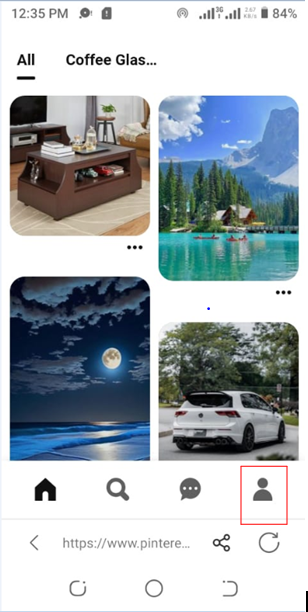
Tap on your profile icon located at the bottom-right or top-right corner of the screen to access your profile.
- Open Account Settings
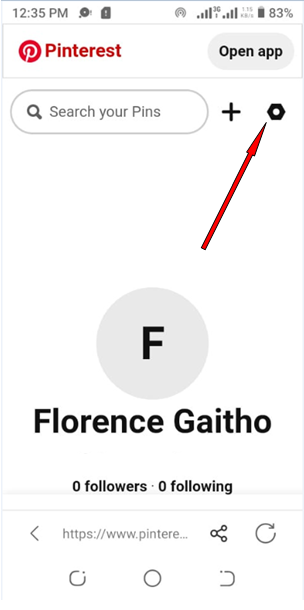
Look for the settings gear icon (it may vary based on app versions) within your profile.
Select “Account Settings.”
- Find Account Settings
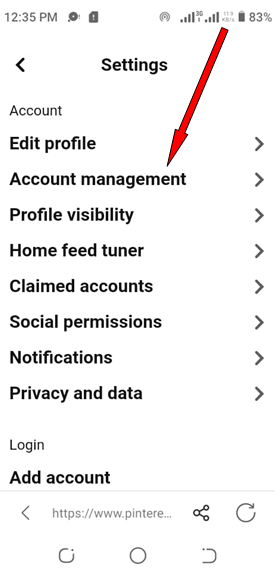
Scroll through the settings options to find and tap on “Account Management.”
- Deactivate/Delete Account
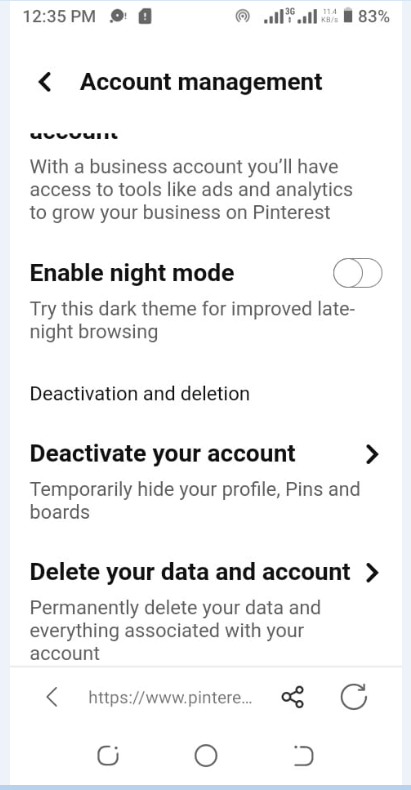
Locate and tap on “Deactivate Account” or “Delete Account” in the account settings, depending on what you want to do.
- Confirmation and Reason
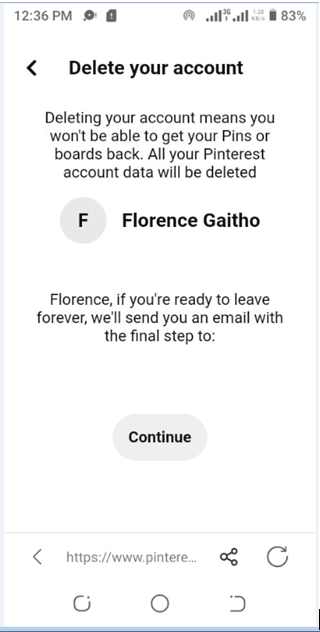
Pinterest will ask for confirmation to delete or deactivate your account. If you intend to delete your account, Pinterest will inform you about the permanent nature of account deletion and its consequences.
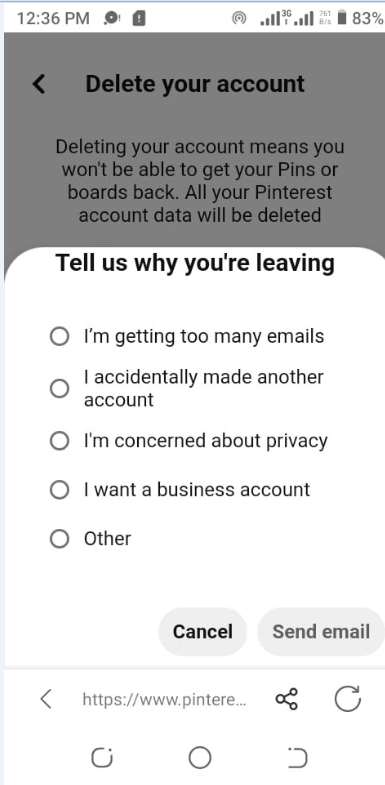
Choose a reason for leaving Pinterest from the provided options.
Confirm your decision by entering your password or following any additional prompts.
- Complete the Deletion or Deactivation
Tap on the “Deactivate Account” button to finalize the deletion or deactivation of your Pinterest account.
That’s how to delete a Pinterest account or how to deactivate a Pinterest account using a mobile app.
The steps I’ve provided above are general guidelines and may vary slightly based on updates to the Pinterest mobile app.
Related Article: How to Delete a Instagram Account
How to Recover a Deleted Pinterest Account
Recovering a deleted Pinterest account might seem challenging, but Pinterest offers a window of opportunity for account restoration.
If you’ve previously deleted your Pinterest account and wish to reclaim your boards, pins, and profile, here’s a step-by-step guide to assist you in potentially recovering your deleted Pinterest account.
- Visit Pinterest Help Center
Access the Pinterest Help Center through your web browser.
- Account Recovery Request
Navigate to the ‘Account Assistance’ or ‘Recover Account’ section. Click on the option to ‘Recover a Deleted Account.’
- Provide Account Details
Enter your previous account information, such as the email address or username associated with the deleted account.
- Follow Guidance
Follow the prompts and instructions provided by Pinterest’s account recovery process. It may involve filling out forms or providing additional information to verify ownership of the deleted account.
- Submit Request
Complete the account recovery form with accurate details. Submit the request to Pinterest for account recovery.
- Check for Communication
Keep an eye on your email inbox associated with the deleted account. Pinterest may communicate with instructions or further steps required to recover your account.
- Follow Pinterest’s Instructions
If Pinterest responds with instructions, carefully follow the provided steps or guidance to reclaim your deleted account.
Please note that while Pinterest does offer an account recovery process, success in restoring a deleted account may vary and is subject to Pinterest’s terms of service.
Additionally, the availability of account recovery options might change based on Pinterest’s policies or updates.
Unlock Pinterest Insights Now!
Harness the power of data with Social Champ’s advanced analytics for Pinterest. Gain deeper insights, refine your strategy, and drive success.
What Happens When You Delete Your Pinterest Account?
Despite the immediate deactivation of your profile, Pinterest retains your account in an inactive state for 14 days post-deletion. During this grace period, there’s a chance to reconsider.
When you log in with your previous username and password, Pinterest can reinstate your account within this timeframe. However, after this 14-day window, there are several repercussions that occur.
Here are the consequences that await you once you delete your Pinterest account:
-
Irreversible Action
Account deletion is irreversible. Once the process is completed, you cannot recover the deleted account, boards, or any associated data. Pinterest does not retain this information after deletion.
-
Loss of Data
Pinterest might retain some information in backup systems for a limited period following account deletion. However, this data is not accessible and will be permanently deleted within a specific timeframe.
Deletion results in the permanent removal of your Pinterest profile, boards, pins, and associated data. This includes all saved pins, boards, followers, and personal information tied to your account.
-
Inaccessibility
Once the account deletion process is completed, you’ll lose access to your account immediately. You won’t be able to log in or retrieve any information from the deleted account.
-
Removal from Pinterest
Your profile, pins, and any shared content will disappear from Pinterest. This includes comments, likes, and any activity associated with your account.
-
Disconnecting from Third-Party Apps
Any third-party applications or websites linked to your Pinterest account will no longer have access or connectivity once your account is deleted.
-
Email Notifications and Alerts
Pinterest will stop sending email notifications or alerts related to your deleted account. You won’t receive updates or emails associated with the account.
-
Impact on Shared Content
If you’ve shared content (such as pins, boards, or comments) with others, all that content will also disappear once your account is deleted, impacting the visibility or accessibility of shared information.
If you’re managing a business Pinterest account, the repercussions extend further. If you’ve engaged in advertising campaigns, the final closure of your business account requires contacting the Pinterest team for assistance.
Notably, all outstanding payments for ongoing or past advertising campaigns must be settled before initiating the account closure process. Failure to clear these dues may impede the closure process.
Remember that deleting your account isn’t just about clicking buttons; it’s a decision. As such, it’s crucial to ensure that you are certain about deleting your account, as this action cannot be undone, and the data associated with the account is irretrievable after deletion.
Related Article: How to Delete a LinkedIn Account in 5 Simple Steps
Conclusion
Deleting your account is a significant decision, and if you’ve followed the steps I’ve provided for how to delete a Pinterest account, your journey on this vibrant platform has reached its end. Deleting your Pinterest account closes one chapter, but it opens opportunities for new discoveries and fresh adventures in the vast landscape of the internet. Choose wisely, explore responsibly, and let every online step reflect the unique journey that is yours to craft.
And if you’ve recently deleted a Pinterest account you managed through Social Champ, fret not! Fortunately, this social media management platform offers a versatile suite of management tools beyond Pinterest. With its user-friendly interface and comprehensive scheduling, analytics, and engagement features, this handy tool empowers you to efficiently handle multiple platforms like Facebook, Twitter, Instagram, LinkedIn, and more.
Frequently Asked Questions
1. Can you delete a Pinterest account?
2. Is it easy to delete Pinterest?
3. What should I do before I delete my Pinterest account?
4. What are the alternatives to deleting my Pinterest account?
5. What are the alternatives to deleting my Pinterest account?



1 comment
Edward Martinez
The step-by-step instructions made deleting my Pinterest account so much easier. Thanks for this!