
Ever noticed how creators like Chris Do or Jasmine Star post carousel slides that rack up thousands of saves… while yours barely cross 12 likes and maybe a pity comment from a coworker?
I’ve been there too, and it’s frustrating because it feels like a design problem. But it’s not. Most carousel slides don’t fail because they look bad. They fail because there’s no plan behind them.
Short Summary
- Great carousel slides start with strategy, not design. Plan your narrative before opening the design tools.
- Instagram rewards visual-first, punchy slides; LinkedIn rewards text-forward, insight-driven ones.
- Use 7–10 slides for Instagram and 10–15 for LinkedIn as your default sweet spots.
- Follow the 5-stage framework, Hook, Context, Value, Proof, CTA, for every carousel you create.
- Write all your copy in plain text first; if it doesn’t flow without design, it won’t flow with it.
You jump into Canva, pick a template, and start dragging text boxes without any hook strategy or slide flow. And that’s where things break.
According to Socialinsider, carousels outperform every other format in engagement. So the format isn’t the issue. The planning is.
In this guide, I’ll walk you through:
- A clear slide-by-slide framework
- How Instagram and LinkedIn carousel slides actually differ
- What to focus on in copy, color, and layout
- And a few ready-to-use templates you can apply right away
Let’s get into it.
At a Glance: Planning Carousel Slides in 2026
To rank in 2026, your carousel strategy must prioritize completion rate over slide count.
- Instagram Sweet Spot: 5–8 slides (High visual impact, low fluff).
- LinkedIn Sweet Spot: 8–12 slides (Deep-dive frameworks).
- Key 2026 Trend: Mix static slides with 3-second looping videos to increase “Time on Post” and signal quality to the algorithm.
- Accessibility: Always include Alt-Text for every slide to improve SEO and reach users with screen readers.
What Makes Carousel Slides Work (And Why Most Don’t)
What I see constantly is that someone posts a carousel with great tips, solid design, and decent copy. But it still tanks. Why?
Because the slides weren’t built to match how people actually swipe.
Still Posting Carousels Without a Plan?
Swipe Psychology and Platform Behavior
Think of slide 1 as a bouncer. If it doesn’t stop the scroll, nobody’s getting inside. But what most people miss is that every swipe after that is a micro-commitment. Your reader is investing more attention with each slide, and the algorithm notices.
Completion rate, like how many people reach your last slide, is a ranking signal on both Instagram and LinkedIn.
Carousel slides that are swiped all the way through signal to the platform that this content is worth showing to more people.
That’s why your slides need to work as a connected sequence, not isolated graphics stitched together in Canva.
Where Most People Go Wrong
- Front-loading all the value on slide 1, which kills every reason to swipe
- Treating Instagram carousel slides and LinkedIn carousel slides the same way, despite completely different user intent
- No narrative thread pulls readers from one slide to the next
Your carousel isn’t a gallery. It’s a story with a swipe mechanic.
DID YOU KNOW?
Carousels consistently generate the highest average engagement rate among all formats, outperforming both single images and Reels. The more slides people swipe through, the stronger the signal to the algorithm that your content is worth pushing.
Instagram vs LinkedIn: How Carousel Strategy Actually Differs
Here’s a mistake I see agencies and creators make all the time: they design one carousel, post it on both Instagram and LinkedIn, and expect the same results.
It doesn’t work that way.
Carousel slides on both platforms serve fundamentally different audiences with different expectations. What gets saved on Instagram often gets scrolled past on LinkedIn and vice versa.

Before you plan a single slide, you need to understand who’s swiping and why.
Side-By-Side Platform Comparison
| Factor | Instagram Carousels | LinkedIn Carousels |
|---|---|---|
| Format | In-feed image/video slides (up to 20) | Native carousel post (preferred) or PDF document upload |
| Audience mindset | Entertainment, inspiration, quick value | Professional growth, frameworks, insights |
| Tone | Casual, visual-led, punchy | Conversational-professional, text-heavy |
| Best content types | Tips, tutorials, storytelling, before/after | Frameworks, data breakdowns, case studies, POVs |
| CTA style | “Save this,” “Share with a friend” | “Repost if useful,” “Comment your take” |
| Design weight | High, aesthetics matter a lot | Moderate, clarity matters more than polish |
Note for 2026:
While the PDF upload method is still a great way to share documents, LinkedIn’s Native Carousel tool now prioritizes mobile-first viewing. When planning LinkedIn carousel slides, ensure your most important text is in the “Safe Zone” (the center 80%) to avoid being covered by the platform’s native UI overlays like the “Swipe” indicator or the “Follow” button.
See the pattern? Instagram rewards how it looks. LinkedIn rewards what it says.
What Most People Get Wrong
- Repurposing the exact same carousel across both platforms without adapting tone, format, or CTA
- Using heavy design on LinkedIn, where clean, text-forward layouts win
- Packing Instagram slides with dense paragraphs, where visual hierarchy drives engagement
You can absolutely repurpose the idea across platforms. But the execution? That needs to be platform-native every time.
WATCH OUT
A carousel that performs on Instagram won’t automatically work on LinkedIn. Same topic, different slide structure, different tone, different CTA. Plan each version separately, or you’ll underperform on both.
How Many Slides Should You Actually Use?
“How many slides for an Instagram carousel?”
I’ve seen this question asked everywhere. And the answer everyone gives is frustratingly vague: it depends.
But let me actually break it down so you can stop guessing.
Instagram Carousel Slide Count
Instagram now allows up to 20 slides per carousel, up from the original 10. But more slides don’t mean better carousels.
- 7–10 slides: The sweet spot for educational and tip-based content
- 3–5 slides: Ideal for storytelling, product showcases, or visual narratives
- Beyond 10: Only if every single slide earns its place
Ask yourself honestly: Does slide 14 add something new, or are you just padding?
WHAT WORKS
On Instagram, 8–10 carousel slides consistently achieve the highest save and completion rates. Shorter carousels (3–5) work best for storytelling or emotional content where each slide carries serious visual weight.
LinkedIn Carousel Slide Count
How many slides can a LinkedIn carousel have? Technically, there’s no strict cap since you’re uploading a PDF. Practically, 20–30 slides is the upper limit before attention drops.
- 10–15 slides: Best for frameworks and detailed breakdowns
- 6–8 slides: Perfect for hot takes or opinion-led carousels
LinkedIn audiences will swipe longer, but only if value density stays high. The moment you repeat yourself, they’re gone.
WATCH OUT
More slides ≠ more engagement. The moment a reader hits a filler slide, one that doesn’t add new value, they drop off. On both platforms, every slide must justify its existence.
The Slide-By-Slide Carousel Framework (Hook → CTA)
This is the section that changes everything. Seriously.
I’ve reviewed hundreds of carousel slides across both platforms, and the ones that consistently perform follow the same underlying structure, whether the creator realizes it or not.
Instead of guessing what goes on each slide, use this 5-stage framework. It works for Instagram carousel slides, LinkedIn carousel slides, educational content, storytelling, all of it.
The 5-Stage Carousel Framework
Every high-performing carousel, no matter if it’s a 5-slide Instagram story or a 15-slide LinkedIn breakdown, follows this same underlying structure. Here’s what each stage does and why it matters.
Stage 1: Hook Slide (Slide 1)
Your first slide is the bouncer. If it doesn’t stop the scroll, the other nine slides don’t exist.
- What works: Bold claim, relatable problem, surprising stat, provocative question
- What fails: Vague titles like “5 Tips for Marketing,” which invoke zero curiosity and zero tension
- Design note: Minimal text, maximum contrast, clear visual hierarchy, this isn’t the slide for paragraphs.
Think about it, when you’re scrolling, what makes you pause? Usually something that feels personally relevant or slightly unexpected. That’s what slide 1 needs to deliver.
Stage 2: Context Slide (Slide 2–3)
Most creators skip this and jump straight into tips. That’s a mistake.
Context slides frame why the reader should care. Something like “here’s what most people get wrong” or “here’s why this matters right now” gives your value slides a reason to exist.
Without context, your tips feel random. With it, they feel essential.
Stage 3: Value Slides (Slides 3–7 or 3–12)
This is where you deliver the actual insight, framework, tips, or story. Make sure to provide:
- No clear idea per slide. Not two. Not three. One.
- Progressive depth, each slide should build on the previous one
- Visual consistency, same layout structure, same font hierarchy, same spacing
What kills carousels here? Cramming multiple points onto one slide, breaking the visual pattern, or having no logical flow between slides. If a reader can rearrange your value slides in any order and it still makes sense, your sequence is broken.
2026 Pro Tip: The Hybrid Slide
Don’t stick strictly to static images. To maximize the “dwell time” (how long someone stays on your post), try the Hybrid Method:
- Slide 1: Static Hook.
- Slide 2: 3-second looping video or “Cinemagraph” showing a process.
- Slide 3-5: Static Value.
Mixing media types keeps the thumb engaged and signals to the Instagram and LinkedIn algorithms that your content is high-effort and high-retention.
Stage 4: Proof Slide (Slide 7–9 or near-end)
Here’s what separates carousels that get saved from ones that get swiped past and forgotten: proof.
Data, results, screenshots, before/after comparisons, testimonials. Anything that says “this actually works” instead of “trust me.”
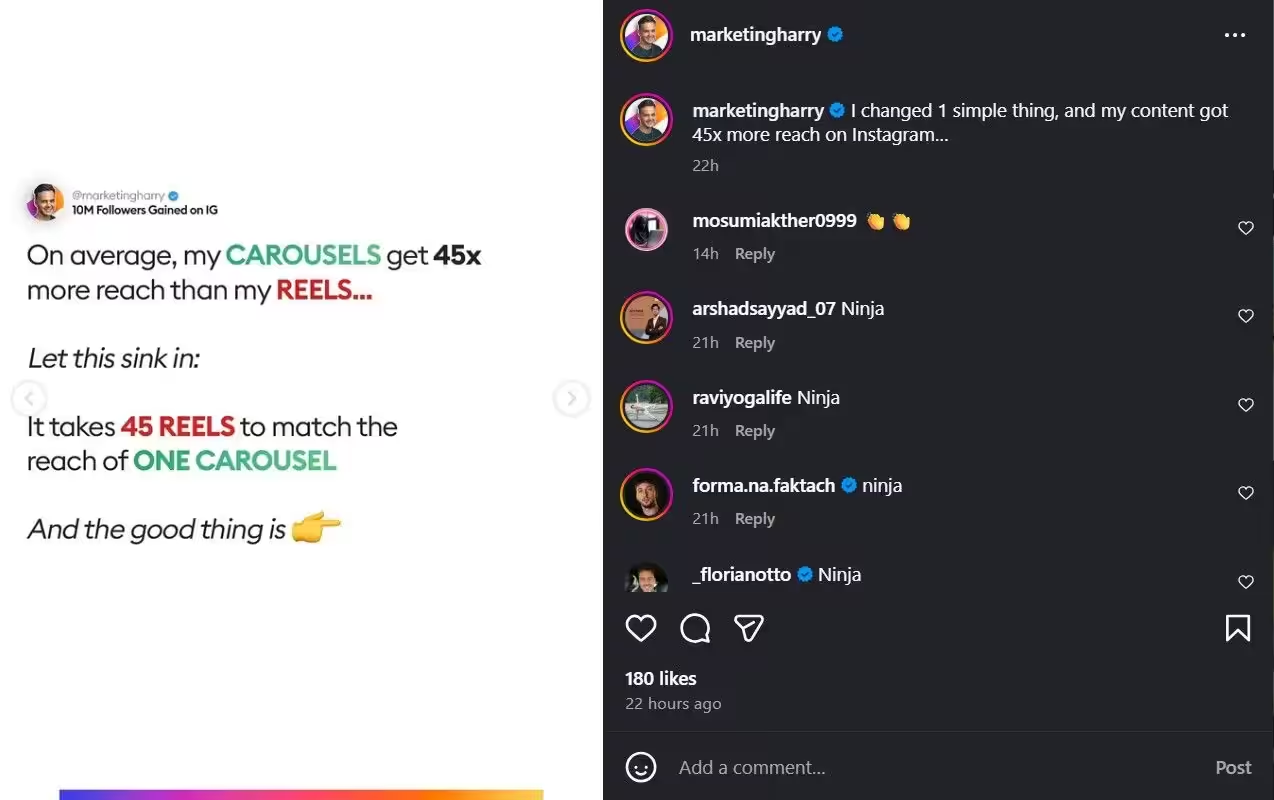
Most creators skip this entirely. Don’t. Even one proof slide dramatically increases credibility, especially on LinkedIn, where your audience is trained to question claims.
Note: This stage is optional for shorter carousels but powerful when included.
Stage 5: CTA Slide (Final Slide)
You’ve earned their attention through every swipe. Now tell them exactly what to do with it.
- What works: One clear CTA, save, share, comment, follow, or visit link
- What fails: Multiple CTAs competing for attention, or the classic “follow for more” that gives nobody a compelling reason to act

The best CTA slides feel like a natural conclusion rather than a sales pitch.
Carousel Framework: Quick Reference
- Slide 1 → Hook (stop the scroll)
- Slide 2–3 → Context (frame the problem)
- Slide 3–7+ → Value (deliver the goods)
- Slide 8–9 → Proof (build credibility)
- Final Slide → CTA (drive action)
PRO TIP
Write your carousel copy before you design anything. Open a notes app, not Canva. If the narrative doesn’t flow in plain text, it won’t flow in slides. Design amplifies good structure; it can never fix bad structure.
Copy + Design: What Actually Drives Carousel Engagement
Here’s something most people treat as two separate conversations: copy and design. But on carousel slides, they’re inseparable.
Your words decide what people read. Your design decides whether they read it.
I’ve seen carousels with brilliant copy buried under cluttered layouts. And gorgeous slides with copy so vague nobody swipes past slide two. Neither works alone.
Copywriting Principles for Carousel Slides
Forget everything you know about long-form writing. Carousel copy plays by different rules.
- Headline-first writing: Every slide leads with the boldest, clearest line. Supporting text goes underneath, if it’s even needed
- One idea per slide: If you need a second sentence to explain your point, your first sentence isn’t clear enough
- Conversational over clever: Write like you’re explaining something to a smart friend over coffee, not crafting ad copy
- Transitions are everything: The last line of each slide should create a reason to swipe. Open loops, partial reveals, “but here’s the catch…,” these are your swipe triggers
Ever read a carousel where each slide felt complete on its own? No pull to keep going? That’s a transition problem.
Visual Design Principles That Support Readability
Design for carousel slides isn’t about making things pretty. It’s about making things readable at scroll speed.
- Consistent layout grid: Use 2–3 layout templates max within a single carousel. Switching layouts every slide feels chaotic
- Font hierarchy: One bold heading font + one clean body font. Never more than two. Ever
- Color restraint: Stick to 2–3 colors per carousel, brand color + neutral + one accent
- White space is not wasted space: Crowded slides get skipped. Give your text room to breathe
If someone squints at your slide for more than two seconds, trying to figure out where to look first, you’ve lost them.
Designing for Everyone: 2026 Accessibility Standards
In 2026, search engines and social algorithms prioritize content that is accessible to all users. A “pretty” carousel that can’t be read by a screen reader will rank lower.
- Color Contrast: Use a contrast ratio of at least 4.5 :1 for text and background to ensure readability for visually impaired users.
- The Alt-Text Rule: When scheduling in Social Champ, use the image description feature to add descriptive Alt-Text for every single slide. This doesn’t just help accessibility; it helps the platform’s AI “read” your content and show it to the right audience.
- Legible Fonts: Avoid “handwritten” or script fonts for your main value. Use clean sans-serif fonts at a minimum size of 32pt for mobile optimization.
Recommended Color Palette Structures
Not sure which colors to use? Here are three tried-and-tested palette structures you can apply to your next carousel. Pick the one that matches your platform and brand tone.
Palette A: Clean and Professional (LinkedIn-Friendly)
- Background: #FFFFFF (white) or #F5F5F5 (light gray)
- Primary Text: #1A1A2E (deep navy)
- Accent: #4A6CF7 (indigo blue)
Palette B: Bold and Scroll-Stopping (Instagram-Friendly)
- Background: #1A1A2E (deep navy) or #000000 (black)
- Primary Text: #FFFFFF (white)
- Accent: #FF6B35 (vibrant orange) or #00C9A7 (teal)
Palette C: Warm and Approachable (Both Platforms)
- Background: #FFF9F0 (warm cream)
- Primary Text: #2D2D2D (charcoal)
- Accent: #E07A5F (terracotta) or #81B29A (sage green)
AVOID THIS
Don’t use more than 3 colors in a single carousel. Don’t change background colors slide-to-slide unless it’s an intentional design choice like signaling a section shift. Inconsistent color = visual noise = drop-offs.
Carousel Planning Workflow + Ready-To-Use Templates
Strategy without execution is just a nice idea. This is where everything comes together: a repeatable workflow you can follow every time, plus four templates you can steal and start using today.
Design Your Carousel Slides With Ease!
The 5-Step Carousel Planning Workflow
Here’s the process I recommend, and the order matters:
- Start with the CTA: Decide what you want the reader to do before you write a single slide. Save? Comment? Visit a link? This decision shapes everything
- Write the hook and CTA slide first: These two slides frame the entire carousel. If your opening and closing don’t connect, the middle won’t matter
- Draft all copy in a text doc: No design tools yet. Just narrative flow. Plain text. If it reads well here, it’ll work in slides
- Map slides to the 5-stage framework: Assign each piece of copy to Hook / Context / Value / Proof / CTA
- Design last: Apply layout, color, and typography only after the copy and structure are locked
A note for teams and agencies:
If you’re managing carousels at scale, multiple clients, and weekly content, then you need to batch by stage, not by post. Write all hooks in one session, all CTAs in another. Use a shared template, so copywriters and designers stay aligned without endless back-and-forth.
That workflow handles the strategy. But what about the execution side, writing captions, designing slides, and scheduling posts without switching five different tabs?
That’s where a tool like Social Champ fits in.
Plan and Organize Your Carousel Content in One Place
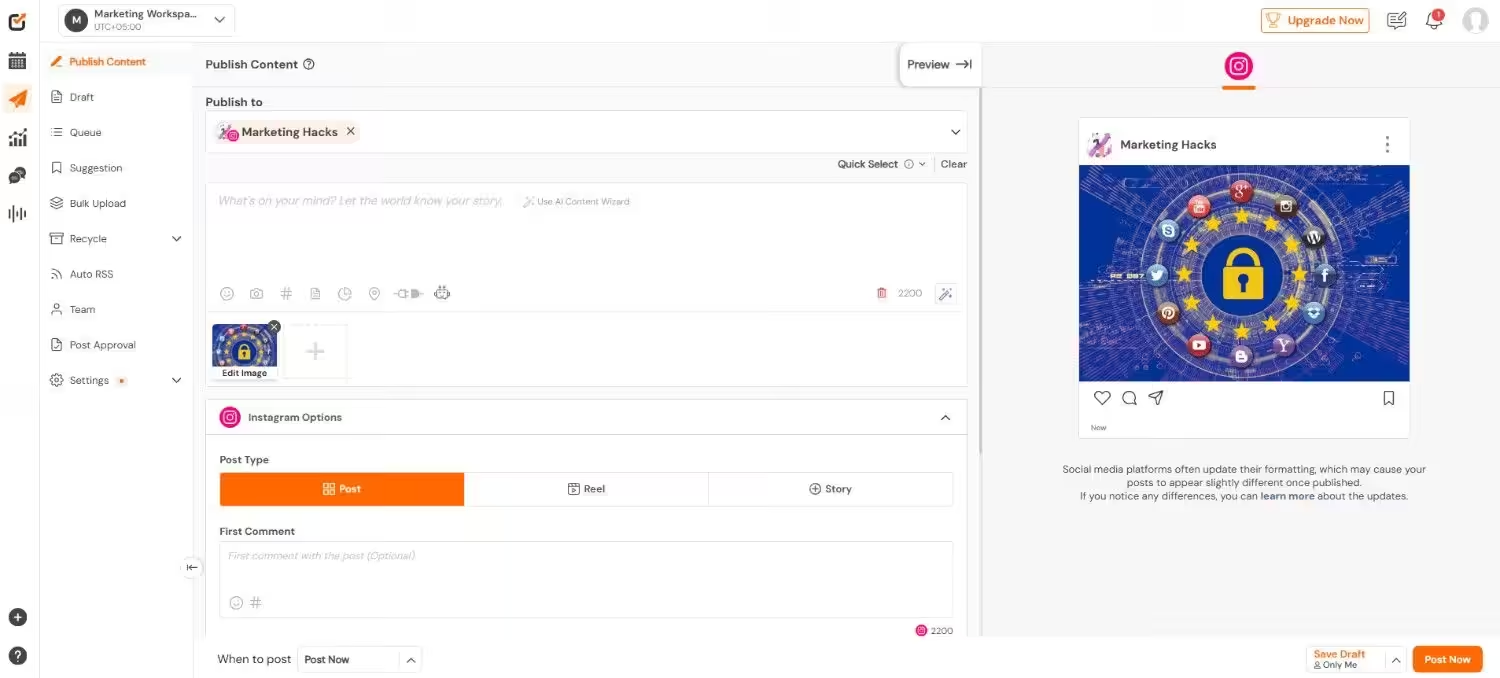
The biggest time killer for social media managers is switching between tools. Strategy doc here, design tool there, scheduling platform somewhere else.
Social Champ brings that together with a content calendar that lets you plan your carousel slides.
You can map out your Instagram and LinkedIn carousels for the week, assign them to team members, and track what’s scheduled versus what’s still in draft, all from one dashboard.
Design Carousel Slides Without Leaving the Dashboard
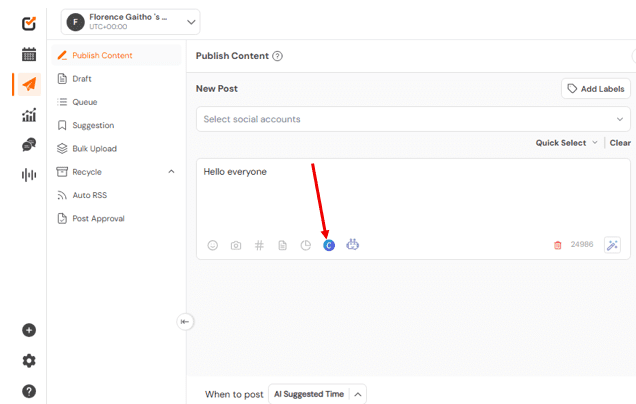
Social Champ has a built-in Canva integration.
That means you can design your carousel slides directly inside the platform. No exporting from Canva, downloading files, re-uploading them, and hoping the dimensions are right. You create, you preview, you schedule, all without leaving the dashboard.
Write Captions and Generate Visuals With AI
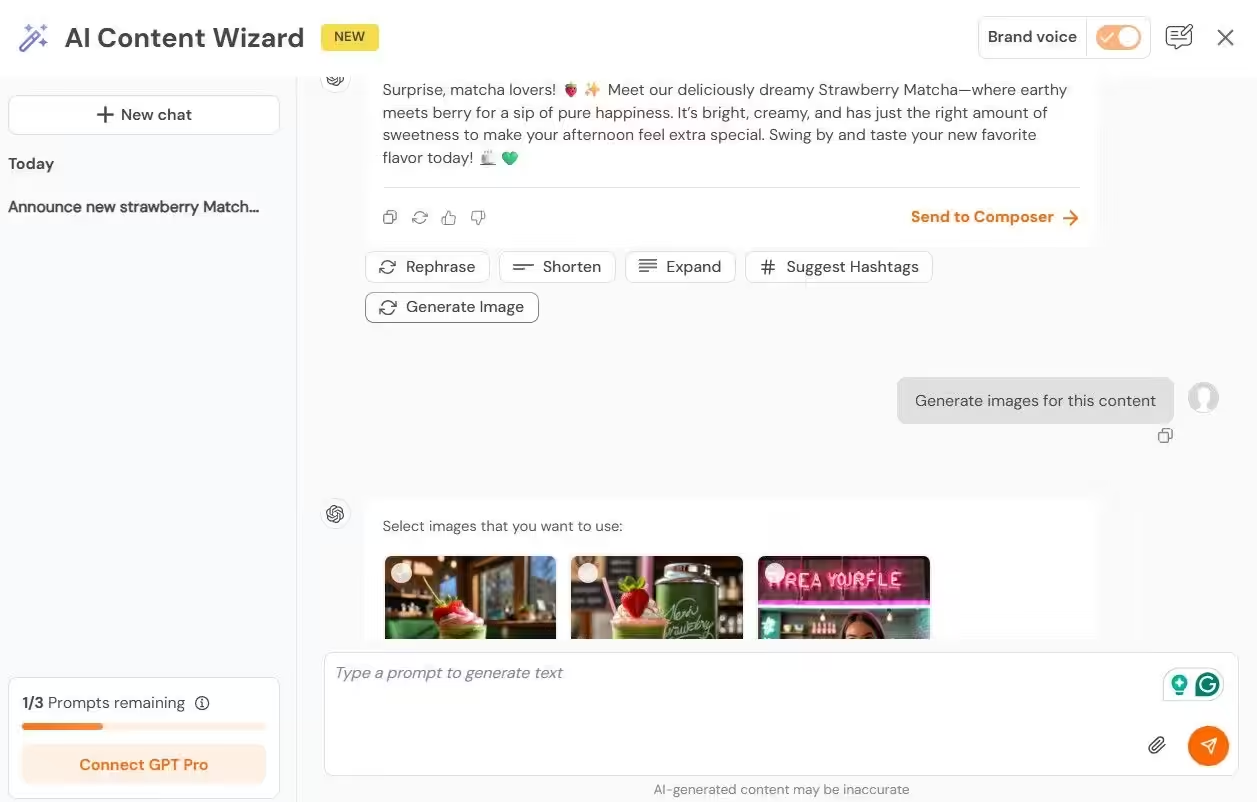

Staring at a blank caption box after spending an hour on carousel slides? That’s the creative burnout moment nobody talks about.
Social Champ’s AI Content Wizard handles that. It can generate captions tailored to your carousel topic, complete with relevant hooks, hashtags, and CTAs, so you don’t have to start from scratch every time.
And if you need a supporting visual for your post, the AI Imaginator lets you create visuals without switching to yet another tool.
Schedule and Publish Carousels Across Platforms
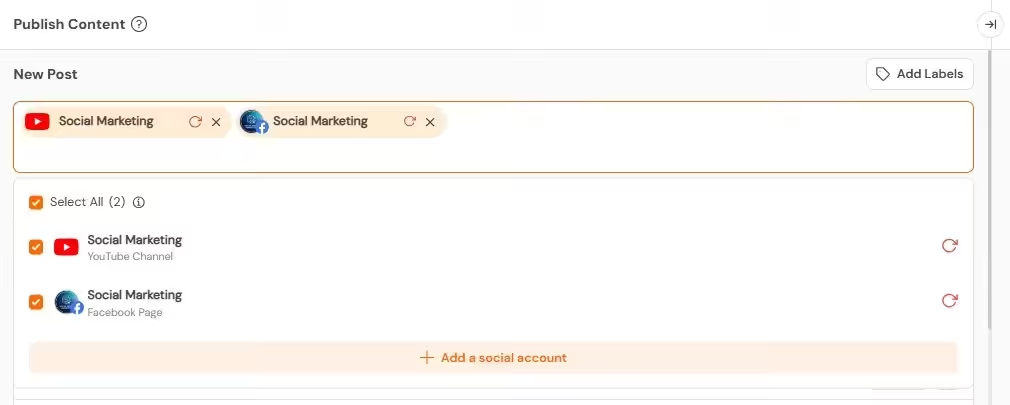
You’ve planned the carousel. Written the copy. Designed the slides. Now what? Manually post each one at a different time on each platform?
Social Champ lets you schedule carousel posts for both Instagram and LinkedIn in advance. Set the date, set the time, and move on to the next piece of content.
You can also use its features, such as:
- Best Time to Post, which suggests optimal posting times based on when your audience is actually online.
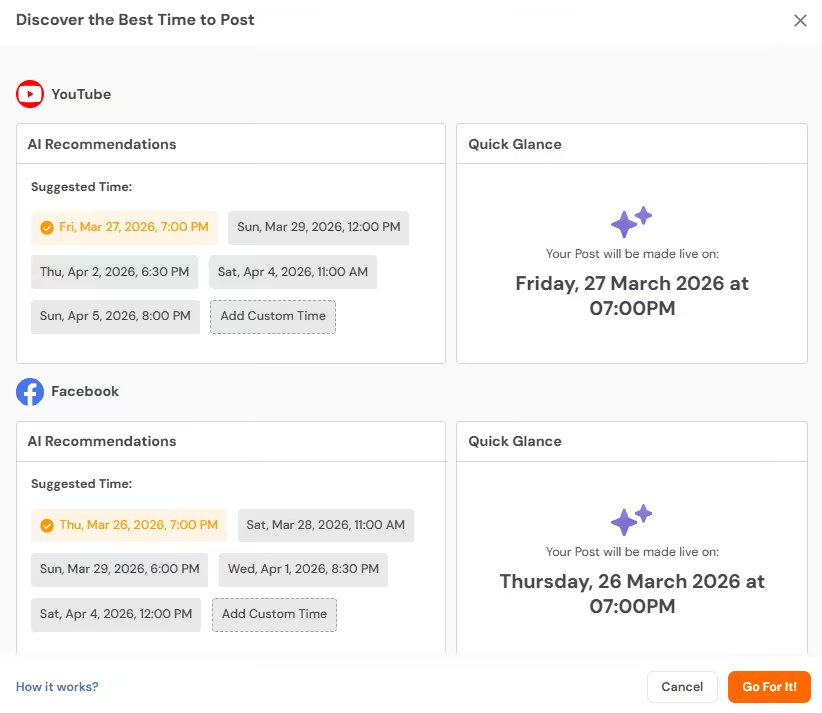
Social Champ’s Best Time to Post Feature - Auto RSS, which automatically queues content from selected sources to keep your feed active.

Social Champ’s Auto RSS Feature - Bulk scheduling to upload and schedule multiple carousels at once, which is perfect for agencies managing weekly content calendars
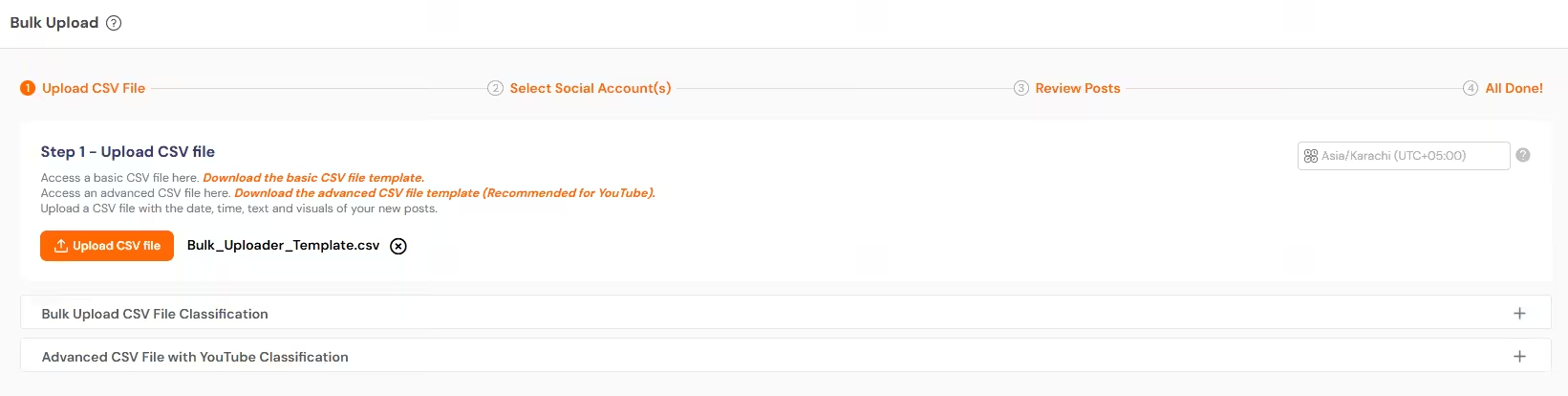
Social Champ’s Bulk Upload
The point isn’t to automate your creativity. It’s to automate everything around your creativity, so you spend more time on strategy and less time on manual posting.
Stop Missing High-Performers!
4 Ready-To-Use Carousel Templates
Stop staring at blank slides. These four templates follow the exact framework we’ve covered, each one with a slide-by-slide breakdown you can copy into a spreadsheet and start filling in immediately.
Template 1: Instagram: “Myth vs. Reality” (8 Slides)
Use case: Debunking misconceptions in your niche works for any industry.
Template 2: Instagram: “Step-By-Step How-To” (10 Slides)
Use case: Teaching a process or tutorial, perfect for educational creators and service businesses.
Template 3: LinkedIn: “Framework Breakdown” (12 Slides)
Use case: Sharing an original framework, model, or strategic process, ideal for thought leaders and consultants.
Template 4: LinkedIn: “Contrarian Take / Hot Take” (7 Slides)
Use case: Sharing a strong opinion or unique perspective that sparks discussion, great for personal brands.
Don’t Let Your Best Carousel Ideas Go to Waste!
Wrapping It Up
Here’s the truth: great carousel slides don’t start in Canva. They start with a plan.
By focusing on visual storytelling and engagement rate optimization, you aren’t just making “slides,” you are building a social media retention engine.
The creators who win are those who master platform-native content that feels organic to the user’s feed while providing undeniable value.
You now have the framework, a 5-stage slide structure, platform-specific strategies for Instagram and LinkedIn, copy and design principles that actually drive engagement, and four templates you can use today.
The creators and agencies winning with carousels aren’t more talented. They’re more intentional. They plan before they design. They write before they drag text boxes. They treat every slide like it has a job to do.
You’ve got the playbook. Now go build carousel slides that people can’t stop swiping.