Doesn’t it feel nice when a YouTuber creates an entire playlist of a series that you’re interested in?
It saves so much time for the viewer and also increases engagement on all the videos in the series.
This is why you must create playlists on your YouTube channel. Think of a YouTube playlist as your channel’s personal tour guide.
Short Summary
- YouTube playlists help viewers binge content easily while boosting engagement and watch time across your videos.
- A playlist acts like a guided tour, leading viewers from one video to the next instead of leaving them to browse randomly.
- Optimized playlists use keyword-rich titles, detailed descriptions, series settings, and strong “hook” videos at the start.
- Instead of deleting old playlists, archiving them often preserves analytics and avoids losing search value.
- Avoid common mistakes like mixing unrelated videos, weak thumbnails, poor ordering, or broken links.
Instead of leaving your viewers to wander around aimlessly, a playlist takes them by the hand and takes them to your next video.
It’s basically a curated collection of videos that play in order, and honestly, it’s one of the most underrated tools for any creator.
In this blog, I’ll tell you how to make a playlist on YouTube and how a YouTuber scheduler can be perfect to keep a consistent posting schedule, so sit tight and read it till the end!
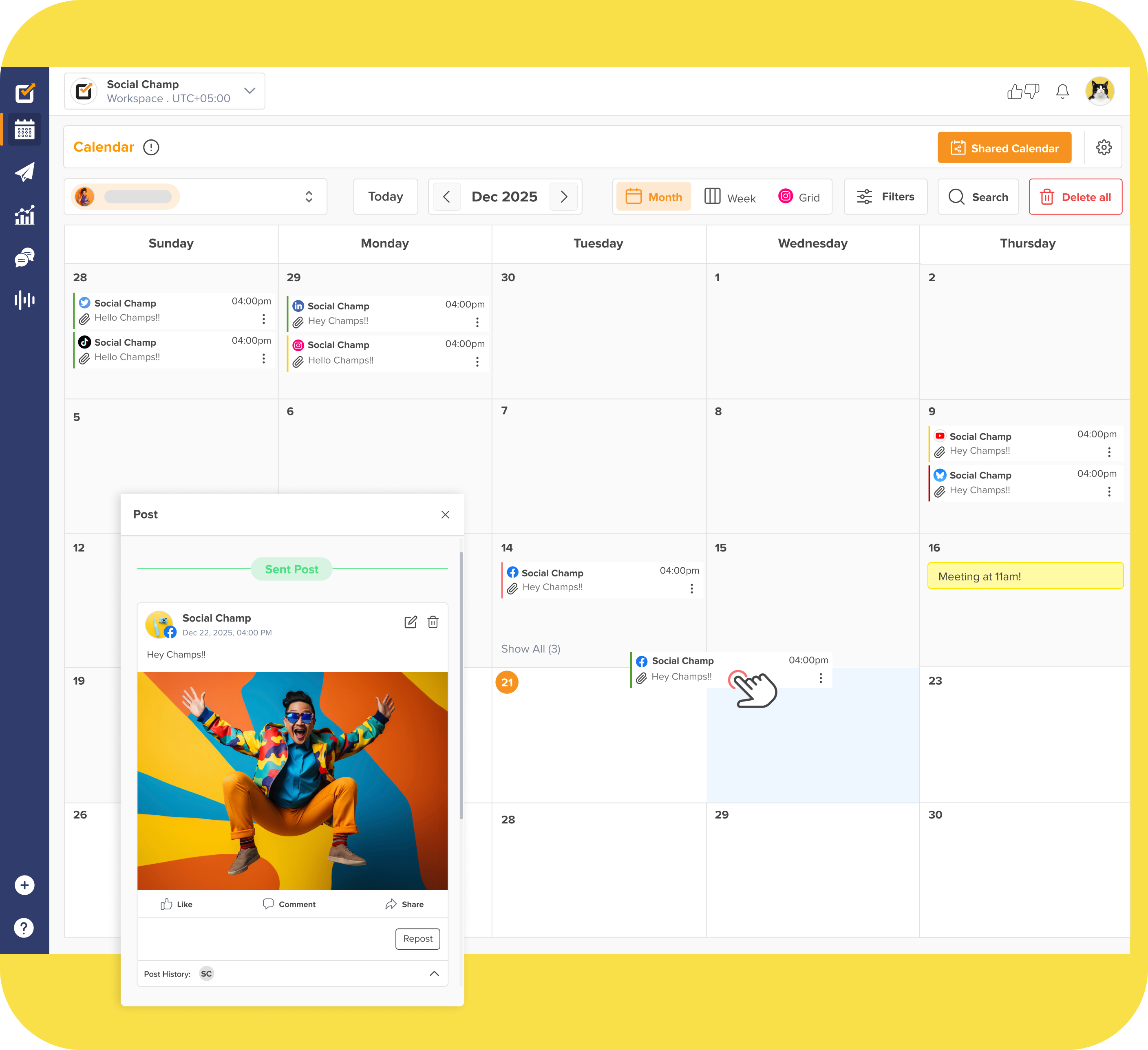
Binge-Worthy Playlists Need Consistent Drops!
Social Champ’s YouTube scheduler keeps your series flowing on autopilot, so viewers hit “Next” instead of clicking away.
What Is a YouTube Playlist and Why Should You Use One?
With over 500 hours of video being uploaded every single minute, you can’t just hope people find your next video; you have to lead them to it.
At its simplest, a YouTube playlist is just a collection of videos that play one after another. But as a creator, I like to think of them as the chapters of a book.
Without them, your channel is just a pile of random pages; with them, you’re actually telling a cohesive story.
As a user, I realized that playlists save me from decision fatigue. When I have a curated list, I don’t have to look for the next watch.
Here is why I think you need playlists in 2026:
- They Boost Your “Watch Time”: This is the holy grail of YouTube stats. When one video ends and the next one starts automatically, your “Average View Duration” skyrockets. The algorithm sees this and starts recommending your videos to even more people.
- They Dominate Search Results: Did you know playlists show up in YouTube search results just like individual videos do? By grouping videos under a keyword-rich title, I’ve found you can actually rank for competitive terms twice, once for the video and once for the playlist itself.
- A Better Experience for Your Fans: Imagine someone lands on your channel looking for a specific series. Instead of making them scroll through two years of uploads, a playlist serves it up on a silver platter. It makes your channel look professional, organized, and most importantly, helpful.
- Guiding the “Viewer Journey”: I use playlists to move people through a sequence. For example, I’ll lead them from a “Beginner’s Guide” video directly into an “Advanced Tips” video. It’s like being a digital DJ for your own content.
Featured Article: How to Grow Your YouTube Channel
How to Make a Playlist on YouTube (Desktop & Mobile)
I’ve broken this process down by device so you can follow along wherever you are.
On Your Desktop (The Creator’s Choice)
I believe, creators prefer the desktop version when they’re doing “heavy lifting” like organizing a whole series because the drag-and-drop is just a bit smoother.
- Find Your “Seed” Video: Go to the first video you want to include. It can be your own video or someone else’s.
- Hit the Three Dots: Look just below the video player (next to the Share or Download button). Click those three horizontal dots (…) and select “Save.”
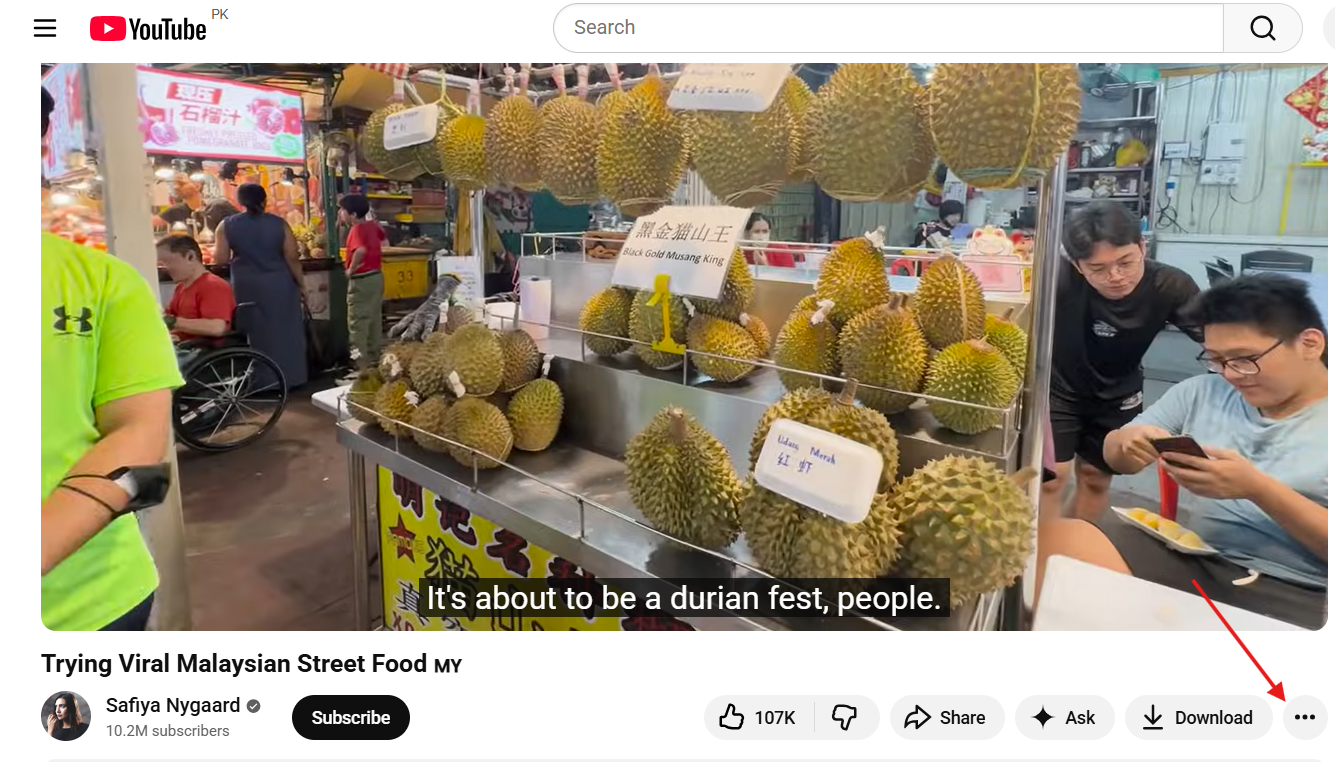
Click on the Three Dots Beside Download Button - Create New: A menu will pop up showing your existing playlists. Click “+ Create new playlist” at the bottom.
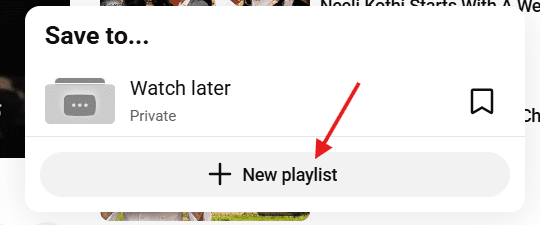
Click on New Playlist - Name & Privacy: Give it a catchy title! You’ll also see a privacy dropdown.
- Public: Everyone can see it (best for growth).
- Unlisted: Only people with the link can see it.
- Private: Just for you.
- Click Create: Boom. You’re officially a curator.
Pro Tip: You can also do this directly from YouTube Studio by going to the “Content” tab and clicking “Playlists” at the top. This is the best way to create “Podcast” or “Course” style playlists, which are huge right now in 2026.
On the Mobile App (For Quick Curation)
If you’re watching a video and realize, “Oh, this fits perfectly in my ‘Morning Motivation’ list,” you can add it in two taps.
- Tap “Save”: While watching a video or a Short, look for the Save icon below the player.
- The “Change” Pop-up: By default, YouTube might save it to your “Watch Later” list. A little bar will pop up at the bottom, tap “Change” immediately!
- New Playlist: Tap “+ New Playlist” in the top right of that menu.
- Finalize: Type in your title, pick your privacy setting, and hit “Create.”
Featured Article: Best Time to Post on YouTube
How to Add, Edit & Manage Videos in Your Playlist
Creating the playlist is just the beginning. The real magic happens when you start fine-tuning it.
Adding Videos Like a Pro
Once your playlist exists, you don’t have to go back to a central dashboard every time you want to grow it. There are two main ways to do this:
- The “Direct Save” Method: While you’re watching a video (yours or someone else’s), just hit that Save button. It’ll usually default to your last used list, but you can tap Change to check off multiple playlists at once.
- The “Add Videos” Option: Inside your playlist page on Desktop, you can click the three dots and select “Add videos.” This lets you search YouTube directly or paste a URL without leaving your playlist screen.
Editing and Tidying Up
Sometimes a video doesn’t fit anymore, or the order feels “off.” Here is how to keep it sharp:
- Changing the Order: On Desktop, hover over the left side of a video until you see the two vertical lines. Click and drag to move it up or down. On Mobile, it’s the same deal, just long-press those lines and slide.
- Setting a Custom Thumbnail: By default, YouTube uses the first video as the cover. You should pick your best-performing video for this. Just click the three dots next to any video in the list and select “Set as playlist thumbnail.”
Featured Article: How to Avoid Copyright on YouTube
Quick Comparison: Desktop vs. Mobile
| Task | Desktop Steps | Mobile Steps |
|---|---|---|
| Reorder Videos | Drag and drop using the two-line icon. | Tap, hold, and drag the two-line icon. |
| Remove Video | Three dots (…) > “Remove from [Playlist].” | Swipe left on video OR Three dots > “Remove.” |
| Set Thumbnail | Three dots > “Set as playlist thumbnail.” | Pencil icon > Choose from library or Take photo. |
| Rename/Edit Bio | Click the title or description directly. | Tap the pencil icon near the title. |
Keep Your Playlist Clean
You should do a playlist audit once a month, and here’s what you should look for:
- Keep it Relevant: If a video is outdated (like a 2023 tutorial in 2026), swap it out for a newer version.
- Order Matters: Put your “Hook” video (your most popular or exciting one) at the #1 spot. You want to grab them immediately so they don’t click away.
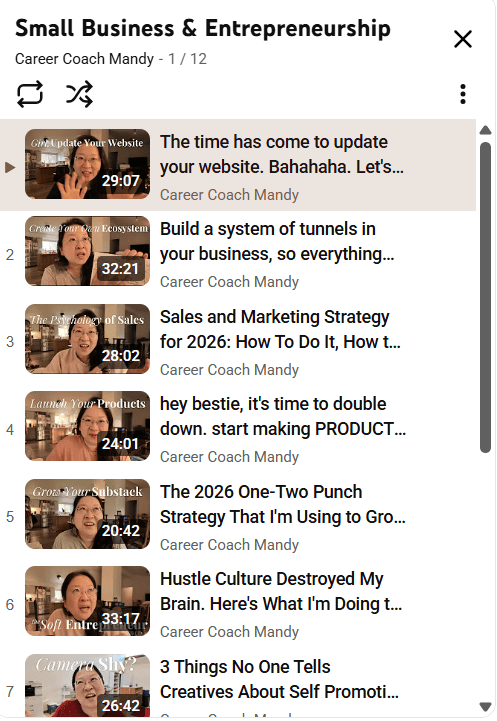
- Delete the Dead Weight: If a video has been deleted or set to private, it shows up as a “Deleted video” gray box. It looks messy, so clear those out as soon as you see them.
Keeping your playlist clean is extremely important. Check out this screenshot from one of the many playlists by Career Coach Mandy!
Featured Article: How to Make a YouTube Channel in 5 Easy Steps
How to Optimize a YouTube Playlist for More Views and Growth
Making a playlist is one thing, but making sure people actually find it is where the real growth happens.
YouTube algorithm is now smarter than ever, but it still needs you to point it in the right direction.
-
Use Keyword-Rich Titles That Grab Attention
If you name your video “My Vlog”, I’ll be very honest with you, no one’s searching for that!
You should use titles that mirror what people are actually typing into the search bar. Instead of “Cooking Tips,” use “Healthy 15-Minute Meal Prep for Busy Professionals.”
This simple shift helps the playlist show up not just in YouTube search, but on Google’s main search results too.
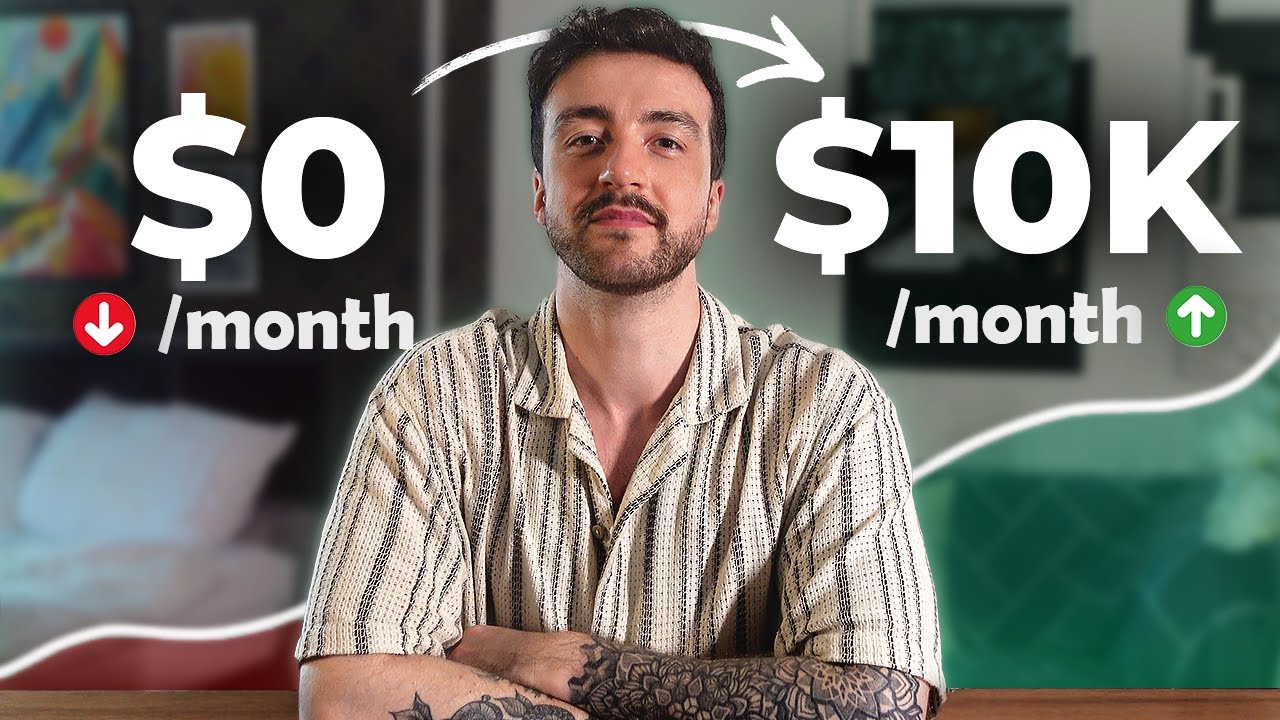
Check out this video from George Alexander’s playlist for an example!
-
Craft Descriptions That Tell the Algorithm Everything
The description box is probably the most ignored part of a playlist, and that’s a huge mistake.
I suggest you write a solid two-paragraph “mini-essay” about what’s inside.
Sprinkle in related keywords and phrases that didn’t make it into the title.
Think of it as a roadmap for the algorithm; the more context you provide, the better YouTube understands who to recommend the playlist to.
-
Strategically Set Your “Series” Playlists
If you’re making a course or a multi-part story, you’ve got to use the “Series” setting in YouTube Studio.
This is a game-changer because it tells YouTube that these videos belong together in a specific order.
When someone watches one video in a series, YouTube is much more likely to recommend the next video in the series as the “Up Next” choice, rather than a random video from another channel.
-
Add “Hook” Videos at the Start
The first two videos in your playlist are your “sales pitch.”
If they aren’t engaging, people won’t stick around for the rest.
Always check your analytics to see which videos have the highest “retention” and “click-through rate,” and I move those to the top.
Even if they weren’t filmed first chronologically, putting your best foot forward ensures that the viewer stays interested long enough to hit “Play All” and settle in for a long session
Social Champ can help you check analytics and plan your playlists with a unified content calendar. Trust me, that’s all you’re going to need to handle your YouTube like a pro!
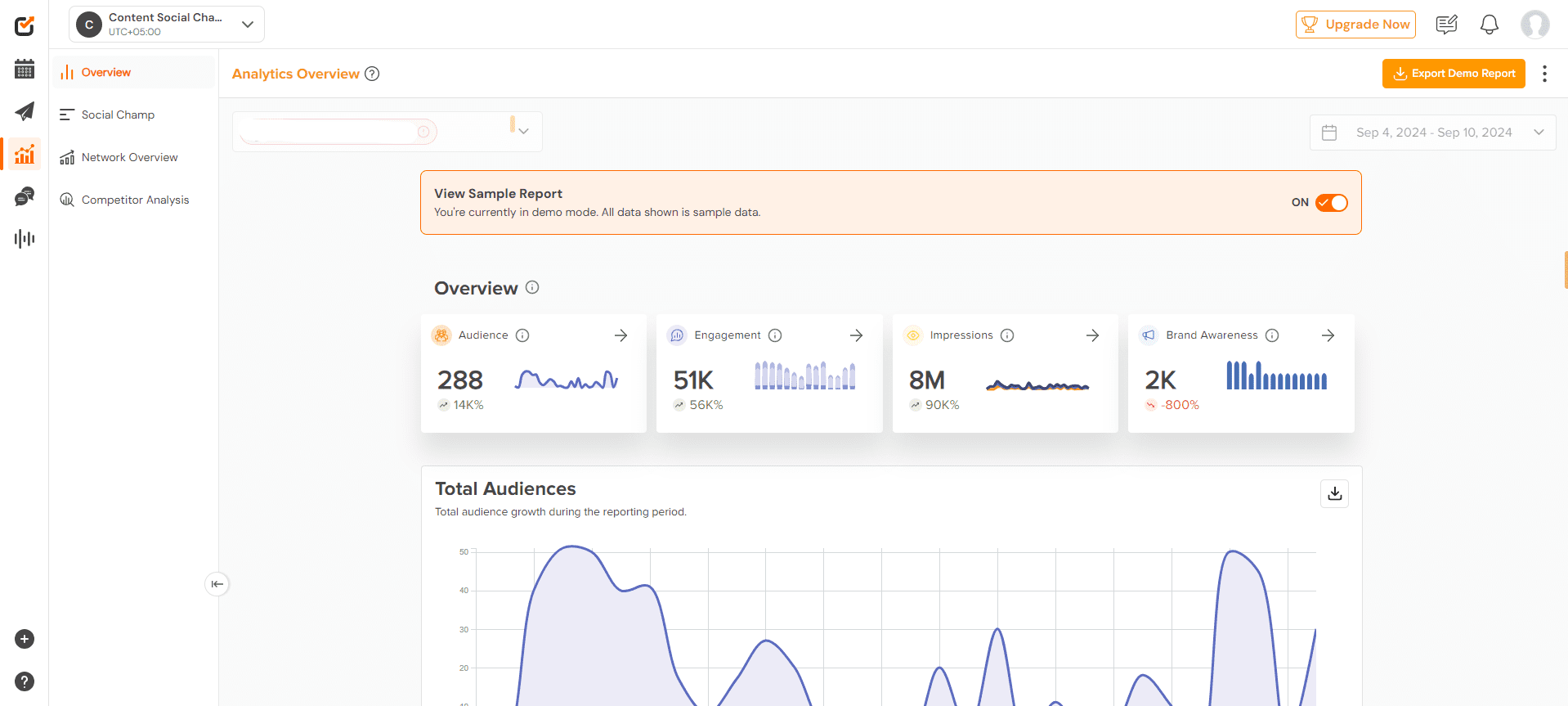
Social Champ Analytics Dashboard
Creators Who Win Don’t Upload Manually!
Plan, schedule, and visualize your YouTube content in one calendarand let Social Champ handle the rest.
When Should You Delete or Archive a YouTube Playlist?
You might have a playlist that you made 3 years ago that makes you cringe now.
Don’t worry, you’re certainly not the only one!
While it’s tempting to just hit the “delete” button and start fresh, I usually recommend taking a beat to think about it first.
When you delete a playlist, its specific URL vanishes, and while your videos stay safe, you lose the “playlist-level” analytics.
Here’s how you should decide whether to scrap a list or just tuck it away.
The Case for Deleting
You should only hit delete if the playlist is truly “clutter.”
For example, if you made a temporary list for a one-time event that happened years ago, or if you accidentally created a duplicate.
If the title is something embarrassing or misleading that you don’t want associated with your brand at all, it’s got to go.
Just remember: once it’s gone, you can’t get that specific collection or its search ranking back.
Why Archiving Is Usually Better
Most of the time, people don’t delete; they archive. By switching a playlist’s privacy setting to Private or Unlisted, you can effectively “hide” it from the public eye without destroying it.
- Unlisted is great if you want to keep the list active for yourself or to share with a specific friend via a link, but you don’t want it popping up in search results or on your channel page.
- Private is the go-to for old “mood boards” or inspiration lists that you want to keep for nostalgia, but don’t want anyone else to see.
Featured Article: How to Block Someone on YouTube
What Are Common Mistakes to Avoid When Creating A YouTube Playlist?
If your playlist isn’t getting the traction you expected, check to see if you’re accidentally doing one of these things.
-
Don’t Put Everything in One Playlist
The biggest mistake I see is the mismatched theme.
This happens when you start adding every video you’ve ever made into one giant list.
If a viewer clicks on a playlist for “Vegan Recipes” and the third video is a “Vlog about my cat,” they’re going to bounce.
The algorithm is very sensitive to relevancy; if people stop watching because the content is unrelated, your playlist will stop being recommended.
-
Lackluster First Impression
Another huge missed opportunity is having a missing description or a weak thumbnail.
If you leave the description blank, you’re basically telling the search engine, “I don’t care if you find this or not.”
Similarly, if the automatic thumbnail is a blurry transition frame from your first video, nobody is going to click. It’s the “first impression” rule: make it look professional!
-
The “Dead Link” Trap
Lastly, watch out for poor ordering and dead links.
If your playlist starts with an old, low-quality video from four years ago, most people won’t stick around for the high-quality stuff further down.
Always put your “hook” first. Also, periodically check for “Deleted Video” placeholders; they make your channel look abandoned, so delete those empty boxes as soon as you see them!
Featured Article: A Guide to Social Media Marketing for Plumbers
Conclusion
You’re officially ready to stop treating your YouTube channel like a random collection of videos and start treating it like the binge-worthy destination it deserves to be.
Remember that the most successful creators aren’t just making great content, they’re making that content easy to find and easy to watch.
Playlists are the simplest, most effective way to do exactly that.
By organizing your videos, optimizing your descriptions, and keeping your lists tidy, you’re not just helping the algorithm; you’re providing a much better experience for your fans.
I can’t wait to see how your channel looks once it’s all organized. Now, go get curate-ing!