I used to spend hours jumping between InShot and CapCut just to get one 15-second Reel to look effortless. It was a mess of watermarks, crashing exports, and way too many screen recordings.
Then I finally dove into the Instagram Edits app, and let’s just say my camera roll (and my sanity) has never been happier.
So I thought, why not share my experience with the readers here! After all, I can’t be the only one facing this problem!
This app is just not another filter tool (I initially thought of it like that); it’s a professional editor in your pocket that actually understands the Instagram algorithm, and yes, it’s free!
Short Summary
- Ditch the multi-app struggle; the Instagram Edits app is a professional-grade, all-in-one studio in your pocket.
- Save time using the “Cut Silences” feature to automatically delete dead air and keep your pacing punchy.
- Keep your text and graphics within the yellow “Safe Zone” lines so they aren’t hidden by the Instagram user interface.
- Sync your edits to the beat perfectly by using the “Beat Markers” toggle to identify song drops.
- Always export directly to Instagram from the app to maintain the highest possible resolution and bypass gallery compression.
I’ve spent the last few weeks breaking every feature in the app so you don’t have to. Because let’s be real: with the average Reel reach rate sitting at about 30.81%, which is more than double the reach of static posts, knowing your way around an editing timeline isn’t just a hobby anymore; it’s a survival skill.
How to Make Instagram Edits?
I’ll be honest, the first time I opened the app, I expected just another basic trimmer. Instead, I was pleasantly surprised. It’s designed to be intuitive, but there’s a specific flow you’ll want to follow to keep your edits crisp and your export quality at 4K.
Here is the exact step-by-step workflow I use every time I sit down to create:
Step 1: Start a New Project
When you open the app, tap the Plus (+) or “New Project” button on the home screen. You can either record directly using the in-app camera or import clips from your gallery.
Step 2: Master the Timeline
Once your clips are in, you’ll see the multi-layer timeline. This is where the magic happens:
- Long-press on a clip to drag and drop it into a new spot.
- Tap a clip to reveal the handles for trimming, or hit the “Split” icon to cut out those awkward “umms” and pauses.
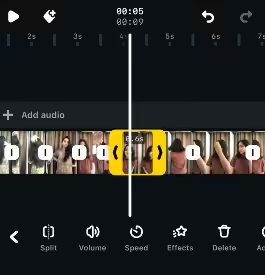
Trim Your Clips - Use two fingers to pinch and zoom into the timeline. This lets you get frame-precise cuts so your transitions hit exactly on the beat.
Step 3: Layer Your Magic (Audio and AI)
Now, the features that make people stop scrolling:
- Tap the “Captions” tool. The app will transcribe your speech automatically. You can then style the fonts, add shadows, or even use the “Typewriter” animation that’s trending right now.
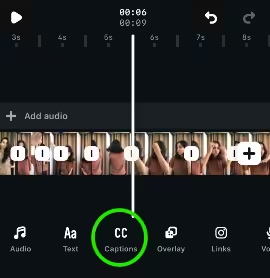
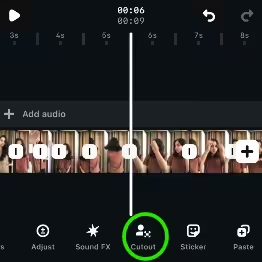
Add Captions - This is my favorite. Select a video layer, tap “Cutout,” and the AI will remove your background instantly. You can then drop a fresh background or an aesthetic video loop behind yourself without needing a green screen.
Click on Cutout - If you recorded in a noisy coffee shop, use the “Voice Enhance” toggle to scrub out that background hum.
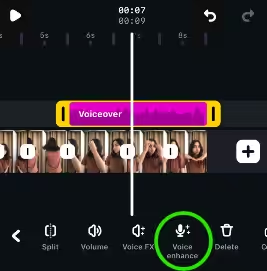
Click on Voice Enhance
The Secret Movie Gen Tools That Make Your Reels Look High-Budget
If you haven’t tried the new Movie Gen tools yet, you’re missing out on the closest thing we have to actual magic. Meta has officially baked their “Generative AI” suite right into the Edits app, and it’s perfect for those “I wish I hadn’t filmed this here” moments.
Here’s what you get:
- AI Lighting (Relight): Did you film in a dark room? Use the “Studio Glow” or “Golden Hour” AI filters. It doesn’t just brighten the video; it actually mimics how light hits your face.
- Object Swapping: This is my favorite “future-proof” trick. You can highlight an object in your background, like a messy coffee mug, and swap it for a clean aesthetic plant or a microphone with one tap!
It’s these little details that make your Reels look like they were shot by a professional crew rather than just you and a tripod!
Step 4: Add Transitions and Effects
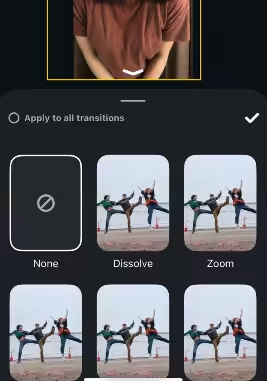
Don’t just jump-cut! Tap the white icon between two clips to add a transition. For 2026, the “Bounce” and “Fisheye” effects are huge. You can also apply AI Restyle filters to give your whole video a specific vibe, like vintage film or futuristic neon, with one tap.
Step 5: High-Resolution Export
Don’t let all that work go to waste with a blurry upload. Use the best Instagram editing settings.
- Tap the Export button in the top right.
- Make sure your settings are set to 1080p or 4K at 30fps.
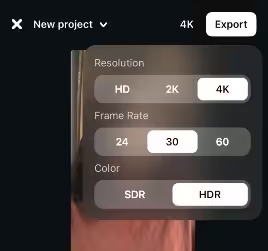
Set the Right Settings to Export - You can then choose to “Share to Instagram” directly (which keeps the quality higher than saving to your camera roll first) or download it for other platforms.
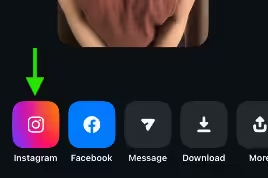
Share to Instagram
You’re Editing It Right, But Are You Posting It Right?
My Top Secret Tips & Tricks for the Instagram Edits App
Here are the pro moves I use to make my content look like it was edited by a team of experts. These will help you learn how to edit video on Instagram:
-
Use Cut Silences to Beat the Algorithm
Pacing is everything on Instagram. If there’s even a one-second gap of silence, people will swipe away. There is a hidden gem in the audio menu called “Cut Silences.” One tap and the AI automatically scans your clip and deletes those tiny dead-air moments.
I tried this on a two-minute talking head video, and it shaved off 15 seconds of nothing, making the whole video feel punchy and high-energy instantly.
-
Internal Linking
You can now add interactive links directly within your clips in the Edits app. This allows you to link viewers to another one of your Reels or a collaborator’s profile.
Important Technical Note
These links function as Dynamic Metadata Tags. This means while you place them in the Edits app, they won’t “click” until the video is exported and live on Instagram. Once uploaded, the platform recognizes the tag and activates the interactive hotspot.
-
Stay in the Safe Zone
Ever post a Reel only to realize your beautiful captions are hidden behind your username or the Like button?
In the Edits app, when you drag your text, you’ll see yellow lines appear. These are your safe zones. Keep all your important text and graphics inside those lines so your message doesn’t get buried by the Instagram UI.
-
Match the Beat Automatically
If you’re struggling to time your cuts to the music, look for the “Beat Markers” toggle. The app will analyze your chosen song and place small dots on the timeline where the drops or beats happen.
Just snap your clips to those dots, and you’ll have a professional-level sync without the headache of manual timing.
Pro Tip
If you’re feeling uninspired, check the “Ideas” tab. The app now gives you 10 custom “Content Prompts” every week based on what’s currently trending in your specific niche. It’s basically a cheat code for when you have creator’s block.
Instagram Edits App vs. CapCut: Which One Wins?
This is the question everyone is asking. I’ve used both extensively, and honestly, the winner depends on what kind of creator you are.
| Feature | Instagram Edits App | CapCut |
|---|---|---|
| Learning Curve | Super low. If you know Instagram, you know this app. | Moderate. Lots of hidden menus and Pro Tools. |
| Music Library | Gold Tier. Full access to IG’s licensed trending library. | Silver Tier. Huge, but often hits copyright snags on Instagram. |
| Watermarks | None! Clean exports every time. | Included on the free version (must be deleted manually). |
| Templates | Growing, but mostly focused on “Instagram aesthetics.” | The King. Thousands of viral, meme-heavy templates. |
| Advanced Tools | Great basics + AI Backgrounds & Cutouts. | Keyframes, 3D zoom, and deep color grading. |
| Privacy | Standard Meta terms; very integrated. | Owned by ByteDance; some brands avoid it for data reasons. |
The Verdict:
- Go with Instagram Edits if: You are an Instagram-first creator who wants a fast, clean workflow. It’s perfect for aesthetic vlogs, talking-head tips, and anything where you want to use the latest trending audio without jumping through hoops. Plus, the watermark-free 4K export is a dream for cross-posting to TikTok anyway.
- Go with CapCut if: You’re making high-intensity edits with lots of glitch effects, complex keyframe animations, or if you rely heavily on those one-tap viral templates to stay on top of TikTok trends.
Personal Pick
I find myself reaching for the Instagram Edits app about 80% of the time now because I can see my Reels insights directly in the app while I’m editing. It helps me see exactly where people stopped watching my last video, so I can fix it in the current one!
Conclusion
I’ve noticed a shift in Instagram content in the last year. It’s that the good content creators now are not the ones with expensive cameras but the ones with editing skills.
In the end, it’s your editing that makes or breaks your content. You can make even an average shot look beautiful with editing, and having the Instagram Edits app for free has drastically changed my editing game.
Because, to be honest, switching between editing apps was draining my energy way too much, so now I can use it to better plan and shoot my content.
So, what are you waiting for? Open up the app, try out that cut silences trick I mentioned, and tag me in your next Reel so I can see what you’ve created. I can’t wait to see your feed transform!