QR codes, or those little pixelated squares, have officially moved from tech curiosity to a daily essential.
Since so many brands are looking for ways to bridge the gap between their physical products and their digital presence, learning how to get a QR code for Instagram is now a foundational step for any growth strategy.
Short Summary
- QR codes make it easy for people to access your Instagram profile, posts, or Reels instantly.
- Both personal and Business accounts can generate QR codes, but Business accounts unlock analytics and growth tools.
- Third-party QR generators allow for customization, but high contrast and resolution are key for scan reliability.
- Campaign-specific QR codes with UTMs help track engagement and drive measurable results.
- Combining QR codes with tools like Social Champ ensures content is timed and optimized for maximum impact.
The data certainly backs this up. Uniqode’s State of QR Codes 2025 research reveals that 59% of respondents are now scanning QR codes daily. It’s become a digital reflex.
For creators and businesses, this is the ultimate shortcut to move someone from a storefront or business card straight to your profile in a single tap.
In this guide, we’ll walk through the simplest ways to generate your code and how to integrate it into your marketing workflow.
We’ll even touch on how to pair your code with an Instagram scheduler to ensure that when those new followers land on your page, they find a consistent, high-quality feed waiting for them.
Schedule Smarter With Social Champ!
What Is a QR Code for Instagram?
Think of an Instagram QR code as a digital “fast pass” for your brand. It is a custom, scannable matrix barcode that links directly to your profile, a specific Reel, or even a hidden promotional post. When someone scans it, your content opens instantly on their phone.
It’s important to note that this feature replaced Instagram’s older “Nametag” system. While Nametags required users to open the Instagram app camera specifically, modern QR codes are universal. In our testing, we’ve found that they work easily across almost all iOS and Android devices directly through the native camera app.
How the User Experience Works:
- The Scan: The user points their camera at your code.
- The Recognition: The phone’s OS identifies the link, even in low-light environments.
- The Redirect: One tap opens the Instagram app (if installed) or a mobile browser.
This flexibility is why we recommend them for everything from physical business cards and product packaging to in-store displays. By removing the “search” step, you’re not just giving them a link; you’re creating a direct bridge to your community.
Stay Constant With Social Champ
How to Get QR Code for Instagram on Mobile (iOS & Android)
Learning how to get a QR code for Instagram is a quick process that doesn’t require any third-party apps or shady generators. Instagram has baked this feature directly into your profile settings for both iOS and Android.
Here’s what you need to do:
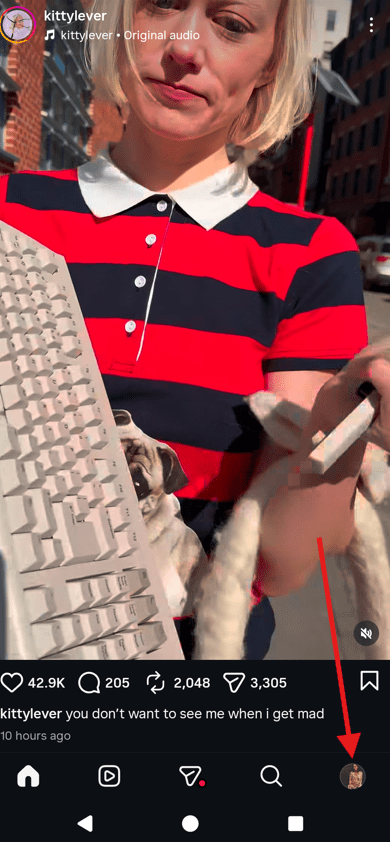
- Open Your Profile: Launch the Instagram app and tap your profile picture in the bottom-right corner.
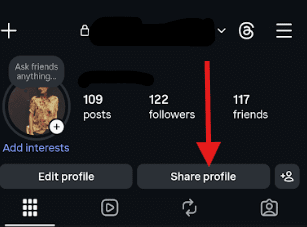
- Look for “Share Profile”: This button is usually located right next to “Edit Profile” on your main grid
- Instant Generation: Once you tap either “Share Profile” or “QR Code,” your unique scannable code will appear instantly on the screen
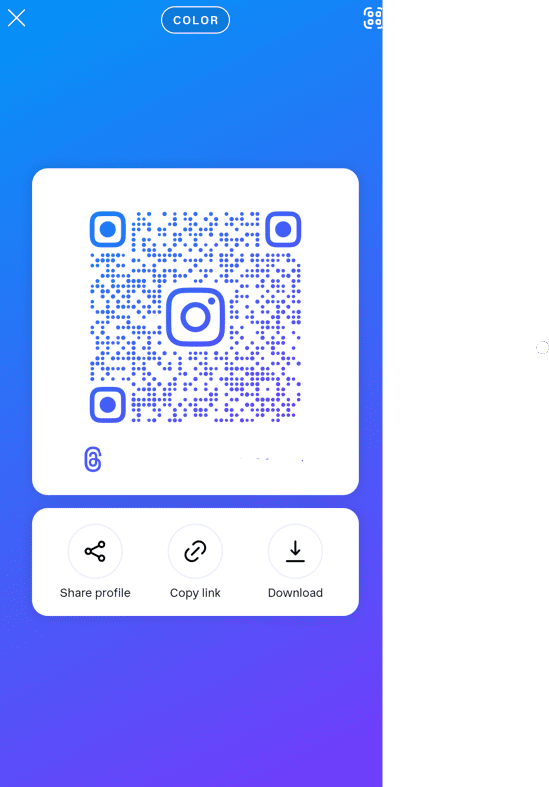
- View and Customize: Your unique code will appear instantly. You can tap the screen or the button at the top to toggle between Color, Emoji, or Selfie backgrounds to match your brand’s aesthetic.
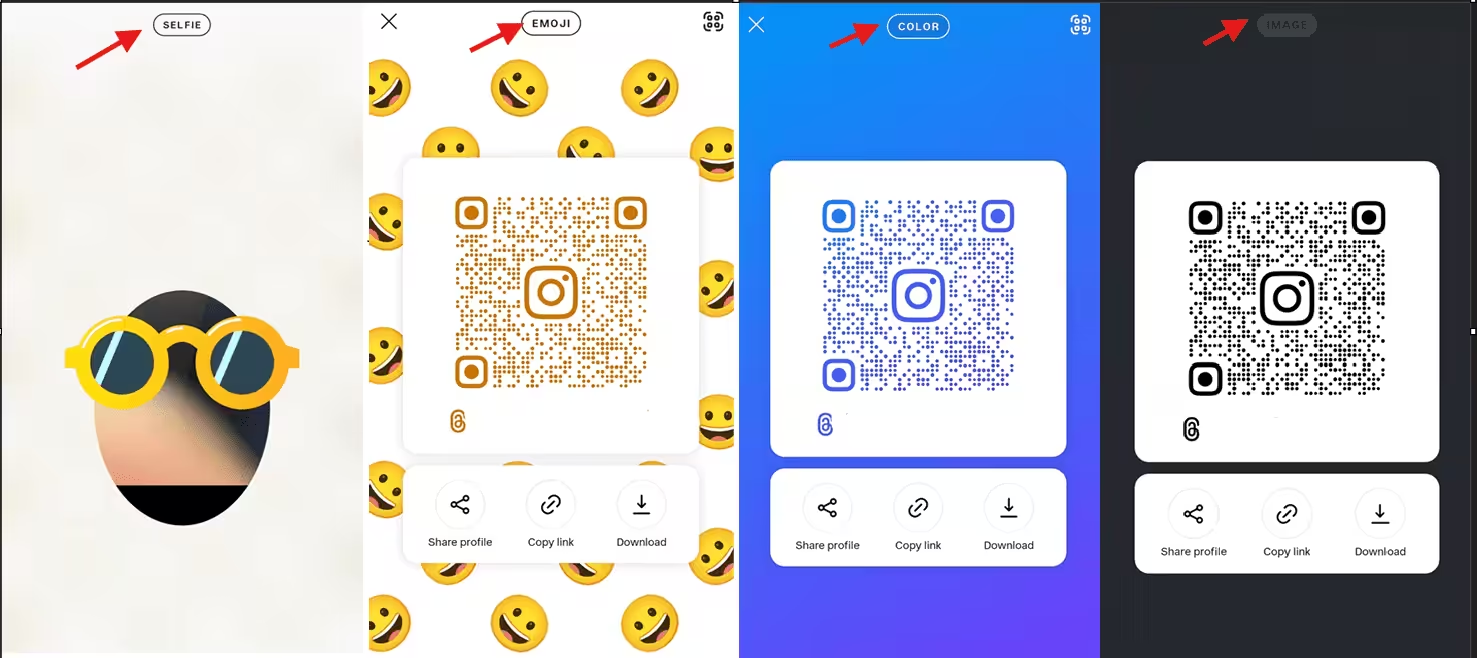
- Save or Share: Tap the Share Profile button or the Download icon to save the high-resolution image to your camera roll.
Quick Note: If you are using “Instagram Lite,” this specific feature might be hidden or unavailable. The full version of the app is recommended for generating and customizing QR codes.
Pro Tips for a Perfect Scan (Best Practices)
To ensure your code actually works once it’s printed on your packaging or business cards, follow these industry standards:
- Always use a dark code on a light background. While Instagram lets you get creative with colors, a classic dark-on-light setup is the most reliable for older smartphone cameras.
- Leave enough white space (the “quiet zone”) around the edges of your QR code. If text or logos are too close, scanners can get confused.
- For print materials, ensure your QR code is at least 2 x 2 cm (roughly 0.8 inches). If it’s going on a large poster, follow the 10:1 rule: if users scan from 10 feet away, the code should be 1 foot wide.
- Always test your saved image on both an iPhone and an Android device before hitting “print” on a massive order.
Featured Article: How to Use Instagram: Guide for Beginners
How to Generate a QR Code for Instagram on Desktop or Browser
If you are managing your brand from a computer, you may have noticed that the “QR Code” button isn’t always where it used to be.
Depending on your browser and the current version of the web app, one of these three methods will be your “go-to” for generating a code without picking up your phone.
Method 1: The “Settings Gear” (The Official Path)
This is the native way to access Instagram’s built-in generator. It’s perfect for a quick, unbranded code.
- Log in to com and go to your profile.
- Click the Settings (Gear icon) located next to your “Edit Profile” button.
- Select QR Code from the list. (Note: If you don’t see it, move to Method 2).
- Customize your color and click Download QR Code.
Method 2: The Browser “Right-Click” (The Fail-Safe)
If Instagram’s native menu is missing, your browser has your back. Both Chrome and Edge have built-in generators that work on any live URL.
- Open your Instagram profile page.
- Right-click anywhere on the white space of the page.
- Select “Create QR Code for this page” from the drop-down menu.
- A window will pop up with a scan-ready code you can download immediately.
Method 3: Professional QR Generators (The Marketing Pro Choice)
For creators coordinating massive campaigns, a simple square isn’t enough. Professional tools like Canva, QRCode Monkey, or QRFY are the gold standard for desktop users.
- Copy your profile URL from the address bar.
- Paste it into a third-party generator.
- You can add your logo, create “Dynamic” links (so you can change the destination later without reprinting), and download in SVG format, which is essential for high-quality printing on posters or store windows.
Pros of Using Third-Party QR Code Tools
While the browser method is fine for a quick “follow me”, it lacks the horsepower needed for a real business strategy. Third-party tools give you more creative freedom to really customize your QR codes.
To help you understand better, I’ll be using QRFY as an example.
- You get far more design freedom, from brand colors and gradients to stylish frames that actually match your vibe. You can choose from a variety of design options, colors, fonts, and media sizes.
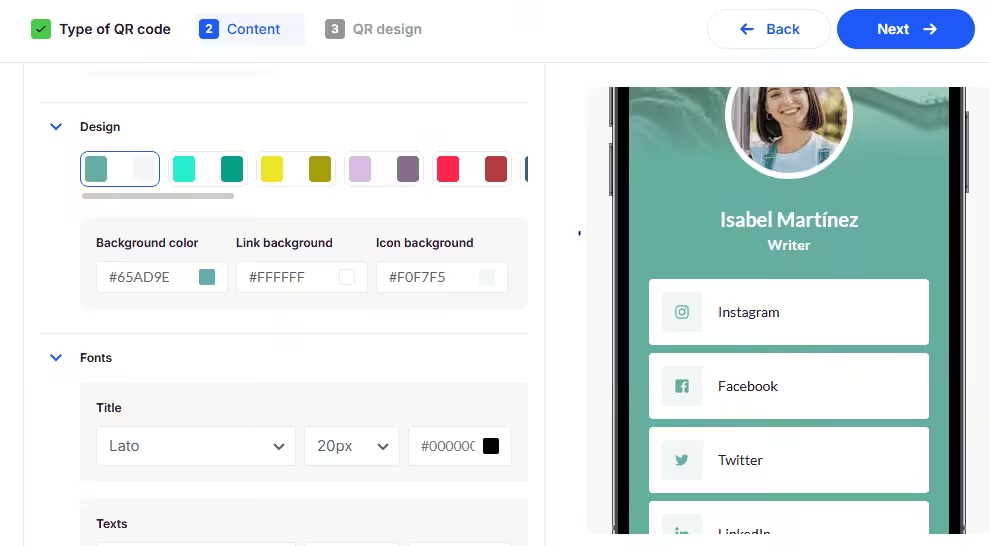
- You can download high-resolution files like SVG, which is perfect if you plan to print on posters or large banners.
- Dynamic QR codes let you change the destination link later without reprinting everything. This is a huge time saver.
- Some platforms offer built-in analytics, so you can see scan counts, locations, and even device types.
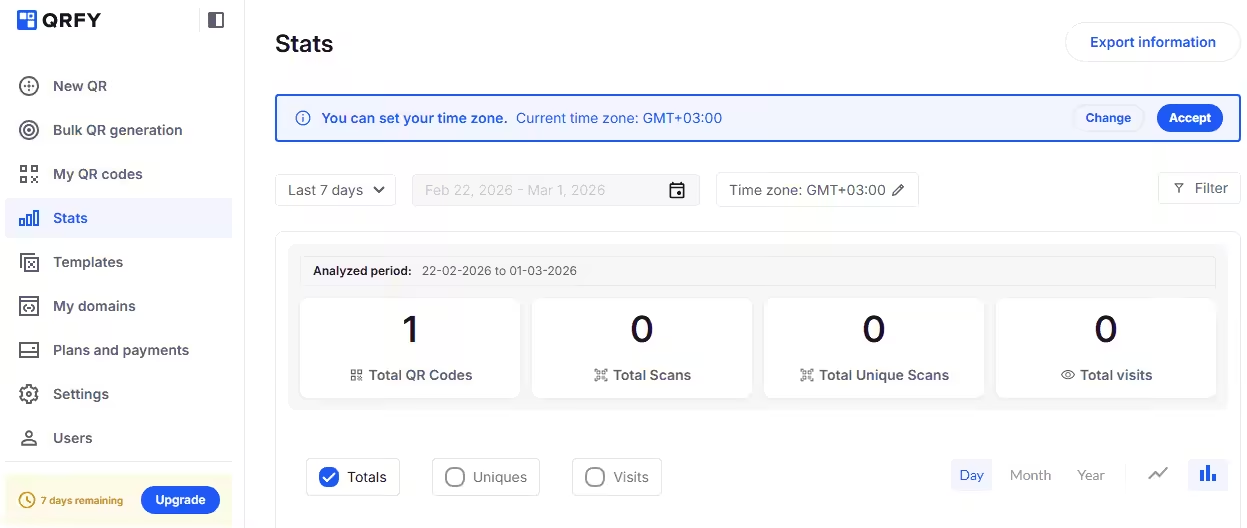
- You can create QR codes for specific posts, Reels, or campaign pages instead of just your main profile.
- Many platforms support batch generation, which is great if you need multiple codes for different campaigns.
- You can add custom call-to-action text like “Scan to Follow” to encourage more engagement.
- The same tool can handle links beyond Instagram, so you can reuse it for other social media platforms too.
Overall, third-party QR code tools give you the creative control and advanced features to make your codes both eye-catching and effective.
Featured Article: Instagram Video Length: A Guide for Posts, Stories, and Reels
Cons of Using Third-Party QR Code Tools
- Too much customization can actually hurt performance if contrast and spacing are not handled properly.
- Advanced features like dynamic links and detailed analytics often sit behind a paid subscription.
- Free plans may add the provider’s branding or watermark to your QR code.
- Dynamic QR codes can stop working if your subscription expires.
- Some platforms collect scan data, which can raise privacy concerns depending on your audience.
- You rely on an external service, so policy changes or shutdowns could affect your campaigns.
- Exporting the wrong file size or format can lead to blurry prints that refuse to scan.
- Adding a logo in the center looks great, but it can interfere with readability if not sized correctly.
- Not every generator automatically follows accessibility or brand compliance standards.
- You need to test the code on multiple devices to make sure it performs consistently everywhere.
Third-party QR tools offer powerful customization and tracking features, but they also require careful setup and testing. Choose the option that balances brand style, reliability, and long-term flexibility for your specific goals.
Boost Campaign Timing Effortlessly Today
Can You Create a QR Code for Specific Instagram Posts, Reels, or Stories?
Instagram itself doesn’t create QR codes for individual content. The built-in QR code feature only points to your main profile.
Lucky for you, there’s a simple workaround.
- Open the post or Reel you want to promote.
- Tap the three dots on the content.
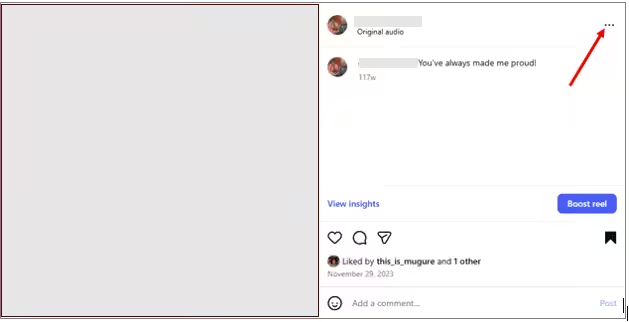
- Select Copy Link.
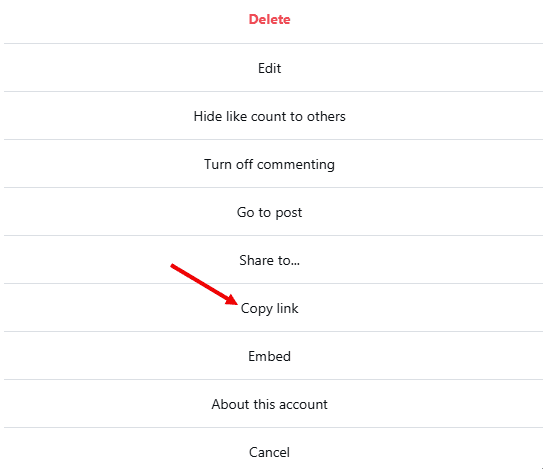
- Head over to a QR code generator like QRFY.
- Paste your Instagram link into the URL field.
- Click download.
Boom! Your Instagram QR code will be ready in seconds. That QR code can take people straight to that specific Instagram post or Reel instead of your full profile.
How about Stories? Well, Stories play by different rules. Regular Stories vanish after 24 hours, so generating a QR code for them isn’t practical.
Heads-up: Instagram Insights won’t track QR scans automatically. What you can do is add UTM tags to your link before generating the QR code to see exactly how many clicks and visits you get.
Featured Article: The Ultimate Guide to Instagram Content Creation
How to Get More Scans from Your Instagram QR Code? (Pro Tips)
Your QR code is only as good as the attention it grabs. A little design magic and clever wording can turn casual glances into eager scans.
Here are some tips to maximize the effectiveness of your Instagram QR codes:
- Ensure strong contrast: Use a light background with a dark QR code or bold brand colors to make the code stand out and scan reliably.
- Incorporate clear calls-to-action: Phrases such as “Scan to Connect” or “See Behind-the-Scenes” provide users with a clear incentive to engage.
- Optimize placement: Test various locations, including entryways, point-of-sale displays, and event booths, to identify where your QR codes receive the most interaction.
- Monitor performance: Use UTM parameters and URL shorteners like Bit.ly or Rebrandly to track scans and measure the success of each QR code campaign.
- Generate urgency: Encourage immediate action with messages like “Limited-time Stories” or “Exclusive Reels” to increase scan rates.
- Coordinate timing strategically: Leverage Social Champ to schedule Instagram Stories, posts, and Reels to coincide with your QR code campaigns. This ensures content is fresh and engagement is maximized.
Drive Growth With Social Champ
QR Codes for Instagram Business Accounts vs. Personal: What’s the Difference?
If you’re wondering if you need to flip that “Business” switch just to use a QR code, the short answer is: Nope. Both personal and business accounts get a code.
But here’s where it gets interesting. While the code looks the same, what happens after someone scans it is totally different.
- For Personal Accounts: If you’re just a creator sharing your weekend photography or a casual user, a personal account is perfect. It’s easy, it’s private if you want it to be, and it gets the job done. You won’t get a spreadsheet of data, but you’ll see the new followers rolling in.
- For Business Accounts: If you’re trying to grow a brand or a side hustle, switching to a Business or Creator account is like giving your profile a brain. You get access to the “Professional Dashboard,” which, while it won’t show you a specific “scan count”, it will show you:
- Profile Visits: Did that poster you put up yesterday actually bring people to your page?
- Action Taps: Are scanners actually clicking your website link or hitting “Email”?
- Audience Data: Who are these people scanning your code? Where do they live?
My Take? If you’re already using an Instagram scheduler to keep your content consistent, you might as well have a Business account. It’s free, and it’s the only way to see if your hard work is actually turning “scanners” into “customers.”
Featured Article: Best Ways to Download an Instagram Video
Troubleshooting Instagram QR Code Issues: What to Do if It Doesn’t Work?
Even the best QR codes can hit a snag sometimes. A code that doesn’t scan or link properly can frustrate followers and waste your marketing efforts.
Here are the most common QR code issues and how to fix them:
-
Code Isn’t Scanning
Sometimes your Instagram QR code just refuses to scan. This often happens because of poor contrast between the code and background, glare on printed materials, or a phone camera struggling in low light. Even small distortions during printing can make the code unreadable.
To avoid this, ensure your QR code has high contrast. Dark code on a light background works best. Also, be sure to test it on multiple devices before printing.
If the code is printed, make sure the material is flat, clean, and free of glare. Adjust the size if necessary; bigger codes scan more reliably.
-
Broken Links
A broken link occurs when the URL embedded in the QR code is incorrect, or the destination content has been deleted or moved. This often happens if you copy the wrong link or your campaign content changes without updating the QR code.
The fix is simple: double-check the URL before generating the QR code. If you’re using a dynamic QR code, update the destination link instead of creating a new code.
-
Low Resolution
A low-resolution QR code can appear pixelated when printed or scaled, making it hard for devices to recognize the pattern. This is a common issue when downloading small PNG files or using screenshots instead of high-res exports.
You can fix this by generating your QR code in high resolution, preferably as an SVG or large PNG file. Keep enough white space around the edges to ensure scanners can easily detect it.
High-quality codes remain sharp and readable even when printed on larger surfaces like posters or banners.
-
Restricted Profile
If your Instagram account is private or restricted, scanning the code won’t grant access to someone who isn’t already following you. This can make your campaigns less effective.
The solution is to switch to a public account for campaigns meant to reach new audiences. For business or Creator accounts, you can still keep some content private with Highlights or Story restrictions while letting general posts remain visible to anyone who scans the code.
With these fixes in place, your Instagram QR codes can scan smoothly, link correctly, and turn every offline impression into a real follower.
Featured Article: Find the Best Time to Post on Instagram
Conclusion
Recent studies show that campaigns using QR codes see up to 25% higher engagement rates compared to traditional offline marketing methods. This makes QR codes one of the easiest ways to turn real-world interactions into measurable digital results.
Don’t forget to use one of the best Instagram management tools to streamline your Instagram marketing strategy. With a tool like Social Champ, plan your content calendar around the timing of your QR code promotions, and schedule posts to go live exactly when people are scanning your codes. This way, every scan directs followers to fresh, relevant content that maximizes engagement and conversions.
Turn Scans Into Real Engagement
Make every QR code campaign count by aligning your content calendar inside Social Champ for consistent visibility and stronger results.