
Consistency on LinkedIn is no longer optional!
LinkedIn is not like other platforms. For instance, if you forget to post a Reel on Instagram, you’ll likely not miss out on anything. But if you miss a post on LinkedIn, you’ll likely miss out on a potential lead who just happened to be scrolling for the service you offer.
You never know when your post might end up bringing you business. This is the reason why so many businesses are active on LinkedIn these days. Not to mention, the platform has surpassed 1.3 billion users worldwide. Who would’ve thought that a platform created for professional networking would reach here! But it did, because it genuinely brought results, business, and growth to people in the business world.
So I’ve created this guide to walk you through.
- How to schedule LinkedIn posts natively. (You don’t need to pay anything for this, but there are limitations.)
- How to schedule LinkedIn posts using Social Champ’s LinkedIn scheduler. (It allows you to do much more than just scheduling.)
- LinkedIn’s native scheduler vs Social Champ. (An interesting showdown!)
- How to schedule LinkedIn posts on mobile devices?
- Why you should schedule LinkedIn posts?
- I’ll also discuss the best time to post on LinkedIn. (Yes, it matters!)
- Lastly, I’ll be sharing some very useful tips for scheduling on LinkedIn!
Let’s get started and learn more about LinkedIn marketing!
TL;DR
- LinkedIn has crossed 1.3 billion users worldwide as of January 2026, making it a critical hub for generating business leads, networking, and brand growth.
- Consistency is vital for the platform’s algorithm, but manual posting can cause burnout; LinkedIn tools solve this by allowing users to batch-write and plan content in advance.
- LinkedIn offers a 100% free native scheduler to plan posts up to 3 months out by using the clock icon in the post composer, though it lacks visual calendar layouts and team collaboration features.
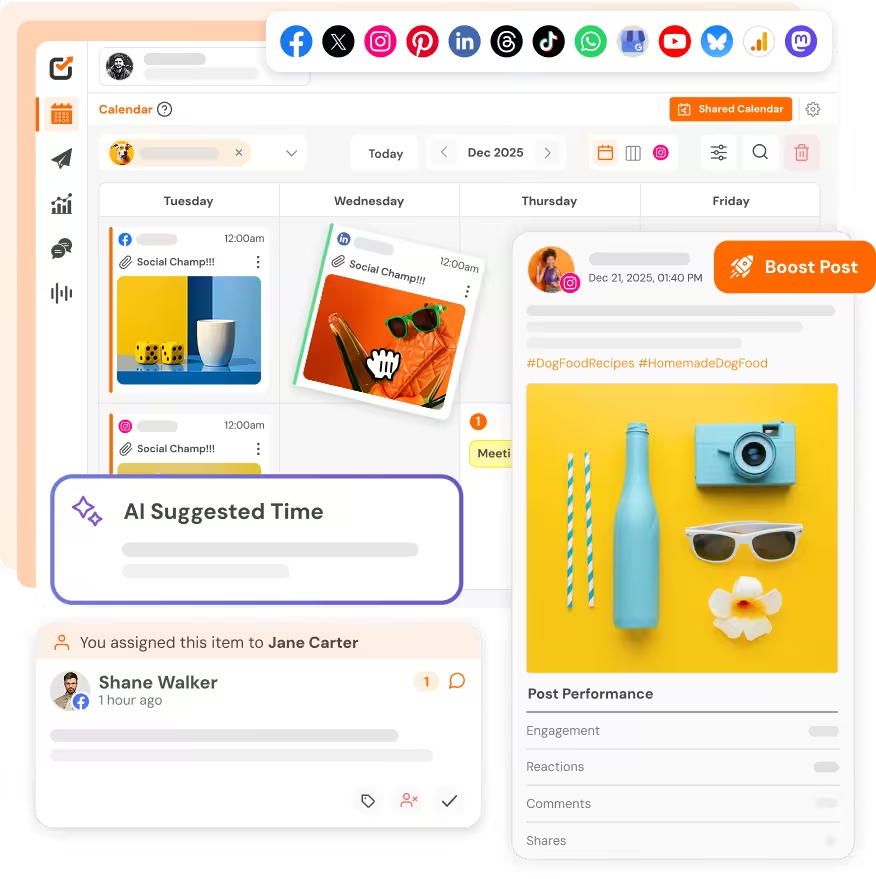
- Social Champ provides a more comprehensive dashboard that supports advanced multi-platform cross-posting, drag-and-drop visual calendar views, CSV bulk uploading, automated “first comment” link posting, and seamless team approval workflows.
- Mobile scheduling is fully supported on both the native LinkedIn app and Social Champ’s mobile app, allowing professionals to manage multiple LinkedIn accounts and their content queues on the go.
- Optimal posting times generally fall on Tuesdays, Wednesdays, and Thursdays during commute hours (8:00 AM – 10:00 AM), lunchtime (12:00 PM – 1:00 PM), or late afternoon (3:00 PM – 5:00 PM).
- The recommended posting frequency for maximum organic visibility without cannibalizing reach is 3 to 5 times a week.
- Social Champ features a data-driven “Best Time to Post” tool that analyzes an account’s unique history to automatically suggest the exact times a specific audience is active.
- Effective scheduling strategies include maintaining an authentic human voice, diversifying post formats (like text, carousels, and video), tracking analytics monthly, and pausing queues during sensitive global events.
- Automating the publishing process frees up essential mental bandwidth, allowing creators to focus heavily on active community engagement and responding to comments to spark platform growth.
Can You Schedule Posts on LinkedIn?
Absolutely!
For years, the answer was a frustrating no, and we all had to rely on third-party tools (which are great, but sometimes you just want the native option!). But now, LinkedIn has finally caught up with the other social networks, so yes, you can schedule posts natively on LinkedIn!
But Why Choose Native Scheduling?
So, why is native scheduling a big deal for LinkedIn users?
- You Can Trust It: Native scheduling tends to be the most reliable. Since you’re using LinkedIn’s own platform, you significantly reduce the risk of a third-party API glitch causing your post to fail.
- It’s Easy to Use: It’s just faster. You’re already logged in and using the interface; there’s no need to toggle between different platforms.
- It Has More Features: As LinkedIn adds new features (such as polls and unique text formatting), they are immediately available for native scheduling, often before external tools can integrate them.
Your Competitors Are Already on Autopilot.
How to Schedule LinkedIn Posts Natively
I get it! If you’re just starting out with LinkedIn posting, you’d want free options for scheduling, and for that, the best move is to start scheduling through LinkedIn’s native scheduler.
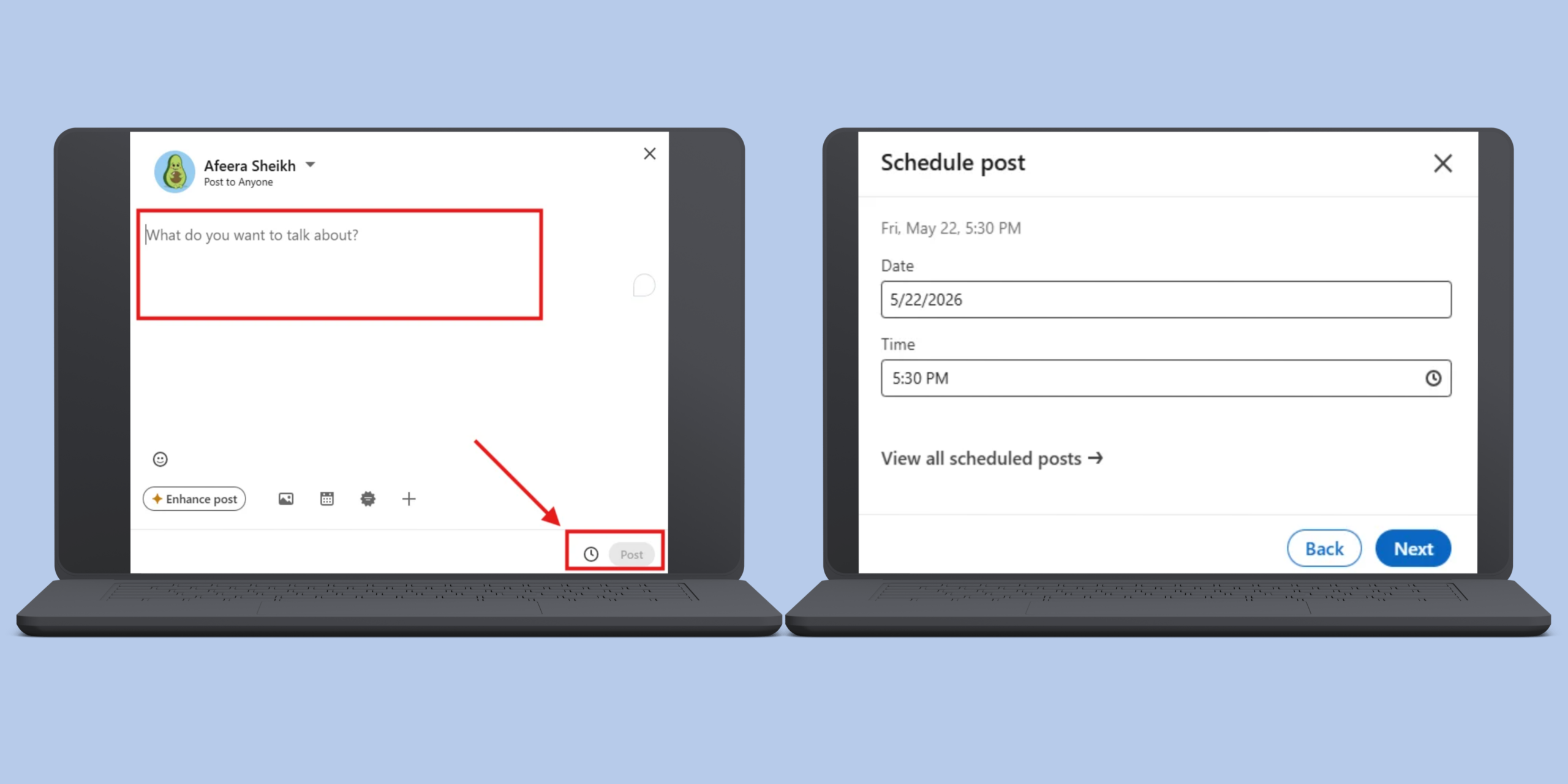
This is the simplest, most reliable way to schedule posts on LinkedIn, and it costs exactly nothing. We covered the “how-to” in the last section, but let’s quickly recap the steps because it’s that easy:
- Go to the Post Composer: Click “Start a post” on your homepage (desktop works best for this, by the way).
- Create Your Content: Write your brilliant copy and upload any visuals (images, videos).
- Spot the Clock: Look for the little clock icon (it usually says “Schedule for later”).
- Pick Your Time: A window pops up, where you can select the exact date and time you want the post to go live.
- Hit “Schedule”: Done! You’ve just locked in your content.
Featured Article: The Best Guide to LinkedIn Management Tools
How to Schedule LinkedIn Posts With Social Champ
If you want more than just scheduling, using a third-party tool is better than LinkedIn’s native scheduler!
While there are many social media scheduling tools available in the industry, not all of them are the same and certainly not right for everyone!
Among them, Social Champ is the easiest and most affordable choice for businesses of all sizes.
It’s easy, user-friendly, and comprehensive!
Here’s how you can schedule your posts on LinkedIn from Social Champ’s single dashboard:
- Log in to your Social Champ account. If you’re new, sign up and avail a 14-day free trial.
- Connect your LinkedIn account to the dashboard.
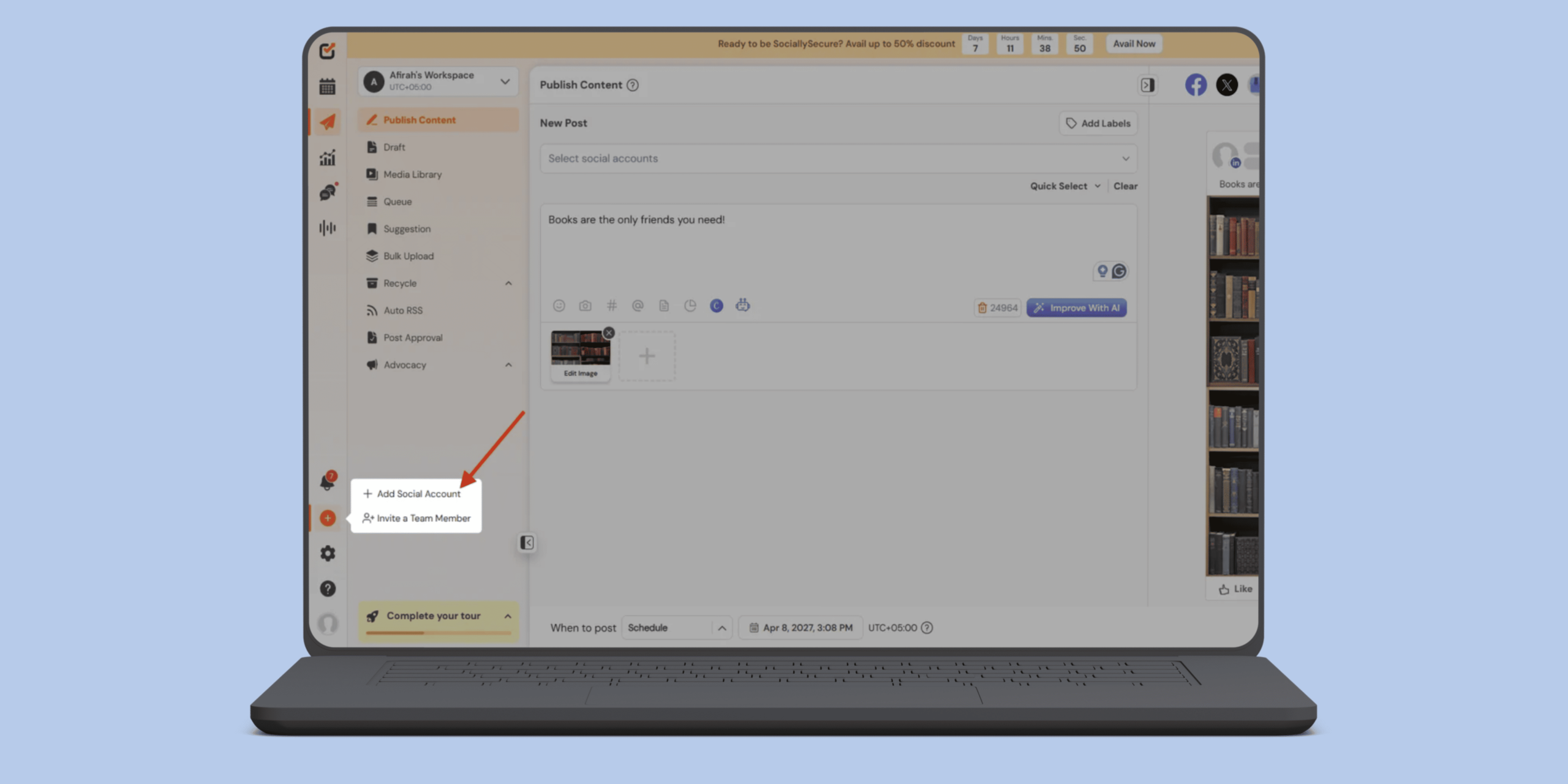
- Create your post.
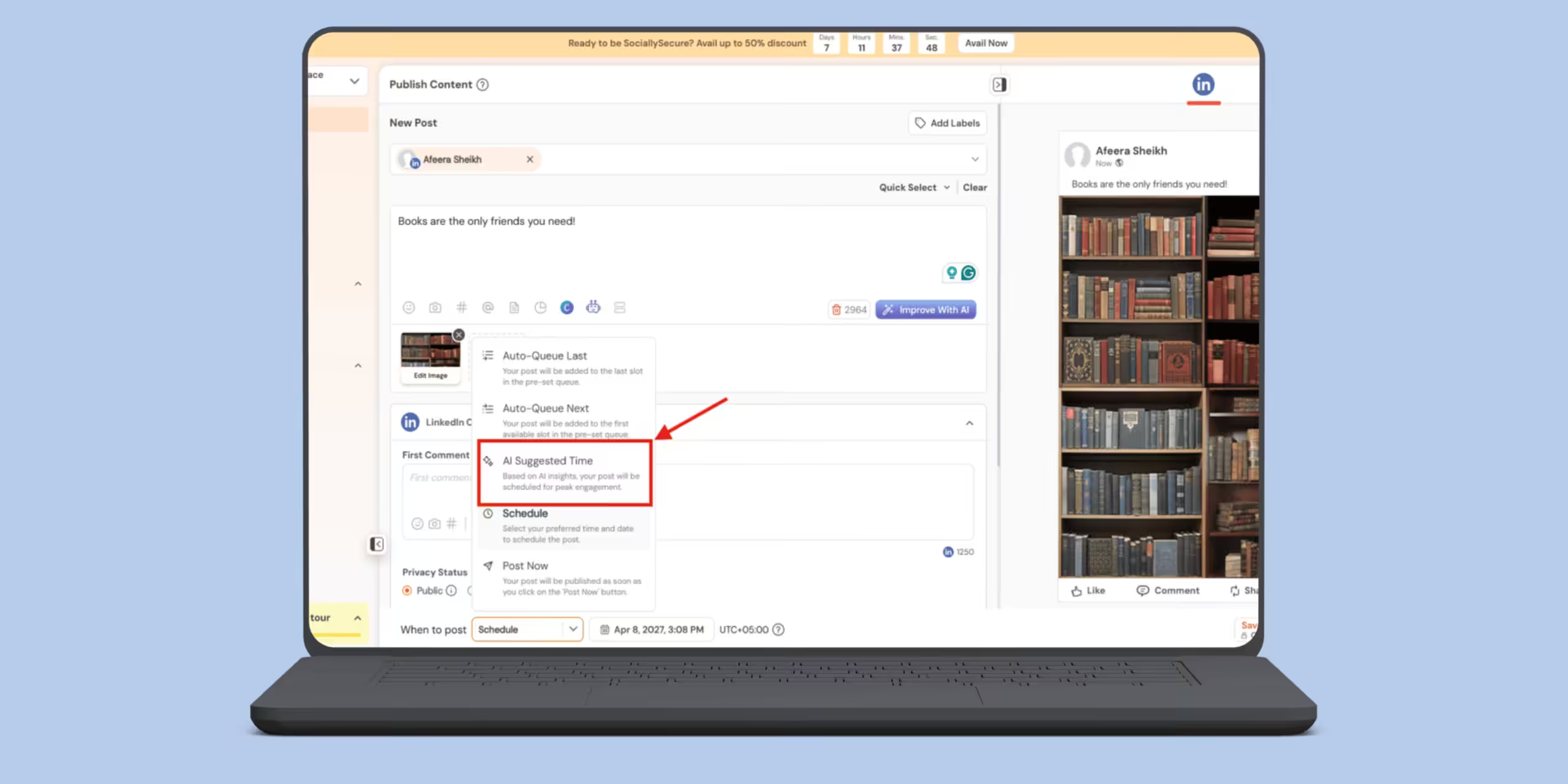
- Select the best time to post based on your audience’s data.
- Schedule your post and relax, knowing it will go live at your selected optimal time.
Stop Feeding the Algorithm at the Wrong Time.
Social Champ’s LinkedIn Scheduling Tool vs Native LinkedIn Scheduler
To make it easier for you, here’s a quick comparison between Social Champ and LinkedIn’s native scheduler. I hope this will help you make a decision:
| Feature | Social Champ | Native LinkedIn Scheduler |
|---|---|---|
| Scheduling Window | As far in advance as your strategy demands |
Up to 3 months only
|
| Supported Platforms | Instagram, Facebook, TikTok, LinkedIn, YouTube, Threads, Pinterest, X, Google Business Profile, Bluesky, Mastodon, and WhatsApp Business | LinkedIn only |
| Content Views | Interactive calendar, feed, and grid views |
List view only (no calendar or grid)
|
| Editing Scheduled Posts | Edit copy, media, or dates anytime |
Edit the copy or dates
|
| First Comment Scheduling | Drop links automatically upon publishing |
Manual setup only after posting
|
| Bulk Scheduling | Upload multiple posts at once via CSV |
Must create and schedule one by one
|
| Team Collaboration & Approvals | Leave feedback and approve right next to the post |
No built-in team collaboration features
|
-
The Scheduling Window
If you like to plan your content cycles way ahead of time, a dedicated tool like Social Champ gives you the flexibility to map out your calendar as far in advance as you want. On the flip side, LinkedIn’s native scheduler cuts you off at the three-month mark.
-
Editing on the Fly
Mistakes happen even when you’re focused. So, in case you made a typo or another error occurred after hitting that schedule button, you can easily edit your post from Social Champ. However, LinkedIn’s native scheduler doesn’t give you the option to edit once scheduled post.
-
Visualizing Your Strategy
Seeing your content layout visually makes a huge difference; you can identify any errors beforehand with this feature. Social Champ gives you beautiful feed, grid, and calendar views so you can easily spot gaps in your content mix. LinkedIn doesn’t offer a visual calendar interface, making it a bit tougher to track your overall brand aesthetic and posting cadence.
-
Multi-Platform Magic
Why limit yourself to just one corner of the internet? As a business owner, you must have accounts on other social media platforms. While the native scheduler only works inside LinkedIn, Social Champ allows you to cross-post and customize your content for LinkedIn and all your other major social channels at the exact same time.
-
Teamwork and Approvals
I’m sure teamwork is a big part of your social media strategy. Social Champ comes built with a collaboration feature. Your team or clients can leave feedback directly next to drafts and give a green light with a single click. The native scheduler has no approval infrastructure, meaning you’ll have to resort to messy email chains and spreadsheets to get sign-offs.
How to Schedule LinkedIn Posts on a Mobile Device
Inspiration doesn’t always strike when you’re sitting at your desk. Sometimes the best thoughts come to your mind while waiting in line for coffee or sitting on the train. But you don’t need to panic!
You can absolutely transfer those thoughts straight to your LinkedIn from a mobile phone. Here’s how to schedule LinkedIn posts from a mobile:
Option 1: Scheduling on the LinkedIn Mobile App via Native Scheduler
If you want to keep things simple and quick, you would choose this option, and the process is also pretty straightforward!
- Open up the LinkedIn app on your smartphone.
- Click on the + icon at the bottom center of your screen.
- Write your text, add your hashtags, and attach any photos or videos.
- Before you hit publish, look up at the top right corner, right next to the “Post” button. Tap that little clock icon.
- Pick your ideal date and time within the next 3 months, and tap “Next.”
- Review your draft one last time, tap the blue “Schedule” button, and boom—you’re done!
Option 2: Scheduling LinkedIn Posts With Social Champ’s Mobile App
If you want to step up your game, cross-post to other platforms, or schedule your posts more than 3 months out while on the go, LinkedIn’s native scheduler will fall short! You need Social Champ’s mobile app for that, which is also super simple to use!
- First, make sure you’ve signed up and connected your LinkedIn account on Social Champ’s app. (You can download it easily on both iOS and Android!)
- Open the app, select your LinkedIn page, and start creating your post.
- Draft your post, tweak your copy, and add your media library assets. (By the way, Social Champ’s AI Content Wizard can do all this for you)
- Tap “Next” to pull up the scheduling options, and use the drop-down menu to choose your exact date and time.
- Hit “Schedule”! Your post is now safely tucked into your social calendar and will automatically publish exactly when it’s supposed to. Pretty easy, right?
Why Should You Schedule Posts on LinkedIn?
There was a time when I used to sit in front of the blank LinkedIn post box, pressurizing myself to come up with something, or I would lose my engagement! I’ll be honest, that was the worst time of my life, social media-wise. Ever since I’ve had the taste of the post scheduler, LinkedIn has been nothing but an easy platform to manage.
I’ll tell you why you should definitely start scheduling LinkedIn posts:
-
You’ll Be Consistent
The LinkedIn algorithm loves consistency. When you post regularly, the platform learns when to expect your content and who to show it to. This is why I had such a hard time maintaining my engagement, because no matter how much I tried, I failed to post manually with consistency. Scheduling allows you to maintain a steady presence without you having to physically show up and press “Publish” every time.
-
You’ll Reach the Audience at Peak Times
If I tell you about myself, I struggle with waking up early, and if the best time to post on LinkedIn is 8 am, I’ll miss it for sure. If you’re targeting connections in a different timezone, say, reaching London professionals while you’re based in New York, your ideal posting window might be right in the middle of your morning commute or deep sleep. Scheduling lets you drop your insights perfectly into your audience’s morning scroll or lunchtime catch-up, maximizing your initial engagement.
-
You’ll Have Quality Control and Strategy
When you write and post on the fly, it’s easy for typos to slip through. This has happened to me more times than I can count. When you schedule your content in batches, you give yourself the mental space to look at your weekly or monthly strategy as a whole. You can ensure you’re balancing your promotional posts with thought leadership, editing your copy with a fresh pair of eyes, and telling a cohesive story over time.
-
You’ll Have More Time for Engagement
A lot of people think scheduling makes social media less “social,” but it actually does the exact opposite! Because you aren’t spending your energy stressing over what to write every day, you have more bandwidth to do what actually moves the needle on LinkedIn: responding to comments, jumping into industry discussions, and building real relationships with your network.
These were the reasons why I started scheduling posts on LinkedIn, and trust me when I say it has brought my time and mental peace back to me.
Best Times to Schedule LinkedIn Posts for Maximum Reach
When it comes to LinkedIn, timing is the biggest puzzle!
Because LinkedIn is a professional network, its users have distinct habits. They check their feeds during morning commutes, lunchtime lulls, and right as the workday is winding down.
If you drop a brilliant post at 10 PM on a Friday, it’s likely going to get buried by Monday morning. I have made similar mistakes in the past, which helped me learn a thing or two about the best time to post on LinkedIn.
Let’s look at how timing impacts your visibility and how you can map out the perfect schedule.
The General Sweet Spots (According to Data)
While every audience is a little different, global data shows a clear pattern for the best times, it also gives you a better understanding of how to post on LinkedIn:
- The Best Days: Tuesdays, Wednesdays, and Thursdays. Mondays are usually packed with catch-up meetings, and by Friday afternoon, people already have one foot out the door for the weekend.
- The Golden Hours:
-
Morning Rush (8:00 AM – 10:00 AM): Capitalize on the morning coffee scroll and daily planning time.
-
The Lunch Break (12:00 PM – 1:00 PM): Catch professionals stepping away from their desks for a quick mental break.
-
The Afternoon Dip (3:00 PM – 5:00 PM): Tap into that late-afternoon energy slump when people start checking out of deep work.
-
What About Posting Frequency?
One of the most asked questions, other than the best time to post, is how often you should show up.
For LinkedIn, posting 3 to 5 times a week is the frequency. Unlike platforms that demand multiple daily posts, LinkedIn prioritizes quality over sheer volume. In fact, posting multiple times a day can actually cause your posts to compete against each other, cannibalizing your own reach.
Let Social Champ Find Your Perfect Windows
While global best times are a fantastic place to start, your specific audience might not follow the crowd. Maybe you target night-owl developers or early-bird executives. Instead of playing a guessing game with spreadsheets, in such cases, it is better not to guess and just rely on Social Champ’s best time to post feature.
It analyzes when your history shows the highest engagement and automatically suggests the absolute best time slots tailored precisely to your unique followers.
When you schedule with Social Champ, you don’t have to overthink the clock. You just write your content, select the optimized time slot, and know you’re giving your post the absolute best shot at going viral in your industry.
Now you see why I am such an advocate for this tool? It literally makes my social media life easier in every way!
7 Tips for Scheduling Your LinkedIn Posts
Now that you know the how and the why, let’s talk about strategy. To make sure your automated queue doesn’t make your profile feel like a ghost town, follow these seven golden rules for effective LinkedIn scheduling.
P.S: These tips are based on my personal experience with LinkedIn posts.
-
Maintain a Human Touch
Everyone, including me, is suffering from AI fatigue on LinkedIn at this point. Every post on LinkedIn sounds the same because everyone is using AI to create them. Just because a machine is delivering your post doesn’t mean a machine should write it! Keep your voice authentic, use first-person pronouns, share real personal stories, and write exactly how you would talk to a colleague over coffee.
-
Schedule the First Comment for Links
The LinkedIn algorithm notoriously dislikes external links because they take users off their platform. If you paste a link directly into your post body, your reach might take a hit. Use a scheduling tool like Social Champ to automatically drop your link into the first comment, the exact second the post goes live. This keeps the algorithm happy while still driving traffic to your website or blog.
-
Build a Batch-Writing Routine
Don’t open your scheduler every single day to queue up tomorrow’s thoughts. That defeats the purpose! Instead, block out one or two hours on your calendar every week (Friday afternoons or Monday mornings work great) to do nothing but write. Batching your creative energy keeps you focused and helps you craft a cohesive story arc for the week ahead.
-
Optimize Formats for the Feed
LinkedIn loves visual variety. When filling your queue, mix things up! Schedule a text-only story on Monday, a multi-page PDF document (which displays as a swipeable carousel) on Wednesday, and a short video or image on Friday. A diverse queue keeps your audience on their toes and appeals to different scrolling preferences.
-
Keep an Eye on Current Events
Set-it-and-forget-it is great, but don’t forget to keep your head in the real world. If major industry news breaks or a massive global event occurs, go into your scheduler and pause your queue. Running a pre-scheduled, lighthearted promotional post during a sensitive time or major industry shift can make your brand look out of touch.
-
Track Your Analytics and Pivot
Don’t just schedule posts and never look back. Every month, dive into your dashboard to see which scheduled posts actually moved the needle. Did your morning slots outperform your afternoon ones? Are text-only posts beating out images? Use these insights to continually tweak and optimize your upcoming schedule.
-
Show Up for the Engagement
Scheduling handles the publishing, but you have to handle the community. Try to jump onto LinkedIn for 10–15 minutes right after a scheduled post goes live, or at the end of the day, to reply to comments and answer questions. Or you can also reply to all those comments directly from Social Champ’s Social Inbox. LinkedIn rewards profiles that spark conversations, so your active presence in the comments section can help boost LinkedIn post reach and engagement.
Now, go implement these tips in your LinkedIn strategy and thank me later!
How to View, Edit, or Delete Scheduled LinkedIn Posts Easily
The key to managing your scheduled content on LinkedIn is accessing the post creation tool, which houses the scheduling options.
How to Find Your Scheduled Posts
- Navigate to your LinkedIn homepage and click on the “Start a post” box (on desktop) or tap the “Post” icon (on mobile).
- In the post creation window, look for the Clock icon.
- On Desktop: It’s typically in the bottom-right corner of the window.
- On Mobile: It’s usually in the top-right corner near the “Post” button.
- Click or tap the Clock icon to open the scheduling tool. Then, select the option that says “View all scheduled posts” to see a list of your upcoming content.
How to Edit a Scheduled Post
- From your list of scheduled posts, find the post you want to change.
- Click the three-dot menu (⋯) icon on the right side of that post.
- Select “Edit post” from the menu.
- Make your desired changes to the text or media.
- Click the “Schedule” button again to save your edits and confirm the original (or a new) publishing time.
How to Delete a Scheduled Post
- From your list of scheduled posts, find the post you wish to remove.
- Click the three-dot menu (⋯) icon next to the post.
- Select “Delete post” from the menu.
- Confirm your choice when prompted to remove it from the schedule permanently.
How to Reschedule a Post (Change Date/Time)
- From your list of scheduled posts, find the post you want to adjust.
- Click the three-dot menu (⋯) icon.
- Select “Modify schedule” from the options.
- Choose a new date and time for the post to publish.
- Click “Schedule” to confirm the new publishing time.
High-Tier Automation at Affordable Price!
Conclusion
It doesn’t have to feel like a full-time job to maintain consistency on LinkedIn.
You now have the freedom to plan ahead, save time, and maintain the efficacy of your content strategy with LinkedIn’s built-in scheduler and a range of LinkedIn automation tools, both free and paid.
Keep in mind that scheduling is only a tool; the true magic occurs when the right people are exposed to your content at the right moment.
You’ll quickly find the formula that works best for your particular audience if you use the scheduling options to schedule LinkedIn posts, try different timings, and monitor your analytics.
Regular visibility increases opportunities, authority, and trust. Thus, begin planning now and take a significant step toward a growth-oriented, stress-free LinkedIn presence.
Frequently Asked Questions
1. What Is the Best Time to Schedule a LinkedIn Post?
2. Can You Schedule Posting on LinkedIn?
3. Do Scheduled LinkedIn Posts Get Less Views?
4. What Is the 5-3-2 Rule on LinkedIn?
5. How Do I Schedule a Post?
6. What Is the 3/2/1 Rule on LinkedIn?









Arthur Mills
The tips and tool comparisons are super helpful. Thanks for making it so easy to streamline my LinkedIn strategy!
David Wilson
Thank you for this comprehensive guide on scheduling LinkedIn posts! The detailed instructions and tips for maximizing engagement are incredibly helpful.
Hashem ElAssad
Can you tag people and companies and create polls?
Stephen
Such a great post! Sums up the LinkedIn algorithm.
I have a question, how to boost a published article on LinkedIn?
Kelvin
Great article share! Really sums up the LinkedIn algorithm! People know people, they like what they see, and share as it interests them. It’s an ongoing cycle – be relevant and engage more.
Liam
Really interesting and great post. I will definitely try to use these tips. I especially like the part where you explained how you need to promote your content. I think a lot of LinkedIn users have wondered that many times. Thank you for sharing.
Akash Kumar
I am really happy to say it’s an interesting post to read . I learn new information from your article , you are doing a great job . Keep it up
Eric
Wow! The insights presented here are definitely new and interesting. I haven’t found such deep analysis in a very long time. Thanks for sharing!
Elle Bent
I’m new to Linkedin but because of this, I’ve learned something new. This kind of content is worth to read. Thanks for sharing.