Ever hidden a Facebook post and then immediately thought, “Wait… where did it go?” You’re not alone.
No matter if it was a misclick, a rushed cleanup, or just one of those Facebook moments, hidden posts have a way of disappearing when you actually need them.
But the good news is you can unhide post on Facebook in just a few simple steps, and it’s way easier than most people think.
In this guide, we’ll walk through exactly how to find and restore hidden posts on Facebook, without digging through endless menus or outdated settings.
And if you’re actively managing a Facebook community, knowing how to unhide posts helps you keep important updates visible and your timeline organized.
Short Summary
- Hidden posts on Facebook can be easily recovered using your Activity Log.
- You can unhide posts on personal profiles, Pages, and Groups with the right permissions.
- Common issues like deleted posts, admin restrictions, or Facebook rules can prevent unhiding.
- Planning and scheduling posts helps avoid accidental hides and keeps your timeline organized.
- Tools like Social Champ make managing, restoring, and posting content stress-free and efficient.
Let’s bring that missing post back and get things back on track.

Tired of Losing Posts on Facebook?
What if you never had to worry about hidden posts again? Social Champ keeps your timeline organized and your content visible.
Why Is It Essential to Unhide Post on Facebook?
Unhiding a post on Facebook can significantly impact your online presence and relationships. Here are the reasons why it’s essential to unhide posts on Facebook:
-
Reconnect With Important Information
Sometimes, we hide posts without realizing their significance. Unhiding allows us to rediscover valuable information, such as event details, announcements, or messages from friends and family.
-
Maintain Relationships
Hiding a post unintentionally can lead to missed interactions with friends, colleagues, or communities. Unhiding ensures that we stay connected and engaged with the people and groups we care about.
-
Prevent Misunderstandings
Hidden posts can sometimes cause confusion or misunderstandings, especially if they contain important updates or responses. Unhiding ensures that everyone stays on the same page and avoids any potential miscommunications.
-
Enjoy a Complete Timeline
Your Facebook timeline is like a scrapbook of memories and experiences. Unhiding posts ensures that your timeline accurately reflects your journey, allowing you to revisit cherished moments and milestones.
-
Take Control of Your Feed
By unhiding posts, you regain control over your Facebook feed. You can curate your timeline to showcase content that matters most to you, ensuring a personalized and enjoyable browsing experience.
So, whether it’s an important announcement, a cherished memory, or a valuable update, hidden posts hold the key to maintaining connections and staying engaged with your audience.
Try Out Social Champ’s Bulk Scheduling Feature Today!
With just a few clicks, you can schedule up to 300 posts at once!
How to Unhide Post on Facebook Using a Desktop/Laptop
Wondering how to see hidden posts on Facebook using your PC?
Unearthing hidden posts on Facebook using your desktop or laptop is a breeze with the right guidance. Here are the steps to follow:
- Log in to Your Facebook Account
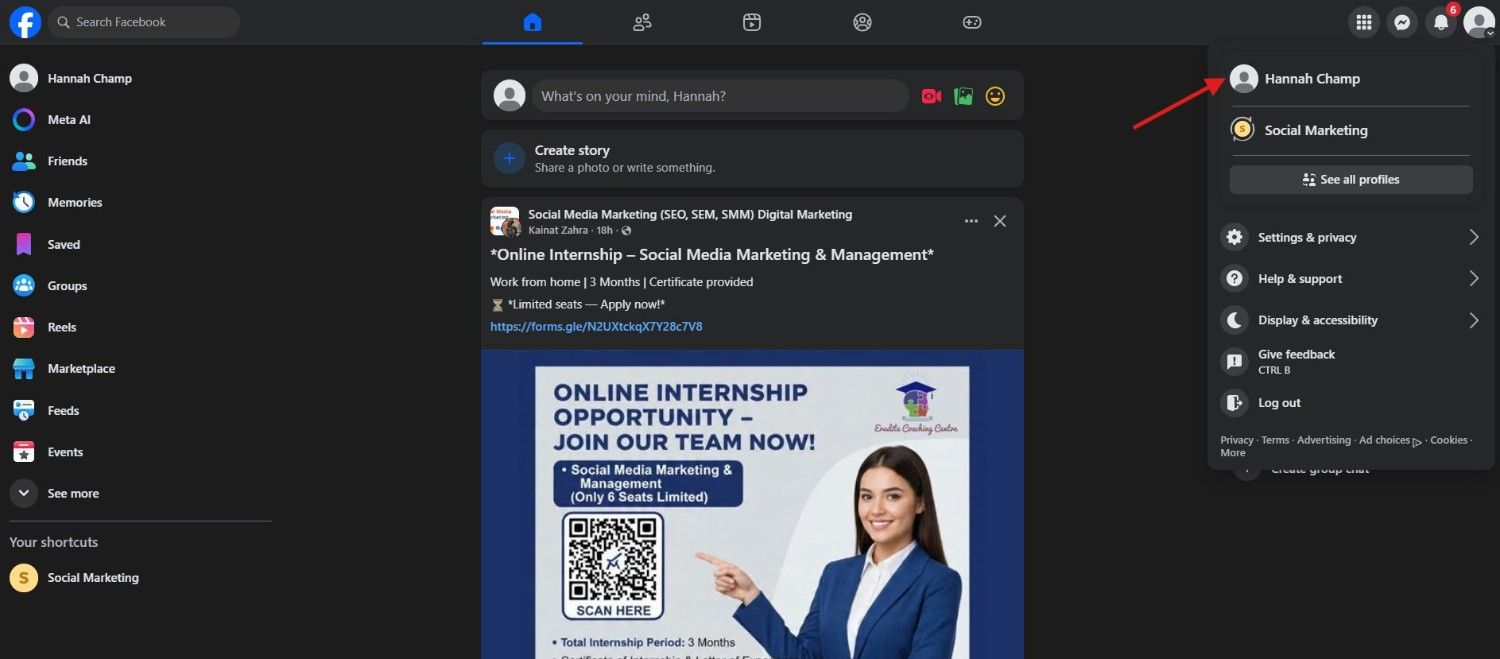
Log in to your Facebook account if you haven’t already done so. - Navigate to Your Profile
Once logged in, click on your name or profile picture in the top right corner of the Facebook homepage. This will take you to your profile page.
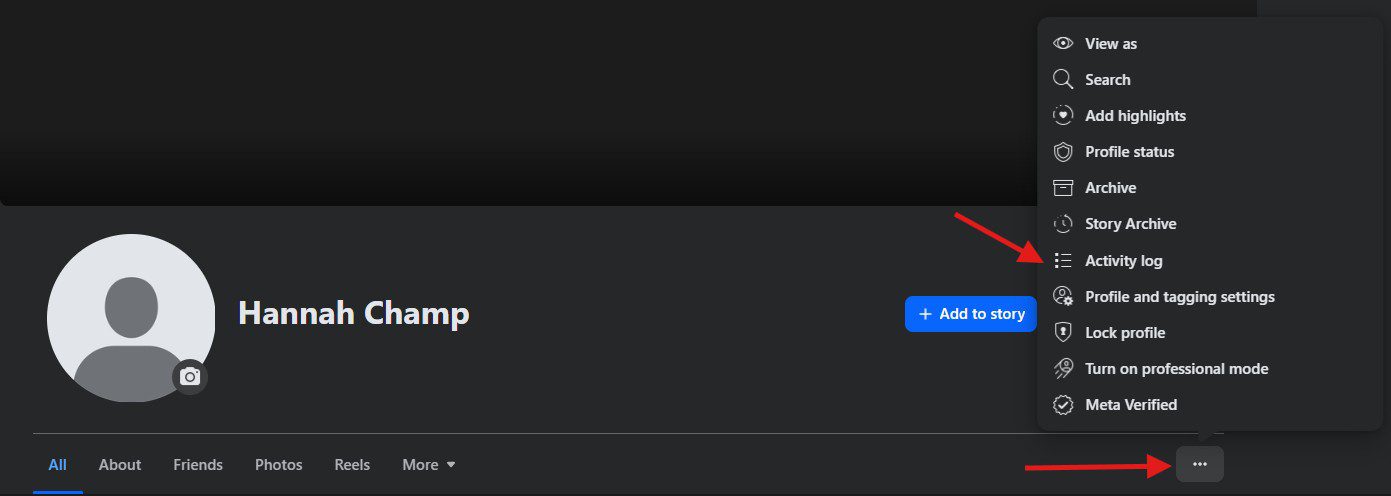
Navigate to Your Profile - Find Your Activity Log
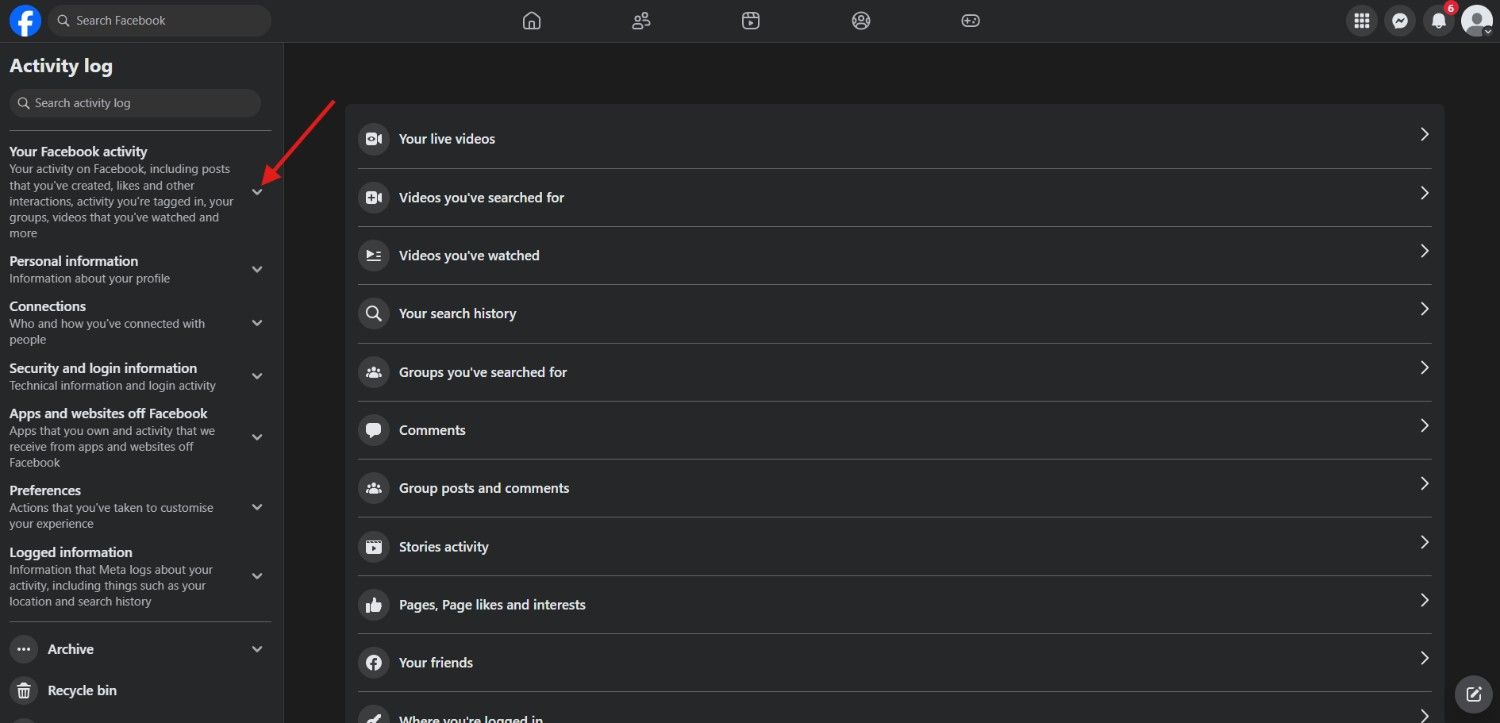
On your profile page, look for the three dots located just below your cover photo and to the right of your profile picture.Click on these dots to reveal a dropdown menu. From the menu, select “Activity Log.”Find Your Activity Log - Go to Your Facebook Activity
In the Activity Log, you’ll see the option “Your Facebook activity” in the left sidebar. Click its dropdown.Go to “Your Facebook Activity” - Scan Your Hidden Posts
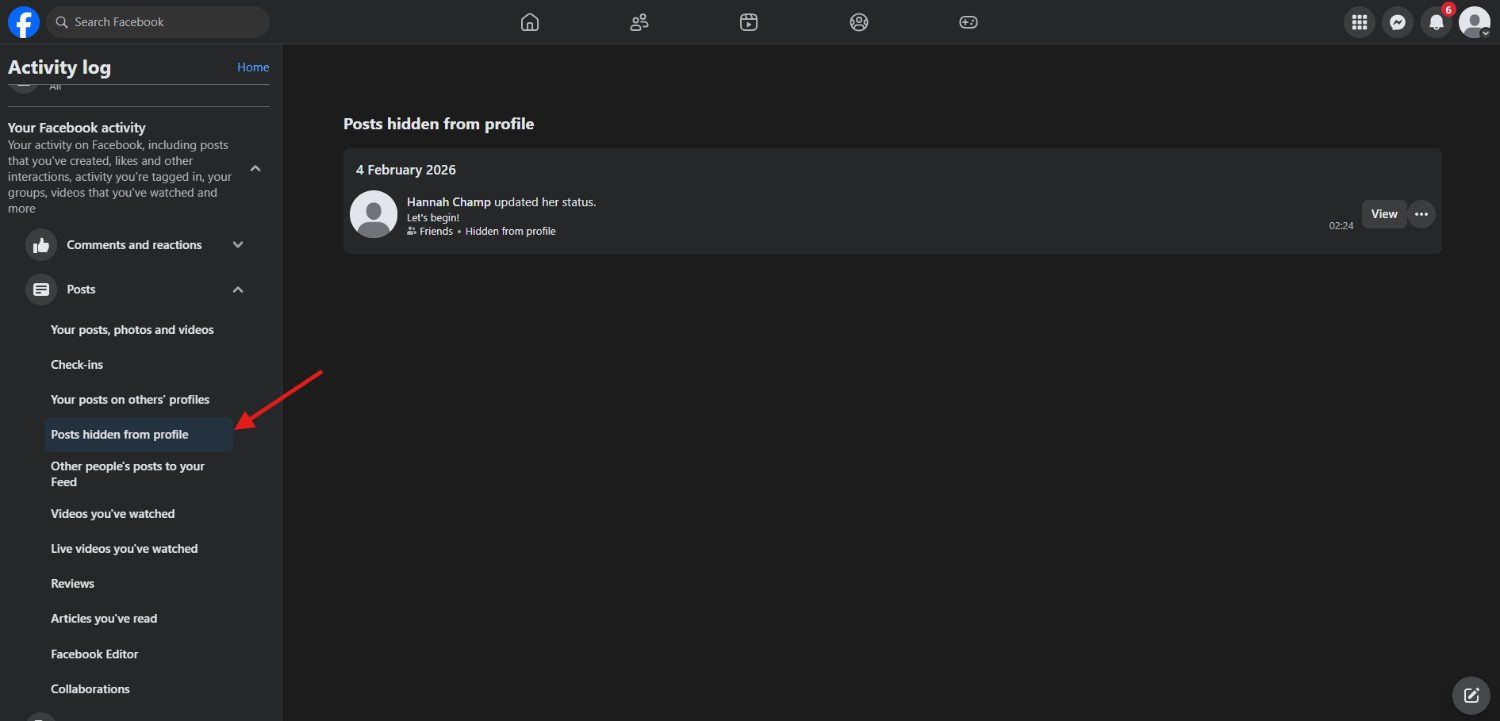
Now in the dropdown menu, select “Posts.” And then click on “Posts hidden from profile.”Scan Your Hidden Posts - Unhide Your Posts
Here, you’ll see all the posts that are hidden from your profile. Click the three dots and select “Add to profile” from the dropdown menu.Click “Add to Profile”
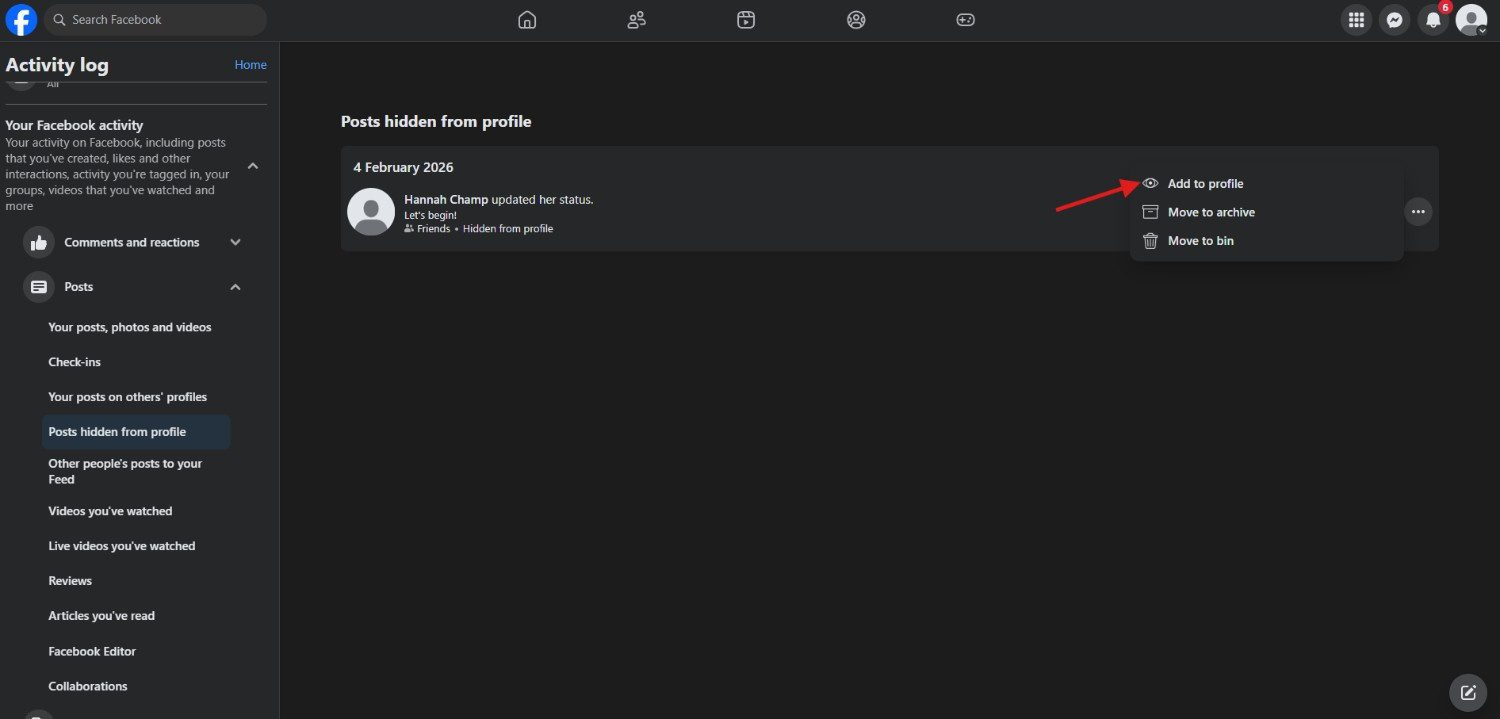
Clicking on this option will instantly restore the post to its original visibility on your timeline and to the audience it was originally shared with.
Depending on your Facebook settings, you may be prompted to confirm that you want to unhide the post. If so, simply follow the on-screen instructions to confirm your action.
That’s it! You’ve managed to unhide post on Facebook using your desktop or laptop. Now you can enjoy seeing it again, and your friends can too.
Featured Article: How to Stop the Scroll: The Social Media Hook Formula That Works on Any Platform
How to Unhide Post on Facebook Using a Mobile Device
Unhiding posts on Facebook using your mobile device is easier than you think. Here are the steps to follow to unhide posts on the Facebook app:
- Open the Facebook App
Unlock your mobile device and launch the Facebook app. Make sure you’re logged in to your account. - Go to Your Profile
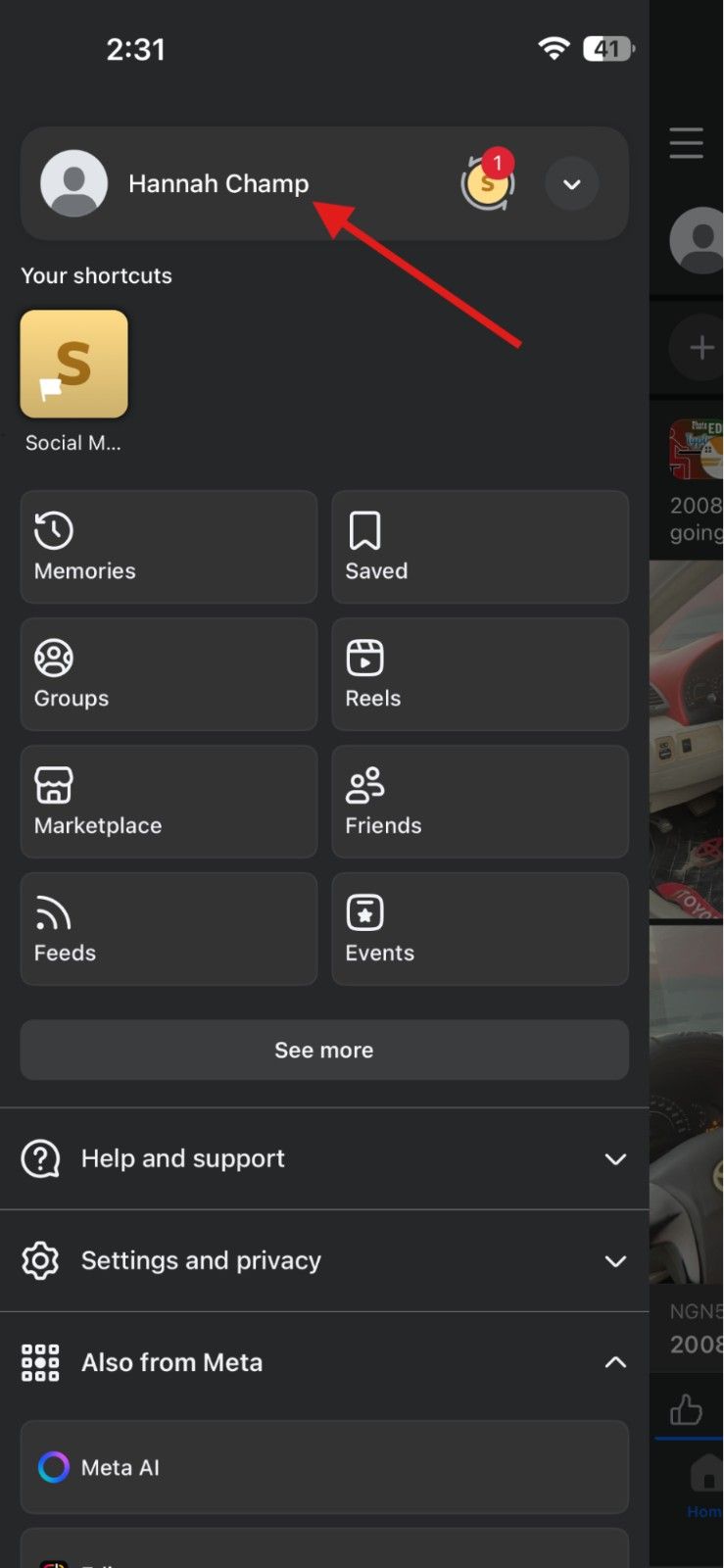
Tap on the menu icon (three horizontal lines) located in the top-right corner of the screen. From the menu options, tap on your name or profile picture to navigate to your profile page.Go to Your Profile - Locate Your Activity Log
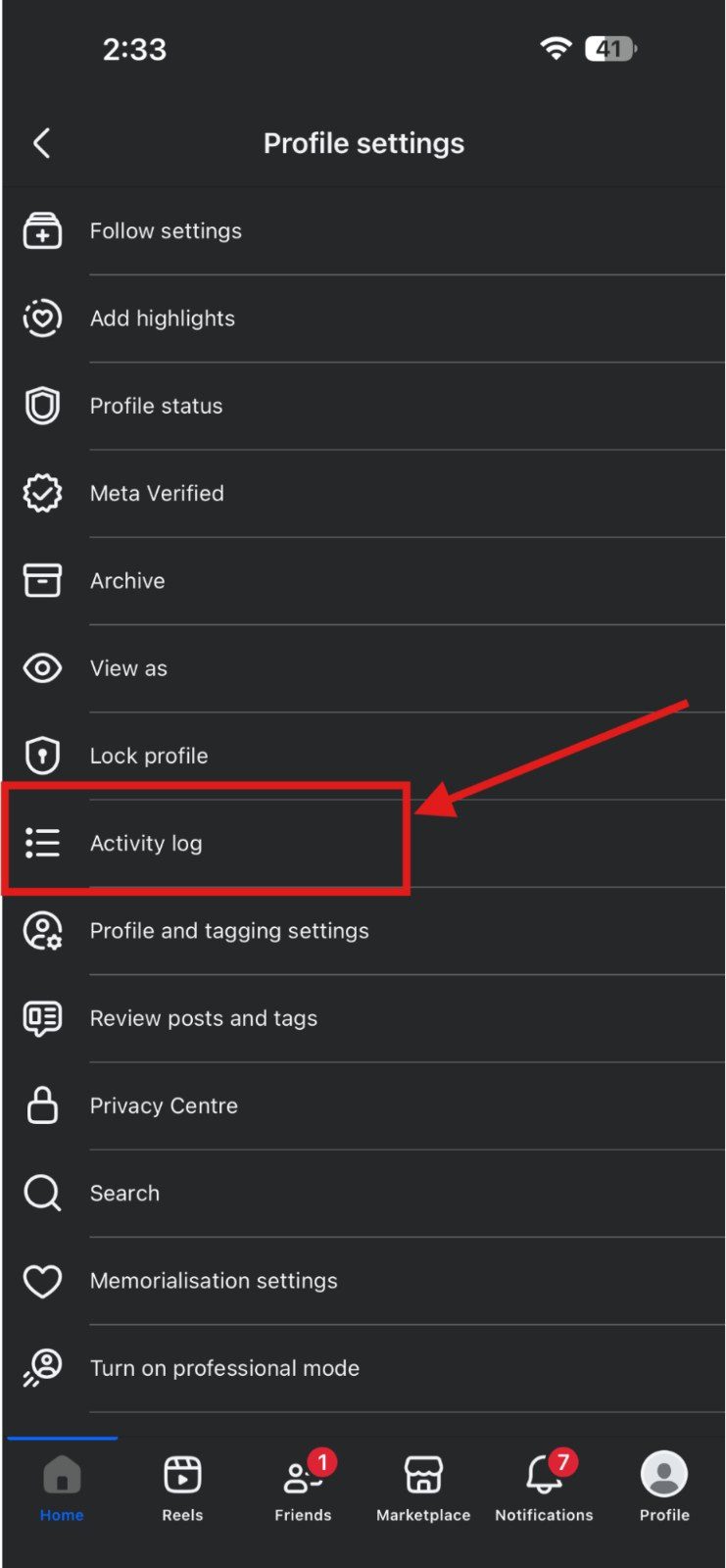
On your profile page, tap the three horizontal dots on the top right corner of your screen. Select “Activity Log” from the menu.Tap “Activity Log” - Find Your Hidden Posts
Tap “Your Facebook activity.” Select “Posts,” and tap “Posts hidden from profile.” Here, you can see all of your posts that are hidden from your profile.Find Your Hidden Posts - Unhide Posts From Your Profile
Now, tap the three dots in the right corner and tap “Add to profile.”Tap “Add to Profile”
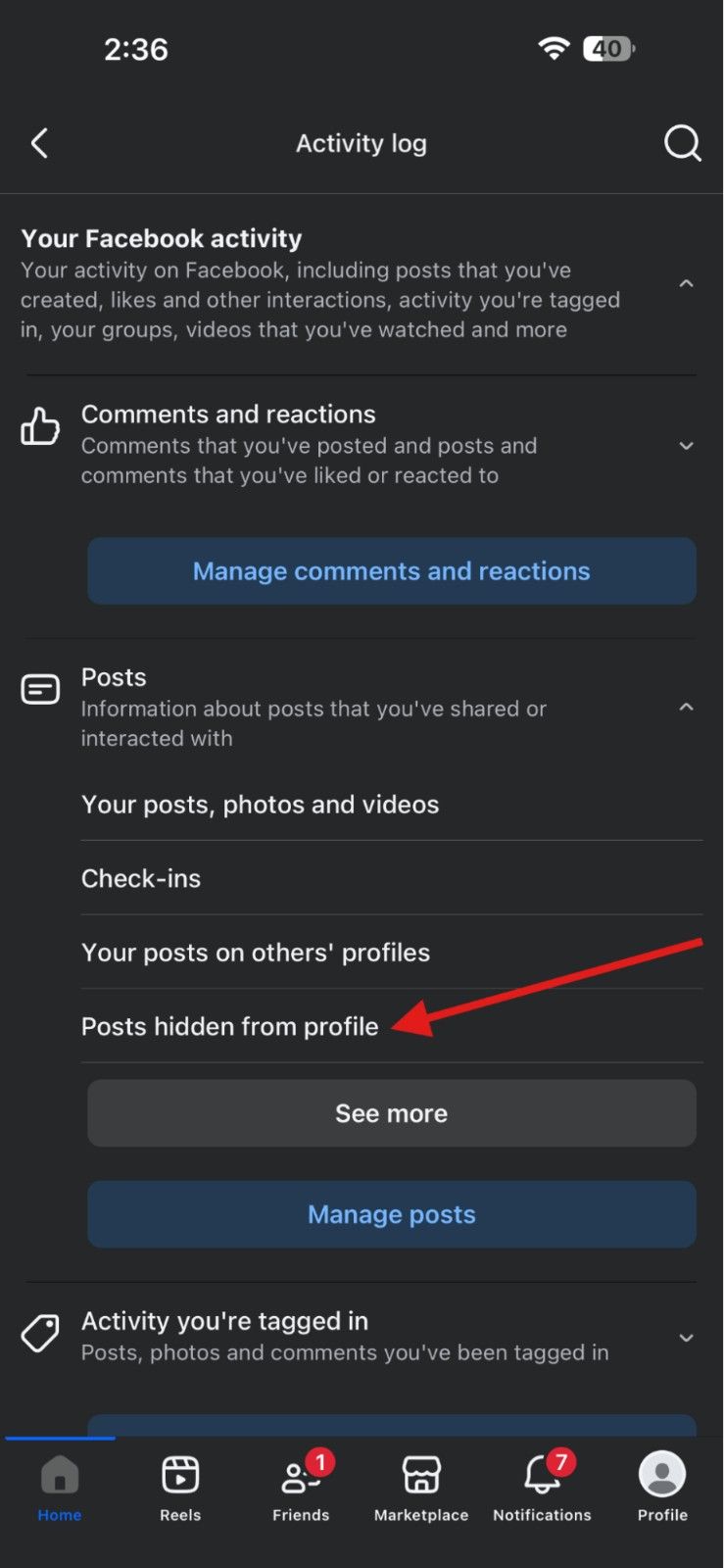
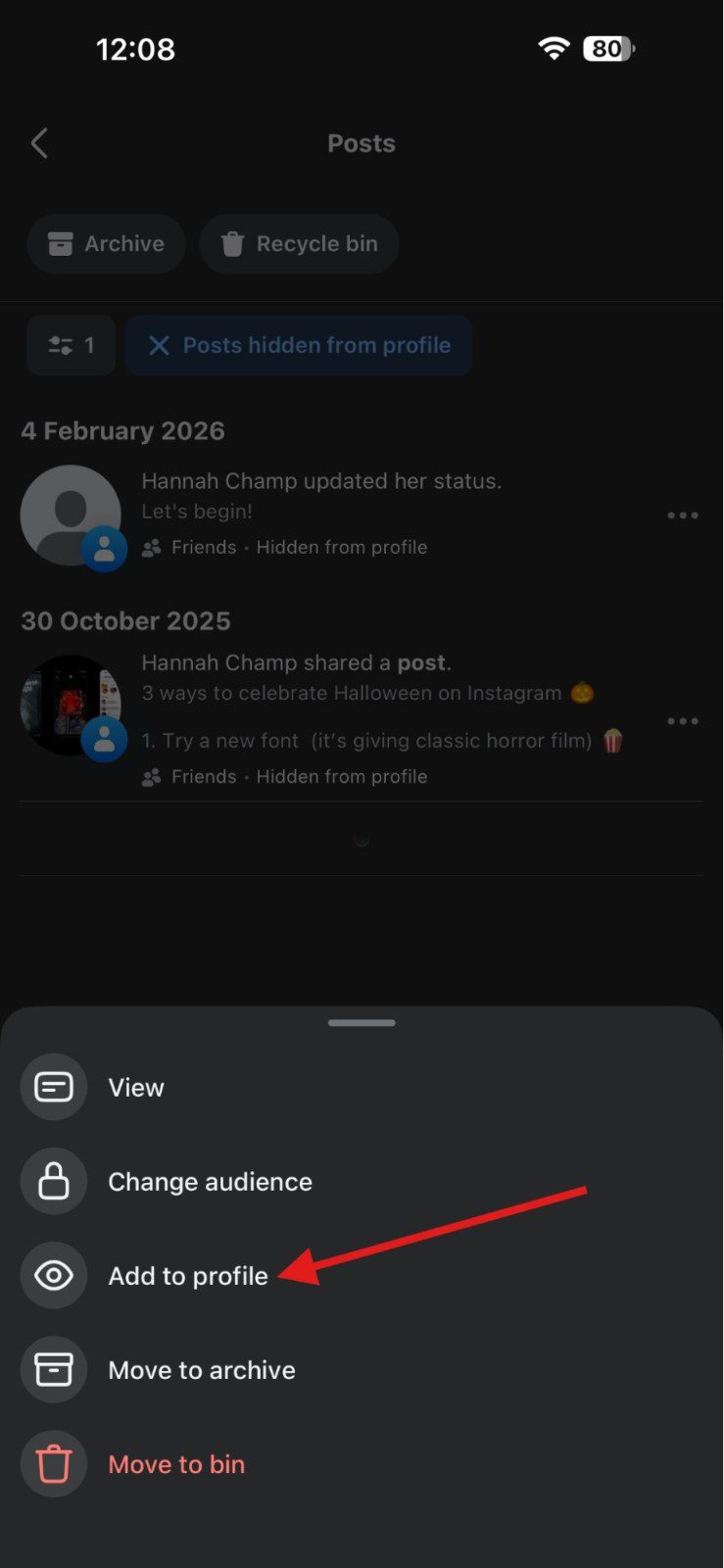
This action will immediately restore the post to its original visibility on your timeline and to the audience it was originally shared with.
Depending on your Facebook settings, you may need to confirm your decision to unhide the post. Follow any on-screen prompts to complete the process.
That’s it! You’ve managed to unhide posts on the Facebook app. Now you can enjoy seeing it again, and your friends can too!
Get Valuable Insights With Social Champ!
Gain valuable insights into your Facebook performance, track engagement metrics, and optimize your content strategy for maximum impact.
How to Unhide Post on Facebook From Your Profile or Timeline
If you accidentally hid a post on Facebook, don’t worry; it’s not gone. Facebook simply tucks it away, and you can bring it back in under a minute if you know where to look.
Here’s exactly how to unhide posts on Facebook from your personal profile or timeline.
Step 1: Go to Your Facebook Profile
Open Facebook and click on your profile picture to access your timeline. This is where your post originally appeared before it became one of the hidden posts on Facebook.
Step 2: Open Activity Log
Click the three dots (⋯) on your profile and select Activity Log. This section keeps a record of everything you’ve posted, hidden, liked, or interacted with, which is perfect for tracking down a post you hid by mistake.
Step 3: Filter for Hidden Posts
Inside the Activity Log, look for “Logged actions and other activity” or “Hidden from timeline.” This is where Facebook stores posts you’ve removed from public view. If you accidentally hid a post on Facebook, you’ll find it here.
Step 4: Unhide the Post
Once you spot the post, click the three dots next to it and choose “Add to profile” or “Show on timeline.” That’s it. The post will instantly reappear on your profile like nothing ever happened.
Why This Happens (and How to Avoid It Next Time)
It’s surprisingly easy to hide a post while cleaning up your timeline or testing new updates. If you’re frequently managing content, having a clear plan for what to post on Facebook can reduce these slip-ups and keep your profile consistent.
How to Unhide Post on Facebook Pages and Groups
If you manage a Page or moderate a Group, hidden posts on Facebook are common, especially when content gets auto-hidden, reported, or temporarily removed during moderation.
The good news is that if you have the right permissions, you can easily bring those posts back.
Unhide a Post on a Facebook Page (Admin and Editor Access)
To unhide post on Facebook Pages, you’ll need to be an Admin or Editor. Here’s how:
- Go to your Facebook Page.
- Click the three dots and select “Activity Log.”
Select “Activity Log” - Find your hidden posts by clicking on “Your Facebook activity,” then “Posts,” and then “Post hidden from profile.”
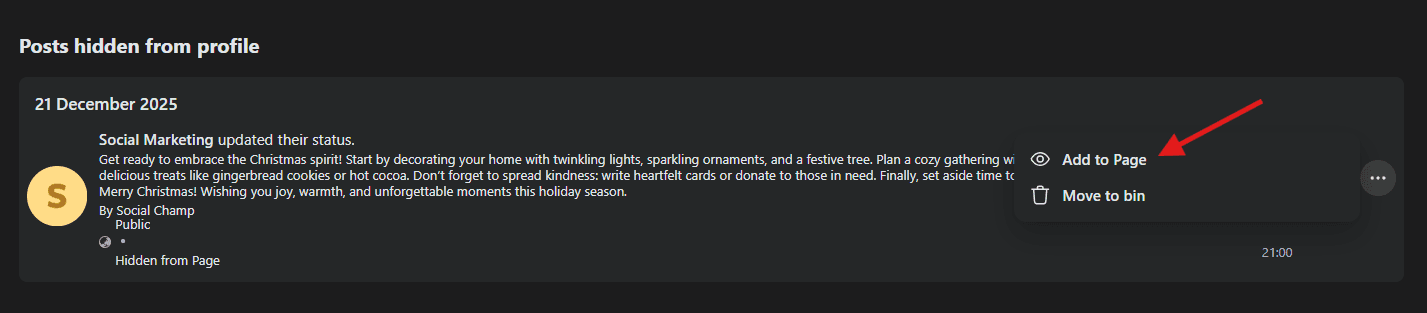
Select “Posts Hidden from Profile” - Click on the three dots and select “Add to Page.”
Click “Add to Page”
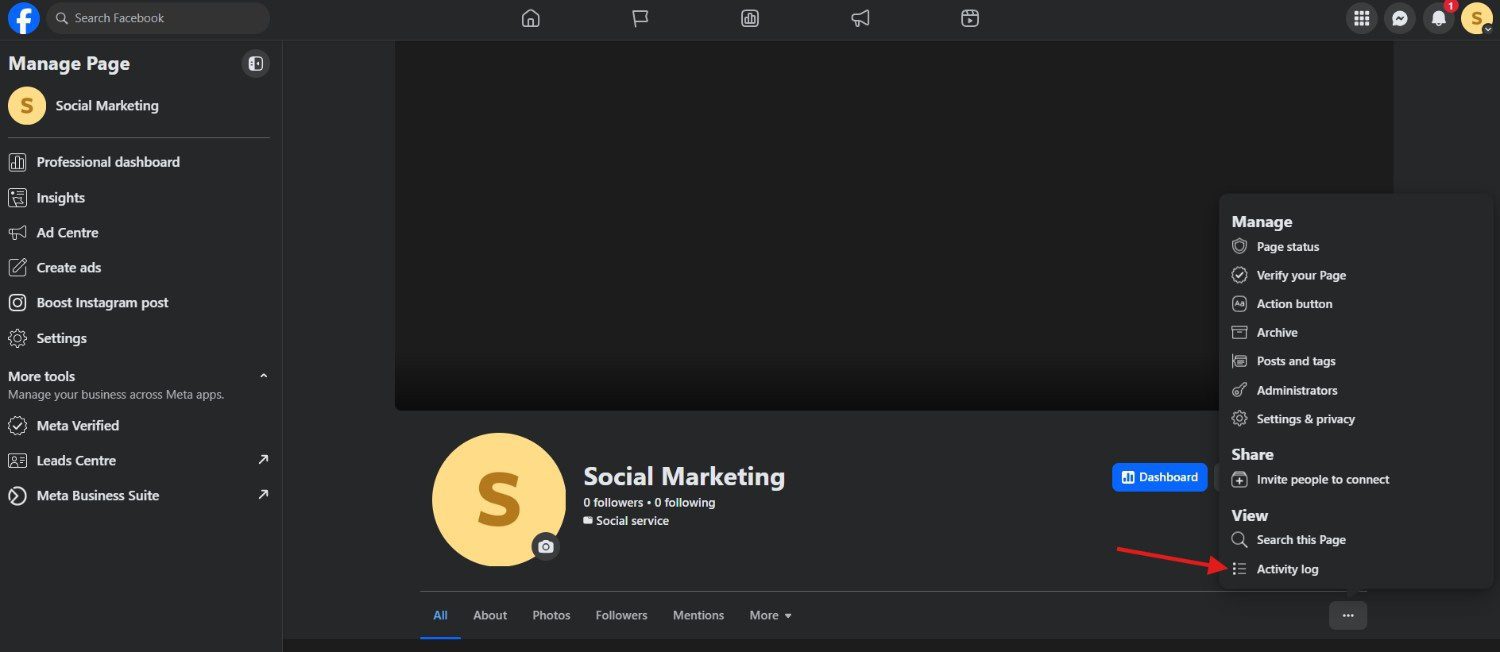
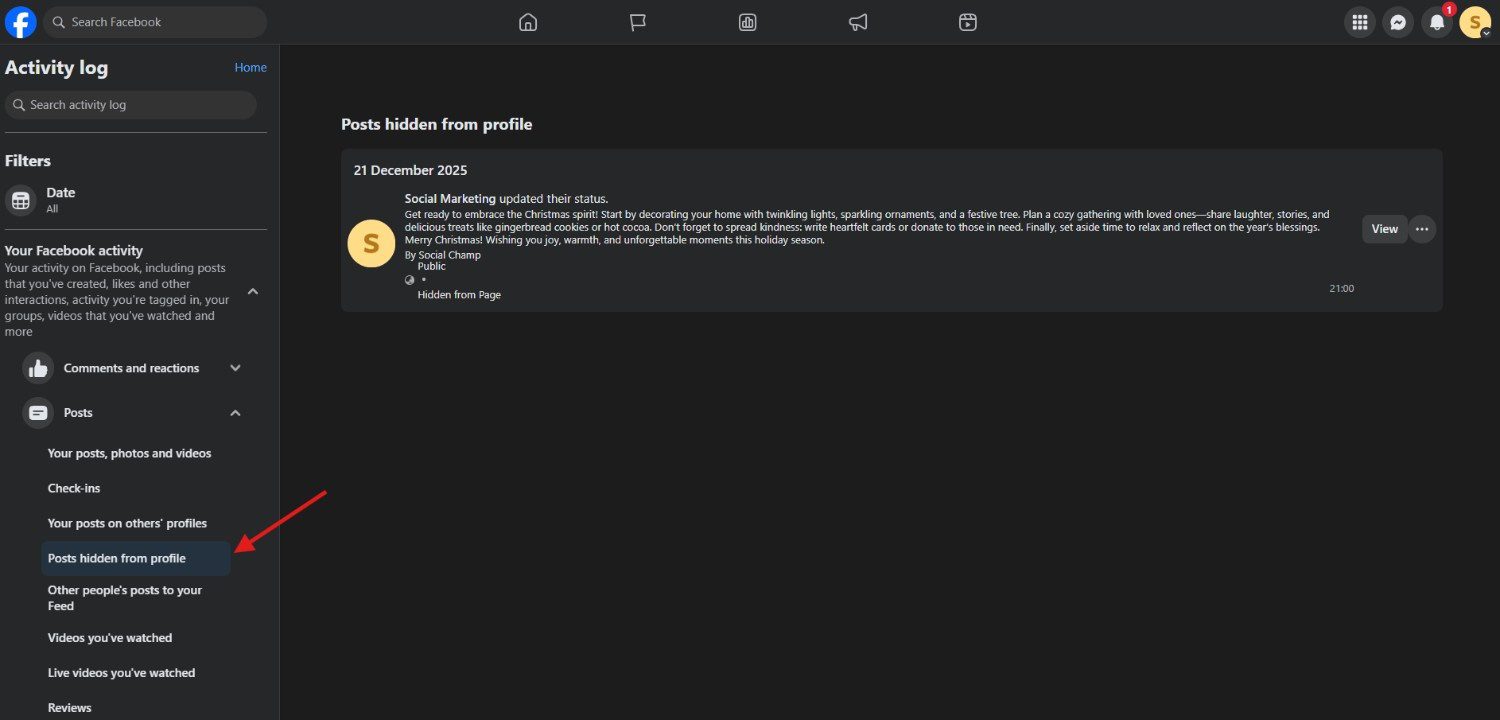
Page posts are often hidden due to link previews, flagged content, or timing issues. Using Facebook publishing tools can help you schedule posts efficiently and avoid accidental hiding.
Unhide a Post in a Facebook Group (Admins and Moderators)
For Groups, only Admins and Moderators can unhide posts. If you or your team accidentally hid a post on Facebook, follow these steps:
- Open the Group.
- Go to Admin tools and click “Activity Log.”
- Filter by Hidden Posts.
- Select the post and click Unhide or Approve.
In active communities, posts are often hidden during spam cleanups or rule enforcement. Knowing how to tag everyone in a Facebook group (where allowed) ensures important updates reach all members without getting buried.
Prevent Posts From Getting Hidden Again
Consistency matters. Planning your posts carefully and having clear guidelines reduces the chances of posts being hidden.
Once you know where to look and what permissions you need, managing and restoring hidden posts on Facebook becomes quick and stress-free, even for busy Pages and Groups.
Pro Tip!
If your posts keep getting buried or hidden due to low engagement, it might be time to rethink how often should you post on Facebook. Posting too much (or too little) can quietly hurt visibility without you realizing it.
Hidden Posts Are Costing You Views.
Every post that disappears is a missed click, like, or share. Don’t risk it—recover, schedule, and dominate your Facebook content with Social Champ.
Can You Unhide Post on Facebook if You Can’t Find It?
Sometimes, even after searching your timeline, a post seems to vanish completely.
If you accidentally hid a post on Facebook and can’t locate it, don’t panic. There are reliable ways to recover it using Facebook’s built-in tools.
Use the Activity Log to Track Hidden Posts
Your first stop should be the Activity Log. This tool keeps a detailed record of all your interactions, including hidden posts on Facebook.
- Go to your profile and click the three dots (⋯) → Activity Log.
- Use the filters to select Hidden from Timeline or Logged Actions and Other Activity.
- Browse through the entries to locate your missing post.
Once you find it, click Show on Timeline to restore it instantly.
Filter by Post Type or Date
If you have a lot of activity on your profile, scrolling manually can take forever. Facebook lets you filter by post type or date, which makes tracking down a hidden post much faster.
This method works well if you remember roughly when the post was created.
Check Post History and Shared Content
Sometimes, a post might not appear on your timeline but still exists elsewhere, like in groups, Pages, or shared links.
Checking your post history or notifications can help you locate it. For posts that include links or media, knowing how to post a link on Facebook correctly can ensure they don’t get auto-hidden or buried in feeds.
Plan Ahead to Avoid Losing Posts
If losing posts happens often, consider using a Facebook post scheduler to manage your content. Scheduling posts reduces the risk of accidental hiding and helps you control visibility while keeping your timeline organized.
With these methods, even “lost” posts can usually be recovered.
Once you learn how to unhide posts on Facebook effectively, you’ll never have to worry about hidden content slipping through the cracks again.
Featured Article: How to Add Timestamps on YouTube: Step-By-Step Guide
Stop Accidentally Hiding Facebook Posts With Social Champ
Accidentally hiding posts on Facebook happens to the best of us. One moment you’re tidying up your timeline or making quick updates, and the next, a post seems to vanish into thin air.
It’s frustrating, time-consuming, and honestly, a little embarrassing if your audience misses it.
But the good news is that tools like Social Champ can completely take this stress off your shoulders, giving you full control over your content while keeping your timeline organized and mistake-free.
Plan and Schedule Posts Like a Pro
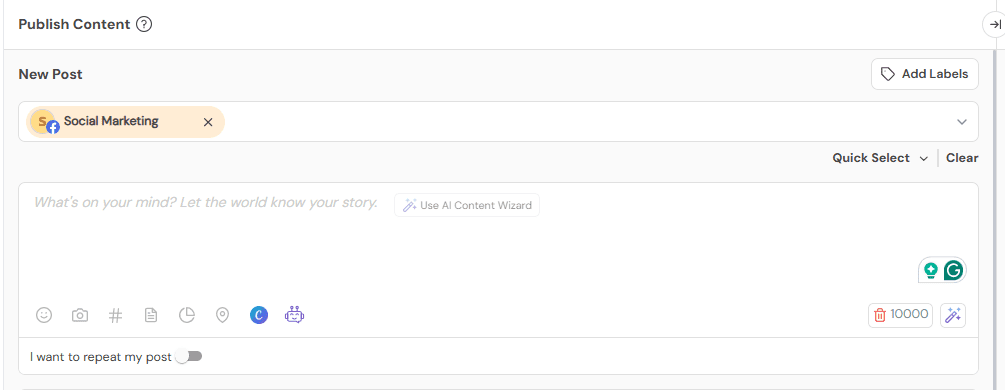
A lot of hidden posts happen simply because we rush. You click, you post, and bam, something gets accidentally hidden or misplaced.
Social Champ solves this by letting you plan your posts ahead, review them, and schedule Facebook posts exactly when you want. You can line up your entire week or month of content, preview it, and make adjustments before anything goes live.
This not only prevents accidental hides but also helps you maintain a consistent posting rhythm that keeps your audience engaged.
Post at the Right Time for Maximum Visibility
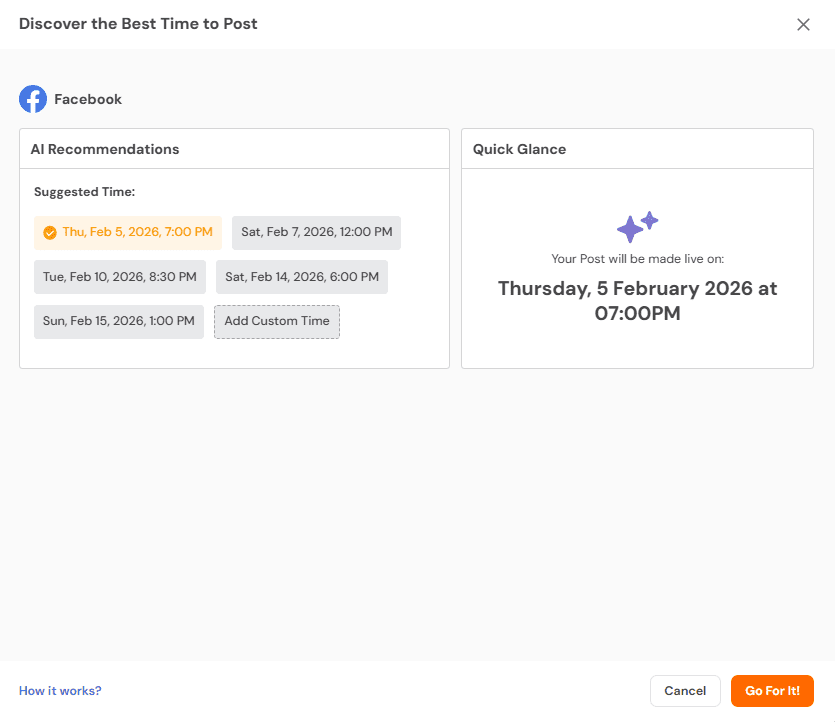
Even if a post isn’t hidden, posting at the wrong time can make it get buried in feeds.
Social Champ helps you identify the best time to post on Facebook so your content reaches the right people when they’re most active. No more guessing, no more trial-and-error, and no more frustration when posts you worked on disappear unnoticed.
Keep Teams Coordinated and Stress-Free
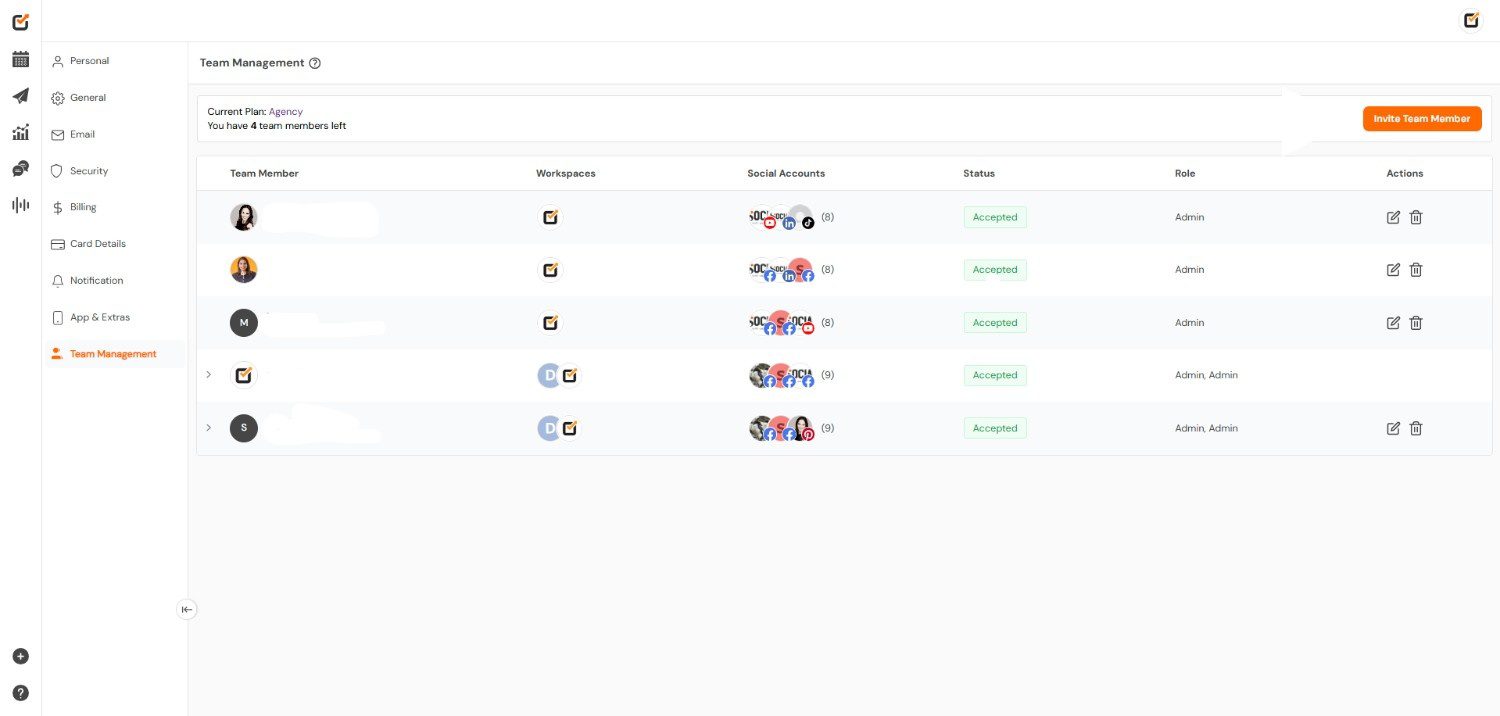
If you’re managing a Page or Group with multiple team members, accidental hides happen even more often.
Social Champ allows everyone to collaborate seamlessly, and team members can see scheduled posts, draft content, and review updates before anything goes live.
This centralized workflow makes mistakes rare, keeps everyone accountable, and ensures that hidden posts on Facebook are a thing of the past.
All-In-One Solution for Facebook Management
Beyond planning, scheduling, and timing, Social Champ gives you the power to monitor your posts, track engagement, and maintain a clean, professional Page or Group.
Once you start using it, managing hidden posts on Facebook becomes effortless. You’ll save time, reduce stress, and have more energy to focus on creating content that truly connects with your audience.
With Social Champ, accidental hides become a problem of the past, and managing your Facebook presence becomes smooth, organized, and worry-free.
Stop Losing Posts, Start Winning Engagement!
One accidental hide can tank your visibility. Social Champ keeps your timeline in check, and your posts live when it matters most.
Why You Might Be Unable to Unhide a Facebook Post (And Fixes)
Sometimes, even when you know how to unhide post on Facebook, things don’t go as smoothly as expected. There are a few common reasons why a post might stay hidden, and understanding them can save you a lot of frustration.
The Post Was Deleted
One of the simplest but most frustrating reasons is that the post is no longer on Facebook. If the original author deleted it, or if it was removed automatically by Facebook due to violations, there’s no way to restore it.
Unfortunately, even if you were the one who accidentally hid a post on Facebook, it won’t appear in your timeline again. The only fix here is to republish the content if you still have a copy.
Admin or Moderator Restrictions
For Pages or Groups, admins and moderators have control over visibility.
If you’re not an admin or don’t have the right permissions, certain posts may remain hidden even if you know how to unhide posts on Facebook. Check with the Page or Group admin to confirm your role, and request access if necessary.
Community Standards or Facebook Rules
Posts that violate Facebook’s community standards might be automatically hidden or removed. This can include anything flagged as spam, containing prohibited content, or reported by other users.
Even if the post seems harmless, Facebook may limit visibility to comply with its rules, making it impossible to restore.
Account Limitations or Technical Issues
Sometimes, hidden posts can appear due to temporary glitches or account restrictions.
Logging out and back in, clearing your browser cache, or using the mobile app can help reveal posts that seem “lost.” If the post still doesn’t appear, it may be tied to a broader account limitation that only Facebook support can resolve.
Quick Tips to Avoid This Problem
- Double-check permissions on Pages or Groups before hiding or deleting posts.
- Keep backups of important content so you can repost if necessary.
- Review Facebook’s community standards to ensure your posts comply.
Understanding why a post might stay hidden makes it easier to prevent future issues. Even if you accidentally hide a post on Facebook, knowing these common problems can save you time and stress while keeping your timeline visible and organized.
Quick Reminder!
Before assuming your post is hidden by mistake, check whether promotion played a role. Understanding boost post vs Facebook ads can help you avoid visibility confusion and choose the right option for reaching your audience.
Conclusion
Accidentally hiding a post on Facebook can be frustrating, but now you know it’s not the end of the world.
From finding hidden posts on your profile or timeline to restoring posts in Pages and Groups, and even recovering “lost” content with the Activity Log, there’s always a way to get your posts back.
When you learn how to unhide post on Facebook, it not only brings back memories and important updates but also keeps your connections and communities active and engaged.
Using tools like Social Champ can take the stress out of managing your content, helping you plan, schedule, and post at the right time so nothing gets hidden again.
With these tips, you can keep your Facebook presence organized, visible, and fully under your control, making sure every post reaches the people who matter most.