
Sharing a simple URL on Facebook should be a one-second task. Yet, many users find themselves staring at a blank box where a beautiful image should be, or worse, receiving a notification that their link looks suspicious to the algorithm.
Scrolling through a Facebook feed is a constant battle for attention, and with so much content vying for eyeballs, your link might get lost in the shuffle.
Short Summary
- Copy the full URL with https://, wait for the metadata preview to load, and delete the raw link text for a cleaner look.
- Switch to your Page identity or use Meta Business Suite to schedule professional link cards with advanced tracking.
- Always include the full URL prefix and use the specific Link Sticker for Facebook Stories, as text-only links are not clickable there.
- Use branded short links (like Bitly or Rebrandly) to build trust and track clicks without hurting your organic reach.
- Utilize Social Champ to bulk schedule posts, customize link thumbnails, and find the optimal time for maximum click-through rates.
With over 2.9 billion active users worldwide, Facebook remains the go-to platform for connecting with family and friends, sharing funny memes, and promoting your brand.
Whether you are trying to share a personal blog post through a Facebook post scheduler, a product from your shop, or a news article, the paste and pray method doesn’t always work. Between the nuances of Facebook Pages and Groups and the constant updates to how the mobile app handles previews compared to desktop, getting your link to look professional requires a bit more strategy than it used to.
What You’ll Learn in This Guide:
- The Basics: How to post a link on Facebook Profiles, Pages, and Groups without cluttering your feed.
- Troubleshooting: How to fix “missing thumbnails” and “broken previews” using the latest debugger tools.
- The First Comment Strategy: Why some creators are hiding links in the comments to beat the algorithm.
- Mobile vs. Desktop: Key differences in the 2026 interface you need to know.
- Automation: How to use tools like Social Champ to perfectly preview and schedule your links in advance so you never have to worry about a broken post again.
Turn One Afternoon Into 3 Months of Content!
How to Post a Link on Facebook (Desktop)
Posting a link from your computer is the most common way to share long-form content, news, or products. While it seems straightforward, Facebook’s 2026 interface relies heavily on automated metadata, meaning the platform reads your link before you even hit post.
Step-by-Step Walkthrough
- Copy your URL: Head to the address bar of the website you want to share, highlight the link, and press Ctrl + C (Windows) or Cmd + C (Mac).
- Open Facebook: Navigate to your Home feed or your specific Profile/Page.
- Initiate the Post: Click into the box that says “What’s on your mind?” at the top of your feed.

Click on What’s on Your Mind - Paste the Link: Press Ctrl + V (Windows) or Cmd + V (Mac).
- Wait for the Preview: Pause for 2–3 seconds. Facebook will automatically fetch the “Link Preview”, which is a box containing a headline, a summary, and a thumbnail image.
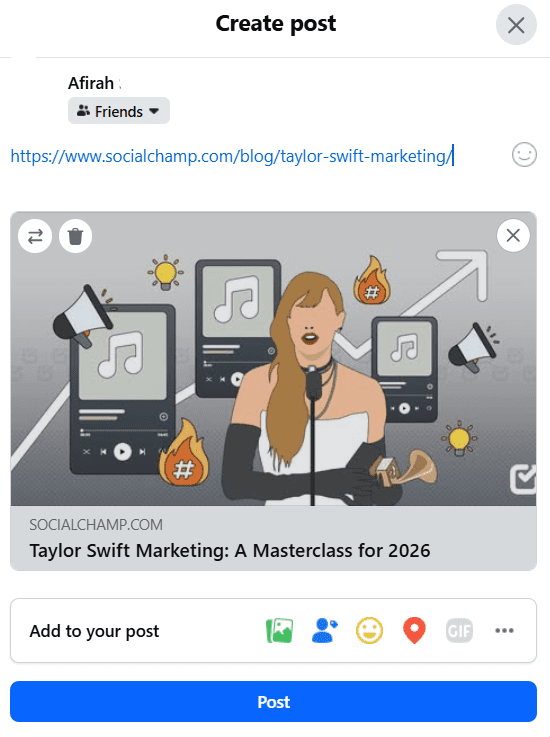
Paste Link in Text Box - Clean Up the Caption: Once the preview box appears, you can actually delete the raw URL from the text box. The preview will stay, leaving you space to write a compelling hook or call to action.
- Finalize and Post: Select your audience (Public, Friends, etc.) and click Post.
Understanding Link Metadata & Previews
When you paste a link, Facebook’s crawler looks for Open Graph (OG) tags in the website’s code. This metadata tells Facebook:
- og:title: What the big bold headline should say.
- og:image: Which specific photo to display as the thumbnail.
- og:description: The short snippet of text below the headline.
Note: In 2026, Facebook does not allow you to edit the headline or thumbnail directly within the post composer to prevent the spread of misinformation. If the preview looks wrong, you’ll need to update the metadata on the website itself or use a troubleshooting tool.
What if the Preview Doesn’t Load?
If you paste a link and only see the blue URL text without a preview box, don’t panic. This usually happens because:
- The website is new to Facebook and hasn’t been crawled yet.
- The site’s server is responding too slowly.
- The URL has security blocks.
Featured Article: Facebook Algorithm: How It Works?
How to Post a Link on Facebook (Mobile App)
Posting a link via the Facebook app (available on iOS and Android) is the most convenient way to share content on the go. However, because mobile devices handle data and caching differently than desktops, the process can sometimes feel a bit more glitchy.
Step-by-Step for iPhone & Android
- Copy the Link: Open your mobile browser (Safari, Chrome, etc.) or a third-party app like YouTube. Tap the Share icon and select Copy Link.
- Open the Facebook App: Tap the “What’s on your mind?” status box at the top of your News Feed.
- Paste the URL: Tap and hold the text field until the Paste button appears, then tap it.
- Trigger the Preview: On mobile, you often need to press Return or Enter after pasting the link to trigger the preview box.
- Wait: Wait for a few seconds for the image and headline to pop up below the text.
- Refine Your Post: Once the preview is visible, you can highlight and delete the long, ugly URL. Your preview will remain attached.
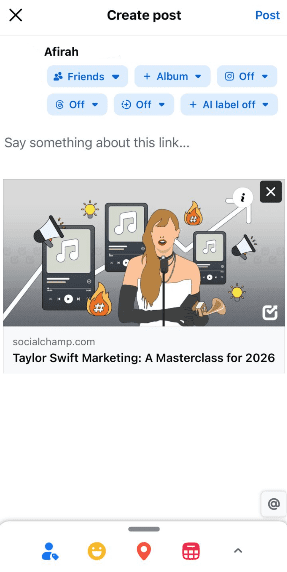
Link Preview on Facebook App - Tap Post: Hit Post in the top right corner.
Why Previews Load Differently on Mobile
Mobile previews are highly dependent on your network connection. If you are on a weak 5G or Wi-Fi signal, Facebook may skip loading the image entirely to save data, leaving you with a text-only link.
Additionally, the mobile app often uses a compact preview style compared to the large card style seen on desktop, especially in the 2026 update, which prioritizes vertical screen real estate.
Pro Tip: Clear Your App Cache
If you find that Facebook keeps pulling up an old image or no preview at all, the app’s internal browser might be “stuck.”
To fix this on mobile:
- Tap your Profile Picture (Menu) in the bottom right (iOS) or top right (Android).
- Go to Settings & Privacy > Settings.
- Scroll down to Permissions and tap Browser.
- Tap Clear next to “Your Browsing Data.”
This flushes the app’s memory and forces Facebook to look at the link with fresh eyes.
How to Post a Link on a Facebook Page
Managing a Facebook Page (for a business, brand, or public figure) is different than posting on a personal Profile. While profiles are for friends, Pages are for followers and come with professional tools to help your links reach a wider audience.
Switching to Your Page Identity
In the 2026 interface, you must switch your active profile to post as your Page.
- Click your Profile Picture in the top right.
- Select the Page you want to manage.
- Once the Page feed loads, use the “What’s on your mind?” box just as you would on a personal profile.
Using Meta Business Suite (The Pro Way)
For businesses, pasting links directly onto the Page timeline is often less effective than using Meta Business Suite. This tool allows you to:
- A/B Test Links: See which headline gets more clicks.
- Customize Previews: Ensure the link looks perfect on both Facebook and Instagram simultaneously.
- Schedule in Advance: Use the planner to drop your link at the exact time your audience is most active.
Comparison: Profile vs. Page vs. Group Posts
It’s easy to get confused between the three. Use this table to understand how link behavior changes depending on where you post.
| Feature | Personal Profile | Facebook Page | Facebook Group |
|---|---|---|---|
| Primary Audience | Friends & Followers | Public / Fans |
Group Members Only
|
| Link Preview Style | Standard Clickable Card | Large Professional Card |
Varies (depends on privacy)
|
| Scheduling | Not Available (native) | Available via Business Suite |
Available for Admins
|
| Algorithm Priority | High (for friends) | Medium (lower organic reach) |
Very High (notification-driven)
|
| Best Use Case | Personal updates | Brand news / Products |
Community discussion
|
Why Is My Facebook Link Not Working? (Troubleshooting Guide)
In 2026, Facebook’s automated systems are stricter than ever. If your link looks like a plain blue line of text or shows an image from three years ago, it’s usually a caching or metadata issue.
The Secret Weapon: Facebook Sharing Debugger
Facebook doesn’t “check” your website every time you post. It saves a “snapshot” (cache) of your link. If you change your website’s featured image, Facebook will keep showing the old one until you force it to look again.
-
Go to the Facebook Sharing Debugger.
-
Paste your URL into the field and click Debug.
-
Review the “Link Preview” section. If it’s outdated, click the Scrape Again button.
Common Issues and Quick Fixes
| Issue | Likely Cause | Quick Fix |
|---|---|---|
| No Image / Blank Box | Missing og:image tag or image is too small. |
Ensure your image is at least 1200 x 630 pixels and labeled correctly in your SEO plugin.
|
| Wrong Thumbnail | Facebook is picking the first image it finds. |
Use a tool like Yoast SEO or Rank Math to manually set a “Facebook Image” for that specific page.
|
| Outdated Info | Facebook is showing an old version of your site. |
Run the URL through the Sharing Debugger and hit Scrape Again.
|
| “URL is Blocked” | Flagged as spam or suspicious by the algorithm. |
Check your site for malware/SSL issues, then click “Let us know” in the Debugger to request a manual review.
|
| Preview Won’t Load | Slow server or robots.txt is blocking bots. |
Verify that your website isn’t blocking the user-agent facebookexternalhit.
|
Why Is My Link Suspicious?
If Facebook flags your link as suspicious or against community standards, it’s often because:
- Redirect Chains: Your link bounces through too many shortened URLs before landing on the destination.
- Mass Posting: You (or others) have shared the same link too many times in a short period, especially in Groups.
- Missing SSL: Your site is “http://” instead of the secure “https://”.
Why Is My Facebook Link Not Clickable?
There is nothing more frustrating than pasting a link and realizing it has turned into plain, unclickable text. In 2026, Facebook has tightened its security and changed how it handles external URLs to prevent spam.
If your link isn’t turning blue or clickable, it’s likely due to one of the following scenarios.
-
Missing the “https://” Prefix
Modern browsers often hide the https:// part of a URL in the address bar. However, Facebook’s auto-linker sometimes fails to recognize a domain like mysite.com as a real link without the protocol.
-
The Fix: Always copy the full URL directly from the address bar or manually type https:// before your domain.
-
-
Posting in Facebook Stories
If you simply paste a link into the text tool of a Facebook Story, it will not be clickable. Stories require a specific Link Sticker to function.
-
The Fix: 1. Create your Story and tap the Stickers icon (the smiley face). 2. Select the Link sticker. 3. Paste your URL and tap Add. You can now customize the sticker text to say Read More or Click Here.
-
-
Links in Reels or Cover Photos
Facebook does not allow clickable hyperlinks in Reels captions or Cover Photo descriptions to prevent click-jacking.
-
The Fix: Since you can’t make these clickable, use a “Link in Bio” tool or direct users to a pinned post on your profile that contains the clickable link.
-
-
Links in Comments (New Policy)
In a major 2026 update, Facebook has restricted clickable links in the comments of popular posts to reduce “link farming.” Sometimes, links posted by non-friends or new group members are automatically converted to plain text.
-
The Fix: If you are the Page owner, try using the “Link in First Comment” strategy, but ensure you are posting as the Page itself. If you are a guest, try replying to a thread with the link after you’ve had some text-based interaction to show the algorithm you aren’t a bot.
-
If you want to learn more about Facebook management, refer to the following resources:
How to Post Shortened or Trackable Links on Facebook
If you are sharing a link from a professional website, the raw URL is often a mountain of messy characters, especially if it contains UTM parameters for tracking. In 2026, using shortened or branded links isn’t just about aesthetics; it’s about building trust and gathering data.
-
Why Shorten Your Links?
Long, cluttered URLs can look unprofessional and sometimes get truncated by the Facebook interface. By using tools like Bitly, Rebrandly, or Short.io, you can:
- Clean up the look: Turn a 100-character link into something short and sweet.
- Brand your links: Use a custom domain (e.g., brand.link/sale) instead of a generic one.
- Track Clicks: See exactly how many people clicked your link from Facebook versus other sources.
-
Best Practices for Shortened Links
- Avoid Generic Shorteners: In 2026, Facebook’s security filters are aggressive. Random, generic shorteners (like bit.ly/3xJk9) are more likely to be flagged as spam.
- Use Branded Domains: Using your own domain (e.g., yourname.co/blog) signals legitimacy to both the algorithm and the user.
- Add CTA Text: Don’t just drop the link. Surround it with a clear Call to Action (CTA).
-
Myth-Busting: Does Shortening Reduce Reach?
There is a common myth that the Facebook algorithm punishes posts with shortened links. This is false. As long as the destination is safe and the link isn’t being mass-spammed across dozens of groups, a shortened link will have the same organic reach as a full URL. In fact, branded short links often have higher click-through rates (CTR) because they look more trustworthy.
How to Schedule Posts With Links on Facebook
If you want to maintain a consistent presence without being tied to your desk, scheduling is your best friend. But there’s a technical bonus: scheduling often helps stabilize link previews.
When you schedule a post, Facebook’s scraper has more time to process the URL data before it goes live. This reduces the chances of your post appearing as a broken link or a text-only snippet.
Using Meta Business Suite (Native)
- Open Meta Business Suite: Go to your Page and click on the Planner tab.
- Create Post: Click the Create button in the top right.
- Add Your Link: Paste your URL into the text box and wait for the preview to generate.
- Set Time: Instead of clicking “Publish,” toggle the Set date and time option.
- Schedule: Choose your preferred slot (or use Meta’s “Active Times” suggestions) and hit Schedule.
A Smarter Alternative: Social Champ
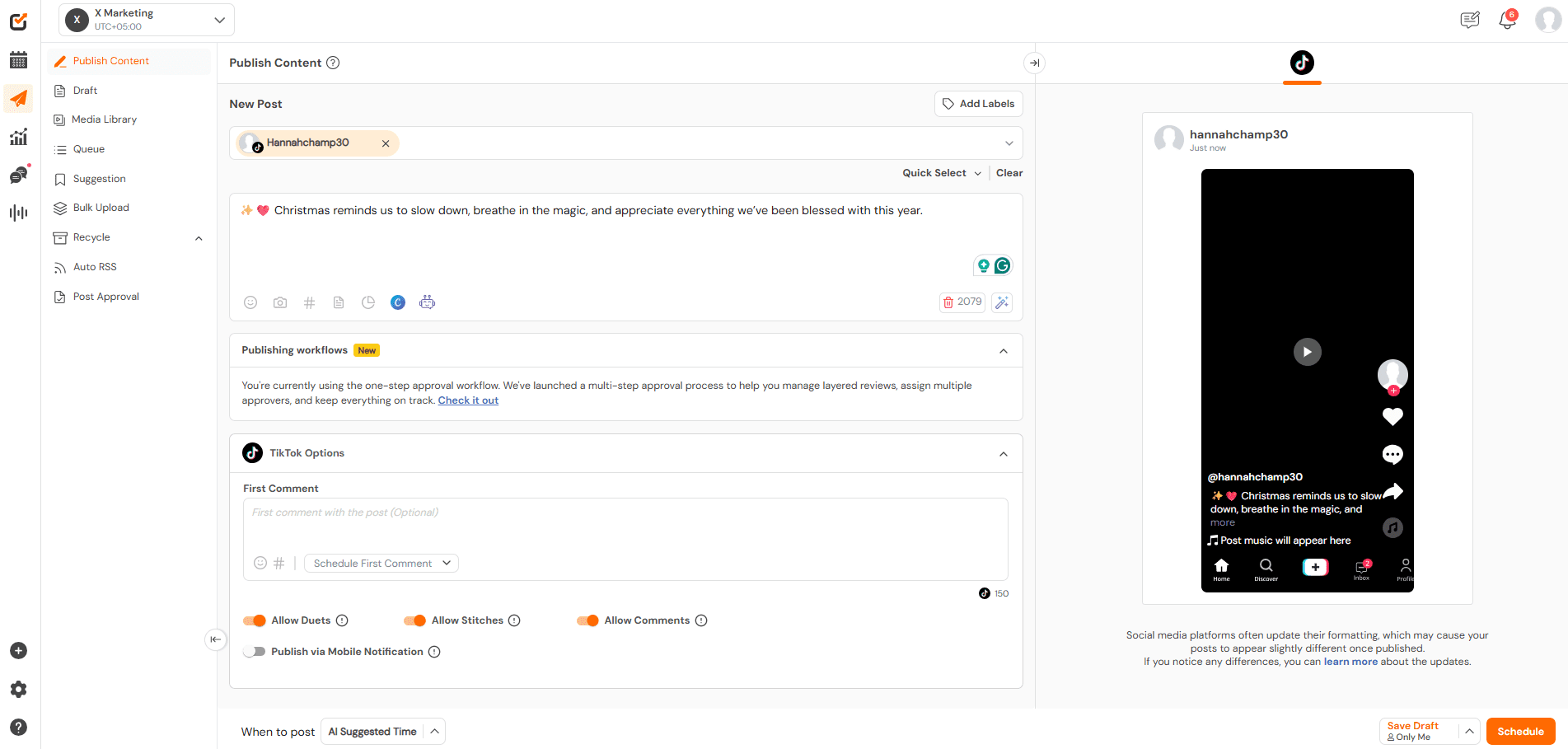
While Meta Business Suite works for basic scheduling, it can be clunky if you’re managing multiple brands or want more control over how your links appear. This is where Social Champ comes in as a more robust solution for 2026.
Social Champ allows you to:
- Customize Link Previews: Unlike the native Facebook app, Social Champ lets you edit the link title and description or upload a custom thumbnail for your verified domains.
- Bulk Schedule: Upload hundreds of links at once via a CSV file.
- Optimal Timing: Their AI-powered “Best Time to Post” feature analyzes your specific audience’s history to tell you exactly when that link will get the most clicks.
- Auto-RSS: Automatically share your newest blog posts to Facebook the second they go live.
Turn One Afternoon Into Endless Content!
Conclusion
Posting a link on Facebook is vital for anyone looking to maximize their online presence, whether you’re an individual, a business, or a brand. Following the steps outlined in this guide can help ensure your link posts on Facebook are engaging, visually appealing, and effectively targeted, while supporting smarter Facebook Competitor Analysis.
If you want to streamline the process and maintain a consistent posting schedule, using a Facebook scheduler like Social Champ can be incredibly beneficial. This is especially true if you plan to schedule multiple link posts in advance. This approach ensures your content is always timely and reaches your audience at optimal moments.
Featured Article: Top 15 Facebook Automation Tools



1 comment
Daniel Alvarez
I always get tripped up on how to share links on Facebook these days. This guide makes it so simple – love the tip about deleting the pasted link after the preview pops up! No more clunky URLs cluttering my posts. Thanks a bunch!