We’ve all been there. You send a message on Instagram, and then autocorrect does its magic behind the scenes and blows things completely out of context.
You meant to text your boss, “I’ll handle the client brief first thing in the morning,” but it somehow turns into, “I’ll handle the client beef first thing in the morning.”
Now you’re staring at your screen, wondering how a simple update turned into an accidental threat. Now what? Can you unsend a message on Instagram? You wonder.
The good news is that you don’t have to live with every DM disaster forever. Instagram gives you a quick escape from awkward typos or unintended slips.
TLDR: Yes, you can unsend a message on Instagram by long-pressing the text and selecting ‘Unsend.’ It removes the content for both parties.
But there’s more to it than just tapping a button. What happens behind the scenes with notifications and visibility is where things get interesting.
In this article, I’ll break down exactly what happens when you unsend a message, who gets notified, and what limits you need to watch out for.
I’ll also show you how using an Instagram scheduler can help you plan smarter and avoid those panic-inducing send-and-regret moments in the first place.
Short Summary
- You can unsend messages on Instagram at any time, with no strict time limit.
- Unsent messages disappear from the chat for everyone.
- Instagram does not send a notification when you unsend a message.
- Recipients may still see the message through previews, read receipts, or screenshots.
- Unsending removes the message from the thread, but it does not erase reports or prior views.
Can You Unsend a Message on Instagram? (Quick Answer)
Yes, you can unsend a message on Instagram. You can do this in both DMs (Direct Messages) and group chats. It works for text, photos, videos, voice messages, and even GIFs.
The key is to act after sending, but before the other person reads it, to avoid any awkward notifications. But even if they’ve seen it, unsending removes it from the chat for everyone.
Plan Smarter With Social Champ!
How to Unsend a Message on Instagram (Step-By-Step)
Maybe it was a typo, an accidental emoji, or a message meant for your bestie that somehow landed in your boss’ DMs. Don’t panic. Instagram has your back… kind of.
Unsending a message on Instagram is simple, and the process is the same across devices. Here’s how you do it:
- Go to your direct messages
Tap the message icon to go to your direct messages.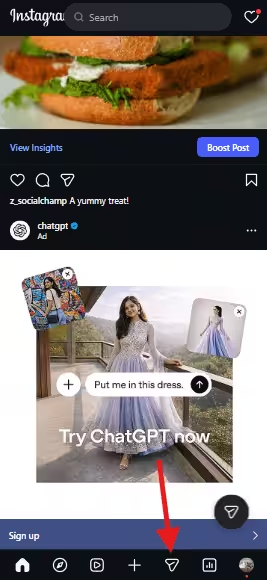
Select the Message Icon - Open the Conversation
Tap on the chat that contains the message you want to remove.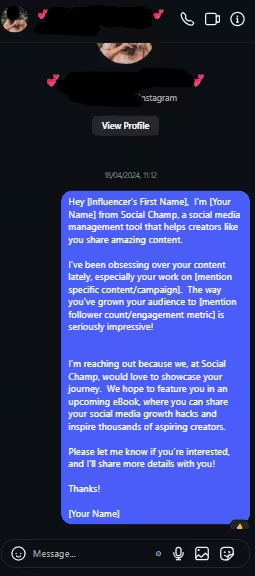
Open the Conversation - Find the Message
Scroll through the conversation until you locate the exact message you regret sending. Yes, the cringe one. - Press and Hold the Message
Tap and hold the message. A small menu will pop up with a few options. - Tap “Unsend”
Select Unsend from the menu.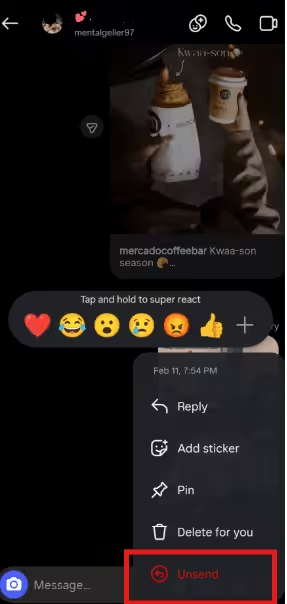
Tap “Unsend”
That’s it. The message will immediately disappear from the conversation for everyone in the chat.
Featured Article: How To Schedule Instagram Posts- Complete Guide
What Happens When You Unsend a Message on Instagram?
So, you hit Unsend. Now what?
What You See as the Sender
Once you unsend a message, it disappears from the chat on your end immediately. It will no longer appear in the conversation history, and there won’t be a placeholder saying “message removed.”
It’s simply gone, as if it was never there. You also won’t be able to recover it once it’s unsent.
What the Recipient Sees
On the other person’s side, the message is removed from the chat as well. Instagram does not leave a visible trace inside the conversation thread. There’s no “This message was unsent” label in standard DMs.
However, timing matters. If the recipient already opened the chat and read the message, they’ve seen it.
If they had push notifications turned on, they may have previewed part or all of the message before you removed it.
What Happens in Group Chats
The same rules apply in group conversations. When you unsend a message, it disappears for everyone in the group. Still, anyone who saw it before you removed it will remember what was said, even if the chat no longer shows it.
Does it work for everyone?
Yes. When you unsend a message in a group chat, it is removed for every single member of the group, not just the person you were replying to.
Note: In a busy group chat, unsending is much more “visible” because if five people are online, the chances of someone seeing the message before you delete it increase exponentially.
In short, unsending wipes the message from the visible chat history, but it cannot erase screenshots, notification previews, or human memory.
Featured Article: How to Tag Someone on Instagram
Does the Other Person See a Notification When You Unsend?
Short answer: No, Instagram does not send a notification that says “This message was unsent.”
But before you celebrate too hard, there are a few details you need to know.
No Direct “Unsent” Alert
When you unsend a message, Instagram does not push a special notification to the other person telling them you removed it.
There’s no pop-up that says you took it back, and in most standard chats, there isn’t a visible “message removed” label left behind either.
What About Push Notifications?
Here’s where things get interesting. If the recipient has push notifications turned on, they may have already seen a preview of your message on their lock screen or notification panel. Even if you unsend it seconds later, that preview might still have been visible.
Additionally, while the chat remains silent, the “Notification Ghost” is real. If the recipient is actively looking at their phone or has their notification tray open when you hit unsend, they can actually watch the message banner vanish in real-time.
On modern iOS and Android versions, the system tries to “pull back” the notification. However, if they have an Apple Watch or a wearable synced, the notification sometimes “sticks” on the watch even after it’s gone from the phone.
Read Receipts Still Matter
If the message shows as “Seen” before you unsend it, that means the recipient already opened the chat and viewed it.
Unsending will remove it from the conversation history, but it won’t undo the fact that they read it.
When Someone Can Still See It
Someone may still know what you sent if:
- They read the message before you unsent it
- They saw it in a push notification preview
- They took a screenshot
So, while Instagram won’t officially notify them that you unsent a message, speed is your best friend. The faster you act, the better your chances of keeping that DM mishap under wraps.
Simplify Your Entire Workflow With Social Champ
Limits and Risks of Unsending Messages on Instagram
Unsending feels like a magic undo button, but it’s not completely foolproof. Here’s what you need to know before you rely on it too much.
Is There a Time Limit?
Good news first. Instagram does not set a strict time limit for unsending messages. You can remove a message minutes, hours, or even days later.
So, as long as the message is still in the chat, you can unsend it. That said, the longer you wait, the higher the chance the other person has already seen it.
Can Someone Report an Unsent Message?
Yes, and this is important. Even if you unsend a message, the recipient can still report the conversation to Instagram.
In some cases, Instagram may review messages that were previously sent, especially if they were reported before being removed. Unsending does not guarantee total invisibility from moderation systems.
Screenshots Are Always a Risk
If someone takes a screenshot before you unsend the message, there’s no way to undo that. Instagram does not notify you if someone screenshots a regular DM. Once it’s captured, it’s captured.
What Types of Messages Can You Unsend?
You can unsend almost everything in standard DMs, including:
- Text messages
- Photos and videos
- Voice notes
- GIFs
- Stickers
- Reactions
The rule is simple. If you sent it in the chat, you can usually unsend it.
There’s no ticking clock forcing you to act within seconds, but speed still matters. Unsending removes the message from the visible chat history, yet it cannot erase screenshots, prior views, or reports. The unsend button is more of a cleanup tool, not a time machine.
Featured Article: How to Edit Grid on Instagram
Vanish Mode: The Pro Way to Avoid “Send-and-Regret”
If you’re constantly hitting “unsend” on Instagram messages, it might be time to try Vanish Mode.
In any 1-on-1 chat, just swipe up and watch the background turn dark; that’s your signal that Vanish Mode is on.
Everything you send in this mode, including messages, photos, and links, disappears automatically as soon as the other person sees it and you close the chat.
And the best part is that safety is built in. Unlike normal DMs, Instagram will notify you instantly if someone takes a screenshot while you’re in Vanish Mode. That way, you stay in control, and your private conversations stay exactly that, private!
Featured Article: Manage Multiple Instagram Accounts
Schedule Unlimited Posts Effortlessly
Avoid DM Mistakes and Manage Messages Smarter With Social Champ
If you’re managing Instagram manually, those “oops, wrong chat” moments aren’t surprising.
Most DM mistakes don’t happen because you don’t care. They happen because you’re multitasking: switching between accounts, replying on the go, checking comments, planning content, and trying to stay consistent all at once. That’s when the wrong message slips into the wrong inbox.
Yes, Instagram lets you unsend a message. But smart brands would rather not need that button in the first place.
That’s where Social Champ changes the game, especially with its Engage (Social Inbox). Instead of managing notifications across tabs, you get one centralized inbox where all your Instagram DMs, comments, mentions, and replies live together.
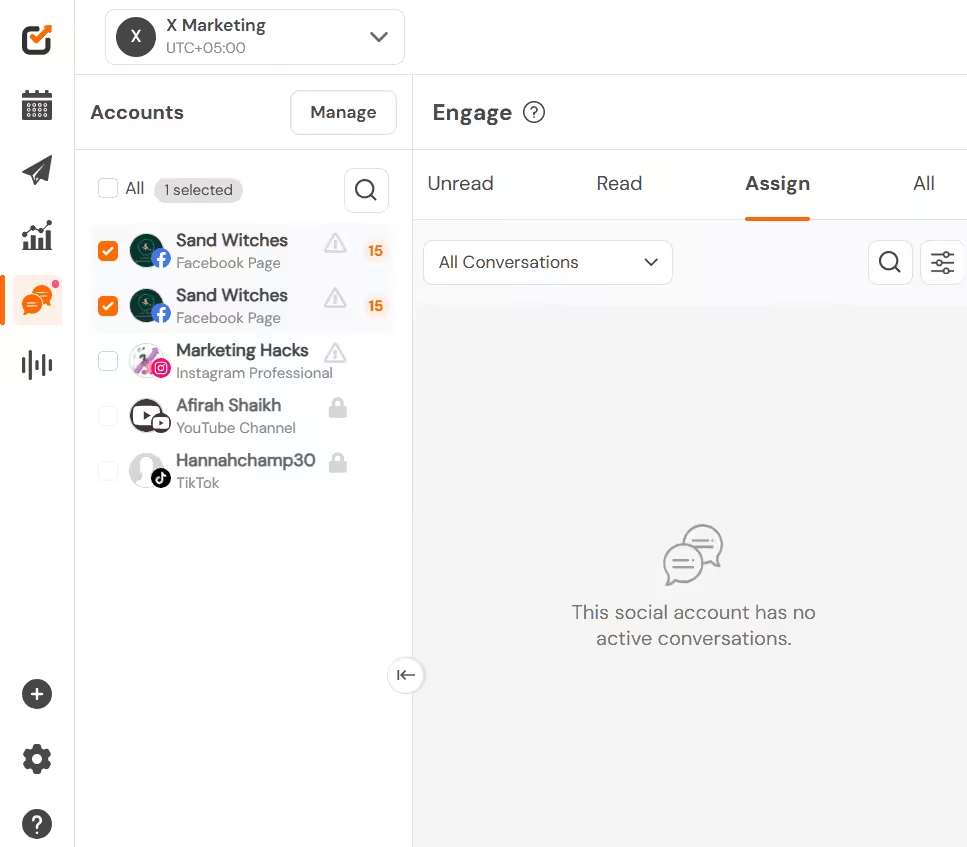
There’s no confusion about which account you’re replying from. No missed messages buried under other alerts. Just clear visibility into every conversation happening around your brand.
And because Engage is built for teams, you’re not stepping on each other’s replies either. You can:
- Assign conversations
- Track message history
- Set up multi-layer approvals
- Avoid duplicate responses with collision detection
- Stay organized with labelled conversations.
But it doesn’t stop at DMs. Social Champ also comes with social listening. This helps you monitor brand mentions and keywords monitor brand mentions and relevant keywords, even when you’re not directly tagged.
So instead of finding out about issues too late, you can jump into conversations early, respond strategically, and manage your reputation proactively.
And while Engage keeps your conversations under control, Social Champ’s scheduling, calendar, and AI Suggested Time features make sure your content is just as organized.
Conclusion
Sending a message on Instagram should not feel like launching a rocket with no return button. You can unsend messages, and in most cases, they disappear from the chat without a dramatic alert.
And if you are running Instagram professionally, social media management tools like Social Champ help you stay organized, plan smarter, and avoid messy DM moments in the first place. Fewer regrets. Fewer cleanups. Way more control.