
When you’re just an ordinary Facebook user, it’s easy to assume that page admins have the best deal in the world.
They get to approve or reject posts at will, excommunicate rowdy members, decline questionable join requests, edit group rules, and basically act like digital royalty.
From the outside, it looks like pure power. It’s only when you become an admin that you realize it’s less about flexing authority and more about managing chaos.
You are managing spam at midnight, settling comment wars that escalated for no reason, answering the same question for the fifteenth time, and making judgment calls that keep the community healthy.
Managing a Facebook Page, especially if you’re not using a Facebook post scheduler, starts to feel like running a small country. The crown is shiny, yes, but it comes with responsibility.
And at some point, you realize something important. You cannot do it alone. It’s that moment you start thinking about bringing someone else into the control room.
Short Summary
- Adding an admin to your Facebook Page is simple once you know where to find Page Access or Page Roles.
- Always assign roles carefully to avoid giving full control to someone who does not need it.
- Use Meta Business Suite for cleaner team management, especially if you work with agencies or multiple collaborators.
- Review admin access regularly to keep your Page secure and organized as your team grows.
- Tools like Social Champ help you schedule content and manage publishing workflows without handing out unnecessary admin access.
If you’ve been wondering about how to add admin to Facebook page, this guide is for you. It’ll walk you through the exact steps so you can assign roles confidently without second-guessing yourself.
Boost Page Efficiency With Social Champ
How to Add Admin to Facebook Page (Step-by-Step Guide)
Ready to make someone an admin on Facebook Page? Let’s make it official.
Whether you’re on your laptop or glued to your phone, let’s take a look at how to add an admin to Facebook page on both devices.
How to Add Admin to Facebook Page on Desktop
- Log in to Facebook and switch to your Page.
Click on your profile icon on the top right and select the Facebook Page you want to add admin for.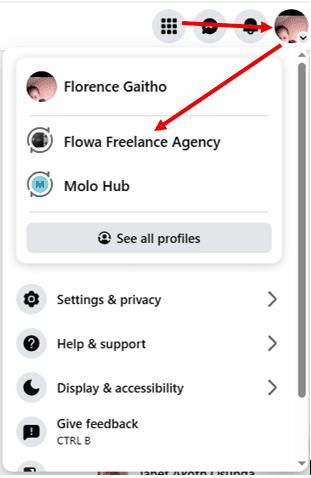
Switch to Your Facebook Page - Click Settings & Privacy.Once you’ve switched to your Facebook page, click the profile icon on the top right, and click “Settings & Privacy.”
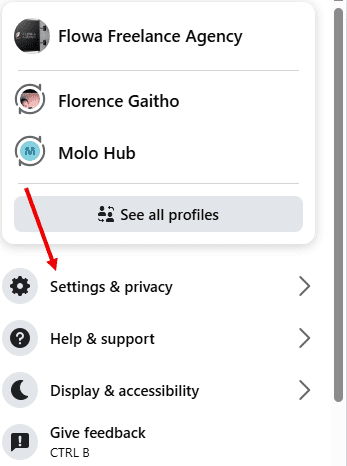
Select Settings & Privacy - Then click “Settings.”
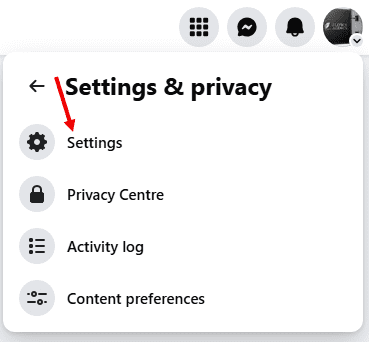
Select Settings - Click Page Setup on the left panel.
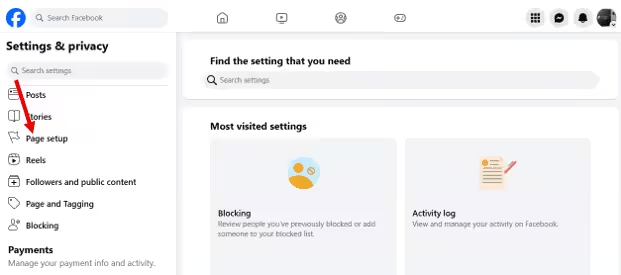
Click Page Setup - Select Page Access. This is where you manage permissions in the New Pages Experience.
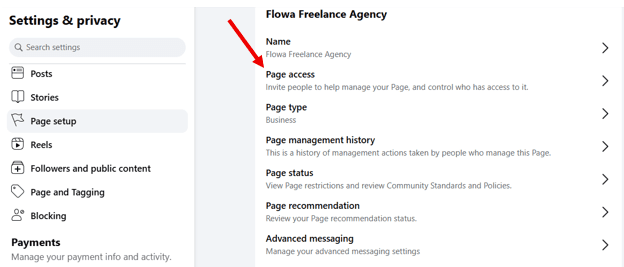
Select Page Access - Click Add New.
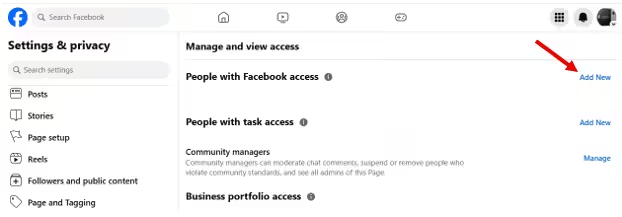
Go to Add New - Decide between People with Facebook access (Full Control) or People with task access (Partial Control). Click “Add New” next to your choice.
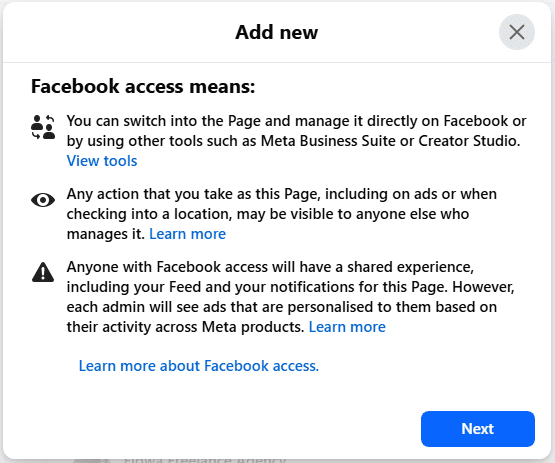
Select Next - Enter the person’s name or email.
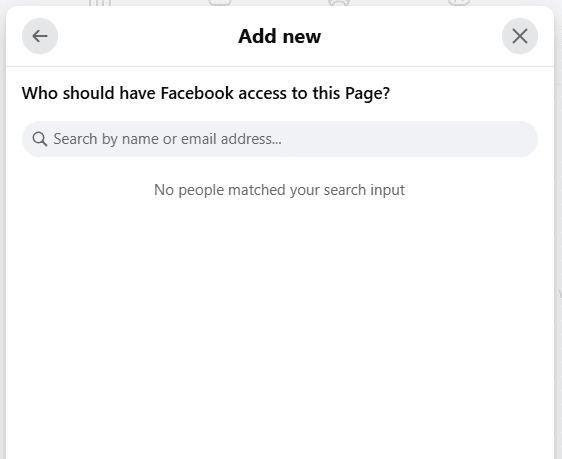
Add Email Address or Name - Click Give Access.
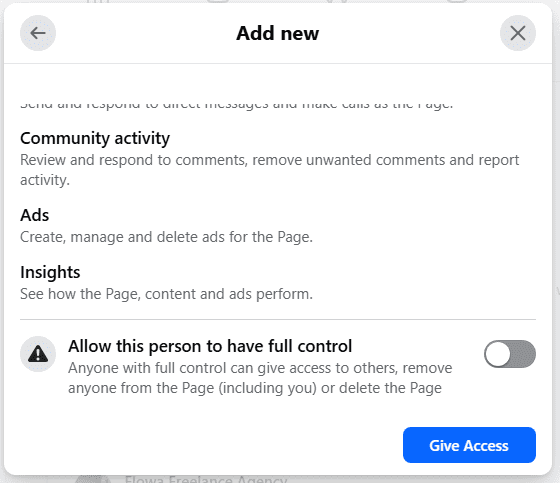
Toggle the button and click “Give Access” - Turn the ToggleConfirm and enter your password, and you’re done! You’ve managed to give access to the Facebook Page. The person you’ve given access to will have full control, just as you do.
Schedule Content With Social Champ
How to Add Admin to Facebook Page on Phone
You can add an admin to a Facebook group or page using the Facebook app, both on Android and iPhone. Here are the steps:
- Open the Facebook app and tap the three lines.

Tap the Three Lines - Tap the drop-down arrow.

Tap the Drop-Down Arrow - Choose the Facebook Page you want to add an admin for.
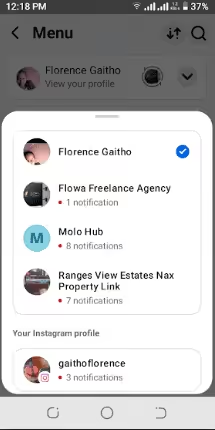
Select the Facebook Page - Click the three lines, tap Settings & Privacy, and then Settings.
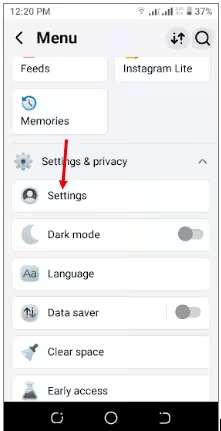
Go to Settings - Scroll down and tap Page Setup.
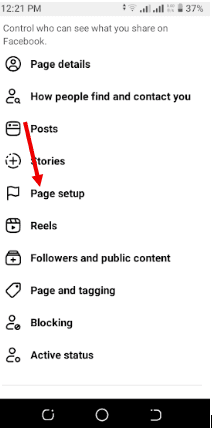
Tap Page Setup - Tap Page Access.
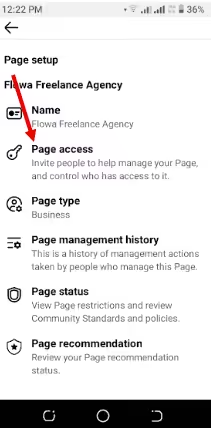
Go to Page Access - Select Add New.
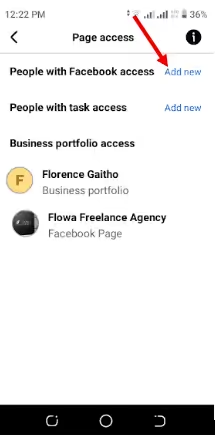
Select Add New - Tap Next.
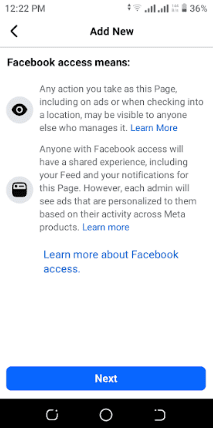
Tap Next - Search for the person’s profile.

Add Username - Toggle the button and tap Give Access.
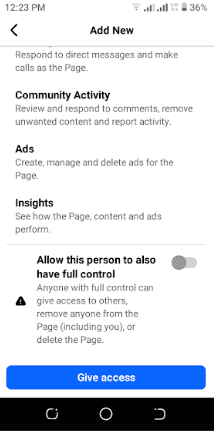
Tap Give Access
Confirm and enter your password, and that’s it! You’ve managed to add an administrator to a Facebook page using a phone.
💡 Pro-Tip: The 30-Day Rule
Did you send an invite, but nothing happened? Keep in mind that Facebook invitations expire after 30 days. If your new admin doesn’t accept the request within that window, the link will vanish, and you’ll have to start the process over. Send them a quick DM to let them know an invite is waiting in their notifications!
Featured Article: How Often Should You Post on Facebook?
How to Add Admin to Facebook Page via Meta Business Suite/Business Manager
If you’re running a Page with a team, an agency, or just like keeping things super organized, Meta Business Suite (aka Business Manager) is your BFF.
Here’s how to add an administrator to a Facebook Page via Meta Business Suite:
- Log in to Meta Business Suite and go to Settings.
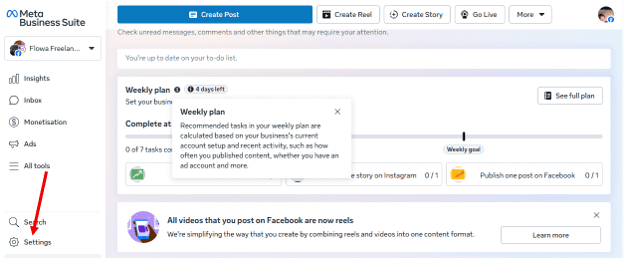
Go to Settings - Click Pages in the left menu.
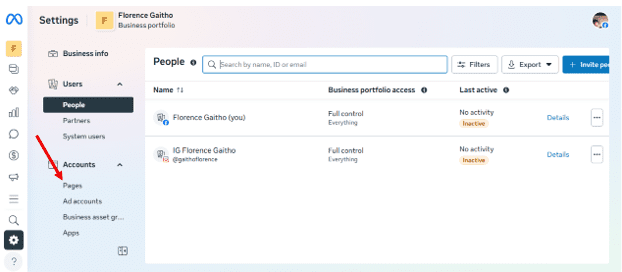
Select Pages - Select Assign People.
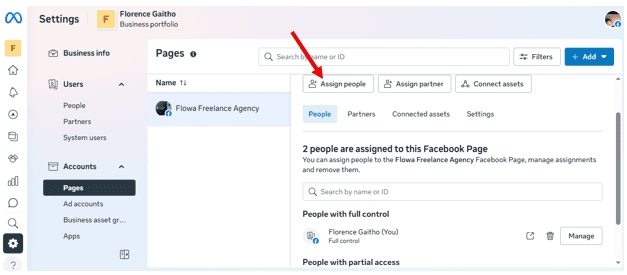
Select Assign People - Click Add Person.
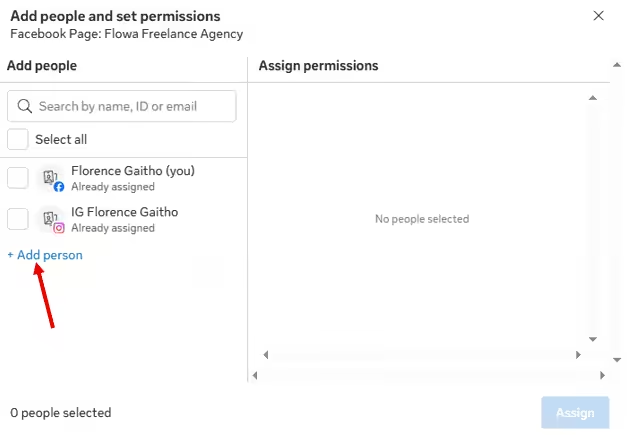
Click Add Person - Enter the person’s email and click Next.
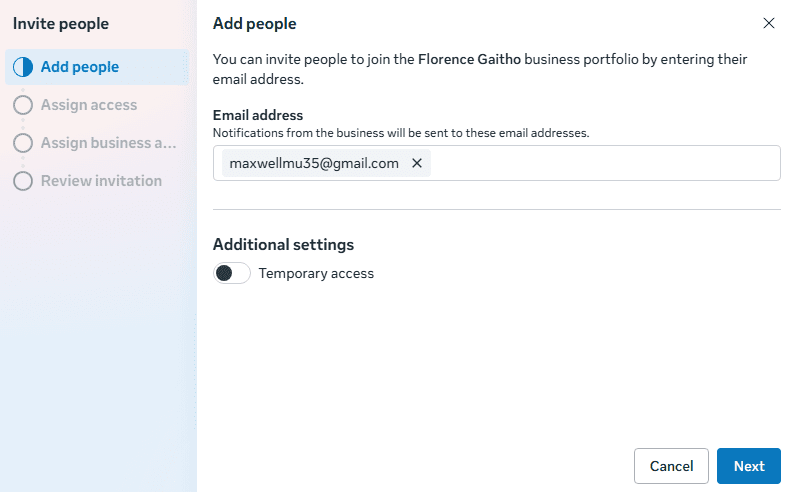
Add Email - Assign access and click Next.
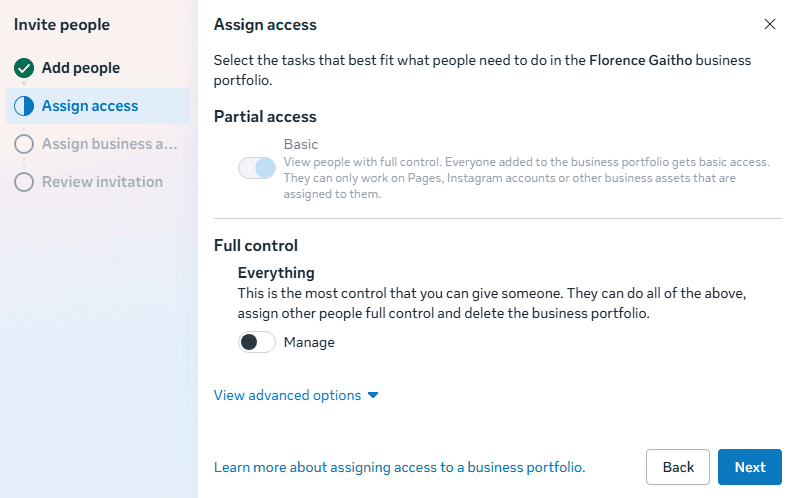
Assign Access - Assign business assets and click Next.
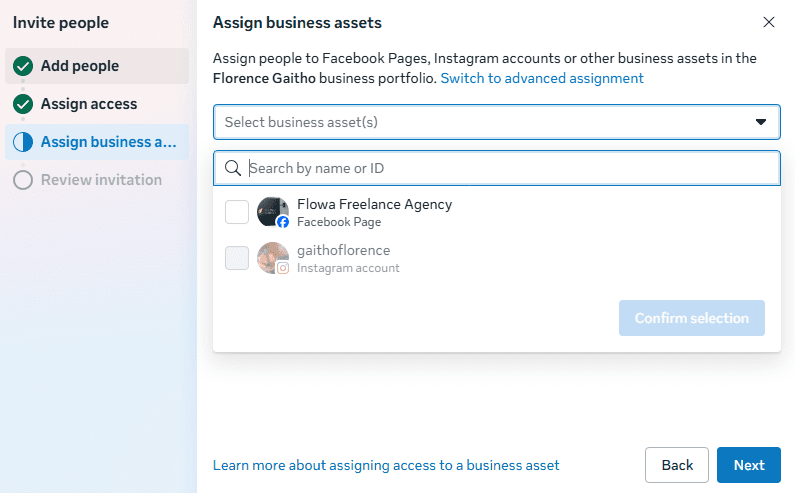
Assign Business Assets - Review invite, click Invite, and wait for them to accept.
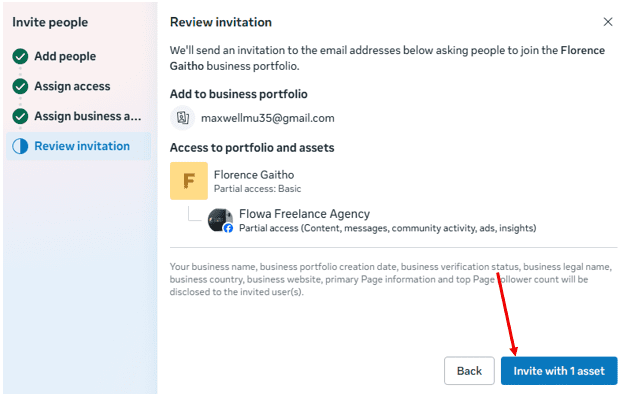
Review Invitation
Voila! You’ve managed to add an admin to a Facebook page in easy steps.
You’re probably wondering, why use Business Manager? It’s because it keeps access tidy. Agencies and teams can give specific roles without handing over full control, track who has access, and easily revoke permissions when needed.
Role Assignment Best Practices
Adding a new admin is not just about sharing power. It’s about sharing responsibility. It means trusting someone to represent your brand, protect your community, and make smart decisions when you are offline.
The key is knowing exactly how to grant that access without creating confusion or losing control. Here’s a breakdown of different access levels and what they entail.
| Feature / Permission | Facebook Access (Full Control) | Facebook Access (Partial) | Task Access |
|---|---|---|---|
| Switch into Page Profile | ✅ Yes | ✅ Yes | ❌ No |
| Delete or Rename Page | ✅ Yes | ❌ No | ❌ No |
| Manage Permissions/Admins | ✅ Yes | ❌ No | ❌ No |
| Create/Delete Content | ✅ Yes | ✅ Yes | ✅ Yes |
| Respond to DMs/Comments | ✅ Yes | ✅ Yes | ✅ Yes |
| Create & Manage Ads | ✅ Yes | ✅ Yes | ✅ Yes |
| View Insights/Analytics | ✅ Yes | ✅ Yes | ✅ Yes |
| Best For: | Owners & Partners | Trusted Managers | Freelancers & Agencies |
⚠️ A Note on Security: Only grant Full Control to people you trust with your life (or at least your business). Anyone with Full Control can remove you from your own Page and take permanent ownership.
Here are some role assignment best practices to help you give the right access to the right people without any headaches.
- Only assign Facebook access (Full Control) to those who need to change settings or manage other admins.
- Use Task access for team members who only need to create content, respond to messages, or view insights.
- Document who has what level of access so nothing gets confusing later.
Smart role assignment keeps your Page secure, organized, and drama-free. When everyone has the right level of access, your team can collaborate confidently without stepping on each other’s toes.
Featured Article: What to Post on Facebook: A Comprehensive Guide to Boost Engagement
Security and Best Practices After Adding an Admin
Making someone an admin on a Facebook page is a big step, and it deserves a little extra attention. Once access is granted, your focus should shift to protecting your Page and maintaining structure.
Below are five essential best practices to help you secure your Page and manage admin access responsibly:
-
Verify New Admin Access
Always confirm that the right person accepted the invite and has the correct role assigned. A quick double check prevents awkward “Why can I not access this?” messages later.
-
Turn On Two-Factor Authentication
Extra security never hurts. Two-factor authentication adds a second layer of protection so even if a password slips, your Page does not.
-
Schedule Regular Access Audits
Set a reminder to review who has access every few months. Teams change, agencies rotate, and you do not want former collaborators quietly holding the keys.
-
Follow the Least-Privilege Principle
Give people the minimum level of access they need to do their job well. Not everyone needs full admin power, and that is perfectly fine.
-
Create a Simple Admin Onboarding Checklist
When bringing someone new in, share brand guidelines, posting expectations, and response policies. Keep passwords, personal logins, and unrelated business assets off the table. Clear boundaries make smoother teamwork.
Security might not be flashy, but it saves you from future panic. A well-protected Page lets you focus on growth instead of damage control.
Secure Your Facebook Page Today
Troubleshooting: Common Errors When Adding an Admin and How to Fix Them
Sometimes things do not go exactly as planned when giving Facebook admin access to someone else. However, that does not mean you need to panic or start over from scratch.
Let’s walk through the most common hiccups you might run into and how to fix them quickly.
-
Invite Sent, But They Cannot See It
So you sent the invite. They swear it is not there. Now what?
This usually happens because the notification got buried or the invite went to the wrong email. First, ask them to check their notifications and email inbox, including spam.
Then, go back to Page Access, remove the pending invite, and resend it carefully using the exact email tied to their Facebook account.
-
Role Assigned, But Access Not Working
You selected Admin. You clicked confirm. Yet they still cannot manage the Page.
In many cases, they have not accepted the invite yet. Alternatively, the role change did not save properly. What to do?
It’s simple. Head back to Page Access, confirm the role shows as active, and ask them to refresh their app or log out and back in.
-
Business Manager Conflict
If you are using Meta Business Suite, things can get tricky when permissions overlap. For example, the person may already have limited access through another Business Manager.
So, how do you fix this? Open Business Settings → Pages → People and review existing permissions.
Remove duplicate or conflicting access, then assign the correct role directly from the primary Business Manager account.
-
Confusion Between Facebook Profile and Page Name
Here is a classic one. You search for the Page name instead of the person’s personal Facebook profile.
Remember, you assign roles to personal accounts, not Pages. Make sure you are typing the individual’s actual Facebook profile name or the email connected to it.
Most admin issues are small setup mix-ups, not technical disasters. Once you know where to look, you can fix them in minutes and get back to running your Page like the boss you are.
-
Cannot find “Page Roles”?
If you are looking for the old “Page Roles” tab, it has been replaced. In 2026, all professional accounts use the Page Access menu. Look for the “People with Facebook access” section to find your current admin list.
Featured Article: How to Link Instagram to Facebook
Manage Page Access at Scale: Scheduling, Governance, and Social Champ
Managing one Page is cute. Managing five, ten, or twenty? That is where things get messy.
Here is what manual management usually looks like:
- Constantly granting and removing admin access
- Sharing sensitive permissions just so someone can schedule posts
- Risking accidental setting changes
- Losing track of who has what level of control
When you manage multiple Facebook accounts manually, it quickly turns into a juggling act. You are adding admins one by one. You are double-checking roles. You are reminding people not to touch settings. You are revoking access when someone leaves. Meanwhile, content still needs to go out on time.
It’s not impossible. It’s just exhausting.
Wanna know how you can make life easier? Use a social media management tool. There are many options you can try, but if you want a tested and proven tool, then look no further than Social Champ.
Instead of handing out full admin rights to everyone who needs to post, you can connect your Facebook Pages once and then manage publishing inside the platform.
Here is the smarter workflow:
- Connect your Page to Social Champ using secure admin access once
- Invite team members to Social Champ with limited roles
- Assign scheduling or content approval permissions inside the tool
- Keep full Facebook admin control with only key decision makers
For example, instead of making your content creator a full Facebook admin just so they can schedule Facebook posts, you give them scheduling rights inside Social Champ. They create and queue content. You approve if needed. Your Page settings stay untouched.
That means:
- Fewer people with full admin power
- Cleaner governance
- Clear approval workflows
- Better visibility into who scheduled what
In short, Social Champ helps you protect your Page, streamline collaboration, and grow without turning access management into a full-time job.
Manage Roles With Social Champ
Conclusion
Adding an admin to your Facebook Page gives you the support you need, but it also comes with responsibility. Choosing the right role, verifying access, and reviewing permissions regularly are not just security steps. They are a crucial part of a strong Facebook marketing strategy that keeps your Page organized, protected, and positioned for growth.
As your team grows, managing roles manually can become overwhelming. That is where a tool like Social Champ helps you schedule content, streamline approvals, and reduce the need to hand out direct admin access while keeping everything running smoothly.