
Want to simplify your social media presence and reach more people? Linking your Instagram account to Facebook could be the move you need.
Instagram and Facebook are two of the most popular social media platforms, and connecting them lets you share content across both with almost no extra effort.
Whether you’re a business owner promoting products or a creator growing your audience, knowing how to link Instagram to Facebook can make a big difference, especially when paired with social media schedulers.
These tools make social media management easier by letting you plan content ahead of time, so you stay consistent and on schedule across Instagram, Facebook, X, LinkedIn, and more.
In this guide, we’ll show you how to link your Instagram account to Facebook in 2026 through Meta’s Accounts Center. From setting up the connection to managing your linked accounts, we’ll cover everything you need to get the most out of this powerful integration.
Let’s get started.
Why Link Your Instagram Account to Your Facebook Page?
Linking your Instagram account to your Facebook page offers a plethora of benefits that can significantly enhance your social media marketing game and overall brand presence. Let’s jump deep into each advantage:
-
Enable Instagram Shopping
By linking your Instagram account to your Facebook page, you unlock the ability to set up Instagram Shopping. This feature lets you tag products in your Instagram posts, Reels, and Stories, transforming them into interactive shopping experiences.
Users can tap tagged products to view details and continue to your website to buy, creating a smooth path from discovery to purchase.
-
Advertise More Effectively
Linking Instagram to Facebook enhances your advertising capabilities. You can create targeted ad campaigns that utilize the rich targeting options available on both platforms.
This synergy enables you to precisely reach your target audience, maximize ad performance, and drive conversions effectively.
-
Cross-Platform Visibility
Connecting Instagram and Facebook boosts your brand’s visibility across two of the most prominent social media channels. When you share content from Instagram to Facebook, you reach a broader audience and increase brand exposure.
This cross-platform visibility strengthens your brand’s presence and fosters brand recognition among diverse audiences.
-
Improved Engagement
Sharing Instagram content on Facebook can increase engagement levels. As your content reaches a wider audience across platforms, it encourages more interactions such as likes, comments, shares, and saves.
This heightened engagement enhances your brand’s social media performance and fosters meaningful connections with your audience.
-
Streamlined Management
Linking Instagram to Facebook streamlines your social media management process. Instead of juggling multiple platforms separately, you can manage and schedule posts from Meta Business Suite or a social media scheduler like Social Champ. This centralized approach saves time, ensures consistency in content distribution, and simplifies overall account management.
-
Enhanced Cross-Promotion
Linking Instagram to Facebook makes cross-promotion seamless. You can promote the other on each platform, driving traffic and engagement across both channels.
For instance, you can encourage Instagram followers to visit your Facebook page for exclusive content or promotions and vice versa, fostering a cohesive online community.
Linking your Instagram account to your Facebook page empowers you to utilize the strengths of both platforms synergistically.
This integration enhances your social media strategy, from enabling shopping experiences and effective advertising to boosting visibility, engagement, and cross-promotion. It propels your brand towards greater success in the digital landscape.
Related Article: How to Use Instagram Reels Insights
How to Link Instagram to Facebook
Here’s a detailed guide on how to link Instagram to Facebook and vice versa:
Linking Instagram to Facebook:
- Open Instagram Settings:
Launch the Instagram app on your mobile device.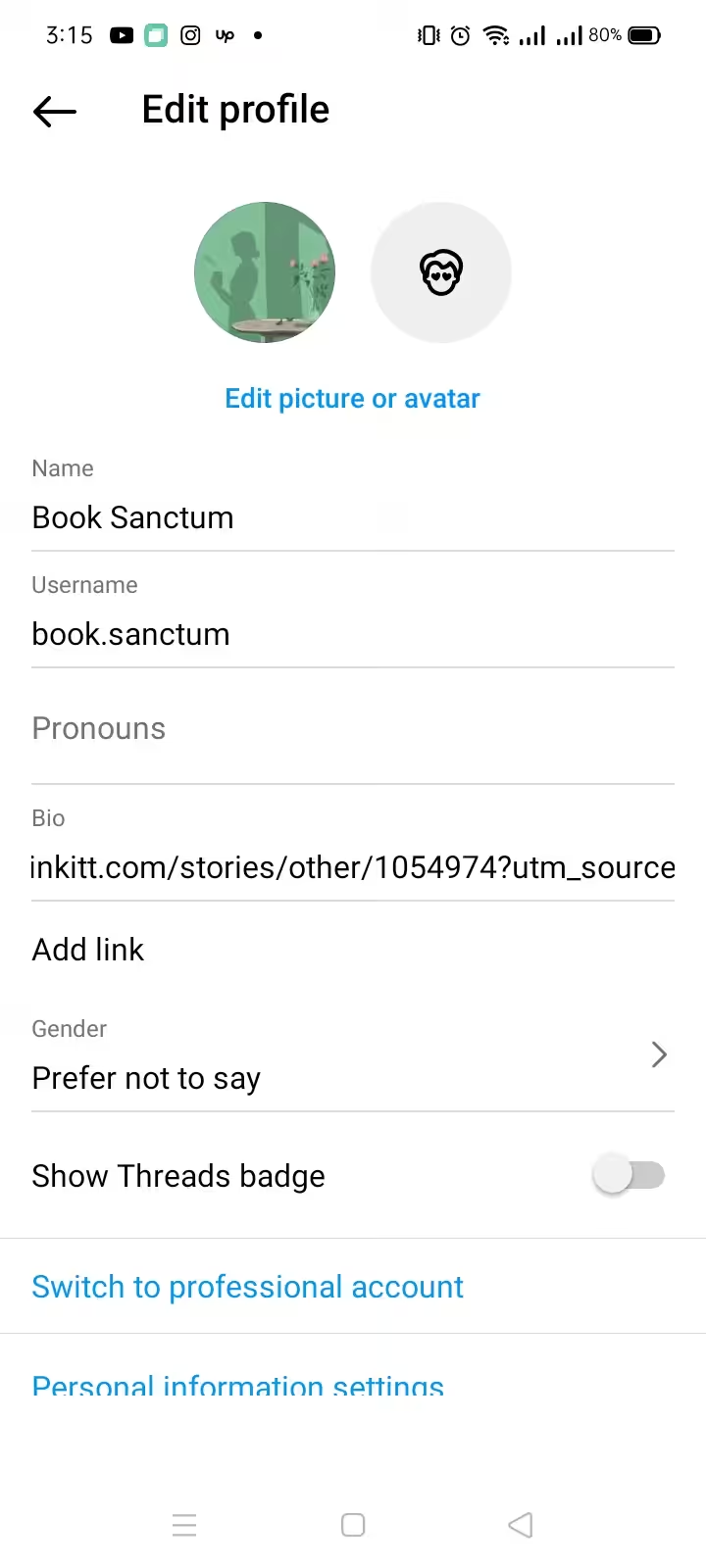
Screenshot of Instagram Feed Tap your profile picture in the bottom right corner to access your profile.
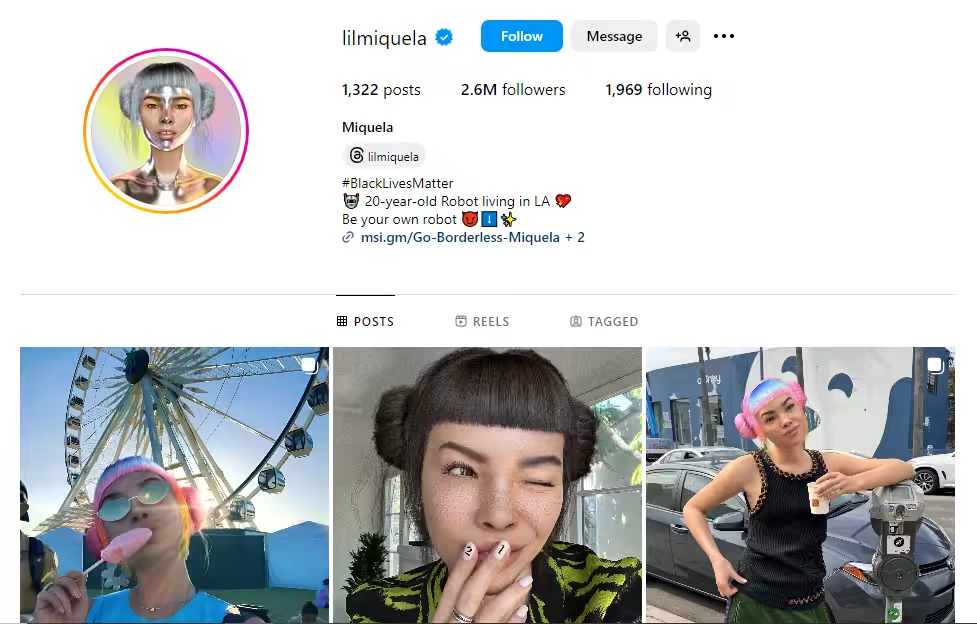
Screenshot of Instagram Feed - Access Account Settings:
Tap on the menu icon (three horizontal lines) in the top right corner of your profile.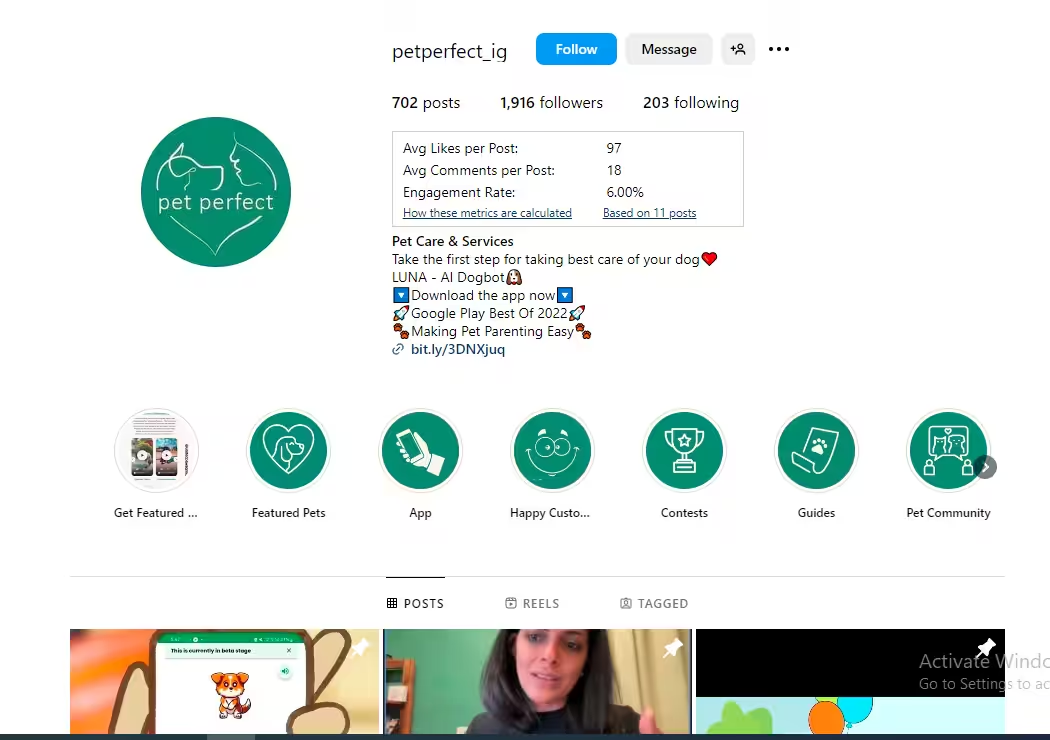
Screenshot of Instagram Page Scroll down and select “Settings.
Screenshot of Instagram Settings - Link Accounts:
In the Settings menu, tap “Account Center.”
Screenshot of Instagram Settings Under Account settings, select “Logging in with Accounts.”
Screenshot of Instagram Settings Click on “Add Account.”
Screenshot of Adding Accounts on Instagram - Connect to Facebook:
Tap on “Facebook” from the list of available platforms to link your Instagram account.
Screenshot of Adding Facebook Account You’ll be prompted to log in to your Facebook account if you’re not already logged in.
- Authorize Permissions:
Instagram will ask permission to access certain information on your Facebook account. Review the permissions and authorize them to proceed with the linking process.
Screenshot of Finishing Setup - Select Sharing Options:
After linking, go back to Accounts Center and tap “Sharing across profiles.”
Turn on automatic sharing for your posts, Reels, and Stories to your Facebook profile or Page. - Complete Setup:
Follow the on-screen instructions to complete the setup and link your Instagram account to your Facebook profile or page.
Elevate Your Instagram & Facebook Strategy
How to Link Facebook to Instagram
- Open Facebook:
Launch the Facebook app on your mobile device.
Once you’re logged in, tap your profile picture and switch to your Facebook Page.
Screenshot of Facebook - Access page Settings:
Select your Facebook page and then go to page settings
Scroll down, and you will see the “linked account” option
Screenshot of Facebook Settings - Link Instagram Account:
Click on this linked account option, select Instagram, and connect your Instagram account without hassle.
Screenshot of Integrating Instagram on Facebook
Related Article: Boosting Facebook Posts Like a Pro
How to Link Instagram to Facebook on iPhone or Android?
Here’s a detailed guide on how to link Instagram to Facebook on both iPhone and Android devices:
Linking Instagram to Facebook on iPhone:
- Open Instagram Settings:
Launch the Instagram app on your iPhone.
Tap the profile icon in the bottom right corner to access your profile. - Access Account Settings:
Tap on the menu icon (three horizontal lines) in the top right corner of your profile.
Scroll down and select “Settings.” - Link Accounts:
In the Settings menu, tap on “Account.”Select “Linked Accounts.” - Connect to Facebook:
Tap on “Facebook” from the available platforms to link your Instagram account.
If prompted, log into your Facebook account. - Authorize Permissions:
Instagram will request permission to access your Facebook account.
Authorize the permissions to proceed with linking. - Select Sharing Options:
In Accounts Center, tap “Sharing across profiles” and choose where your posts, Reels, and Stories are shared (your Facebook profile or Page). Follow any additional prompts to complete the linking process.
Linking Instagram to Facebook on Android:
- Open Instagram Settings:
Launch the Instagram app on your Android device.
Tap your profile icon in the bottom right corner to access your profile. - To access Account Settings:
Tap the menu icon (three horizontal lines) at the top right corner
This opens the “Settings and activity” menu. - Link Accounts:
In the Settings menu, tap on “Account.
Choose “Linked Accounts.” - Connect to Facebook:
From the platform list, tap “Facebook” to link your Instagram account.
If prompted, log in to your Facebook account. - Authorize Permissions:
Grant Instagram permission to access your Facebook account.
Authorize any additional permissions required for linking. - Select Sharing Options:
In Accounts Center, tap “Sharing across profiles” and choose where your posts, Reels, and Stories are shared (your Facebook profile or Page). Follow any on-screen instructions to complete the linking process.
Tips for Successful Linking:
- Consistent Branding:
Maintain consistent branding across Instagram and Facebook for a cohesive brand identity. - Privacy Settings:
Review and adjust privacy settings to control the visibility of shared content between the two platforms. - Cross-Promotion:
Using the linked accounts for cross-promotion and increased visibility across social media platforms.
By following these steps on your iPhone or Android device, you can easily link your Instagram account to Facebook, enabling seamless sharing and enhancing your social media presence.
Featured Article: Social Media Intelligence: What Is It & Why You Need It
How to Link Instagram to Facebook Page on Browser?
To link your Instagram account to a Facebook Page using a browser, you can follow these steps:
Step 1: Log in to Instagram and Facebook
- Open your web browser (Chrome, Safari, Firefox, etc.) and log in to Facebook.
- Click your profile picture and switch to your Facebook Page.
- Click “Settings” from the left menu, then select “Linked accounts.”
- Choose Instagram and click “Connect account.”
- Log in to your Instagram professional account (Business or Creator) and confirm.
- That’s it! Your Instagram account is now linked to your Facebook Page.
After linking, you can adjust the settings for posting to Facebook. You can share your Instagram posts to your linked Facebook Page automatically.
How to Unlink Your Instagram Account from Facebook
Unlinking your Instagram account from Facebook is straightforward. Here are a few steps to follow.
Step 1: Open the Instagram App
Launch the Instagram app on your mobile device.
Ensure you are logged into the account you want to unlink from Facebook.
Step 2: Go to Your Profile
Tap on your profile picture icon in the bottom right corner of the screen to navigate to your profile page.
Step 3: Access Settings
Tap the three horizontal lines (menu icon) on your profile page in the top right corner.
In the menu that appears, tap “Settings” at the bottom of the list.
Step 4: Navigate to Account Center
Tap “Accounts Center” at the top of the Settings and activity menu. Here, you can manage your connected accounts, including Facebook and Instagram.
Step 5: Select “Accounts”
In the Account Center, tap on “Accounts”.
You will see a list of the accounts linked to your Instagram.
Step 6: Unlink Facebook Account
Tap on your Facebook account listed under “Accounts.”
Select “Remove from Account Center.”
Step 7: Confirm Your Decision
A pop-up will appear asking you to confirm your decision to remove the account. Read the information provided and tap “Continue.”
Follow any additional prompts to complete the unlinking process.
If your Instagram is also connected to a Facebook Page, go to your Page’s Settings > Linked accounts > Instagram and click “Disconnect.”
Conclusion
In 2026, knowing how to link Instagram to a Facebook profile or Page is key to simplifying your social media strategy and growing your online presence. This guide walked you through each step of connecting your accounts through Meta’s Accounts Center, so you can cross-post content, boost visibility, and manage everything more efficiently.
By following these steps and making the most of the Instagram and Facebook integration, you can sharpen your social media marketing, reach more people, and build a consistent brand presence across platforms.
Plus, connecting your Facebook Page to Instagram helps both platforms work together, so you can expand your reach, keep your branding consistent, and use shared insights to guide smarter social media decisions.







Rachel
Thanks for the comprehensive guide! Linking Instagram to Facebook has always been a bit tricky for me, but your step-by-step instructions made it so much easier.