
Have you ever scrolled through Instagram and suddenly felt like your name should be more engaging?
Instagram crosses 2.6 billion users, and with this vast audience, your name is one of the fastest ways to get someone’s attention.
You may be thinking that your current username feels outdated, confusing, or nothing like your current vibe, right?
Short Summary
- Changing your Instagram name is easy, but your display name and username aren’t the same.
- Your display name is low-risk to update, while your username affects search and profile links.
- You can change your name on both mobile and desktop with simple Edit Profile steps.
- Before updating your username, double-check availability and update your links everywhere.
- A clear, memorable name helps you stay searchable, consistent, and easy to recognize.
That’s why, in this blog, I’m about to show you the easiest steps on how to change your name on Instagram.
So let’s fix it right now to give your Instagram a small change that makes a big difference.
Featured Article: How to See Past Usernames on Instagram

Stay Visible On Instagram Every Day!
A profile name change means nothing if people don’t see your content. Keep your feed active with automated posting through Social Champ.
What’s the Difference Between Instagram Name and Username (Handle)?
Let me tell you the difference between your Instagram name and your username before you make any changes.
These sound similar, but they’re not. They serve different purposes and have different rules.
If you understand these differences, you can easily avoid mistakes like lost followers or broken profile links.
Display Name
If I talk about the display name, it’s the one that appears on your profile prominently, usually in bold at the top.
When people visit your profile, this is the first thing they see. You can include spaces, special characters, or even emojis here.
And you know the best part is that you can change it freely without affecting your profile link.
Username (Handle)
Now, let’s come to your username or your handle, which is unique to your account and appears in your profile URL.
For instance, instagram.com/yourusername is how people search for you and tag you in posts.
If you change it, it can cause a negative impact, as the previous link to your profile will stop working temporarily, and people may take some time to find your profile under the new name.
Quick Comparison Table
| Field | Where It Appears | Who Sees It | Can You Change It Frequently? |
|---|---|---|---|
| Display Name | Profile, search results | Everyone | Twice every 14 days |
| Username | URL, mentions, tags | Everyone | Twice every 14 days |
Low Risk vs High Risk Changes
If you change your display name, there’s less chance of any risk. Your followers will still recognize your profile instantly.
But if you change your username, it has a higher risk as it affects searchability, links, and mentions.
So, it’s better to think carefully before updating it.
Featured Article: How to Share a Reel to Your Story: Step-By-Step Guide for Instagram and Facebook
How to Change Your Instagram Name on Mobile (iOS and Android)
Using your phone is the quickest way to change your Instagram name.
Let’s go through the steps for both your display name and username so you get it done smoothly.
Step-By-Step: Display Name
- Open the Instagram app on your iOS or Android device.
- Tap your profile icon in the bottom-right corner.
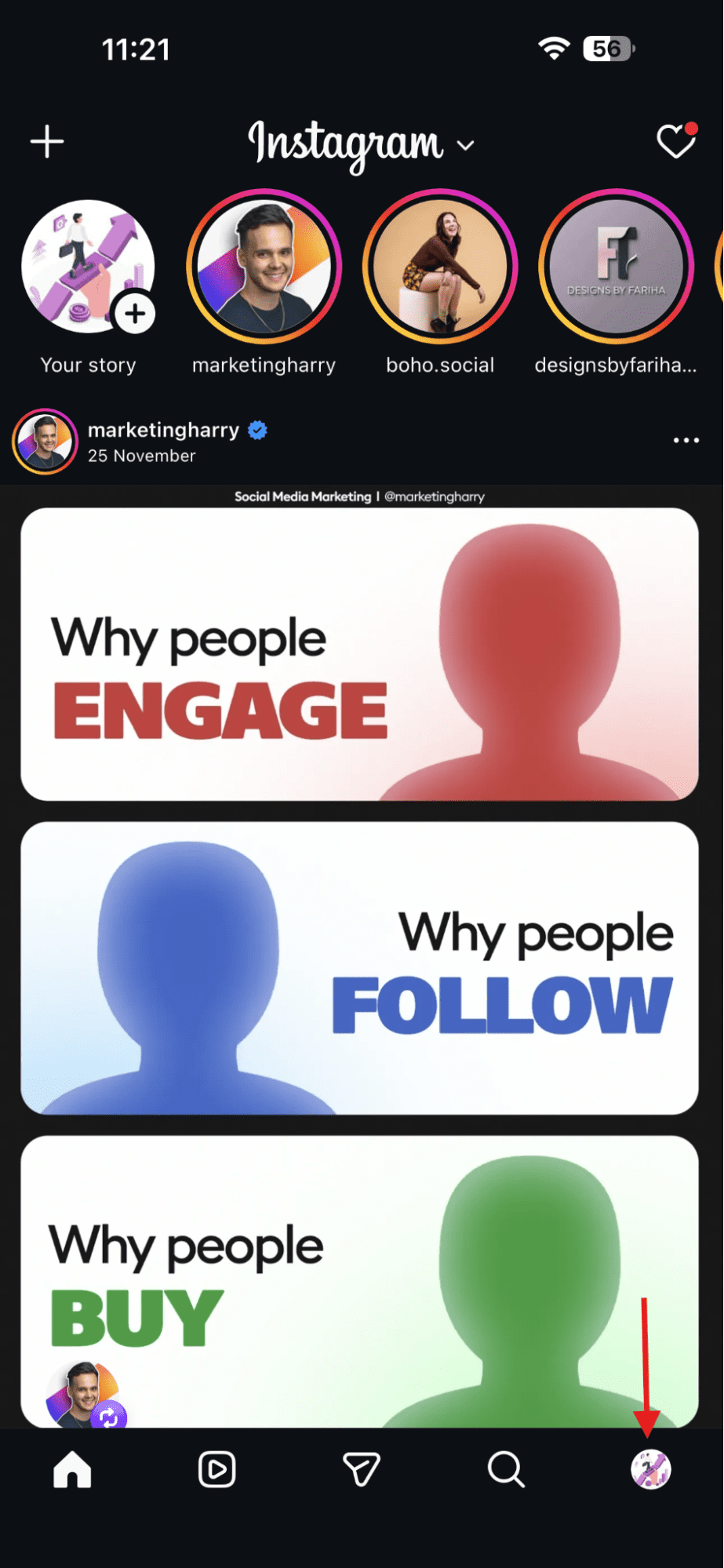
Tap Your Profile Icon - Select Edit Profile.
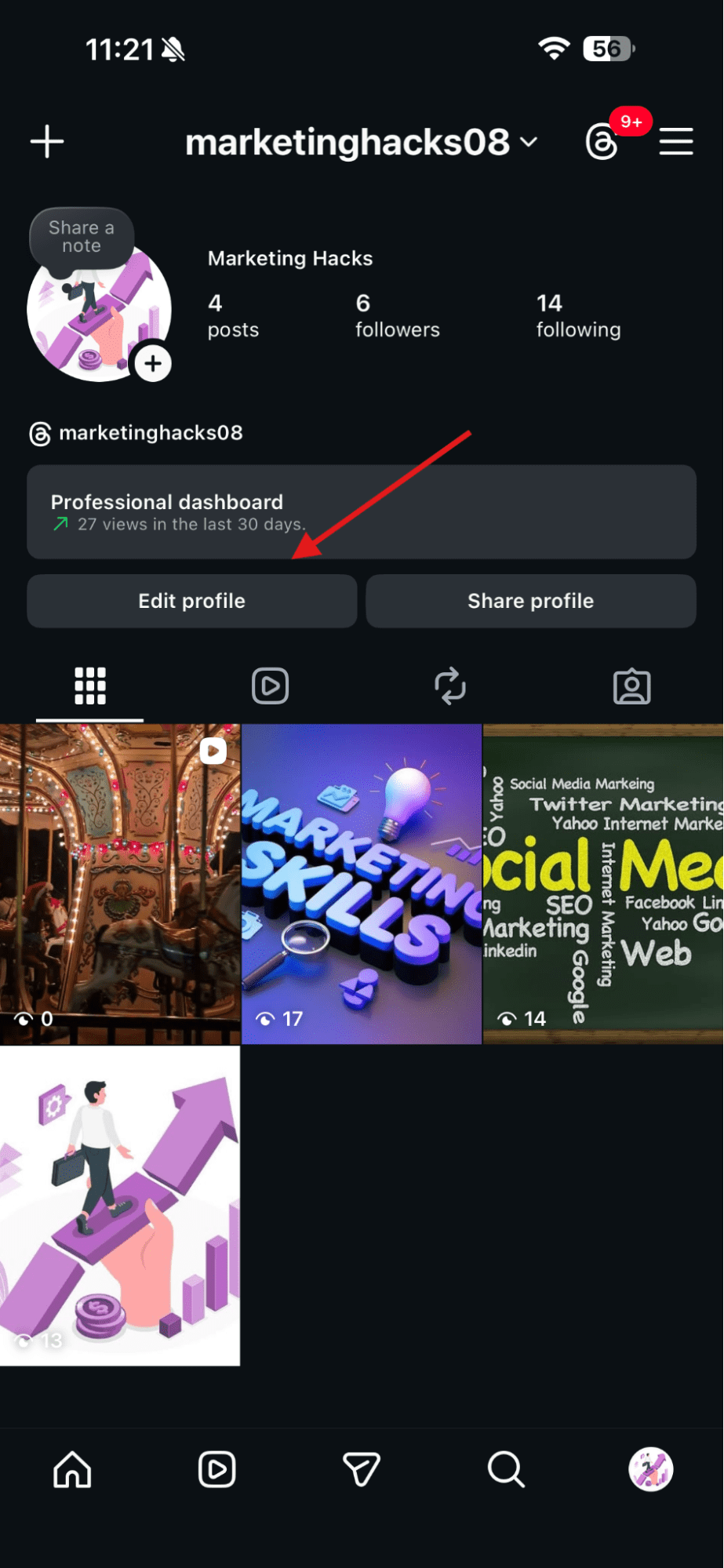
Tap “Edit Profile” - Tap the Name field.
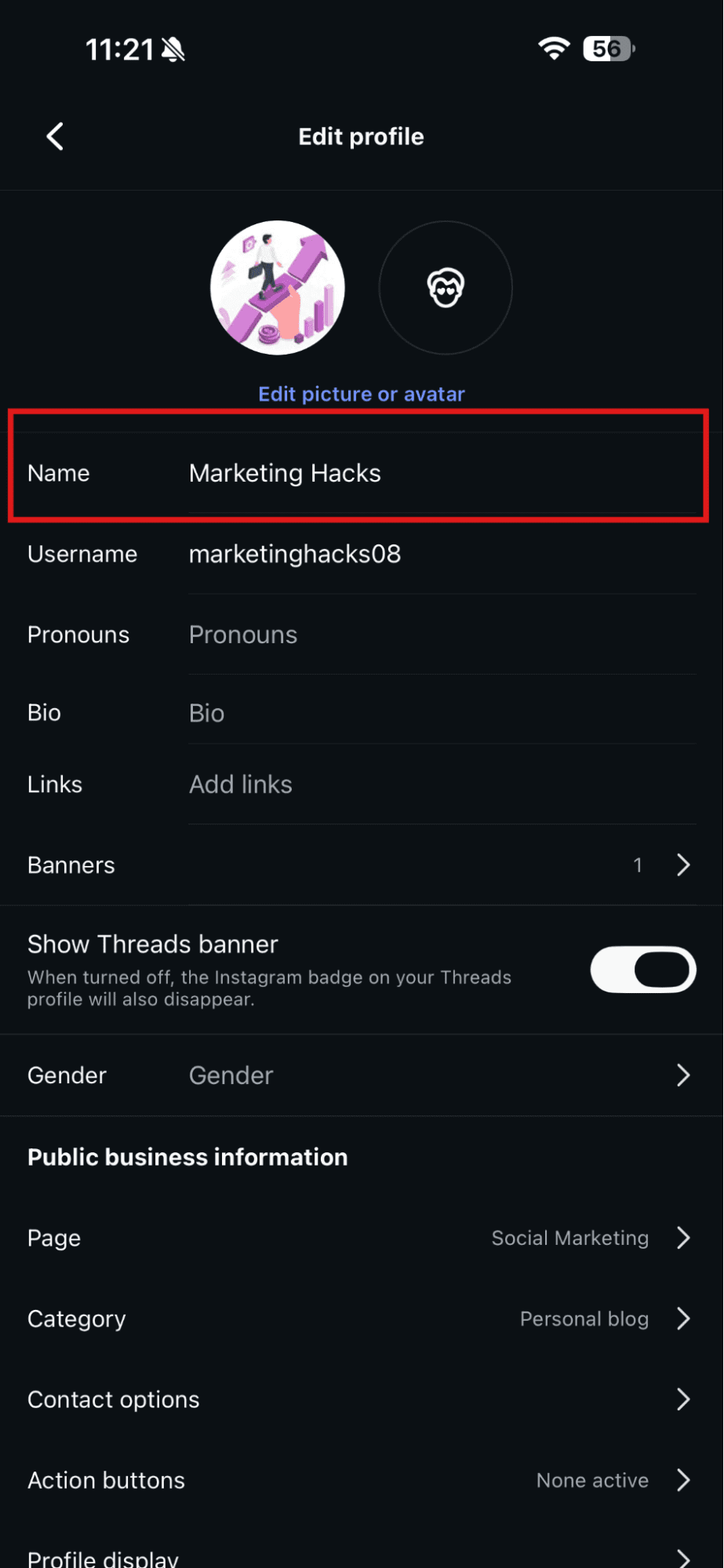
Tap “Name” - Type your name and tap Done (iOS) or the checkmark (Android) to save.
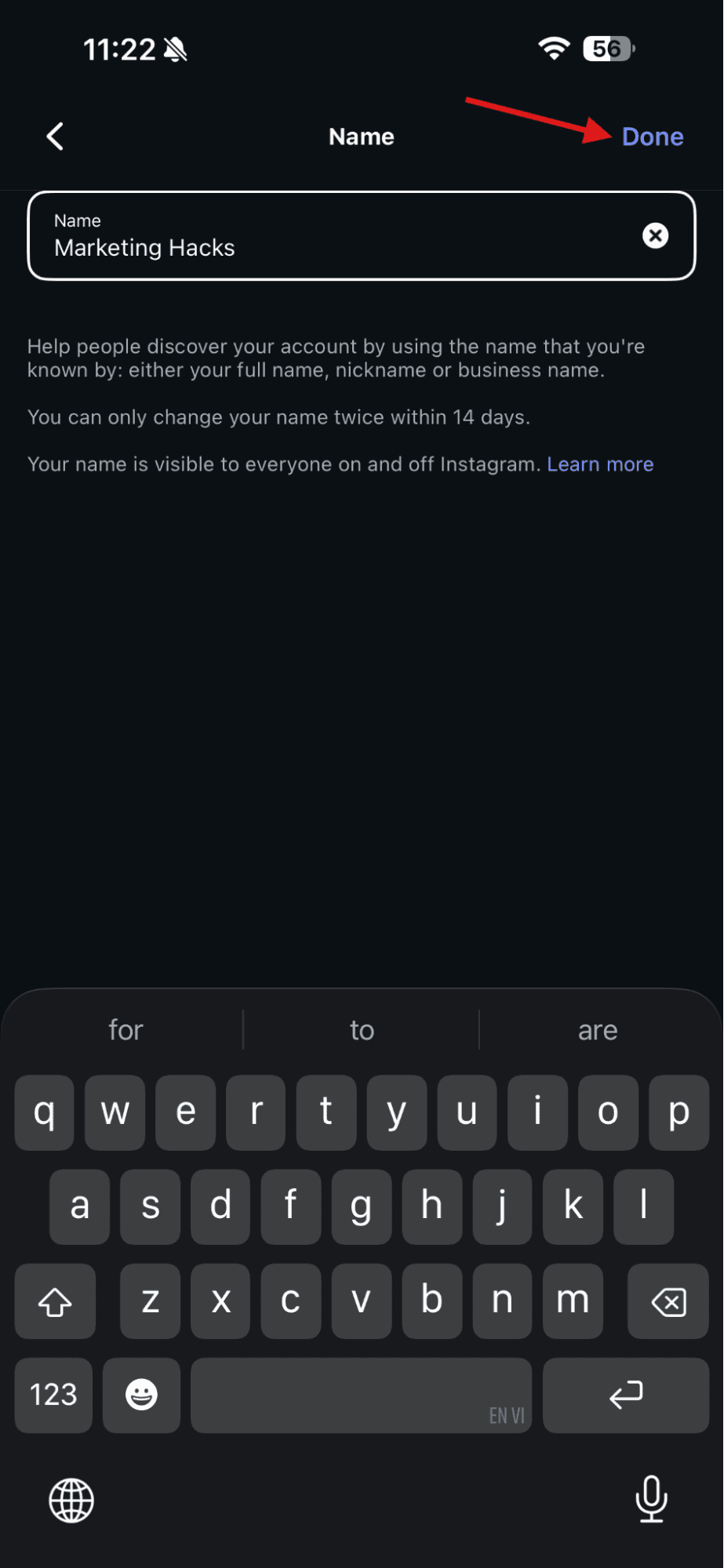
Type Your Name and Tap “Done”
This update has low risk. Your followers can see the new name right away, and your profile link won’t change.
A small change like this can make your profile feel fresh and more in line with your brand or personality.
Step-By-Step: Username
- Open your profile and tap Edit Profile.
- Tap the Username field and enter your new username.
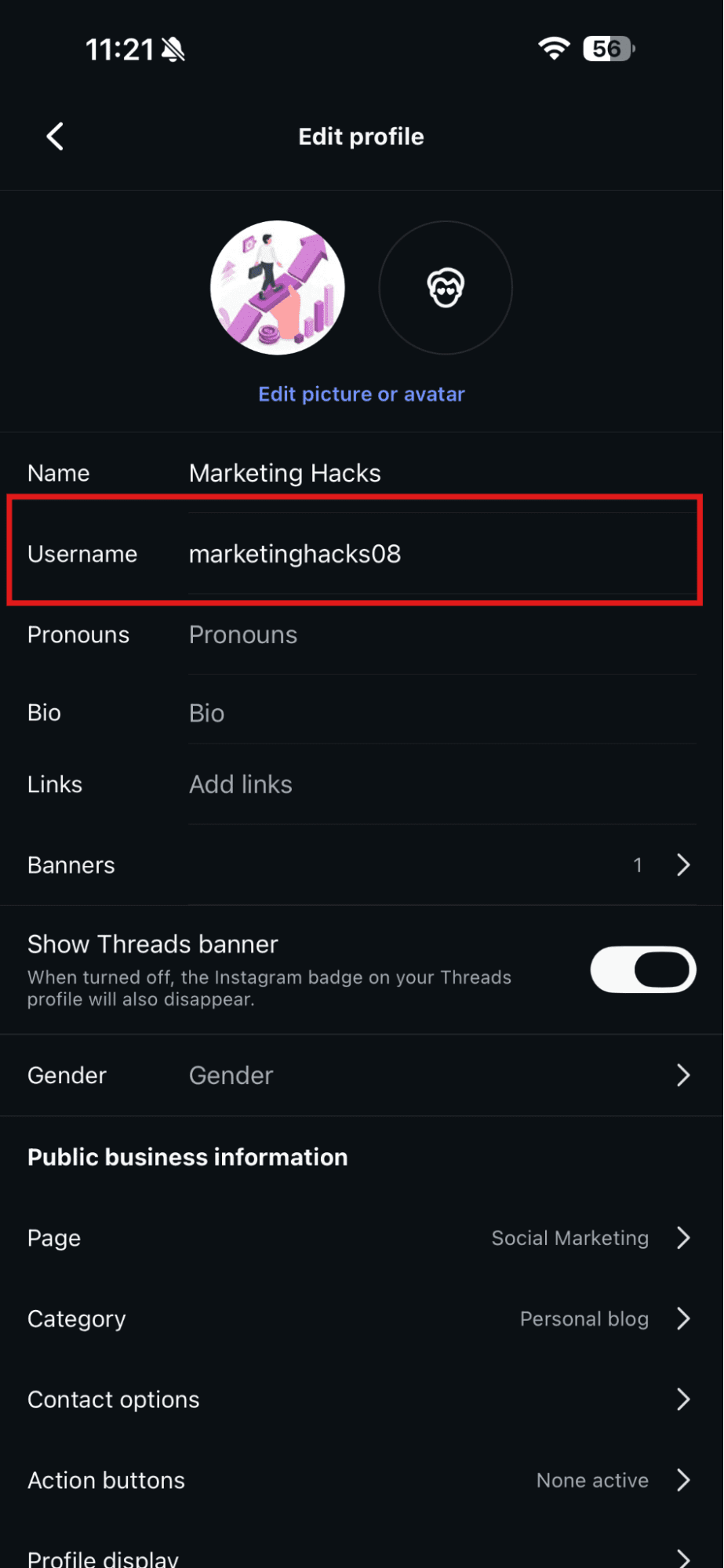
Tap “Username” - Type your username and tap Done or the checkmark to save.
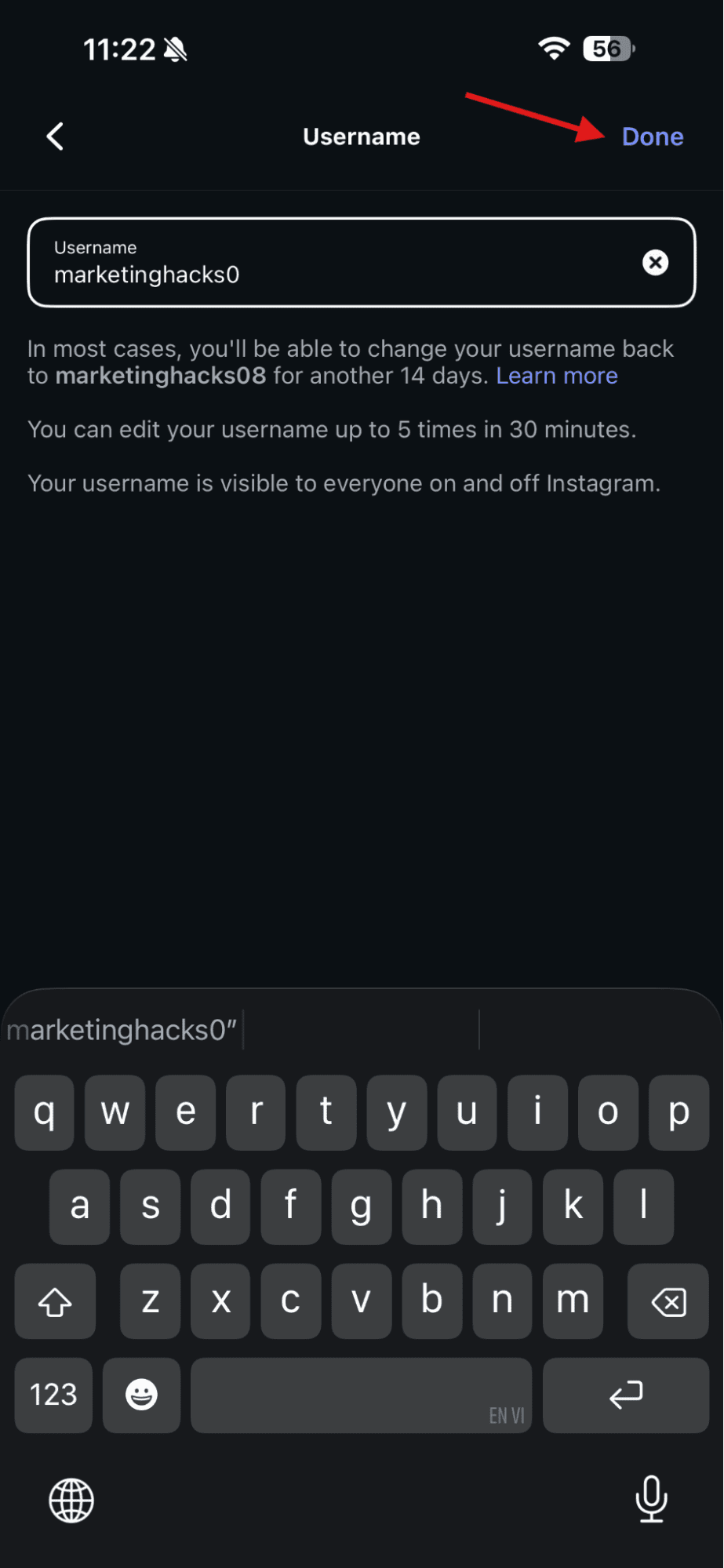
Type Your Username and Tap “Done”
If you’re updating your username, it can be trickier as the old links and mentions might not work instantly.
I would suggest double-checking everything before you save. Remember that your username is unique and part of your profile URL, so select a name that’s easy to find and remember.
Handy Tips
- Make sure your Instagram app is updated, and you’re logged in.
- Some business accounts have limits on frequent changes.
- Check that your new username is available to avoid errors.
Here, I’ve a pro tip for you:
If you manage multiple profiles or want to schedule Instagram posts, Social Champ makes it easier to update your content across all accounts without missing a beat.
Rebrand Your Instagram, Not Your Routine!
You focus on your new name. Social Champ handles the posting, planning, and consistency for you.
Featured Article: Instagram Ad Sizes: A Comprehensive Guide for Eye-Catching Creatives
How to Change Your Instagram Name on Desktop or Web
If you want to change your Instagram name on a desktop or web browser, it works a lot like the mobile app, but there are a few differences in steps that you can keep in mind.
Let’s go through the simple steps so you can update your profile safely.
Step-By-Step: Display Name
- Go to instagram.com and log in.
- Click your profile picture in the top-right corner.
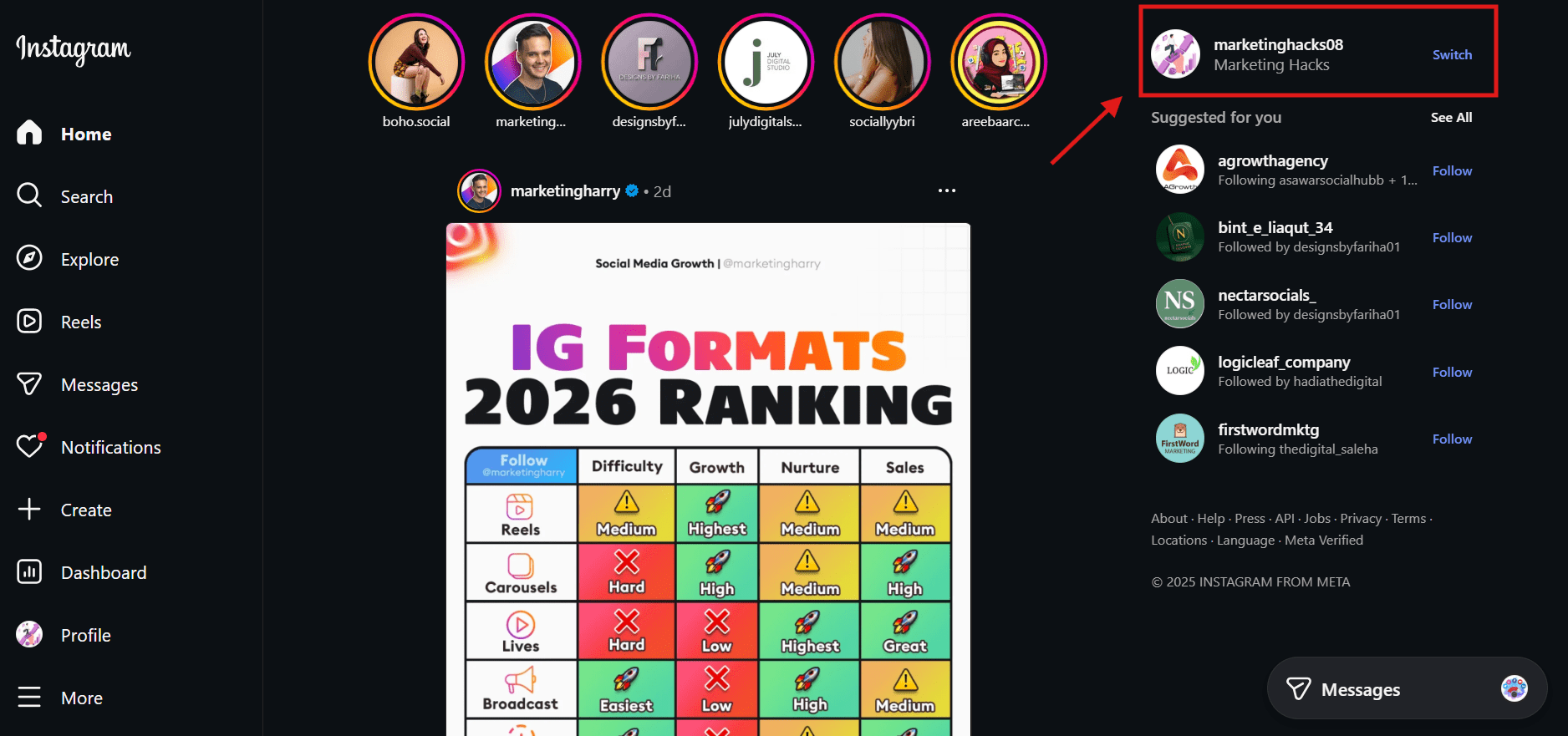
Click Your Profile Picture - Select Profile and then Edit Profile.
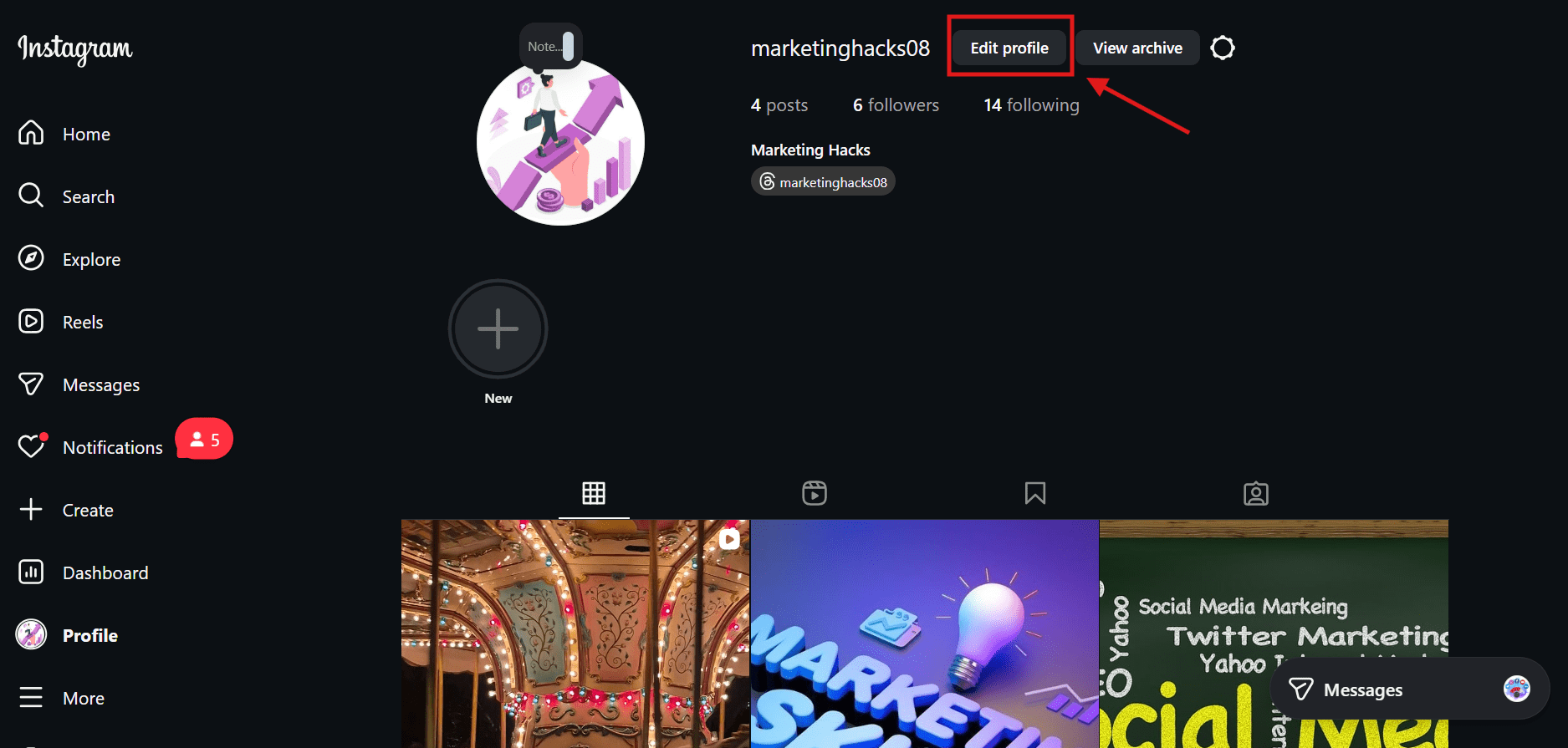
Click “Edit Profile” - Click “See more in the Accounts Center.”
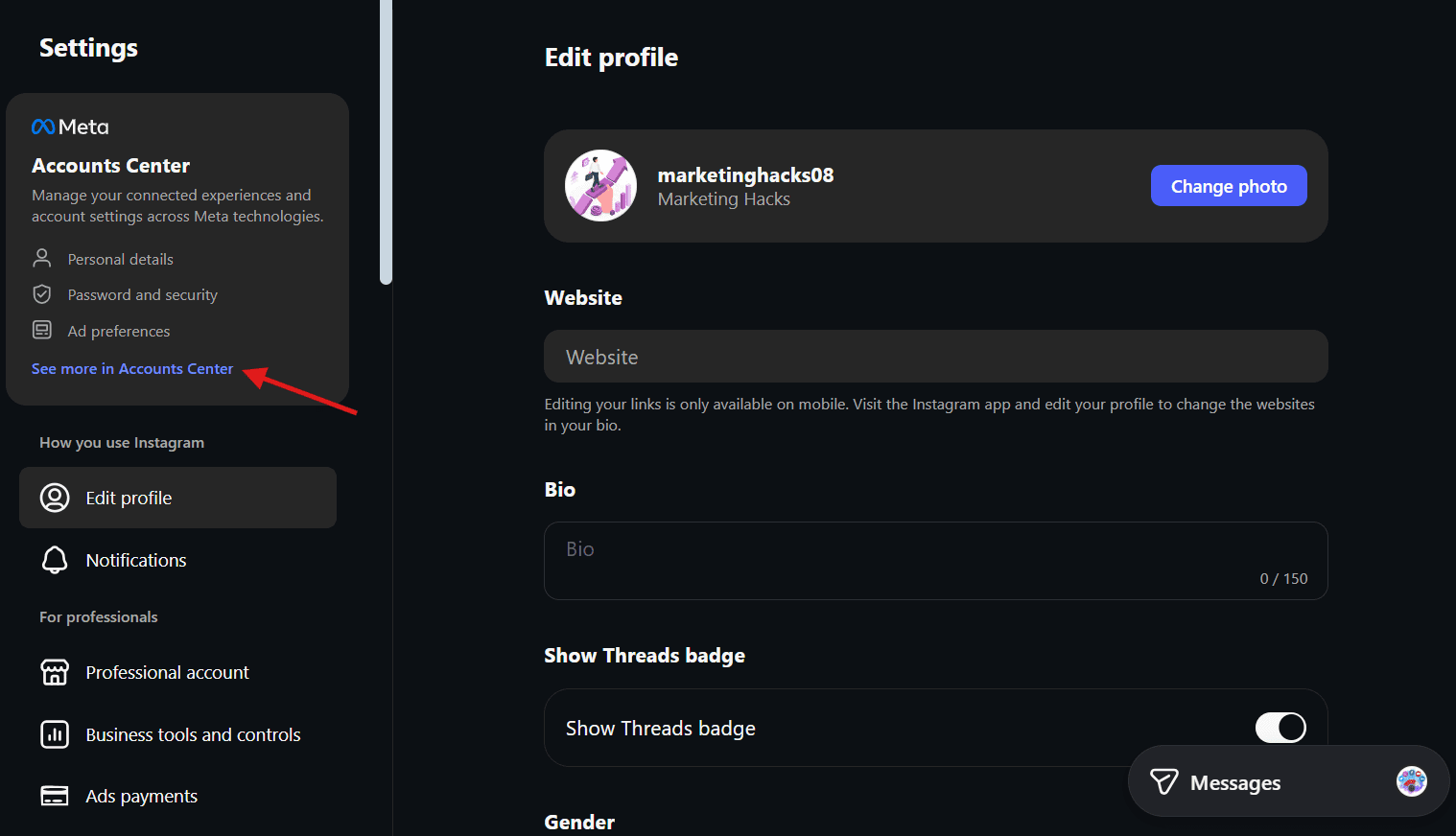
Click “See More in Accounts Center” - Click on your profile.
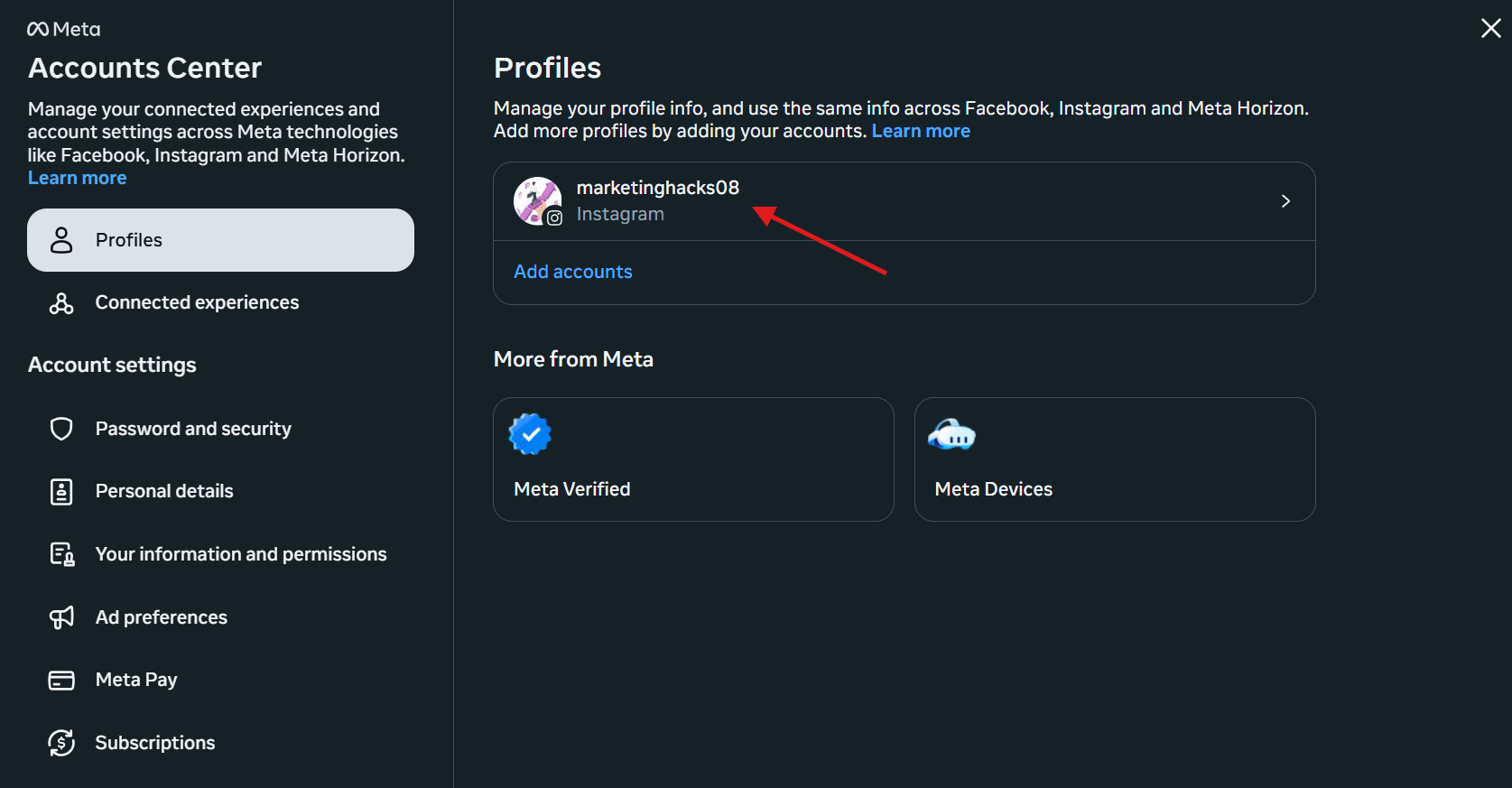
Click on Your Profile - Click “Name” to change your display name.
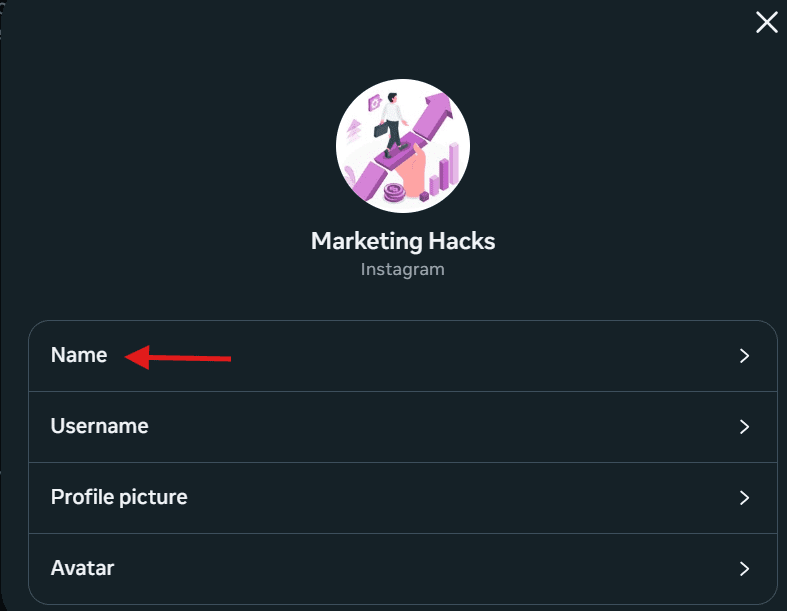
Click “Name” - Enter your new display name in the Name field and click “Done.”
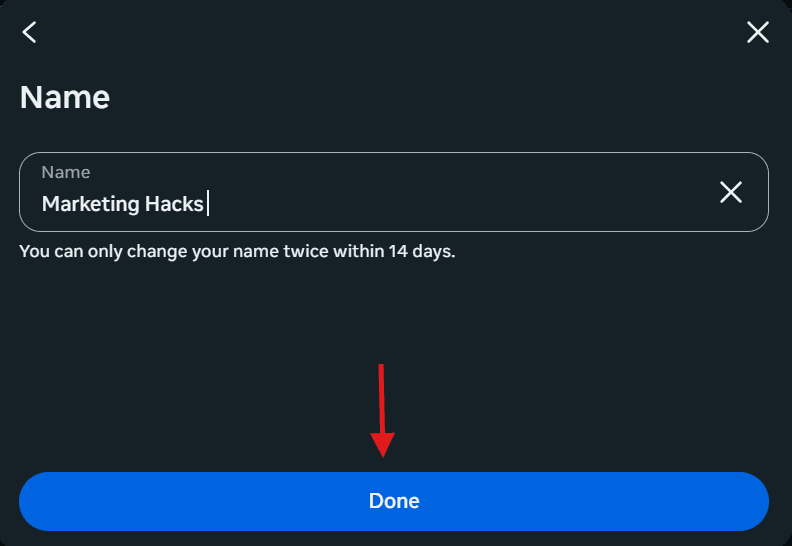
Type Your Name and Click “Done”
When you update your display name on the desktop, it has a low risk and appears instantly to your followers. Plus, it won’t affect your profile URL, and people can still find you easily.
Step-By-Step: Username
- Log in to Instagram on your browser and follow the same steps as for the display name.
- Click “Username.”
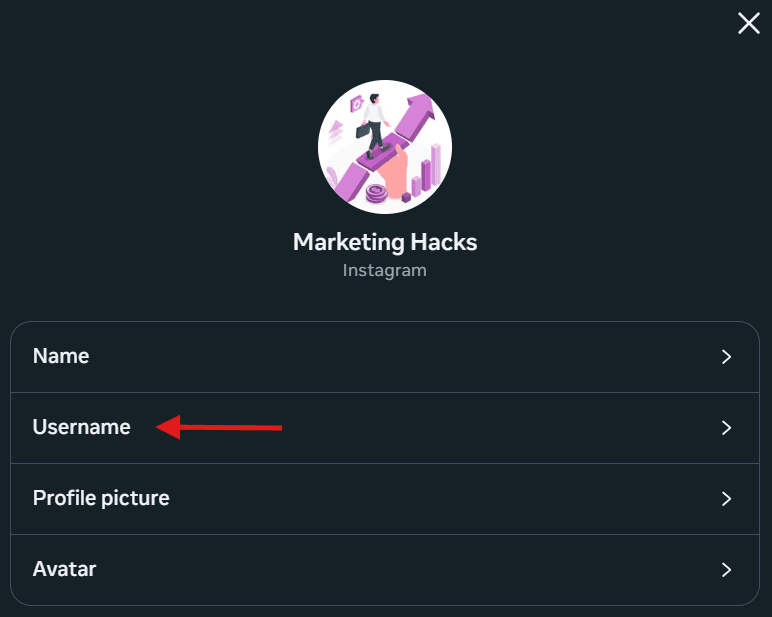
Click “Username” - Type your new username in the Username field and click “Done.”
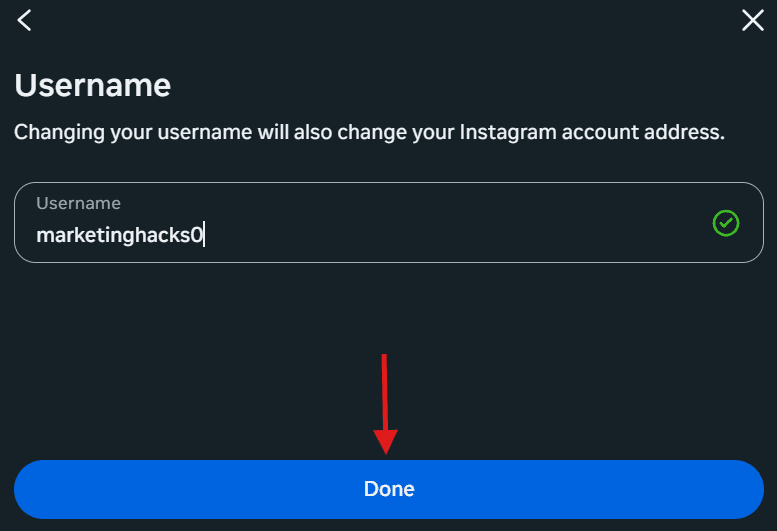
Type Your Username and Click “Done”
Changing your username on the desktop carries more risk. Your old profile URL will stop working, and people tagging you may need time to adjust.
So, make sure that your new username is available and easy to remember.
Desktop vs Mobile Comparison
| Feature | Mobile App | Desktop/Web |
|---|---|---|
| Display Name | Low risk, changes instantly | Low risk, changes instantly |
| Username | Limited changes, affects links | Limited changes, affects links |
| Interface | Simple, in-app | Click profile → Edit Profile |
Featured Article: How to Hide Likes on Instagram
What to Know Before Changing Your Instagram Name
It might seem simple to change your Instagram name, but a few rules and best practices can save you headaches.
If you know them, it can help you avoid broken links, lost followers, or other unexpected issues.
Instagram Rules to Keep in Mind
- Username must be unique: You cannot use a username that someone else already has.
- Limited symbols: Instagram only allows letters, numbers, periods, and underscores in usernames.
- Edit restrictions: You can’t change your username multiple times in a short period. There is usually a 14-day lock period.
Potential Side Effects
When you change your username, it can affect your profile link, mentions, and tagged posts.
Search results may take some time to update, and followers who bookmarked your old profile might not find you instantly.
Things to Do Before You Change
- Update your website links, social bios, and cross-platform usernames.
- Consider announcing the change to your followers via a Story or post.
- Double-check username availability to avoid errors.
- Backup important links or pinned posts.
You can follow this checklist to ensure your Instagram name change goes smoothly.
Featured Article: Best Social Media Sharing Tools in 2026: Comparison, Features, and Smart Choices
How to Choose the Right Instagram Name for 2026
When you pick your Instagram name, you should ensure that it’s not just about looking good on your profile, but it should also affect how people find and remember you.
Your name appears instantly to followers, but search results can take a little time to catch up, so spending time on it now pays off.
Tips for Choosing a Name
- Keep it simple and easy to spell. Complicated names make it harder for people to find you.
- Make it memorable. A unique but clear name sticks in followers’ minds.
- Align it with your brand or personal identity. Consistency across platforms helps people recognize you quickly.
- Avoid frequent changes. Every switch can confuse your audience and affect links.
Next Steps After Changing Your Name
Once your new name is set, the next step is to announce it in a post or Story so your followers know it’s really you.
Update your bio links and cross-platform usernames to match. Keep an eye on engagement, as sometimes, a name change can temporarily affect reach.
Considering that you may manage multiple profiles or have scheduled posts, tools like Social Champ can help you update your content across accounts in one go.
Plus, you can check the best time to post on Instagram to make sure your updates reach your audience at the perfect moment. This way, your Instagram presence stays consistent and effective without any extra hassle.
Make Your Instagram Refresh Count!
A name change is just the start. Social Champ helps you boost reach, engagement, and consistency with easy automation.
Featured Article: Does Instagram Shadowban Exist Or Is It a Myth?
Conclusion
Now you know exactly how to change your name on Instagram without worrying about broken links, confused followers, or incorrect search results.
It’s easy to change your Instagram display name, but when it comes to changing the username, that’s where most people slip up.
And honestly, I don’t want that happening to you.
If you’re planning a rebrand, growing your account, or simply refreshing your vibe, don’t forget to double-check everything before hitting save.
And if you’re handling multiple accounts or posting consistently, Social Champ can make the whole transition smoother than ever.