You created a bunch of Highlights during your “soft life era,” but now your feed screams business, growth, and productivity. Those old vacation clips suddenly feel out of place, and you’d rather tuck them away than delete the memories entirely.
Or perhaps you shared Highlights for a specific moment, like a project launch, event, or collaboration that no longer reflects where you are. You don’t need everyone revisiting that chapter every time they tap your profile.
Instead of deleting those memories and risking future regret, you can quietly move them out of sight while keeping them safe behind the scenes. This is exactly how you hide highlights without losing your content or starting from scratch.
As you refresh your profile, using an Instagram scheduler can help you plan and maintain a consistent, polished look.
Short Summary
- You can manage visibility by hiding, archiving, or deleting Highlights depending on your needs.
- Story privacy settings directly influence who can view your Highlights.
- Hidden Highlights are not removed, only restricted from certain viewers.
- Archived stories allow you to reuse content without keeping it visible on your profile.
- Regularly updating your Highlights helps keep your profile clean, relevant, and well-organized.
Continue reading this guide to learn exactly how to hide Highlights on Instagram, so your profile stays clean, intentional, and fully aligned with your current vibe.
Hiding Instagram Highlights: Different Methods
Hiding Instagram highlights isn’t a one-size-fits-all move, and you’ve got a few different methods to choose from depending on how discreet you want to be.
Let’s take a look at the different ways you can hide highlights, whether you want a quick cleanup or a more private setup.
Method 1: Remove Stories From a Highlight
This method lets you clean up a Highlight by removing specific stories without deleting the entire collection. It’s quick, simple, and perfect for hiding only certain moments.
Here’s how to do it step by step:
- Go to your Instagram profile and tap on the Highlight you want to edit.
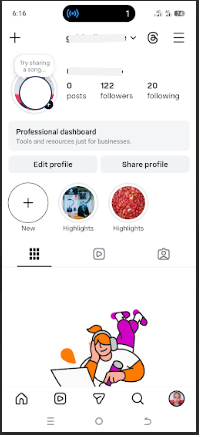
- Tap the three dots (More) in the bottom corner.
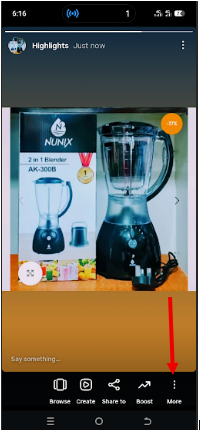
- Select Edit Highlight.
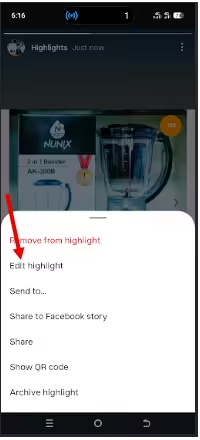
- Uncheck the story you want to remove.
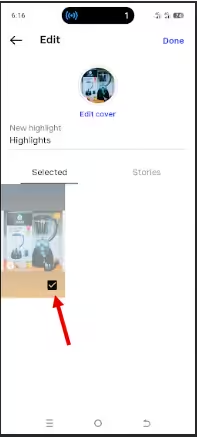
- Tap Done to save your changes.
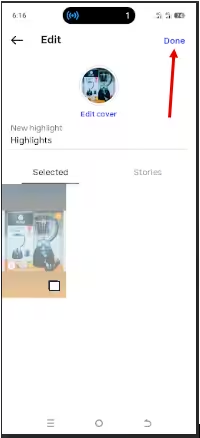
And just like that, your Highlight looks cleaner and more aligned with what you actually want people to see.
Featured Article: Ultimate Instagram Image Size Guide: Reel, Story, and Posts
Method 2: Hide Highlights Using the Close Friends Feature
One common misconception is that you can simply “switch” a public Highlight to private. In reality, a Highlight inherits the privacy of the original story. If you posted a story to “Everyone” originally, it stays public even if you try to move it later.
To truly hide a public story and move it to a private Close Friends Highlight, follow these steps:
- Save the Content: Open the Highlight you want to hide, tap More, and select Save Photo/Video to your phone’s gallery.
- Remove from Public View: Tap Edit Highlight and uncheck that story, or delete the Highlight entirely.
- Re-upload as Close Friends: Create a new Story, select the photo/video from your gallery, and tap the Close Friends icon (the green circle) before posting.
- Add to a New Highlight: Once posted, tap the Highlight button on that story and create a new collection (e.g., “Private Memories”).
Now, only the people on your Close Friends list can see that specific Highlight bubble on your profile.
💡 Pro Tip: The “Inherited Privacy” Rule
Remember: Instagram Highlights are not separate posts; they are “bookmarks” for your Stories. If the original Story was visible to everyone, the Highlight will be too. Always set your Story privacy before you hit post if you plan on highlighting it later!
Plan Instagram Content With Social Champ
How to Hide Highlights on Instagram Without Deleting Them
Hiding your Instagram Highlights without deleting them lets you keep your content safe while quietly controlling who sees what on your profile. It’s a smart way to tidy things up without losing those moments you might want to revisit later.
The following are the options for hiding highlights on Instagram without deleting:
Archiving
This option automatically saves your stories behind the scenes so they’re not publicly visible, but you can still add them back to Highlights whenever you want.
Follow the following steps to manage archiving:
- Open Instagram and go to your profile.
- Tap the menu icon (three lines) in the top right corner.
- Scroll down and tap Archiving and downloading.
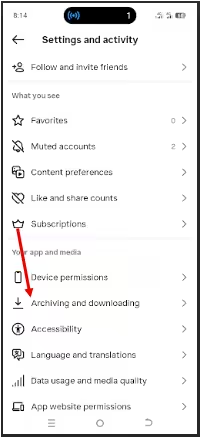
- Toggle button for Save story to archive.
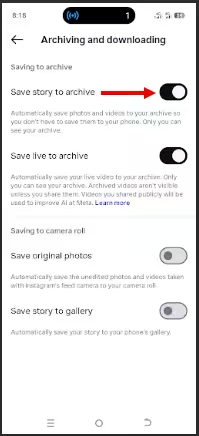
Once enabled, your future stories will be automatically saved privately and won’t need to remain visible in Highlights to be preserved.
Story Controls
This method allows you to control who can see your stories and, in turn, limit access to your Highlights for specific people. It’s useful when you want to manage visibility at a broader privacy level.
Here’s how you can adjust your story privacy settings:
- Go to your profile and tap the menu (three lines).
- Tap Story, live, and location.
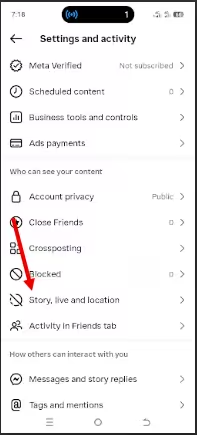
- Select Hide Story and live from.
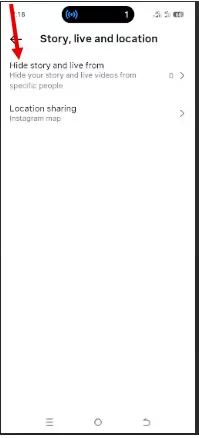
- Choose the people you want to hide your stories (and future Highlights) from.
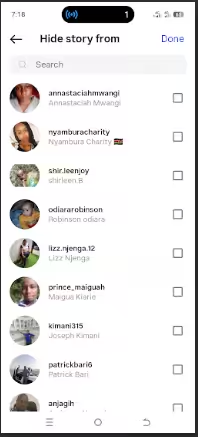
- Tap Done to apply the changes.
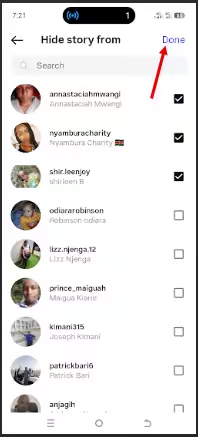
Tap Done
Once your privacy settings are updated, your Highlights will automatically reflect those restrictions. This helps you maintain the level of visibility you’re comfortable with.
Profile-Level Visibility Options
This option helps you control who can interact with your profile overall, limiting how your Highlights are viewed based on your privacy preferences.
Here’s how to configure your profile visibility:
- Go to your Instagram profile, then tap the menu icon (three lines) in the top-right corner.
- Tap Account privacy.
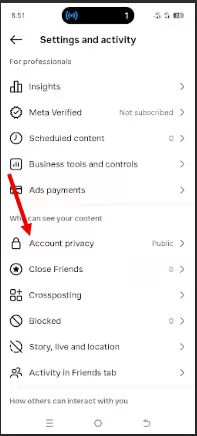
- Toggle on Private account to limit who can follow you and view your content.
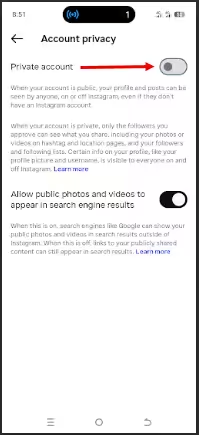
Toggle on Private Account
- Review your followers and remove any accounts you don’t want to have access to your profile.
Once set, only approved followers will be able to see your posts and Highlights.
Combining these three approaches lets you get the best of both worlds, privacy and flexibility, without permanently saying goodbye to your content.
Featured Article: How to Use Instagram: Guide for Beginners
Advanced Privacy Settings for Highlights
Taking your Highlight privacy a step further means going beyond basic controls and using smarter techniques to manage how your content appears and who gets access to it.
Here are some advanced options you can use to fine-tune visibility and keep your Highlights more discreet:
-
Custom Highlight Covers
Use simple or neutral designs for your covers so they don’t draw too much attention at first glance. Solid colors or minimal graphics can make your Highlights blend more seamlessly into your profile.
-
Smart Highlight Organization
Arrange your Highlights strategically by placing more sensitive ones toward the end of your profile. You can also use vague or non-descriptive titles and limit the number of stories per Highlight to keep things less obvious.
-
Story Controls Before Highlighting
Adjust your story privacy settings before saving content to Highlights so visibility is already restricted. Sharing stories with Close Friends or hiding them from specific accounts ensures only the intended audience can see them, even after they’re added to Highlights.
With the right mix of advanced settings, you can keep your Highlights subtle, organized, and aligned with your privacy preferences.
These small adjustments go a long way toward helping you control how your profile looks and who can see what, all while keeping your content neatly preserved in the background.
Who Can View Your Hidden Instagram Highlights?
Understanding who can still see your Highlights helps you stay in control, especially when you’ve adjusted privacy settings or hidden content from specific people.
In most cases, your Highlights follow the same visibility rules as your stories and account privacy. Here’s how different types of users are affected:
-
Followers
If your account is public, all followers can view Instagram Highlights unless you’ve specifically hidden your stories from them. If your account is private, only approved followers can see your Highlights.
-
Non-Followers
On a public account, non-followers can also view your Highlights. On a private account, they won’t have access unless you approve their follow request.
-
Blocked Users
Anyone you’ve blocked cannot view your profile, stories, or Highlights at all. Blocking completely removes their access to your content.
-
Viewers Using Alternate Accounts
If someone uses a different account that you haven’t restricted or blocked, they may still be able to view your Highlights, especially if your account is public. For private accounts, they would need to be approved as a follower on that alternate account to gain access.
Ultimately, who can view your Highlights depends on your account type and the privacy settings you’ve put in place.
Once you understand how each group is affected, it becomes much easier to control your audience and keep your Highlights visible only to the people you’re comfortable with.
Featured Article: The Ultimate Instagram Marketing Strategy for Small Businesses
Hide vs Archive vs Delete Instagram Highlights (Which Should You Choose?)
When it comes to cleaning up your Instagram Highlights, you’ve got three main moves: hide, archive, or delete. Each one plays a very different game depending on how permanent you want the decision to be.
Hide Highlights is your “stealth mode” option. Your content stays intact, but you limit who can see it using privacy settings or Close Friends. It keeps your profile looking curated without losing anything, and you can always bring visibility back later.
Archive Highlights is all about safe storage. Your stories are saved privately, so they’re not visible on your profile, but you can reuse them anytime to rebuild Highlights or create new ones. It’s perfect when you want a clean look without saying goodbye to your content.
Delete Highlights is the most permanent option. Once you remove a Highlight, it’s gone from your profile entirely, and unless the original stories were archived or saved elsewhere, you won’t be able to recover them. It’s the fastest way to declutter, but also the least forgiving.
In short, hiding gives you flexibility, archiving gives you backup, and deleting gives you a fresh slate. The right choice depends on whether you’re optimizing for privacy, preservation, or a full reset of your profile vibe.
Increase Instagram Reach With Social Champ!
Common Issues and Solutions
Even when you’ve got the basics down, hiding Highlights on Instagram can still throw a few curveballs your way. The good news is that most of these issues are easy to fix once you know what’s going on.
Let’s walk through some of the most common ones you might run into and how to sort them out quickly.
-
Highlights Still Visible to Certain Users
You might notice that even after adjusting your settings, some people can still see your Highlights when you expected them not to. This usually happens when your story privacy settings haven’t been fully applied or when the account viewing your profile isn’t included in your restrictions.
To fix this, double-check your Hide Story From settings and confirm the correct accounts are selected. You should also review whether your account is public or private, and consider blocking specific users if you want stricter control over visibility.
-
Unable to Find Highlight Settings
Sometimes you may not immediately see the option to edit or hide Highlights, which can feel a bit confusing. This often happens if you’re looking in the wrong menu or if your app version hasn’t been updated.
In this case, make sure your Instagram app is updated to the latest version and navigate directly to your profile before tapping and holding a Highlight. From there, you can access editing options, and if needed, restarting the app or your device can help the settings load properly.
-
Stories Not Saving to Archive
You may also run into a situation where your stories don’t appear in your archive, which means you can’t reuse them for Highlights later. This usually happens if the archiving feature is turned off in your settings.
To solve this, go to your settings and enable Save story to archive under the archiving section. Once activated, all future stories will be saved automatically and give you a private backup you can use whenever you’re ready to update your Highlights.
See What Your Competitors Are Up To
Additional Considerations and Pro Tips for Hidden Instagram Highlights
When you start managing your Highlights more intentionally, a few extra tweaks can help you stay organized while keeping everything low-key and polished.
Here are some practical considerations and pro tips to keep your Highlights under control:
- Keep your Highlight titles simple and non-descriptive to avoid drawing unnecessary attention.
- Regularly review and update your Highlights to remove outdated or irrelevant content.
- Use neutral or minimal Highlight covers to maintain a clean and cohesive profile look.
- Add stories to Highlights only after confirming your privacy settings are correctly configured.
- Take advantage of Close Friends when sharing sensitive or selective content.
- Avoid overcrowding. Highlights by grouping similar stories together for a more streamlined appearance.
With these small but effective habits, you can keep your Highlights discreet, organized, and perfectly aligned with the vibe you want your profile to give off.
Featured Article: Best Time to Post on Instagram (Insights from 3 Million Posts)
Why Can I Still See a Highlight After Being Hidden?
If you’ve just hidden your Highlights from someone (or asked a friend to check if they’re hidden), you might notice they are still visible for a few minutes. Don’t panic; this doesn’t mean your settings failed.
This happens because of App Caching. Instagram’s app saves (or “caches”) a snapshot of a profile to make it load faster. If a user was already looking at your profile or had it open in the background when you changed your privacy settings, their phone might still be showing the “old” version of your page.
Here’s how you can fix this!
Wait 10 minutes. It usually takes a few minutes for Instagram’s servers to sync across all devices globally.
- Force Close the App: Tell the other person to close the Instagram app completely and restart it.
- Clear Cache: On Android, users can go to Settings > Apps > Instagram > Storage > Clear Cache to see the most updated version of your profile instantly.
If you are testing this yourself using a second account, log out and log back in. This forces the app to “re-fetch” your profile data from the server.
Conclusion
Managing your Highlights is all about staying in control of what your profile communicates, whether you’re refining your aesthetic, protecting your privacy, or simply decluttering your content.
Once you understand how to hide highlights on Instagram, you can confidently curate what others see without losing the memories that matter to you. It’s a simple adjustment that makes a big difference in how polished and intentional your profile feels.
As you refine your Instagram presence, staying consistent with your posting strategy also plays a big role in maintaining a polished look. Instagram management tools like Social Champ can help you plan and schedule your content in advance, so your posts, Stories, and overall profile flow feel cohesive while you focus on managing and curating your Highlights with ease.