The average Instagram user spends about 33.1 minutes a day on the app, according to Blank Spaces. That is a lot of scrolling.
If one account starts posting 17 Stories before breakfast, your peaceful scroll can turn into a stress test. Your Instagram feed can start to feel like a nonstop talent show you never signed up for.
The good news is that Instagram gives you control without forcing you into an awkward social situation. You do not need to unfollow your coworker, your cousin, or that friend who discovered “motivational quotes” last week. You can simply mute them. They stay happy. You stay sane. Everyone wins.
Short Summary
- Muting lets you control your Instagram feed without unfollowing or blocking anyone.
- People you mute do not get notified and cannot tell you muted them.
- You can mute posts, Stories, or direct messages depending on your needs.
- Muting keeps connections intact while reducing feed clutter and notifications.
- Tools like Social Champ help schedule posts strategically to stay visible and engaged.
In this guide, I’ll walk you through exactly how to mute someone on Instagram, step by step. You’ll also learn the difference between muting, blocking, and restricting, as well as the best practices to curate your Instagram feed.
I’ll also touch on how tools like an Instagram scheduler can help you manage your own content so you do not become the person someone else feels tempted to mute.
Let’s get started.
What Happens When You Mute Someone on Instagram?
Muting someone on Instagram is the digital version of turning down the volume, not slamming the door. You stay connected. You just stop seeing their content in your face every five seconds.
Here is what actually happens when you hit mute:
- Their posts disappear from your feed
- Their Stories no longer pop up at the top of your screen
- You stop seeing their Notes if you mute those, too
- They are not notified
- You still follow each other
It is quiet. It is subtle. It is drama-free.
You’re probably wondering, does muting mean you have unfollowed or blocked someone? Not at all. There is a clear difference between muting, unfollowing, and blocking someone, and knowing which does what can save you from unnecessary social chaos.
Here is a quick comparison so you know exactly what each action does before you tap anything you might regret five minutes later.
| Action | Will You See Their Posts? | Will They Know? | Can They See You? | Are You Still Connected? |
|---|---|---|---|---|
| Mute | No | No | Yes | Yes |
| Unfollow | No | No | Yes | No |
| Block | No | Not directly notified, but obvious | No | No |
Muting is low-key, unfollowing is a mild statement, and blocking is the nuclear option.
If you just need a cleaner feed without social side effects, muting is your safest bet. It keeps your timeline peaceful while preserving relationships in the background.
Why Creators and Brands Use Mute
For a personal account, muting is about peace of mind. For a brand or creator, muting is about Algorithm Training.
Instagram’s algorithm tracks who you interact with to determine what content to show you, and potentially who to show your content to. By muting irrelevant accounts or “noise,” you tell the AI to focus your engagement on your specific niche.
Here’s what muting does for your brand:
- Curate your Explore Page: Muting off-brand content helps keep your feed relevant to your industry.
- Boost Productivity: It removes distractions, allowing you to focus on high-value interactions with customers and collaborators.
- Protect Your Reach: Engaging purely with your niche helps the Instagram algorithm associate your profile with the right community, potentially improving your own visibility on the Explore page.
Schedule Posts Without Any Hassle
How to Mute Someone on Instagram (Step-by-Step on Mobile)
Muting someone takes less than a minute. The steps are the same on iOS and Android, so you do not need a tech degree or a different phone.
Method 1: Mute From Their Profile
- Open Instagram and go to the person’s profile.
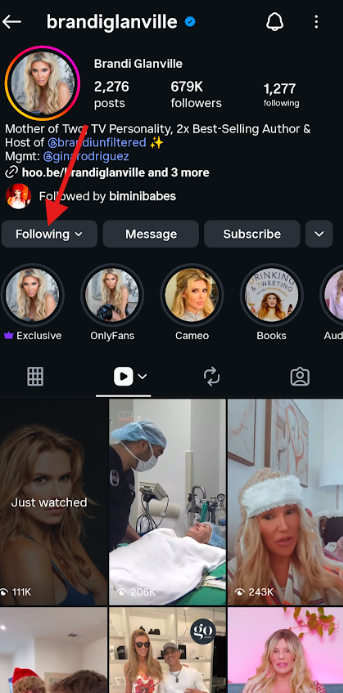
- Tap the Following button under their bio.
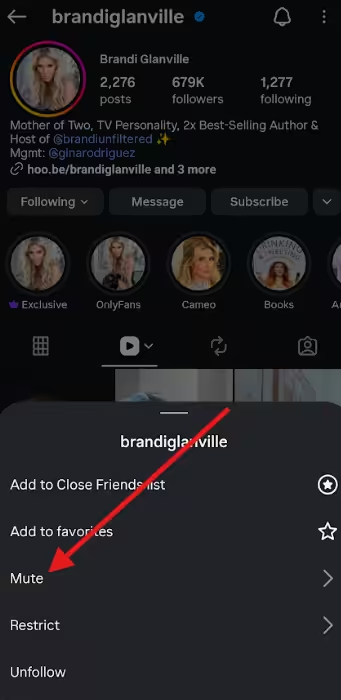
- Select Mute
- Toggle on Posts, Stories, Notes, or all, depending on what you want to hide.
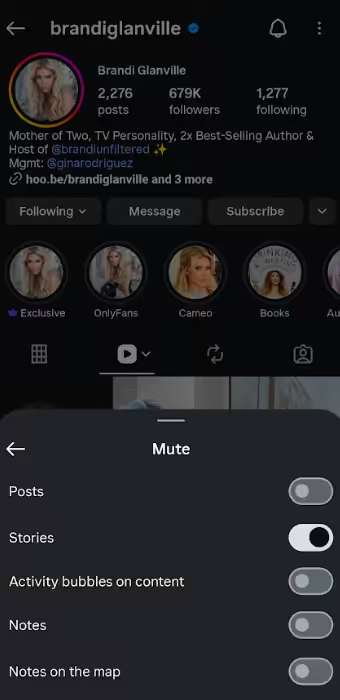
That’s it. Their content disappears from your feed, and they will not be notified.
Method 2: Mute Directly From a Post
- Find one of their posts in your feed.
- Tap the “…” icon in the top right corner of the post.

- Tap Hide.
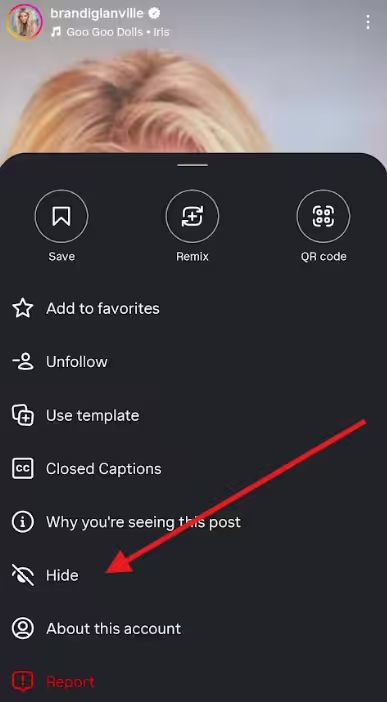
- This will open up a pop-up menu. Click Mute
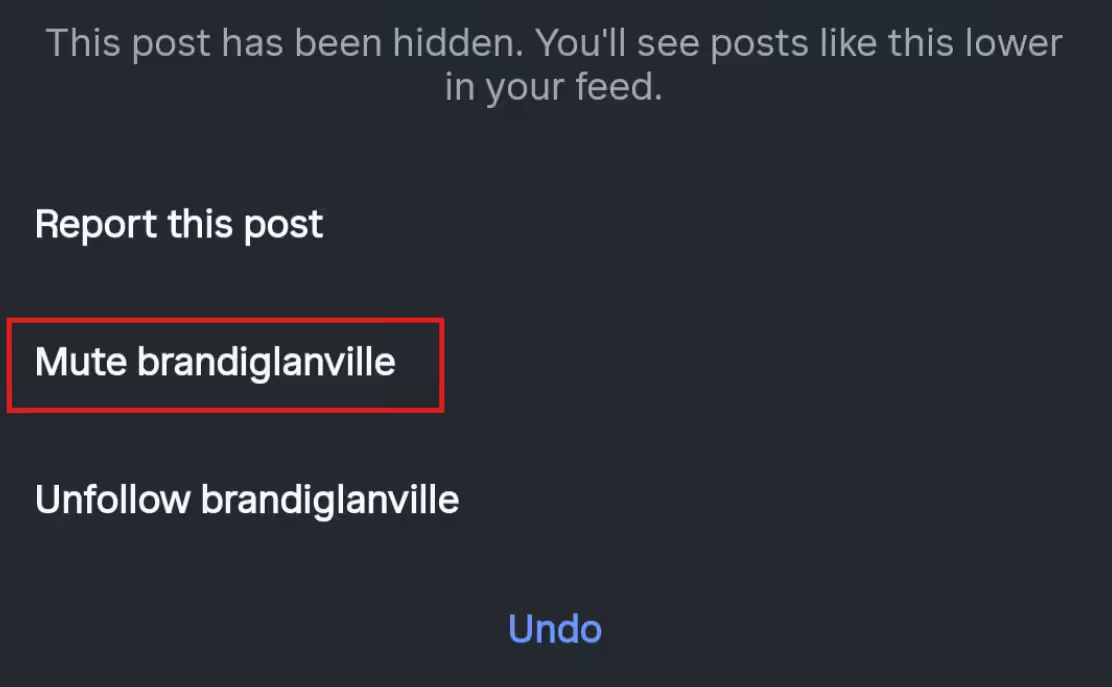
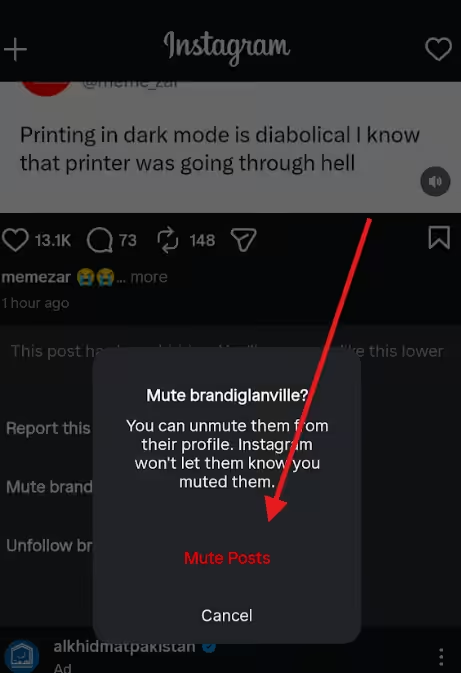
- Confirm Mute
Method 3: Mute From Stories Bar
- Press and hold their profile picture in the Stories row at the top of your feed.
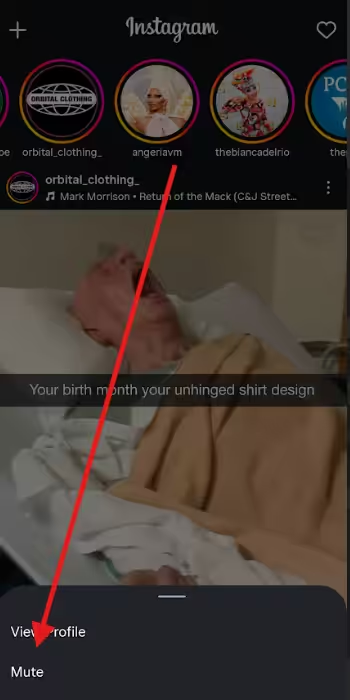
- Tap Mute.
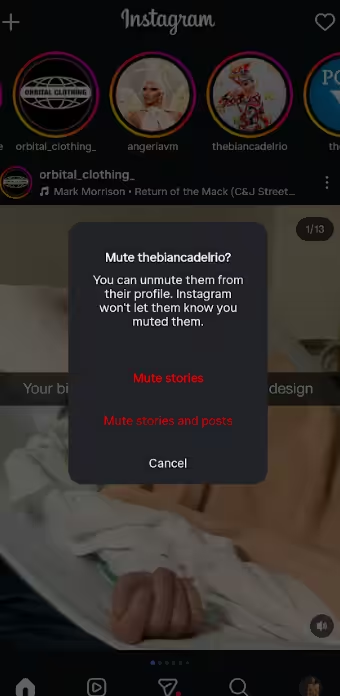
Select Mute Stories - Choose to mute Stories or Posts
Now their Stories will quietly step out of your daily lineup. You stay connected, and your feed stays peaceful.
Featured Article: How to Use Instagram: Guide for Beginners
How to Mute Someone on Instagram via Desktop (2026 Update)
In 2026, Meta has polished the web interface to feel more like the app’s navigation, making the mute feature easier to find than it used to be.
Here’s how to do it on your computer:
- Open Instagram in your browser and log in to your account.
- Go to the person’s profile you want to mute by searching or clicking their username.
- Click the “Following” button.
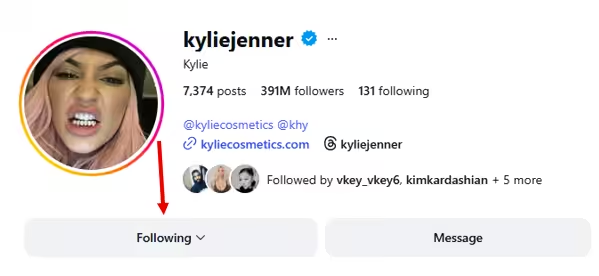
- Select “Mute” from the drop-down.
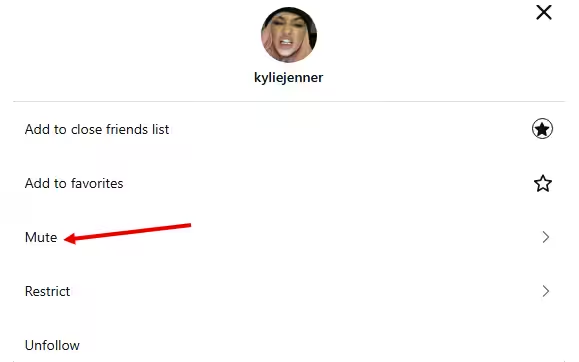
- Check the boxes next to Posts and/or Stories to decide what you want hidden from your feed.
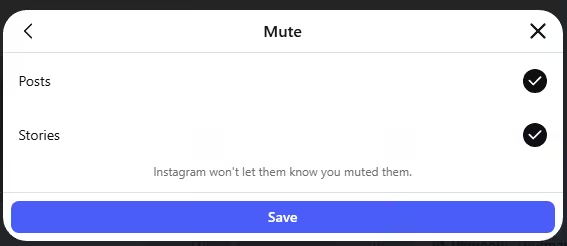
- Save your choices.
Once done, their posts and/or stories will stop showing up on your home feed in the browser, just like they would on your phone.
The muting process on desktop is more streamlined in 2026 because Instagram moved mute controls out of hidden menus and put them where they are easier to click.
Also, muting on the desktop still keeps you connected to the person. You can visit their profile to see their content whenever you choose, but it won’t show up automatically as you scroll.
However, there are some differences compared with mobile. For instance, with mobile, you have three ways to mute someone on Instagram: from their profile, directly from a post, or from the Stories bar.
On a desktop, you only have one option: muting from their profile. So, you will need to visit the person’s profile to manage your feed.
Post at the Perfect Moment, Automatically!
Can You Mute Instagram Messages Without Muting Posts or Stories?
Yes, you can! Muting messages is like putting your notifications on silent while letting the sender keep sending.
Note: Mute vs. Quiet Mode
It’s easy to confuse Muting with Instagram’s Quiet Mode.
- Mute: Silences a specific person or group chat indefinitely.
- Quiet Mode: Silences all notifications across the entire app for a set period (like during work or sleep).
Muting a DM is the surgical approach; it’s perfect when your chatty friend becomes a message marathoner, but you still want to see their feed updates.
How to Mute a Specific Conversation:
This comes in handy when your chatty friend suddenly becomes a message marathoner, or when group DMs are blowing up, and you need peace without unfriending anyone.
Their posts and Stories still show up, but your phone no longer buzzes every time they slide into your DMs.
Here’s how to do it:
- Open Instagram, then tap the Messenger icon (the paper airplane or chat bubble).
- Find the conversation you want to mute.
- When the conversation opens, tap the bell icon in the top-right corner of the chat.

Tap the Bell Icon - Select the timeframe for which you want to mute the messages

And that’s it! Messaging notifications for that conversation are now silenced. You still see their posts and Stories, but your notifications stay blissfully quiet. It is perfect for staying connected without turning your phone into a personal alarm system.
Featured Article: What to Post on Instagram: 30 Ideas & Examples
How to Unmute Someone on Instagram (When You Change Your Mind)
Muted someone and now regret it? Don’t worry! Instagram gives second chances. Muting is completely reversible, and the other person never knew you hid them in the first place.
Let’s see how to unmute someone on Instagram on mobile and on desktop.
On Mobile
- Go to the person’s profile.
- Tap the “Following” button under their bio.
- Select “Mute.”
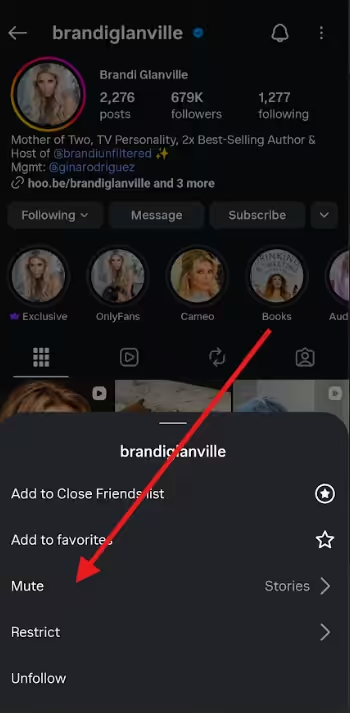
- Tap Mute
- Toggle off Posts, Stories, or both, depending on what you want back in your feed.
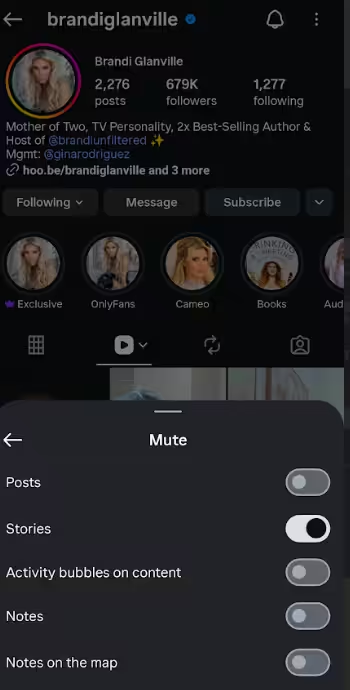
For messages:
- Tap the Messenger icon and find their conversation.
- Unmute the bell icon in the top-right corner.

Tap the Bell Icon
On Desktop
- Visit the person’s profile in your browser.
- Click the “Following button.”

Click on Following - Select “Mute.”
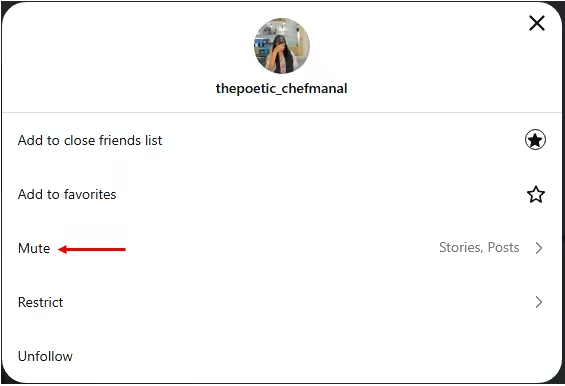
- Uncheck Posts and/or Stories, and click Save.
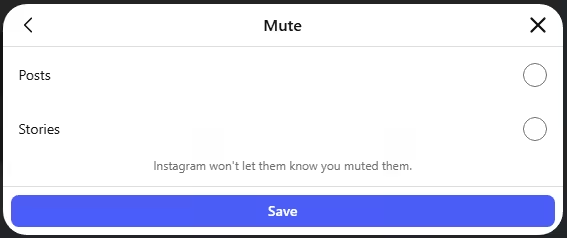
And that’s it! You’ve managed to unmute someone’s messages on Instagram.
Pro Tip
You can check who you’ve muted by going to: Settings → Settings & Privacy → Muted Accounts.
Muted Accounts
This is handy if your feed feels too quiet and you can’t remember who’s hiding in stealth mode.
Post at the Perfect Moment, Automatically!
What’s the Difference Between Muting, Blocking, and Restricting on Instagram?
Instagram offers a handful of ways to manage interactions, and it can get confusing fast. Muting, blocking, and restricting all affect your feed and notifications differently. Here’s a side-by-side comparison to clear things up at a glance:
| Action | Visibility of Content | Notifications | Messaging Limitations | User Perception |
|---|---|---|---|---|
| Mute | Posts/Stories hidden from your feed | You stop seeing alerts, and they don’t get notified | No restrictions | Other user sees you normally |
| Block | Both ways are hidden; you cannot see each other | No notifications | Cannot message or interact | Obvious; the user cannot access your profile |
| Restrict | Comments and messages limited | You control what alerts appear | Messages go to “Message Request” without notifying you | Subtle; the user can still see your profile and posts |
Use this as a cheat sheet whenever you need a little social breathing room. Muting keeps it quiet, restricting adds a layer of control, and blocking shuts the door completely.
Featured Article: How to Make Money on Instagram: A Complete Guide
How to Use Social Champ to Stay Visible (and Avoid the Mute Button)
Keeping your Instagram feed active doesn’t have to feel like a full-time job, nor should it feel like spam to your followers. If you post 10 times in an hour, you are practically begging for your followers to hit that “Mute” button we discussed earlier.
Social Champ helps you find the “sweet spot” of frequency and quality so your brand stays in the feed, not on the muted list.
-
Master Your Posting Cadence (Timing & Frequency)
The #1 reason people mute accounts is content fatigue. If you post too much at once, you clog the feed.
- The Social Calendar: Use the Social Media Calendar to visualize your weekly strategy. Ensure your Posts, Reels, and Stories are spread out evenly so you provide value without being overwhelming.
- Precision Scheduling: Don’t just post when you’re “on your phone.” Schedule posts for specific dates and times to maintain a professional, steady presence that feels like a natural part of your followers’ day.
-
Post When Your Audience is Actually Watching
Posting at 3:00 AM might result in a “ghost town” feed, or worse, a flood of content hitting your followers all at once when they wake up.
Social Champ’s AI analyzes your specific audience data to recommend the exact windows when your followers are most active. When you publish at the best time to post on Instagram, your content is more likely to be engaged with rather than scrolled past or muted.
-
Use Data to Stop “Quiet Unfollows”
Muting is often a “quiet unfollow.” Your followers are still there, but they aren’t seeing you.
- Analytics and Insights: If you notice your reach dropping, check your Social Champ Analytics. Are people stopping their scroll on your posts? Use these insights to double down on what works and pivot away from content that might be driving people to hit “Mute.”
- Unified Engagement: Use the Social Inbox to reply to comments and DMs instantly. High engagement signals to the Instagram algorithm that your content is “Wanted,” which keeps you higher in the feed and further away from the mute settings.
Getting muted by followers can quietly damage your Instagram marketing strategy for small businesses. Your posts stop showing up in their feed, your reach drops, and engagement starts to shrink without any obvious warning.
If too many people mute your account, your visibility takes a hit, and your content struggles to gain traction. That makes it harder to grow, sell, or build brand awareness.
Social Champ gives you the structure and insights you need to stay visible without overwhelming your followers. You stay organized, your audience stays engaged, and your brand stays far away from the mute button.
Stay Visible Without Overwhelming Followers
Social Champ’s smart scheduling and balanced posting help you stay in your audience’s feed without driving them away.
Best Practices to Curate Your Instagram Feed Without Hurting Relationships
Your Instagram feed should reflect what you enjoy, not what you tolerate out of obligation. If you are not sure how to clean it up, these next tips will help you take control without stepping on any social toes.
Think of this as your mini guide to setting digital boundaries without turning Instagram into a social battlefield.
-
Use Mute Strategically
Muting is your quiet power move. You stay connected, but you control what shows up in your space.
Use it when someone posts too often or shares content that does not align with your interests. This keeps your feed enjoyable without sending a dramatic message.
-
Curate Your Close Friends List
The Close Friends feature lets you choose exactly who sees certain Stories. You can share personal updates with a smaller circle instead of broadcasting everything to everyone.
This creates a more intentional space and reduces oversharing. At the same time, it strengthens connections with the people who matter most to you.
-
Set Notification Preferences
Notifications can easily take over your day if you let them. You can customize alerts for posts, Stories, comments, and messages in your settings.
Turn off what you do not need and keep what matters. As a result, Instagram feels less like a constant interruption and more like a tool you control.
-
Manage Your Mental Well-Being
Your feed should inspire you, not drain you. If certain accounts trigger stress or comparison, it is okay to mute, unfollow, or take breaks.
You are allowed to protect your peace online. When you treat Instagram as a space you curate intentionally, it becomes healthier and far more enjoyable.
Featured Article: Best Ways to Download Instagram Video: Keep Them Saved
Final Thoughts: Muting as a Quiet Power Move on Instagram
Muting is one of the simplest ways to take control of your feed without creating drama. It lets you stay connected while keeping your Instagram experience peaceful and enjoyable.
Now that you know how to mute someone on Instagram, use it strategically, combine it with thoughtful posting, and pair it with tools like Social Champ to stay consistent and visible. Small actions like these give you big control over your digital space.
When all is said and done, muting does not mean you’re avoiding people; it helps you manage your feed so Instagram works for you.