

Losing followers on Instagram can sting, especially when you thought your content was pure gold. But before you panic or start spiraling into detective mode, just know that there are safe and legit ways to track your follower changes without handing over your password to sketchy apps.
In this guide, I’ll show you exactly how to see who unfollowed you on Instagram. I’ll also share a bonus tip on how to post consistently using an Instagram scheduler, so your followers always have something fun to look forward to when they open the app.
Let’s get right into it, shall we?
Short Summary
- Instagram does not notify you about unfollows, so you need manual checks, data downloads, or trusted tools to track them.
- Comparing follower lists or downloading your Instagram data is a safe way to spot changes.
- Business and Creator accounts can use Insights to monitor follower growth and declines in engagement.
- Third-party apps can help, but choose carefully to protect your account.
- Social Champ helps you track trends, schedule consistently, and improve strategy to reduce unfollows and grow smarter.
Can You Really See Who Unfollowed You on Instagram?
Here’s the cold, slightly annoying truth: Instagram doesn’t make it easy to see who ditched your account. Officially, the app only shows you your current followers, not a neat little list of people who’ve unfollowed you.
So, unless you’ve been keeping a personal log, you won’t get a “You’ve been unfollowed” notification.
That said, all hope isn’t lost! While Instagram won’t hand you the info on a silver platter, there are safe ways to track unfollows, spot patterns, and figure out who’s ghosting your posts.
Take Control of Your Instagram Growth
How to See Who Unfollowed You on Instagram Without Using Apps
Want to track who unfollowed you without handing your password to some sketchy app? Good news: you can do it the old-fashioned, safe way. Here’s how:
-
Compare Your Followers Manually
Keep a running list of your followers (or a screenshot from time to time) and compare it to your current list. It sounds low-tech, but for small accounts, it’s foolproof and 100% safe.
-
Check Recent Activity
Look at likes, comments, or who’s engaging with your posts. If someone who used to interact with you frequently suddenly disappears, they might have unfollowed you. It’s not perfect, but it gives you hints.
-
Download Your Instagram Data
Follow these steps to download your Instagram data:
- Go to Settings
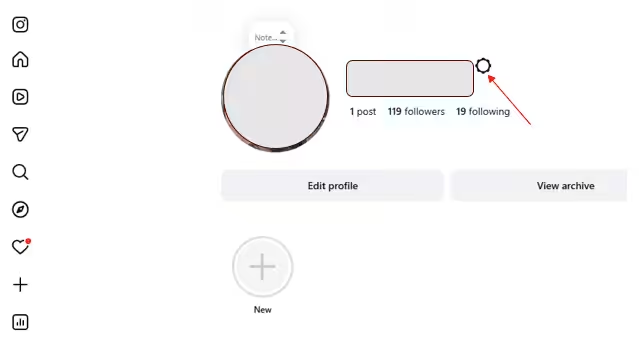
Go to Settings - Choose “Account Center.”
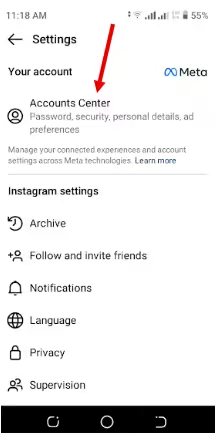
Tap Accounts Center
- Click “Your Information and Permissions.”
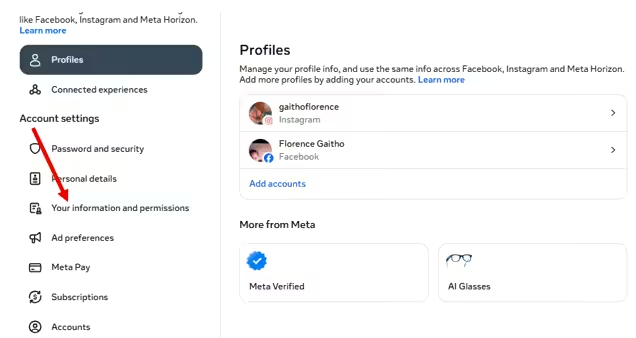
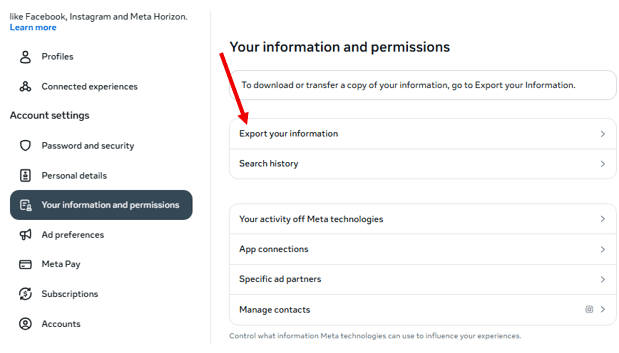
Select Your Information and Permissions - Click “Export Your Information.”

Click Export Your Information Instagram will email you a file with your followers and following lists. Compare these snapshots over time to spot who’s no longer following you.
Featured Article: How to Hide Following List on Instagram
How to See Who Unfollowed You on Instagram Using Third-Party Tools (Pros & Risks)
If you want a shortcut instead of manually stalking your follower list, third-party unfollower apps can help.
Most unfollower tools connect to your Instagram account and track changes in your followers over time. They’ll often show you who unfollowed you, who doesn’t follow you back on Instagram, and even ghost followers who never engage with your posts.
The Pros
- Quick and automated, so no tedious screenshots or spreadsheets.
- Can give insights into engagement patterns and follower trends.
- Some integrate nicely with Instagram Schedulers, so you can plan content around your most active followers.
The Risks
- Security concerns: Not all apps are trustworthy. Giving your password to a shady tool can put your account at risk.
- Accuracy issues: Some apps lag behind Instagram updates or misreport changes.
- Policy violations: Instagram’s terms of service frown on third-party apps that scrape data or automate interactions, which could result in account restrictions.
To avoid risks, stick to apps with good reviews, clear privacy policies, and official recommendations. Avoid apps that ask for your Instagram password directly.
Turn Insights Into Action With Social Champ
How to See Who Unfollowed You on Instagram with Insights (Business & Creator Accounts)
If you’re using a Business or Creator account, you won’t get a dramatic “So-and-so unfollowed you” alert, but you’ll definitely get some crucial data. And data doesn’t lie (even if it’s a little subtle about it).
Here’s how to read between the lines:
-
Track Follower Growth Over Time
Head to Instagram Insights > Total Followers and look at your growth chart. You’ll see how many follows and unfollows happened within a specific period.
Insights on Instagram Instagram won’t name names, but it will show you the numbers. If you gained 20 followers and lost 15 in a week, well… that’s your clue.
-
Watch for Sudden Reach Drops
A noticeable dip in reach, especially among followers, can hint that some people have left or stopped engaging.
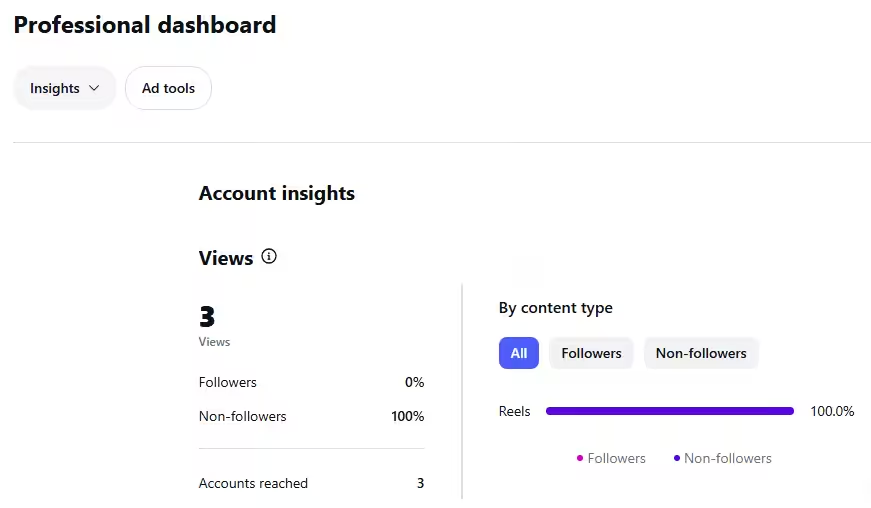
Instagram’s Professional Dashboard If your content usually reaches 60% of your followers and suddenly drops to 40%, it’s worth investigating.
-
Monitor Engagement Changes
Look at patterns in likes, comments, shares, and saves. If regular commenters disappear or engagement steadily declines, it might mean some followers have quietly hit the unfollow button.
-
Analyze Content Patterns
Did engagement drop after a specific type of post? Insights can help you connect the dots.
The beauty of Insights is that it shifts your focus from individual unfollows to overall growth strategy. Instead of obsessing over one person leaving, you can use the data to refine your content, adjust your posting schedule, and keep your audience engaged.
Featured Article: How to Make Money on Instagram
Track Follower Changes and Improve Content With Social Champ
If you’re tired of guessing why followers disappear, it might be time to zoom out and look at the bigger picture. Instead of obsessing over who unfollowed you on Instagram, focus on why it may be happening and how to fix it. That’s where Social Champ comes in.
Social Champ helps you track performance trends, monitor engagement patterns, and see how your content performs over time. And it’s not just on Instagram, but across multiple platforms.
When you can clearly spot which posts spark conversations and which ones quietly flop, you can adjust your strategy before unfollows start piling up.
Consistency also plays a huge role. Posting randomly one week and disappearing the next? That’s a fast track to losing attention.
With Social Champ, you can plan and schedule Instagram posts in advance, maintain a steady posting rhythm, and stay top of mind with your audience.
What to Do After You Know Who Unfollowed You on Instagram
So, you’ve done the detective work. You know who unfollowed you. Now what?
Before you spiral or start dramatically unfollowing half your list, take a breath. Unfollows are normal. What matters is how you respond.
Here’s your game plan:
-
Analyze Your Recent Content
Look at what you posted right before the unfollow happened.
- Did you change your content style?
- Post less frequently?
- Share something off-brand for your audience?
Check your engagement trends. If likes, comments, or reach dipped around the same time, it might signal that your content didn’t resonate.
Use this as feedback, not failure. Sometimes small tweaks in format, captions, or posting time can make a big difference.
-
Revisit Your Target Audience
Not every follower is your ideal follower. And that’s okay.
Ask yourself:
- Are you creating content for the audience you actually want?
- Does your bio clearly reflect what your page is about?
- Are your posts aligned with your niche?
If someone unfollowed because your content isn’t for them, that’s not a loss. That’s refinement. Growth isn’t about collecting random followers. It’s about attracting the right ones.
-
Decide Whether to Unfollow Back
This one’s personal.
If you’re building a brand or creator account, you may not need to unfollow back. Keeping your following list intentional can actually strengthen your positioning.
If it’s a mutual connection or someone you genuinely want to stay connected with, you can choose accordingly. Just avoid making it an emotional reaction. Strategic decisions > petty clicks.
-
Strengthen Your Posting Strategy
Consistency builds trust. Random posting creates confusion.
Create a realistic posting schedule and stick to it. Mix up your content formats (Reels, carousels, Stories) and experiment with what drives saves and shares. Track what performs well and double down on it.
Also, engage more. Comment on posts in your niche, reply thoughtfully to DMs, and build real connections. People rarely unfollow accounts they feel connected to.
-
Focus on Growth, Not Loss
One unfollow doesn’t define your account. Even ten don’t.
Shift your mindset from “Who left?” to “Who can I serve better?” When you prioritize value, clarity, and consistency, the right audience sticks, and the wrong audience naturally filters out.
At the end of the day, unfollows aren’t setbacks. They’re signals. And when you use those signals wisely, they help you build a stronger, smarter Instagram presence
Stay Consistent and Relevant With Social Champ
Conclusion
Tracking who unfollowed you on Instagram can feel personal, but it doesn’t have to be dramatic. Whether you’re manually comparing followers, reviewing Insights, or carefully using third-party tools, the real win isn’t just knowing who left. It’s understanding what the data is telling you.
And if you want to be proactive instead of reactive, social media management tools like Social Champ make it easier to track performance trends, schedule content consistently, and optimize your posting strategy across platforms. Instead of chasing unfollowers, you can focus on building a stronger presence that keeps the right audience engaged and sticking around.
Featured Article: How to Post on Instagram From PC


