
How to hide following list on Instagram?
It’s one of those questions that sounds like it should have a simple answer, like, “hey, go to these settings, and turn on this toggle.”
Sadly, there’s no such thing. In fact, Instagram does not even offer a “hide your following list” option. And anyone who tells you otherwise is lying to you.
Short Summary
- Instagram does not have a feature to hide your following list
- The only real methods are making your account private, removing specific followers, or blocking someone entirely.
- Restriction and muting do not hide your following list (but they do help you remove annoying people from your feed!)
- The “Limits” feature only controls comments and DMs, not profile visibility.
- Third-party apps claiming to hide followers are scams or security risks.
- A secondary private account is the only true workaround for hiding follows while keeping a public presence.
- Extra privacy settings like activity status off, Close Friends, and tag approval help, but don’t solve the core problem.
- There is no way to hide your following list from people who already follow you.
But don’t lose hope just yet.
Being someone who loves to gatekeep (for no good reason), I have played around a little too much with Instagram’s settings to find any and every way to prevent certain people from seeing my following list.
Lucky for you, I’ve found a few workaround methods, like:
- Making your account private
- Removing them as a follower
- Blocking a particular person (They won’t be able to see your following list)
- Restricting (or limiting) access
- Muting them
In this guide, I’ve created a collection of ways for you to gatekeep your following list from a few or specific people. But keep in mind that these methods do not hide your follower list, especially if you have a public or creator account.
Featured Article: How to See Past Usernames on Instagram
Why People Want to Hide Their Following List (And Why That’s Okay)
I’ll be the first to say that I follow some really niche accounts on Instagram, and I’d throw myself off a roof into a pool of needles before I let certain people scroll through my following list.
But that’s just me.
There are actual, legit reasons why people might want to hide their following list, such as:
- Making sure you’re safe as a public figure or creator. For instance, let’s say you’re sponsored by Delta Airlines, but you also like funny content, and you can’t stop yourself from following RyanAir. It won’t be a good look, especially if some stalker deep scrolls your following list, only to find out you have another preference for airlines. It’s safe to say, it won’t be a good look for you or Delta.
- You don’t want everything to become public consumption, because, let’s face it, some communities or fan pages are small and intentional. You don’t want randos joining in and ruining the fun.
- You want to keep your personal life personal. Every person is entitled to their privacy. And if you’re a public figure, your following list can be the map of your vulnerabilities; someone can pinpoint your exes, family drama, or mental health issues, simply by checking who you follow (or don’t follow)
In either of these cases, there’s no shame in wanting control over letting others see who you engage with. No, you’re not paranoid, you’re not self-centered, and you’re definitely not overreacting.
And since Instagram still hasn’t built a simple feature to hide your following list yet, knowing your options is super important. So, let’s jump into it!
The Secret to Hands-Free Growth!
How to Hide Following List on Instagram on iPhone and Android (Alternate Methods for Specific Cases)
Enough goofing around. Let’s just look at four alternatives. Each one does something specific, and none of them is perfect. I’ll tell you exactly what works, what doesn’t, and how to actually do it.
Method 1: Make Your Account Private
If your goal is to stop strangers from seeing who you follow, this method is the answer to your problems. It’s also great for those who want broader privacy and those who do not mind having a curated list of followers.
Essentially, when you make your account private, any person who does not follow you cannot see your posts, stories, or following lists (this includes both followers and following).
However, if someone does follow you, they can STILL see your following lists (if they choose to stalk you, that is).
‘So, how do I set my following list to private?’, you may ask.
Well, it’s simple.
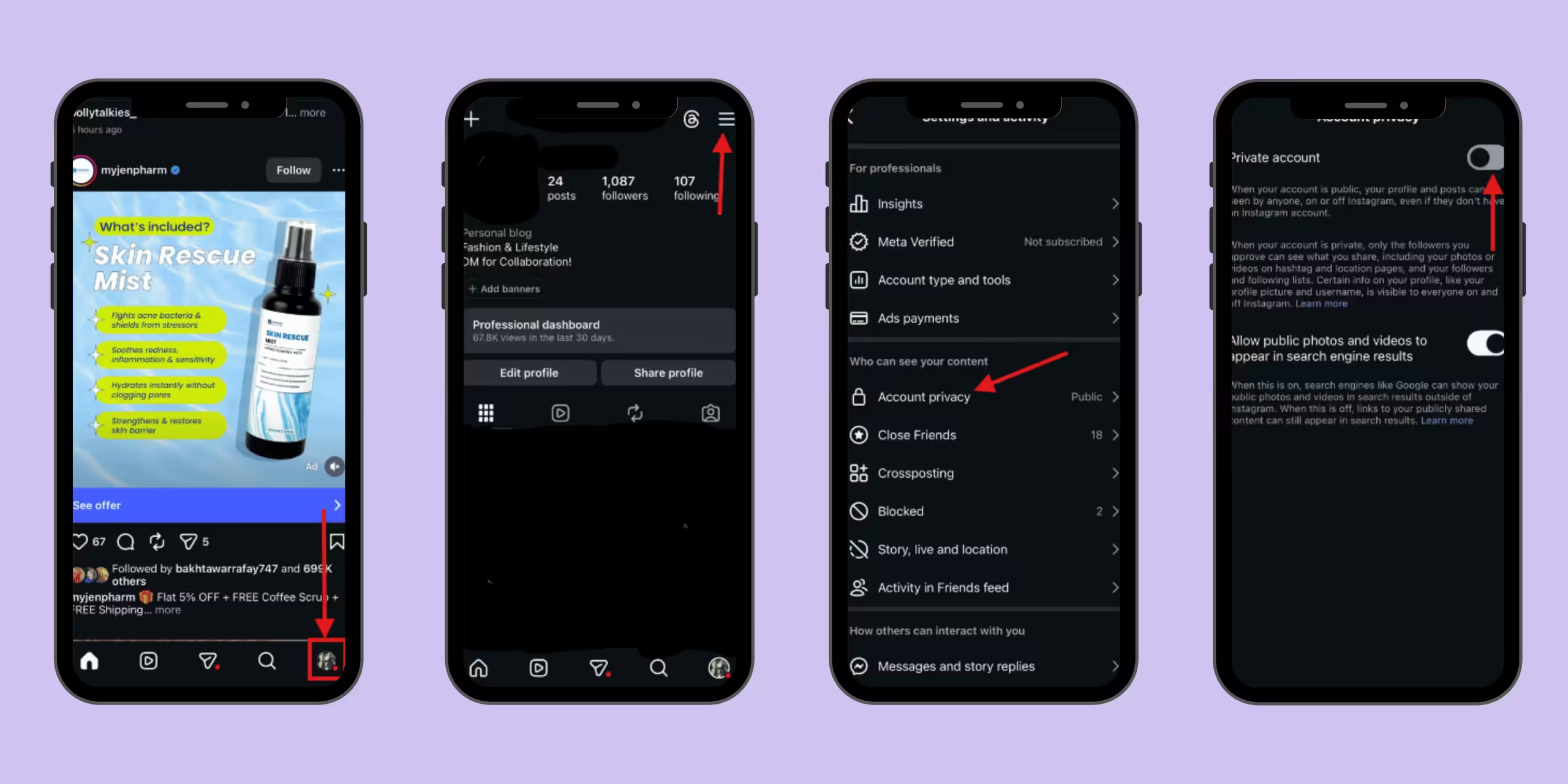
- Tap your profile picture
- On the top right, you’ll see the three lines (hamburger menu). Tap it
- Scroll down to “Account privacy” in the “who can see your content” section
- Turn the toggle on for “Private account.”
Method 2: Remove Them As a Follower
I’ve had a few people ask me, “How do I hide my Instagram following list from my friends?” and “Can I hide followers from one person?”
My answer to that is simple:
- Make your account private
- Remove them as a follower
If you want to hide your following list from a few specific people, this is the natural route you need to take. This step will cut their access to your following list (and your entire profile), and they won’t be able to see who you follow.
That said, they can request to follow you again, but you can always choose not to accept!
You can remove them by:
- Go to your profile
- Find the follower you want to remove
- Tap the 3 dots next to their name
- Select remove
Method 3: Block Them
Desperate times call for desperate measures. If you really don’t want someone to see your following list (let’s say you have a new situationship and you don’t want your ex finding out), this is the way to go.
Unfortunately, this will also mean that the person you block will not be able to see your profile, posts, stories, or anything else. Even if they create a new account, they won’t be able to find you through search. For them, you may as well not be present on Instagram!
Now, this method is perfect for persistent snoopers, your exes, or anyone you want gone. The best part is that they won’t even know you’ve blocked them.
Here’s how you do it:
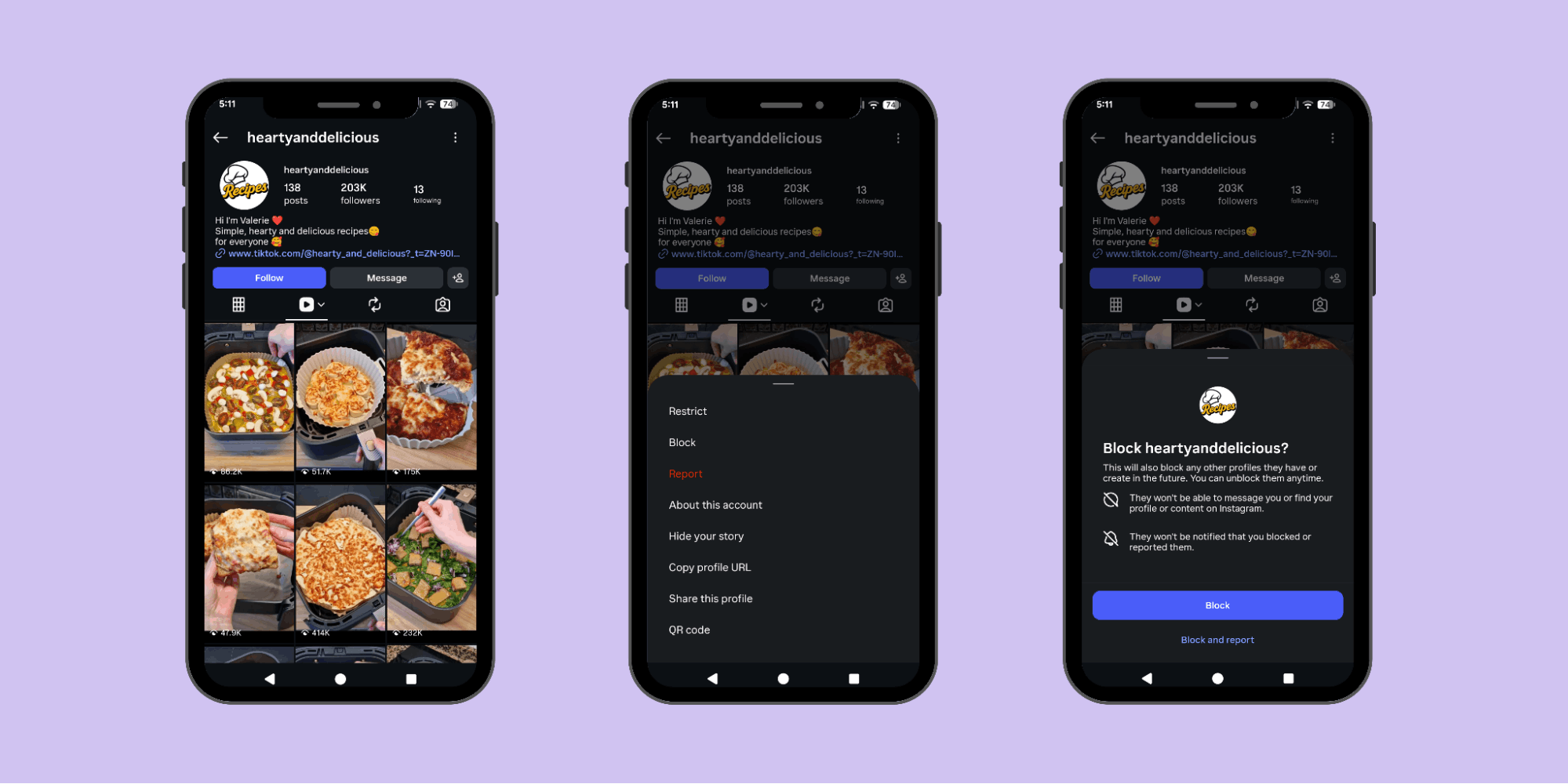
- Go to the person’s profile
- Tap the three dots (top right)
- Tap Block
- Choose whether to block just them or any new accounts they might create.
Method 4: Restrict Them
“Can I restrict someone to see my following list on Instagram?”
Not really, but you can restrict them from actively engaging on your profile. This method is more for dealing with people you don’t like rather than for hiding the following list.
When you restrict someone on Instagram, you can limit their ability to interact with you. For instance, if they comment on your post, they won’t be visible unless you approve them. Or if they message you, the message will go directly to the “message requests” folder.
But keep in mind that this method does not hide your following list. If your account is public, anyone can still view your full following list.
Here’s how you can restrict someone on Instagram:
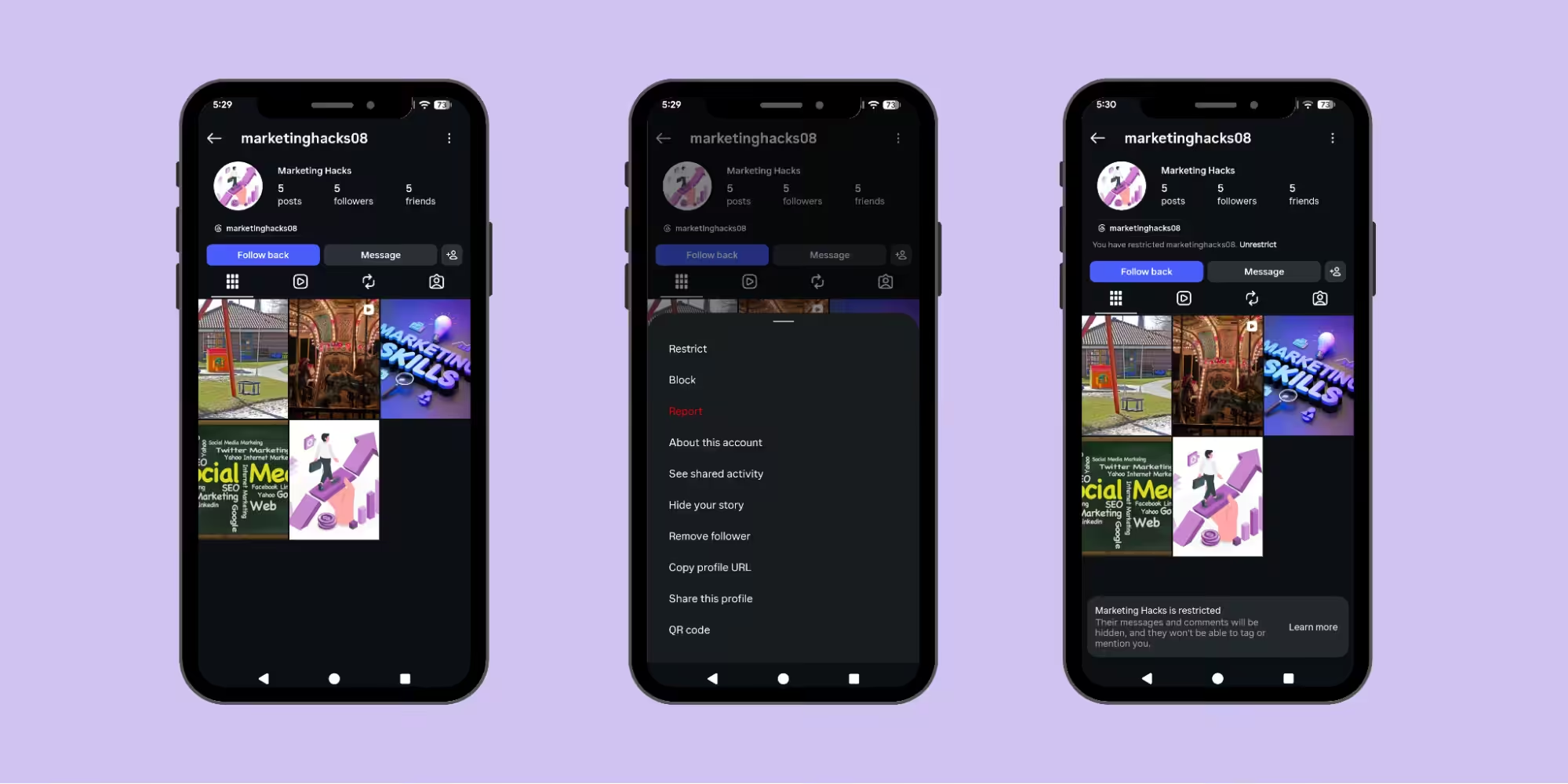
- Go to the person’s profile
- Tap the three dots (top right)
- Tap Restrict
- You’ll see a label on their profile indicating they’re restricted.
Method 5: Mute Them
I feel like we’re getting side-tracked with this one, but if someone is just annoying you on Instagram, maybe you don’t need to hide your following list from them. Instead, you can just mute them.
Muting someone just hides their content from your feed. It’s almost like you’re limiting yourself from accessing their content.
But you need to know that if you mute someone, they can still see everything on your profile, including who you follow. This method is doing nothing for your privacy. It’s just protecting you from the drama of others.
Muting them is super easy; here’s how you can mute someone on Instagram:
- Go to the person’s profile (or find their post in your feed).
- Tap the Following button.
- Tap Mute.
- Toggle Posts, Stories, or both.
Featured Article: How to Schedule Instagram Stories
Be the Brand That Never Sleeps!
How to Hide Followers on Instagram via Web/Desktop (Alternate Methods)
Now, if you don’t want to use Instagram on your phone (because it’s easier to avoid errors on the big screen), I’ve compiled instructions for the above-mentioned methods for desktop users too.
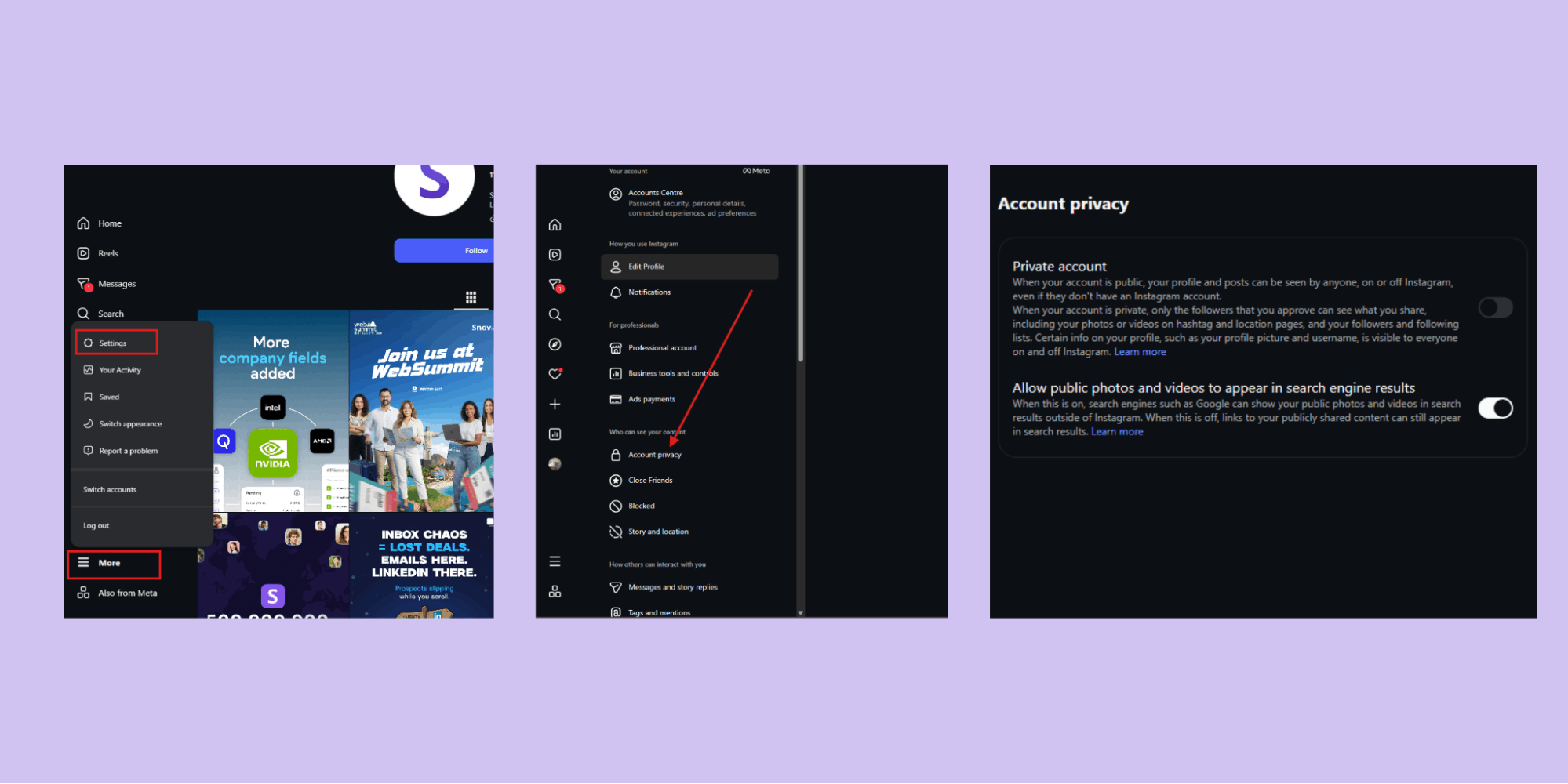
Method 1: Make Your Account Private on Desktop
We’ll just get right to it. Here’s what you need to do:
- Log in to Instagram
- On the left bar, click on the three lines for more options (hamburger menu)
- Select Settings
- Go to Account privacy (under who can see your content)
- Turn the toggle on for a private account
Method 2: Remove a Follower on Desktop
This also follows a similar method as mobile. You just need to:
- Go to your profile and click Followers.
- Find the person you want to remove (use the search bar if needed).
- Click the three dots next to their name.
- Click Remove.
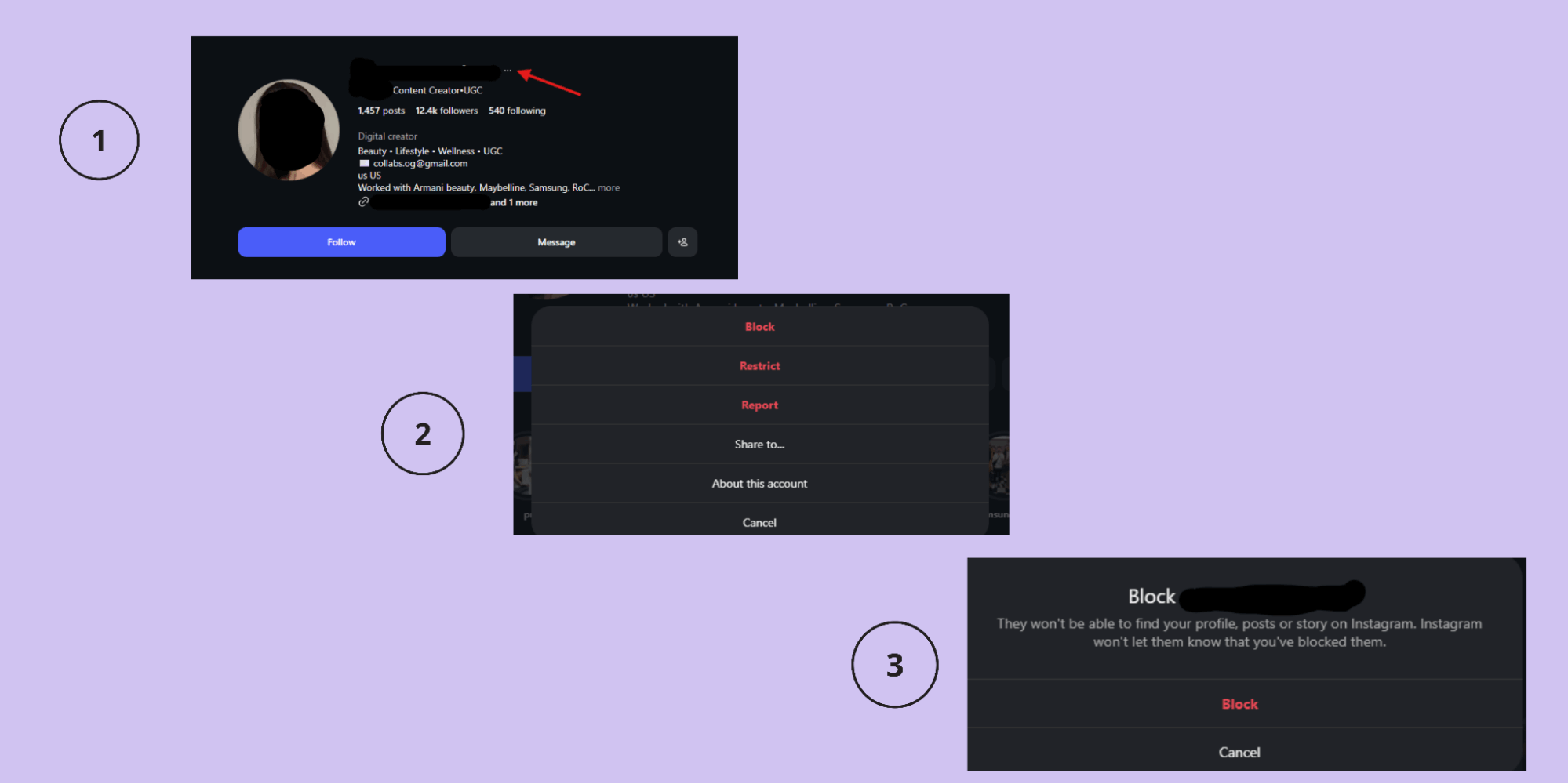
Method 3: Block Someone Through Desktop
If your question is how to hide following list on public Instagram, this is the one method that will work.
- Go to the person’s profile.
- Click the three dots (top right of their profile).
- Click Block.
- Confirm
Method 4: Restrict Someone on Desktop
If you want to restrict someone on Instagram, simply:
- Go to the person’s profile.
- Click the three dots (top right).
- Click Restrict and confirm!
Method 5: Mute Them on Desktop
Muting someone on the desktop is also super easy. Just:
- Go to the person’s profile.
- Click the Following button.
- Click Mute.
- Toggle Posts, Stories, or both.
Featured Article: How to Hide Likes on Instagram
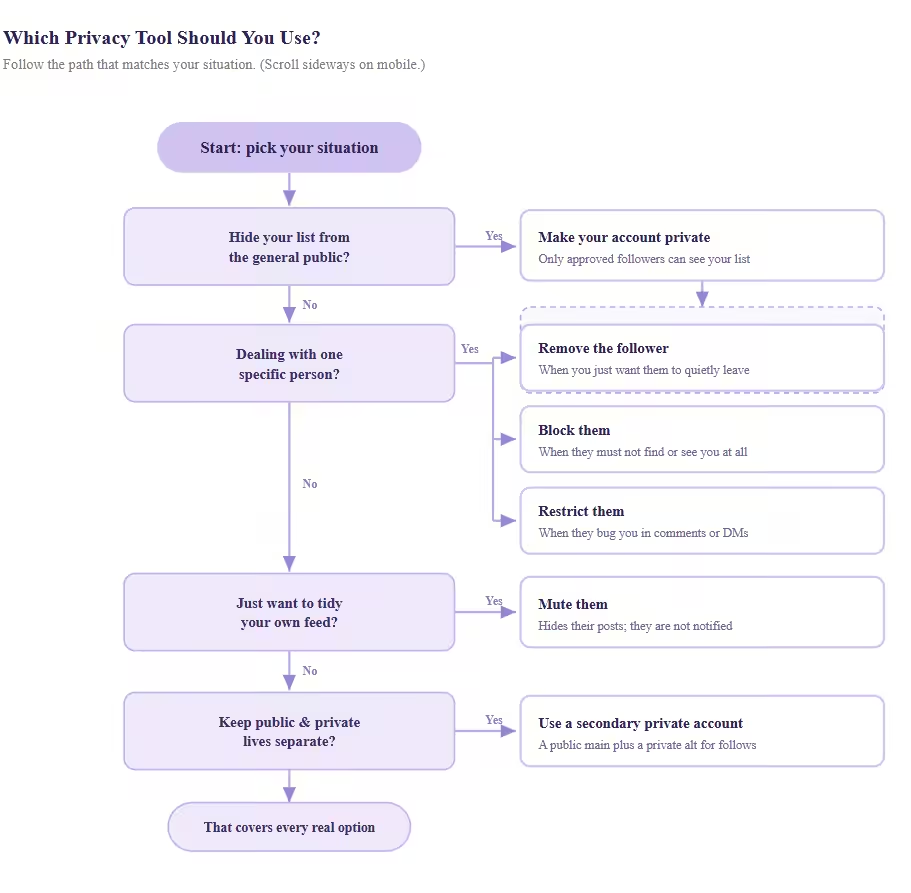
A Quick Decision Guide
Here’s a little chart to help you decide which method is right for you!
Featured Article: When to Post on Instagram?
Want More Privacy on Instagram? Check Out These Extra Settings
If you’re serious about locking down your profile, here are some other privacy features that you can give a shot at these methods:
-
Hide Your Activity Status
If you don’t want anyone to see you’re online, you can do this:
- Go to your profile and tap the hamburger menu
- In the search bar, type “Activity Status” and select “show activity status”
- Toggle it off!
-
Use the Limits Feature
I actually found this cool trick on Reddit. While it does not hide your following list, it can limit comments and DMs from people who do not follow you or from those who recently followed you. You can do this by:
- Go to your profile and tap the hamburger menu
- In the search bar, type “Limit interactions.”
- Tap “Turn on”
-
Control Comments and Messages
If you want to stop people from sliding into your DMs or leaving weird comments, this is the way to go!
For comments:
- Go to your profile and tap the hamburger menu
- In the search bar, type “Comments.”
- See the various types of options, such as “block comments from”, “who can comment”, “type of comments,” and “hide unwanted comments.”
- Choose whatever works for you!
For messages:
- Go to your profile and tap the hamburger menu
- In the search bar, type “Messages and story replies.”
- See the various types of options, such as “how people can reach you”, “who can see your online,” (this one is for activity status and read receipts) and “end-to-end encryption.”
- Choose whatever works for you!
-
Create Separate Accounts
If you really, really don’t want anyone to see your followers, you can simply create two accounts: one for your private browsing, and the other for public use!
Just a side note: If you post on Instagram regularly, start your 14-day free trial for Social Champ! It’s an Instagram scheduler that saves you so much time and energy!
Stop Paying for Ghost Profiles
Conclusion
I’ve pretty much covered all the different ways you can increase your privacy on Instagram, and if you continue to search for “how to hide following list on Instagram,” you won’t find anything that I haven’t mentioned above.
So, the conclusion is that there’s no way to conceal your followers without taking drastic measures like blocking someone or making your account private. You can select whichever fits your situation better!









Gene Reynolds
Keeping my following list private is essential, and this guide was super clear. The clear explanations and practical steps made it so much easier to protect my privacy.