


You just found a hidden rooftop with the most insane sunset view, and your photo captures every breathtaking color. You’re ready to post it on Instagram, but you need the friend who loves sunsets and the one who owes you a weekend adventure to see it instantly.
One of the fastest ways to catch their attention is to tag them directly in your post. Tagging someone on Instagram makes sure they get the memo, since it sends them a notification the moment your post goes live.
Here’s the thing: tagging doesn’t work the same way everywhere. Posts, stories, reels, and comments all have their own rules and tricks. Knowing how each one works can ensure your tags hit the right people every time.
Short Summary
- Tagging links someone’s account to your post, story, reel, or comment, which ultimately sends them a notification.
- You can tag people before or after posting, depending on the content type.
- Stories, reels, posts, and comments each have different tagging rules and visibility.
- You must only tag relevant people, avoid over-tagging, and place tags thoughtfully.
In this guide, you’ll learn how to tag someone on Instagram, both before and after posting. You’ll also learn how to address common tagging issues so your tags hit their mark every time.
Lastly, you’ll discover how an Instagram scheduler can help you organize posts and tags before they go live.
Let’s dive in, shall we?

Level Up Your Social Media Game With Social Champ!
Schedule posts, tag like a pro, and watch your engagement soar. Start your free trial today and see the difference!
What Does Tagging Mean on Instagram?
Tagging on Instagram means linking someone’s account directly to your post, story, reel, or comment so they appear in it.
When you see the word “tagging,” you may assume it’s just referencing them in your caption. After all, both use someone’s username and let you include others in your posts.
Well, tagging actually does a lot more. It links someone’s account directly to your post, sends them a notification, and boosts your content’s visibility. Mentioning, on the other hand, just adds their username in text without the visual link.
So, while referencing gives a simple shoutout, tagging makes sure the right people get notified and get to share the spotlight with you.
How To Tag Someone On Instagram Post
Tagging someone on Instagram before sharing a photo, reel, or carousel is pretty straightforward and doesn’t take a lot of steps. Here’s how to go about it when using an Android phone:
- Start creating a new post by tapping the + sign.

Tap the + Icon - Select the photo or carousel you want to share.

Select the Photo You Want to Share - Hit “Next”

Select “Next” - Select “Tag People”
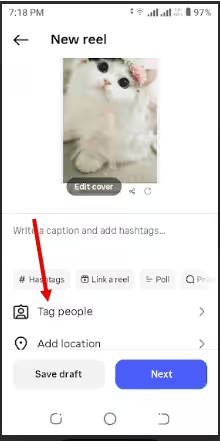
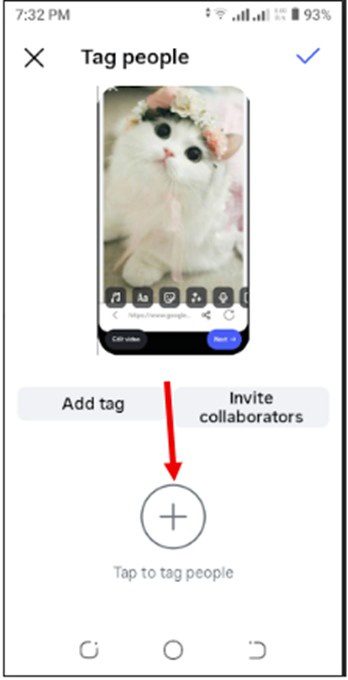
Select “Tag People” - Click the + sign to tag people
Tap + to Tag People - Start typing and pick the right account from the suggestions.

Type Username to Search the Account - Tap the tick sign at the top right
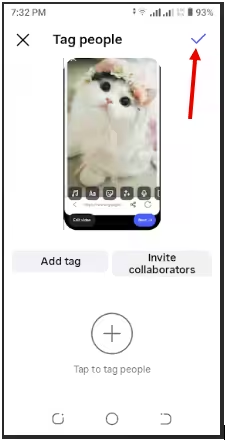
Tap the Tick Icon - Check to see that the username of the person you tagged appears next to “Tag People.”
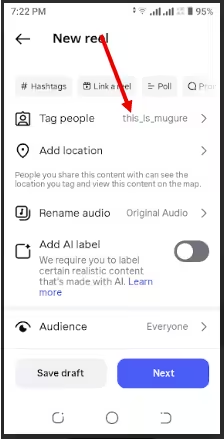
Tag Accounts - Go ahead and add a caption, location, or hashtags, then tap “Next” and then share.

After completing those steps, the person you tagged will receive a notification that you’ve tagged them on a post.
How To Tag Someone On Instagram After Posting
Forgot to tag someone before posting? No stress. You can still add tags after your post goes live and make sure the right people see it.
Here’s how to do it in just a few quick steps:
- Go to your profile and tap the post you want to edit.
- You’ll find the three in the top-right corner of the post. Tap them.
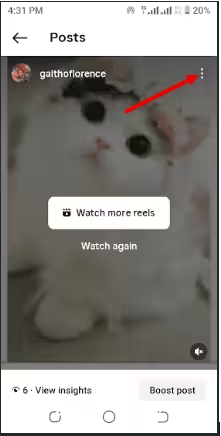
Tap the Three Dots - Select “Edit.” This opens your post editing options.
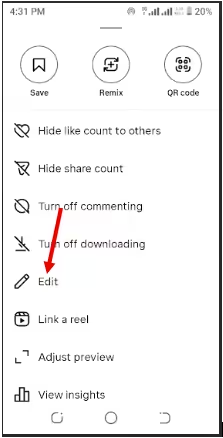
Select “Edit” - Tap “Tag People.”
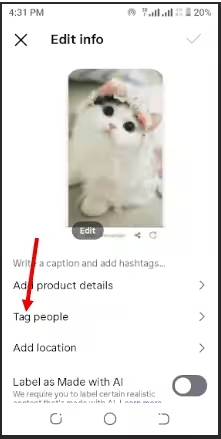
Select “Tag People’” - Tap the + icon to tag people.
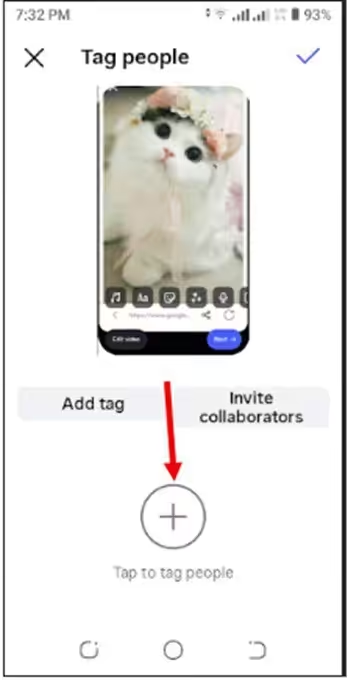
Select + to Tag People - Type the username.

Type the Username to Tag the Account - Tap the √ icon at the top to save your changes.
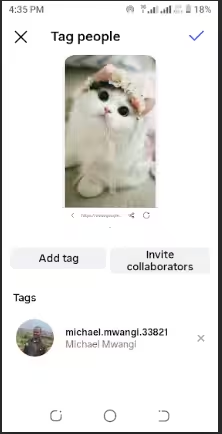
Tap the Tick Icon to Save Changes
Once you save your changes, the tagged user will get a notification, and their username will appear directly on your post.
What if you tagged someone on your post and would like to untag them? It’s simple.
Open the post, tap the three dots, choose “Edit,” then select “Tag People” and tap the tag you want gone. Remove it, save your changes, and the tag will disappear without affecting the rest of your post.
Note that there are some limitations that apply depending on several factors. For instance:
- You can’t tag someone who has set their account to limit or block tags.
- Private accounts may restrict who can tag them in posts.
- Some business or creator accounts control tagging to reduce spam.
- You won’t be able to tag users who have blocked you.
- Instagram may prevent tagging if the post violates tagging rules or community guidelines.
These limits help users stay in control of where and how they appear on Instagram, so if a tag doesn’t work, it’s usually a privacy setting, not a glitch.
Featured Article: How to Build a Linktree for Instagram
How To Tag Someone On Instagram Story
Tagging someone in an Instagram story works a little differently than tagging a post. Instead of tapping on the image, you’ll use mentions through text or the mention sticker to tag someone on your story.

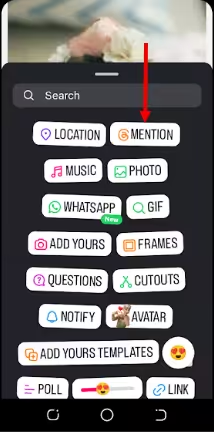
You can tag someone by typing @username directly onto your story or by choosing the account you want.
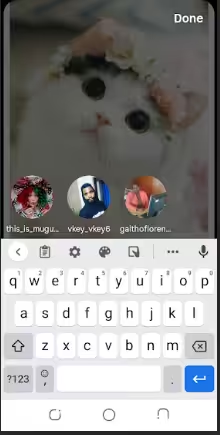
Story tags notify the tagged user and often prompt them to reshare your story. If your account is public, anyone can see the tag, but if it’s private, only your approved followers can view the story. Privacy settings still apply, so some users may limit who can mention them or reshare their stories.
How To Tag Someone On Instagram Reel
Tagging someone on an Instagram reel happens during the creation process, right before you post. After recording or uploading your clip, you can tag people from the tagging option on the final screen so they get notified as soon as your reel goes live.
Reels also let you invite collaborators.
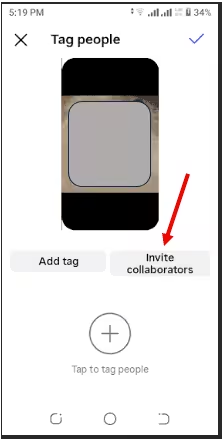
Note that adding a collaborator is different from tagging a user. Tagged users on reels appear in the reel’s details section, not directly on the video itself.
Adding a collaborator to a reel works differently. The reel appears on both your profile and the collaborator’s profile, and their username shows as a co-author in the reel’s details. This lets both audiences see, like, and comment on the same reel while giving credit to both creators.
Schedule Like a Pro With Social Champ!
Plan your Instagram content in advance and ensure every post goes live at the perfect time.
How To Tag Someone In Instagram Comments
Tagging someone in Instagram comments is simple. Just type @username and select the correct account from the suggestions.

When you do this, the tagged user usually receives a notification, letting them know you mentioned them. This makes it easy for them to jump into the conversation, like, or reply to your comment right away.
While at it, a little etiquette goes a long way. Tagging someone in every post or in completely unrelated content might be annoying.
They’ll probably roll their eyes and maybe even hit “ignore.” Keep it relevant, tag thoughtfully, and your mentions will feel like friendly nudges instead of spammy interruptions.
Featured Article: How to Become Instagram Famous
What Is The Difference Between Tagging And Mentioning
Essentially, the core mechanical difference between tagging and mentioning remains rooted in where the content lives and how the other person is notified.
Think of it this way; tagging is like putting someone’s name on a physical photo in an album, whereas mentioning is like shouting their name in a conversation.
Tagging
Tagging is a formal way to link an account directly to the media (photos or videos) in a post or Reel.
- Placement: The tag appears directly on the image or video. Users usually have to tap the post to see who is tagged.
- Profile Integration: Posts you are tagged in appear in a dedicated “Tagged” tab on your profile. This acts as a permanent gallery of content that others have posted of you.
- Visibility: Only the person who created the post can add a tag (though in 2026, you can “Request to Tag” products or ourselves on others’ posts).
- Notifications: These are prioritized. Tagged notifications often appear in a separate section of the activity feed to ensure they aren’t missed.
- Limits: You can tag up to 20 people per post.
Mentioning
Mentioning (or “@-ing”) is a way to reference someone within text-based areas.
- Placement: Mentions happen in captions, comments, or Story text by typing the @ symbol followed by a username.
- Profile Integration: Mentioned posts do not show up on your profile’s “Tagged” tab. Once the post or comment scrolls away, the link is effectively “gone” from your public profile.
- Visibility: Anyone can mention anyone else in a comment.
- Notifications: Mentions appear in the general activity feed. If a user has a lot of followers, a mention can easily get buried under likes and follows.
- In Stories: If you are mentioned in a Story, you get a DM with the option to “Add This to Your Story.”
Here’s a simple comparison to make the differences crystal clear:
| Feature | Tagging | Mentioning |
|---|---|---|
| Location | On the photo/video itself | In captions, comments, or Stories |
| Profile Tab | Appears in the “Tagged” tab | Does not appear on profile |
| Longevity | Permanent (unless removed) | Fleeting (lives in the text) |
| Notification | Specific/High Priority | General Activity Feed |
| Control | Creator only | Anyone can do it |
Why Can’t I Tag Someone On Instagram
Sometimes, Instagram won’t let you tag someone, and it can be frustrating when you’re trying to give a friend, brand, or collaborator some love. Several common issues could be causing the problem.
Here are a few reasons you might not be able to tag someone:
- Privacy restrictions: The person may have limited who can tag them.
- Account blocking: You can’t tag someone who has blocked you.
- Disabled tagging: Some users or accounts may have turned off tagging entirely.
Here’s a quick troubleshooting checklist:
- Check if the person’s account is private or has tagging restrictions.
- Make sure they haven’t blocked you.
- Confirm Instagram isn’t experiencing a temporary bug by restarting the app.
- Try tagging them from another device or account if possible.
Understanding why tagging might not work helps you troubleshoot quickly and ensures your posts reach the right people without unnecessary frustration.
Best Practices For Tagging On Instagram
The last thing you want is to tag the wrong people or end up annoying someone. Tagging works best when it’s thoughtful and relevant.
Here are some practical tips to keep your tags effective and polite:
- Tag only relevant people: Make sure the person or brand you tag actually relates to the post.
- Avoid over-tagging: Too many tags can feel spammy and turn people off.
- Place tags thoughtfully: Position tags where they make sense visually and contextually to keep your post clean and readable.
Remember, the key to successful tagging is etiquette and effectiveness. Focus on tagging the right people in the right way, rather than trying to game the system with growth hacks.
Featured Article: Essential Instagram Best Practices for Brands and Creators
How Social Champ Helps You Manage Instagram Content
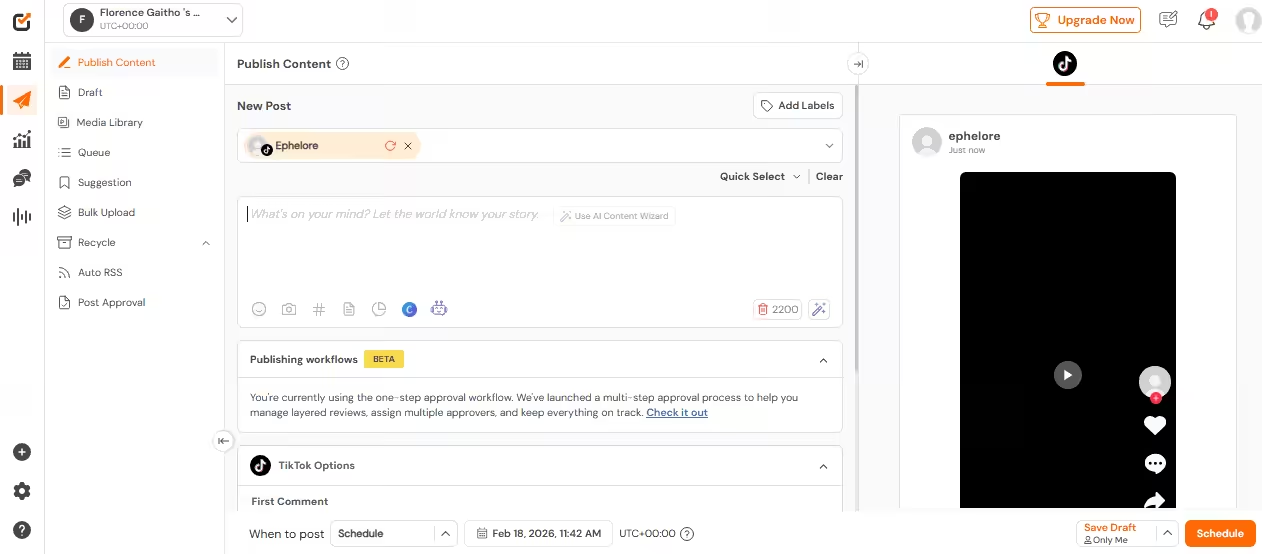
After learning how to tag someone on Instagram and the best practices, the next step is keeping your Instagram content organized and consistent.
Social Champ makes this easy by letting you plan, schedule, and manage posts where tagging is part of your workflow. Here’s how it helps:
- Plan and schedule posts in advance: With Social Champ, you can plan and schedule up photos, carousels, and reels, including all tags, so everything goes live at the perfect time.
- Stay consistent: Its content calendar allows you to schedule content in advance, which enables you to keep a regular posting schedule without scrambling at the last minute.
- Organize content efficiently: This scheduler allows you to manage all your drafts, captions, hashtags, and tags in one place.
- Collaborate with your team: Social Champ has collaborative features that allow you to assign posts, review content, and ensure all tags are correct before publishing.
- Save time and reduce errors: It allows you to pre-plan your tags to avoid missed mentions or tagging mistakes.
- Post at the perfect time: You can use Social Champ’s AI Suggested Time feature to know the best time to post on Instagram, which is essentially when your audience is most active.
Take Control of Your Instagram With Social Champ
Streamline posting, tagging, and scheduling to grow your Instagram without the stress.
Conclusion
Learning how to tag someone on Instagram makes sure your posts, stories, reels, and comments reach the right people and get the attention they deserve.
Tagging thoughtfully, following best practices, and understanding the differences between tags and mentions keep your content engaging and professional.
To make the process even easier, you can use an Instagram scheduler. There are many Instagram management tools out there, but Social Champ stands out with its powerful features and flexible pricing. It can help you plan, schedule, and manage your Instagram content, including tagging, so your posts go live perfectly every time.


