Are you a new creator on YouTube with big ideas but low views? If you believe that your channel deserves way more attention than it’s getting, then it is time to stop guessing and start making smarter moves.
Right inside YouTube, there is a space built just for creators who want more than lucky breaks. It’s called YouTube Studio.
This is your behind-the-scenes playground where you shape your channel’s direction and stay in full control of your creative journey.
Continue reading to learn how to use YouTube Studio, how to grow your channel with it, the best practices for using it, and how a powerful YouTube scheduler can streamline your YouTube content planning.
Short Summary
- YouTube Studio is your all-in-one hub for managing and growing your channel.
- It helps you track performance and make smarter content decisions.
- You can upload, edit, and optimize videos all in one place.
- Consistency and data-driven strategies lead to better results.
- Using the right tools, such as a YouTube Scheduler, makes channel growth easier and more intentional.
What Is YouTube Studio?
YouTube Studio is a powerful dashboard within YouTube where you manage your channel, organize your content, and understand how your videos are performing.
Here is what you can do with it:
- Edit your video details such as titles, descriptions, tags, and visibility settings.
- Upload and manage videos and Shorts.
- Create and update thumbnails to improve clicks.
- Track analytics to see views, watch time, audience retention, and traffic sources.
- Read and respond to comments in one place.
- Manage playlists and organize your content.
- Review copyright and policy notifications.
So, why is YouTube Studio essential for creators? Because it gives you clear data instead of guesses, you know exactly what is working and what needs improvement.
It helps you understand your audience, refine your content, and make smarter decisions that lead to real results. If you want steady growth, you need insights, and this is where you get them.
New: Meet "Ask Studio" (Your AI Data Partner)
Gone are the days of squinting at retention graphs. Located in the top-right corner of your dashboard (and within the Analytics tab), Ask Studio is a conversational AI that understands your specific channel.
You can ask questions like: “Why did my views drop last Tuesday?” or “Summarize the top 3 complaints in my comments.”
It doesn’t just show numbers; it interprets them, telling you exactly which moments in your video caused viewers to leave.
Schedule YouTube Videos With Social Champ
How to Access and Navigate the YouTube Studio Dashboard
Before you even access the YouTube Studio Dashboard, you must first know how to make a YouTube channel. After making the channel, you can easily access YouTube Studio.
Getting into YouTube Studio is pretty easy, whether you are on your computer or your phone. Here’s how to get started.
How to Access YouTube Studio on the Web
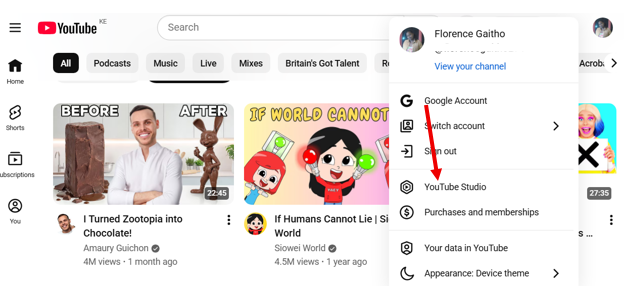
- Go to YouTube and log in to your account.
- Click on your profile picture in the top-right corner.
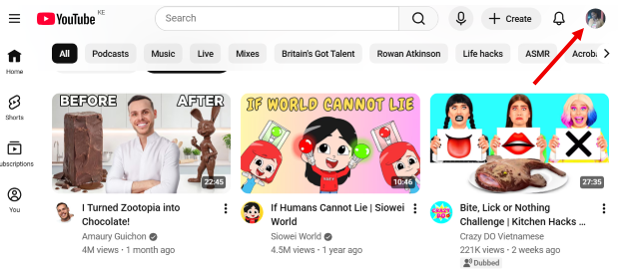
- Select YouTube Studio from the dropdown menu.
- Once inside, you’ll see the main dashboard, which provides an overview of your channel’s performance.
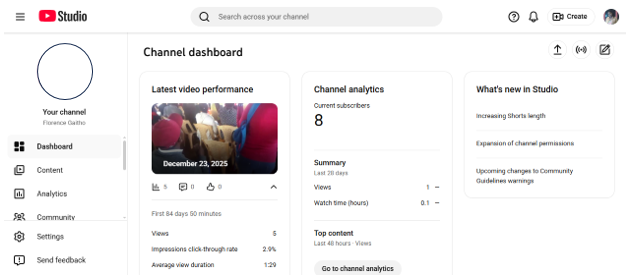
- On the left-hand side, you can explore:
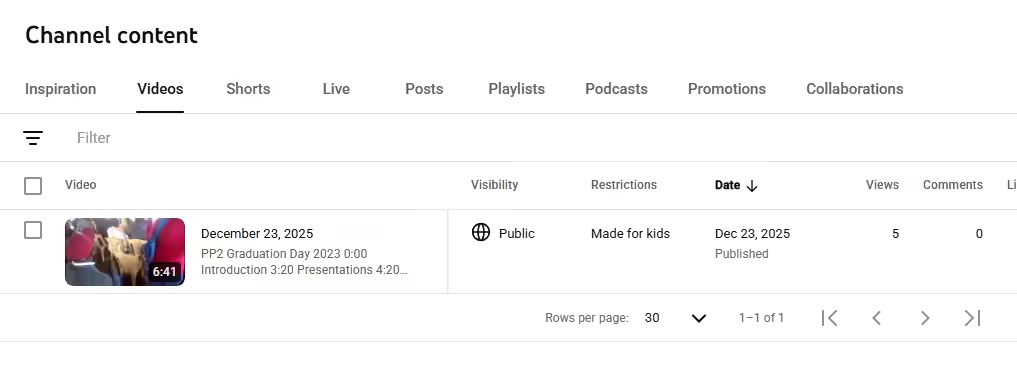
- Content – This is where all your videos and Shorts live.
- Analytics – This is where you track views, watch time, and audience behavior.

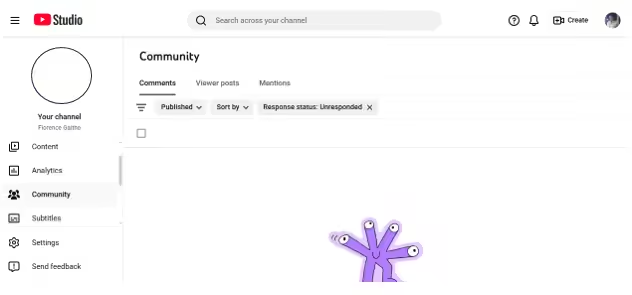
- Community – This is where you manage comments, review interactions, and stay connected with your audience
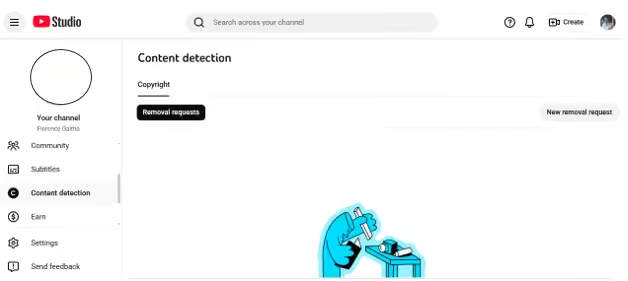
- Content Detection – This is where you review copyright claims and manage any issues related to content protection
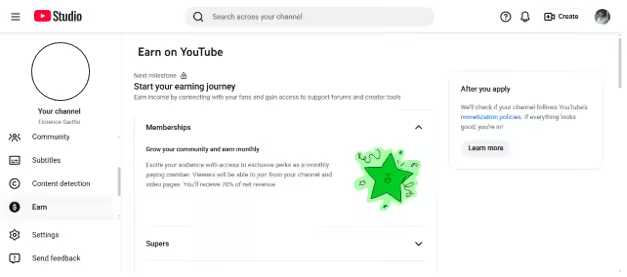
- Earn – This is where you track revenue opportunities, explore monetization features, and see how your channel can make money
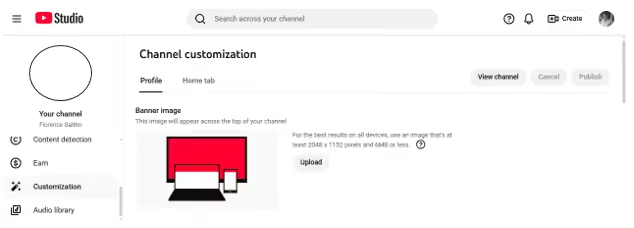
- Customization – This is where you adjust your channel layout, branding, and overall appearance to match your style
Each section gives you a clear view of your channel’s performance and the tools you need to improve it. When you understand where everything lives, you move faster and make smarter decisions.
How to Access YouTube Studio on Mobile
There are two methods you can use to access YouTube Studio on your mobile device. You can either use the dedicated app or access it through your mobile browser.
Here are the steps for each option:
Method 1: Using the YouTube Studio App
- Download the YouTube Studio app from the App Store or Google Play Store.
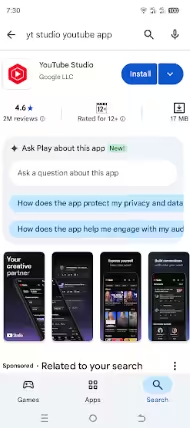
- Open the app on your phone and sign in with the Google account linked to your YouTube channel.
- Once logged in, you will see your dashboard with channel updates and performance information.
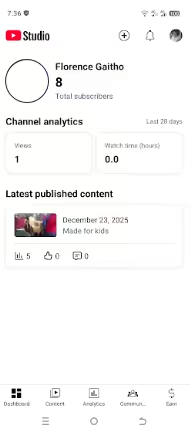
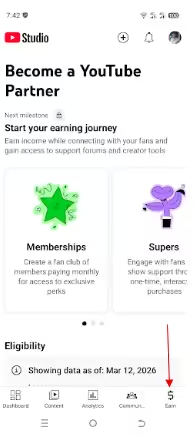
- Use the bottom menu to switch between sections like:
- Content
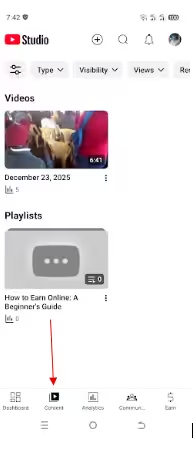
Content Tab - Analytics
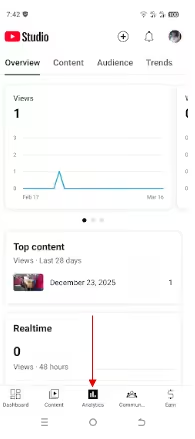
- Community
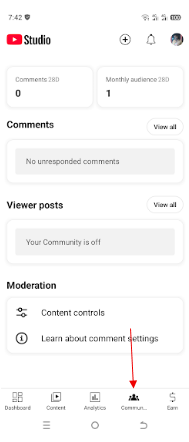
- Earn
Method 2: Using a Mobile Browser
- Open your preferred browser on your phone.
- Go to studio.youtube.com.
- Sign in with your YouTube account if prompted.
- After logging in, you will be directed to the YouTube Studio dashboard.
- Navigate through the available menu options to manage your channel.
Both methods give you access to the same core tools, so you can choose whichever feels more convenient for you.
Featured Article: How to Grow a YouTube Channel
How to Use YouTube Studio to Upload and Edit Videos
YouTube Studio gives you full control over how your videos appear and perform. Once you understand the upload process, you can refine every detail to improve visibility and engagement.
⚠️ Pro Tip: Disclose your AI. In 2026, your upload flow, you must check the box for “Altered or Synthetic Content” if you used AI to create realistic scenes, voices, or faces. Failing to do this can lead to content removal or a “label” being forcibly applied to your video by the algorithm.
Here is how to upload and edit your videos the right way.
- Go to YouTube Studio and click Create in the top-right corner.
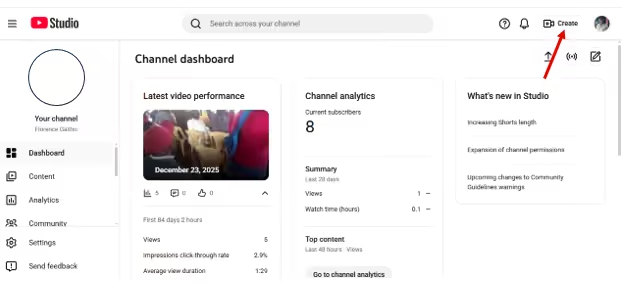
- Select Upload videos.
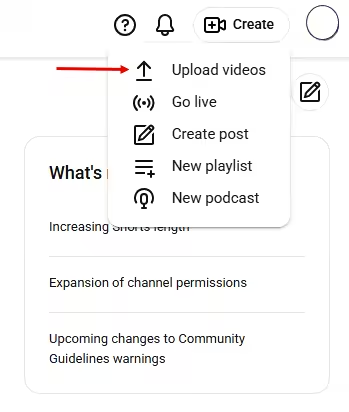
Select Upload Videos
- Choose your video file from your computer.
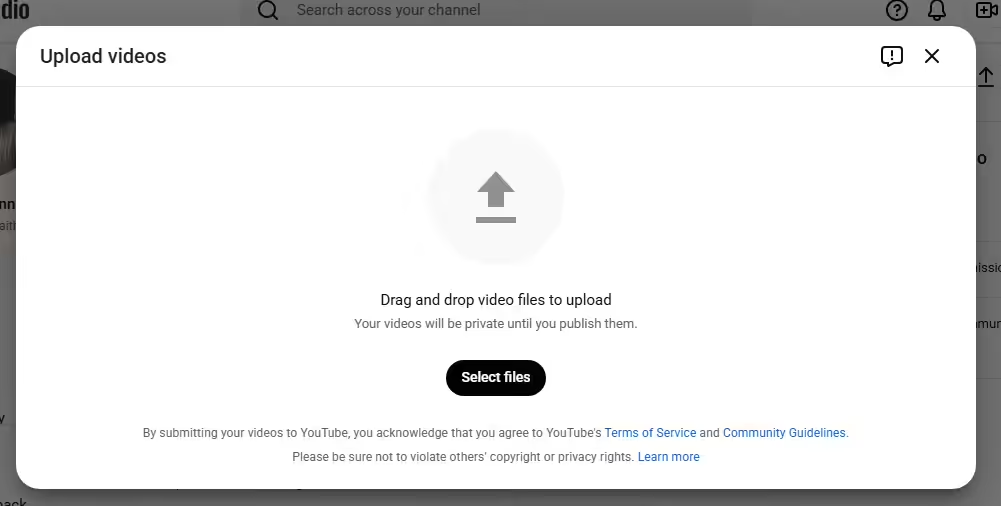
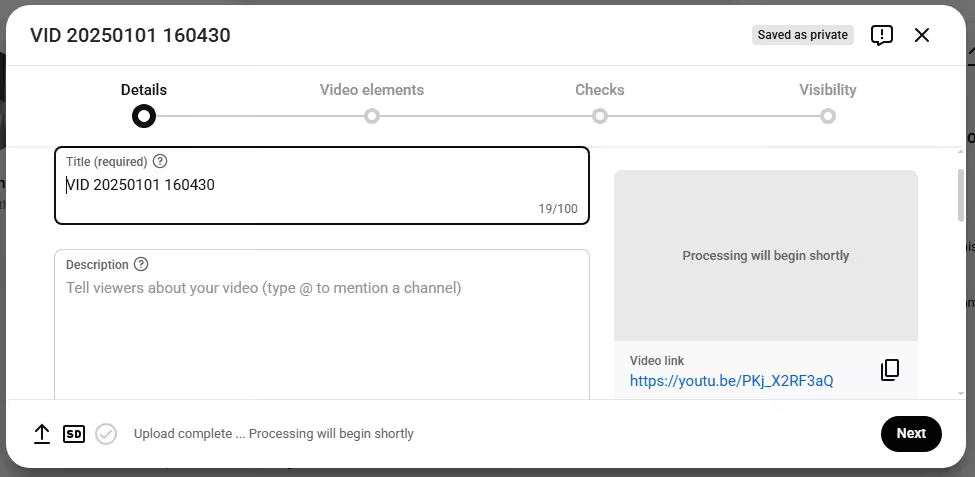
- Add your title, description, and other details while the file uploads.
- Select your visibility setting, such as Public, Unlisted, or Private.
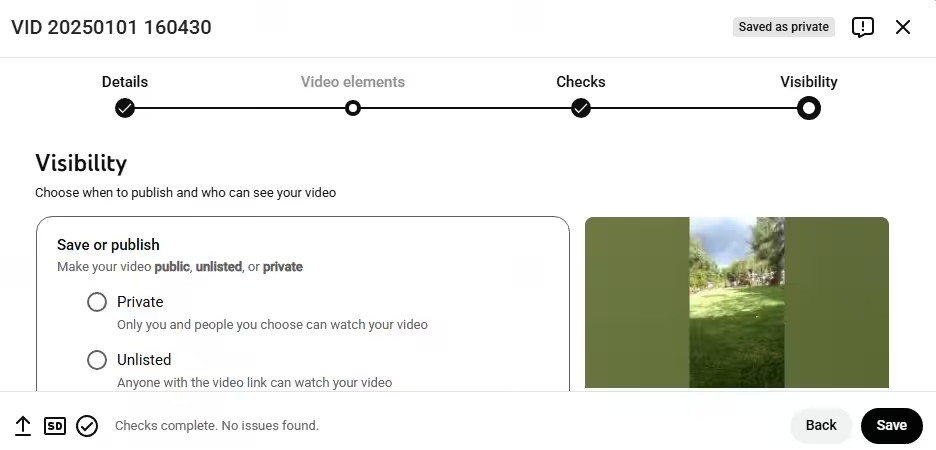
- Click Save when you are ready.
That’s how to post a video on YouTube using YouTube Studio.
How to Edit Videos After Uploading
Once your video is live, you can still improve it. Here’s how to go about it:
- Go to the Content section in YouTube Studio.
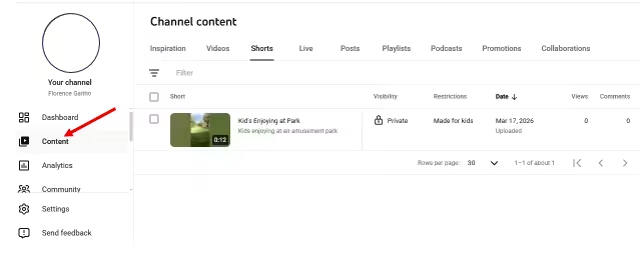
- Click the video you want to edit.
- Update the title to make it clearer or more engaging.

- Improve the description by adding keywords and helpful details.

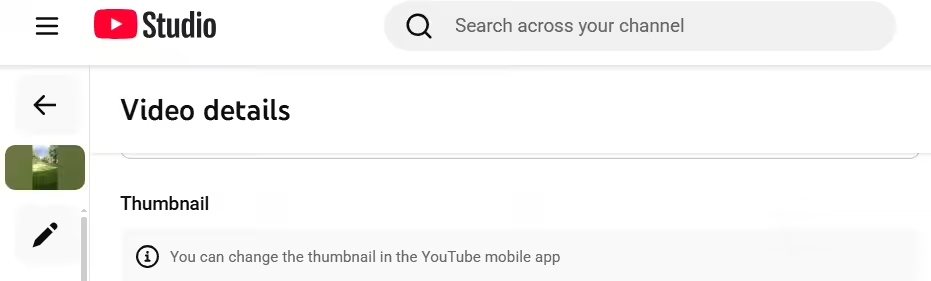
- Upload or replace the thumbnail to boost clicks. Note that you can do this from the YouTube mobile app.
After uploading a YouTube video, you can also edit things like tags, end screens, cards, subtitles or captions, playlists, and the video visibility settings.
You can also trim the beginning or end of your video, add an audio track, and update the category to better organize and optimize your content.
As an extra tip, understanding how to avoid copyright on YouTube can help you protect your channel and prevent issues that could affect your video’s visibility or monetization.
Basic Editing Limitations
YouTube Studio gives you helpful editing tools, but there are a few limits you should know about.
Here are the key restrictions to keep in mind:
- You cannot replace the entire video file after it is published.
- Major edits require re-uploading a new version.
- Some advanced effects are not available inside YouTube Studio.
- Processing time may apply after making changes.
Understanding these limitations helps you plan your edits wisely and avoid surprises later.
Best Practices for Better Results
If you want your videos to perform well, small improvements can make a big difference.
Follow these YouTube hacks to boost your results:
- Use clear, searchable titles that match your content.
- Write descriptions that explain value and include relevant keywords naturally.
- Design eye-catching thumbnails that stand out.
- Add end screens to keep viewers watching more of your content.
- Keep videos clean and trim unnecessary parts to improve retention.
- Review your analytics after updates to see what improves performance.
When you apply these best practices consistently, you give your content the best chance to reach more viewers and grow stronger over time.
Track Performance With Social Champ Analytics
How to Use YouTube Studio Analytics to Grow Your Channel
You might think analytics are just numbers, but they are actually your secret map to growing a channel that people love. Once you know what each metric really means, you can turn stats into action instead of just staring at charts.
Here are the key metrics you should pay attention to:
- Watch Time: This tells you how long people stick around. Longer watch time = happier algorithm.
- Impressions & Click-Through Rate (CTR): Shows how often your video thumbnail gets clicks. If your CTR is low, it might be time to test a new thumbnail or title.
- Audience Retention: See exactly where viewers drop off. This helps you spot boring spots and tighten your content.
- Traffic Sources: Learn where your viewers are finding your videos so you can focus on the right platforms.
- Top Videos: Quickly see which videos are performing best and why.
Once you understand these numbers, you can make smarter moves. For example:
- Adjust your content based on what keeps viewers watching.
- Post at times when your audience is most active.
- Experiment with thumbnails, titles, or video formats to see what grabs attention.
- Plan future videos around the topics and styles your viewers already love.
New: The AI Inspiration Tab
Found inside the Content menu, the Inspiration Tab has evolved from a simple search bar into a data-driven “Idea Bank.”
- Audience Gaps: It identifies specific topics your audience is searching for but can’t find high-quality videos on.
- AI Outlines: Select an idea, and Studio will now generate a suggested script outline, title options, and thumbnail concepts tailored to your channel’s historical performance.
Managing Comments and Community Using YouTube Studio
Your comments section is not just a box under your video. It is where conversations happen, fans connect, and your community grows.
When you manage it well, you build trust and keep the vibe positive. Here is how you take control like a pro.
- Approve comments if you have them set to manual review, so only the ones you like go public.
- Delete comments that are spammy, offensive, or irrelevant.
- Report comments that break platform rules.
- Hide users from your channel if someone keeps causing trouble.
- Filter spam automatically using YouTube’s built-in tools.
- Reply quickly to show your audience that you are listening and engaged.
- Pin important comments to highlight announcements, updates, or standout viewer feedback.
Boosting Discovery: Hype & Collaborations
YouTube has introduced two major features to help small-to-midsize creators (500k subs or less) break through the noise:
- The Hype Feature: Your fans can now “Hype” your video in the first 7 days of upload. High-Hype videos land on a regional leaderboard, giving you a massive visibility boost outside your subscriber base.
- Multi-Creator Tags: You can now officially tag up to 5 collaborators in a video’s metadata. This allows the video to appear on the “Content” tabs of all creators involved, streamlining cross-promotion without re-uploading.
When you stay active in your comments, you turn viewers into loyal supporters. Quick replies and thoughtful responses can boost engagement and make your channel feel more personal.
The Community tab is another powerful way to interact beyond videos. You can post updates, polls, images, and short messages to keep your audience engaged between uploads.
Doing this can help you stay visible, start conversations, and keep your subscribers excited about what is coming next.
Plan Ahead With Social Champ’s Calendar
YouTube Shorts, Live, and Playlist Management in Studio
YouTube Studio isn’t just for regular uploads. It gives you the tools to handle Shorts, live streams, and playlists so your channel stays fresh, fun, and organized. Once you know where to look, managing all of it is a breeze.
Here is how you can use YouTube Studio to manage your Shorts, set up live streams, and build playlists with confidence and control.
Managing Shorts
- Access all your Shorts in the Content
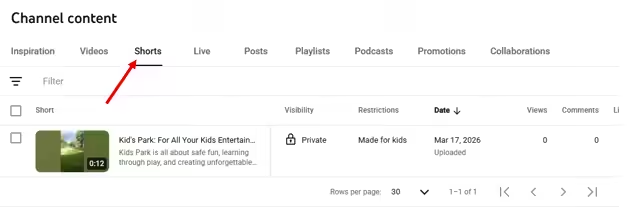
- Edit titles, descriptions, and thumbnails just like regular videos.
- Track performance with analytics to see what grabs attention quickly.
Setting Up Live Streams
- Go to the Create button and select Go live.
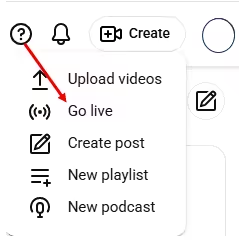
- Choose between Stream Now or Scheduled Stream.
- Customize your stream title, description, and privacy settings.
- Use the live dashboard to monitor chat, viewership, and stream health in real time.
Building and Managing Playlists
- Playlists live in the Content tab under “Playlists.”
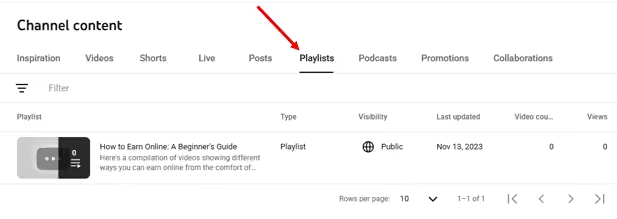
- Add videos manually or automatically based on topics or series.
- Rearrange videos to control the viewing order.
- Use playlists to keep viewers watching longer and increase session time.
When you take advantage of Shorts, live streams, and playlists, your channel feels more dynamic and engaging. You give your audience variety, keep them coming back, and make the most out of every upload.
Use Social Champ With YouTube Studio to Plan Smarter
You already use YouTube Studio to manage your channel, so why not pair it with one of the best YouTube tools that can help you plan like a strategist?
When you combine YouTube Studio with Social Champ, you move from reacting to trends to scheduling with intention. That is where your content game gets a serious upgrade.
With the right workflow, you can plan ahead, stay consistent, and stop scrambling for posting ideas at the last minute. Everything becomes smoother, smarter, and way more organized.
Here is how Social Champ helps you level up your YouTube strategy:
-
Schedule YouTube Shorts in Advance
With Social Champ’s content scheduling and bulk scheduling features, you can plan and queue your YouTube Shorts ahead of time.
You can plan and schedule YouTube Shorts ahead of time so your content goes live even when you are busy. This keeps your channel active and consistent without daily manual uploads. It also helps you maintain a steady presence, which is key for growth.
-
Plan Publishing Around the Best Time to Post
Social Champ is one of the YouTube management tools that lets you plan content well in advance. Its content calendar lets you organize your content so you can publish when your audience is most active.
Instead of guessing, you can utilize the AI Suggested Time feature to align your uploads with peak engagement times. That means you’ll know the best time to post on YouTube when your audience is highly likely to interact with your video content.
-
Monitor Performance With Analytics Feature
Social Champ’s advanced analytics feature gives you detailed insights into engagement, reach, and overall campaign performance across your connected accounts. With its clear reporting dashboard, you can easily track results, measure growth, and make smarter decisions to improve your strategy.
-
Simplify Cross-Platform Campaigns With One Dashboard
If you are posting on multiple social media platforms, Social Champ lets you manage everything from a single dashboard. You can plan campaigns, coordinate content, and stay consistent across channels without switching between YouTube marketing tools. That saves time and keeps your brand messaging aligned.
When you use Social Champ alongside YouTube Studio, you get both insights and organization in one powerful workflow. You analyze inside Studio, plan and schedule with confidence, and stay ahead of your content calendar. It is a smarter way to grow, stay consistent, and keep your channel moving in the right direction.
Find the Best Time With Social Champ
Best Practices for New Creators Using YouTube Studio
If you are just starting out, YouTube Studio can feel like a lot at first, but the right habits will make it your best friend. Focus on consistency, simple systems, and steady improvement instead of trying to do everything at once.
Here are practical tips to help you grow smarter and faster:
-
Keep Thumbnails Consistent
Your thumbnails are often the first thing people notice, so inconsistency can make your channel look scattered and easy to ignore. A lack of visual identity makes it harder for viewers to recognize your content at a glance.
To fix this, stick to a consistent color scheme, font style, and layout across your thumbnails. Over time, this builds a strong visual brand that viewers instantly connect with your content.
-
Track Performance Weekly
If you ignore your analytics, you miss out on valuable insights that could improve your content. Guessing what works can slow down your growth and lead to repeated mistakes.
Instead, check your analytics weekly to spot trends in views, watch time, and engagement. This helps you double down on what works and adjust what does not.
-
Use Tags Smartly
Poor tagging can limit your video’s reach and make it harder for the right audience to find you. Overloading tags with irrelevant keywords can also confuse the algorithm.
So, focus on using clear, relevant tags that match your content and topic. Keep them specific and aligned with what your audience is actually searching for.
-
Moderate Comments Daily
Ignoring your comments section can lead to spam, negativity, and missed opportunities to connect with your audience. A quiet or unmanaged space can make your channel feel less engaging.
On the other hand, replying to comments and managing discussions daily keeps your community active and welcoming. It shows your viewers that you care and encourages more interaction.
-
Native Thumbnail A/B Testing (Test & Compare)
You no longer need to guess which thumbnail will get the click. YouTube Studio now features a built-in “Test & Compare” tool. You can upload up to 3 different thumbnails for a single video.
Unlike older tools that only tracked clicks, YouTube’s native tool tracks Watch Time Share to ensure your thumbnail isn’t just “clickbait” but actually leads to satisfied viewers.
-
Set Up Upload Defaults
Manually entering the same details for every upload can waste time and lead to inconsistencies. Small errors can also creep in when you rush through repetitive tasks.
To make things easier, set up upload defaults in YouTube Studio for titles, descriptions, and tags. This speeds up your workflow and keeps your content details consistent every time.
When you combine these habits with the built-in tools inside YouTube Studio, you make growth much more intentional. Small improvements, applied consistently, will take your channel much further than random changes ever could.
Conclusion
Learning how to use YouTube Studio can completely change the way you run your channel. Instead of guessing what works, you start making decisions backed by real data, better organization, and smarter planning.
As you keep exploring and applying what you have learned, your content becomes sharper and your growth more intentional. Stick with it, stay consistent, and you will turn YouTube Studio into your ultimate tool for building a channel that actually thrives.