Great content deserves to look its best, yet technical hiccups can sometimes get in the way of a perfect upload.
Those pesky black bars or unexpected blurry spots usually happen when a video’s dimensions don’t quite match what YouTube expects. In 2026, staying on top of these small export details is the easiest way to give your channel a professional, polished edge.
Sticking to the classic 16:9 widescreen format is still a fantastic baseline, but the massive popularity of YouTube Shorts and high-bitrate mobile streaming means there is a little more to balance now.
Short Summary
- Uploading videos in the right size and resolution keeps your content looking sharp and professional.
- YouTube Shorts can now be up to 3 minutes long, offering more flexibility for storytelling and tutorials.
- Thumbnails, banners, and other channel assets should be properly sized for a polished, cohesive look.
- Consistent posting and scheduling improve audience engagement and channel growth.
- Using tools like Social Champ makes video management, scheduling, and performance tracking effortless.
In this guide, I’ll walk you through the ideal YouTube video size, including the exact resolutions, aspect ratios, and file types needed to ensure your videos look crisp and vibrant the moment they go live.
I’ll also recommend a great YouTube scheduler to help you post videos at the perfect time for maximum views.
What Is the Ideal YouTube Video Size in 2026?
The first step to making your YouTube videos look top-notch is picking the right dimensions and resolution. For most uploads, the standard is 1920×1080 pixels (Full HD), which delivers sharp, clean visuals. Pair that with a solid bitrate, and your videos will play smoothly without any annoying glitches or pixelation.
Pro-Level Encoding Settings
To ensure your video doesn’t just “fit” but actually looks its best, you need to look under the hood at your export settings.
While H.264 is the universal standard for compatibility, YouTube uses more advanced codecs like VP9 and AV1 to serve high-resolution content (4K and 8K).
Little Tip: Even if you are exporting a 1080p project, uploading it as a 4K file (upscaling) can often force YouTube to use the VP9/AV1 codec. This results in a much higher visual quality and less “blockiness” in dark scenes compared to a standard 1080p upload.
Color Space: Standard vs. HDR
Getting the colors right is the difference between a “home movie” and a professional production.
- Standard (SDR): Always use 709. It is the industry standard for HD video and ensures your colors look consistent across all monitors.
- High Dynamic Range (HDR): If you’re shooting in HDR, export using 2020. This allows for the vibrant highlights and deep blacks that modern smartphone and TV screens are built for.
Recommended Upload Bitrates for YouTube
Next up: YouTube aspect ratio. The platform favors certain ratios depending on how your audience is watching. Here’s a quick breakdown:
- 16:9 – The classic widescreen format. Ideal for standard uploads and long-form videos that look great on desktops and TVs.
- 9:16 – Perfectly vertical for YouTube Shorts or mobile-first content, keeping viewers glued to their phones.
- 4:3 – Old-school but still handy for archived clips, older footage, or certain livestream setups.
Then there’s encoding. YouTube recommends H.264 for video and AAC for audio, usually wrapped in an MP4 container. This combo ensures your uploads are smooth, compatible, and free from quirky playback issues.
Of course, the ideal YouTube video size also depends on the type of content you’re making:
- Long-form videos: Stick with 16:9 and Full HD or higher, and crank up the bitrate for the best quality.
- YouTube Shorts: Go vertical at 9:16, ideally 1080×1920, so your short clips pop on mobile screens.
- Livestreams: Slightly lower bitrates can help keep the stream stable, but stick with a consistent aspect ratio for your viewers’ devices.
With these YouTube video dimensions, ratios, and encoding tips, your videos will always look polished, professional, and ready to grab attention, no matter what type of content you’re uploading.
Put Your YouTube Consistency on Autopilot
How Does Aspect Ratio Affect YouTube Video Quality and Viewing?
Aspect ratio might sound technical, but it’s really just about how your video fits on different screens.
YouTube supports several popular ratios, each with its own vibe and best use case:
- 16:9: The classic widescreen that works for almost everything. It fills desktops and TVs perfectly and makes your long-form videos look cinematic.
- 9:16: Tall and vertical, built for YouTube Shorts. It’s the ratio that keeps mobile viewers glued to your content.
- 1:1: The square format that’s great for social media or when you want everything to look neat and balanced.
Here’s a picture to give you a clear idea of how the three aspect ratios compare.
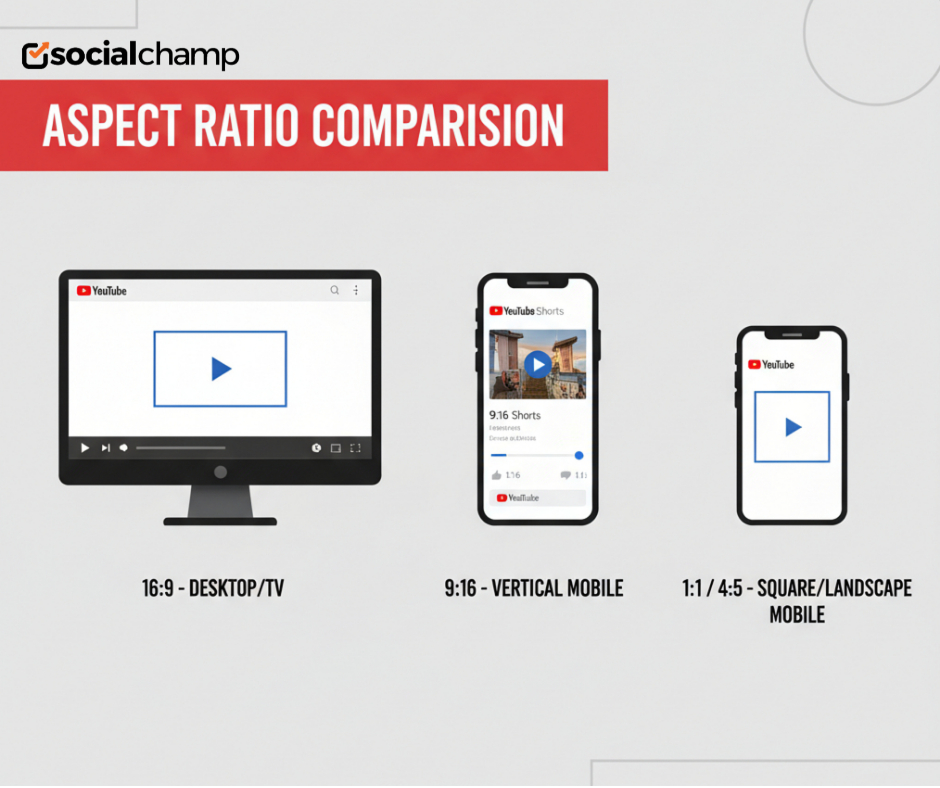
16:9 stretches wide on a desktop, 9:16 towers tall on a phone, and 1:1 sits neatly in the middle like the perfect little square.
Choosing a different YouTube aspect ratio can make your content look polished or… well, a little squished and awkward. The right ratio makes your content appear professional and easy on the eyes, filling screens just right without awkward borders.
On the other hand, the wrong ratio can leave black bars on the sides, crop out important parts of your frame, or make everything look squished and cramped. Basically, it can turn a sleek, cinematic clip into something that feels sloppy or unfinished, even if your footage is amazing.
So, stick with the ideal ratio for your video type, and your uploads will always look sharp and professional.
Featured Article: How to Avoid Copyright on YouTube: Complete Guide
What Is the Maximum YouTube Video File Size and Length Limit?
Before you hit upload, it’s important to know YouTube’s file size and length limits. The platform allows you to upload files up to 256GB or 12 hours long, whichever is less. That’s more than enough for most creators, whether you’re posting a short vlog or a full-length documentary.
Note: By default, new accounts are limited to 15-minute uploads. To unlock the full 256GB or 12-hour limit, you must verify your channel at youtube.com/verify using a phone number. This is a one-time step that every serious creator should take immediately.
Of course, the format and encoding you choose can affect both file size and upload speed. For example, compressing your video with H.264 in an MP4 container can maintain high quality while keeping the file manageable.
On the flip side, using uncompressed formats or higher bitrates can quickly balloon your file, slowing uploads or even causing errors.
Here’s a quick breakdown of factors that affect your YT video size and length:
- File format: MP4 is the most upload-friendly. Other formats like MOV or AVI work, but may take longer to process.
- Encoding: H.264 keeps the file size efficient while maintaining high quality.
- Bitrate: Higher bitrates improve quality but increase file size. Finding the right balance is key.
- Compression: Smart compression reduces size without noticeable quality loss, which helps with faster uploads.
For smoother uploads and less frustration, follow YouTube’s recommendations for upload speed optimization. Here are a few suggestions:
- Use a wired connection: Wi-Fi is fine, but a stable Ethernet connection keeps uploads from stalling mid-way.
- Choose the right file format: MP4 with H.264 encoding keeps files manageable and YouTube happy.
- Compress smartly: Reduce file size without losing quality so uploads are faster and processing is smoother.
- Check your bitrate: Too high, and your upload drags; too low, and quality suffers. Find the sweet spot.
- Upload during off-peak hours: Less internet traffic means faster processing and less waiting around.
This way, your videos hit the platform looking sharp and ready for viewers, without making you tear your hair out.
Claim Your Best Time to Post
YouTube Shorts & Livestream Video Dimensions: What’s Different?
YouTube Shorts and livestreams aren’t your standard uploads. They follow different rules for dimensions and resolution, so knowing the difference helps your content look its best.
For Shorts, go vertical (9:16) or square (1:1). As of the latest updates, Shorts can now be up to 3 minutes (180 seconds) long, provided they are in a vertical or square format. This is a massive shift from the original 60-second limit, allowing for deeper engagement without leaving the Shorts feed.
Livestreams, on the other hand, are adaptive, meaning the YouTube resolution can adjust depending on your internet connection and viewers’ devices.
Here’s a quick comparison of the specs to make it easy to see the difference:
| Feature | YouTube Shorts | Livestreams |
|---|---|---|
| Aspect Ratio | 9:16 (vertical) | Adaptive (16:9 standard) |
| Max Length | 3 minutes (180 seconds) | Up to 12 hours |
| Resolution | 1080×1920 recommended | Up to 1080p, adaptive |
| File Format | MP4, H.264 | MP4 or streaming-ready |
| Best For | Quick, mobile content | Real-time broadcasts |
Pro Tip:
While you can now upload 3-minute Shorts, keep an eye on your audio. If your Short is longer than 60 seconds and contains a Content ID claim (copyrighted music or clips), YouTube will block the video globally rather than just demonetizing it. For Shorts over 1 minute, it’s safer to use original audio or tracks from the YouTube Audio Library specifically cleared for longer durations.
Featured Article: How to Grow a YouTube Channel (With Real-Life Examples)
What Are the Recommended YouTube Thumbnail & Channel Asset Sizes?
Your videos might look amazing, but without the right thumbnails and channel assets, your channel can feel a little… underdressed.
So, what are thumbnails? Thumbnails are small preview images that represent your video and appear in search results, recommendations, and on your channel page on YouTube.
They give viewers a quick visual hint about what your video contains and often influence whether someone decides to click and watch.
But not every thumbnail, banner, or profile image automatically fits every space on your channel. You must choose the correct YouTube video size for each asset to ensure it displays properly across different devices and layouts.
Here’s a handy chart showing the recommended YouTube specs for all your creative assets at a glance:
| Asset Type | Recommended Size | Notes / Tips |
|---|---|---|
| Video Thumbnail | 1280×720 px | Minimum width 640px; keep it clear & readable |
| Channel Banner | 2560×1440 px | Safe area: 1546×423 px (important text inside) |
| Profile Image | 800×800 px | Displays as a circle; keep key elements centered |
| Video Watermark | 150×150 px | Appears on all videos; PNG with transparency |
| End Screen Elements | 1920×1080 px | Matches your video resolution; stay consistent |
Using these exact sizes ensures your channel and videos always look polished across all devices.
Stay Consistent With Social Champ
How to Resize or Optimize Videos for YouTube Without Losing Quality
Getting your videos to the right size and format doesn’t have to be a headache. With the right tools, you can resize, compress, and optimize your clips without sacrificing quality, so your uploads stay crisp, smooth, and scroll-stopping.
Here are some easy tools to help:
- Adobe Premiere Pro: Perfect for precise resizing, cropping, and exporting in YouTube-friendly formats.
- HandBrake: A free tool for compressing large files while keeping quality high.
- Kapwing: Browser-based and beginner-friendly, great for quick edits and resizing.
- Canva: Surprisingly powerful for simple resizing, adding graphics, and compressing videos for YouTube.
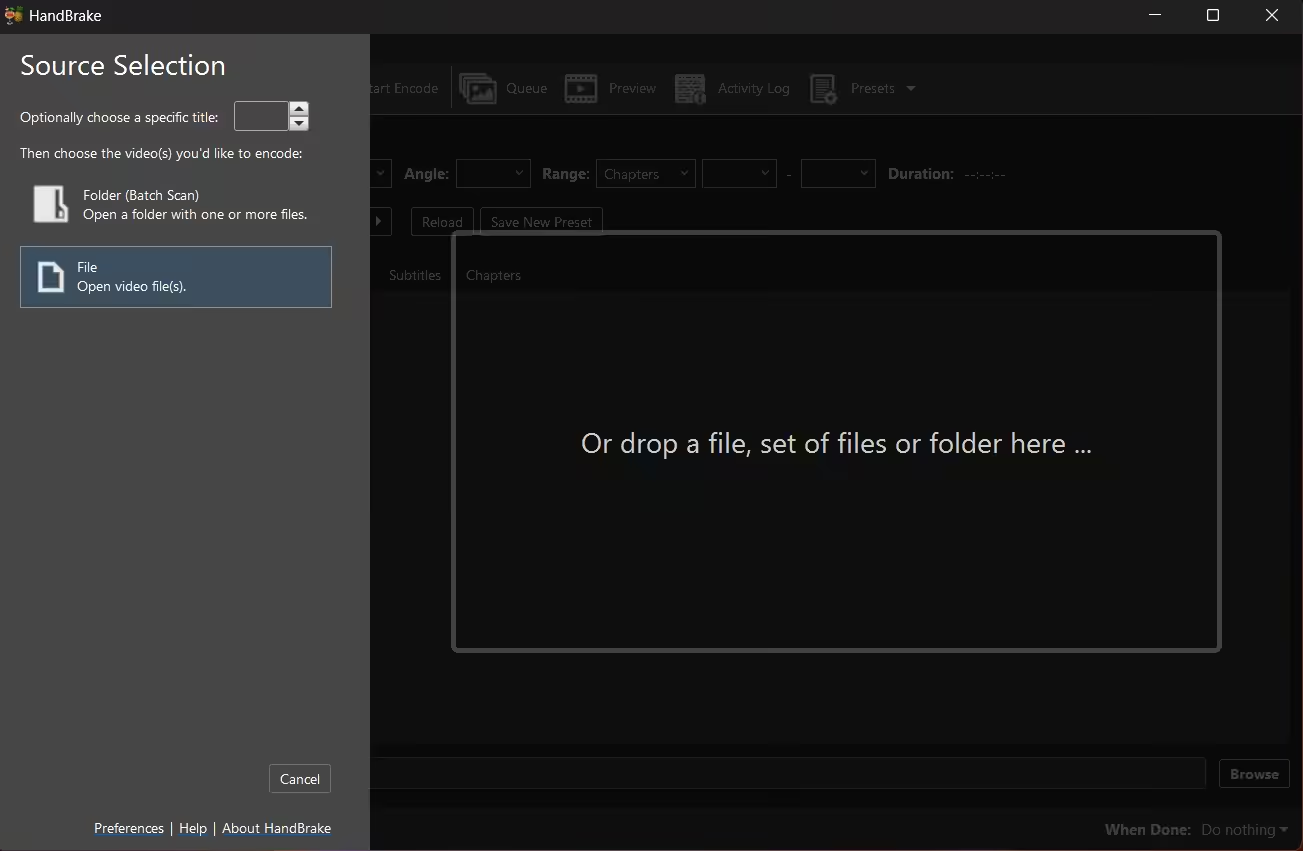
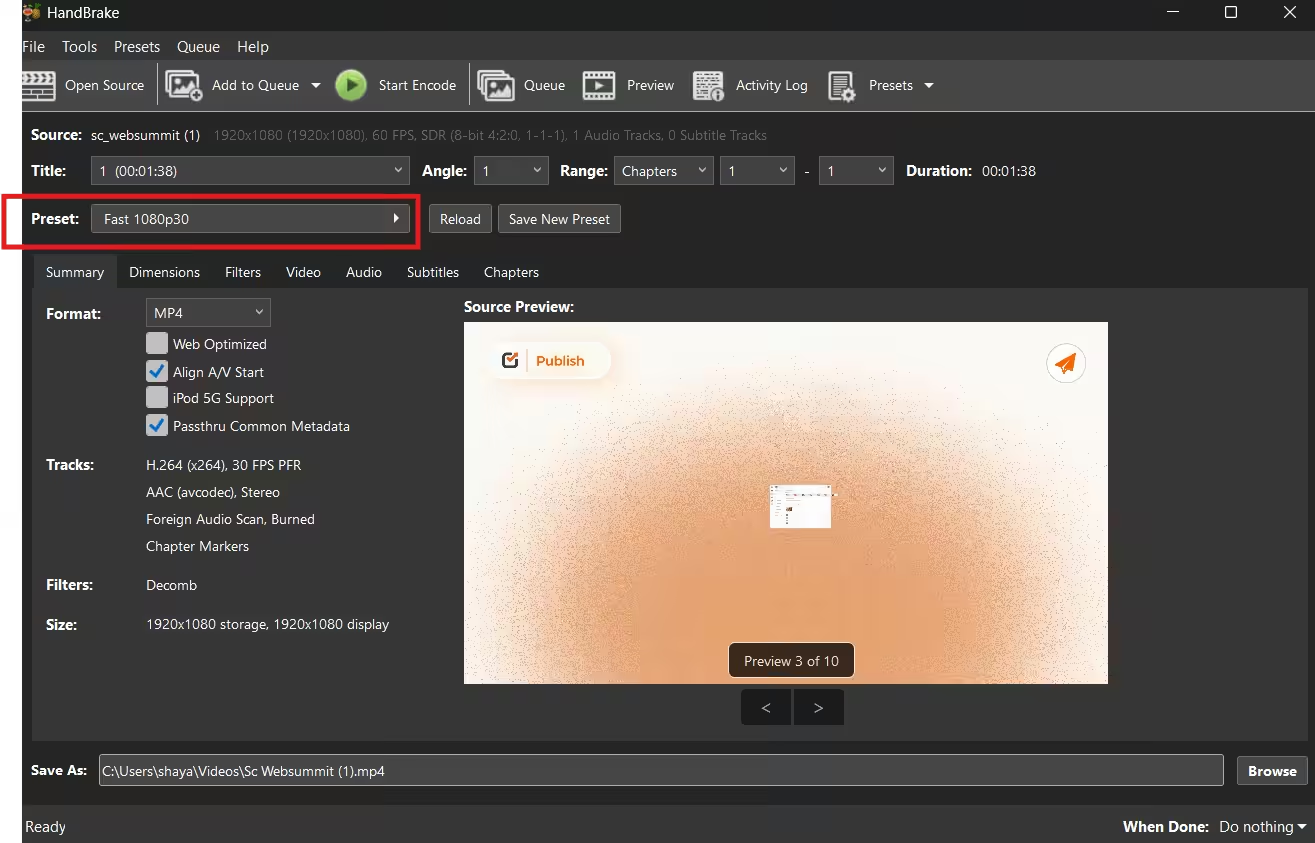
Here’s a quick tutorial for resizing and compressing a video. I’ll use HandBrake as an example:
- Download and install HandBrake.
- Open the file you want to compress
- Select a preset like “Fast 1080p30” for YouTube.
- Go to the Video tab. Check that the video codec is set to H.265 or AV1. While H.264 is great for compatibility, if you have a modern computer, you can select H.265 (HEVC) or AV1 to get even better quality at a smaller file size.
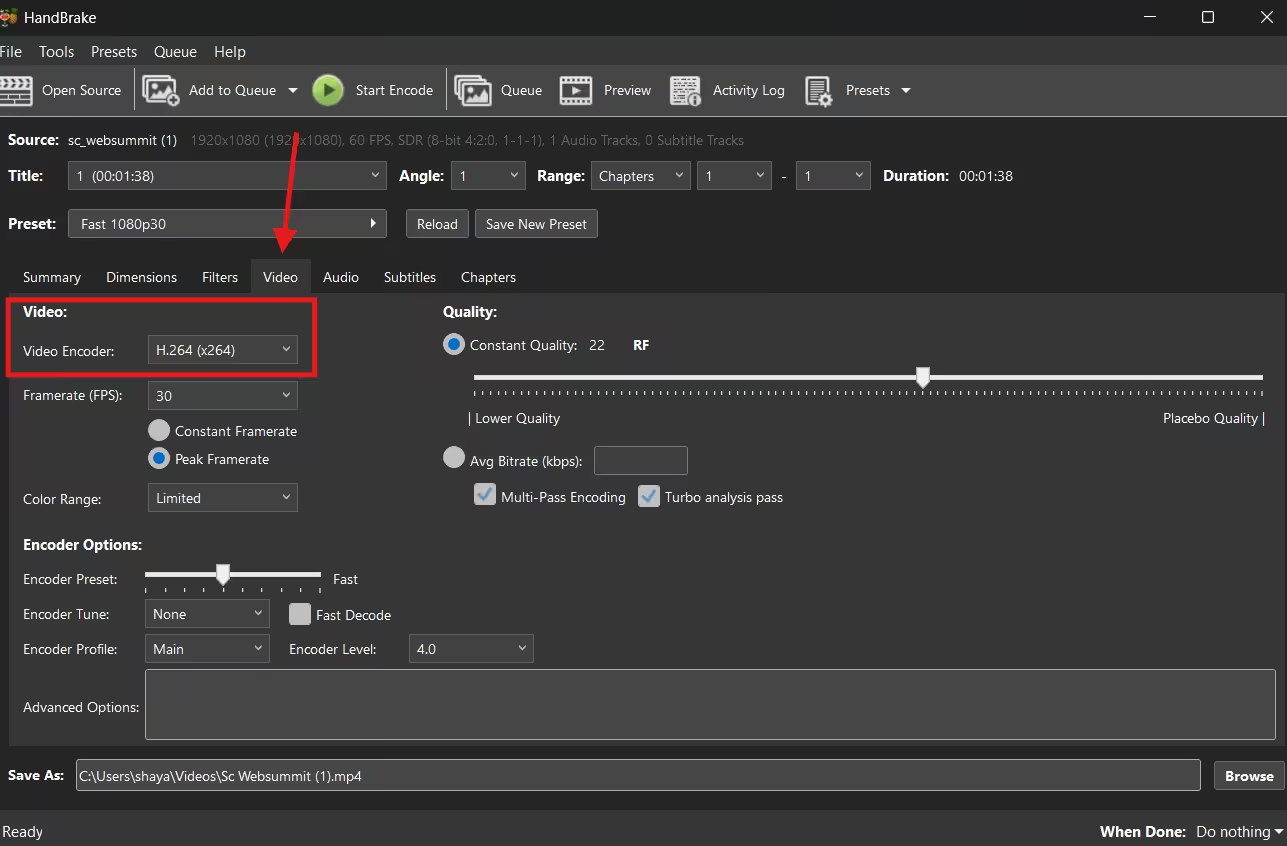
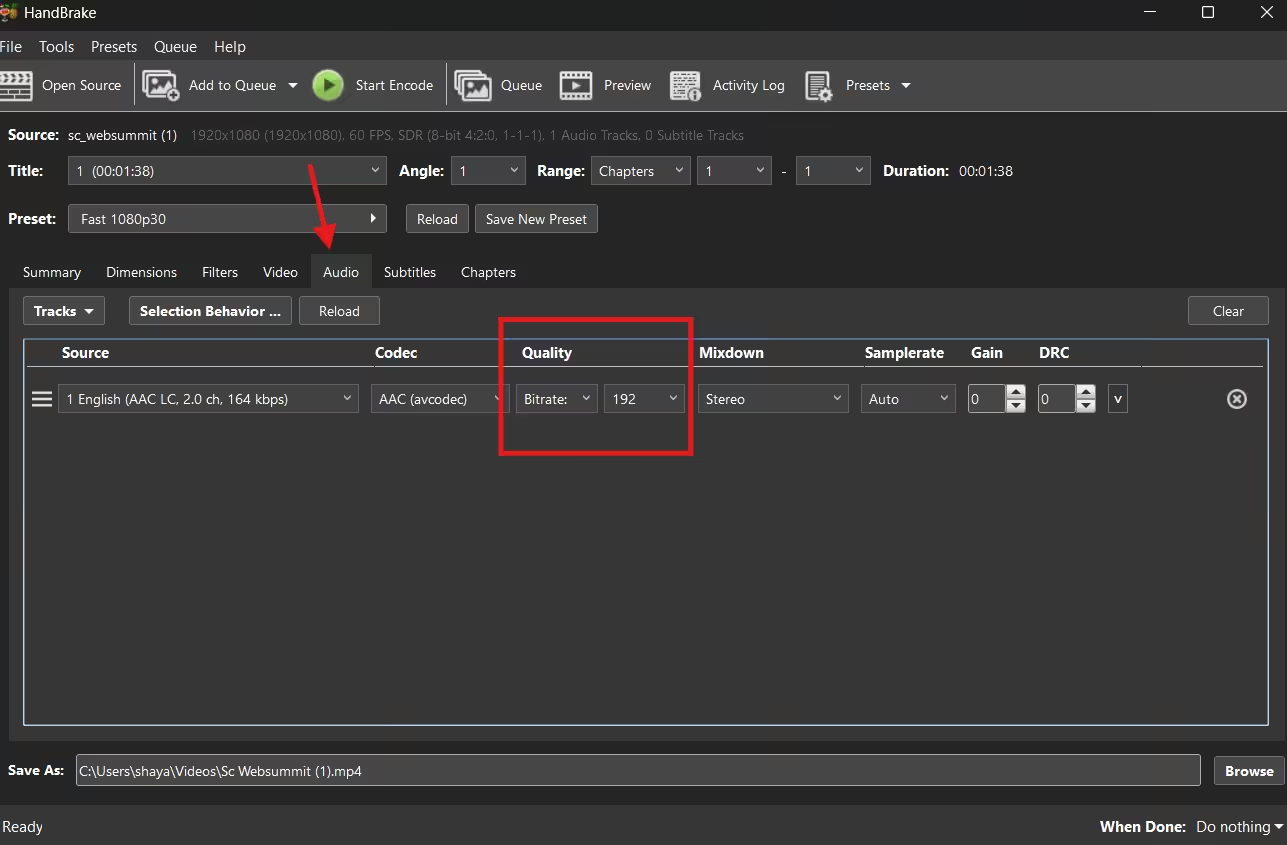
- Go to the Audio Tab and set the Bitrate to 192.
- Repeat steps 2–5 for any additional videos you want to compress.
- Once all videos are in the queue, click the green Start Encode button at the top.
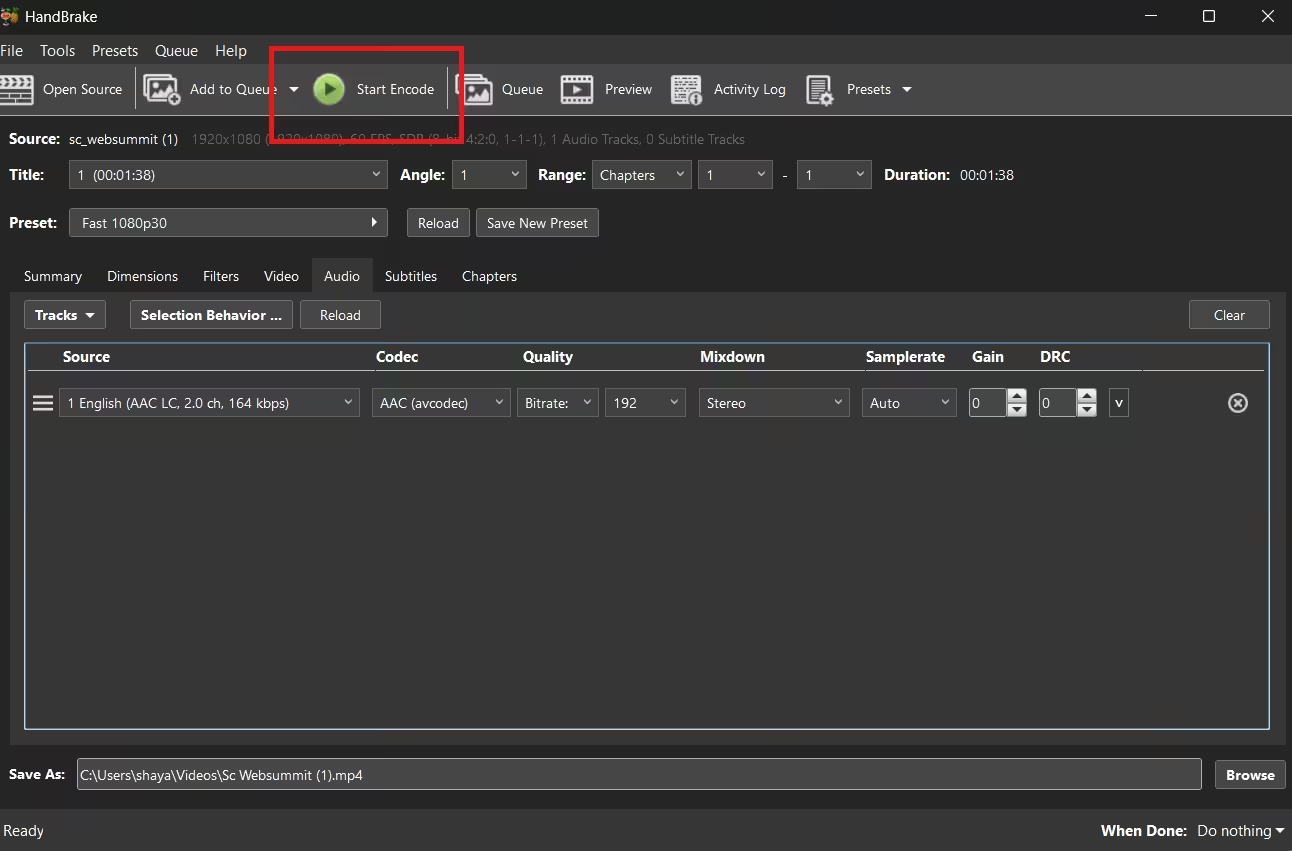
Click Start Encode
After a short while, HandBrake will compress your videos into .mp4 format, and you can upload the smaller files to YouTube. Your video will process faster and appear on your channel without frustrating delays.
This smoother workflow can also support your overall content strategy, especially if you are working toward YouTube monetization, because consistent, high-quality uploads help strengthen your channel’s performance over time.
Featured Article: How to Make a YouTube Channel in 5 Easy Steps
Scale Consistent Video Uploads With Social Champ’s Scheduling Tools
Mastering technical specs is only half the battle; the other half is consistency. Social Champ removes the manual grind, allowing you to manage, schedule, and optimize your entire YouTube strategy from one powerful dashboard.
Turn Your Video Views into Actionable Insights
Here’s why creators use Social Champ:
- Automated Scheduling (Including Shorts): Don’t let a busy schedule kill your reach. Schedule YouTube videos and upload your pre-optimized videos and Shorts in bulk, then set them to auto-publish weeks in advance.
- AI-Powered “Best Time to Post”: Always use the best time to post on YouTube. Our AI analyzes your specific audience’s behavior to recommend the exact time your videos should go live for maximum views and engagement.
- One-Stop Analytics: Skip the tab-switching. Track your growth, engagement, and video performance alongside your other social channels in one unified report with advanced YouTube tools.
How to Optimize for YouTube's Latest Engagement Features
YouTube has introduced several AI-driven tools that rely on your video being correctly sized:
- YouTube Hype: This fan-powered discovery tool highlights up-and-coming creators. To be eligible for a “Hyped” badge on the leaderboard, your video must have no Content ID claims—meaning proper sizing and original audio are more important than ever.
- Automatic Dubbing: YouTube’s AI now auto-dubs videos into 27+ languages. When designing your video, keep the bottom 20% of the screen (the “Safe Zone”) clear of essential text or graphics, as AI-translated captions or dubbing UI may overlay that area.
Conclusion
Mastering YouTube video size is one of the easiest ways to make your content look polished, professional, and ready for any device. From the right YouTube video dimensions and aspect ratios to optimized thumbnails and perfectly compressed files, getting these details right keeps your videos sharp and your audience engaged.
And if staying consistent with uploads feels like a juggling act, YouTube management tools can come in handy. You can rely on Social Champ to maintain a consistent presence on YouTube. With its scheduling and analytics features, you can plan, post, and optimize your videos effortlessly, so your channel stays active, and your content always shines.