Ever blocked someone on Facebook in the heat of the moment… and then later thought, “Okay, maybe that was a bit dramatic”? You’re not alone.
Whether it was an awkward conversation, too many random tags, or just a much-needed break, hitting that block button is easy.
But figuring out how to unblock someone on Facebook is where people start clicking around in confusion.
If you’re trying to reconnect, clear up a misunderstanding, or simply clean up your settings in 2026, this guide will walk you through it.
And while you’re already tweaking your settings, it might also be a good time to rethink your overall how often should you post on Facebook strategy. Small tweaks can make a big difference.
Short Summary
- You can unblock someone on Facebook in just a few steps from mobile, desktop, or Messenger settings.
- Your blocked list on Facebook shows everyone you’ve blocked, and you can remove them anytime.
- Unblocking does not automatically restore friendship; you’ll need to send a new friend request.
- After unblocking, the person may see your public posts and interact with you based on your privacy settings.
- If you change your mind, remember there’s a 48-hour wait before you can block them again.
Let’s get into it.
Your Facebook, Fully in Control!
How to Unblock Someone on the Facebook Mobile App (Android and iOS)
Trying to figure out how to unblock someone on Facebook using your phone?
The steps are pretty much the same in 2026 for both iPhone and Android. Once you know where the blocked list on Facebook lives, it only takes a few taps to unblock someone on Facebook.
Before you start, remember: once you unblock someone, you won’t automatically become friends again. If they were previously blocked on Facebook, you’ll need to send them a new friend request.
For iPhone (iOS) Users
If you’re wondering how to unblock someone on Facebook on iPhone, follow these updated steps:
- Open the Facebook app on your iPhone.
- Tap the three-lined menu icon at the top left corner.
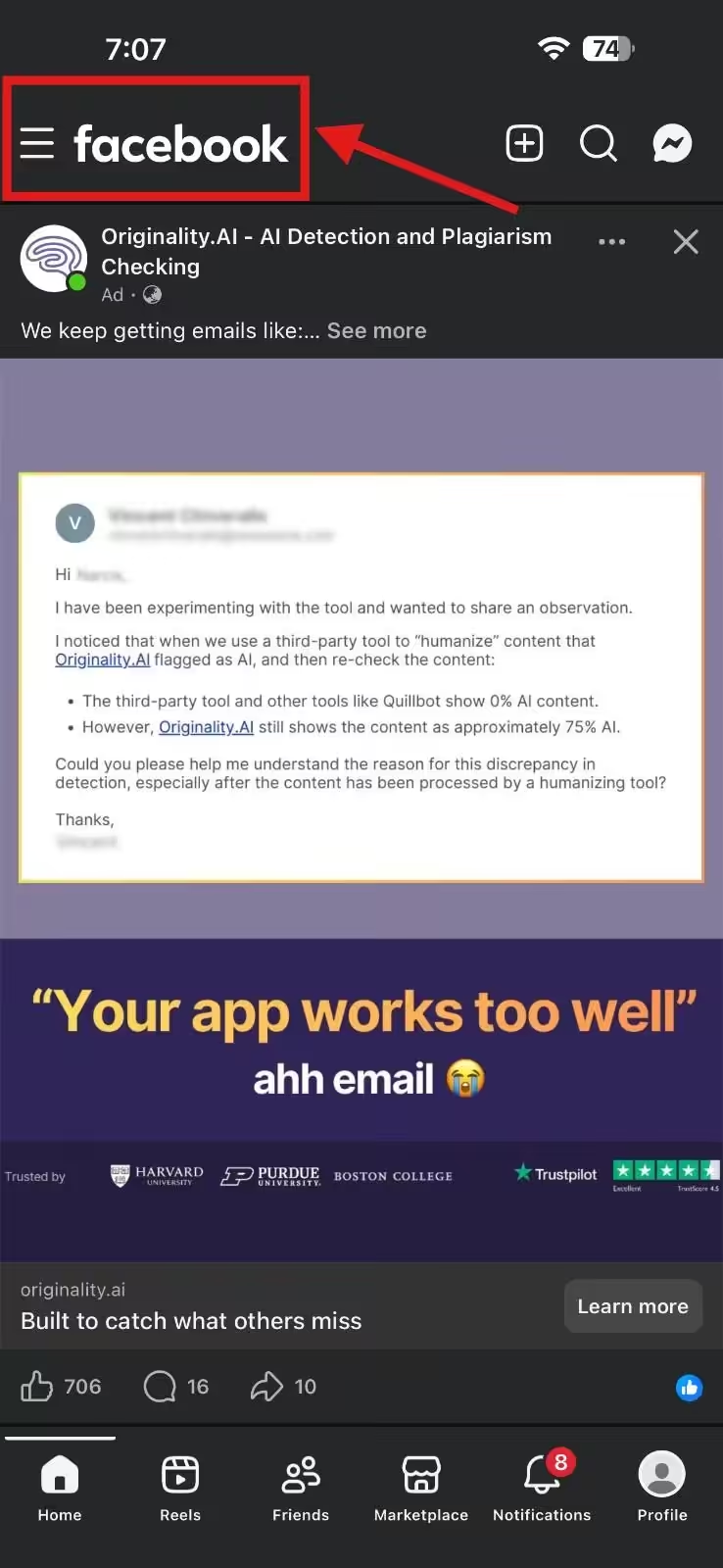
Tap the Three Lines at the Upper Left Corner - Scroll down and tap Settings & Privacy, then select Settings.
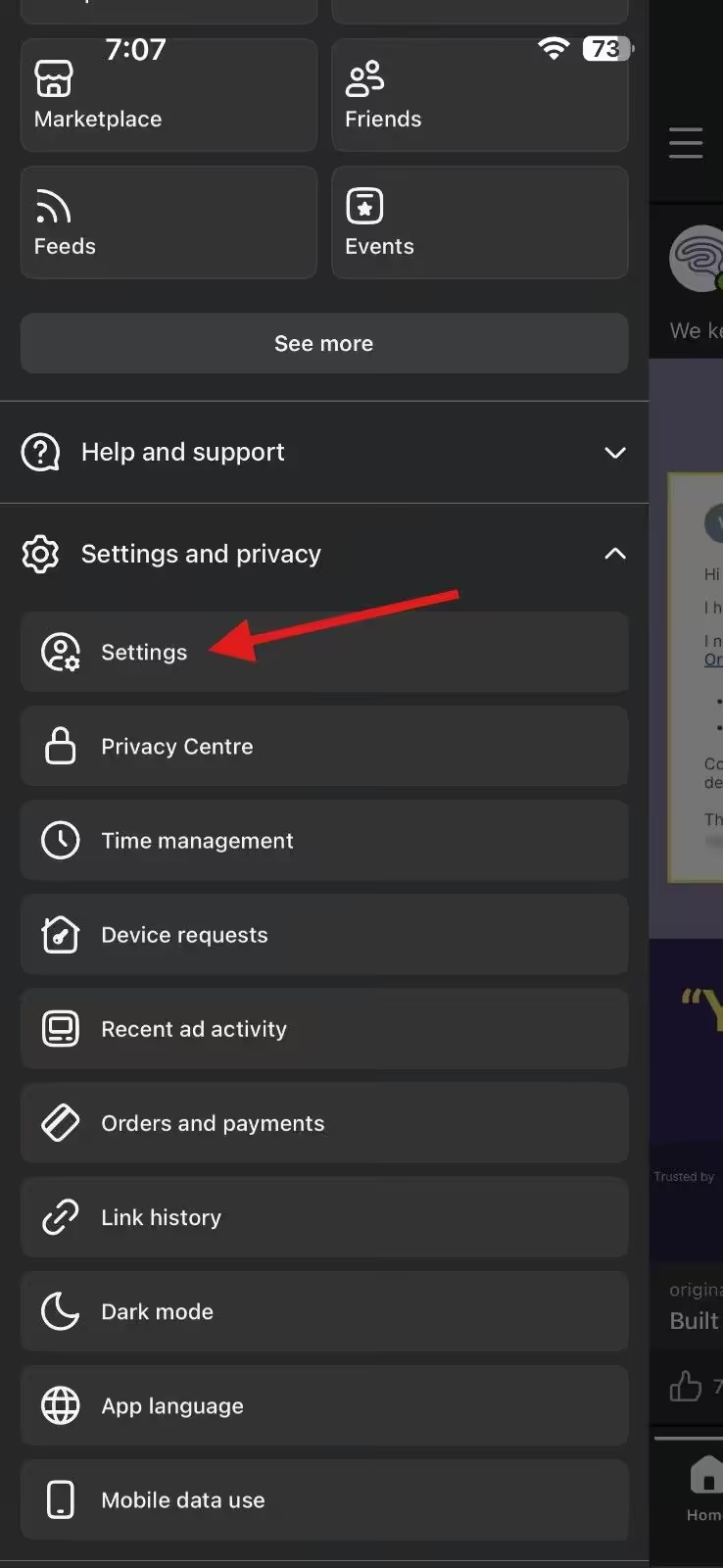
Tap “Settings” - Under Audience and Visibility, select Blocking.
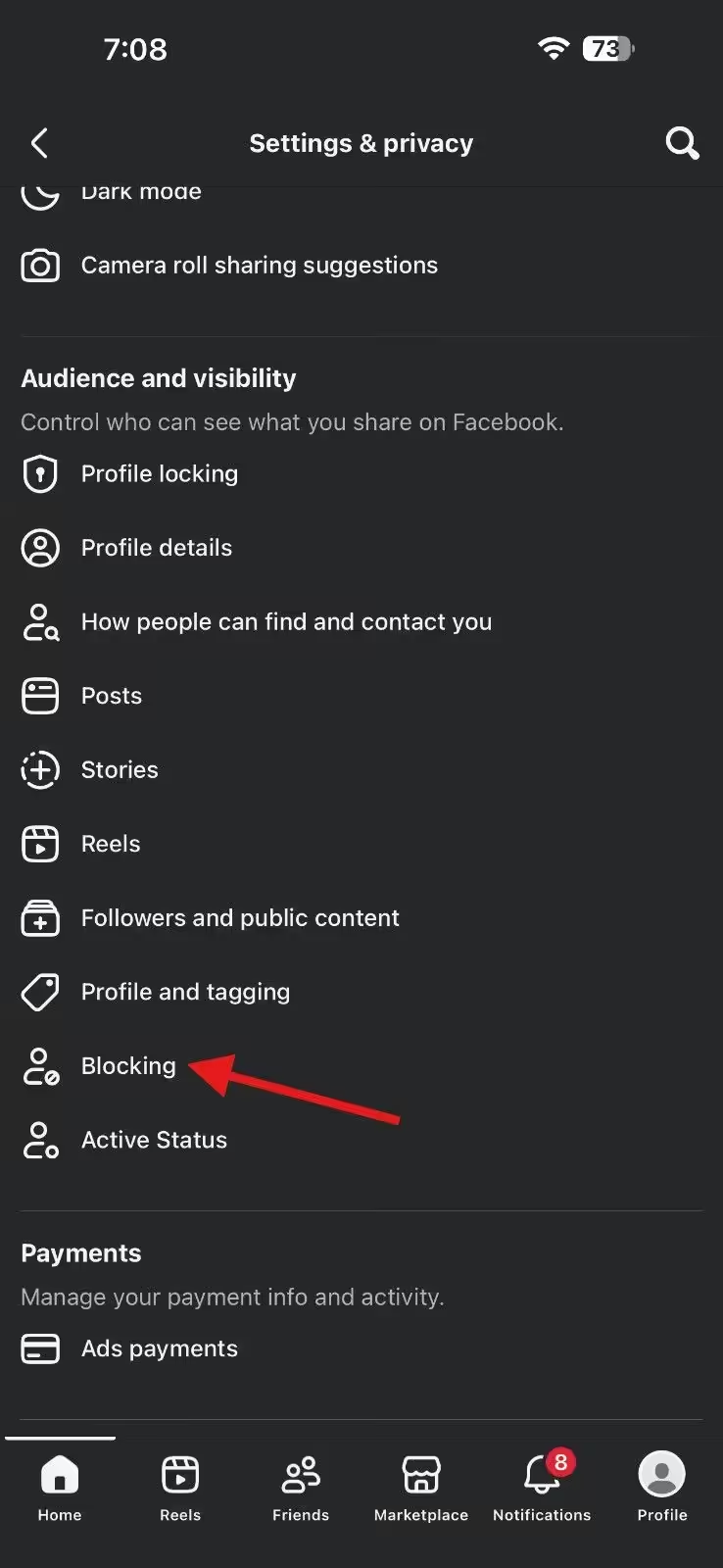
Tap “Blocking” - You’ll now see blocked people on Facebook—this is your blocked list on Facebook.
- Tap Unblock next to the person’s name.
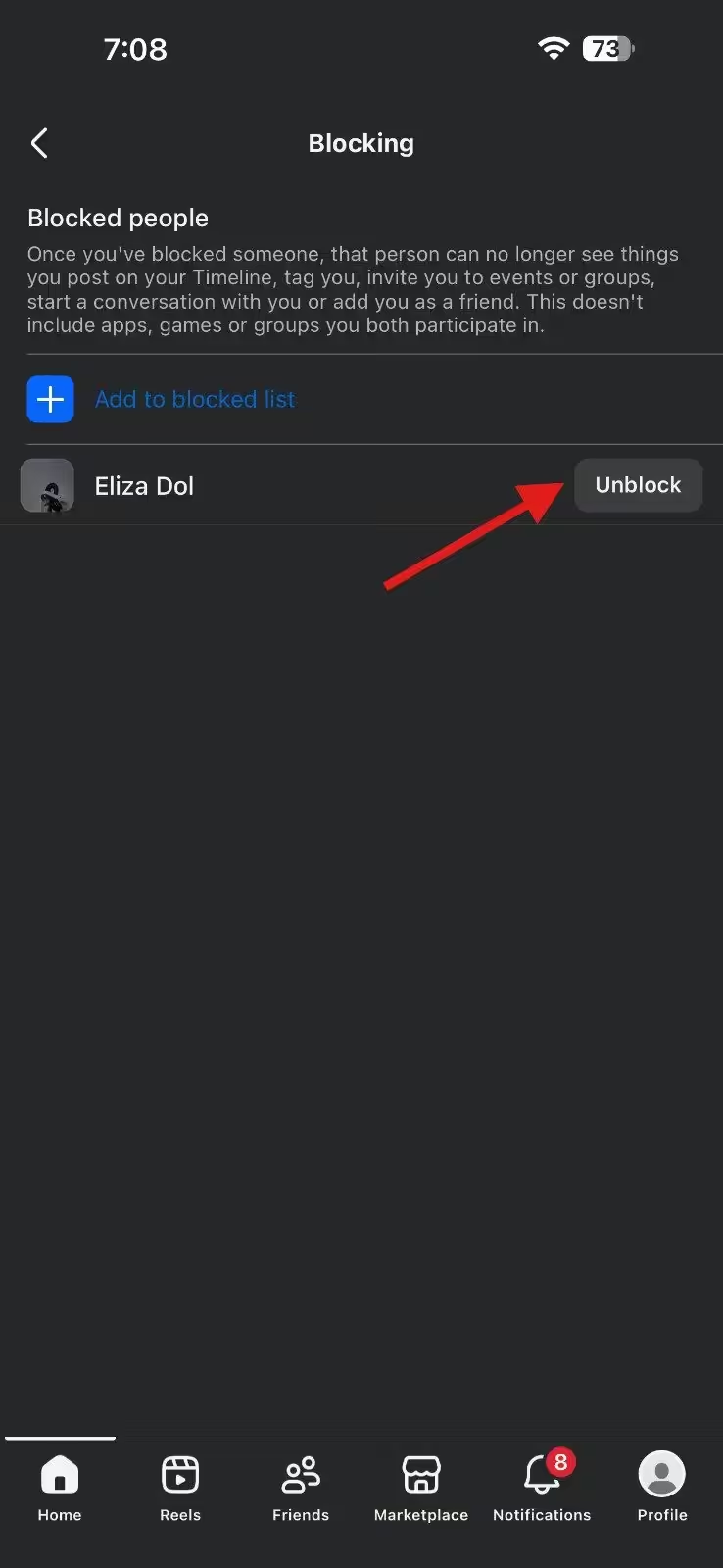
Tap “Unblock” - Confirm by tapping Unblock again in the pop-up window.
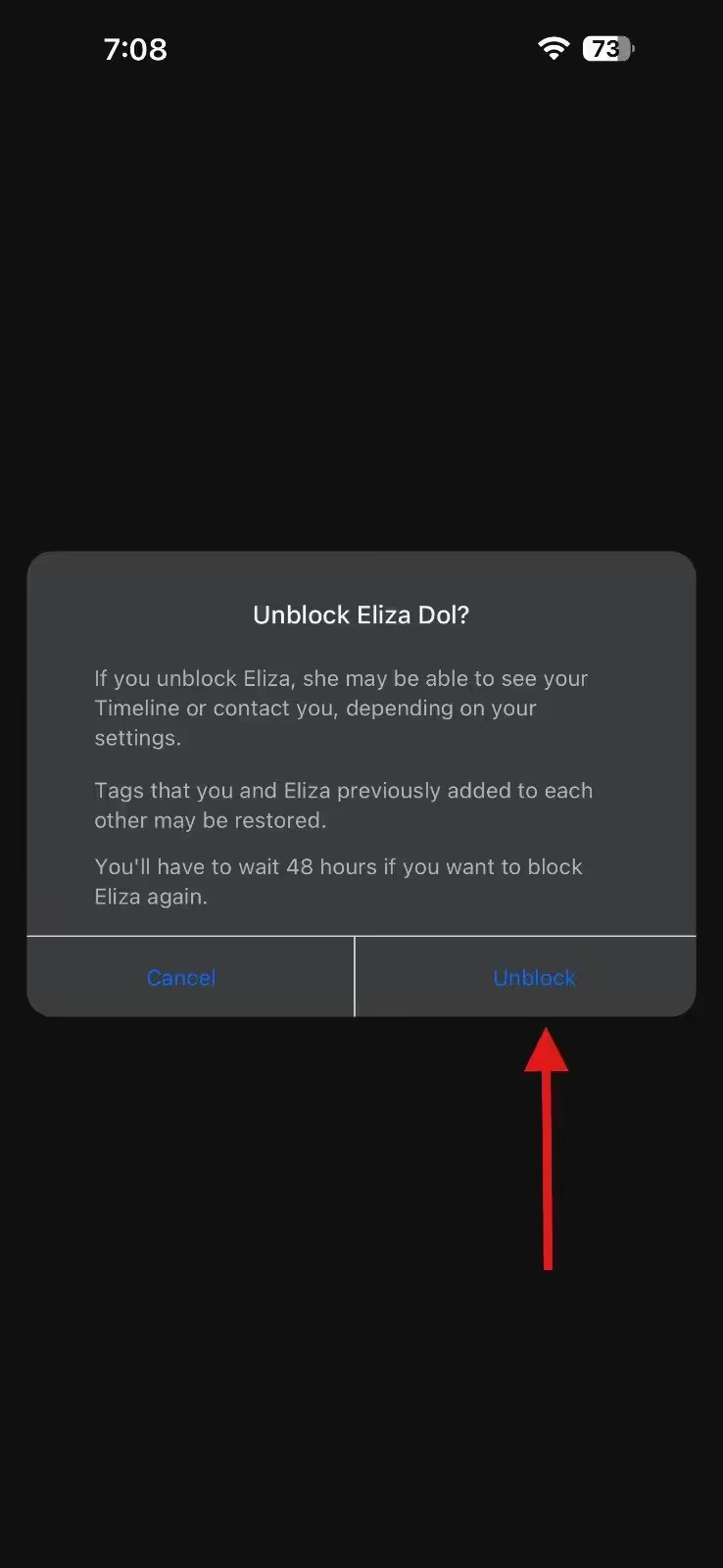
Tap “Unblock” Again to Confirm
That’s it. You’ve successfully managed your blocked list on Facebook.
For Android Users
Don’t worry if you are an Android user because we have answers for you, too!
- Launch the Facebook app on your Android device.
- Tap the menu icon (three stacked lines) in the top right corner.
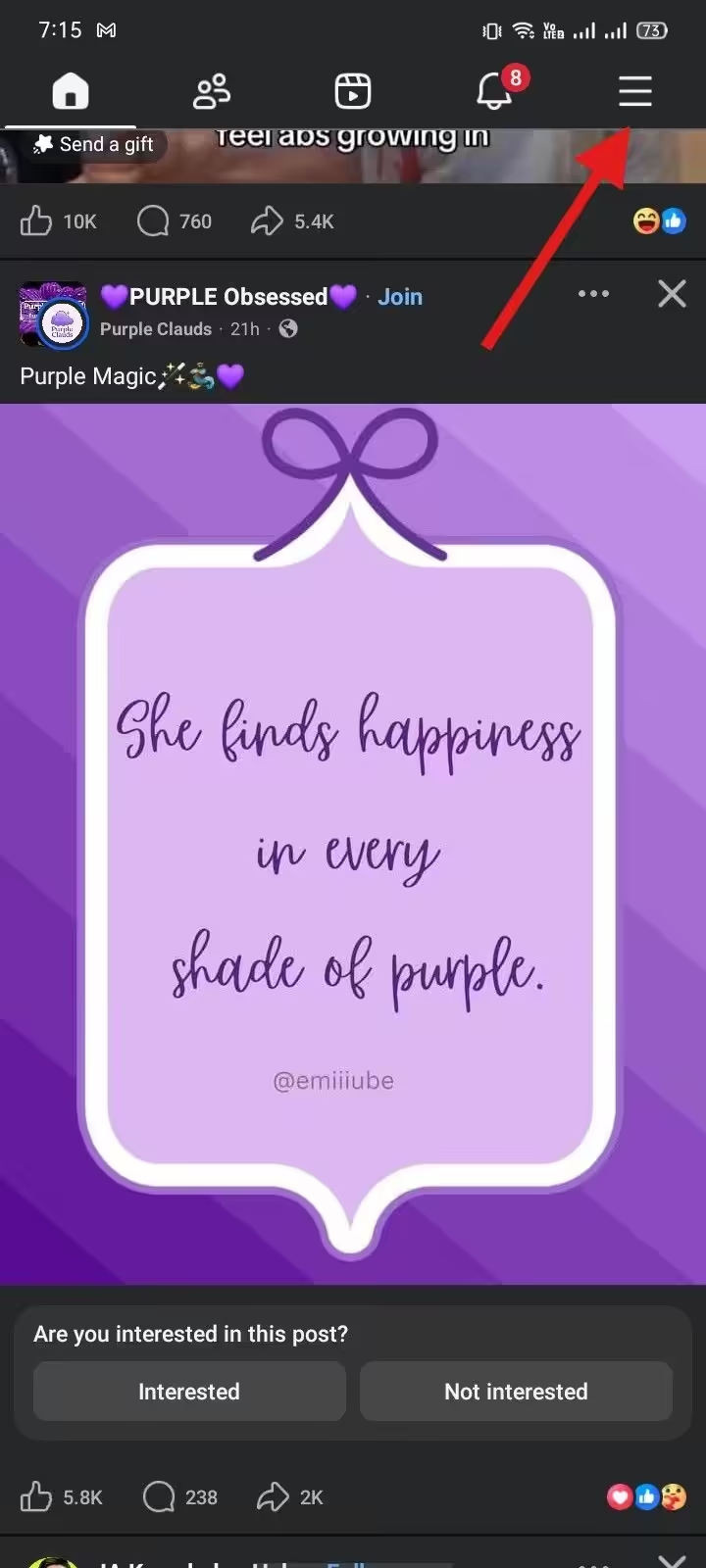
Tap Three Lines at the Upper Right Corner - Scroll down to Settings & Privacy, then Settings.
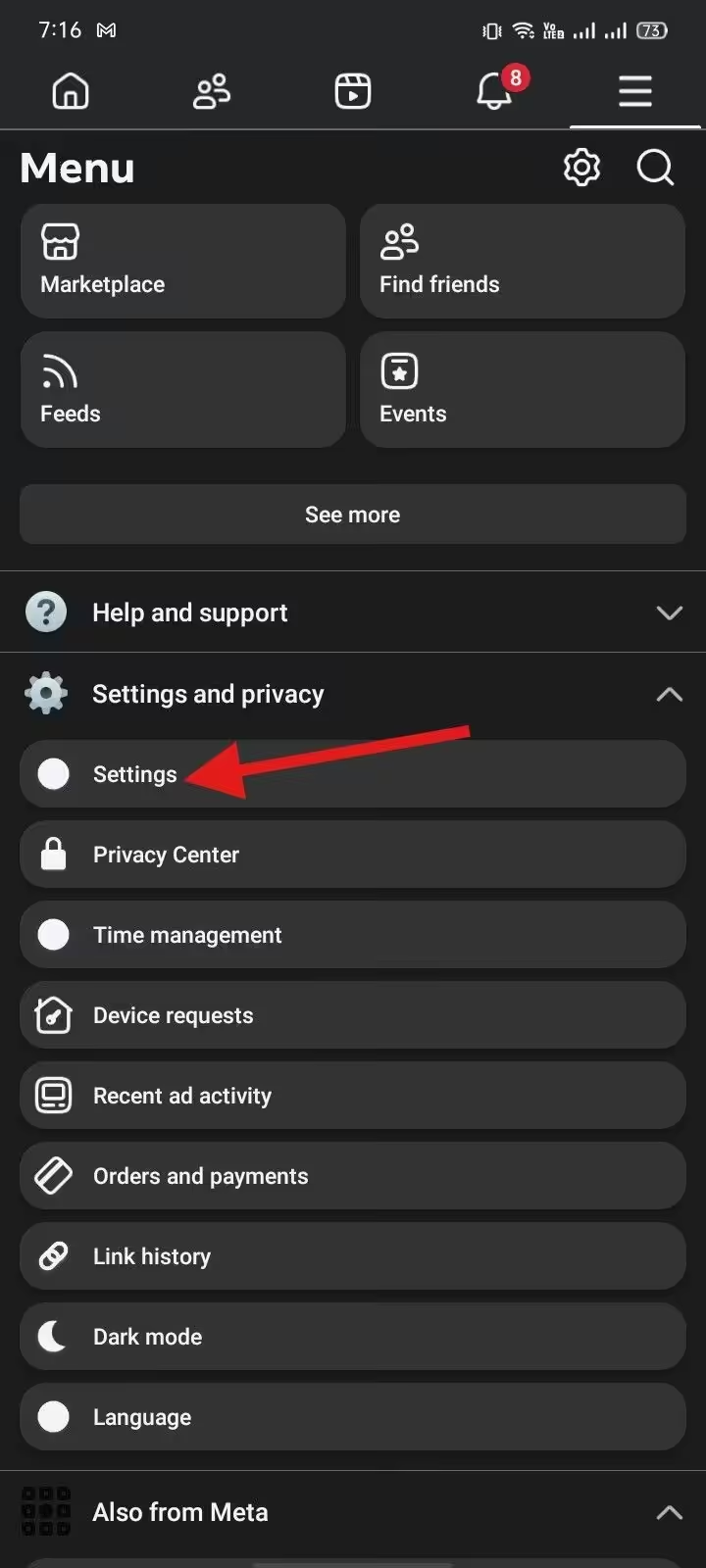
Tap “Settings” - Under Audience and Visibility, select Blocking.
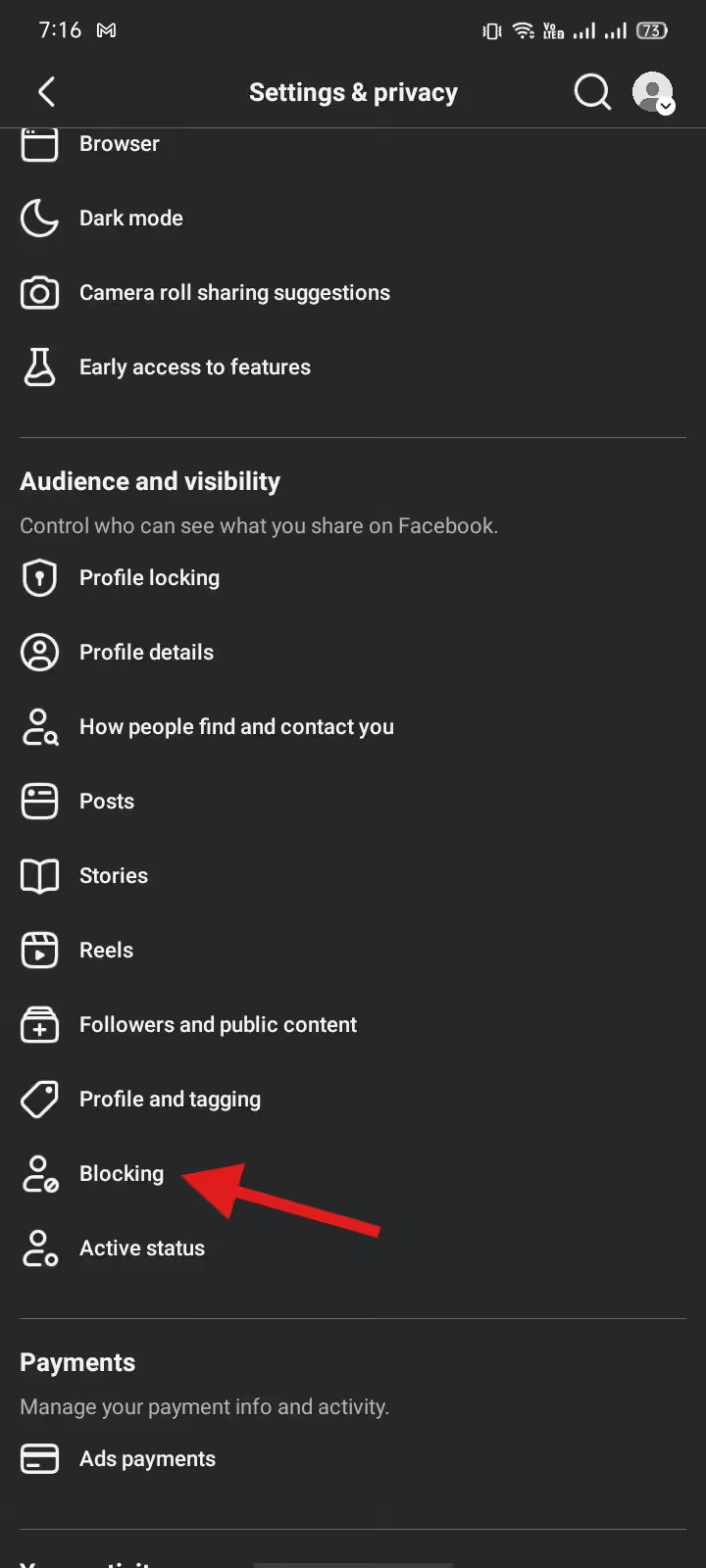
Tap “Blocking” - Here, you can find blocked people on Facebook and review your blocked list.
- Tap Unblock beside the name of the person you want to unblock.
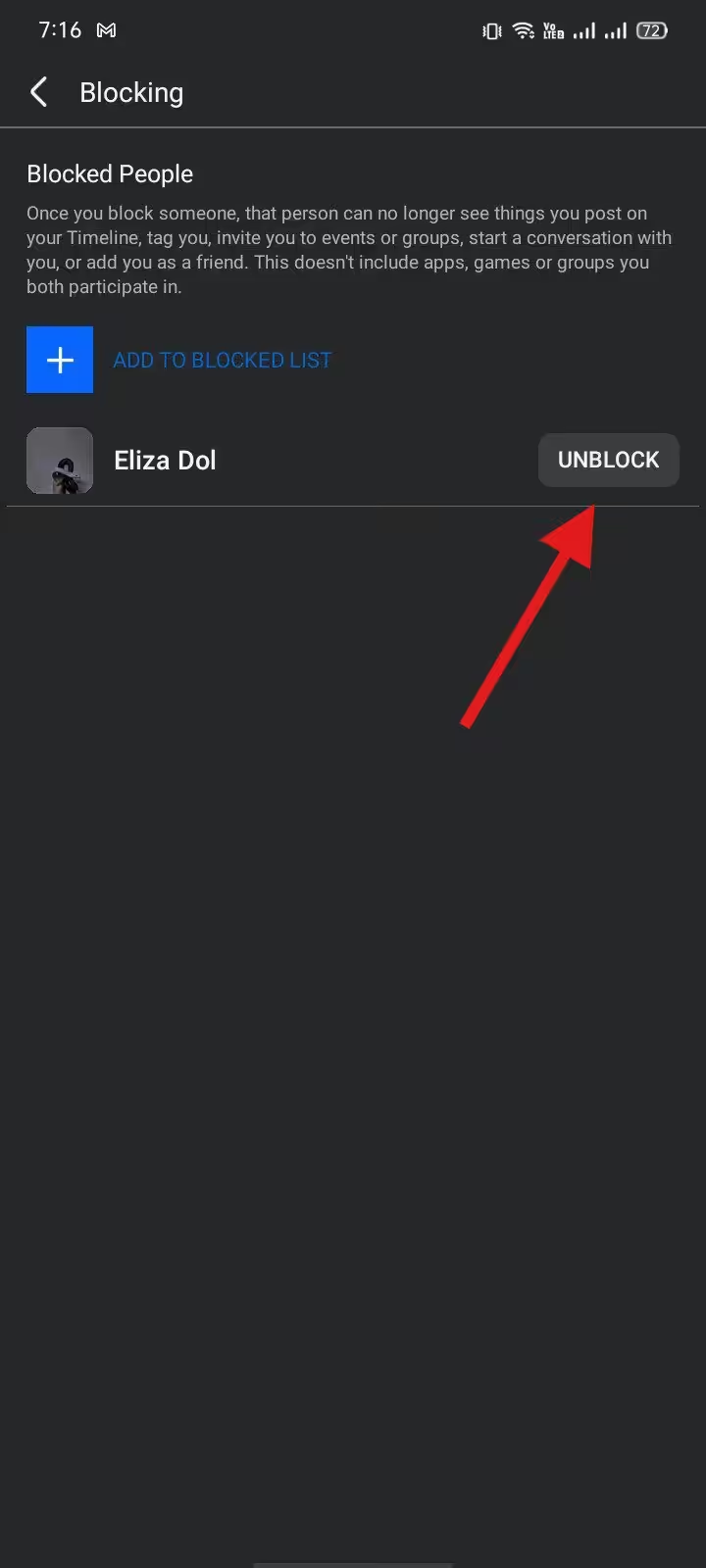
Tap “Unblock” - Confirm your choice when prompted.
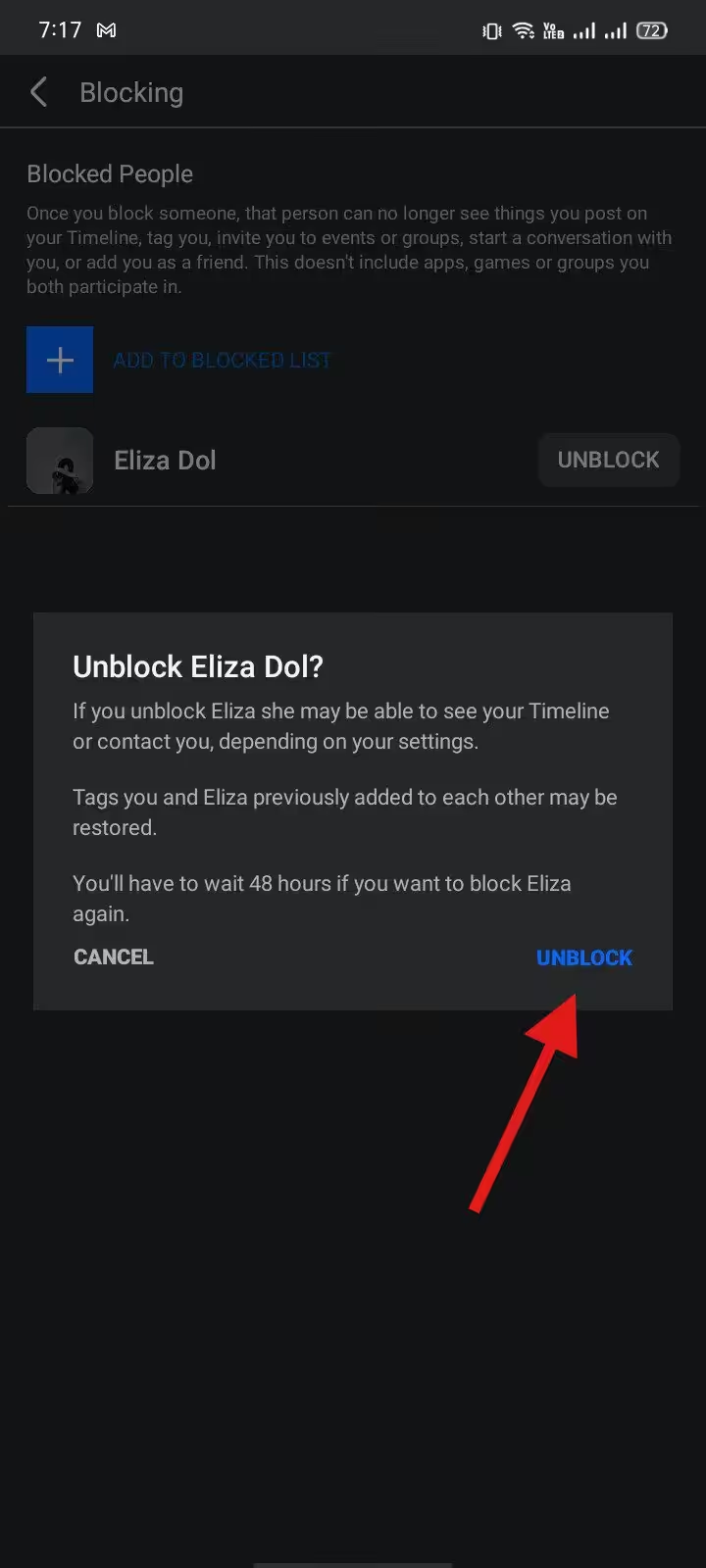
Tap “Unblock” Again to Confirm
Once unblocked, they’ll be removed from your blocked list on Facebook, and you can interact again—if you choose to.
While you’re already in your settings, cleaning things up, it might also be a good time to review your overall Facebook marketing strategy or explore better tools to stay in control of your account.
How to Unblock Someone on Facebook Using a Computer
If you prefer using a desktop, here’s the updated process for how to unblock someone on Facebook from your computer. The layout has slightly evolved, but the steps are still straightforward once you know where to look.
Here are some steps on how to unblock on Facebook using your computer:
- Open your browser and go to Facebook.com. Log in to your account.
- In the top right corner, click on your profile picture.
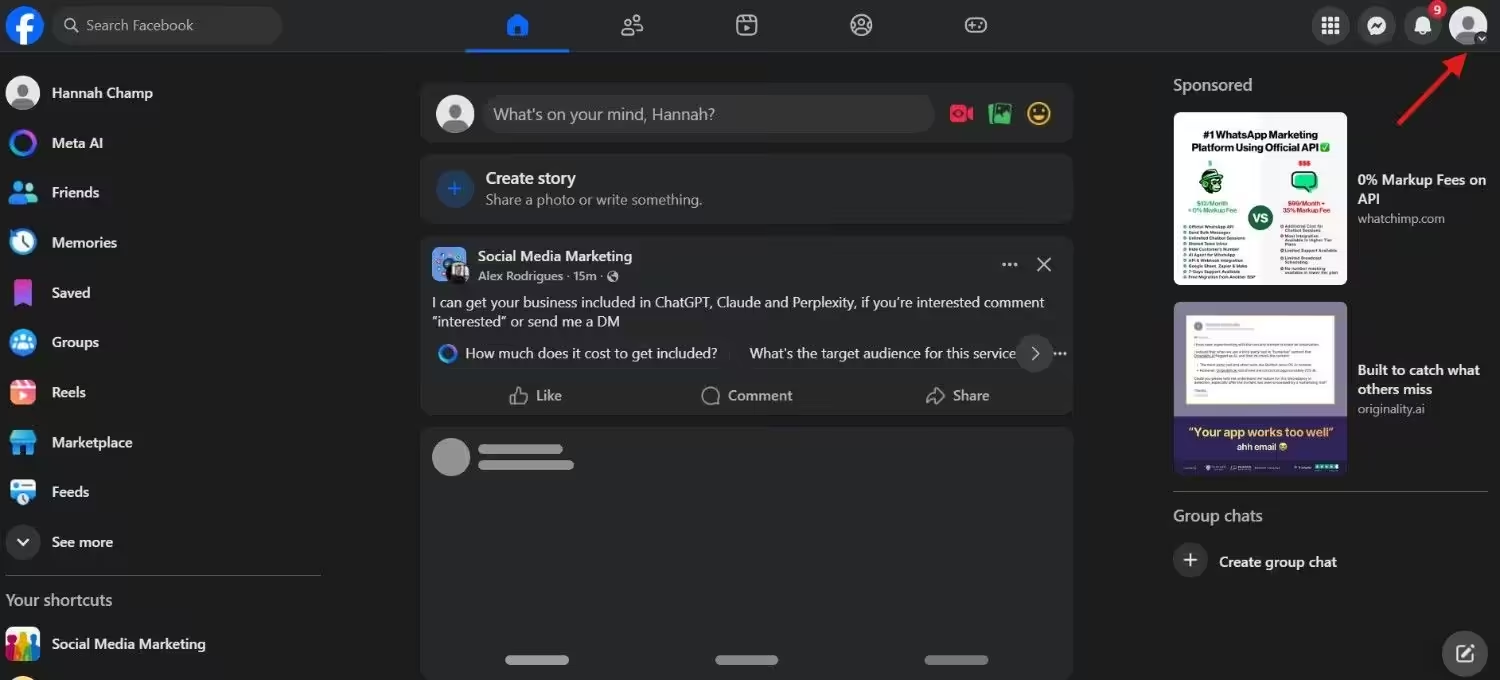
Click on Your Profile Picture - Click Settings & Privacy, then select Settings.
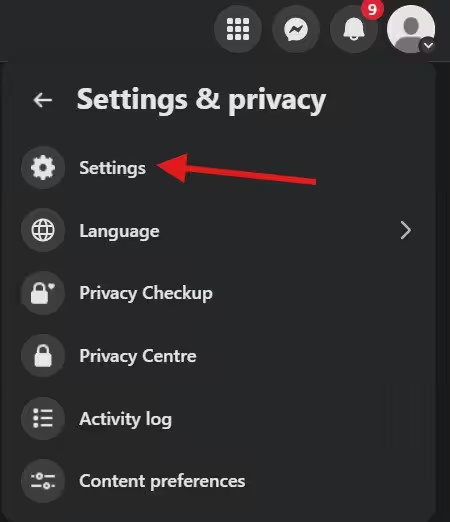
Click “Settings” - From the left-hand menu, click Privacy, then choose Blocking.
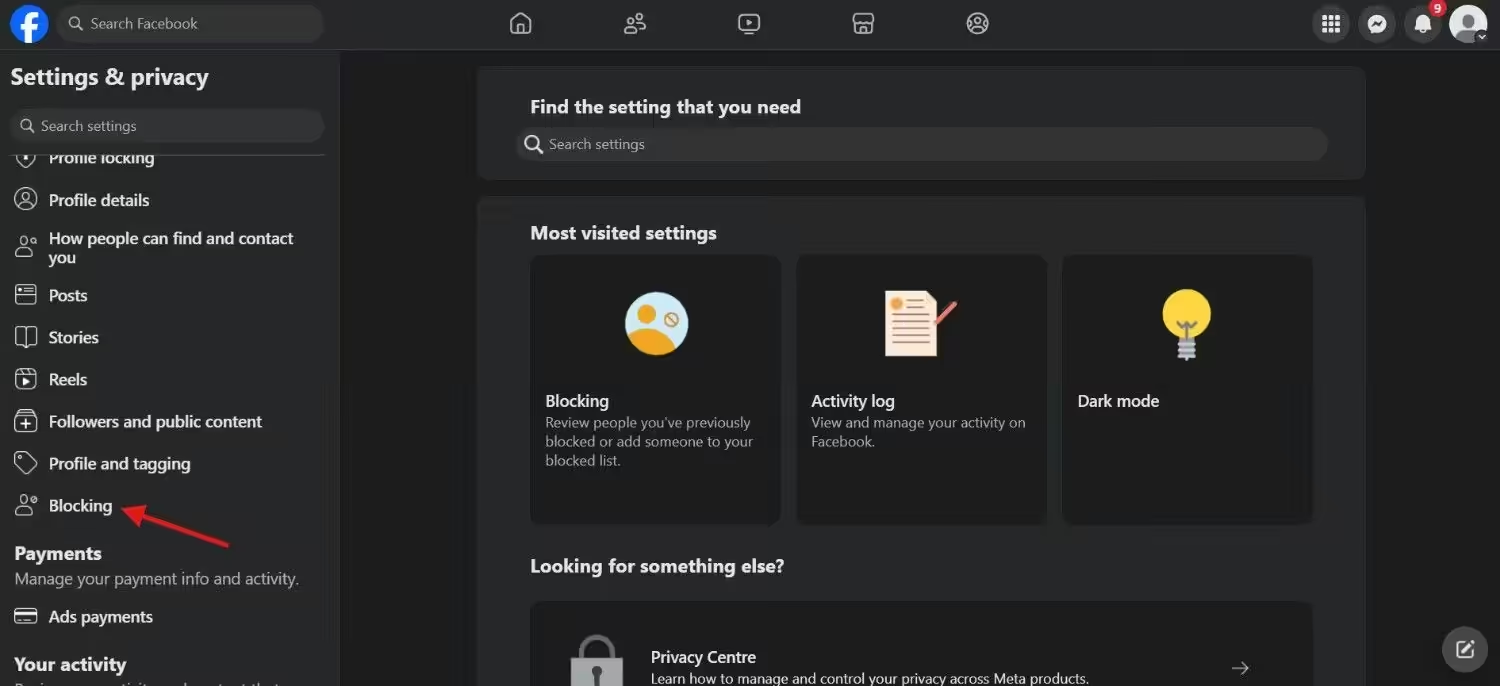
Click “Blocking” - Go to Block Profiles & Pages and click See your blocked list.
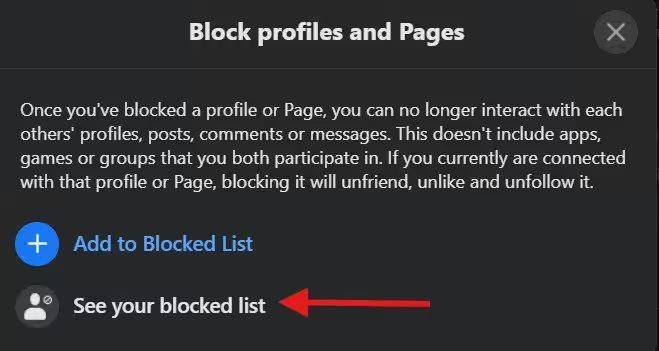
Click “See Your Blocked List” - Scroll through to find blocked people on Facebook and locate the person you want to unblock.
- Click Unblock next to their name.
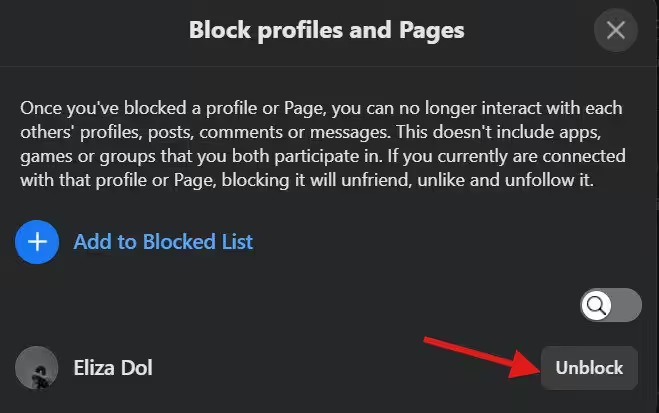
Click “Unblock” - A confirmation pop-up will appear. Click Confirm to unblock someone on Facebook.
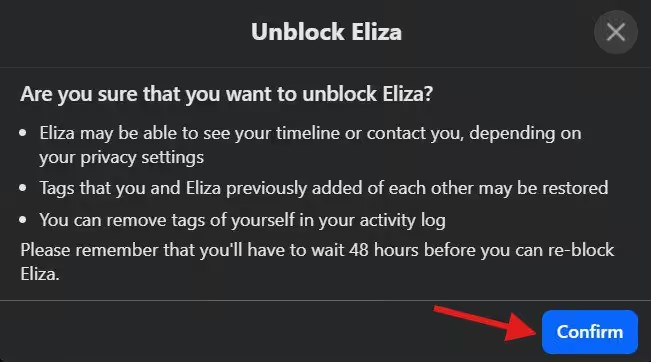
Click “Confirm”
Once you unblock someone on Facebook, they will no longer be marked as blocked on Facebook, but you’ll need to send a new friend request if you want to reconnect.
And while you’re already adjusting settings, it might also be a smart time to review your Facebook business page setup to make sure everything is running the way you want it to. Small account cleanups can make a big difference.
Facebook Scheduling Made Easy?
How to Unblock Someone on Facebook Website
If you’re using Facebook in a web browser and wondering how to unblock someone on Facebook, the steps in 2026 are still simple.
Here’s what to do:
- First off, open up your web browser. This could be Google Chrome, Mozilla Firefox, Safari, or whatever you prefer. Type in Facebook.com in the address bar and hit enter.
- Now, you’ve got to log in to your account. Enter your username and password in the appropriate fields and hit the login button.
- Once you’re logged in, you’ll find yourself on Facebook. At the top right corner of the screen, click on your profile picture.
- Select Settings & Privacy, then click Settings.
- From the left-hand menu, click Privacy, then choose Blocking.
- Here, you can see blocked people on Facebook and review everyone who is currently marked as blocked on Facebook.
- Scroll through to find blocked people on Facebook and locate the person you want to remove.
- Click Unblock next to their name.
- Confirm your decision in the pop-up window to officially unblock someone on Facebook.
That’s it. You’ve successfully completed the process of how to unblock someone on Facebook using the website.
And while you’re already adjusting account settings, it might be a good time to rethink your content approach—like testing the best time to post on Facebook or planning ahead with a Facebook post scheduler.
Remember, it’s totally okay to change your mind. If you ever need to block or unblock someone again, you now know exactly where to go.
Featured Article: How to Unhide a Post on Facebook?
How to Unblock Someone on Facebook Messenger
Blocked someone on Messenger and now rethinking it? It happens.
Whether it was a misunderstanding or just a break you needed, here’s exactly how to unblock someone on Facebook through Messenger in 2026.
- To get started, grab your device and open up the Messenger app. It’s the one with the blue chat bubble and white lightning bolt.
- Once you’re in the app, look at the top left corner of the screen. You should see your profile picture there. Tap on it to open up your account settings.
- Scroll down and tap Privacy & Safety.
- Tap Blocked accounts.
- Find the person you want to unblock.
- Tap their name.
- Select Unblock messages and calls.
- Confirm your choice.
Once you unblock someone on Facebook Messenger, they’ll no longer appear as blocked on Facebook Messenger, and you can start chatting again.
Keep in mind: if you blocked them on Facebook itself (not just Messenger), you may need to remove that block separately from your main blocked list on Facebook in account settings.
And while you’re already managing interactions, it might be a good moment to tidy up other areas, like reviewing your what to post on Facebook plan or checking your overall Facebook post reach to make sure your content is actually landing the way you want.
Blocking and unblocking are just tools. You’re in control. And now, you know exactly how to reverse it anytime.
How to Unblock Someone on Facebook Group
Here’s something many people don’t realize: Facebook doesn’t have a separate “group block” feature.
If someone is blocked on Facebook, that block applies everywhere, including mutual groups. So if you want to interact with them again inside a group, you’ll need to unblock someone on Facebook from your main account settings.
Here’s how it works in 2026:
- Go to Settings & Privacy from your profile menu.
- Click or tap Settings.
- Head to Privacy, then select Blocking.
- You’ll now see your blocked list on Facebook.
- Scroll to find the person you want to remove.
- Click or tap Unblock next to their name.
- Confirm your decision in the pop-up window.
Once you unblock someone on Facebook, they’ll be able to see your profile (based on your privacy settings) and interact with you again in any shared groups.
Just remember: unblocking restores interaction platform-wide, not just inside that one group.
And while you’re reviewing group interactions, it might also be a good time to clean up your broader workflow, especially if you regularly schedule Facebook posts for communities or brands.
Say Goodbye to Disorganized Social Media!
Featured Article: How to Manage Multiple Facebook Accounts and Pages Smoothly
Important Considerations
Before you rush to unblock someone, there are a few things you should know. Understanding these details will save you from awkward surprises later, especially if you’re carefully managing your account.
-
Reblocking Restriction (48-Hour Rule)
If you unblock someone, Facebook requires you to wait 48 hours before you can block them again. So if you’re unsure, think it through first. Once you unblock someone on Facebook, you can’t immediately reverse the action.
-
Friendship Status Doesn’t Automatically Return
Unblocking someone does not automatically make you friends again. If you previously removed or blocked them, you’ll need to send a new friend request. The same applies to friend requests—they are not restored automatically.
-
Privacy and Visibility
Once unblocked, the person may be able to:
- See your public posts
- View parts of your timeline
- Contact you
This all depends on your current privacy settings.
If you use Facebook professionally or care about your overall Facebook reach, it’s smart to double-check who can see your content. You may also want to review your account setup using reliable Facebook marketing tools to keep everything aligned.
-
Tags and Past Interactions
In some cases, previously removed tags between you and the unblocked person may reappear, depending on your timeline and tagging settings. It’s a good idea to review your activity log after unblocking.
-
Messenger Is Separate
If you blocked someone specifically on Messenger, you’ll need to unblock them there as well.
Go to: Messenger → Profile Picture → Privacy & Safety → Blocked Accounts and remove the block.
-
Timeline and Content Exposure
After unblocking, they may be able to see your posts, including shared links—depending on your audience settings. If you’re unsure what’s visible, it may help to revisit guides like how to post a link on Facebook and double-check your audience selection before publishing.
Take Away
To sum it up, how to unblock someone on Facebook or Messenger is easy and can be done from any gadget, like a phone or computer.
If you’ve changed your mind or solved a conflict with someone, the steps in this blog will help you start talking again smoothly.
But keep in mind that unblocking someone doesn’t just mean following some steps on your gadget. It also means deciding to let someone interact with you again on Facebook or Messenger.
So, think about what this means for you and whether you’re comfortable and safe with this decision.
As we continue in 2026, social media like Facebook and Messenger are a big part of our lives. It’s getting more and more important to manage who we talk to online.
But you have the power to control who can talk to you on these platforms. Use this power carefully and enjoy your time on Facebook and Messenger.