
Did you know that tweets with video get 6x more retweets than text-only posts? Yep, that’s the power of a well-placed clip.
Videos grab attention, keep people scrolling just a little longer, and make your content way more shareable than plain text or images alone.
Whether you’re trying to grow your brand, show off your latest project, or just make your followers laugh, embedding videos correctly can make all the difference.
Learn how to embed video on Twitter (X) in a right way, and your posts will look professional, play smoothly, and get the engagement they deserve.
In this guide, we’ll show you:
- How to upload a video on X from mobile and desktop
- How to embed someone else’s video on your timeline
- How to embed someone else’s video into your blog/website.
- Common problems with embedding and how to troubleshoot them
- How can you leverage pro tools like X Media Studios and X Articles?
Plus, we’ll reveal how a Twitter scheduler can help you plan and post at the perfect times without lifting a finger.
Quick Guide: Which “Embed” Do You Need?
In 2026, there are two ways to “embed” a video. To get the right steps, choose your goal below:
- Goal A: I want to post someone else’s video on my X timeline without it looking like a “Retweet.”
- Use the Social Embed method (The /video/1 trick).
- Goal B: I want to feature an X video on my website or blog.
- Use the Technical Embed method (HTML Code). [Jump to Section B]
Let’s get right into it, shall we?
Short Summary
- Tweets with video get significantly more engagement, making proper embedding essential for reach and visibility.
- Uploading, sharing, and embedding videos can be done from both mobile and desktop, giving you flexibility in posting.
- Using Twitter’s embed code allows you to feature videos directly on websites or blogs without retweeting.
- Common issues like unsupported formats, copyright restrictions, and file limits can be avoided with simple prep and checks.
- Tools like Social Champ make scheduling, managing, and cross-platform publishing of Twitter videos effortless, saving time and boosting consistency.
Upload And Schedule Videos In Bulk!
What Does It Mean to Embed a Video on Twitter?
To embed a video on X basically means taking a video and placing it somewhere else so people can watch it right there, without having to leave the page.
But here’s where people get tripped up.
There are actually two different types of embedding, and most guides don’t explain the difference.
Social Embedding
This is when you post someone else’s video inside your own X post, without using the retweet box. It looks clean and native, almost like it belongs in your feed.
This is what most people mean when they search “how to embed a Twitter video” because they just want to share a meme, clip, or highlight without the bulky retweet container.
Technical Embedding
This is when you take an X post and place it onto your WordPress, Wix, or other website using HTML embed code. That’s the classic “copy embed code > paste into website” method.
Users get frustrated all the time because they search for “how to embed” and end up staring at a block of HTML code…
…when all they wanted was to share a meme cleanly inside their own post.
So before you follow any steps, ask yourself:
- Are you embedding on X itself? That’s Social Embedding.
- Are you embedding on a website? That’s Technical Embedding.
Once you know which one you’re trying to do, everything gets a lot simpler.
How to Upload Your Own Video on Twitter
Uploading your own video to Twitter (X) is easier than you think, and you can do it from both your mobile device and desktop.
How to Embed Video on Twitter From Mobile
- Open the Twitter (X) app and tap the “+.”

Tap the + Icon - Tap Photo. The feature allows you to select photos or videos from your phone.

Select Photos/Videos Upload Feature - Choose the video you want to upload from your gallery.Alternatively, you can click the camera icon to record a new video.
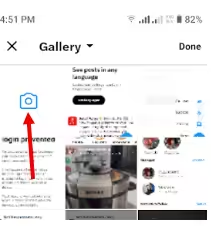
Select From the Gallery or Create a New Clip - Tap “Post” to upload and post your video natively on Twitter.

Tap Post to Upload Done! That’s how posting videos on Twitter using your phone works.
Featured Article: 15 Twitter Tips to Boost Engagement and Grow Your Brand
How to Upload a Video to Twitter From a Desktop
- Go to Twitter.com and click the “Post” button on the left-hand menu.
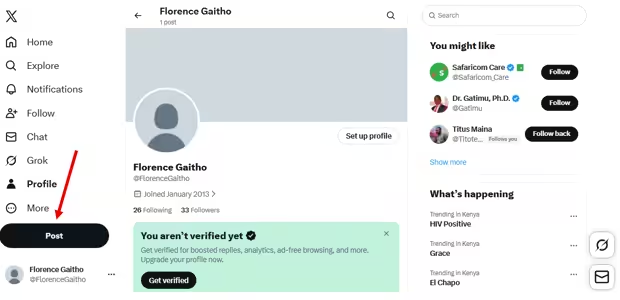
Select “Post” - Click the media icon (looks like a small landscape photo) to upload your video file from your computer.
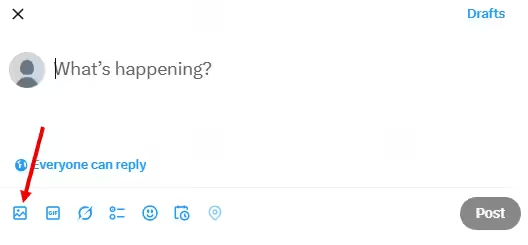
Select the Media Icon - Write your tweet with text, hashtags, or links to give your video context.

Twitter’s Compose Box - Hit “Post” to post your video directly to your timeline

Click to Post That’s how to upload a video to Twitter using your desktop.
Featured Article: Twitter Marketing Tools: Boost Your Brand’s Social Presence
How to Embed Video on Twitter Without Retweeting [The Social Embed Method]
Sometimes you don’t want to simply retweet someone else’s video. You want it to appear directly on your timeline or your website while keeping full control.
Embedding allows you to showcase that video without resharing it, so it looks seamless and professional.
The following are the simple steps for embedding a video from Twitter without retweeting:
From Desktop:
If you want to embed someone else’s video directly into your own post, not just paste a website embed or retweet it, here’s the trick.
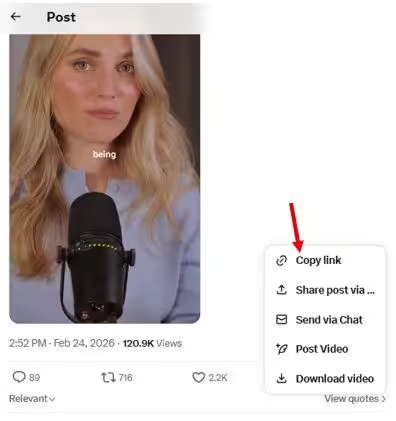
Step 1: Go to the post containing the video.
Find the video you want to use and open the original post.
Step 2: Click the “Share” icon (the upward arrow).
It’s at the bottom of the post.
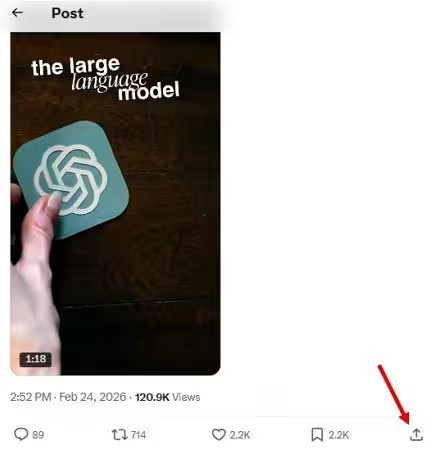
Step 3: Select “Copy Link.”
This copies the post URL to your clipboard.
So far, this is standard. Here’s where most guides get it wrong:
The Secret Sauce (This Is the Important Part)
If you just paste that link into your blog, that’s a website embed.
But if you want a Tweet Embed (where the video plays directly inside your own X post), you need to tweak the URL.
Step 4: Paste the link into your X Post Composer, not your blog.
Before you hit publish:
- Delete anything after the question mark
(Example: remove ?s=20 or any tracking parameters) - Then manually type:
/video/1
at the very end of the URL
So it should look like this:
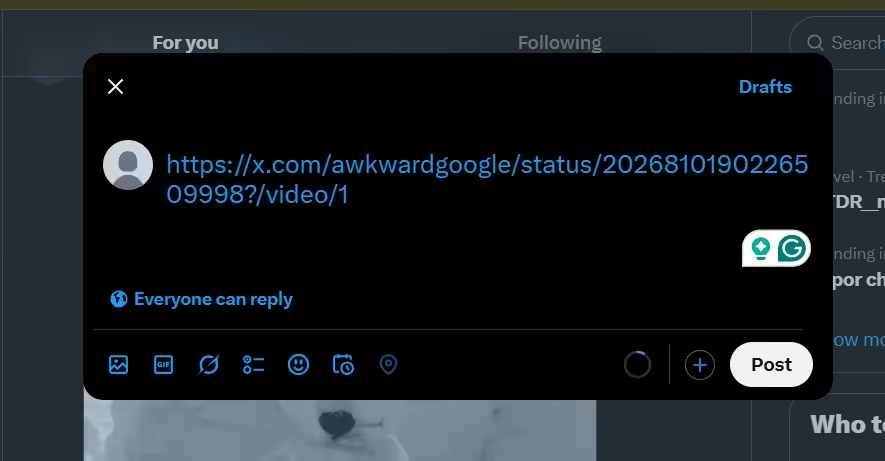
That /video/1 is what forces the video itself, not just the post, to embed properly.
Hit publish, and the video will display natively in your post without you needing to retweet it. It feels like a hack, but it’s just how the URL structure works. Once you know it, it takes about five seconds.
Here’s how your embedded video will appear:

Quick Tip: Don’t Just Paste the Link
Yes, you can just copy and paste the regular post URL into the composer, but doing that tells X it’s an external-style share. The algorithm typically gives those less reach compared to native content. When you use the /video/1 format instead, the post is treated as a native video upload. That makes it eligible for placement in the immersive Video Tab (X’s version of Reels/TikTok), which can significantly increase discovery and reach.
From Mobile:
- Step 1: Find the video in your feed.
- Step 2: Long-press (press and hold) directly on the video player.
- Step 3: Select “Post Video” from the pop-up menu.

Select “Post Video” - A new draft opens automatically with the video attached, ready for your caption.

Add Your Caption
This way, the video appears embedded and playable wherever you want, without cluttering your timeline with a retweet.
Simplify Posting Across Platforms
How to Embed a Twitter Video on a Website or Blog [The Technical Embed Method]
Want to feature a Twitter (X) video directly on your website or blog? Embedding it is the easiest way to do it, and the best part is that your visitors can watch the video without leaving your site. Twitter makes this super simple with its built-in embed code.
Here’s how to do it:
- Go to the tweet containing the video you want to embed.
- Click the three dots to see more.

Click the Three Dots - Select “Embed Post” from the menu.

Click Embed Post - This will open publish.x.com , where you can preview the look of the embedded post.
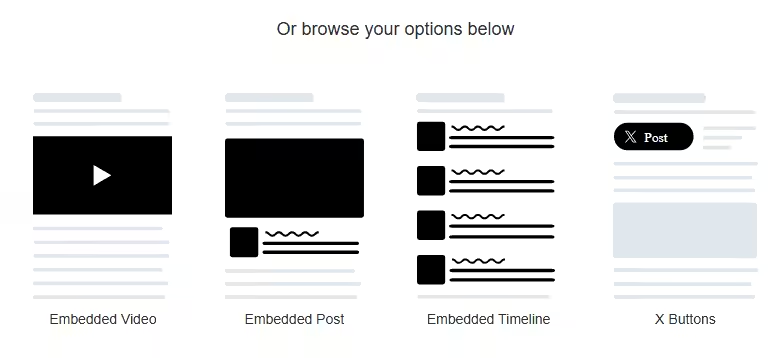
Choose From the Embed Options - Copy the HTML code that appears in the pop-up window.
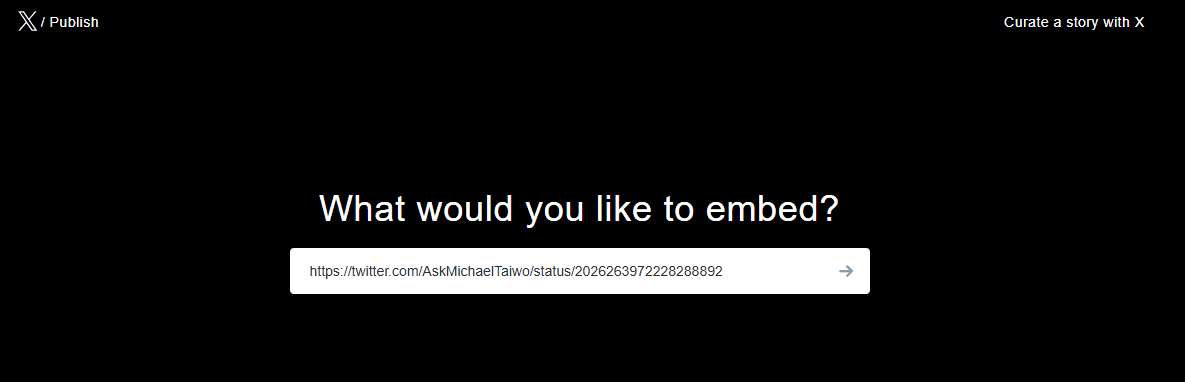
Copy the HTML Code - Paste the code into your website or blog’s HTML editor where you want the video to appear.
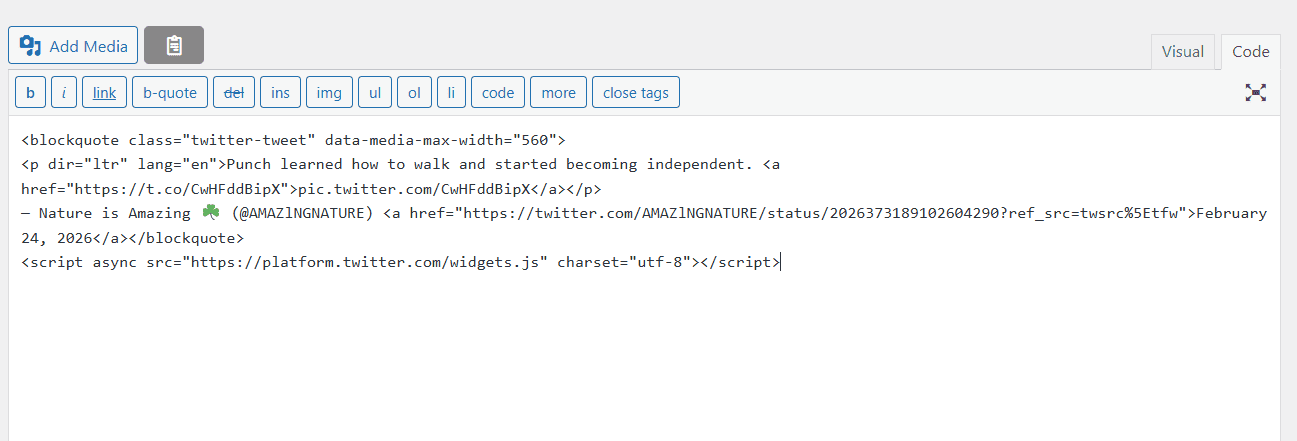
Paste the Code - Save or publish your page.
Voila! The video is now playable directly on your site. Using this method ensures your blog or website content stays dynamic, engaging, and interactive, while giving proper credit to the original Twitter post.
Featured Article: 10+ Twitter Alternatives Social Media Fans Are Using
Common Problems When Embedding Videos on Twitter (And Fixes)
As X has evolved into a video-first platform, the “standard” rules for file sizes and privacy have changed. To ensure your embeds look professional and play flawlessly, keep these updates in mind.
Quick Reference: X Video Upload Limits
X now uses a tiered system for video. If your embed isn’t working, it might be because the file exceeds these specific limits:
| Feature | Free Accounts | X Premium | X Premium Plus |
| Max Duration | 140 Seconds | 4 Hours (Web/iOS) | 4 Hours (Web/iOS) |
| Max File Size | 512 MB | 8 GB | 16 GB |
| Max Resolution | 1080p | 1080p (up to 2hrs) | 4K (supported) |
| Android Limit | 140 Seconds | 10 Minutes | 10 Minutes |
Quick Android heads-up:
Even if you’re a Premium subscriber, Android uploads are currently capped at 10 minutes. So if you’re trying to post a 2-hour deep dive from your phone and it keeps failing, that’s probably why.
The 4K Bandwidth “Black Screen”
X now supports high-bitrate 4K video. While this looks stunning on the app, it can cause embedded videos on your blog to buffer or show a black screen for users on slower connections.
Fortunately, there’s a simple solution. If you are embedding your own video, try uploading at 1080p/60fps. It provides the best balance of quality and loading speed for web browsers.
The “Private Account” Wall
This is the most common reason embeds disappear. If you embed a video from a public account and that user later switches their profile to “Private” (Locked), the video will immediately break on your website and show a “This post is unavailable” message.
Therefore, you must always verify that the original creator is a public or verified brand account. If you need a permanent video for your blog, it’s safer to host the file yourself or use your own X account to host the media.
The “Video Only” vs. “Full Post” Choice
X’s publishing tool (publish.x.com) allows you to choose between embedding the entire post (including the text and likes) or just the video player.
If your blog design is minimal, select the “Video Only” option in the customization settings before copying your HTML code. This removes the “X” branding clutter and focuses entirely on your content.
Unsupported Video Formats
Twitter (X) loves MP4 and MOV files, but try uploading anything else, and it’ll politely say “nope.” If your video is in AVI, WMV, or some obscure format, it simply won’t play.
The fix is easy: convert your video to MP4 using H.264 codec. Not only does this make Twitter happy, but it also ensures smooth playback for all your followers.
Copyright Issues
Ever had your video muted or blocked because of background music or clips you “borrowed”? That’s Twitter flexing its copyright muscles.
To avoid this headache, stick to royalty-free music or make sure you have permission to use any copyrighted content. That way, your video stays live, and your audience gets the full experience.
Embed Failures on Websites or Blogs
Sometimes, even when your video is perfect on Twitter, embedding it on a website or blog can go sideways. The player might not load, or it could act glitchy. Usually, this happens because of browser quirks or site restrictions.
To avoid trouble, double-check that your HTML embed code is correct, make sure your platform supports Twitter embeds, and clear your browser cache if needed. With a little tweak, your video will play flawlessly right where you want it.
Mobile App Restrictions
Note that if you are using the X Android app, you are still capped at 10-minute uploads, even with a Premium subscription. For anything longer (like podcasts or webinars), you must use the Desktop/Web version to ensure the embed processes are correct.
Pro Tools for [Current_Year]: X Media Studio and X Articles
For brands, creators, and power users, X (Twitter) has evolved far beyond a simple “Post” button. If you are using a tool like Social Champ to manage a professional presence, you should be leveraging these advanced features to maximize your video’s reach and conversion.
X Media Studio: Your Professional Video Command Center
If you are serious about video, X Media Studio is where you should be spending your time. It serves as a high-end asset manager that goes beyond the standard upload.
- Centralized Library Management: No more digging through old posts. Media Studio provides a searchable vault of every video, GIF, and image you’ve ever uploaded, allowing you to re-share or re-purpose high-performing content instantly.
- Enhanced Metadata & SEO: You can add custom thumbnails, descriptive titles, and call-to-action (CTA) buttons. Most importantly, you can upload SRT subtitle files, which are essential for the 80% of users who watch videos on mute.
- In-Stream Monetization: For eligible creators, Media Studio allows you to toggle on “In-Stream Video Ads.” This lets you earn revenue directly from the videos you embed, turning your social strategy into a profit center.
- Live Broadcasts: You can schedule and manage high-definition live streams, complete with “Source” and “Producer” tools for professional-grade broadcasts.
X Articles: The Home for Long-Form Video Embedding
Gone are the days of 20-post threads that lose readers halfway through. X Articles (available to Premium+ subscribers) is the platform’s answer to long-form blogging and newsletters.
- Inline Video Embedding: Unlike a standard post where the video sits at the top, X Articles allow you to inline-embed multiple videos throughout your text. You can place a tutorial video exactly where it’s needed in your explanation.
- Rich Media Experience: Articles support a “Media-First” layout, meaning your embedded videos expand to the full width of the reader’s screen, creating a much more immersive experience than a standard timeline post.
- Permanent Discovery: While tweets disappear in hours, X Articles are indexed by search engines and X’s internal search, making them the best place to embed “evergreen” video content like brand stories or product demos.
Pro Tip: When using a scheduler like Social Champ, you can plan your short-form teaser videos to go live on the timeline while linking back to your full X Article where the deep-dive video is embedded. This “hub-and-spoke” model is the gold standard for engagement!
Schedule Videos With Social Champ
Schedule and Share Twitter Videos Easily With Social Champ
Posting videos on Twitter (X) manually can get tricky fast. You have to remember to upload the video at the right time, craft the perfect caption, include relevant hashtags, and hope your followers are online when it goes live.
Juggling multiple platforms makes it even messier, and one missed post can throw off your whole content plan.
This is where Twitter tools like Social Champ make social media management a breeze. It lets you upload, schedule, and manage your Twitter video posts without breaking a sweat.
Plus, you can streamline not just your Twitter marketing strategy, but the entire social media strategy across platforms from a single dashboard. Here’s what you can do with it:
- Upload Videos Easily: Add your Twitter videos directly to the platform, with support for multiple formats and sizes.
- Schedule Posts in Advance: Pick the best time to post on Twitter so your content hits your audience when they’re most active, even if you’re offline.
- Cross-Platform Publishing: Share your videos not just on Twitter, but also on Facebook, LinkedIn, Instagram, and more, all from one dashboard.
- Content Management: Organize your videos, captions, and hashtags so you can reuse content efficiently without starting from scratch every time.
- Analytics and Insights: Social Champ is one of the best Twitter monitoring tools available today. It lets you track how your videos perform, see engagement trends, and optimize future posts for maximum reach.
Conclusion
Embedding and sharing videos on Twitter (X) doesn’t have to be complicated. Whether you’re uploading your own clips, embedding someone else’s, or showcasing videos on your website, knowing the right steps ensures your content looks polished and gets the attention it deserves.
Using Twitter management tools like Social Champ takes the hassle out of manual posting, letting you schedule, manage, and even share your videos across multiple platforms from a single dashboard. With the right approach and a little help from smart tools, you can increase Twitter engagement and make your social strategy run smoother than ever.