Social media is a fantastic asset for developing your business, directing people to your site, and keeping your followers on the up and up. Also, because a ton of companies are doing social media well, successful social media management is significant.
You can’t merely sign into Twitter or Facebook and post a couple of updates if you need to benefit as much as possible from the social.
The updates you schedule should be steady and on-brand over the majority of the systems you’re focusing on. Also, you have to understand the content and campaign that work best for your group of spectators. So you can copy that achievement later on.
Table of Content: Social Champ Team Feature Option
A social media management tool enables you to deal with your whole online life nearness from a single interface. These tools streamline each part of overseeing social media management, from planning updates to creating reports and drawing in with your team. You can even detach the most influential individuals from your community or industry and watch competitors.
Social Champ is the perfect social media management tool to keep a check on your business marketing strategy while staying in touch with your entire team! Having a team of people helping with your social media strategy can be a crucial asset in achieving your social media goals.
What’s better than having a social media management tool that can take your whole team on board to work with. If your team works remotely, or you’re a freelancer, or you’re a client on a different country or region, with team feature, you all can collaborate and work in the same app.
Get Your Team On Board
Take some load off your shoulders and let your team join you in managing social accounts without sharing passwords with them.
Whether it’s your own team members from different or the same departments or some client, you’re working on with, connect with them and measure their performance with the help of a single social media management tool, Social Champ.
Here’s how you can invite your team and start scheduling in just a few simple steps!
Make Your Social Champ Account
The first step is to log on to Social Champ. If you don’t have an account, make one first.
Add Your Twitter, Facebook, Pinterest, Instagram, Linkedin, And Google Accounts
As soon as you click on +Account, you will see some social media platforms that you can link to your Social Champ account. Add as many as you want to!
Select My Team Option
Go to My Team tab by clicking on My Team, you will be redirected to the page where you can select the pages and invite your team members.
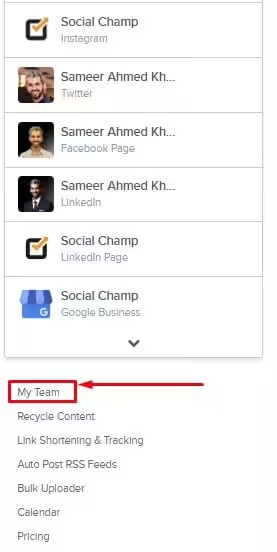
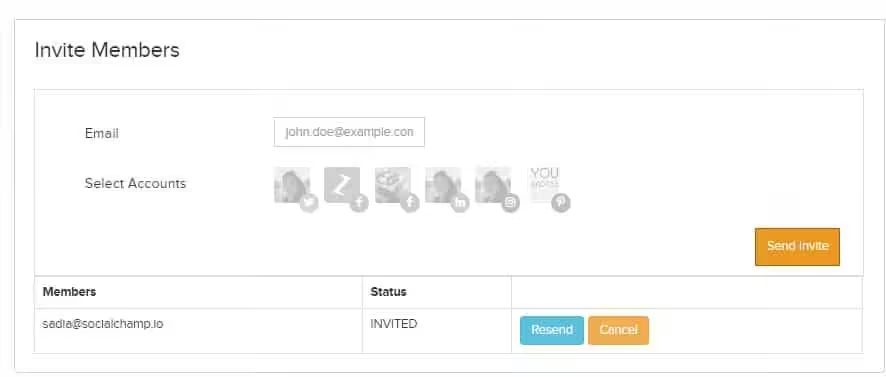
Or simply click on the header tab. Once you’re there, enter the email address of the team member you want to share your accounts with. Select the accounts you want to share with them and send the invite.
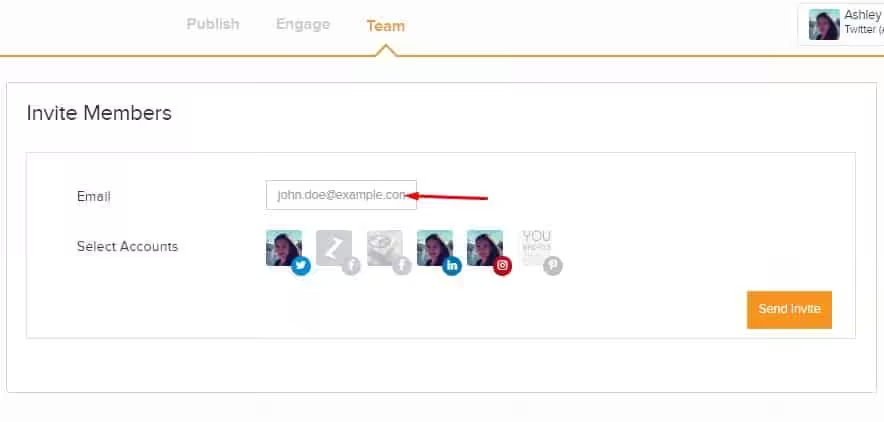
Once you’ve sent the invitation, you’ll receive the notification on the app. And the team member will receive the invitation through email.
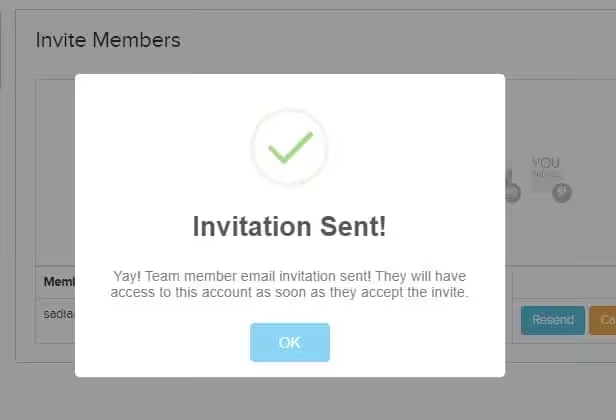
You can see the status right there.
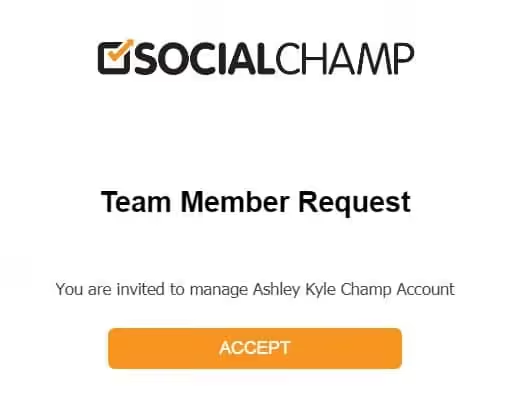
Ask your team members to accept the invitation we have send them through email. Click on the ‘Accept’ button, and it will send you the app.
Manage Tasks And Assignments
Assigning social media tasks to the appropriate teams, departments, or regions was never this easy! Social Champ’s team feature lets you boost efficiency, accuracy, and response times. Which collectively help you create a substantial impact on your audience.
Get Everyone On The Same Page
When your team has access to your business accounts, you can easily make sure that everyone’s on board with you without having to communicate with them individually. You can give team members access to a shared library of on-brand social content and assets, saving time, and improving the consistency of responses.