

Are you tired of logging in and out of multiple accounts, missing important notifications, or accidentally posting the wrong thing on the wrong page?
You’re definitely not alone!
I know it feels like spinning plates when you have to manage personal profiles, business pages, and group accounts all at once. One wrong move and everything could fall apart.
But the good news is, there’s an easier way.
Many businesses still struggle to manage multiple Facebook accounts, but the right Facebook post scheduler can make your life so much easier.
You can stay organized, save hours, and make sure every page stays active, even when you’re busy.
In this guide, I’ll show you how to handle multiple Facebook accounts and pages smoothly so you never miss a post or lose control.
Managing Multiple Accounts Just Got Simpler!
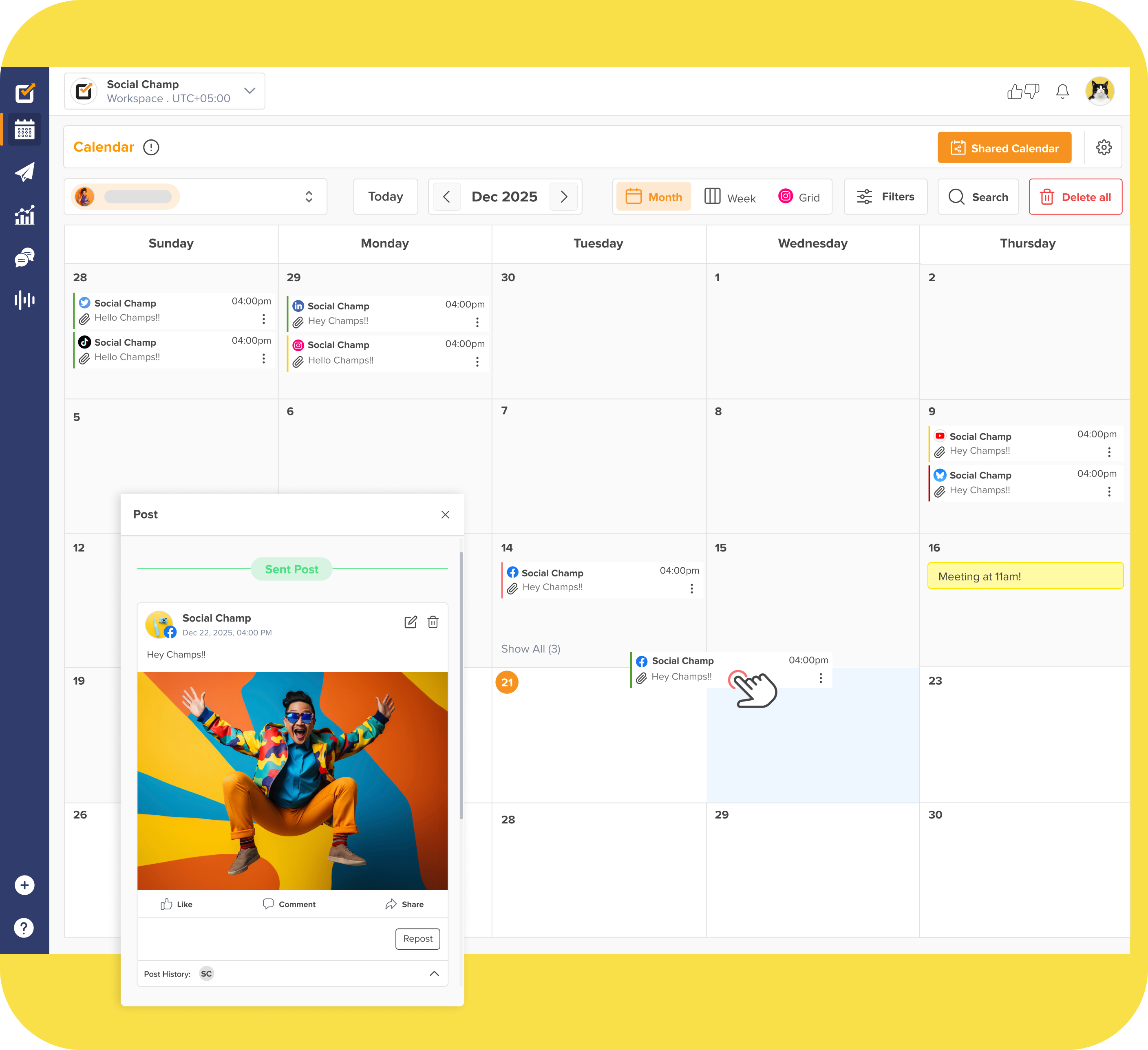
Social Champ enables you to manage multiple social media accounts on Facebook, Instagram, and 9 other platforms! Sign up and start your free trial now!
Short Summary
- Facebook doesn’t allow people to have multiple identities/accounts, but managing multiple business profiles is possible!
- You can get a third-party tool like Social Champ to manage multiple Facebook accounts.
- You must identify the challenges of managing multiple accounts and create strategies to overcome exhaustion and avoid mistakes.
- Compare social media management tools like Social Champ, Later, Sprout Social, and SocialPilot, and choose the best one to manage your Facebook accounts.
- You can also use Facebook’s built-in Business Manager to manage multiple Facebook accounts.
- Implement best practices to ensure you manage multiple accounts efficiently.
Can You Have and Manage Multiple Facebook Accounts?
First, let’s clear things up a bit. Facebook is really picky about people having multiple personal accounts.
They want everyone to have just one true identity online. So, creating fake profiles to game the system is not cool, and you might get in trouble.
In Q2 of 2025, Facebook removed 687 million fake accounts, which shows how serious the platform is about fake profiles.
However, you’re in the clear if you have multiple business pages or profiles.
Now that you know what you can and can’t do on Facebook, let’s discuss the challenges of managing Facebook accounts.
The Challenges of Managing Multiple Facebook Accounts
At first, it feels really simple to manage more than one Facebook account, right?
But in reality, it can quickly become stressful. If you’re trying to manage multiple Facebook accounts, it’s easy to feel overwhelmed.
Let’s take a look at some of the challenges you might face.
Too Many Posts to Handle
It can feel like a full-time job when you create content, schedule posts, and respond to messages for multiple Facebook accounts.
You might spend hours trying to keep everything on track, only to realize something still got missed.
Keeping a Consistent Voice
Each Facebook page might have a different audience, and keeping a consistent tone and style across all of them is harder than it seems.
One small mistake, and your brand can look unprofessional or confusing.
Feeling Tired and Stressed
Managing multiple Facebook accounts can take a lot of energy.
If you’re not careful, the stress can lead to burnout. Missing deadlines or forgetting to reply to messages can make things even worse.
Tracking Performance
It’s not just about posting content. You also need to watch how each account is performing, check the insights, and make smart decisions based on data.
Trying to do this for every account at the same time can be really confusing.
Mistakes Happen Easily
When you have more than one account, it’s easy to post on the wrong page or mix up messages. And trust me, nothing feels worse than seeing your post on the wrong account!
If you’re looking to manage multiple Facebook accounts, you should understand these challenges first to solve them.
Once you know what problems to expect, you can plan smart ways to handle them and stay in control of your Facebook pages.
Featured Article: Facebook Ad Strategy: 15 Proven Tactics to Maximize Conversions in 2025
How to Manage Multiple Facebook Accounts With Meta Business Suite
If you want to manage multiple Facebook accounts without a third-party tool, Meta Business Suite is your best bet.
It’s Facebook’s official platform for managing all your pages, ad accounts, and assets from one place.
Using it makes it much easier to manage multiple Facebook accounts and stay organized.
Step 1: Set Up Your Meta Business Suite Account
- Go to facebook.com.

Go to Meta Business Suite - Create your account by adding your business name, your name, and your business email, then follow the prompts to complete the setup or log in if you already have one.
- Once your account is ready, you’ll land in the Business Suite dashboard, which is your control center for all your Facebook pages.
Meta Business Suite’s Dashboard


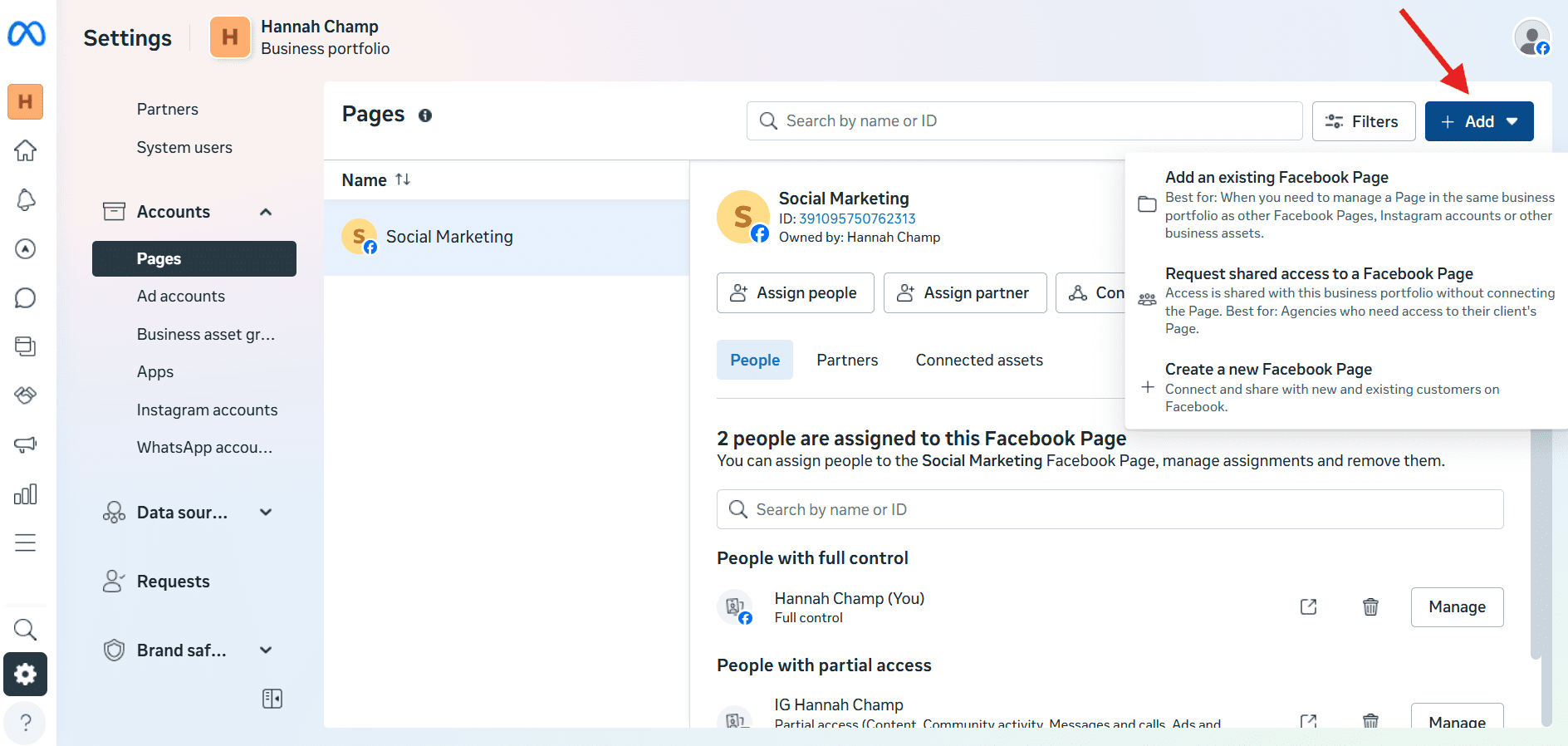
Step 2: Add Your Facebook Pages
- In the left sidebar, go to Accounts → Pages.
- Click Add Page and choose to add an existing page or create a new one. If you’re adding an existing page, enter the page name or URL and follow the verification steps.
Add Your Existing Page or Create a New One - Repeat this step for every Facebook page you want to manage. This makes it easy to see all your pages in one place.
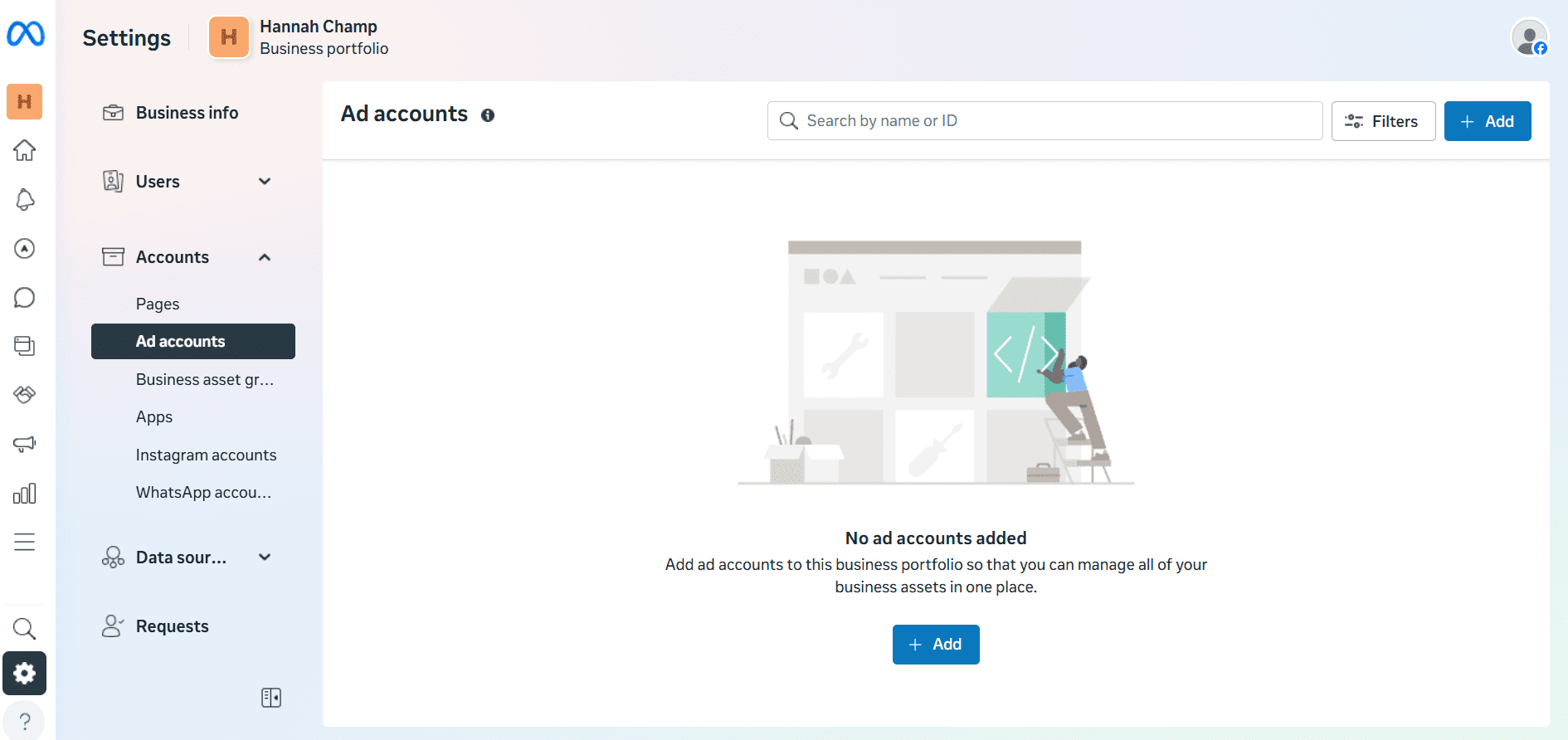
Step 3: Manage Ad Accounts
- Go to Accounts → Ad Accounts.
- Click Add to link an existing ad account or create a new one. Make sure you are an admin of the ad account to connect it successfully.
Ad Accounts
Step 4: Assign Roles and Permissions
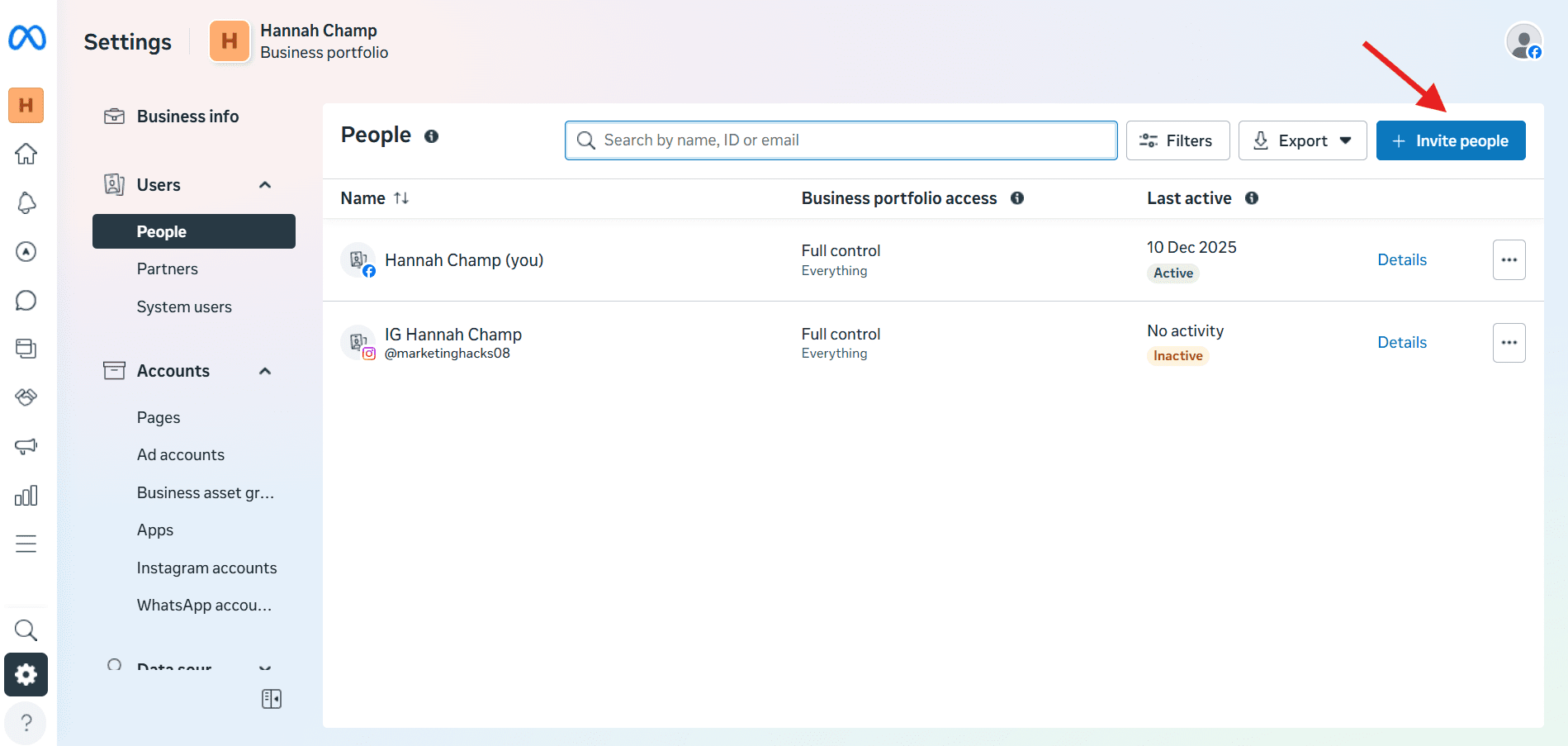
- Navigate to Settings → People.
- Add team members by entering their email addresses and assigning roles depending on what they need to access.
Invite People - You can give full control, limited access, or task-based permissions, ensuring everyone works on the right page without compromising security.
Step 5: Switch Between Multiple Profiles (New Feature)
Meta Business Suite now allows you to link up to 10 profiles under one account.
This means you can switch between personal and business profiles without logging out. It’s a game-changer if you’re managing multiple Facebook accounts or different business pages at the same time.
If you use Meta Business Suite helps you stay organized, track performance, and post content efficiently across all your pages.
And if you’re wondering what to post on Facebook, the dashboard also allows you to schedule and manage posts for all pages in one place!
How to Manage Multiple Facebook Accounts With Social Champ?
Do you manage multiple Facebook accounts and pages?
Whether for clients, brands, or different business lines, Social Champ makes it easier to manage multiple social media accounts.
Here’s a full step-by-step guide to get you up and running, plus a peek at why this tool is worth considering.
Step-By-Step: Getting Started With Social Champ
Let’s walk you through exactly how to set up Social Champ so you can manage multiple Facebook accounts and pages without any stress.
-
Sign Up and Log In
Head to Social Champ and create your account. Once you’re logged in, you land on the Content Publish dashboard, which is the central hub for all your social media posting and scheduling.
-
Connect Your Facebook Pages (and Groups, if needed)
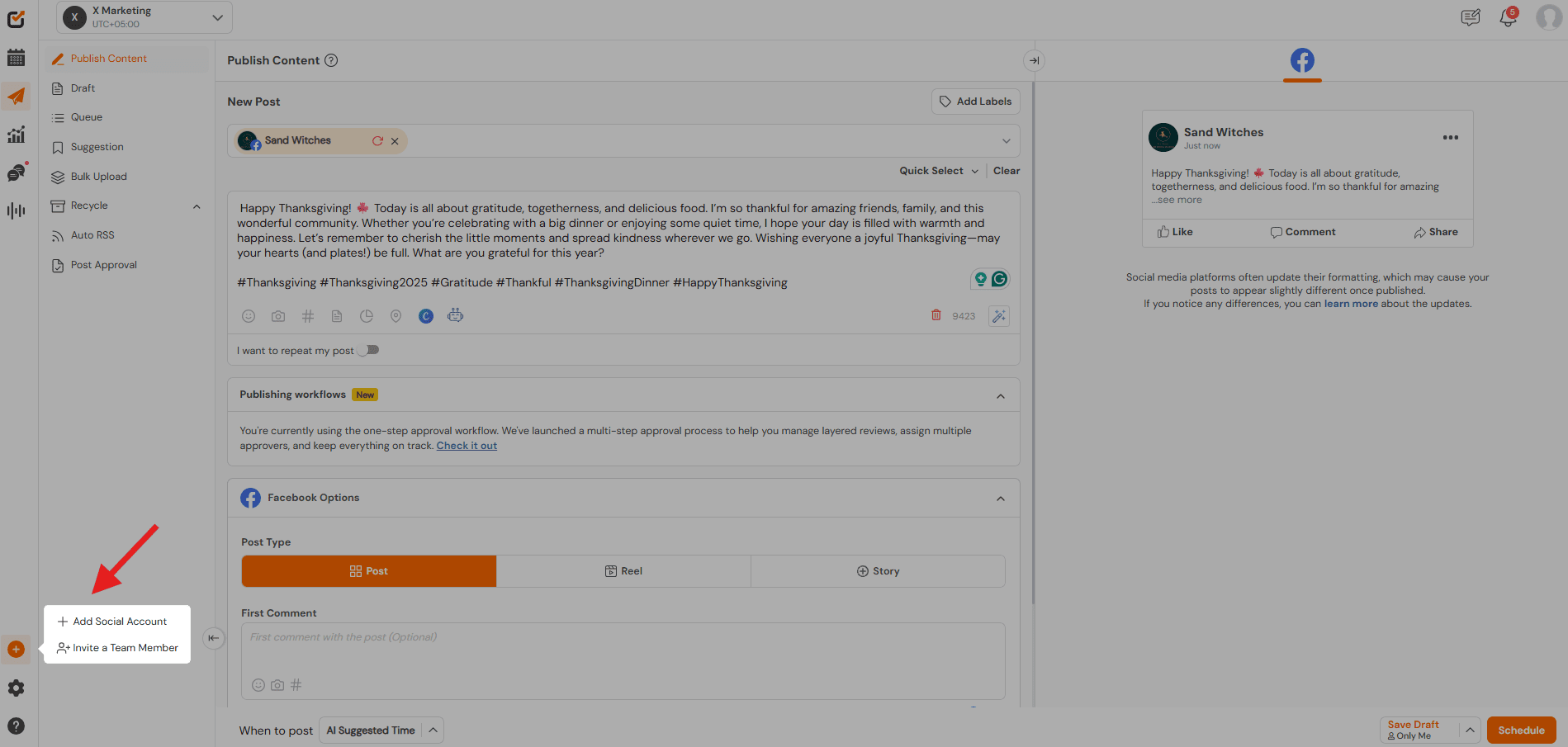
Click the “+” then “+ Add Social Account” button on the left panel.
Click “+ Add Social Account” Pick “Facebook,” then choose “Facebook Page” (or “Group” if you manage groups) and follow the prompts to link your page(s). If you already have Facebook open in that browser, linking is smoother.
Add Your Facebook Account, Page, or Group Once connected, your pages are visible in Social Champ and ready for scheduling and management.
-
Schedule and Publish Posts
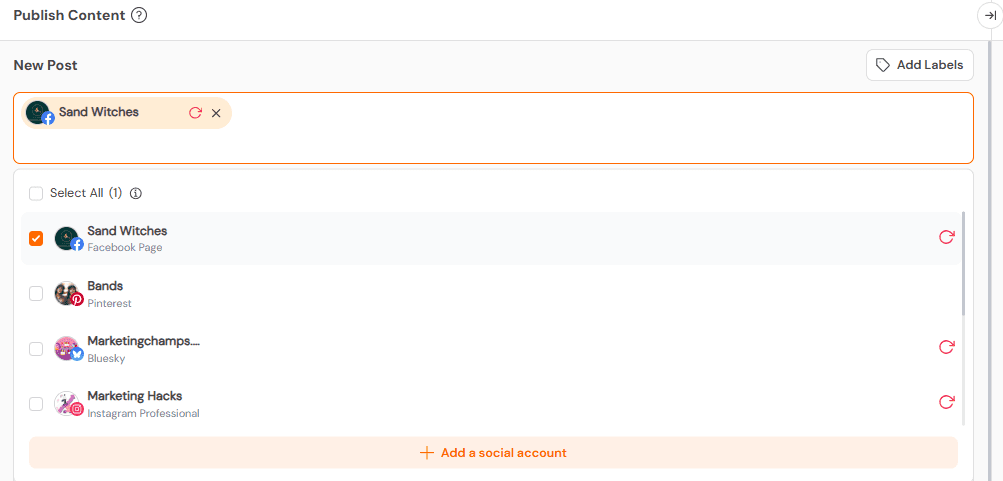
From the dashboard, select which Facebook page(s) you want to post to via the top dropdown menu.
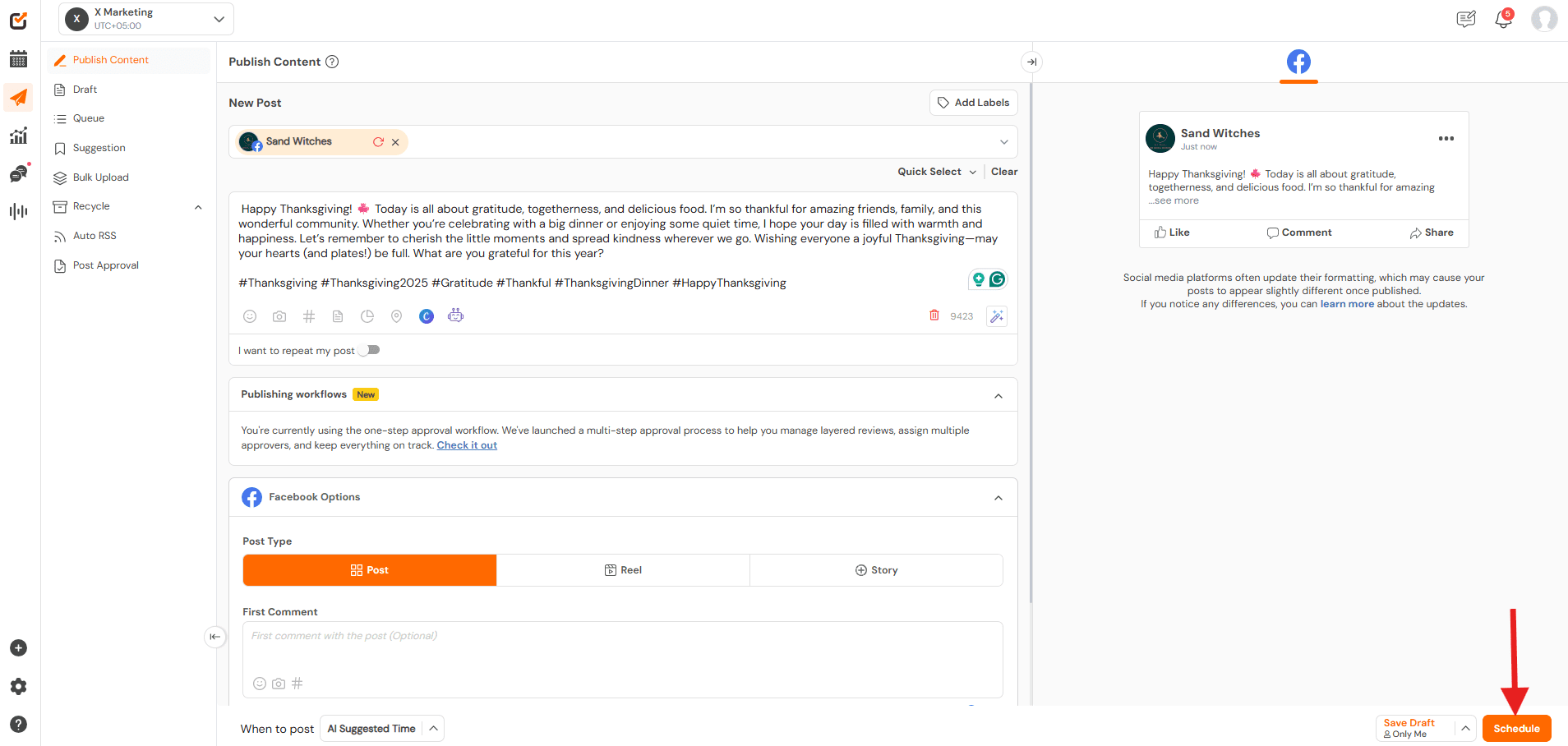
Select Your Facebook Account or Page Write your post, upload media, add hashtags or location (if needed), and hit “Schedule.” Social Champ handles the rest.
Create Your Post and Click “Schedule” You can also schedule posts for multiple pages at once using Facebook publishing tools, which is a big time‑saver when dealing with several accounts.
-
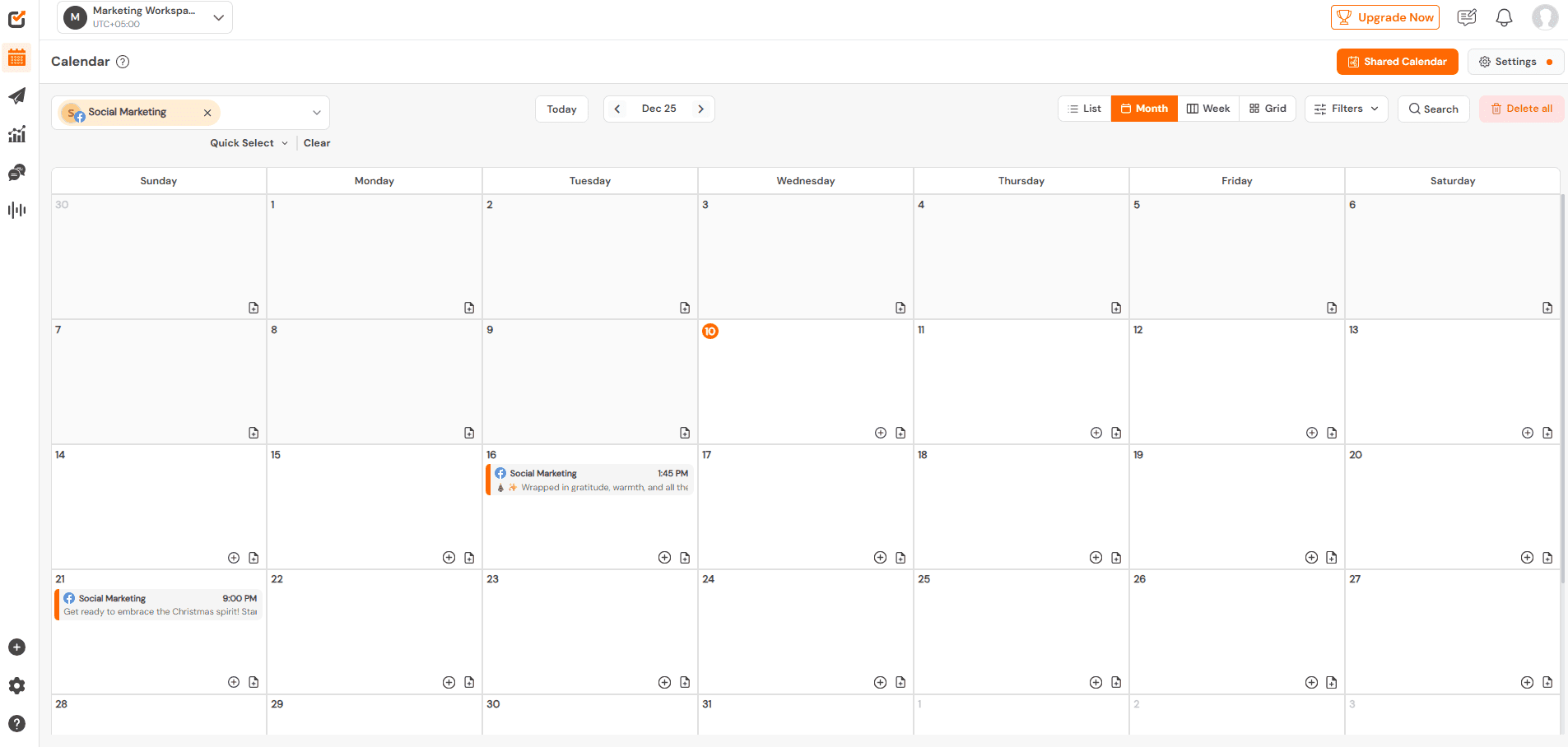
Use the Content Calendar to Stay Organized
The built-in calendar gives you a clear visual layout of all upcoming posts across pages. Great for avoiding overlap, spotting gaps, or planning themed content.
Social Champ’s Content Calendar -
Manage Teams and Roles (If You Work With Others)
If you have a team of writers, designers, and clients, you can give them access with specific permissions (e.g., only post‑approval, only content creation, etc.).
Social Champ’s Team Management Feature -
Engage With Your Audience
Go to the Engage tab to see all comments, messages, and mentions from all connected pages in one place.
Social Champ’s Social Inbox - Reply directly without switching accounts.
- You can filter by unread messages, pages, or type of engagement to stay organized.
-
Use Social Listening
Click on Social Listening to track keywords, hashtags, or brand mentions across Facebook.
- Add topics you want to monitor and get instant updates whenever someone mentions your brand or related keywords.
- This helps you understand trends and respond quickly to your audience. It’s a must-have feature if you’re managing multiple Facebook accounts.
Social Champ’s Social Listening Feature -
Analyze Competitors
- Head to the Competitor Analysis section and add the pages you want to track.
- You’ll get insights on their engagement, posting patterns, top-performing posts, and follower growth.
- Comparing your pages to competitors can help you plan better content and make smarter marketing decisions.
Social Champ’s Competitor Analysis



Why This Works Well if You Manage Multiple Facebook Accounts
- Social Champ acts as a one‑stop dashboard for all your Facebook pages (and other social networks if needed).
- You can schedule in advance, plan content with a clear calendar view, and post to several pages at once, which means less stress, fewer mistakes, and more consistent posting.
- The platform offers features like content calendar, bulk uploads, post recycling (for evergreen content), and performance tracking, which is great for long‑term management of multiple Facebook pages.
If you want to go even deeper into Facebook growth, you can check out these insights as well:
- Social Networking Management Tools
- Facebook Marketing Tools
- Facebook Analytics Tools
- Facebook Ad Strategy
- Social Media Tools for Small Business
- Facebook Shops
5 Tools for Managing Multiple Facebook Accounts
Facebook might be one of the easiest social media platforms to manage because it’s one of the OGs!
However, a little help can make it even easier, and many social media managers rely on the following Facebook management tools to do so!
-
Social Champ
Social Champ’s Dashboard Not to brag or anything, but Social Champ tops this list and is one of the best tools to manage multiple Facebook accounts!
If you compare it to other social media management tools in the market, it offers the best features and the most benefits at affordable rates.
Key Features:
- One place for everything: All your Facebook business accounts are right there in one spot.
- Schedule it and forget it: You can plan your posts ahead of time and let Social Champ handle the posting. You can even recycle your best content to save time.
- Teamwork makes the dream work: Share the load with your team. Everyone can pitch in and manage different accounts without stepping on each other’s toes.
- Know your audience: Social Champ gives you the lowdown on your posts’ performance. Use those insights to create content that people actually love.
- Stay in the loop: Listen to what people say about you and your industry. Jump into conversations and build relationships.
- Let AI be your assistant: Social Champ’s got some pretty smart AI features that can help in social media automation and post optimization.
- See what others say about you: Social Champ’s social listening allows you to keep a tab on every mention of your brand name on social media.
While you might be able to find similar features in other social media tools for business, the quality and affordability can never be the same.
Social Champ offers the most features in each plan, so you get value for money and are compelled to continue your subscription.
Pricing:
Even its most low-priced Starter plan starts at $4/month per channel when billed annually.
Get Yourself the Best Social Media Partner!
Social Champ has everything you need to excel at social media management. Get the plan of your choice and start scheduling posts now!
-
Later
Later’s Dashboard Later is another option for managing your Facebook posts, but it’s slightly different in focus.
It’s great at helping you plan your feed visually, which can be a plus if you’re into aesthetics.
You can drag and drop images to see how your feed will look, which is pretty cool.
Key Features:
- Visual feed planning with drag-and-drop publishing tools
- Schedule posts across multiple pages
- Basic analytics to track engagement
Pricing:
Later’s pricing starts at $18.75/month when billed yearly.
If you compare that with Social Champ, it doesn’t sound like a very attractive deal!
However, if you still prefer visuals over anything, Later can be a decent choice, but it might not be the best fit if you need a comprehensive social media management tool.
-
Sprout Social
Sprout Social’s Dashboard When we’re talking about good social media management tools, Sprout Social definitely makes the list!
It has some solid features, especially when it comes to managing your social listening and engagement.
Key Features:
- Social listening and engagement tools
- Analytics to understand the audience and improve content
- Team collaboration for larger organizations
Pricing:
Sprout Social can be a bit pricey compared to other options. Its pricing starts at $199/month per seat when billed yearly.
It’s also geared more toward larger businesses with complex social media needs (which makes sense with this pricing).
If you’re just starting out or have a smaller team, you might find it a bit overkill.
-
SocialPilot
SocialPilot’s Landing Page If you’re looking for another affordable tool to draw the comparison, SocialPilot is your next option.
It is known to be affordable and useful for small and mid-sized businesses. It offers basic scheduling features and lets you manage multiple social media platforms from one place.
Key Features:
- Multi-platform scheduling
- Team collaboration with role-based access
- Basic analytics and reporting
Pricing:
SocialPilot’s pricing plans start at $25.50/month when billed annually.
If you’re on a tight budget and don’t need a ton of fancy features, it could be worth a try. But we would suggest you get the free trial first to manage multiple Facebook accounts.
This will tell you whether or not it’s worth your money!
-
Buffer
Buffer’s Dashboard Buffer is another popular option for managing multiple Facebook accounts, especially for small teams and beginners.
It’s known for its simplicity and ease of use, letting you schedule posts and manage multiple social media platforms from one place without any hassle.
Key Features:
- Simple scheduling and posting across multiple platforms
- Team collaboration with role-based access
- Basic analytics to track post performance
Pricing:
Buffer’s pricing plans start at $5/month per social channel when billed annually.


Featured Article: How to Manage Social Media in 2025: Essential Tips & Strategies
Best Practices for Managing Multiple Facebook Accounts
Keeping everything organized without missing a beat can feel daunting when you’re in charge of multiple Facebook accounts.
But don’t worry, I’ve got some tried-and-true best practices that will help you manage these accounts like a pro.
Let’s dive in!
-
Consistent Content Scheduling
Staying consistent is key. Use tools like Facebook’s own scheduling feature or Social Champ to plan and schedule your posts.
This not only saves you time but also helps maintain a steady presence on your feeds, keeping your audience engaged and informed.
Plan, Schedule, & Analyze With Social Champ!
All through one single dashboard! Get your free trial now and start scheduling to manage your Facebook accounts like a pro!
-
Utilize a Content Calendar
A content calendar is your best friend. It helps you plan out posts for each account, ensuring you cover all necessary topics without any overlaps or gaps.
Plus, it’s a great way to keep track of important dates like holidays or special events related to your business.
-
Regularly Update Permissions and Roles
As your team changes, so should the access permissions in your Business Manager. Regularly review and update who has access to what.
This minimizes risks and ensures only the right eyes are on sensitive information.
-
Monitor and Analyze Performance
Each Facebook account will perform differently. Regularly check the performance metrics available in Facebook Insights to understand what works and what doesn’t.
This data is invaluable for tweaking your strategy to better meet your audience’s needs.
-
Keep a Unified Brand Voice
While each account might cater to different aspects of your business, maintaining a unified brand voice is crucial.
This helps in reinforcing your brand identity across all platforms, making your business easily recognizable and reliable.
-
Stay Updated on Facebook’s Policies and Features
Facebook frequently updates its policies and features.
Staying updated with these changes helps you adapt and make the most of the available tools, ensuring your marketing strategy remains effective and compliant.
-
Use Security Features to Protect Your Accounts
Finally, security should never be an afterthought. Utilize features like two-factor authentication and regularly update your passwords to protect your accounts from unauthorized access.
Effortlessly Manage Multiple Facebook Pages With Social Champ
If managing multiple Facebook pages has been driving you a little crazy, trust me, you’re not alone. It’s a lot.
But that’s exactly where Social Champ makes life so much easier.
Instead of bouncing between tabs, stressing over missed posts, or losing track of messages, you get one clean dashboard to handle everything.
You can plan ahead, stay consistent, track what’s working, and actually breathe while you manage multiple Facebook accounts like a pro.
If you’re ready for a setup that feels smooth instead of stressful, Social Champ is the tool you’ll be grateful you switched to.



1 comment
Sarah Johnson
This is a lifesaver! I manage a few Facebook pages for different clients, and it’s been a nightmare trying to keep track of everything. This post is a goldmine of information. The section on using Facebook Business Manager is especially helpful. I’m definitely going to try out some of these tips to streamline my workflow.