

Have you ever stumbled upon a post on your feed and thought, “This would look perfect on my story!”? You’re not alone.
Learning how to share an Instagram post to story is one of those must-know tricks that every creator, brand, and marketer should have up their sleeve.
It’s a quick, fun way to boost engagement, highlight user-generated content, or even share your own posts for more reach, and it only takes a few taps.
Short Summary
- Sharing an Instagram post to your story is super easy. Just tap the arrow icon under any public post and select “Add to your story.”
- You can personalize your story with stickers, text, music, or GIFs before posting.
- If you can’t share a post, it’s usually due to privacy settings, disabled sharing, or an outdated app version.
- Instagram’s new Repost feature also lets you share posts or reels directly to your feed.
- Staying consistent with posting and using an Instagram scheduler like Social Champ helps you maintain engagement effortlessly.
No matter you’re promoting a new product or simply sharing something inspiring, knowing this feature can make your stories far more interactive.
And if you want to take it a step further, using an Instagram scheduler helps you plan your stories, posts, and reels in advance so your content stays consistent even on busy days.
Plan Your Instagram Stories Like a Pro!
How to Share an Instagram Post to Story?
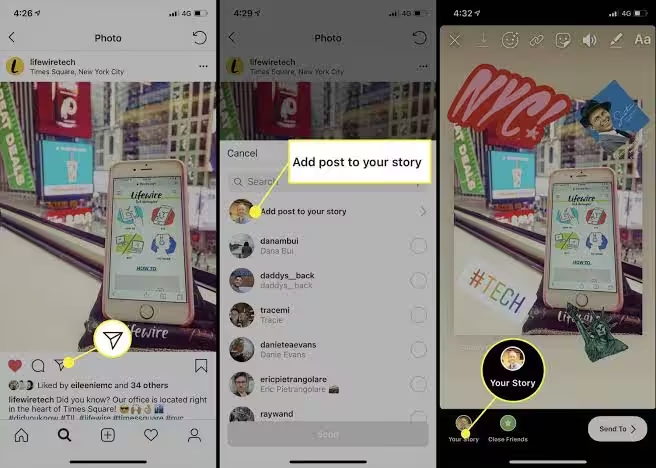
Sharing a post to your story on Instagram is a breeze. If you’re wondering how to share Instagram post to story, here’s a simple, step-by-step guide:
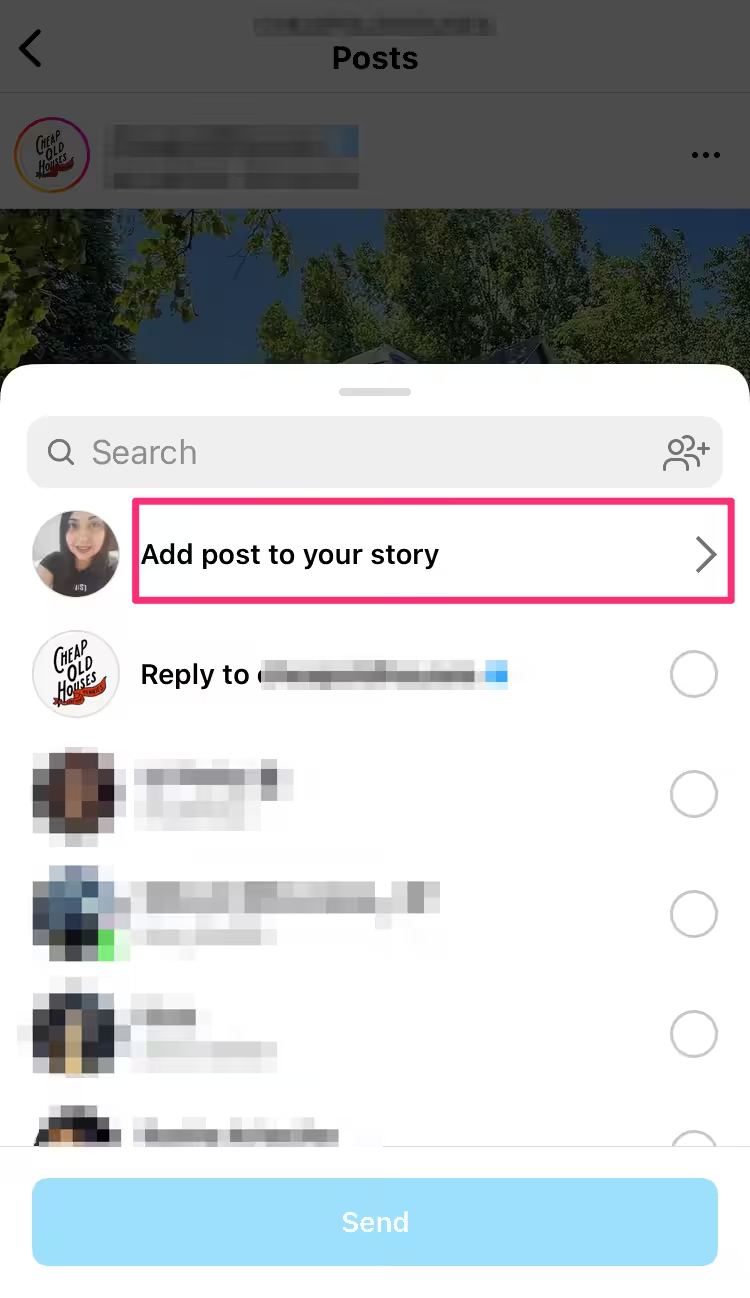
- Open the Instagram app on your phone.
- Find the post you want to share.
- Tap the paper arrow icon below the post.
- Select “Add to your story.“
And there you have it! The post you chose is now part of Instagram stories for all your followers to see.
Featured Article: 15 Productivity Tools You Must Have
How to Share a Feed Post to Your Instagram Story
Have you ever come across a post on your Instagram feed that you just have to share?
Luckily, Instagram makes it super simple to do that as long as the post comes from a public account. If you’ve been wondering how to share an Instagram post to story, here’s a step-by-step guide to make it effortless.
Step 1: Find the Post You Want to Share
Open the Instagram app and scroll through your feed until you find a post you’d like to feature in your story. Remember, this only works for public accounts that allow sharing; private account posts can’t be reshared to stories.

Step 2: Tap the Arrow Icon
Under the post, you’ll see a small paper airplane (arrow) icon. This is the same icon you use to send a post in direct messages. Tap it, and a menu will appear.

Step 3: Add the Post to Your Story
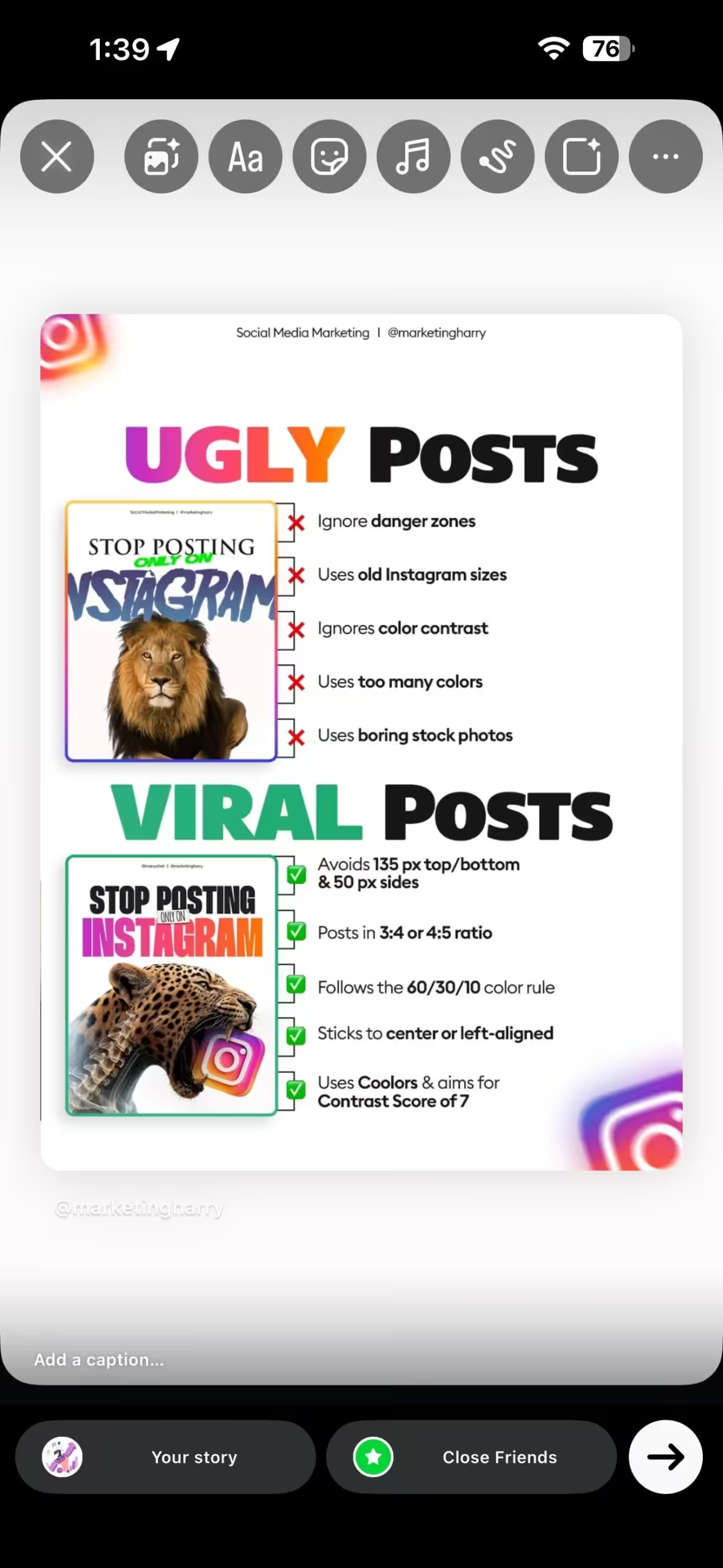
From the options, select “Add post to your story.” This is the key step in how to share Instagram post to story. Once you tap it, the post will appear on your story editor screen.
Here, you can:
- Resize or reposition the post on your story background.
- Add text, GIFs, music, or stickers to personalize it.
- Mention friends or add hashtags to make it more interactive.
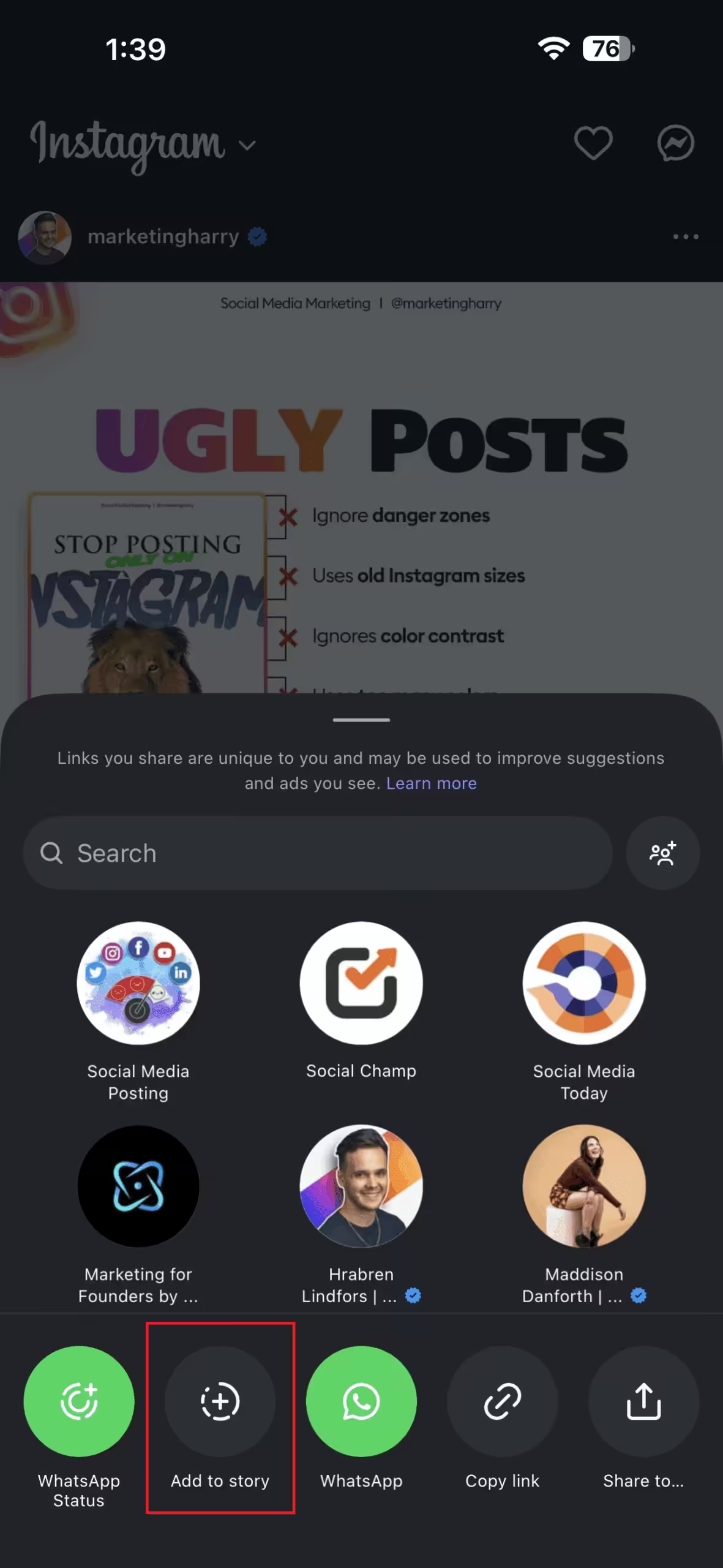
Step 4: Post Your Story
Once you’re happy with how it looks, tap “Your Story” at the bottom of the screen. The shared post will now appear on your story for 24 hours. Your followers can tap it to visit the original post directly on the creator’s profile.
Now that you know how to share Instagram post to story, you can easily amplify your favorite content and keep your audience engaged with fresh, share-worthy updates.
Stop Scrolling, Start Scheduling with Social Champ!
Why Can I No Longer Share a Feed Post to Instagram Stories
Some users have recently reported an issue where they can no longer share a feed post to Instagram stories.
This has left many puzzled and frustrated, wondering why this function isn’t working as it used to. You might wonder why you can’t share a post to Story on Instagram in 2026.
There could be several reasons, including the following:
- Private Account: You can’t share posts from private accounts on Instagram; only posts from public accounts can be shared.
- Sharing Not Allowed: The person who made the post might have turned off sharing. If they did, you can’t put their post in your story.
- App Problems: Sometimes, the Instagram app might need to be fixed. Some say that deleting and downloading the app can resolve this problem.
- Old Version of App: Your Instagram app might be old. When you update your app, you get all the new stuff and any problems from the old version get fixed.
How can you solve this problem?
- Check if the Account is Public: Make sure the account you want to share from is public and allows others to share their posts.
- Ask the Person: If the account is public, but you still can’t share the post, ask the person if they turned off sharing. If they did, ask them to turn it back on.
- Delete and Download Instagram Again: If you think the app has a problem, try deleting Instagram and then downloading it again.
- Update Your App: Always ensure your Instagram app is the latest version to get all the new features and avoid problems.
So, remember these points the next time you ask, “How to share an Instagram post to story?” and encounter issues.
Featured Article: Best YouTube Management Tools You Should Use
10 Design Hacks for Sharing an Instagram Feed Post to Your Story
When it comes to Instagram, creativity is key. If you want to share an Instagram post to your story, here are ten design hacks to elevate your content.
-
Use the Brush Tool
The brush tool is like a virtual paintbrush. You can use it to draw on your photos or videos, underline text, or even create fun shapes.
-
Storyboard Your Content
This means planning out your content beforehand. It’s like creating a mini-movie with your posts, ensuring they tell a smooth story from start to finish.
-
Consistent Styling
This means using the same colors, fonts, and designs in all your stories. This makes your posts easily recognizable and unique to you.
-
Incorporate High-Quality Photography
Use clear and sharp photos in your stories. Good-quality images make your stories more attractive and exciting.
-
Experiment With Background Colors
Try different colors for the background of your stories. This can make your content stand out and look more exciting.
-
Share Useful Tips or Hacks
Share exciting tips or tricks related to your topic. This can engage your audience and show them you’re knowledgeable in your field.
-
Develop a Style Guide for Your Instagram
A style guide is like a rulebook for your Instagram. It includes the specific colors, fonts, and designs you should use in your posts to keep them consistent.
-
Get Familiar With Instagram’s Editing Tools
Learn how to use Instagram’s editing tools to make your stories look better. These tools can help you adjust colors, add effects, and much more.
-
Add a GIF Background
A GIF is a moving image. Adding a GIF as a background can make your stories more fun and dynamic.
-
Utilize Stickers
Stickers are interactive images you can add to your stories. They can be used to ask questions, create polls, and engage your audience in many other ways. Not only this, but these clever design hacks also work for those finding how to share someone’s story to your story on Instagram. So, whether you want to share a post or even a story on your Instagram creatively, here’s how to do it!
Featured Article: How to Add Multiple Photos to an Instagram Story
How Do I Repost Someone’s Instagram Post?
If you’ve ever come across a post or reel you wanted to share directly to your feed, Instagram now makes it easier than ever.
The new Repost feature lets you share others’ public content without needing third-party apps, right from within the platform.
Here’s a quick guide on how to repost on Instagram using both the mobile app and desktop version.
On Mobile
Instagram’s new Repost feature is currently available on the mobile app. To repost on mobile:
- Open the Instagram app.
- Go to any public reel or post you want to repost.
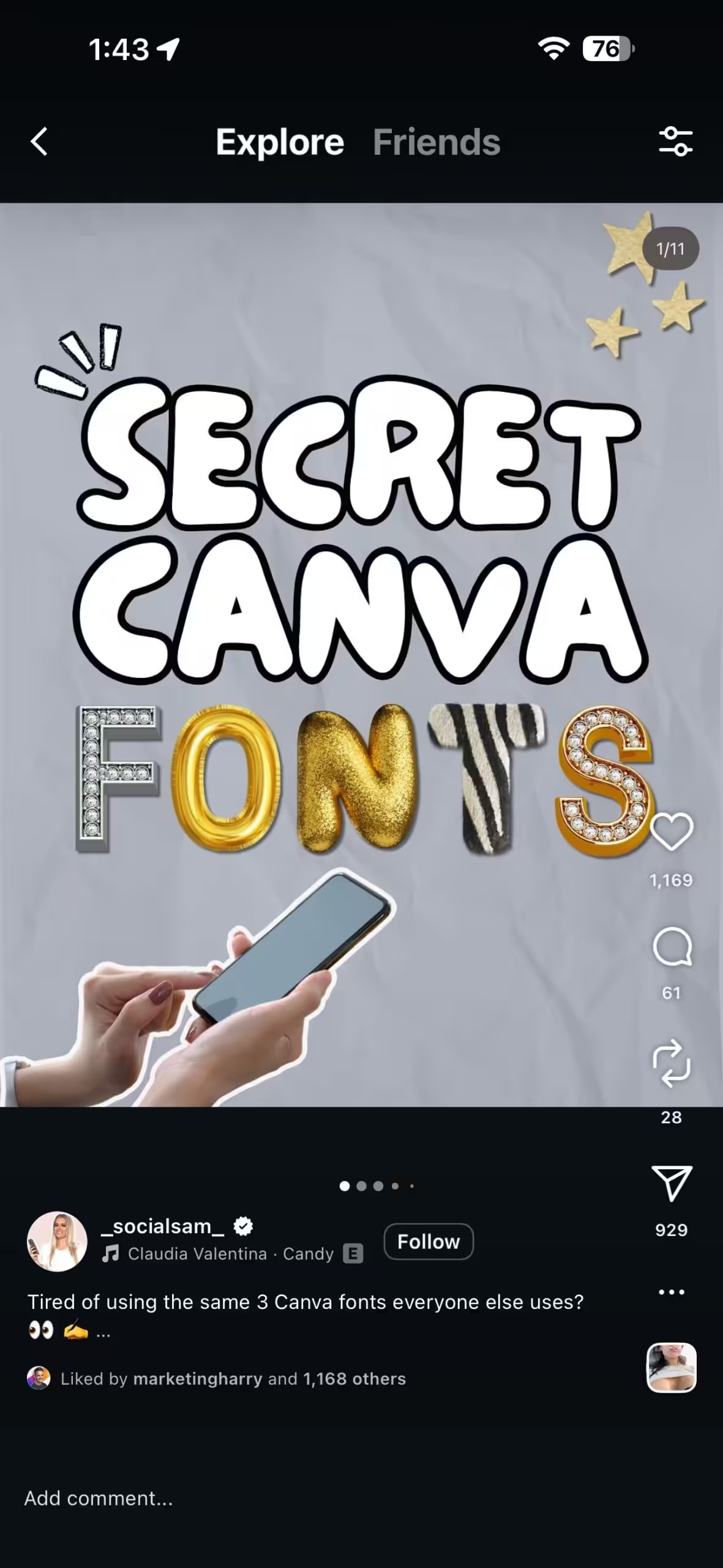
Go to Any Public Post or Reel - Tap the Repost icon.
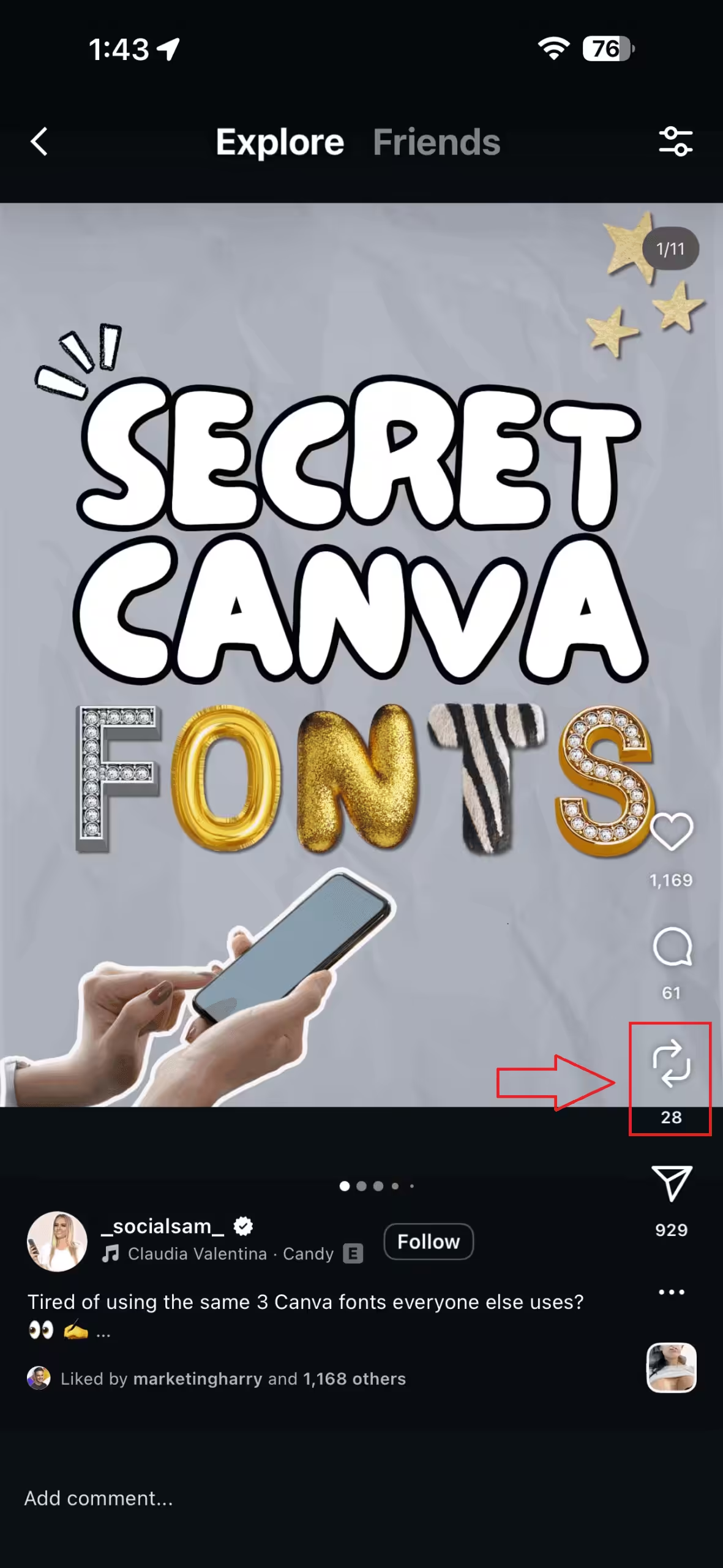
Tap the “Repost” Icon - To add a caption or reaction, tap the bubble icon near your profile picture.
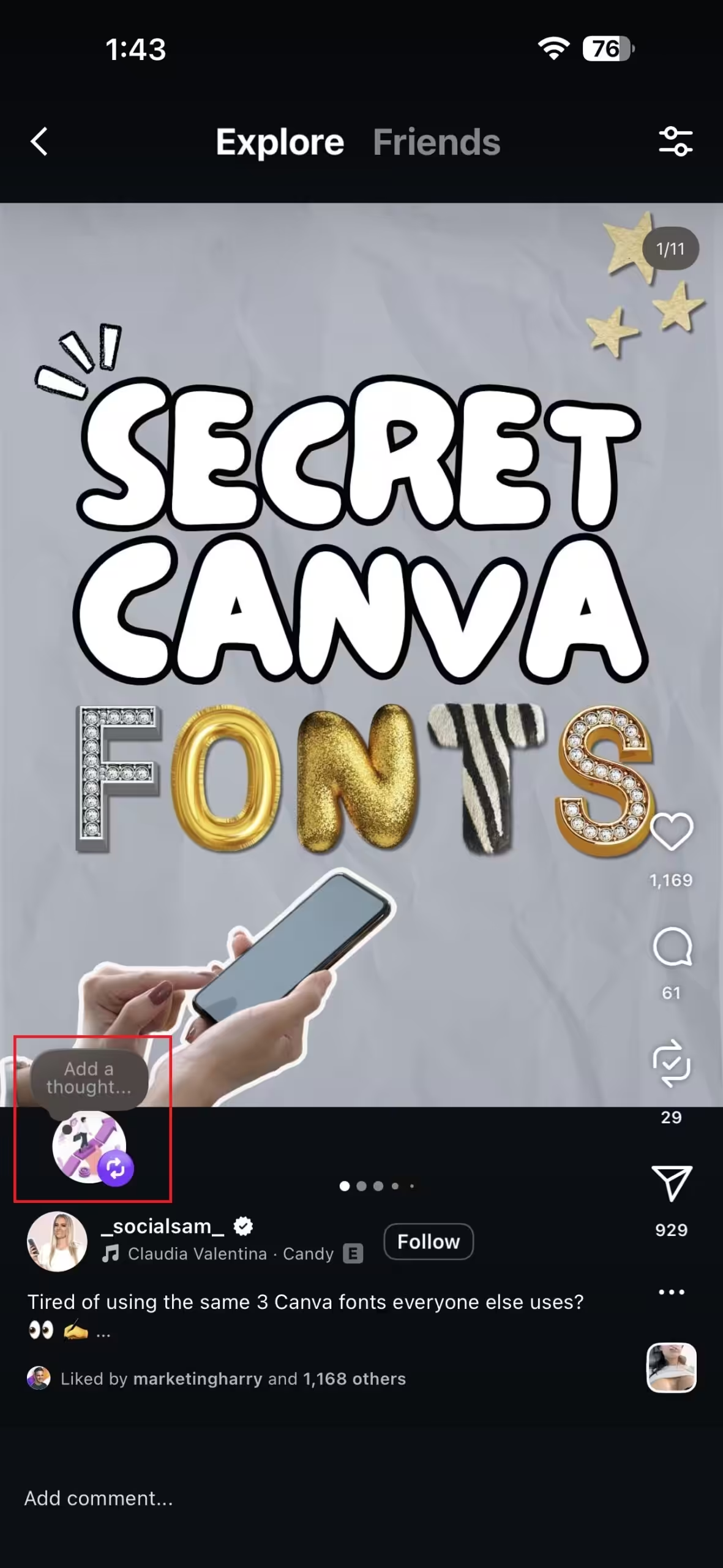
Tap the Bubble Icon - Tap Add to share it.
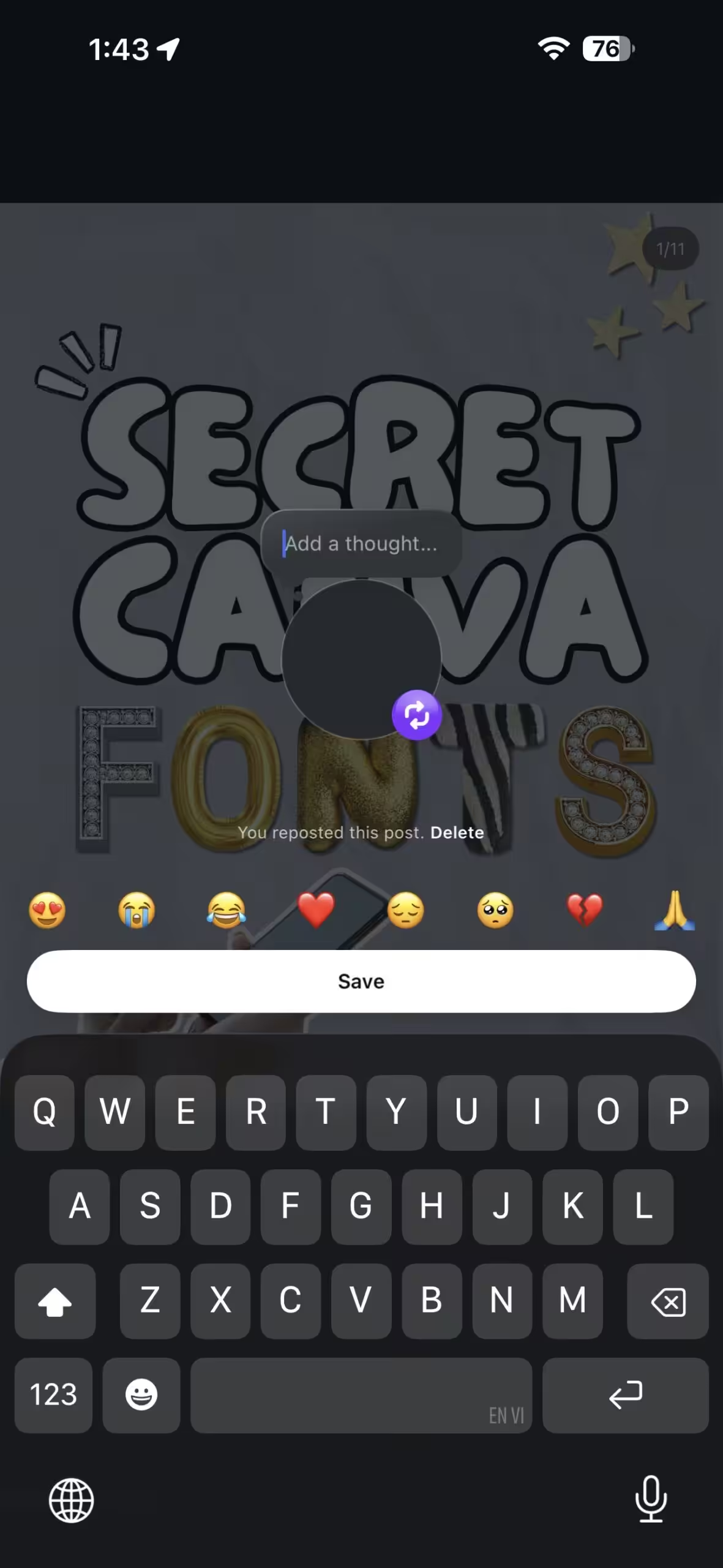
Add the Caption
Your repost will show up in a dedicated Reposts tab on your profile, and your followers might see it in their feeds.
On Desktop
Instagram hasn’t officially introduced the Repost feature for desktop yet. However, there are still a couple of easy ways to share content you love:
- Take a Screenshot and Share: If you come across a picture you’d like to share, take a screenshot and then upload it as a new post on your profile. Don’t forget to mention the person who posted the original picture in your caption!
- Use a Reposting App: You can use other apps (like Repost for Instagram, DownloadGram, or InstaRepost) to help you repost both pictures and videos. These apps work by copying the URL of the post you want to share and pasting it into the app. They automatically give credit to the person who made the original post.
Why Can’t I Share an Instagram Post With My Story?
One of the main reasons you might be unable to share a post to your Instagram stories is because of Instagram’s privacy rules.
Another reason could be that the person who posted the original content has turned off sharing. Some people on Instagram prefer to keep their posts to themselves and choose to turn off the ability for others to share their posts. You can’t share their posts with your story if that’s the case.
If you are still wondering ‘why I can’t share a post to a story on Instagram’, here are some reasons for it:
- Privacy Settings: You can only share posts from public accounts. If the person’s account is private, you won’t be able to share their post to your story. Also, if a person has chosen to keep their posts private, you won’t be able to share their content.
- Instagram Updates: Sometimes, after Instagram updates the app, some features may need to be fixed. If this happens, ensure you have the app’s latest version. If you’re still having problems, it might be a temporary issue that Instagram needs to fix.
- Device Limitations: Some features work differently on different devices. For example, the Instagram website needs to include all the features the mobile app does. If you’re trying to share a post to your story from a computer, you might have some problems.
Featured Article: How to Repost a Reel on Instagram
Just in case you want to learn more about Instagram, check on these also:
How to Share Someone’s Story on Your Instagram Story?
Apart from sharing posts, we will also tell you how to share someone’s story to your story on Instagram. Continue reading below to find out.
If someone tags you in their story, you can share it in your own stories. To do this, open the message with the story where you’re tagged, look at the story in full screen, and tap “Add this to your story”.
How to Share Someone’s Story to Your Instagram Story?
If you want to learn how to share an Instagram story and post on your phone, then you’ve come to the right place.
Sharing a post to your story on a phone is easy. Open Instagram and find the post you want to share. Tap the arrow icon under the post, then select “Add post to your story”. You can add words, stickers, or drawings before sharing them to your story.
How to Share a Post on Instagram to My Feed?
Instagram now lets you repost content from public accounts, but this feature is currently available only on the mobile app and not for everyone yet.
If You Have the Repost Feature
You can easily share a public post or reel to your feed:
- Open the Instagram app on your phone.
- Find the public post or reel you want to share.
- Tap the Repost option.
- Add any text or reaction if you’d like.
- Tap Add to share it.
Your repost will appear in your followers’ feeds and under the Reposts tab on your profile.
If You Don’t Have the Repost Feature or Use a Desktop
If the repost option isn’t available for you or you’re using Instagram on desktop, here’s an easy workaround:
- Take a screenshot of the post you want to share.
- Open Instagram and tap the “+” at the bottom to create a new post.
- Choose the screenshot from your gallery and tap Next.
- Write a caption and don’t forget to credit the original creator by tagging them or mentioning their username.
- Tap Share to publish it on your feed.
Featured Article: Instagram Reels Algortihm
How to Repost an Instagram Post to Story?
Reposting an Instagram post to your story is simple. Just find the post you want to share, tap the arrow icon, and select “Add post to your story.”
You can personalize it by adding stickers, text, or drawings before posting. This is one of the easiest ways to share Instagram story content from your feed and keep your followers engaged.
Whether you’re resharing a public IG post to story or your friend’s update, it’s a great way to keep the interaction going.
How to Post on Instagram?
If you are new to the platform and do not know how to post on Instagram, don’t worry! Posting on Instagram is easy and fun.
- First, open the Instagram app on your phone and tap the “+” button at the bottom.
- This will take you to your phone’s photo gallery. Pick the photo or video you want to share.
- After picking your photo or video, you can make it look better by adding filters or adjusting how bright or dark it is.
- Once you’re happy with how it looks, tap “Next”.
- Now, you can write something about your post, add where you are, tag your friends, or use hashtags to help more people find your post.
- When you’re done and everything looks good, hit the “Share” button to post it on Instagram.
How to Repost on Instagram?
To repost on Instagram, you need to use a third-party app like “Repost for Instagram” or take a screenshot of the post you want to share.
Paste the post’s URL into the reposting app and follow the instructions, or crop your screenshot and credit the original poster in your caption. Add filters, captions, and tags before hitting “Share”. Always get permission from the original poster before reposting.
Featured Article: When to Post on Instagram for Maximum Engagement
How to Repost a Story on Instagram?
To repost a story on Instagram, click “Add This to Your Story” in the direct message you receive when tagged in a story.
The story will appear as a sticker in your story creator, which you can customize further before posting. If you’re not tagged but you want to share someone else’s story, get their permission to screenshot and repost it while giving credit to the original author.
When to Post on Instagram?
Knowing the best time to post on Instagram can make a big difference in your reach and engagement.
Generally, the best times to post are around lunchtime (11 a.m.–1 p.m.) and in the evenings (7 p.m.–9 p.m.) on weekdays. Weekends also see high activity, especially mid-morning and early afternoon.
If you’re focused on video content, finding the best time to post Instagram Reels is just as important. Reels tend to perform better when users are actively scrolling, typically evenings during weekdays or late mornings on weekends.
Remember, every audience behaves differently. Check your Instagram Insights (available for business accounts) to see when your followers are most active. Consistency matters too; posting regularly keeps your audience engaged and your content visible.
How to Share Posts to Stories on Instagram PC?
Wondering how to add a post to your story or add post to Instagram story on your computer? Unfortunately, the desktop version of Instagram doesn’t currently allow users to share posts directly to stories.
If you want to share Instagram story content from a PC, you’ll need to switch to the mobile app, which supports all story-sharing features.
If you’re trying to post on Instagram from a PC, you can still upload photos or videos to your feed by clicking the “+” icon at the top of your browser screen, but story posting remains exclusive to mobile devices.
Stop Scrolling, Start Posting with Social Champ!
Final Thoughts
Putting Instagram posts on your story is a fun and easy way to get more attention from your followers.
It makes your content more interesting, shows what you like, and lets you share other people’s posts that you find cool or inspiring. So, the next time you see a post that catches your eye, don’t forget these simple steps to share it in your story!
So, the next time you encounter a post that catches your eye, remember these simple steps on “How to share Instagram post to story?” and share away!
Now that you know how to repost on Instagram, you can easily share ‘my post’ or any other post that you find interesting.”
Always respect other people’s privacy settings and only share posts that follow Instagram’s rules.










James Smith
Excellent guide! Sharing Instagram posts to my story is such a great way to engage with my followers, and your simple steps make it effortless. I appreciate the helpful screenshots too!