Have you ever spent time writing a Facebook post, added several photos, and suddenly the app crashed, or your post failed to publish for some reason?
I’ve been through the same situation, and you know what makes it even more frustrating? It’s when you open Facebook again, and you have no idea where that draft went.
Earlier, I used to think that if a post didn’t get published, it was gone forever. But later, I found out that Facebook does save drafts. The only thing that confuses a lot of people is finding them.
If you’re also here searching for how to find drafts on Facebook and feeling lost in Facebook’s menus, don’t worry.
In this guide, I’ll tell you exactly:
- Where can you find your Facebook drafts on Android, iPhone, and desktop?
- Why your drafts keep disappearing (and how to stop it).
- A better way to save and schedule posts without losing them ever again.
Short Summary
- Facebook hides drafts in different spots on Android, iPhone, Pages, and Meta Business Suite.
- Android drafts live in your notification tab but expire after three days.
- iPhone drafts appear in the composer but vanish faster due to iOS background killing and updates.
- Page drafts sit in the composer on desktop and mobile, yet rarely sync between devices.
- Meta Business Suite stores drafts under Content, and these do not expire until published.
- Drafts disappear due to expiration, updates, logouts, cache clears, or incorrect profile saves.
- Social Champ keeps every draft in the cloud and syncs across all devices.
How to Find Drafts on Facebook on Android
I’ve spent years using Facebook on an Android phone, and trust me, it feels like a scavenger hunt to find Facebook drafts that no one even asked for.
The option is here, but the app hides it so well that many people give up even before they find it.
Where Facebook Stores Drafts on Android
So, how to find drafts on Facebook on Android?
Basically, for personal profiles, there’s no separate option for drafts on Facebook. Also, it’s important to save the post as a draft before you close the post editor. Otherwise, your post won’t be saved as a draft, and you will lose it permanently.
After so many trials and errors, the exact method that I found is:
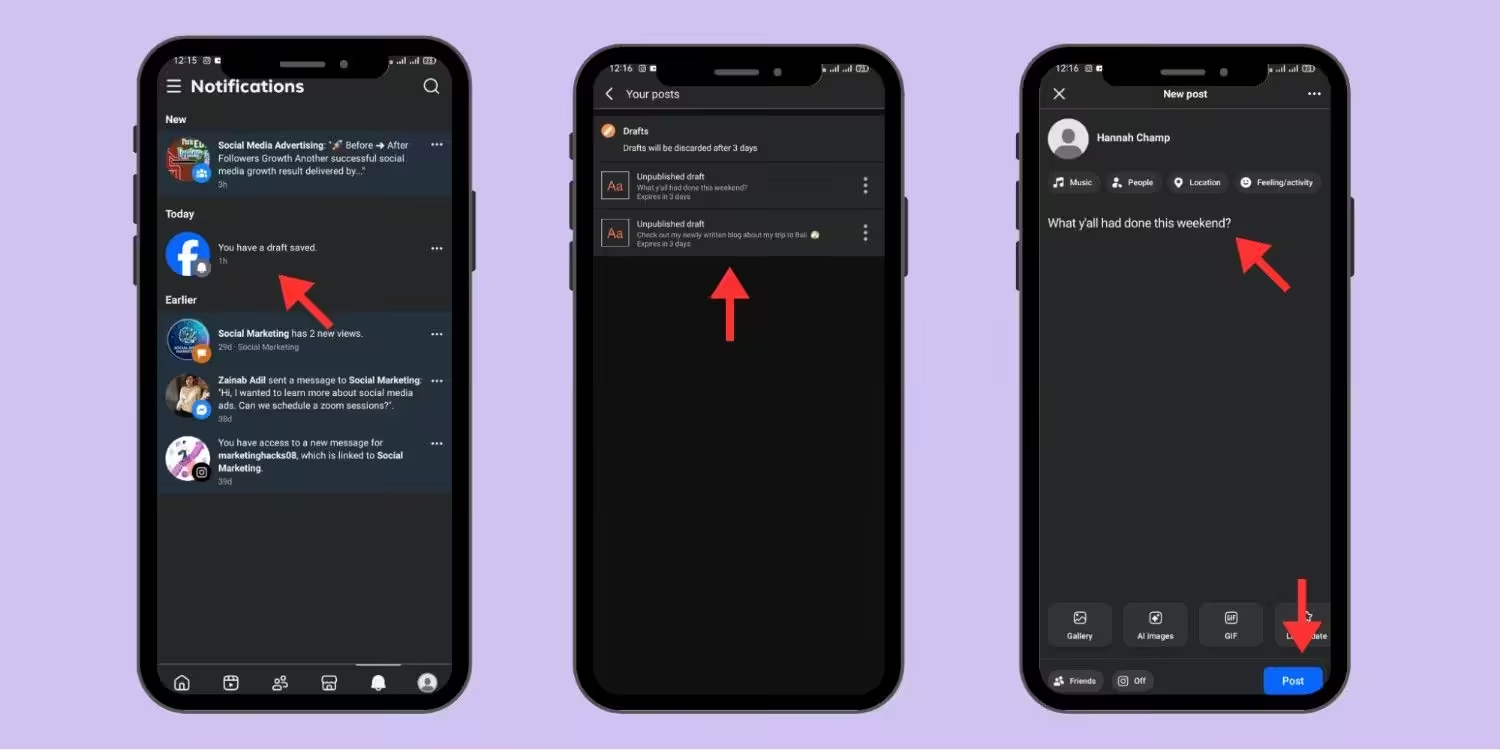
- Open the Facebook app on your Android phone.
- When you save your post as a draft, you will get the notification, so now you have to scroll down to find that notification in your notification tab.
- Tap that notification.
- You’ll see the list of all of your saved drafts.
- Tap the one that you want to use, and your post will appear again in the post editor.
- Now, you can edit or publish your post easily.
Important Note: For personal Facebook profiles, you can recover your draft posts only within 3 days. After that, they will be deleted permanently. Do remember to check and publish your drafts on time.
My Personal Rule for Saving Drafts on Android
Always make sure to tap the back option “x” before you close the post editor. Facebook will ask if you want to save your post as a draft. You can tap “Save Draft” every single time because Facebook doesn’t auto-save your posts.
Featured Article: How To Tag Everyone in a Facebook Group
How to Find Drafts on Facebook on iPhone and iPad
When I started using an iPhone, I thought the process was the same here. But, it isn’t.
Basically, Apple handles apps a little differently, which means Facebook clears drafts faster on iOS than on Android.
Where to Find Them on iOS
The process on iPhone is simpler than on Android. Just follow these steps:
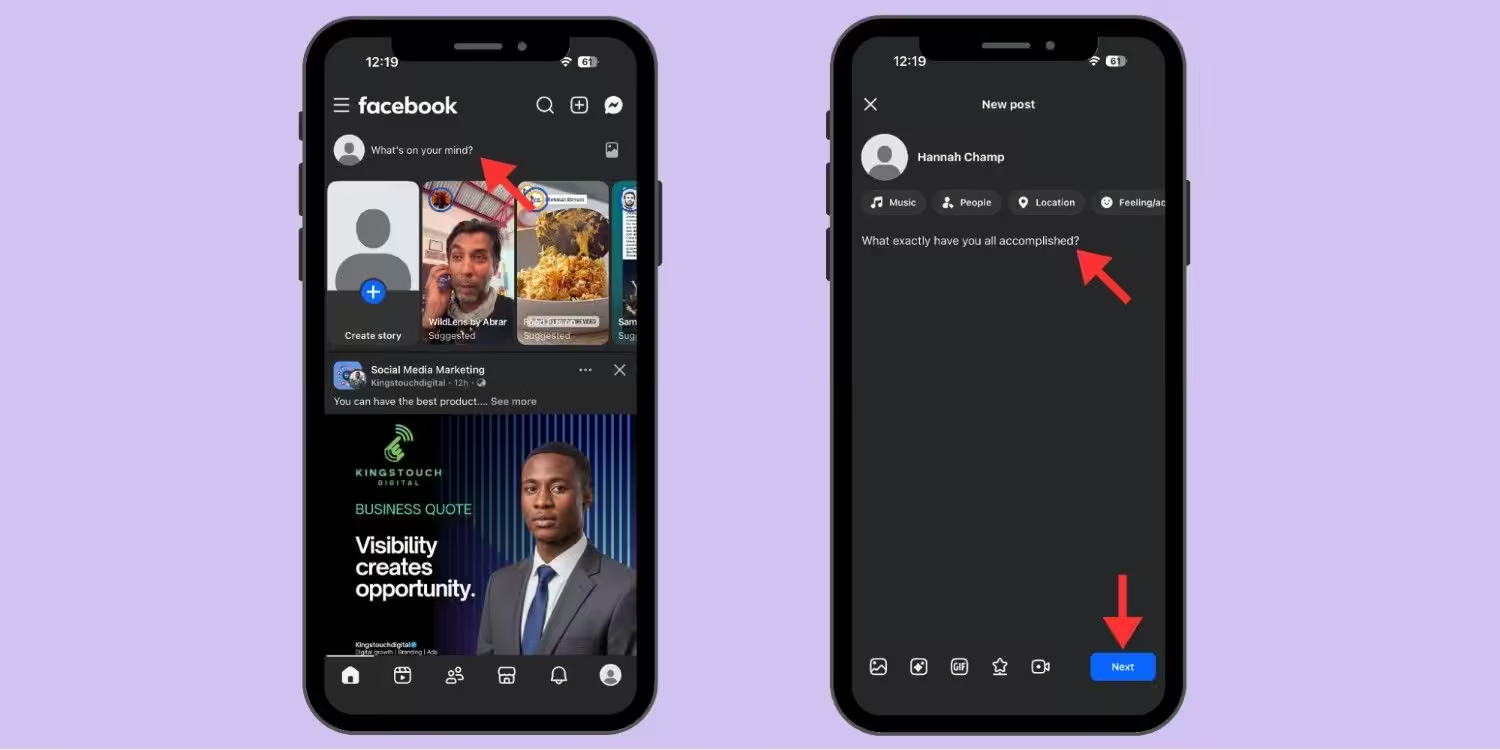
- Open the Facebook app.
- Now on iPhone, you can’t see the notification of your saved draft like Android. Simply, open your post editor directly.
- When you open that, your drafted post will appear exactly like you left it. That’s it.
FYI: You just learned how to save drafts on Android and iPhone, but what about actually making those posts clickable? If you want your audience to visit your site, shop your store, or read your blog, you need links that work. How to post a link on Facebook walks you through the exact steps so your drafts turn into traffic, not just text.
How to Find Drafts on Facebook for Pages and Meta Business Suite
I manage a Facebook page, and honestly, the draft situation there is a whole different beast. And if you use Meta Business Suite, then there’s a whole different process.
Let’s learn how to find drafts on Facebook for pages and the Meta Business Suite.
Where Page Drafts Hide on Desktop
Go to facebook.com and log in to your account. Open your composer, and here you’ll find the exact post that you left behind before. You can edit your post and then publish it.
But the one thing that confused me is that the drafts you save on your desktop don’t always show up on mobile. And drafts you save in the Facebook app don’t always sync to the Business Suite.
If you save a draft on mobile, you won’t see it on desktop. You have to go back to the mobile app to edit and publish the post.
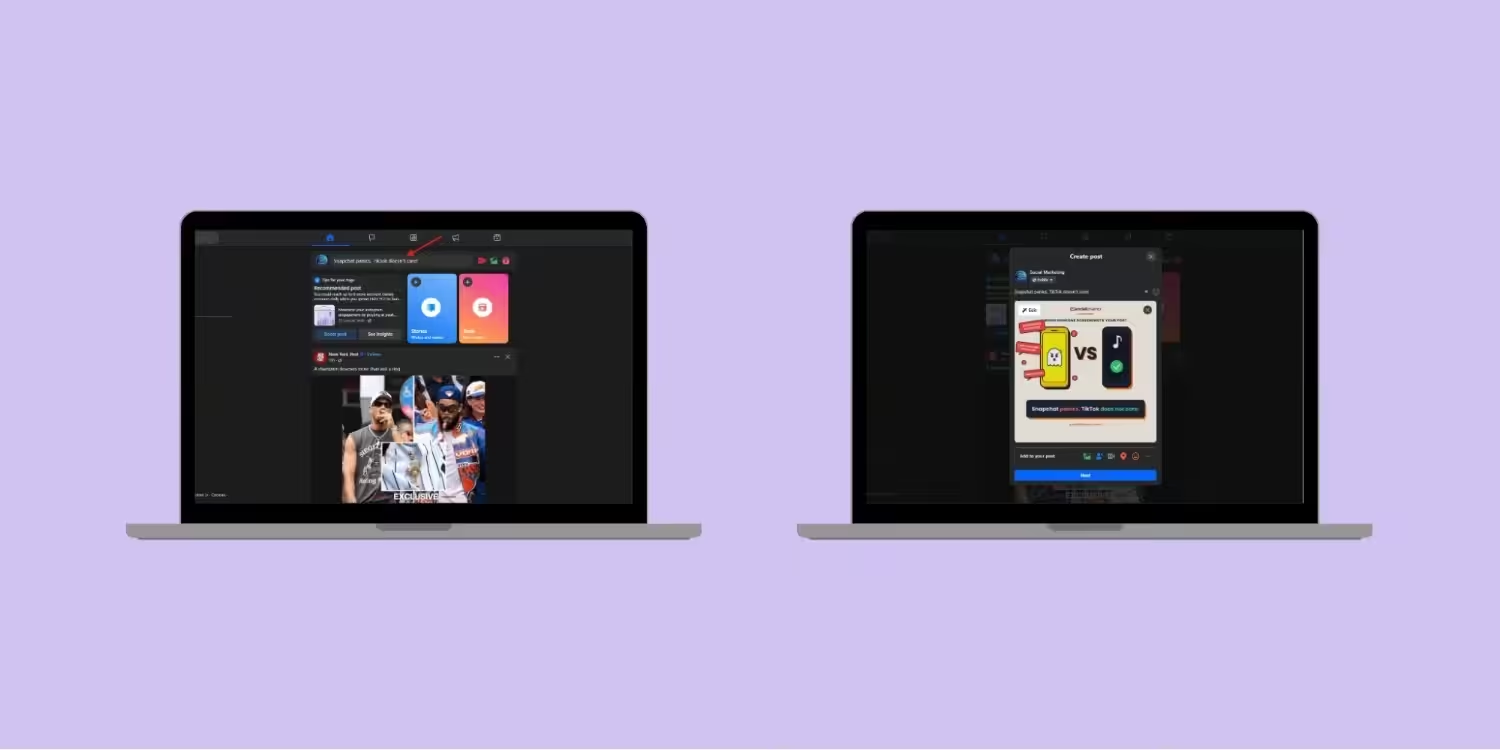
Where Page Drafts Live on Mobile
To find drafts on the Facebook page on mobile, the process is the same as on the desktop. Open the composer, and your saved post will appear exactly like before.
If you manage multiple Facebook pages, it’s important to always make sure you’re on the right one, so you don’t accidentally publish the wrong posts.
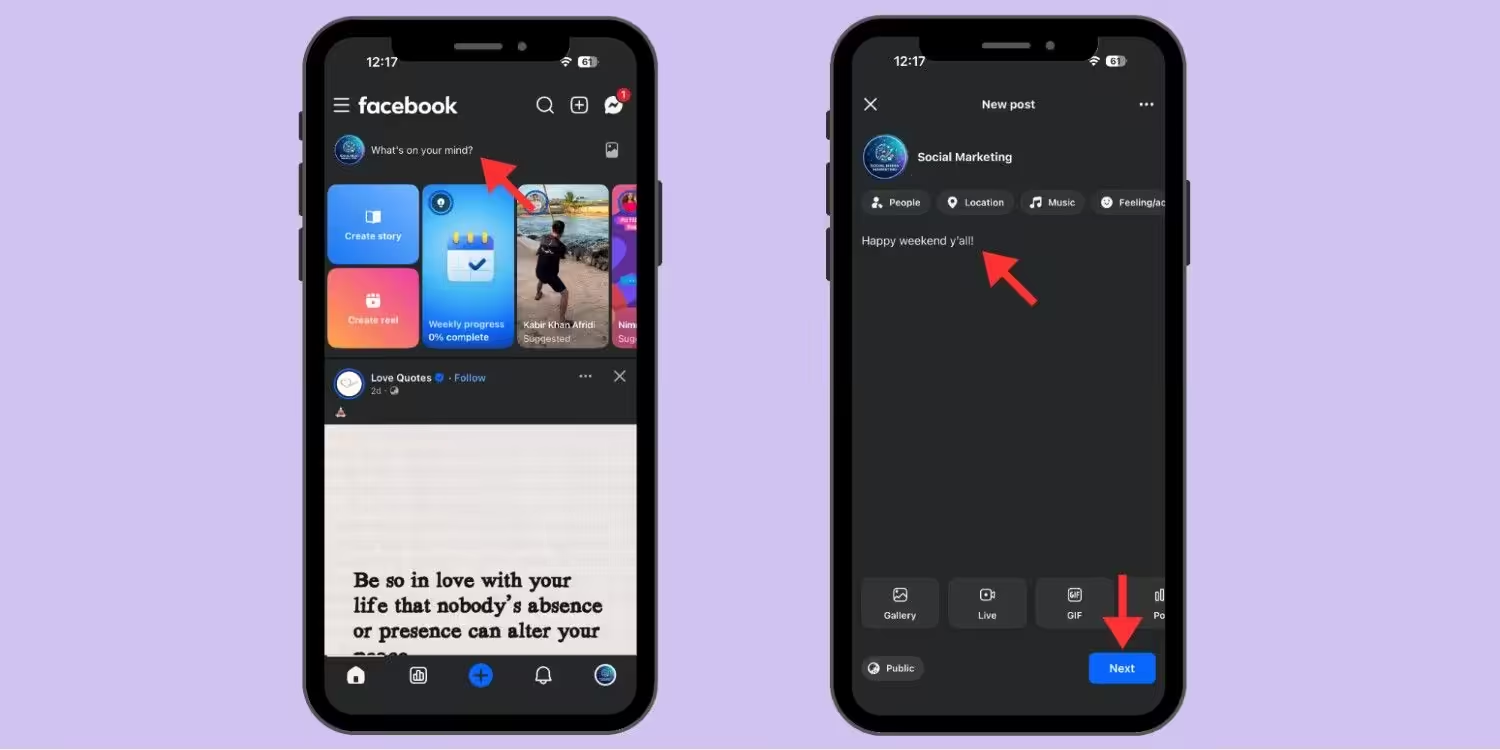
The Meta Business Suite App Is Different
Now, if you want to access drafts on Facebook on Meta Business Suite, the process is different from all.
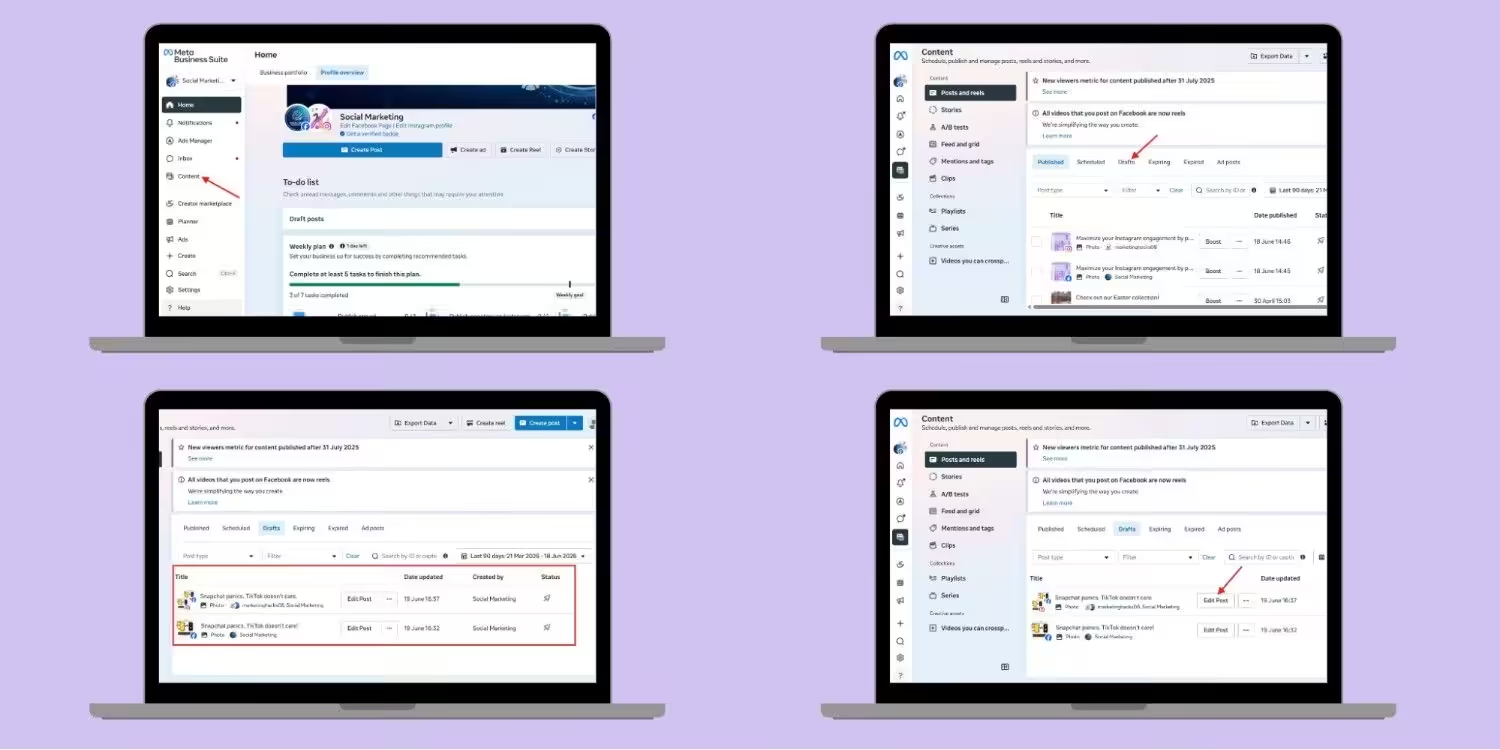
Let me tell you how to find a saved draft on Facebook on desktop using Meta Business Suite:
- Open the Meta Business Suite and log in to your account.
- Now, click “Content” from the left side menu.
- You’ll see all of your posts, such as published, scheduled, drafts, expired, expiring, and ad posts.
- Select “Drafts.”
- You’ll see all of your saved drafts here. Click the “Edit post” and edit, schedule, or publish your post.
Now, I’m showing you the steps of how to find drafts on Facebook on mobile using the Meta Business Suite app:
- Open the Meta Business Suite app on your phone and log in to your account.
- Tap the “Content” tab at the bottom of your screen.
- You’ll see a drop-down there which is showing “Published,” tap it.
- Select “Drafts.”
- Now, all of your saved drafts will appear here, and you can edit, schedule, or publish your posts.
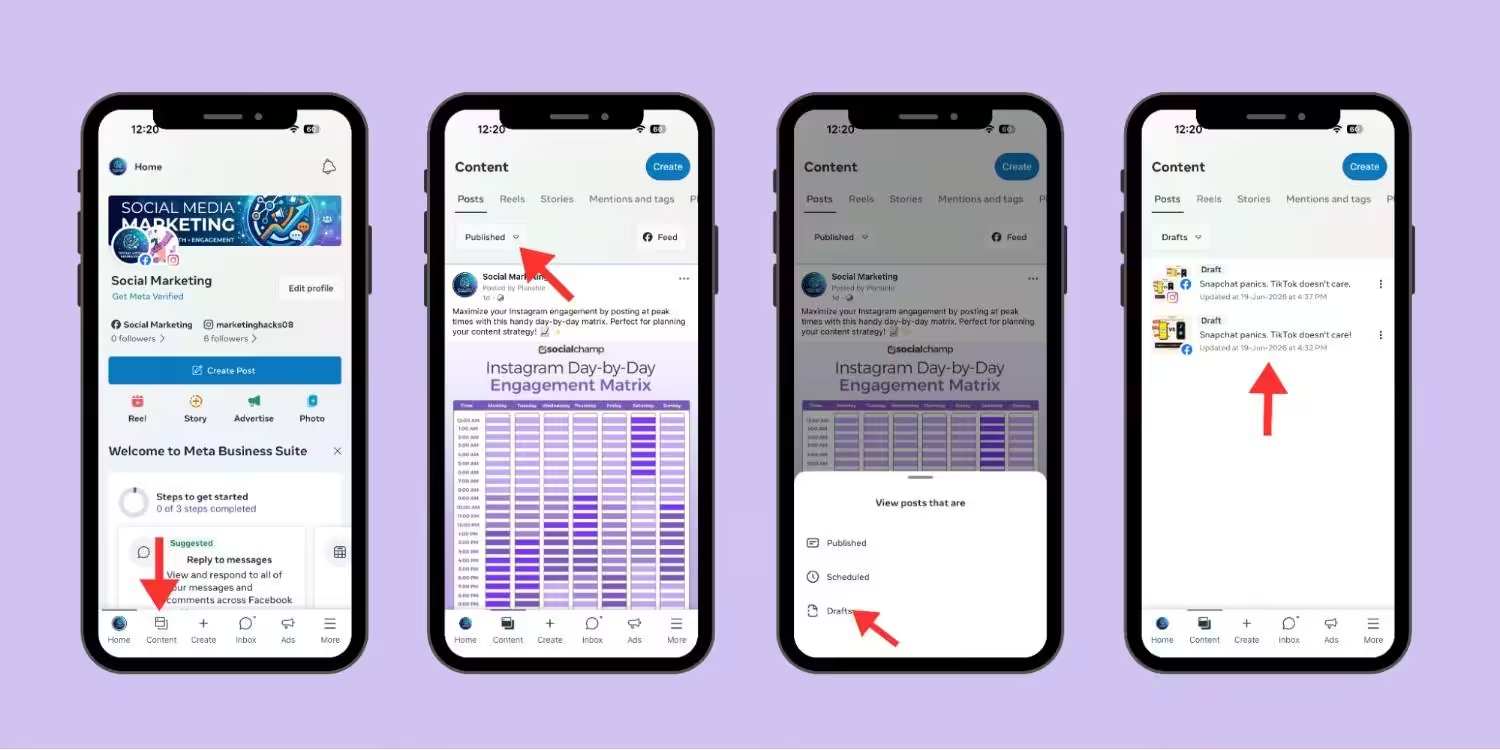
From Draft to Published in Three Clicks!
Why You Cannot Find Your Facebook Drafts
Sometimes users can’t find their drafts even when they save them. These drafts disappear as they never existed. Let’s take a look at why it happens:
Drafts Expire Without Warning
Some people don’t know that Facebook drafts have a shelf life. What I’ve learned is that, in personal profiles and pages, Facebook drafts expire after 3 days. However, if you save drafts using Meta Business Suite, they don’t expire until you publish them.
App Updates Wipe Them
Sometimes a random app update pushes drafts at risk. It happens because the app restarts, the menu changes, and the saved posts are nowhere as the app clears local cache data.
Logging Out Destroys Everything
I recommend that you always keep your posts saved in your Notes app because if you mistakenly log out, your drafts will die.
If you log out from one device, you can see that all the saved drafts will be deleted.
Cache Cleaning Kills Them Too
Even if you clear the cache to free up storage on your phone, it may remove your Facebook drafts permanently. Make sure to save your posts somewhere else or publish them on time.
You Saved It in the Wrong Place
It happens by misunderstanding. I once wrote a post on my personal profile mistakenly and saved it there.
Later, when I checked it on my Facebook page, I couldn’t find it because it was saved in the wrong place.
Losing drafts is annoying. But writing a post that no one sees? That hurts more. If you are putting in the work to save and publish content, you might as well get people to engage with it. Our guide on how to get more likes on Facebook breaks down what actually moves the needle.
And if you run a business page, how to promote your business on Facebook shows you how to turn those likes into real customers.
How to Save Facebook Drafts So You Do Not Lose Them Again
I remember when I lost my 7th draft, I stopped trusting Facebook at all. At that time, I wanted a system that really did my work. Let me walk you through what method works for me now.
Write in Notes First
Now, to be on the safe side, I always write my captions in my Notes app and Sticky Notes before writing them on Facebook.
It’s the safest method. No matter if the app crashes or I get distracted, my work always remains safe. Now, I just copy the caption from Notes and paste it into the composer.
Screenshot Before You Save
Maybe it sounds a little extra, but hear me out. Every time you hit the “Save Draft” option, you can take a screenshot of your post.
It works if your draft vanishes because you have the text and the image layout saved. And it takes less than 2 seconds to do it!
Email Yourself the Text
Another method to keep your post safe is to email the draft to yourself. And that saves in your inbox forever. You can search it, edit it, and access it from any device.
I started doing this when I lost a 500-word draft that took me half an hour to write, and luckily, it never happened again.
Use a Cloud-Based Tool
Notes, Google Docs, and Notion all sync across devices. You can keep a folder called “Facebook Drafts” in Google Docs.
This way, your every post gets a doc and every doc auto-saves. You can even open it on your phone, laptop, or tablet, and Facebook can’t touch them.
This whole process has taught me that Facebook was never built for serious content work. Facebook’s algorithm constantly changes, and the platform focuses more on ad revenue than your saved posts.
Featured Article: How Often Should You Post on Facebook?
Schedule and Store Facebook Drafts More Reliably With Social Champ
Now let me tell you the secret that really worked for me.
I tried every possible method like Notes app, screenshots, email backups, but honestly Facebook draft system was never designed for people who actually create content. It was built for casual users who post once a week about their lunch.
I found Social Champ, and I stopped losing my drafts forever.
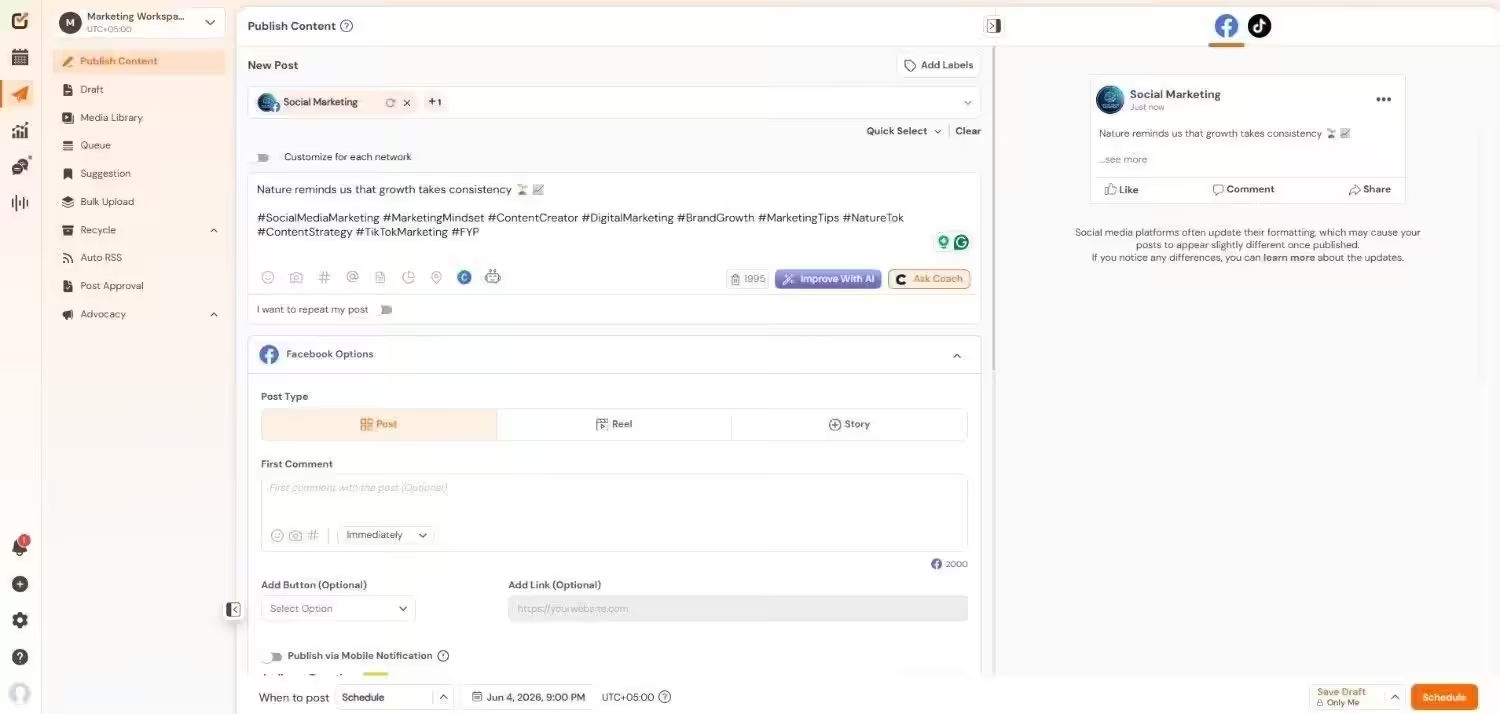
What Social Champ Does Differently
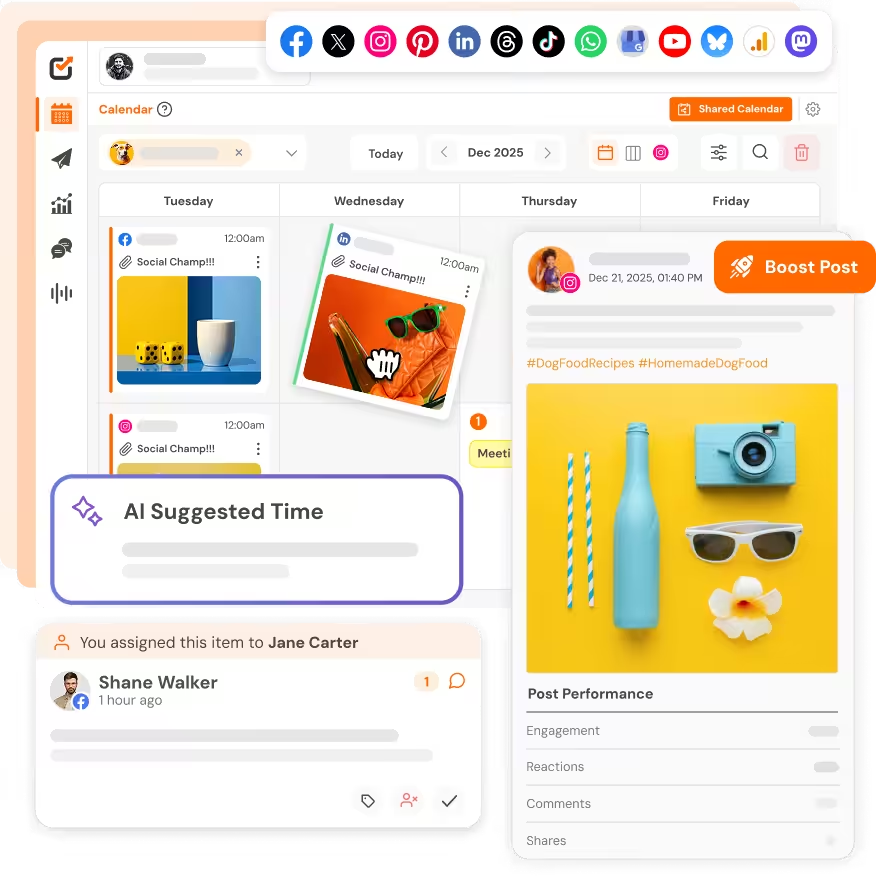
Social Champ is a social media scheduling tool that lets you write, save, edit, and queue your posts on Facebook and 11+ other social media platforms.
Unlike many basic Facebook management tools, it stores your drafts securely in the cloud so you can access them from any device whenever you need them.
It’s the only tool I can rely on. Now I can start a post on my laptop at work, finish it on my phone in a cab, and schedule it from my iPad at home. The draft stays exactly where I left it. And now my life is so much easier.
How I Use It for Facebook Drafts
I open Social Champ, then select my Facebook Page or profile, write a caption, upload the image, and add a link. Then, there are three options: publish it now, schedule it for later, or save the draft to complete it later.
Now, my drafts remain safe in a clean dashboard. I can see them all at once, sort them by platform, by date, by campaign. This is one of the reasons many creators prefer dedicated Facebook publishing tools instead of relying on Facebook’s built-in draft system.
Why This Works Better Than Facebook’s Native System
Facebook drafts expire, vanish when you log out of the app, and don’t sync between devices. While Social Champ’s drafts don’t expire, they remain safe and sync on every device.
It also helps creators keep track of important Facebook stats alongside their content workflow. This way, you can easily monitor post performance without switching between multiple dashboards.
With Social Champ, you don’t have to spend time finding the lost posts. You can use that time to create content.
Start Free. Upgrade When You Grow.
Conclusion
Now you’re here, and you clearly know how to find drafts on Facebook. You have the full map of Android, iPhone, personal profiles, pages, and Meta Business Suite.
But the main problem isn’t to find the drafts. It’s that they don’t stay stable, and you may lose them even without any warning. I came through all of this, and now I don’t believe in Facebook’s draft system anymore.
Social Champ is the only tool on which you can rely and easily save your drafts even if you switch the device.
If you’re tired of losing your drafts, then it may be the right time to change your workflow. Publish your content on Facebook, but manage it using a reliable platform that keeps your content safe.
This becomes even more important for creators who depend on consistent posting to support their Facebook monetization efforts and audience growth.