

The great Facebook–Instagram love story. It usually starts with good intentions. You connect them, thinking, “This will save time.”
A few weeks later, you realize that both got different audiences and different moods. Instagram is all vibes and visuals. Facebook is… well, family and former classmates.
Let’s be real, though; there are plenty of valid justifications for unlinking Facebook and Instagram. You might want more control over where your content appears, especially if your audiences behave differently on each platform.
Or maybe your brand voice or posting strategy has evolved, and cross-posting no longer fits. For some users, privacy and account security are the main concerns. Whatever your reason, unlinking can give you back flexibility and clarity.
This guide is designed to walk you through exactly how to unlink Facebook and Instagram, step by step, without breaking your pages, ads, or login access.
Short Summary
- Unlinking Facebook and Instagram gives you more control, privacy, and flexibility over your content and posting strategy.
- The process can be done via both Facebook and Instagram, on mobile or desktop, using the Accounts Center.
- Common issues, like permission errors or business account glitches, can be easily fixed if you know the steps.
- You can relink accounts later if needed, but be mindful of Meta’s one-to-one connection limits for business features.
- Tools like Social Champ make it simple to manage, schedule, and publish content independently after unlinking.
You’ll also learn best practices to follow before and after unlinking, so you can avoid common pitfalls and prevent disruptions to your content or ads.
Whether you choose to separately manage the two accounts manually (brace yourself) or use a free social media scheduler (wise choice), you’ll be able to keep everything running smoothly and strategically.
Stay Organized With One Dashboard
Step-by-Step: Unlinking via Facebook (Mobile & Desktop)
Unlinking Facebook and Instagram is simple and can be done whether you’re using your phone or your PC.
But there’s something you should know beforehand: there are slight differences when using the full Facebook app and the Facebook Lite app.
So, if you find that certain settings look different or you can’t immediately locate a certain feature, you’re likely using Facebook Lite. With this version, some options may be placed differently or limited compared to the full app.
Below is a clear walkthrough of how to unlink Facebook and Instagram, with steps outlined for both mobile and desktop users.
Unlinking via Facebook on Mobile
- Open the Facebook app and tap the three lines in the top-right corner.
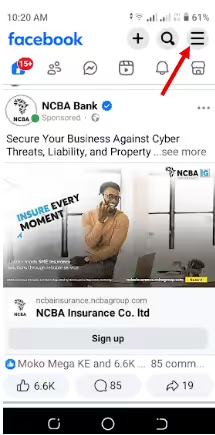
Tap the 3 Lines - Scroll down and select Settings & Privacy > Settings.

Scroll to Settings - Tap Accounts Centre at the top.
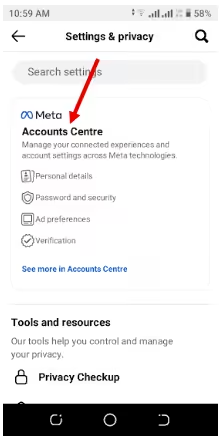
Tap the Accounts Centre - Scroll down and tap “Accounts.”
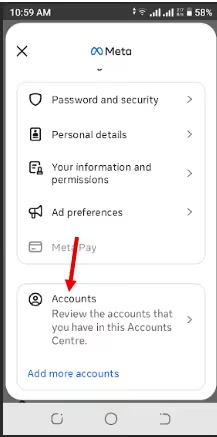
Tap Accounts - Tap “Remove” from Accounts Center and confirm.
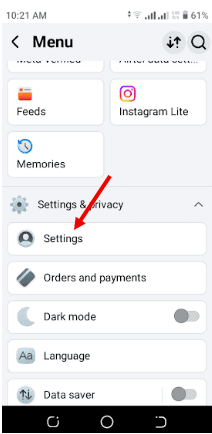
Voilà! Your accounts are now unlinked on mobile.
Featured Article: Find the Best Time to Post on Facebook
Unlinking via Facebook on Desktop
- Go to facebook.com and log in.
- Click your profile picture at the top-right corner.
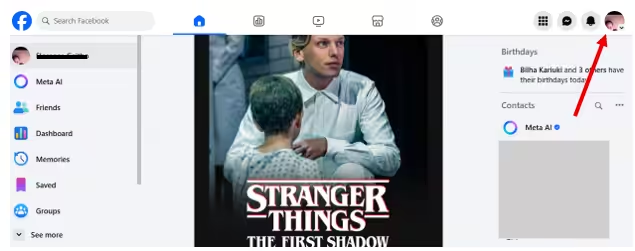
Select the Profile Picture - Select Settings & Privacy > Settings.
Go to Settings - Click Accounts Centre in the left-hand menu.
Select Accounts Centre - Under Accounts & Profiles, scroll down and choose “Accounts”.
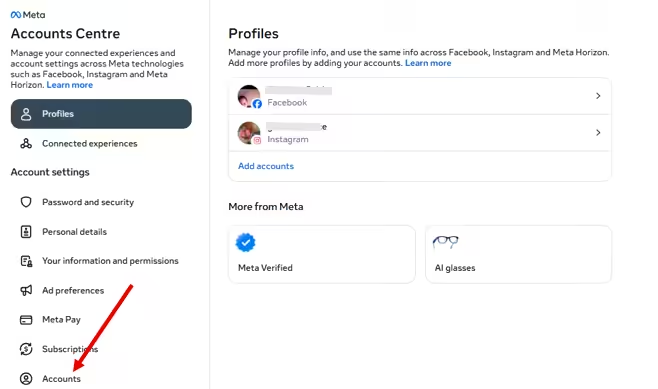
Click Accounts - Click Remove from Accounts Center, then confirm your choice.
Click the Remove Button
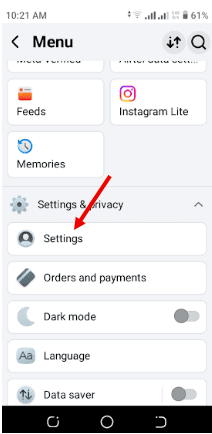
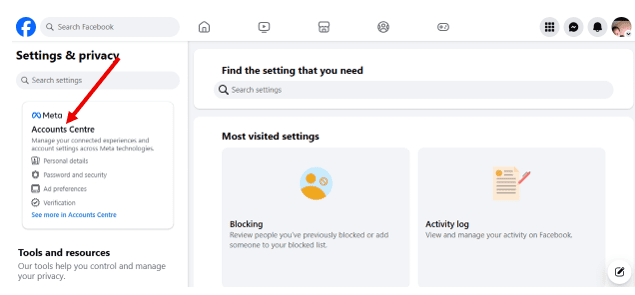
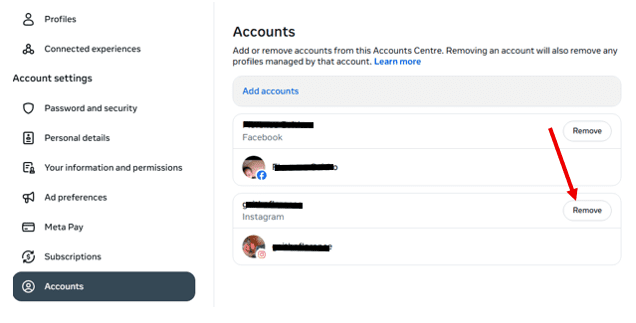
Done! That’s how to unsync Facebook and Instagram from Facebook using a desktop.
Featured Article: How to Link Instagram to Facebook
Step-by-Step: Unlinking via Instagram (Mobile & Desktop)
Want to flip the script and start from Instagram instead? Just like with Facebook, you can unlink your accounts whether you’re on mobile or desktop.
Just a reminder, there are slight differences when using the full Instagram App and when using Instagram Lite.
Unlinking via Instagram on Mobile
- Open the Instagram app and tap your profile picture.
- Tap the three-line menu in the top-right.
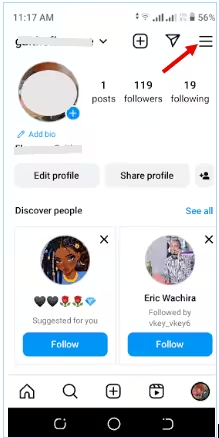
Tap the 3 Lines - Tap “Settings.”
Select Settings - Tap “Accounts Center.”
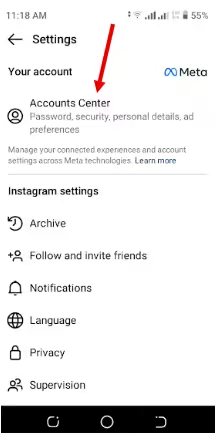
Tap Accounts Center - Scroll down to “Accounts”
- Under Accounts, select your Facebook account.
- Tap “Remove from Accounts Center,” and confirm.
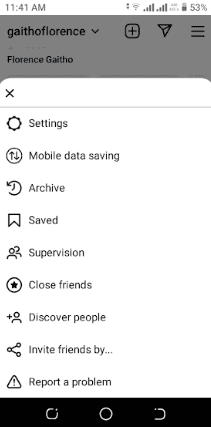
Boom! You’ve managed to unlink Instagram from Facebook using your phone. Your Instagram is now flying solo.
Featured Article: How to Post on Instagram from PC
Unlinking via Instagram on Desktop
- Go to instagram.com and log in.
- Click your profile picture in the top-right or at the far left.
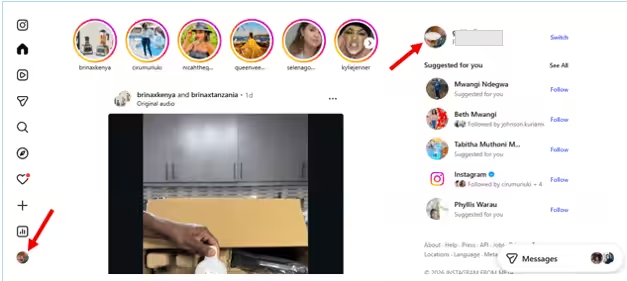
Click On Your Profile Picture - Click the gear icon to access the settings.
- Click “Settings and privacy.”
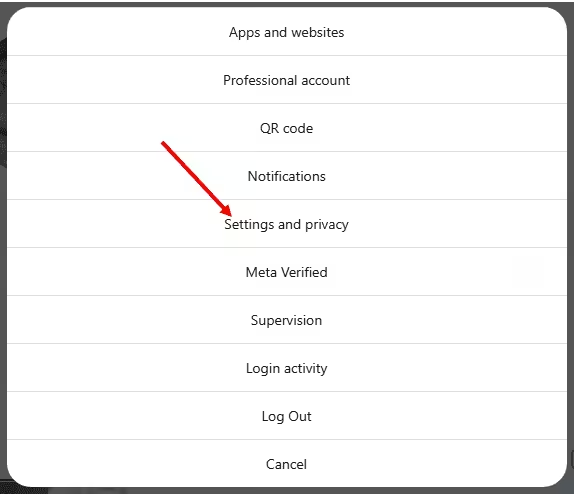
Click Settings and Privacy - On the left menu, click “Accounts Center.”
- Scroll down and click “Accounts.”
- Locate your Facebook profile and click “Remove.”
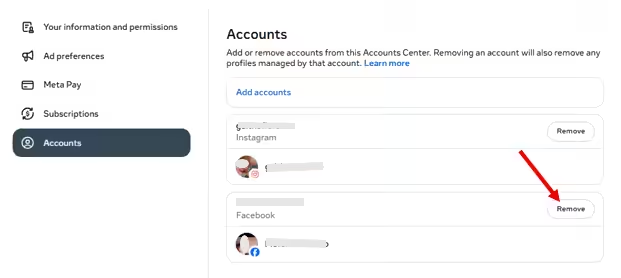
Select the Remove Button - Confirm you want to remove your Facebook account.
Confirm to Remove
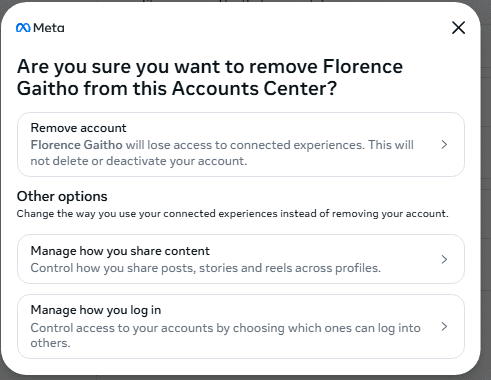
That’s it! You’ve managed to disconnect Facebook from Instagram.
Manage Facebook and Instagram Independently With Social Champ
Common Issues When You Disconnect Facebook From Instagram (And Fixes)
Trying to remove Facebook from Instagram sounds simple… until it isn’t. A few hiccups can pop up when you try to unlink accounts.
But you know what? Unlinking doesn’t have to be a headache. You just need to know the quirks and how to handle them.
We’ve broken down the most common issues and how to fix them, so you can stay stress-free.
-
Permission Errors
Sometimes, Instagram or Facebook will throw a “permissions” or “action blocked” error. This usually happens if the apps don’t have the latest permissions set.
You can fix it by going to your device settings, ensuring both apps have full permissions (storage, contacts, etc.), and then try unlinking again. Logging out and back in often helps, too.
-
Missing Accounts in Accounts Center
If your Instagram or Facebook account doesn’t show up in Accounts Center, it can’t be unlinked.
To fix this, make sure both accounts are active and verified. Check that you’re logged into the correct accounts on both apps before attempting to unlink.
-
Business or Creator Account Glitches
Business or creator accounts sometimes have extra layers for ads, shops, or analytics that can block unlinking.
To resolve this issue, you can temporarily switch to a personal account, unlink, and then switch back. If your business features are critical, check your Meta Business Suite settings first.
-
Re-Linking Limitations
After unlinking, Instagram may restrict reconnecting immediately or to multiple Facebook pages.
You can wait a few hours or clear your cache before trying to re-link. Keep in mind, Facebook now enforces one-to-one primary connections for certain business features.
If you haven’t experienced any of these hiccups when trying to unlink Facebook and Instagram, that’s great. If you have, the above fixes will likely solve the issues, and you’ll have both accounts happily independent in no time.
Managing Facebook and Instagram Separately With Social Champ
Now that your Facebook and Instagram accounts are happily uncoupled, you might be wondering how to keep posting without the stress of juggling two apps.
Ever heard of Social Champ? This is an Instagram and Facebook post scheduler that you can use to manage multiple social media platforms. That means you can use the tool to post to all of social media at once.
With Social Champ, you can:
- Schedule posts on both Instagram and Facebook (plus 9 other social networks)
- Compare the analytics of how your posts perform on each platform
- Check what your competitors are up to
- Set up brand mentions on Facebook and Instagram (along with Reddit)
But first, you need to link each of your Facebook and Instagram accounts to Social Champ. Once connected, you can set up separate posting schedules, customize captions for each platform, and even plan content weeks in advance.
This Instagram scheduler also gives you full control over timing, audience targeting, and post formats for each platform, while still enjoying the convenience of a single workspace.
What’s even more exciting is that it comes with an AI Suggested Time feature that lets you know the best time to post on Instagram. As such, your content will always go live when your audience is using the platform and is most likely to engage with your content.
Schedule Smarter With Social Champ!
Conclusion
Unlinking Facebook and Instagram doesn’t have to be complicated. Follow our step-by-step guide on how to unlink Facebook and Instagram, and you’ll regain control over your content, protect your privacy, and manage each platform on your own terms. Sure, a few hiccups like permission errors or business account quirks might pop up, but knowing the fixes keeps everything smooth.
And once you’ve gone solo, Facebook management tools like Social Champ make managing each platform a breeze. This social media scheduler can let you schedule, publish, and optimize posts independently without the headache of hopping between apps.


