

Let’s face it, as a new business, starting out on social media can feel overwhelming. Where do you invest your precious time and resources? But what if there was a platform teeming with billions of potential customers hungry for visual content and ready to connect with your brand?
This is where Instagram comes in.
But with so much competition vying for attention, learning how to use Instagram requires a strategic approach. This guide is your key to leveraging Instagram’s power.
We’ll equip you with the knowledge and strategies to dominate this visual platform, from crafting a profile to creating content that resonates and leveraging the efficiency of Instagram schedulers.
Short Summary
- Instagram is a photo and video-sharing social media platform.
- You can edit your photos and videos with filters and share them with followers or publicly.
- Businesses can set up shop on Instagram and sell products directly through the platform.
- To manage multiple profiles, you can switch accounts by long-pressing your profile icon or using the username dropdown at the top of the app.
- You can post on Instagram directly from the app. However, if you want to schedule the posts for later, tools like Social Champ can help you out.
Let’s get started!
Post on Autopilot, Connect Authentically With Social Champ!
What Is Instagram?
Launched in 2010, Instagram has exploded in popularity, becoming a global phenomenon. This social media platform is all about visual storytelling. Users can capture photos and videos with their smartphones, enhance them with creative filters, and share them with a curated audience or the entire world.
Instagram’s appeal is broad. Its user-friendly design makes it easy for anyone, from individuals to influencers and businesses, to jump in. But its strength goes beyond simple sharing.
The platform cleverly integrates e-commerce. Businesses can set up shop directly on the platform, transforming viewers into buyers with just a few clicks. This, along with advertising tools, makes Instagram a goldmine for marketers.
Featured Article: 30+ Instagram Story Hacks to Boost Engagement
How to Create an Instagram Account in 10 Steps
Creating an Instagram account is straightforward and can be done in a few simple steps. Here’s a step-by-step guide to help you set up your Instagram account:
-
Download the Instagram App
- Go to the App Store (iOS) or Google Play Store (Android).
- Search for “Instagram” and download the app.
-
Open the Instagram App
- Once downloaded, open the app by tapping on the Instagram icon.
-
Sign Up
- Tap on “Sign Up” if you’re creating a new account.
- You can sign up with your email address or phone number, or use your Facebook account to sign up.
-
Enter Your Information
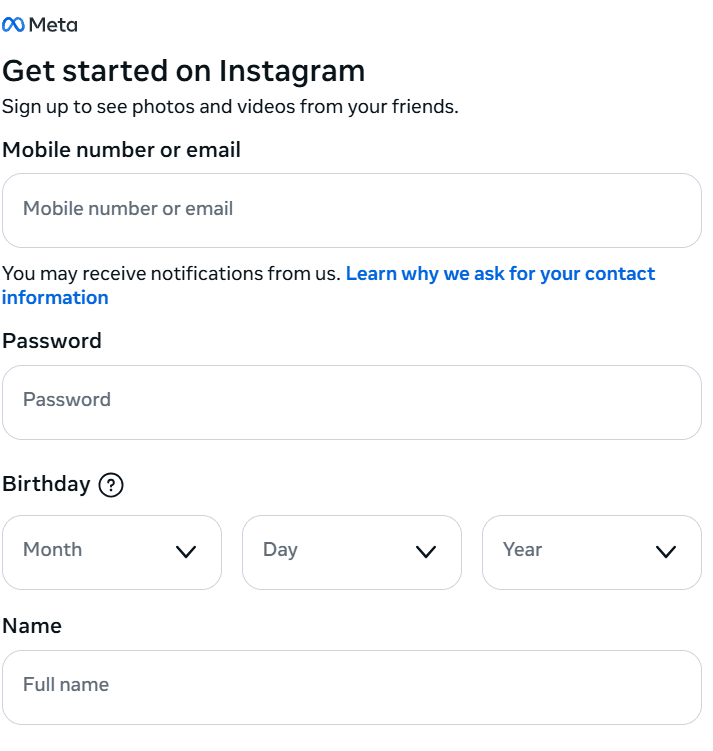
Instagram Sign Up - Enter the required details with an email or phone number when signing up.
- Create a username and password.
- If you sign up with Facebook, you must log in to your Facebook account.
-
Set Up Your Profile
- Add a profile picture. You can upload a photo from your phone or take a new one.
- Fill in your profile details, including your name and a brief bio.
-
Find Friends
- Instagram will suggest friends based on your contacts and Facebook friends. You can follow them or skip this step.
-
Customize Your Account Settings
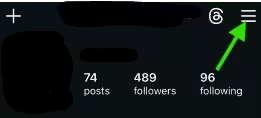
Click on the Instagram Profile Menu - Go to the settings menu by tapping the three lines (menu icon) in the top right corner of your profile.
- Customize your account settings, including privacy, notifications, and more.
-
Explore and Follow
- Use the search bar to find people, hashtags, or topics of interest.
- Follow accounts that interest you and see their posts in your feed.
-
Post Content
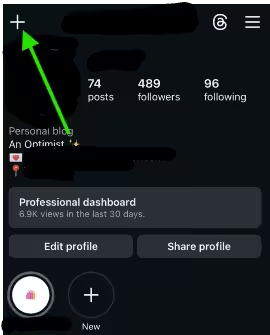
Click on the Plus Icon - Tap the “+” icon at the top right of the screen, and you will see a menu to choose the format of your post.
- Add filters, captions, and hashtags, and tag people before sharing.
-
Engage With the Community
- Like, comment, and share posts from accounts you follow.
- Use Instagram Stories and Stories to engage with your followers differently.
With these steps, you’re on your way to creating a thriving Instagram presence. Remember, it’s all about having fun, connecting with others, and sharing your unique perspective through engaging content.
Featured Article: How to Post on Instagram?
How to Switch Accounts on Instagram
If you’re managing a personal profile alongside a side hustle or a brand, knowing how Instagram works when it comes to multi-account management is a total game-changer.
This is especially vital if you use Instagram for business, as it allows you to engage with your community on your professional page and then quickly switch back to your personal feed to catch up with friends.
Step-by-Step: How to Switch Accounts
Follow these steps to add and navigate between your different profiles:
- Navigate to Your Profile: Open the Instagram app and tap your profile picture in the bottom right corner of the screen to go to your main profile page.
- Access the Account Switcher: There are two quick ways to do this: Simply tap and hold your profile picture in the bottom right corner. A menu will pop up showing all logged-in accounts. Or tap your username at the very top left of the screen (next to the down arrow).
- Add a New Account: If you haven’t added your second account yet, tap “Add Account” at the bottom of the menu. You can then choose to “Log in to Existing Account” or “Create New Account.”
- Toggle with a Double-Tap: Here is a pro-tip: If you only have two accounts, you can double-tap your profile icon in the bottom right corner to instantly jump back and forth between them without opening any menus.
How to Use Instagram: A Complete Guide to Navigating the App’s Features
Once you’ve mastered switching between accounts, it’s time to dive into the core features that make Instagram the powerhouse of visual storytelling. Whether you are sharing a quick update or building a brand, understanding where everything lives is key to a smooth experience.
Here is a breakdown of the primary features you’ll encounter and how to use them:
The Home Feed
The Home Feed (represented by the house icon) is where you see posts from people and businesses you follow.
- What it’s for: Staying updated with your community.
- How to use it: Scroll vertically to see photos and videos. You can “Like” a post by double-tapping the image or clicking the heart icon. Use the “Save” icon (bookmark) on the bottom right of a post to keep it in a private collection for later inspiration.
Instagram Stories
Located in the circles at the very top of your feed, Stories disappear after 24 hours.
- What it’s for: Casual, “behind-the-scenes” content that doesn’t need to be perfect.
- How to use it: Tap your own profile picture with the blue “+” icon to record a video or take a photo. You can add interactive stickers like polls, questions, or links to engage your audience directly.
Instagram Reels
Reels (the clapperboard icon in the center of the bottom menu) are Instagram’s answer to TikTok.
- What it’s for: Reaching new audiences. Reels are heavily promoted by the algorithm to people who don’t follow you yet.
- How to use it: Tap the Reels icon to scroll through trending videos. To create your own, tap the “+” icon and select “Reel.” You can add music from Instagram’s library, use AR filters, and edit clips together.
Search & Explore
The magnifying glass icon takes you to the Explore page.
- What it’s for: Finding new accounts and trending topics.
- How to use it: The grid is curated specifically for you based on your interests. Use the search bar at the top to find specific keywords, hashtags, or locations. This is a vital tool if you want to see how others use Instagram for business in your niche.
Profile & Insights
Your profile (bottom right icon) is your digital storefront.
- What it’s for: Showcasing your grid and managing your settings.
- How to use it: Tap “Edit Profile” to update your bio or link. If you have a professional account, you will see a “Professional Dashboard” button here. This gives you access to Insights, showing you which posts performed best and when your followers are most active.
Featured Article: How to Add a Collaborator on Instagram
Types of Engagement
Engagement isn’t just about a simple “like” anymore; it’s a multi-layered system of interactions.
The Classic: Likes and Comments
These are the most visible forms of engagement.
- Liking: A quick double-tap shows appreciation. It’s the baseline for engagement.
- Commenting: This is much more powerful. When users take the time to write a response, it signals deep interest. For those who use Instagram for business, replying to every comment is a must to build a loyal community.
The Power Move: Saves
The “Save” icon (the small bookmark on the bottom right of a post) has become one of the most important metrics in 2026.
- Why it matters: When someone saves your post, they are telling Instagram, “This is so good I want to see it again.”
- Pro-Tip: Create “savable” content like tutorials, checklists, or inspirational quotes to boost this metric.
The Signal: Shares and Direct Messages (DMs)
When a user taps the “Paper Plane” icon to share your post to their own Story or send it to a friend via DM, your reach expands exponentially.
-
How it works: Sharing is the ultimate digital word-of-mouth. It introduces your profile to an entirely new circle of potential followers.
Interactive Story Stickers
Engagement doesn’t just happen on the main feed. Within Instagram Stories, you can use interactive stickers to “force” engagement in a fun way:
- Polls: Ask your audience to choose between two options.
- Questions: Let followers ask you anything or provide feedback.
- Sliders: A heart-eye emoji slider lets fans show how much they love a specific update.
How to Schedule Instagram Posts Using Social Champ
Scheduling Instagram posts using Social Champ is a great way to manage your social media presence efficiently. Here’s a step-by-step guide to help you schedule Instagram posts using Social Champ:
-
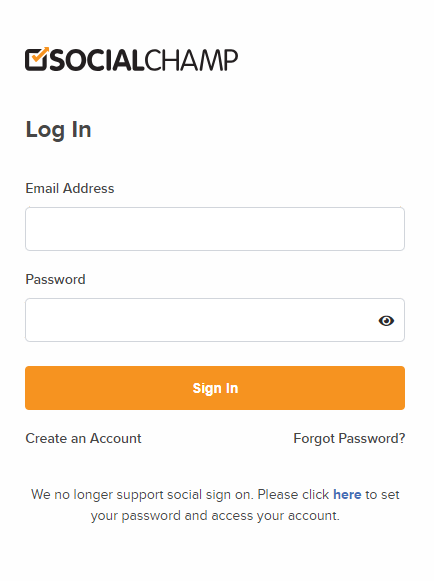
Sign up or Log in to Social Champ
- Visit the Social Champ, sign up for an account if you don’t have one, or log in to your existing account.
-
Connect Your Instagram Account
- Go to the “Accounts” section in the dashboard.
- Click on “Add Account” and select Instagram from the list of social networks.
- Follow the prompts to authorize Social Champ to access your Instagram account.
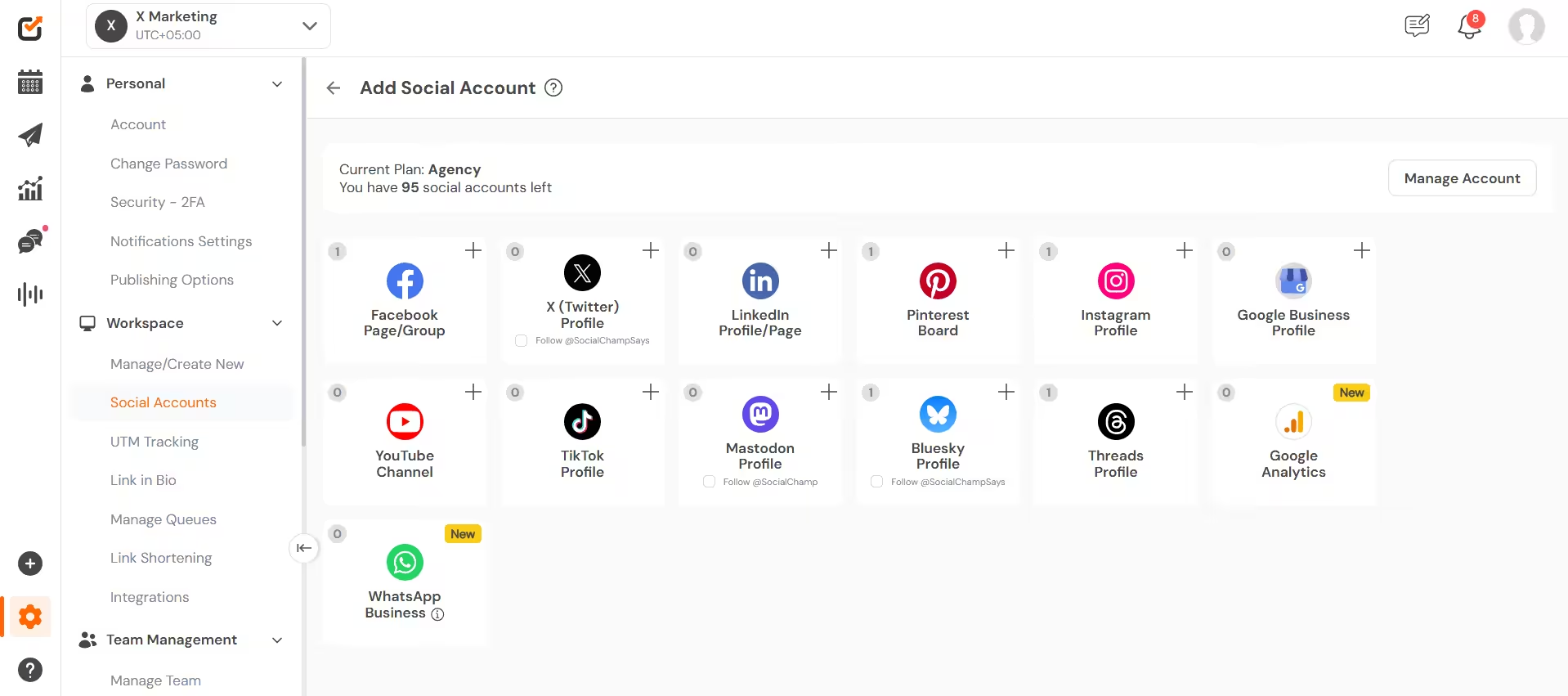
Social Champ’s Supported Platforms -
Create a New Post
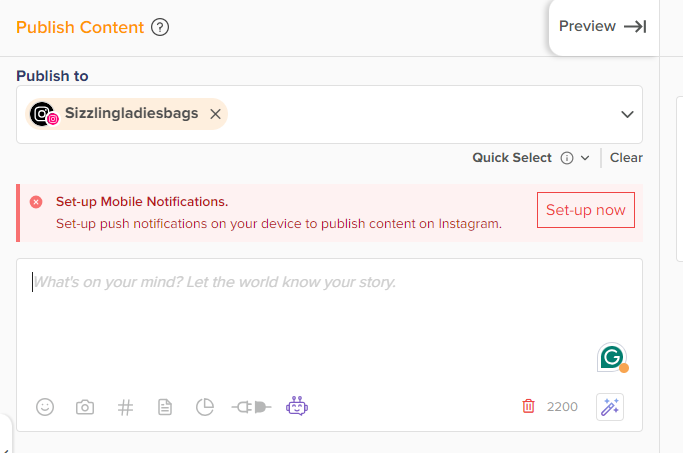
- Once your Instagram account is connected, go to the “Content Composer” section.
- Click on “Create New Post” to start composing your post.
-
Write Your Caption
- Enter the caption for your Instagram post in the text box. You can also use Social Champ’s AI Content Wizard to create the perfect caption for your post!
- Add any hashtags, mentions, or emojis that you want to include.
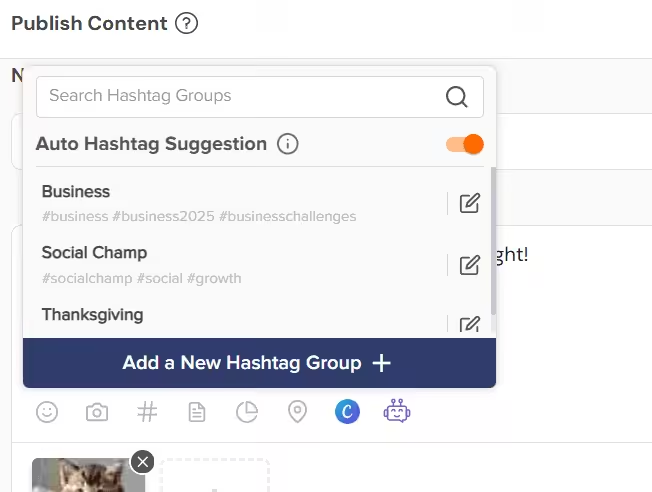
Hashtag Suggestions on Social Champ’s Dashboard -
Upload Your Image or Video
- Click on the “Upload” button to add an image or video to your post.
- You can upload files from your computer or choose from your Social Champ media library.
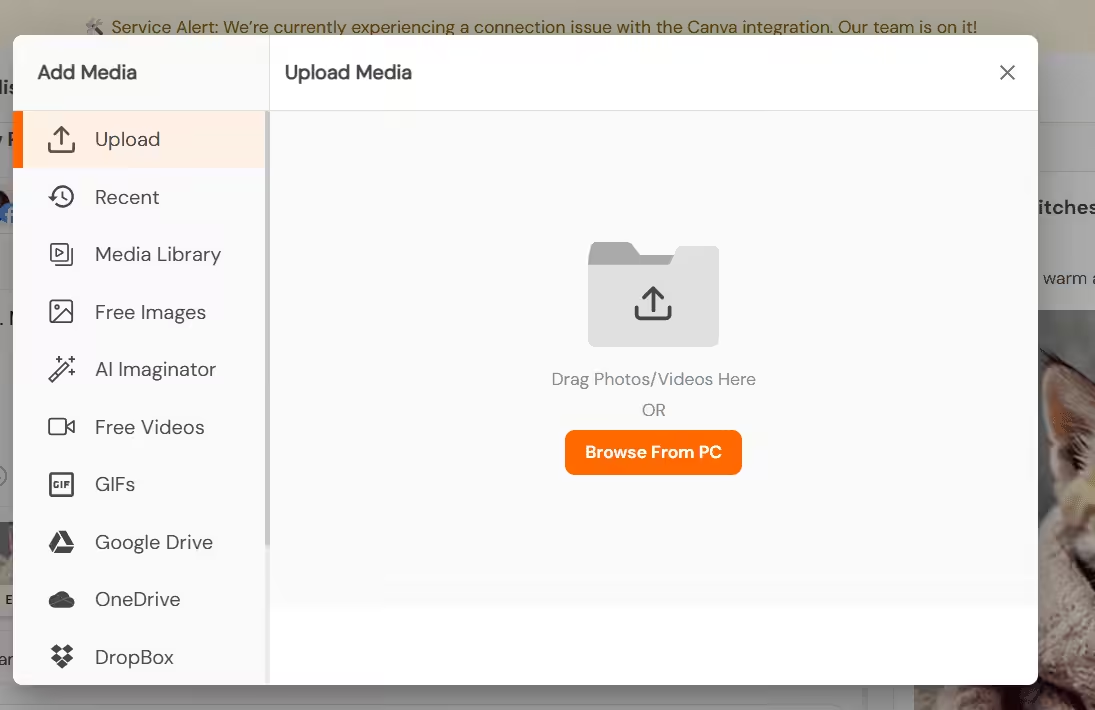
Add Media on Social Champ’s Dashboard -
Schedule Your Post
- Click on the calendar icon to open the scheduling options.
- Choose the date and time you want your post to be published.
- Social Champ allows you to set the time zone to ensure accurate scheduling.
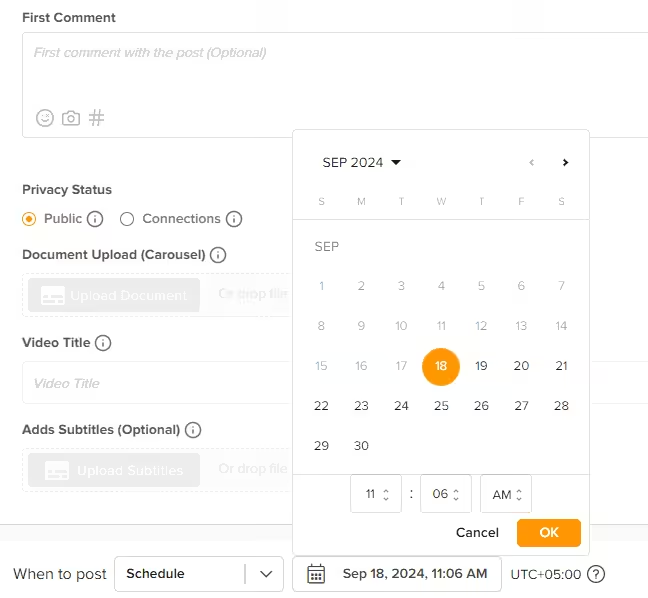
Social Champ Schedule Post -
Add to Queue
- Alternatively, you can add the post to your queue if you have a predefined posting schedule.
- This option will automatically slot your post into the next available time slot.
-
Review and Schedule
- Review your post, ensuring all details are correct.
- Click on “Schedule” to finalize the scheduling of your post.
-
Manage Scheduled Posts
- Go to the “Queue” or “Calendar” section to view and manage your scheduled posts.
- You can edit, reschedule, or delete posts from this section if needed.
You Might Be Posting at the Wrong Time!
Featured Article: How to Use Instagram Filters to Create TikTok Videos
10 Tips for Using Instagram to Grow Your Business or Personal Brand
Using Instagram to grow your business or personal brand requires a strategic approach and consistent effort. Here are ten detailed tips to help you leverage Instagram effectively:
-
Optimize Your Profile
Your Instagram profile is often the first impression potential followers and customers will have of your brand. Use a clear, high-quality image for your profile picture, whether it’s your logo for a business or a professional headshot for a personal brand.
Write a compelling bio that succinctly describes you and what you do, incorporating relevant keywords and a call-to-action (CTA) to guide visitors. Don’t forget to include a clickable link in your bio, directing users to your website, blog, or latest content.
-
Create High-Quality Content
Investing in high-quality photography and graphic design is crucial for attracting and retaining followers on Instagram. Your posts should be visually appealing and reflect a consistent style or theme that aligns with your brand identity.
This cohesive aesthetic helps create a professional look for your feed and makes your content instantly recognizable. Regularly posting engaging and high-quality content can significantly enhance your brand’s appeal and credibility.
-
Use Instagram Stories
Instagram Stories are a powerful tool for engaging your audience more casually and interactively. Share behind-the-scenes content and updates, and use features like polls, Q&A sessions, and quizzes to encourage viewer participation.
Stories disappear after 24 hours, making them ideal for sharing timely content or creating a sense of urgency. Highlight important stories so they remain accessible on your profile, providing new visitors with a quick overview of your brand.
-
Engage With Your Audience
Building a strong relationship with your followers is key to growing your brand on Instagram. Engage with your audience by responding to comments and direct messages promptly. Show appreciation for your followers by liking and commenting on their posts, especially those within your niche.
This interaction boosts your visibility and fosters a sense of community around your brand, making your followers feel valued and more likely to engage with your content.
-
Host Giveaways
Hosting giveaways on Instagram is a great strategy to boost your business or personal brand’s visibility and engagement. To start, set clear goals for your giveaway. Determine what you aim to achieve, such as increasing followers, boosting engagement, or promoting a new product. With defined objectives, you’ll be better equipped to measure the success of your campaign.
-
Utilize Hashtags Effectively
Hashtags are essential for increasing the discoverability of your posts on Instagram. Research and use relevant hashtags that are popular within your niche to reach a broader audience.
Avoid using overly generic hashtags that can bury your post in a flood of content. Instead, opt for a mix of trending and niche-specific hashtags. Additionally, creating a branded hashtag encourages user-generated content and helps build a community around your brand.
-
Try Instagram Ads
Instagram ads can significantly enhance your reach and visibility on the platform. Use ads to promote your products, services, or special offers to a targeted audience. You can choose from various ad formats, such as photo ads, video ads, carousel ads, and story ads, depending on your campaign goals. Investing in Instagram ads can help you reach a larger audience and drive traffic to your profile or website.
-
Respond to Comments
Engaging with your audience doesn’t stop at posting content; it extends to actively responding to comments on your posts. You must acknowledge and appreciate your followers by replying to their comments, which encourages further interaction and shows that you value their input.
This practice helps build a loyal community and can lead to higher engagement rates, as followers are more likely to comment when they know they will receive a response.
-
Post Consistently
Consistency is key to maintaining an active and engaging presence on Instagram. Regular posting keeps your audience engaged and signals to Instagram’s algorithm that your account is active, which can help increase your visibility.
Aim to post at least once a day, but find a frequency that you can maintain without sacrificing content quality. Consistent posting helps keep your brand at the forefront of your followers’ minds and encourages ongoing engagement.
-
Follow a Posting Schedule
Develop a content calendar and follow a posting schedule to maintain consistency and ensure you’re posting at optimal times. Plan your posts considering your audience’s peak engagement times, which you can determine using Instagram Insights.
A posting schedule helps you stay organized, reduces last-minute stress, and ensures a steady flow of content. By adhering to a schedule, you can maintain a balanced mix of content types and themes, keeping your feed fresh and engaging.
Featured Article: Best time to post Instagram Reels
If you want to learn more about using Instagram, refer to the following resources!
- Instagram for small businesses
- Instagram branded content for businesses
- How to share Instagram post to Story
- How to link Instagram to Facebook
- How to get followers on Instagram
- Instagram video downloader
- Best time to post Reels on Instagram
- How to Share Facebook Posts to Instagram
Conclusion
Learning how to use Instagram involves understanding and utilizing its various features to their fullest potential. You can effectively grow your presence on the platform by optimizing your profile, creating high-quality content, engaging with your audience, and leveraging tools like hashtags and Instagram Stories.




1 comment
John Madsen
Finally! I’ve been trying to figure out Instagram for ages. Your step-by-step guide is super helpful and easy to follow. I’m excited to start growing my account. Thanks for sharing!