

Are you here to learn how to schedule TikTok posts in the easiest possible way? If yes, you’re in the right place.
I know how bad it feels when you spend hours filming your TikTok content, editing it, and when it’s time to post, your audience isn’t online. Every creator knows this feeling, all too well.
You can’t risk losing your followers just because they’re in different time zones. But don’t worry. I’ve got a solution for everyone who’s struggling to get their content in front of the right audience.
Short Summary
- TikTok allows post scheduling only on desktop with a Business or Creator account, while mobile scheduling requires third-party tools.
- Connect your account to Social Champ, click “Create Post”, upload your video, select your TikTok profile, and click “Schedule” after picking your date and time.
- Planning content in advance, batching videos, and posting at peak times improve reach and engagement.
- Scheduling TikTok posts helps maintain consistency, save time, and publish content when your audience is most active.
Read this guide because I’m going to tell you how you can schedule posts on TikTok from both desktop and mobile. You’ll learn:
- How to use TikTok’s native scheduling method and its limits
- How to schedule posts easily using a TikTok scheduler
- Some optimization tips to get more views
- And the best posting times on TikTok to reach your audience
P.S. I also use a reliable TikTok scheduler to schedule my posts. And trust me, it’s the one that helps me stay consistent on the platform and capture my audience at the right time. You can even try it for free!
Take Back Your Mornings
How to Schedule TikTok Posts on Desktop?
Let’s come to the point for which you’re here. To schedule TikTok posts on desktop, you have two methods. The first one is through TikTok’s built-in video scheduler. And the second one is through a dedicated scheduling tool.
I’ll show you the steps that I personally follow to schedule my TikTok content.
Method 1: Using TikTok’s Video Scheduler
TikTok has its native scheduler, which lets you plan your TikTok posts from your computer. What makes it good is that it’s free to use but comes with some limitations.
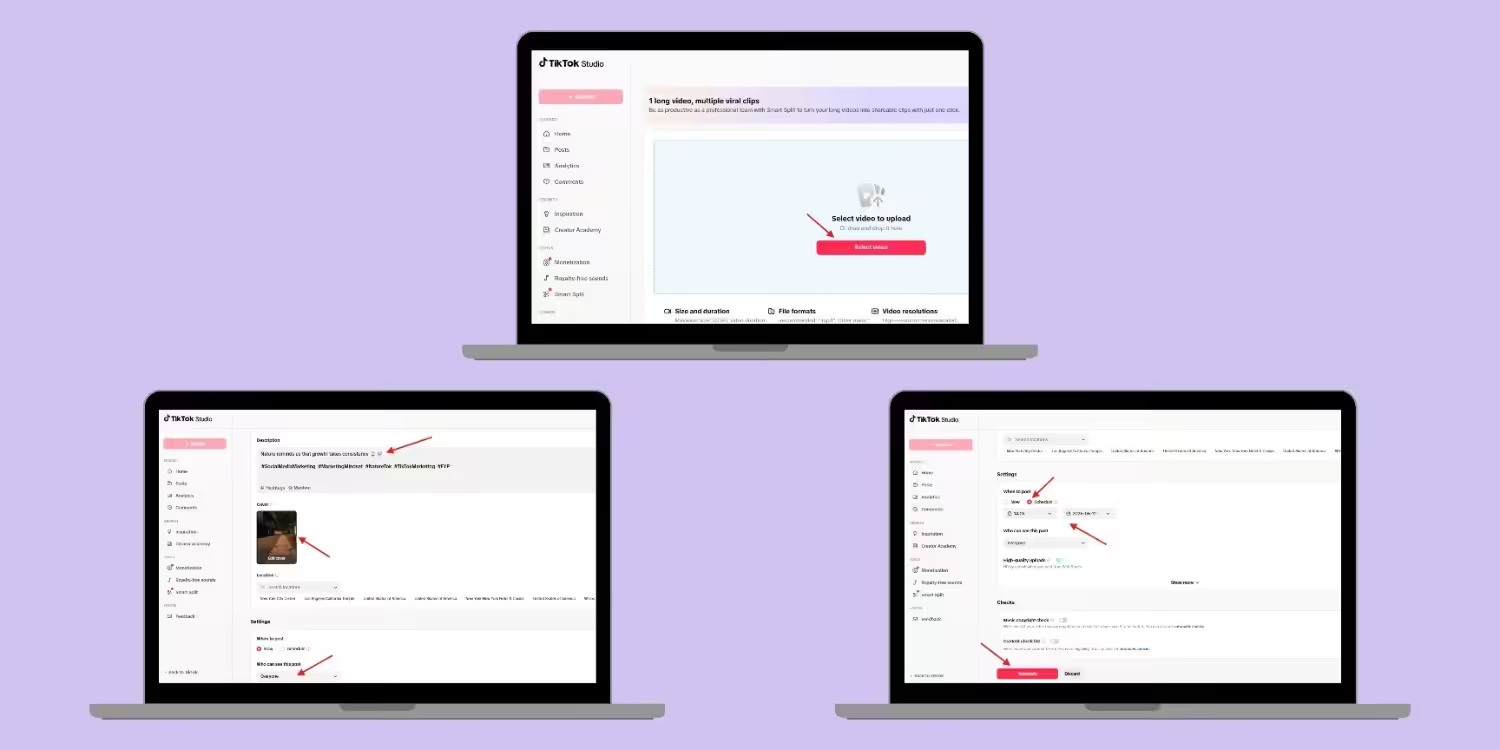
Step 1: Log In on Your Desktop
Go to TikTok.com in your browser and log in to your account. Make sure you have a Creator or Business account, as Personal account users can’t get access to this feature.
Step 2: Upload Your Video
Now, click the “Upload” option in the left side menu of your screen. Then, click “Select video” and upload your video. Make sure to follow TikTok’s recommended video size, format, and resolution. You can upload up to 60 minutes long video that should be a minimum of 30 GB.
If you want to do everything in the right way, you can read our guide on how to post on TikTok.
Step 3: Add Your Caption and Settings
Once you upload the video, write the description, add hashtags and mentions, and pick a cover image that stops the scroll. You can even select who can watch your video, like everyone, friends, or only you.
Step 4: Schedule Your Post
You can see the “When to post” option. Just select “Schedule” instead of “Now.” Set your date and time when you want your video to go live.
You can plan your content for up to one month in advance. Click the “Schedule” button at the bottom of your screen, and TikTok will automatically publish your post on your scheduled time and day.
Before reading further, let me tell you that you can’t edit your post after scheduling it with the TikTok native scheduler. You have to delete the post or re-upload it if you find any mistakes or typos.
Method 2: Using a Dedicated TikTok Scheduler (Social Champ)
This is the method I personally like and rely on for my day-to-day TikTok video planning. I’m talking about Social Champ, which is a dedicated TikTok scheduling tool.
I started using this when I grew tired of missing client deadlines due to the limitations of the native TikTok scheduler.
Let’s see how to schedule TikTok videos with Social Champ:
Step 1: Log In and Connect Your TikTok Account
Go to socialchamp.com on your desktop. Log in to your Social Champ account or sign up if you don’t have one.
First, you have to connect your TikTok account to Social Champ, which takes less than two minutes. You can add multiple TikTok accounts if you run an agency or manage several brands.
Step 2: Upload Your Video and Write Your Caption
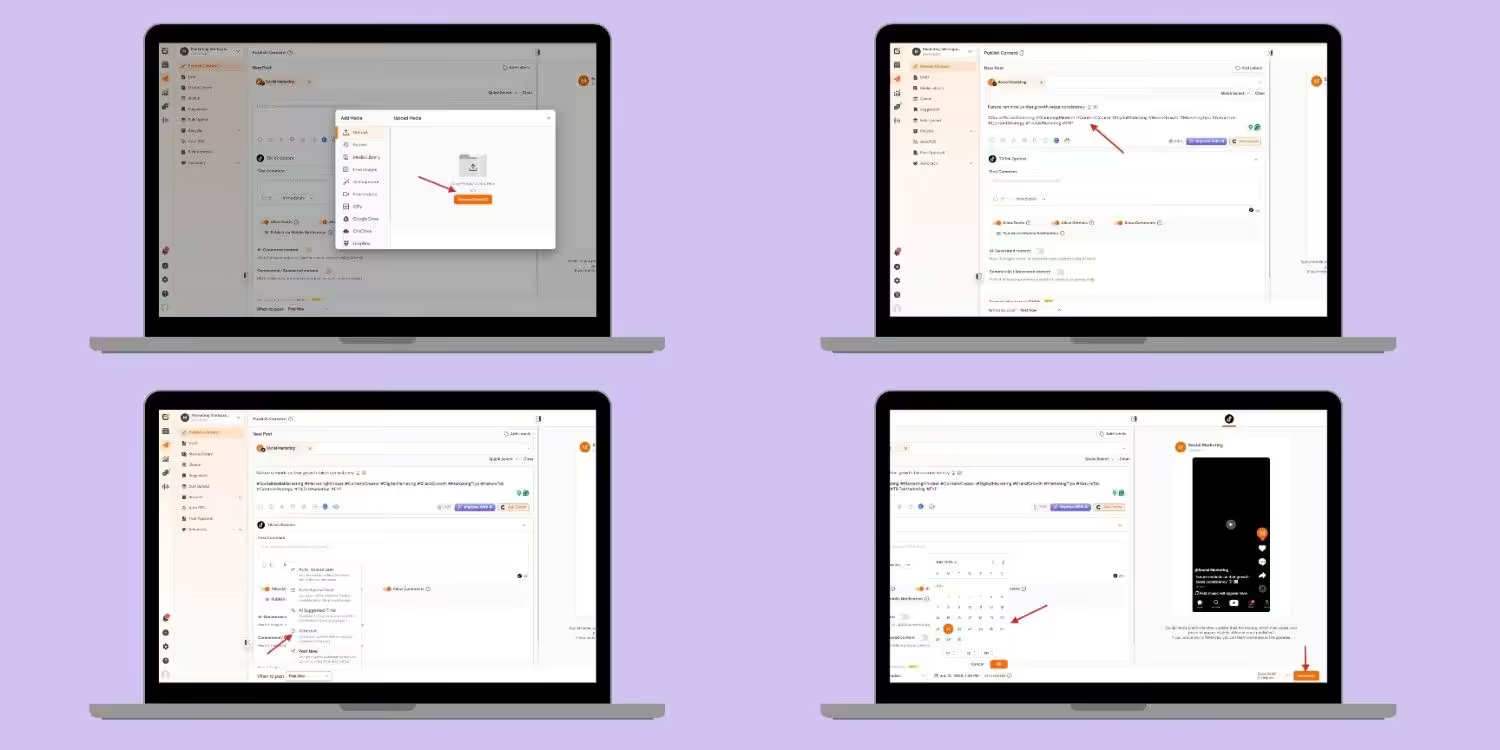
Once you’re done connecting your account, you’ll see the dashboard. In the post composer, click the camera icon, and upload your video from your computer or the Social Champ’s media library.
Now write your caption, hashtags, and mentions. You can also toggle comments, Duets, and Stitches on or off.
Step 3: Schedule With Full Control
Now your post is all set to schedule or publish. Click the “When to post” drop-down and select “Schedule.” Choose the date and time when you want to publish your post.
With Social Champ, you have no limits and can schedule content up to 3 years in advance. Click the “Schedule” button and done. That’s all.
Also, if you find any mistakes or you want to edit your post, you can easily edit your scheduled post and move it to a different time, or delete it.
Featured Article: How to Recover Deleted TikTok Videos
How to Schedule TikTok Posts on Mobile?
Many creators don’t want to schedule TikTok posts on a desktop always. They want a fast method that can be done on the phone, and they can schedule their posts even when they’re on vacation.
If you’re one of them, let’s learn how to schedule TikTok posts on mobile. Like a desktop, there are two methods that you can follow:
Method 1: Using the TikTok Studio Mobile App
I used to think that TikTok didn’t allow scheduling on mobile as the feature is not available in its mobile app. But then I found that we can schedule TikTok posts on mobile, but with the TikTok Studio app.
TikTok Studio is a separate app for creators and businesses. It gives you more control than the main app.
Step 1: Download TikTok Studio
First, you have to download the TikTok Studio app from the App Store or Google Play Store. Then just log in to your TikTok Creator account.
Step 2: Upload Your Video
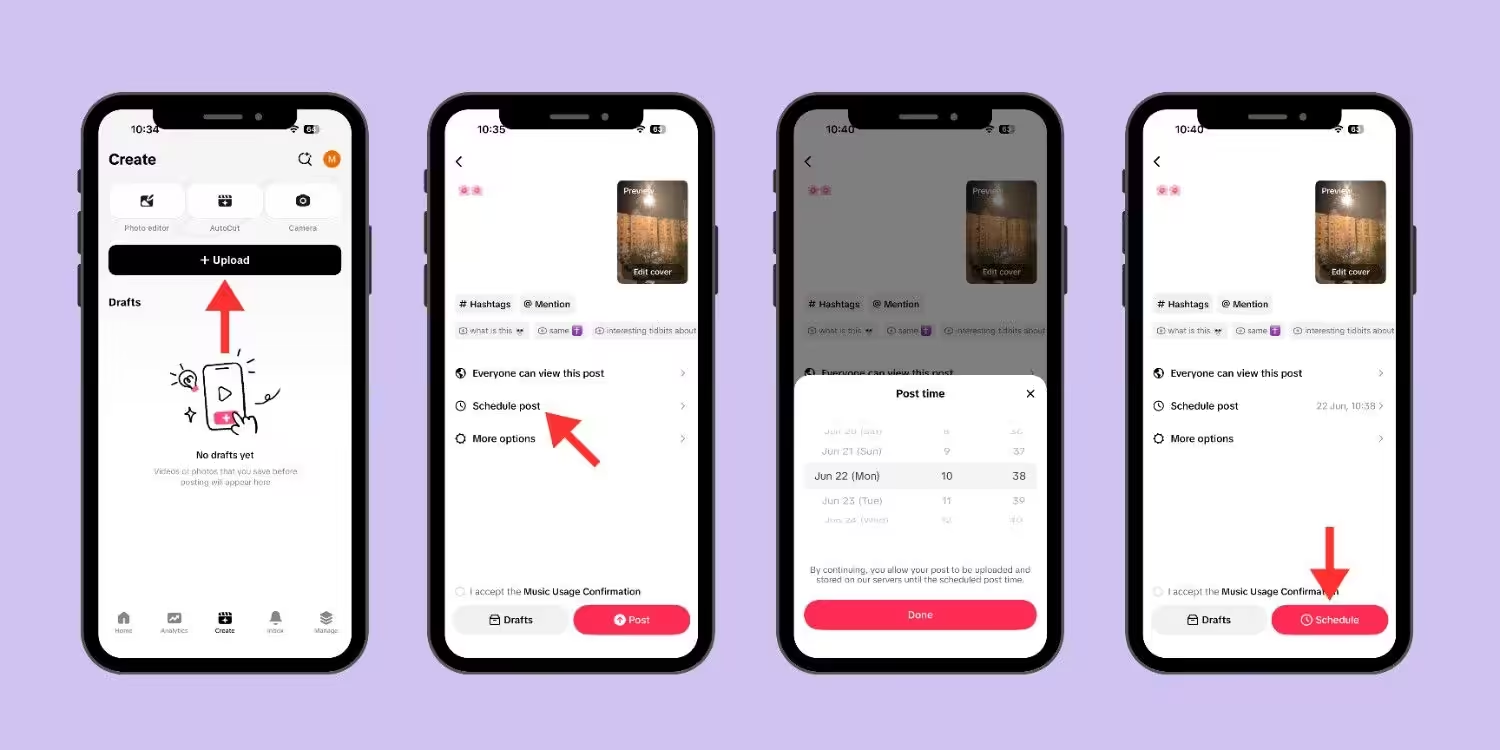
You will see the “Create” option at the bottom of your screen. Tap it. Tap “Upload.” Select the video that you want to upload and tap “Next.”
Step 3: Add Your Caption and Settings
Now add your caption, hashtags, and mentions. You can even edit the cover image for your video. Choose the audience who can view your video, like everyone, friends, or only you.
Step 4: Schedule Your Post
You’ll see the “Schedule post” option. Select it. Pick your date and time when you want to schedule your video and tap “Done.” Now, tap the “Schedule” option. Your video will go live on your scheduled date and time.
Like the desktop version, you can’t edit your post after scheduling it, which is a problem if you plan campaigns or manage multiple clients.
Data Picks Your Best Time
Method 2: Using Social Champ Mobile App
Let’s come to the next method, which I prefer to go with. The other way you can schedule TikTok posts on mobile is via Social Champ’s mobile app. It lets me edit my posts after scheduling them.
Here is how you can do it from your phone.
Step 1: Download the Social Champ App
Install the Social Champ app from the App Store or Google Play Store. Sign in or create your account if you don’t have one.
Step 2: Connect Your TikTok Account
To connect your TikTok account, tap the three lines of the menu on the left side of your screen. Tap “Social Accounts,” then “Add Social Account,” and add your TikTok account.
Step 3: Upload Your Video and Write Your Caption
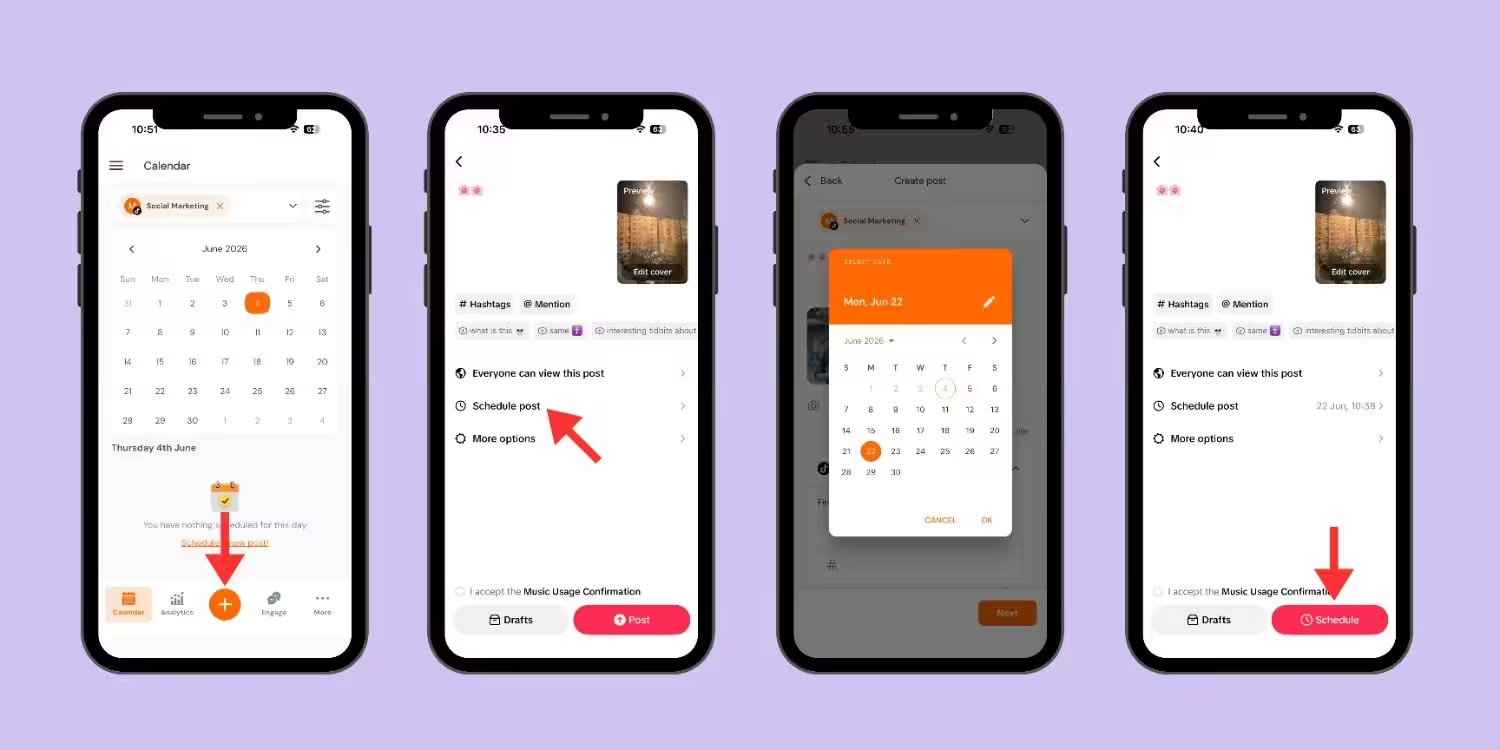
Now tap the “+” at the bottom of your screen. Tap the camera icon, upload your video from your camera roll. Write your caption, add hashtags and mentions, set privacy preferences, and toggle comments, Duets, and Stitches on or off.
Step 4: Schedule With Full Control
Then tap “Next.” Select “Schedule,” choose your preferred date and time, and done. Your post is now scheduled!
You can view all upcoming posts in the Calendar. You can edit captions, change times, or delete posts. Everything syncs with your desktop dashboard.
In my opinion, Social Champ is one of the most reliable TikTok tools for creators who work on the go. You can plan and schedule your content even when you’re not at home.
Wait, do not scroll yet. If you run multiple accounts, you need to read how to manage multiple TikTok accounts. It will save your sanity. Also, slideshows are lowkey the cheat code for views. Here is how to make a slideshow on TikTok. You’re welcome.
How to Optimize Your TikTok Post Schedule
You’ve already learned all the methods to schedule TikTok posts on desktop and mobile; now it’s time to understand how you can optimize your TikTok posts.
Let me tell you some TikTok scheduling tips that help my account grow.
-
Post When Your Audience Is Online
This is a very important point is very that a lot of creators ignore. Before posting your content, check your analytics and see when your followers are most active. You can see your audience’s active hours in the “Follower” tab.
When you start posting during that window, your content gets traction faster.
-
Build a Content Calendar
If you post your content randomly, it can kill the momentum. Make sure to plan your content one week ahead, map out your video ideas, and post times. When you build a content calendar, you can stay consistent with your posting and easily spot gaps before they happen.
-
Consider Time Zones
It’s not necessary that your audience lives in the same country. They might be from different time zones. For this, you can use a social media scheduler that handles different time zones.
You can use Social Champ because it allows you to set custom time zones for each workspace.
-
Batch Your Content Creation
To keep your feed active and stay consistent, I recommend that you batch your content. You can film your 3 to 5 videos at one go, edit them the same day, and schedule them across the week.
This way, you can keep your feed active even when you’re busy.
-
Use Analytics to Guide Timing
Start checking your TikTok analytics weekly because the numbers don’t lie. This way, you can track which posts performed best on what day and time. After that, you can adjust your schedule based on what the data shows.
-
Leave Room for Trends
You know how fast trends move on TikTok, so if you schedule everything too rigid, you may miss the moment. You can leave one or two open slots per week for spontaneous posts.
This way, you can jump on trends without disrupting your content calendar.
-
Test Different Posting Times
As a creator, you should never assume the best time to post on TikTok. Instead, you can test posting in the morning for two weeks. Then compare the results. Your niche might behave differently from the average user. Let your own data guide you.
-
Keep Your Queue Full
An empty queue means stress. I always keep at least four posts scheduled ahead. This gives me breathing room. It also protects my account during busy weeks or creative dry spells.
For the sake of consistency, remember that TikTok rewards regular posters. The algorithm favors accounts that show up daily. A steady posting schedule for TikTok builds trust with your audience and the platform.
If you’re new to the platform, read our guide What is TikTok to fully understand the basics. And if you want to explore live content, our guide TikTok Live Studio can help you.
Featured Article: How to Delete TikTok Videos
How to Schedule TikTok Posts at Any Time You Want
As I mentioned above, the TikTok native scheduler allows you to schedule only a month of content, which is not enough for campaigns, vacations, or quarterly planning. Let me tell you how you can schedule TikTok posts at any time.
Why the 30-Day Limit Hurts You
Because of TikTok’s 30-day limit on scheduling, you can’t plan a holiday campaign 40 days in advance. Also, you can’t batch your content before a vacation. And you end up logging in during your vacation to upload your content.
Plan Months Ahead With Social Champ
With Social Champ, you don’t have to worry about scheduling your content because it lets you schedule up to 3 years of content in advance. You can schedule your content for the next quarter, even for the next year.
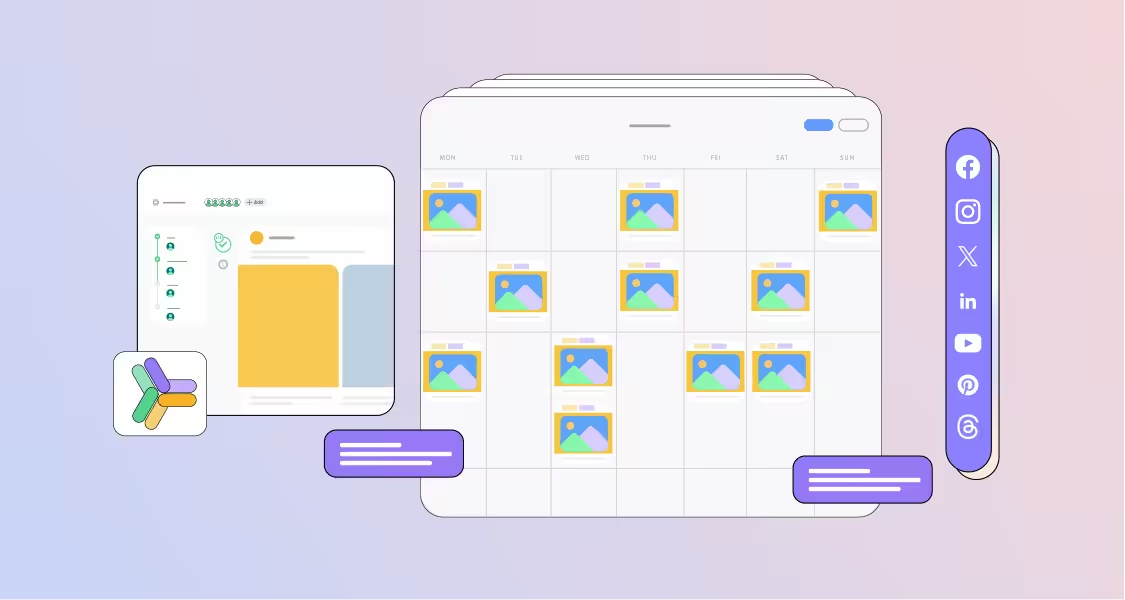
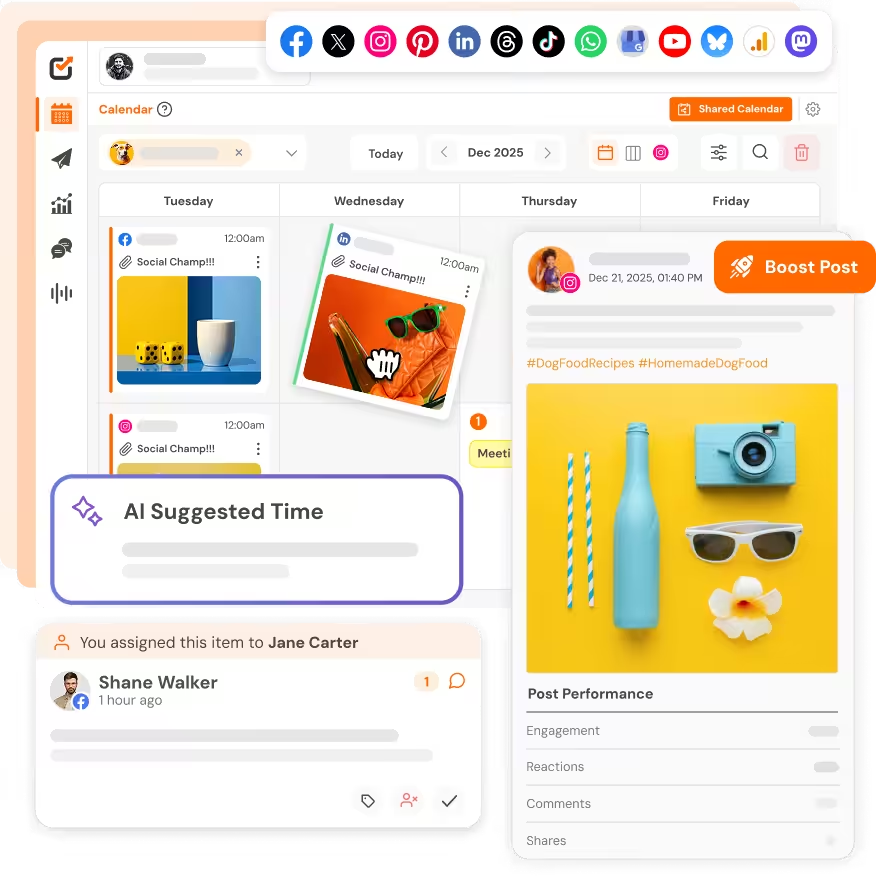
Also, there’s a visual calendar. You can drag posts to new slots, batch upload your videos, and edit captions after scheduling.
The Best Time to Post on TikTok in 2026
Did you know that Social Champ’s data says that TikTok’s most active posting hour is 10:00 PM? This time accounts for 8.19% of all posts. Close behind is 9:00 PM at 7.41%. The platform thrives on late-night content consumption.
Other high-performing slots include 6:00 PM at 6.96%, 5:00 PM at 6.56%, and 7:00 PM at 6.45%. Mornings remain quiet. The lowest point is 8:00 AM at just 1.32%.
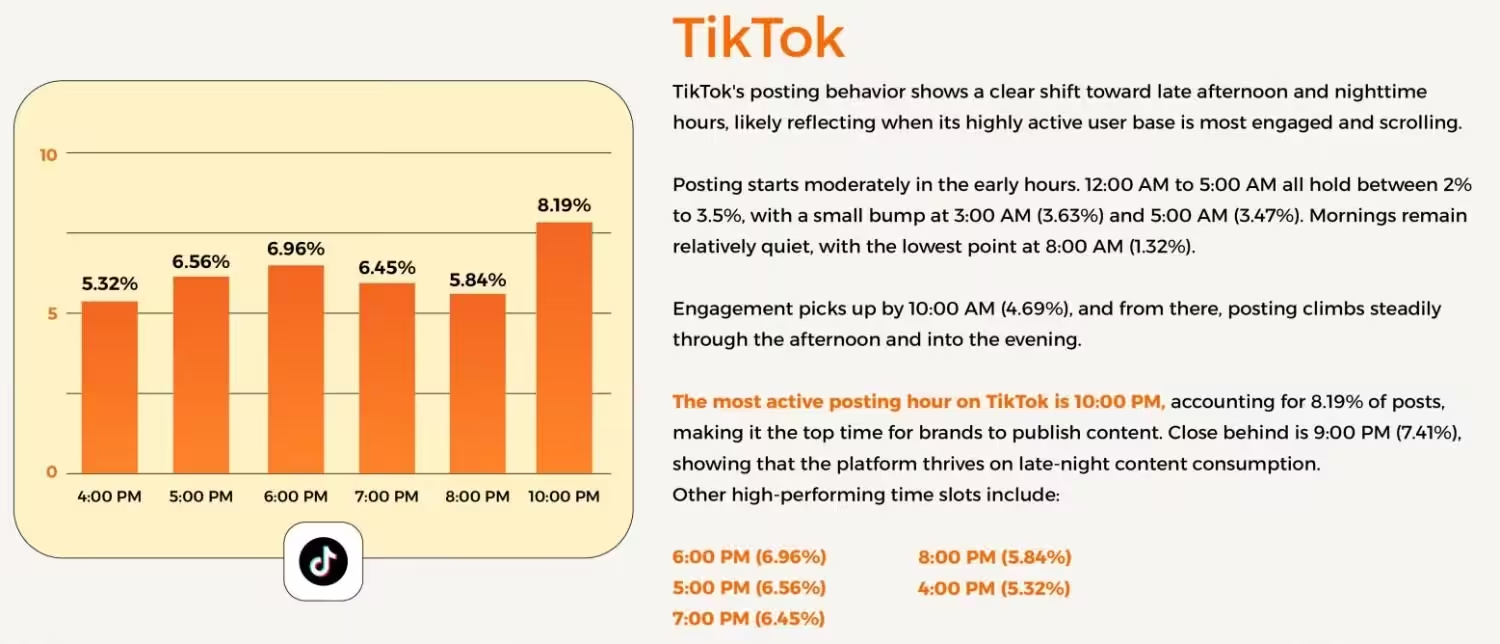
But along with relying on data, you should check your own analytics because your audience is unique. You can also check Social Champ’s analytics, as it reads your data and suggests the best windows for your specific account.
Conclusion
Now you’ve learned all the steps to schedule TikTok posts along with the tips and best posting times without the stress.
So it’s time to stop the 2 AM alarms, queue your content, and sleep peacefully while your videos go live.
You can also give Social Champ a try to easily schedule your TikTok content and stay consistent on the platform. Try it free for 14 days and start growing your account.











Nathaniel Ingram
I’m struggling to make it big on TikTok. Let’s see if using a scheduler can make those big dreams come true. Is there a limit to post scheduling on Social Champ?
Brett Lowe
Your guide is a gem for anyone juggling multiple social platforms. These scheduling tips help put TikTok on autopilot while keeping content fresh and engaging.
Emma Williams
This guide is exactly what I needed! Scheduling TikTok posts is a game-changer for managing my content and maintaining consistency.