Have you ever seen a creator go live on TikTok where the comments are flying, and gifts are raining in, but when you try, you don’t see the same result?
It happens to many of us. Basically, TikTok gatekeeps streaming behind some annoying rules, which is why not everyone can go live on TikTok.
But don’t worry. You can fix this in some easy ways. I’ll tell you exactly:
- How to go live on TikTok
- What age and how many followers must you have to go live
- How to go live from your phone or PC
- And how to co-host, so you’re not talking to an empty room.
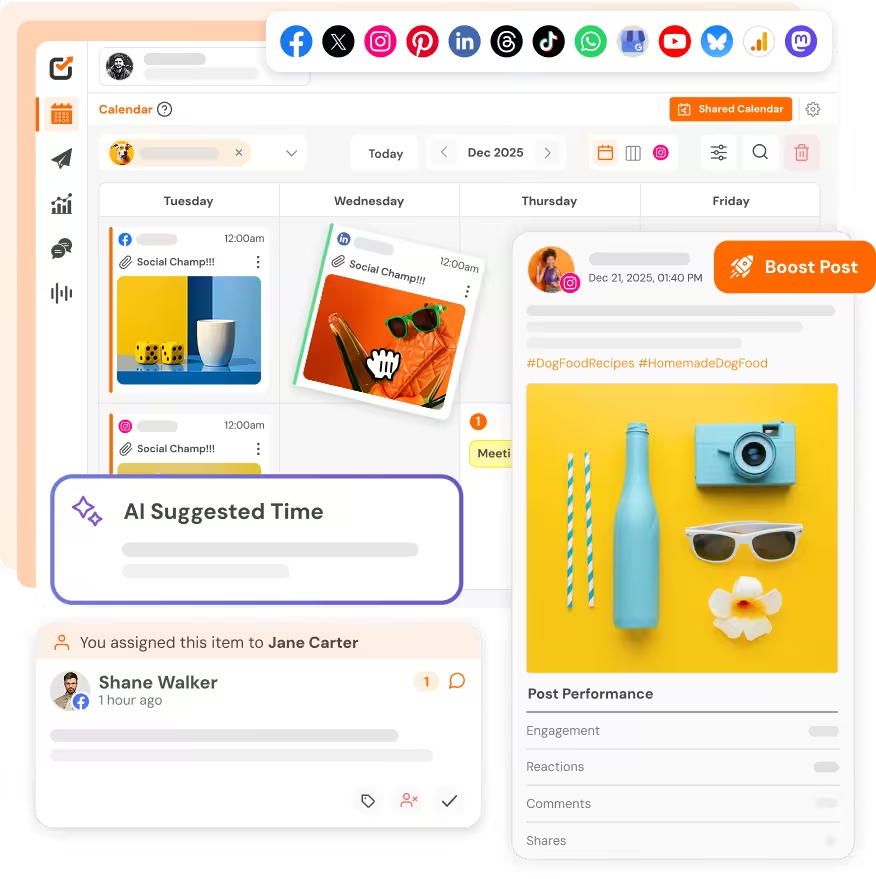
P.S. If you want your announcement posts to go live before you do, you can use the TikTok scheduler (Social Champ) to schedule them in advance. Try it for free!
Short Summary
- You must have 1000 followers and be 18 years old or older to get access to TikTok LIVE.
- If you put the wrong birth date on your profile, the button may disappear.
- If you don’t have 1000 followers, you can join as a guest, sell on TikTok Shop, or apply through an agency.
- Mobile setup takes under a minute once you clear the requirements.
- PC streaming works through TikTok LIVE Studio or OBS with a stream key.
- When you co-host the LIVE stream, it lets you borrow someone else’s audience without your own follower count.
- The algorithm rewards watch time, not just going live, so you should plan your format and promote early.
What Is TikTok LIVE?
First, let’s understand what TikTok LIVE is.
It’s a real-time streaming feature of the app that lets users broadcast video directly to followers and the LIVE tab. Viewers watch the LIVE session, interact through comments, likes, virtual gifts, and co-host requests.
Let me paint a picture for you so you can understand it easily. You go live on TikTok, and suddenly your face is on someone else’s phone. They type a comment. You read it out loud and laugh. They send a little rainbow gift. You say thanks and mean it.
Take a look at why creators obsess over it:
Discovery
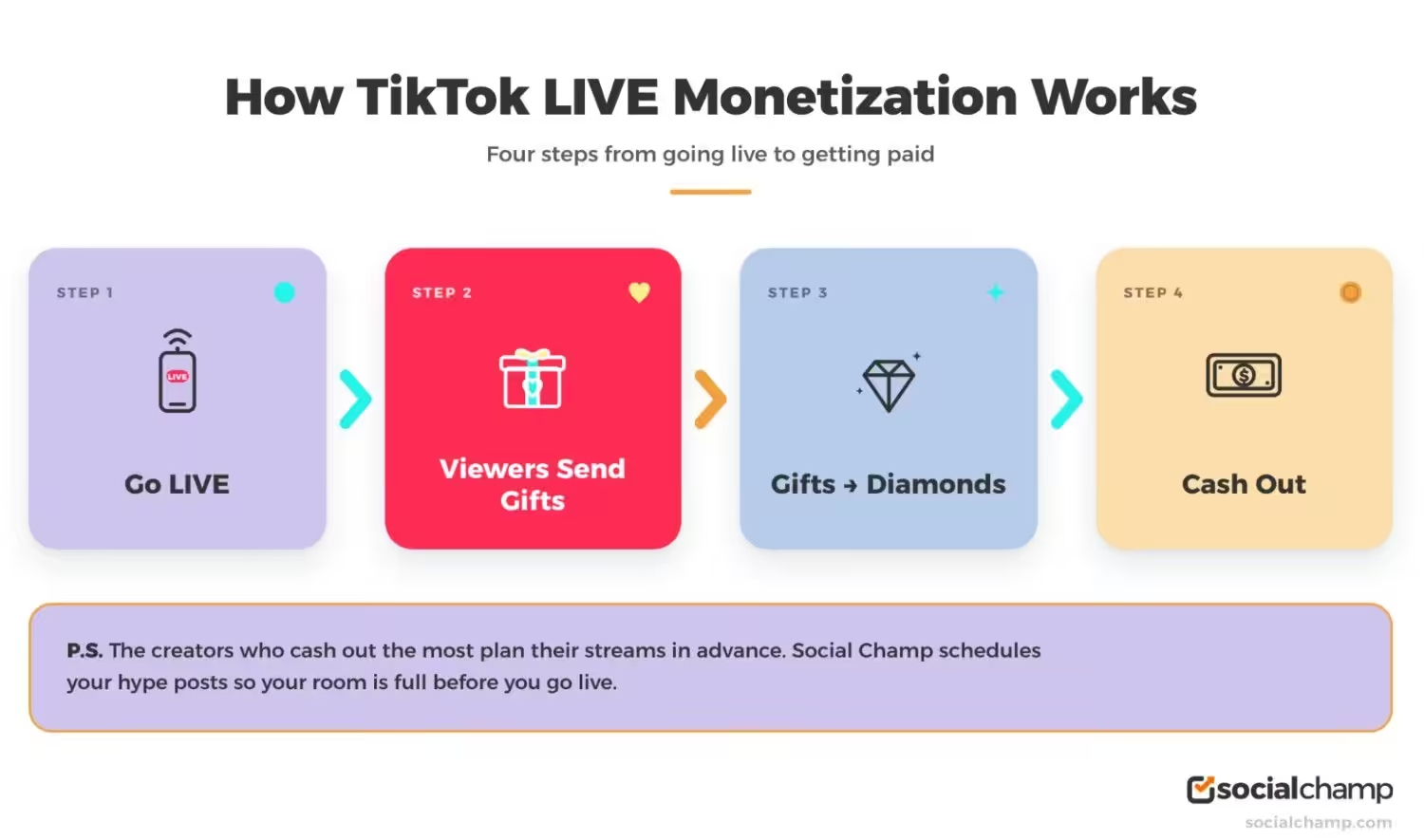
TikTok LIVE helps you get discovered by users. When you go live, the TikTok algorithm brings your LIVE stream to the FYP, and people who have never heard about you can interact with your LIVE stream.
Engagement
Now, when your LIVE stream pops up in front of more people, they leave comments, you answer back immediately, and you respond to their questions. This way, your engagement increases, and you don’t perform in an empty room.
Monetization
And then after interacting, viewers drop LIVE Gifts, which turn into Diamonds, and then those Diamonds turn into actual cash. You can even make more money by just chatting for an hour than you do from a week of regular posts.
Go Live With Confidence!
TikTok LIVE Requirements (Followers, Age, and Eligibility)
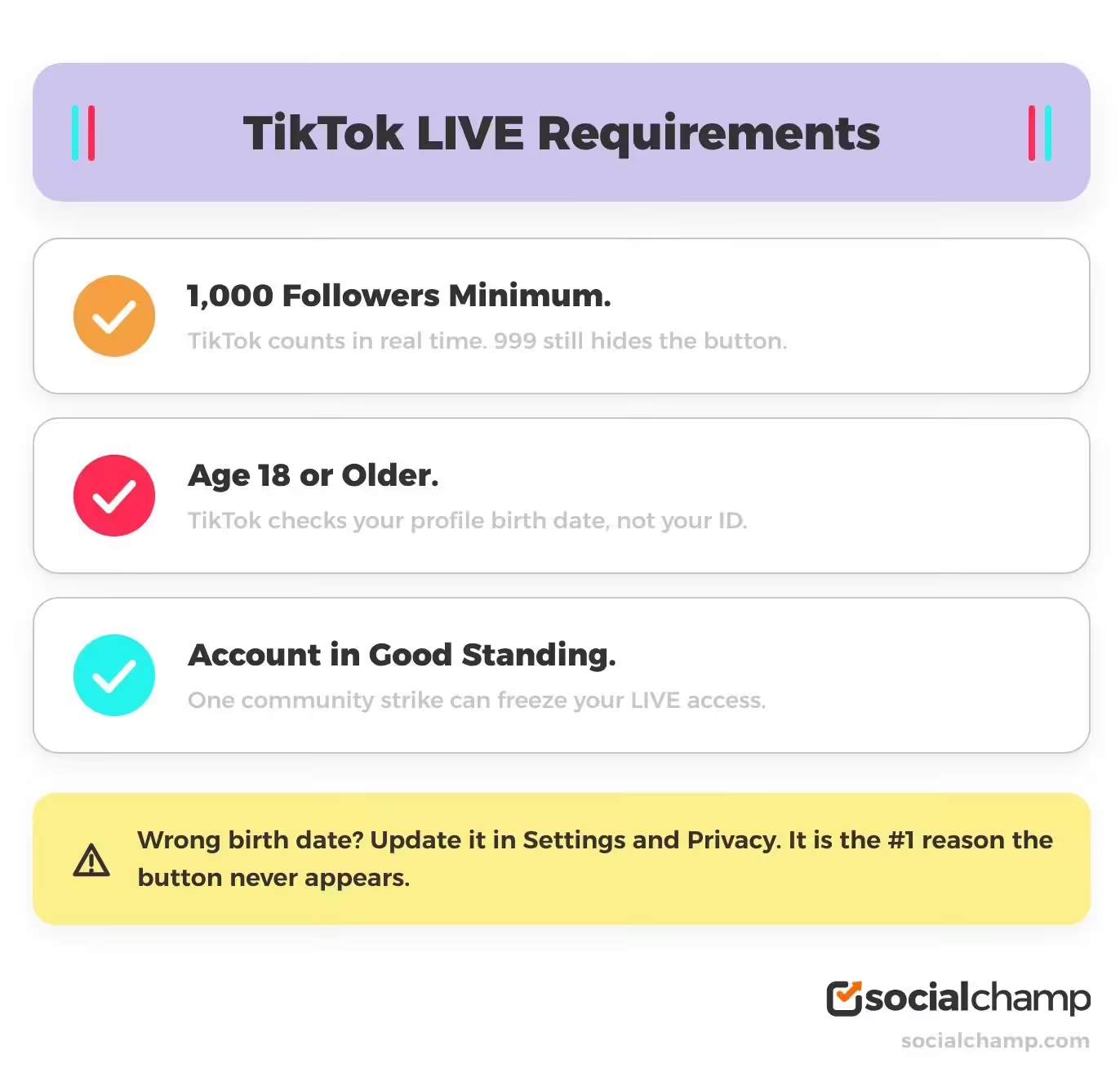
Now, here comes the main problem. Creators do everything, such as daily posting and chasing trends, yet still they can’t find the Go LIVE button, and they wonder how to go live on TikTok.
If you’re one of them, let me tell you why it happens.
There are some requirements from TikTok that you must meet to go live on TikTok. The first is that you need at least 1000 followers. Then you must be 18 or older.
Also, you need to be in a region where this option is available. That’s it. The regions that don’t have this feature include China, Russia, North Korea, India, Pakistan, etc.
| Requirement | Standard | What Actually Happens |
|---|---|---|
| Followers | 1000 minimum | TikTok counts this in real time. Hit 999, and the button stays hidden. |
| Age | 18+ | TikTok checks the birth date on your profile. Not your ID. Your profile. |
| Account Standing | No active violations | One strike can pause your LIVE access for weeks. |
| Region | LIVE must be available in your region | Some regions still do not have this feature. |
The Age Trap Nobody Talks About
When you add your birth date to your profile, TikTok pulls that directly from your profile settings. If you set any random age, you may not be eligible to go live on TikTok.
Let me tell you how you can fix that. Just open your profile, tap the menu, go to Settings and Privacy. Then check if your birth date is correct or not. If it’s wrong, update it so you can get access.
Clean Account, Clear Path
You should keep your account clean so the community guidelines strikes can’t freeze your LIVE access.
Also, try not to buy followers because TikTok purges fake accounts in waves. You may wake up with 1200 followers, drop to 900 overnight, and lose LIVE access again.
I recommend learning about how to get more followers on TikTok organically, staying consistent with your posting, and interacting with your audience in comments.
When the Button Still Hides
If everything is perfect, like your birth date is accurate, your followers are more than 1000, your account is clean, and the button is still not visible, you can try logging out and back in to refresh the app.
If you still can’t see the option, you can contact TikTok’s customer support to get your issue resolved.
BTW, The Algorithm Is Not the Only Thing You Need to Decode
You cleared the follower gate. Cool. Now level up your TikTok IQ with these guides:
Can You Go Live on TikTok Without 1000 Followers?
TikTok allows the Go LIVE button only for creators who have 1000 followers, but if you don’t have 1000 followers and you want to go live on TikTok, there are three legitimate ways.
- You can be a co-host in someone else’s LIVE. When you do that, you won’t need 1000 followers. However, you will need an invite from a creator who is eligible to go LIVE.
- You can register your account as a TikTok Shop seller because seller accounts can enable LIVE shopping access on a different track. You can check TikTok Shop’s current terms because they update them often.
- You can also apply through a TikTok LIVE agency and submit for LIVE access through a partnered agency. If your content is good and consistent, it can help you get access.
Additionally, you can track TikTok analytics to know which of your announcement posts gets more reach.
Featured Article: How to Report a TikTok Account
How to Go Live on TikTok: Step by Step (Mobile)
Now, if you finally have 1000 followers, you’re eligible to get access to the LIVE option, and you want to know how to go live on TikTok on mobile, you can follow these simple steps:
- Go to the TikTok app and log in to your account.
- Tap the “+” icon at the bottom of your screen.
- Tap the “LIVE” option at the bottom after scrolling.
- Add a title, cover, and topic of your LIVE stream to make your viewers find it.
- Adjust your LIVE settings and tap “Go LIVE” to start your LIVE stream.
It’s easy to go LIVE on TikTok, but the hardest part is getting people to watch. For this, you can schedule your announcement posts to let your audience know when you’re going to live. You can also use Social Champ to queue your hype posts and schedule TikTok videos across every platform.
Also, it’s important to go live when your audience is most active so they can join and interact with you. You can follow this helpful guide on the best time to post on TikTok so you know when to post and when to go live.
Watch this video to get an overview of how to go live on TikTok on mobile:
How to Go Live on TikTok on PC
If you want to go live on TikTok on PC, you can do this with two methods. Let’s have a look:
Use TikTok LIVE Studio
The first method is to use the TikTok LIVE Studio. It’s TikTok’s official desktop app, from which you can easily go live. You can download it, sign in to your account, and run the mic and camera setup. Adjust your streaming settings, then click Go LIVE.
If you’re new to LIVE, you may need to complete a task first, which is an onboarding requirement for a newly verified account to get full access to TikTok LIVE features. TikTok uses this feature to verify you.
Use Your Browser and OBS
Now the second method is to use your browser and OBS. For this, simply open the TikTok LIVE creator dashboard in your browser and access the LIVE Center.
You can copy your server URL and Stream Key and then paste both into OBS and start. Your feed goes straight to TikTok, and you can start your LIVE stream easily.
Check out this video to learn how to go live on TikTok on PC:
Let’s take a look at how these setups compare with each other:
| Factor | Mobile App | TikTok LIVE Studio | OBS + Stream Key |
|---|---|---|---|
| Setup Time | Under a minute | 5 to 10 minutes | 10 to 15 minutes |
| Best For | Casual streams, on-the-go | Regular creators, multi-scene | Advanced users, multi-platform |
| Screen Share | Limited | Built-in | Full control |
| Connection Check | Automatic | Built-in speed test | Manual |
How to Go Live With Someone on TikTok (Co-host and Multi-Guest)
Let’s say you’re in the middle of your LIVE stream, comments roll in, and someone asks you if they can join your LIVE stream, but you don’t know how to do it. I’ll explain that in a bit, but first, let me answer some common queries.
What Is a Co-host?
When you go live on TikTok and invite any other creator who broadcasts their own LIVE stream, that creator is a co-host. Basically, you’re both merging your audience, sharing the screen, and aggregating the attention.
What Is Multi-Guest?
When you go live and let up to 8 people join your LIVE room, that is called a multi-guest live session. With this, you can easily control who speaks, mute guests, and bring people in and out.
How to Invite Someone
Now, here’s how you invite someone. If you want to invite someone to your LIVE stream, you can tap the “+” icon next to Hosts. After tapping, you’ll see the recommended creators. Choose the one you want to invite and send the invitation. This way, your audience can see both of you together.
And if you’re invited to someone else’s LIVE, all you need to do is accept the invitation and join them!
The Follower Hack Nobody Talks About
If you don’t have 1000 followers, Co-hosting is the best way to experience LIVE. You can join an eligible creator’s stream as a guest.
Along with that, it also exposes you to someone else’s followers. From that LIVE stream, they can visit your profile, follow you, and show up to your next stream. This is also the best way to increase your followers.
How to Plan a TikTok LIVE the Algorithm Rewards
I know how frustrating it feels when you go live, and only three people join, and after some time, all of them leave, and you have no option but to end the stream.
So, what’s the problem here?
To get more people to watch your LIVE stream, you have to plan a stream that the algorithm wants to promote.
Let’s take a look at how you can do that:
Pick the Right Time
It’s very important to plan the right time to go live because you can’t just open your LIVE at a random time. You should pick the time when your audience is scrolling.
For this, you can check your TikTok analytics for peak activity hours. You can also schedule your announcement posts to build anticipation, so more people can watch you.
Write a Hook Title
To make your LIVE look appealing to the viewers, you should keep your title specific. It should promise value to grab the viewer’s attention.
Design an Interactive Format
If you want to make your LIVE stream more fun and interactive, you can pick any format. For example, host Q&A sessions as they pull comments and give live tutorials because they pull shares. You can choose the one that demands participation.
Run a Tech Check
Your audio is one of the most important parts of your LIVE stream because bad audio can kill your stream faster than bad content.
You should test your connection, check your lighting, and put your phone on a stable surface so it won’t shake.
Additionally, always make sure that your video dimensions are perfect. If you want to nail the specs every time, read our guide on TikTok video size to always make perfectly sized videos.
Cross-Promote in Advance
Whenever you want to go live on TikTok, always make sure to post a teaser on your feed or drop a Story. This way, your audience will know when you’re going to live, and they will stay tuned to attend your LIVE stream.
You can also learn how to promote on TikTok to easily know the easy ways of what works and what doesn’t.
Review Every Stream
After ending your LIVE stream, check your numbers. Count the peak concurrent viewers, track average watch time, comments, and shares.
Keep track of the new followers that you gained through the LIVE stream. Then compare your three to four streams and analyze which one is the winning format.
Featured Article: How to Leverage TikTok for Business Marketing
Conclusion
Now you know how to go live on TikTok on mobile and PC. You’ve also learned the requirements of TikTok to go live, such as the follower count, the age check, and the eligibility criteria, along with easy tricks to plan your LIVE streams.
So what’s the only thing that’s left? It’s the “Go LIVE” button that you have to hit now.
You don’t have to just refresh your profile and watch other creators’ streams. Simply follow this guide to easily start your LIVE streams and start using Social Champ today to queue your hype posts, track what works, and focus on what matters the most.