Last week my Instagram froze on me right before I hit post. The Story kept loading, and then the app crashed. I reopened it, and the same thing happened again.
If it happened to you, you might have even tried to link Instagram to Facebook again to fix it. It rarely works.
Usually, it happens because of cache. Old files pile up, which may slow down Instagram. The app starts to lag, crash, ot fail uploads.
The good news is it takes less than 2 minutes to clear cache. But one wrong tap can log you out or wipe your drafts. So before you start, you need to know what each step deletes.
In this guide, I’ll show you how to clear cache on Instagram on iPhone, Android, and desktop so you can solve the problem without losing your data.
Let’s get into it.
Short Summary
- Instagram cache can build up over time, causing the app to lag, crash, or fail to upload posts and Stories.
- On Android, clearing the cache is the safest fix, while Clear Storage can log you out and delete drafts.
- On iPhone, there is no direct cache clearing option, so deleting and reinstalling Instagram is the reliable way to remove cached files.
- You can also clear Instagram search history, in-app browser data, and desktop site data to fix other storage and browsing issues.
- Since cache fixes are often temporary, scheduling Instagram content through Social Champ helps protect your posting schedule from phone-related glitches. Pasted markdown
How to Clear Cache on Instagram for Android
Here, Android gives you the most control. You can clear cache on Instagram in under a minute, and your account stays untouched.
Instagram app doesn’t have any option to clear the cache. You need to use your phone’s settings.
Difference Between Clear Cache and Clear Storage
You may see two buttons sit side by side in your settings. They look alike, but act very differently.
- Clear Cache removes temporary files like thumbnails and previews. You stay logged in, and your drafts stay safe.
- Clear Storage resets the whole app. It logs you out and deletes your drafts and saved app settings.
If you tap the wrong option, your unpublished Reel can disappear. That’s why you should always pick Clear Cache first. If the glitch stays, post or save your drafts before you try anything stronger.
Steps for Pixel and Most Android Phones
Let’s take a look at how to clear cache on Instagram using a Pixel or any other Android phone:
- Open Settings on your phone.
- Tap App management, then tap See all apps if you see it.
- Select Instagram.
- Tap Storage usage.
- Then tap Clear Cache.
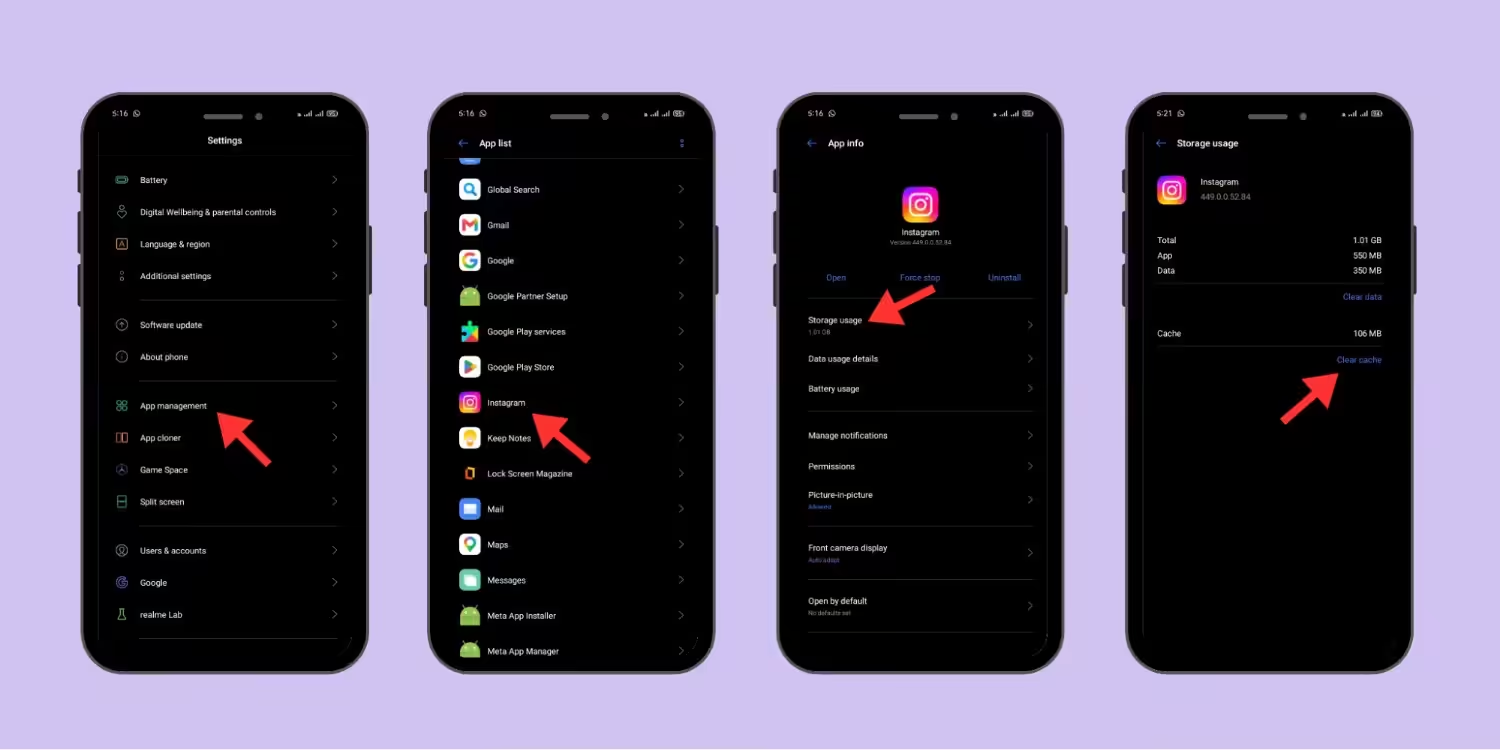
That’s it. Nothing else changes.
Steps for Samsung Phones
Samsung uses slightly different names, which trips up a lot of people. The path looks like this:
- Open Settings.
- Tap Apps.
- Select Instagram.
- Tap Storage.
- Tap Clear cache at the bottom of the screen.
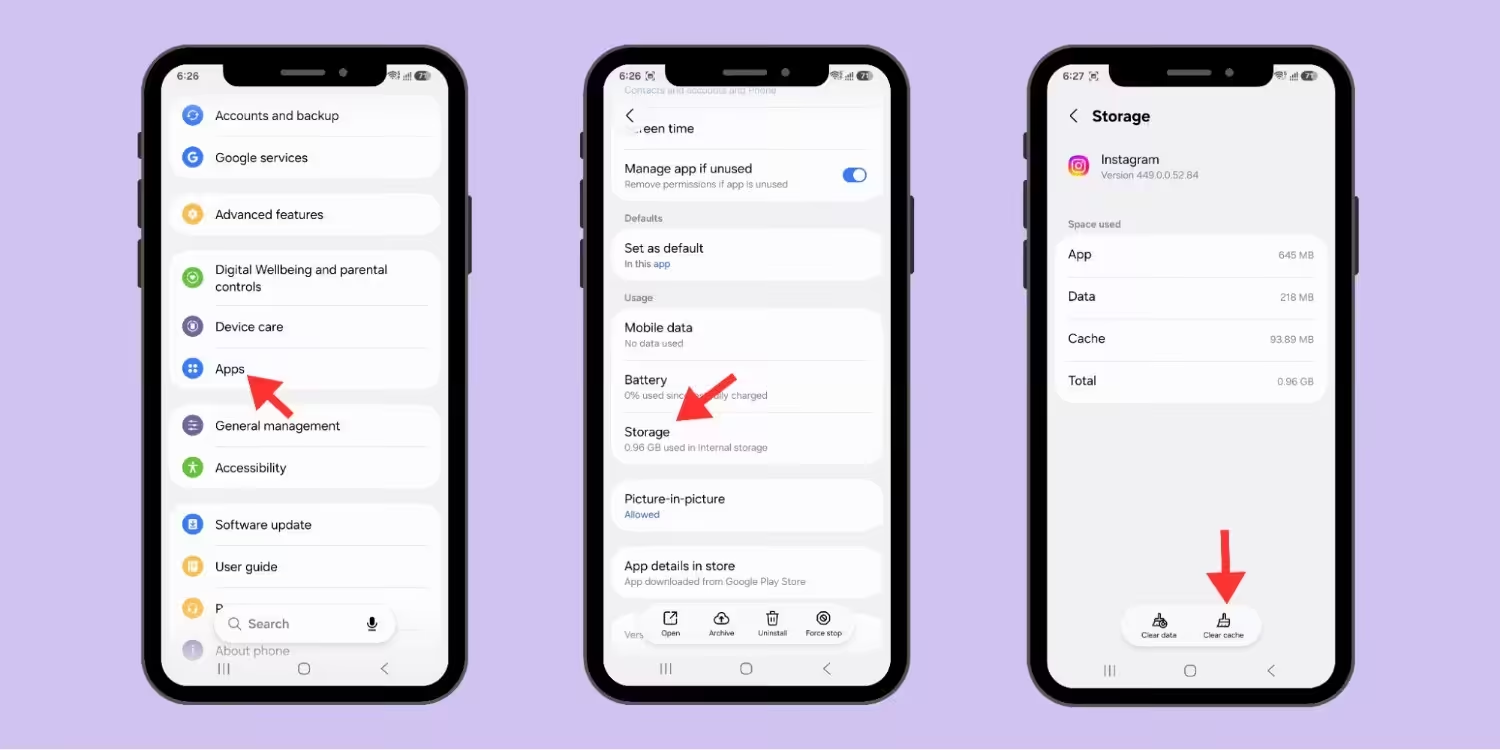
Samsung calls the second button Clear data, not Clear Storage. It works the same way, so skip it unless you really need a full reset.
What If Your Phone Crashes Again?
What to Expect After You Clear the Cache
Reopen the Instagram app again and scroll the feed for a minute. The feed may load a little slower at first. That’s normal, because the app rebuilds its temporary files.
Now check the problem again that sent you here. If a Story kept failing to upload, try it again. And if you’re not sure how to repost one, you can check out the guide on how to share a reel to your story. And if the glitch is still there, don’t panic. Next, try the iPhone method below, or do a full reinstall.
Featured Article: How to Block Someone on TikTok
How to Clear Instagram Cache on iPhone?
What surprises me most is that iPhone doesn’t have a direct Clear Cache button for apps, and neither does Instagram.
So what should you do?
Basically, you’ve got two options: Offload and Delete. They sound alike, but they act very differently.
Difference Between Offload App and Delete App
Apple’s Offload App option removes the app but keeps its documents and data. Your login details and local files stay on the phone. When you reinstall, everything comes back as it was.
But if your main goal is to remove Instagram’s extra files and cache, Offload may not do what you expect. Some guides say it clears the cache, and others say it doesn’t. Apple’s own wording points to the second view.
Delete App works differently. It removes the Instagram app and its data together. After a fresh install, Instagram starts clean. That makes delete and reinstall the reliable way to clear Instagram cache on iPhone.
Save Your Drafts Before You Start
This is the step that you shouldn’t skip.
When you delete the app, it wipes anything stored only on your phone. That includes your unposted drafts.
Do this before you tap anything:
- Post or schedule anything you can finish now.
- Save your Reel or photo edits to your camera roll.
- Check your Instagram drafts so nothing is left behind.
- Confirm you know your username and password, since you’ll log in again.
It takes only two minutes, and it can save you an hour of rework.
Steps to Clear Instagram Cache on iPhone
Let’s go through the actual process:
- Open Settings.
- Tap General, then iPhone Storage.
- Scroll down and select Instagram.
- Check the numbers. You’ll see the app size and a separate “Documents and Data” size.
- Tap Delete App, then confirm.
- Open the App Store, search for Instagram, and reinstall it.
- Log in.
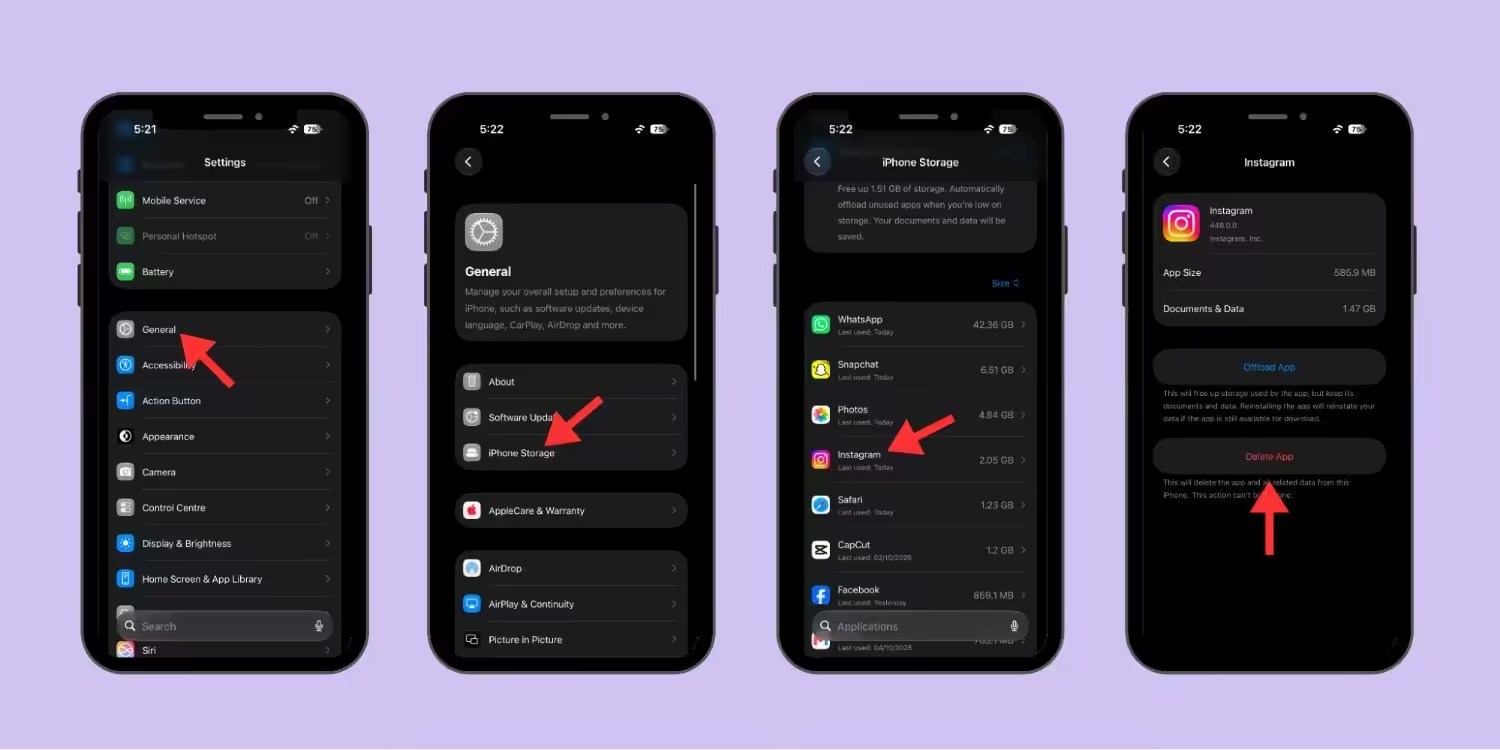
Compare the Documents and Data number before and after. That drop is the cache and old files you just cleared.
When Can Offload Be Useful?
If you only need space temporarily, Offload can be useful. It removes the app but keeps your data safe.
But if you want to remove Instagram’s extra files specifically, just don’t expect a deep clean from Offload.
If your Instagram is still having a problem after the fresh reinstall, the issue may sit with your account or the app version, not the cache.
And if you’re thinking of leaving the platform, it’s obviously a bigger step. This guide on how to delete your Instagram account walks you through it.
If you need a clean slate fast, reinstall Instagram now and clear cache on insta in two minutes.
Save Your Drafts Before You Reset
How to Clear Search History on Instagram, the In-App Browser, and Desktop
Cache isn’t the only thing that piles up. Instagram also stores your searches, the pages you open inside the app, and site data in your computer’s browser.
The problem is each one lives in a different place. Let’s take a look, one by one, at where to find all three.
How to Clear Search History on Instagram
When you tap the search bar, old searches pop up every time. It can feel a little awkward, especially when you’re sharing your screen with a client, and suddenly an old search pops up.
The good news is, it takes hardly 10 seconds to fix this:
- Open Instagram and tap the Search tab.
- Tap the search bar.
- Select See all next to Recent.
- Tap Clear all and confirm.
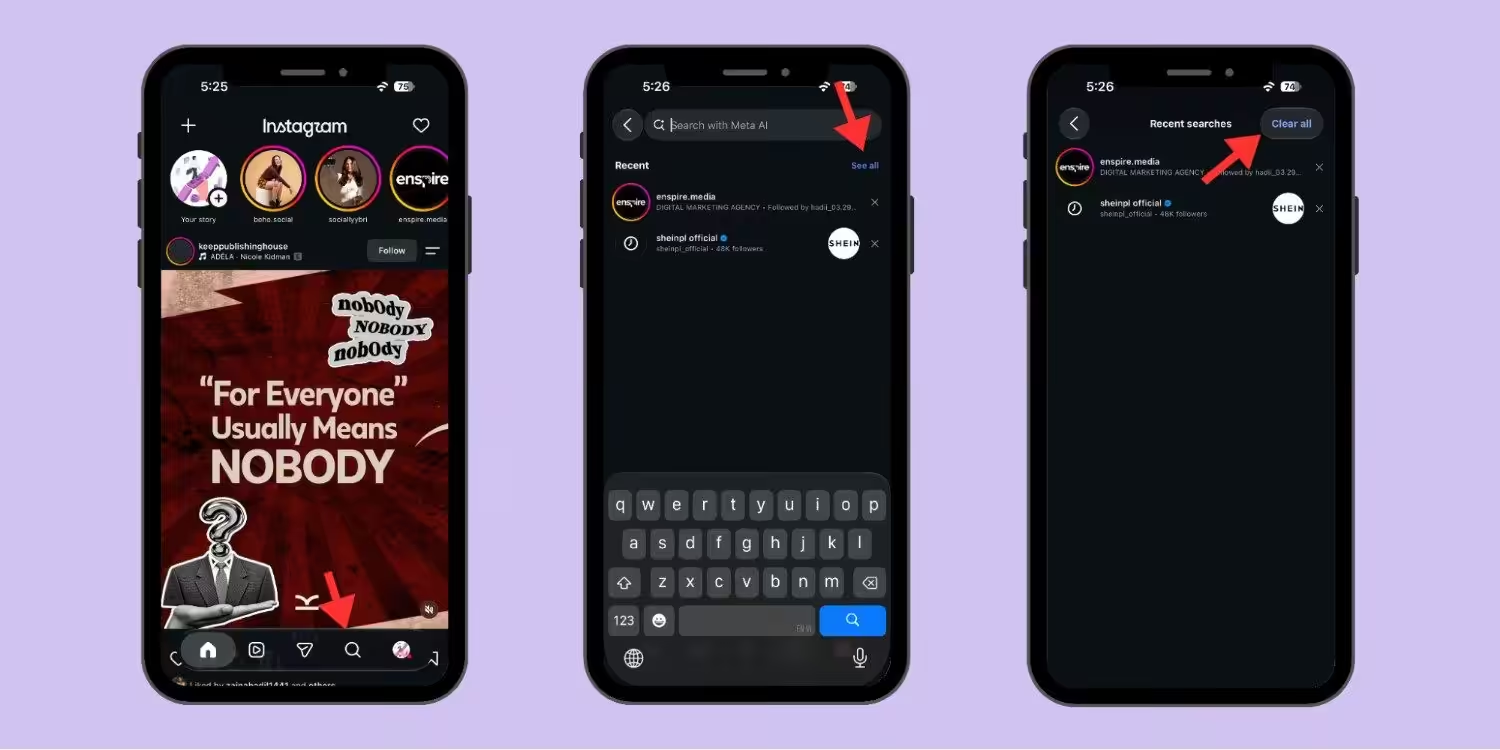
Menu names shift between app versions, so check yours if a label looks different. The same steps work on the Instagram website. Click the search bar, then choose Clear all.
This is the quickest way to clear Instagram search history, and it doesn’t delete your drafts and cache.
Instagram Browser Data Inside the App
Tap a link in a post or bio, and Instagram opens the page in its own browser. That browser stores cookies and browsing data. Most people never think to check it.
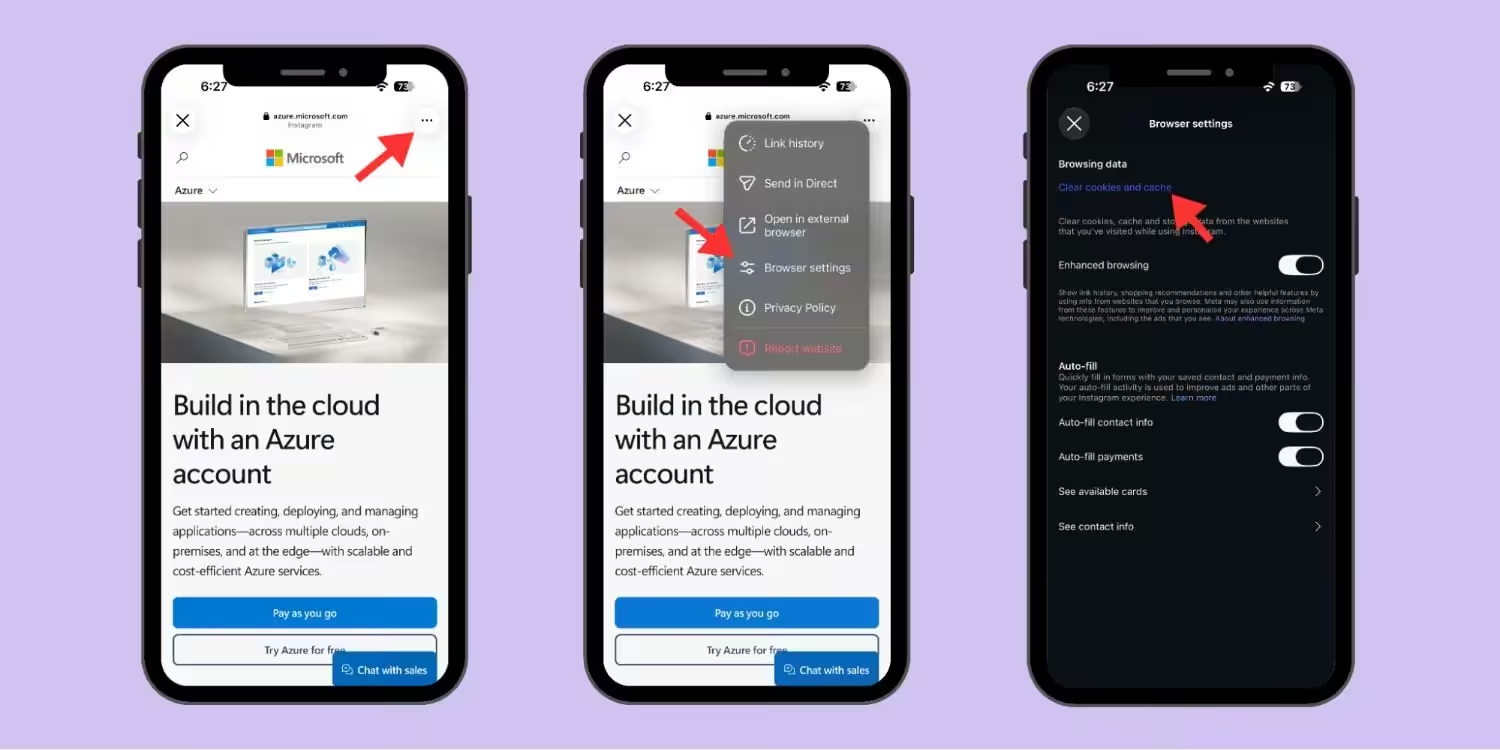
If you want to clear this data, you can follow these steps:
- Open any link inside Instagram, so it loads in the in-app browser.
- Tap the three-dot icon in the top-right corner of the screen.
- Select Browser settings from the menu.
- Tap Clear cookies and cache to wipe your browsing history.
How to Clear Instagram Site Data on Desktop
If you use Instagram on desktop, your web browser also saves your Instagram data. If the Instagram page doesn’t load, the feed looks broken, or the website doesn’t behave properly, clearing the saved site data in your browser can help.
Just keep one thing in mind: you’ll have to log in to Instagram on that browser again.
In Chrome
- Open instagram.com and click the icon to the left of the address bar.
- Select Cookies and site data, then Manage on-device site data.
- Click the trash icon next to instagram.com.

In Safari on Mac
- Open Safari, then click Settings.
- Choose Privacy, then Manage Website Data.
- Search for instagram, select it, and click Remove.
Featured Article: How to Hide Highlights on Instagram
What Clearing Instagram Cache Deletes (and What It Never Touches)
You’ve now seen four ways to clear Instagram cache, and each one removes something different. Mixing them up is how people lose drafts. So I put everything in one table. Check it before you tap anything.
| What’s stored | Android Clear Cache | Android Clear Storage | iPhone Offload | iPhone Delete |
|---|---|---|---|---|
| Cache (temporary files) | Removed | Removed | Kept | Removed |
| App storage and data | Kept | Removed | Kept | Removed |
| Saved drafts | Kept | Removed | Kept | Removed |
| Login session | Kept | Removed (you log out) | Kept | Removed (you log out) |
| Search history | Kept | Removed on the device, may return after login | Kept | Removed on the device, may return after login |
| In-app browser cookies | Kept | Removed | Kept | Removed |
How to Read This Table
Three points stand out.
- Clear Cache is the safest option. It removes only temporary files and keeps your login and drafts.
- Offload barely changes anything. Apple keeps the app’s data, so it won’t give you a deep clean.
- Clear Storage and Delete are full resets. They log you out and wipe local drafts.
One more detail matters here. Instagram ties your recent searches to your account. So a reset may not clear them for good. If you want them gone, use the search history steps from the last section.
Now you know what each method does. Next, let’s talk about what happens when a glitchy phone hits your posting schedule.
Stop Phone Glitches From Derailing Your Posting Schedule
When you clear the cache, it only fixes the glitch temporarily. It won’t stop future glitches. Phones lag, apps crash, and uploads fail at the worst possible moment.
A bloated cache is a common cause. It can slow the app down and trigger upload errors. Many of us have seen it. The Story hangs at 90%. The Reel won’t post. So you clear the cache, reopen the app, and hope for the best.
Now think about a real campaign. A launch post should go live at 9 AM, and it shouldn’t depend on one phone. Low storage, a weak signal, or a dead battery can block it. Meanwhile, you lose your best posting window while you troubleshoot. Every missed window is reach you don’t get back.
The Problem With Posting From One Phone
Here’s what usually goes wrong when your whole schedule lives on one device:
- Uploads fail when the app has a cache problem or low storage.
- Posts go out late because you have to be there to tap Publish.
- Drafts get lost after a reset, a reinstall, or a lost phone.
- Teammates can’t help, since the content sits on your device.
The good news is you can fix all four without touching your phone.
Schedule Instagram Posts and Stories From a Desktop
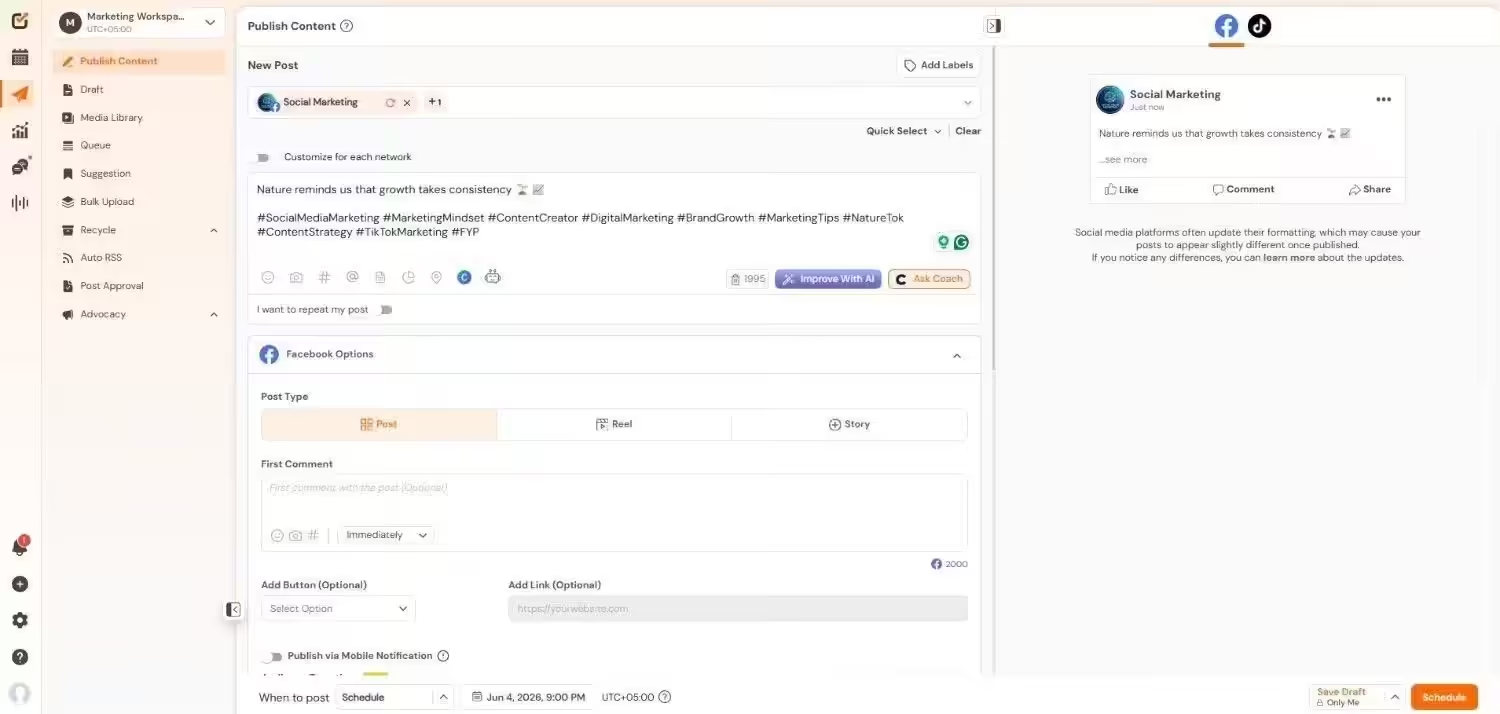
This is where Social Champ fits in. You can plan and schedule your Instagram posts and Stories from a desktop dashboard. Posts publish at the time you set, whether your phone is on or not.
Here’s what that gives you:
- A content calendar where you see every post across the week.
- Scheduled publishing, so you don’t have to stand by the app at posting time.
- Drafts stored online, so a cache clear or reinstall can’t wipe them.
- One place for your team to review and edit content.
I want to be precise about Stories. Direct Story publishing works on Instagram Business accounts. Each Story can include one image or one video. So check that your account is a Business account before you plan your Stories.
What a Backup Posting Routine Looks Like
A simple routine keeps you covered:
- Plan the week on Monday. Add every post and Story to the calendar.
- Schedule the important ones first. Launches and promos go in before anything else.
- Keep your phone for quick edits. Use it for live moments, not for your core schedule.
Connect Your Account the Right Way
Setup takes a few minutes. Connect your Instagram Business account to Social Champ. Then add your posts to the calendar and pick your times.
If you ever need to reset how your accounts connect, here’s how to unlink Facebook and Instagram the right way. After that, you can reconnect and get back to scheduling.
Think about the last time Instagram glitched on you. Did you lose a posting window? Did a draft vanish? Scheduling from your desktop makes that much less likely.
Conclusion
Instagram glitches always show up at the worst time. Now you know how to clear cache on Instagram to fix glitches.
On Android, clear the cache first and save Clear Storage for last. On iPhone, delete and reinstall, because Offload keeps your data. On desktop, clear the site data for instagram.com. Then check your search history and in-app browser data too.
Before you tap anything, look at the table again. Post or save your drafts first. That one habit prevents the most common mistake.
Still, clearing your cache only solves today’s problem. If your posting schedule depends on one phone, the next glitch will cost you again. Schedule your posts from a desktop with Social Champ, and your content goes live on time, whatever your phone does.