Join Our Discord Community

How to Unarchive a Story on Instagram in 2026: Every Method Explained

Learn how to unarchive a story on Instagram. Discover how to restore old posts, manage your highlights, and repurpose content effortlessly.

Published on: Oct 12, 2026
Written by: Afirah Shaikh
| Reviewed by: Masfa Ejaz 
Share:

We have all posted a story that felt too good to disappear after 24 hours. Maybe it was a big product launch, a funny behind-the-scenes moment, or a memory you wanted to hold onto forever.

I remember searching everywhere for a hidden button the first time I tried to learn how to unarchive a story on instagram to bring an old post back to my profile.

Instagram buries these features inside menus that seem to change every few months. Finding your old posts can feel like a search for hidden treasure if you do not know where to tap.

I want to show you exactly how to find those saved posts and bring them back to life in 2026. Grab a cup of coffee, open your app, and let us walk through every single method together.

Short Summary

  • Instagram automatically archives your stories after twenty-four hours into a private storage vault that only you can view.
  • Archiving differs from deletion, which moves posts to a temporary folder for thirty days before permanent removal.
  • You can access your archive by tapping the menu lines on your profile, selecting your activity, and opening the archive tab.
  • Unarchiving an old post lets you share it to your active story feed or save a copy directly to your phone.
  • Highlights act as public display collections on your profile page that pull content directly from your private archive folder.
  • Turning on the auto-save setting in your story controls ensures future posts are saved automatically when they expire.
  • Your archive serves as a useful content library for repurposing past visuals, building highlights, and maintaining a consistent posting schedule.

What Unarchiving an Instagram Story Actually Does (Archive vs. Delete vs. Highlight)

People mix up these three terms all the time, but they perform entirely different tasks on your account. When you delete a post from your profile, Instagram moves it into a temporary holding folder where it stays for thirty days before vanishing permanently.

Deletion is meant for content you never want anyone to see again, or mistakes you caught right after publishing.

Archiving works differently because Instagram saves your content privately as soon as your twenty-four hours expire. Nobody else can see your archive except you, which makes it a safe vault for all your favorite moments over the years.

When you unarchive instagram story items, you pull them out of your private vault and put them back where you want them on your active profile.

You can either push an archived post back into your public story queue for another full twenty-four hours or feature it on your main profile grid as a permanent highlight circle. Highlights sit right below your bio section on your main profile page as little interactive circles.

Think of your archive as a private home storage unit and your highlights as a curated public museum gallery where visitors can browse your best moments.

Understanding how these features differ prevents you from accidentally deleting a memory that you meant to save forever. It also gives you total control over what your audience sees when they visit your page for the first time.

Stop Manual Posting Before It Drains Your Energy!

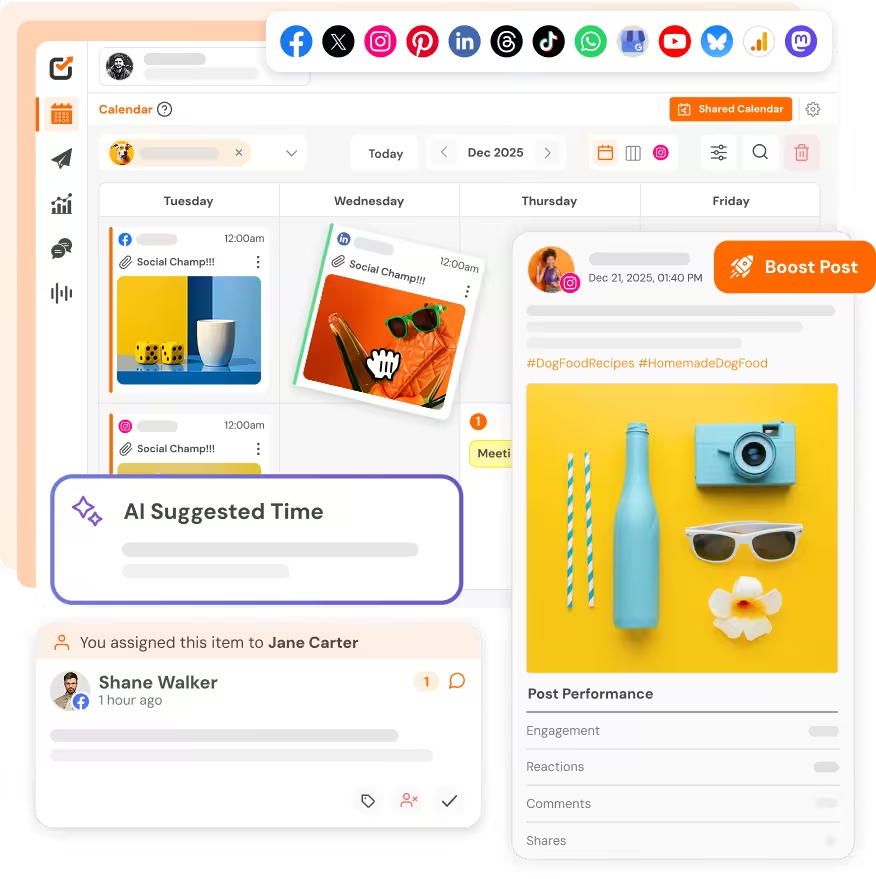
Social Champ automates your publishing calendar so your brand stays active around the clock without keeping you glued to your phone screen. 

How to Unarchive a Story on Instagram on iPhone and Android

Opening your archive takes just a few taps once you know the exact navigation path in the app. Open the app and tap your small profile picture in the bottom-right corner of the main navigation bar.

In the top right corner of your profile screen, tap the icon with three horizontal lines to open your main account settings menu.

You will see the Archive option; click on that!
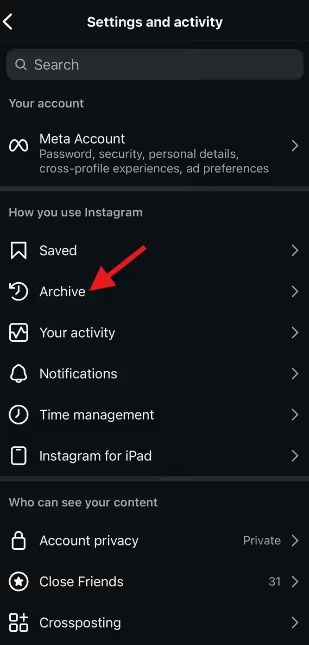
Click on Archive
Click on Archive

At the center top, you will see a drop-down to view options; click on Stories Archive.

Scroll through your chronological visual history to find the specific post you want to restore to your profile. Tap on the image or video to expand it to full-screen view.
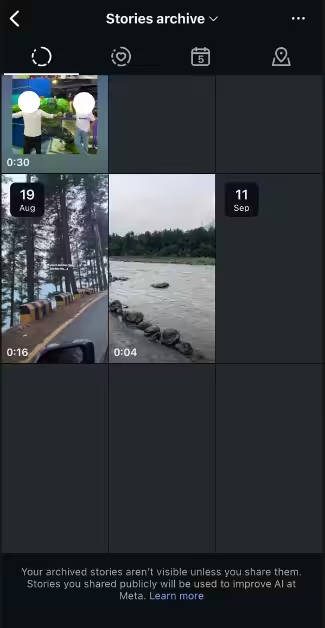
Scroll Through Stories Archive

Look at the top navigation bar of that specific story.
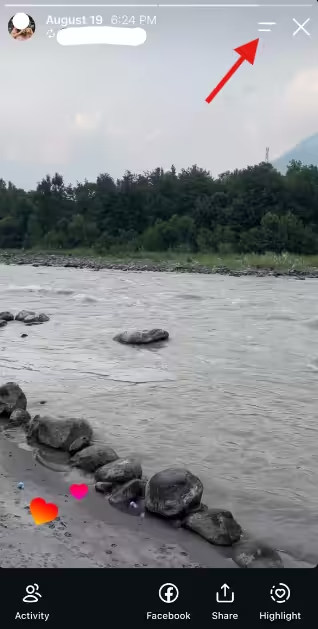
Click on the Navigation Bar

You will see options including Delete Story, Save Video or Photo, Share as Post, and Send. Select Share as Post if you want to push that post back onto your public profile or share it out to your active followers once again.

Select the Right Option

How to Unarchive a Highlight on Instagram and Restore Removed Stories

Sometimes you clean up your profile layout and accidentally remove a post from a highlight circle, leaving you worried the video vanished completely.

Highlights act as a public display case for your favorite archived content, but they don’t control the original master files stored in your account.

If you remove a post from a highlight circle, it never disappears from your account permanently. It simply slides back into your main private archive folder where it originally came from before you featured it.

You can easily unarchive a highlight on instagram by visiting your main profile page and holding down your finger on the specific highlight circle you want to edit.

A pop-up menu will appear at the bottom of your screen with several management options. Tap Edit highlight to view every photo and clip currently grouped inside that specific collection.

Uncheck the items you want to remove from public view, or tap the Archive tab in that edit window to pull fresh historical posts into the circle.

If you want to refresh your overall profile design and layout, browse through these creative instagram story ideas to make your front page stand out to new visitors.

You can also mix in clever instagram story hacks to make those restored historical posts feel relevant and engaging to your current audience. Restoring old posts into fresh highlight groups keeps your best content working for you long after its initial publication date.

How to Turn On Story Archive on Instagram

Sometimes you open your app eager to find an old post, only to land on a blank screen that says you have no saved content. That usually means the automatic save feature got switched off by accident during a software update or initial account setup.

Fixing this issue takes less than ten seconds, and it protects every future story you post from disappearing forever.

Go to your main profile page and tap the three horizontal lines in the top right corner. Scroll down through your account control options and select Settings and privacy at the top of the menu. Scroll down until you find the section labeled how others can interact with you.

Tap the option labeled Messages and story replies, or scroll down directly to the section for story controls and sharing options.

Look for the subsection labeled Saving, which controls how your media saves behind the scenes. Find the toggle switch located next to the label that says Save story to archive.

Make sure that toggle switch is flipped to the on position, which turns blue or green depending on your mobile operating system.

Once you turn this setting on, Instagram automatically saves every post you publish to your private vault the moment its 24-hour active lifespan expires. You never have to worry about manually saving photos or losing a cherished moment ever again.

Featured Article: How to Link Instagram to Facebook?

Turn Your Story Archive Into a Repurposing Pipeline

Your archive is a valuable goldmine for content creation, not a dusty digital graveyard where good ideas go to die. You don’t always need to invent brand-new concepts from scratch every day when you have months of proven material sitting in your private storage.

Open your historical calendar view once a week to review what kind of posts performed well with your audience at this exact time last year.

You can pull those classic photos out of storage and bring them straight back to your active feed. Try using options to add multiple photos to story posts so you can build visual side-by-side comparisons or engaging throwbacks using your older archived images.

This approach lets you build nostalgic series, share long-term progress updates, or highlight business milestones without spending hours shooting new footage.

If you manage a business page or run social media accounts for clients, maintaining a steady posting schedule is essential for growth. You can save hours of manual labor by using third-party platforms to schedule instagram stories weeks in advance rather than posting on the fly throughout your busy workday.

While you map out your upcoming content calendar, keep your unfinished concepts neatly arranged inside instagram drafts so you never lose track of a great creative spark.

Repurposing your historical archive keeps your active social channels vibrant while freeing up your calendar to focus on bigger projects and strategy.

Never Miss Peak Engagement Hours Again!

Plan and schedule your entire content strategy weeks ahead with Social Champ while your competitors scramble to post in real-time. 

Conclusion

Bringing old content back to life does not have to feel like a confusing or technical chore. You now know how to navigate hidden app menus, restore your favorite visual memories, and turn your old stories into a practical content strategy for your brand.

Take a few minutes today to open your mobile app, explore your personal archive grid, and see what forgotten gems you can pull from storage to share with your audience again.

Featured Article: How to Monetize Instagram? Strategies to Make Money

Frequently Asked Questions

1. Can You See Who Viewed an Archived Story on Instagram?

Instagram automatically erases public viewer lists and total view counts after 48 hours pass from the original post time. Once a story moves out of its active 24-hour window and spends another full day in your archive, viewer account names disappear completely. When you open an old archived post years later, you can only see the original date you posted it and the total number of interactions, but not individual user names. 

2. Does Instagram Notify People When You Repost an Archived Story?

No, Instagram never sends push notifications or inbox alerts to your followers when you unarchive a story on instagram or add it back into a public highlight collection. Your followers might see the post if they happen to visit your profile grid or view your active story ring during that window, but nobody receives a direct notification about your update. You can organize your profile freely without worrying about spamming your followers with unwanted pop-up notifications. 

3. How Do I Get Back a Story I Deleted on Instagram?

If you accidentally hit the delete button instead of archiving your post, do not panic just yet. Open your main profile screen, tap the three lines in the top right corner, and select Activity from the settings menu. Scroll down to the tab labeled Recently Deleted, which holds all deleted posts, reels, and stories for thirty days before removing them permanently. Tap the specific story file you want to save, tap the three dots in the bottom corner, and select Restore to return it directly to your profile archive. 

4. Why Are Some of My Stories Not in My Archive?

If you browse your archive and notice large gaps in your posting timeline, a few different factors might be responsible. Stories published before Instagram officially released the archive feature in late 2017 will not appear in your account history. Also, if you toggled off automatic saving during a specific month, any stories published during that window disappeared permanently after their 24-hour period ended. 

5. Can I View My Instagram Story Archive on a Computer?

Instagram keeps story archive management tools strictly limited to its official mobile apps for iOS and Android. If you log into your account using a desktop web browser on a Mac or PC, you can view active stories, send direct messages, and browse your main feed, but you cannot access your private historical archive. To browse your archived stories and manage your profile highlights, you must use a smartphone or tablet. 

Afirah Shaikh is a content marketer at Social Champ who turns strategy into storytelling. With three years of experience in content marketing and an MBA to her name, she has worked with brands across the digital marketing, e-commerce, and SaaS industries worldwide to create content that performs. She is known for her ability to balance creativity with purpose to drive results.

Leave the first comment

<script>
document.addEventListener('DOMContentLoaded', function() {
    function transformTablesForMobile() {
        if (window.innerWidth > 767) return; // Only for mobile
        
        const tables = document.querySelectorAll('#brxe-kpxjkv table');
        
        tables.forEach(table => {
            if (table.classList.contains('transformed')) return;
            
            let headers = [];
            const thead = table.querySelector('thead');
            const tbody = table.querySelector('tbody');
            
            // Get headers - check for both th and td in thead
            if (thead) {
                const headerRow = thead.querySelector('tr');
                if (headerRow) {
                    // First try th, then td
                    let headerCells = headerRow.querySelectorAll('th');
                    if (headerCells.length === 0) {
                        headerCells = headerRow.querySelectorAll('td');
                    }
                    headers = Array.from(headerCells).map(cell => cell.textContent.trim());
                }
            } else if (tbody) {
                // If no thead, take first row
                const firstRow = tbody.querySelector('tr');
                if (firstRow) {
                    let headerCells = firstRow.querySelectorAll('th');
                    if (headerCells.length === 0) {
                        headerCells = firstRow.querySelectorAll('td');
                    }
                    headers = Array.from(headerCells).map(cell => cell.textContent.trim());
                }
            }
            
            // Return if no headers found
            if (headers.length === 0) return;
            
            // Get all data rows
            const rows = Array.from(tbody.querySelectorAll('tr'));
            const dataRows = rows; // All tbody rows are data rows when thead exists
            
            // Create new structure
            const newContainer = document.createElement('div');
            newContainer.className = 'mobile-table-container';
            
            // Create a section for each column
            headers.forEach((header, colIndex) => {
                const columnSection = document.createElement('div');
                columnSection.className = 'mobile-column-section';
                
                const columnHeader = document.createElement('div');
                columnHeader.className = 'mobile-column-header';
                columnHeader.innerHTML = header; // Use innerHTML to preserve formatting
                columnSection.appendChild(columnHeader);
                
                const columnList = document.createElement('div');
                columnList.className = 'mobile-column-list';
                
                dataRows.forEach(row => {
                    const cells = row.querySelectorAll('td');
                    if (cells[colIndex]) {
                        const item = document.createElement('div');
                        item.className = 'mobile-column-item';
                        item.innerHTML = cells[colIndex].innerHTML;
                        columnList.appendChild(item);
                    }
                });
                
                columnSection.appendChild(columnList);
                newContainer.appendChild(columnSection);
            });
            
            table.style.display = 'none';
            table.classList.add('transformed');
            table.parentNode.insertBefore(newContainer, table.nextSibling);
        });
    }
    
    transformTablesForMobile();
    
    // Handle window resize
    let resizeTimer;
    window.addEventListener('resize', function() {
        clearTimeout(resizeTimer);
        resizeTimer = setTimeout(function() {
            const containers = document.querySelectorAll('.mobile-table-container');
            const tables = document.querySelectorAll('#brxe-kpxjkv table.transformed');
            
            if (window.innerWidth > 767) {
                containers.forEach(c => c.style.display = 'none');
                tables.forEach(t => t.style.display = 'table');
            } else {
                containers.forEach(c => c.style.display = 'block');
                tables.forEach(t => t.style.display = 'none');
            }
        }, 250);
    });
});
</script>
/* Sticky header for tables WITH thead */
#brxe-kpxjkv table thead {
    background-color: #f0ebf8;
    position: sticky;
    top: 0;
    z-index: 2;
}

#brxe-kpxjkv table thead th {
    background-color: #f0ebf8;
    position: sticky;
    top: 0;
}

/* Sticky header for tables WITHOUT thead (first row only) */
#brxe-kpxjkv table:not(:has(thead)) tbody tr:first-child {
    background-color: #f0ebf8;
    position: sticky;
    top: 0;
    z-index: 2;
}

#brxe-kpxjkv table:not(:has(thead)) tbody tr:first-child td,
#brxe-kpxjkv table:not(:has(thead)) tbody tr:first-child th {
    background-color: #f0ebf8;
    position: sticky;
    top: 0;
}


/* Mobile Column Layout */
@media (max-width: 767px) {
  #brxe-kpxjkv table{
    max-height:2000px;
  }
    .mobile-table-container {
        display: block;
        margin: 20px 0;
      border-radius: 12px;
      overflow: hidden;
    }
    
    .mobile-column-section {
        border: 1px solid #E0E0E0;
        overflow: hidden;
        background: white;
    }
    
    .mobile-column-header {
        background-color: #E3DFF5;
        padding: 15px;
        font-weight: bold;
        font-size: 16px;
        color: #333;
    }
    
    .mobile-column-list {
        padding: 0;
    }
    
    .mobile-column-item {
        padding: 15px;
        border-bottom: 1px solid #F0F0F0;
        background: white;
        font-size: 16px;
        line-height: 1.6;
    }
    
    .mobile-column-item:last-child {
        border-bottom: none;
    }
    
    .mobile-column-item:nth-child(odd) {
        background-color: #F7F6FC;
    }
    
    .mobile-column-item:nth-child(even) {
        background-color: #FAFAFA;
    }
    
    .mobile-column-item strong {
        color: #333;
        font-weight: 600;
    }
}

A Simplified Social Media Management Tool

Social Champ is your AI-powered social media management tool.

Schedule, analyze, listen, and track competitors – all in one platform.

Try now, Start free
No credit card required!
Related Blogs
How AI Agents Can Help Manage Social Media Campaigns
Oct 9, 2026
I want to start with a confession, because I think it sets up everything else in this post. For about…
AI Social Media Assistant vs. AI Content Generator: What’s the Difference?
Okay, let's clear up something that's been bugging me for a while. Every time I scroll through marketing Twitter (or…
How to Use an AI Social Media Assistant for Daily Social Media Tasks
Oct 9, 2026
If you're managing social media for even one brand, you already know the real job isn't "be creative"; it's juggling…
Wait, before you go...👋

Don't let your Social Growth stop here.

Get 14 days of Social Champ Pro - Completely free!
Schedule unlimited posts, analyze performance, and manage all your social media from one place.

Unlimited
Scheduling

In-Depth
Analytics

Manage Multiple
Accounts

Start My 14-Day Free Trial

No credit card required

Cancel anytime

Easy setup

Loved by 10,000+ marketers and businesses

Secure & Reliable

#1 Rated Social Media Management Tool