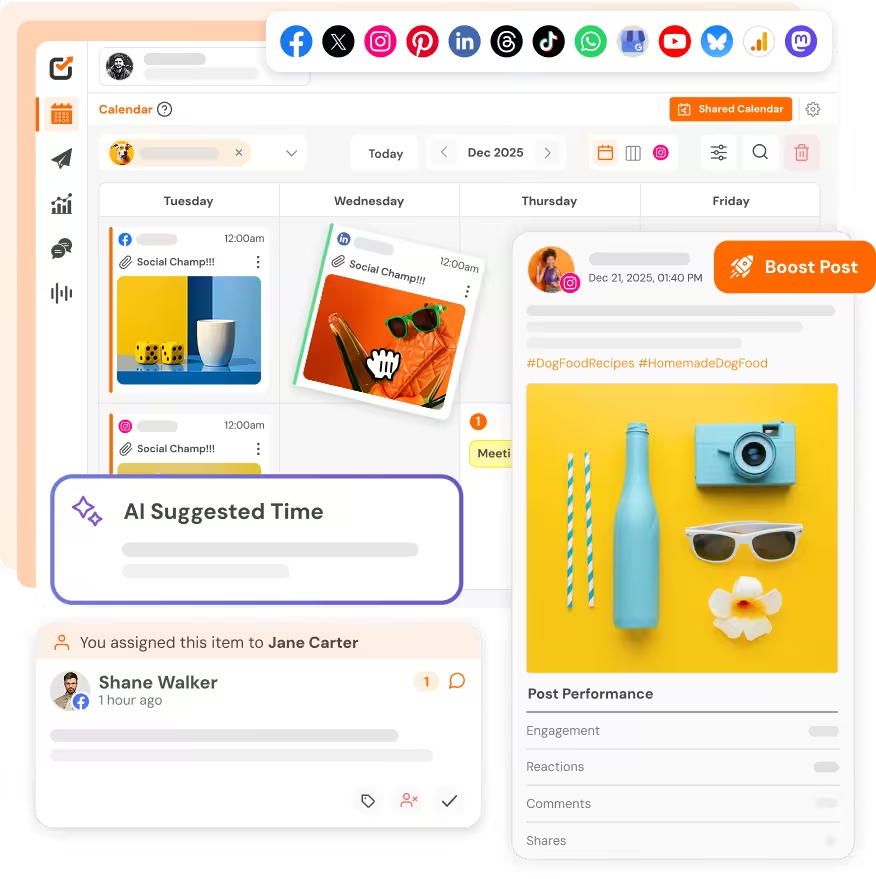
It’s incredibly frustrating to see thousands of people viewing your Stories but literally zero traffic on your website.
Trust me, you’re not the only one who is stuck in this loop. Many creators struggle to get their followers off the app and onto their sites.
Thankfully, now it’s a lot easier than it used to be, as you don’t need the old 10k followers “swipe up” rule anymore, and the Link sticker is free for all types of Instagram accounts.
As Instagram now has 3 billion monthly active users globally, it’s clear that the traffic potential is massive.
So, to make the process easier, I’ve created this guide to tell you exactly:
- How to add Instagram link to Story (+YouTube link trick)
- How to customize your sticker to get tapped
- A scheduling hack that saves you weekend posting
- Tracking clicks so you can prove ROI
- Story links vs. Link in Bio and when to use each
P.S. I schedule all my Instagram Stories through Social Champ these days. It’s free to start and saves me from that “oh no, I forgot to post” panic on weekends. You can try it for free too!
Short Summary
- All Instagram accounts have access to Link stickers now. There is no 10k follower rule.
- Use the Story camera, tap the Sticker icon, choose “Link”, paste the URL, and publish.
- Add text to stickers, include a CTA, and include GIF arrows to help increase taps.
- For YouTube links, use the YouTube app to copy the links first, then paste them into the Link sticker.
- Use Instagram management tools like Social Champ to schedule Stories with links in advance.
- Combine Story links (urgent traffic) with Link in Bio (evergreen traffic) for maximum reach.
How to Add a Link to Your Instagram Story: Step-By-Step
If you’re wondering how to add Instagram link to Story, the process is simple.
To do this, simply open the Story camera, upload your content, tap the Sticker icon at the top, and choose the “Link” sticker to paste your URL.
This is a straightforward process. Now, let’s break it down into detailed steps so you can easily do it with your phone.
What I’ve learned from my experience is to always prepare your visuals in advance, keep your images ready, and have your URL copied in your Notes app, as it makes your process smoother, particularly if you batch your content.
Also, if you plan your Instagram Stories ahead of time, then Social Champ is your lifesaver. Its Instagram scheduler can do all of your work in one sitting, so you don’t have to scramble at post time.
How to Add Instagram Link to Story (Step-By-Step)
The process is very simple:
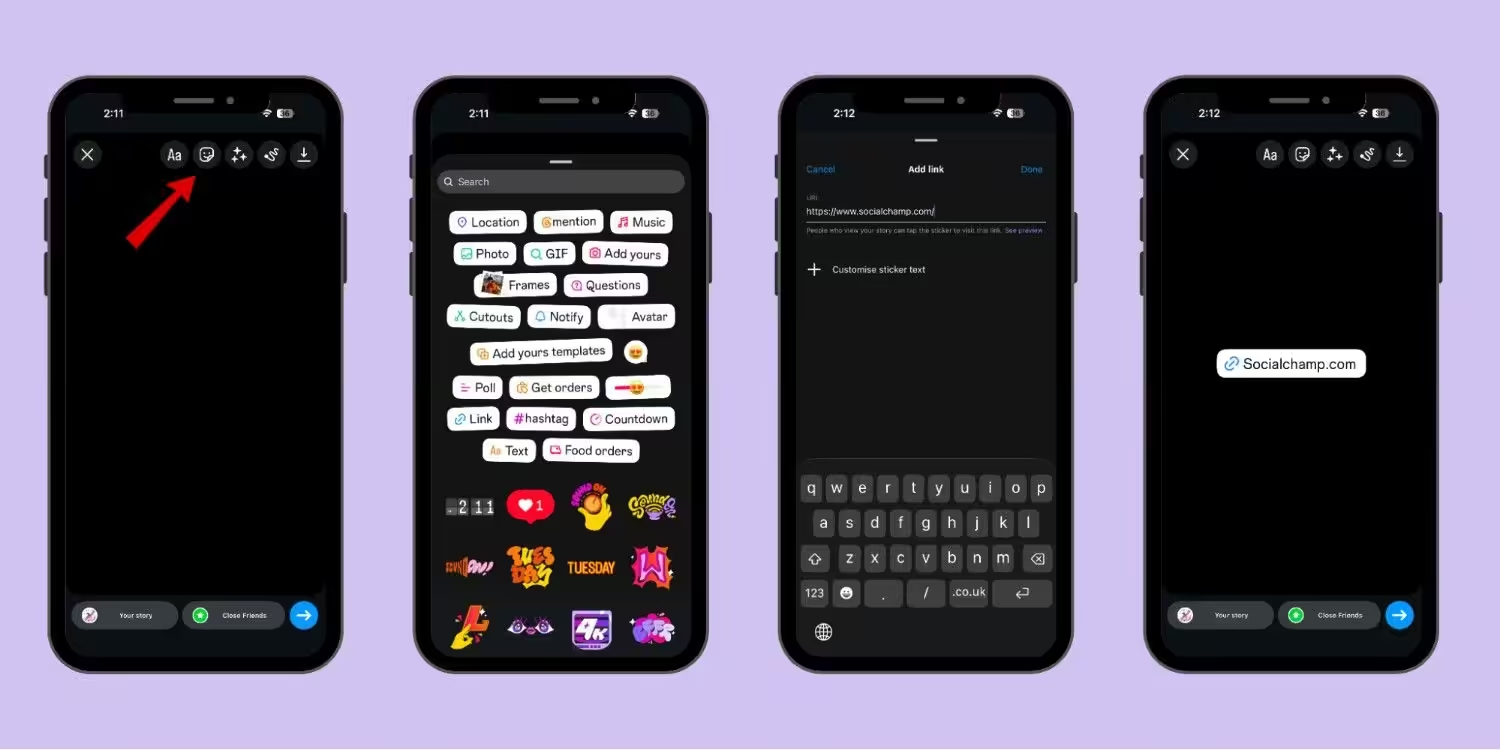
- Open your Instagram app and go to your Story camera.
- Take a picture, make a video, or simply upload the one from your camera roll.
- You’ll see the Sticker icon (the smiling square face) at the top, tap it.
- Select Link from the sticker tray.
- Paste your URL here and tap Done.
- Drag and position the sticker wherever you want to put it on your Story.
Look how easy it is! Once you’ve done these steps, you will do it in less than 30 seconds.
How to Add a YouTube Link to Instagram Story
That’s a tricky question! The answer is simple: Instagram doesn’t allow you to directly search for YouTube videos within the app itself.
To do it, you can follow these easy steps:
- Open the YouTube app and search for the video you want to share.
- You’ll see the Share option right under the video.
- Copy its link and go to the Instagram app.
- Open your Story camera again and follow the above steps that we’ve discussed before.
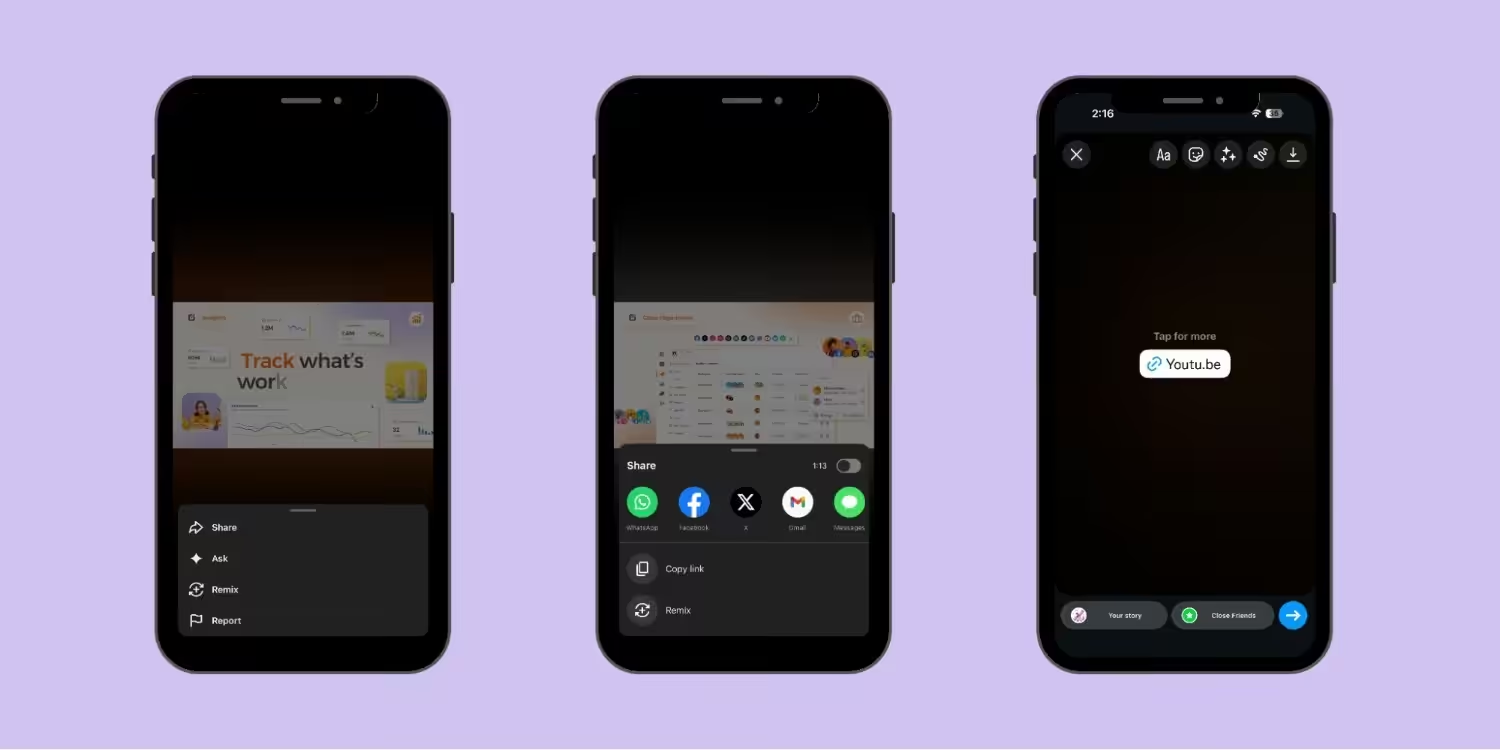
The important thing to keep in mind is that you can’t search for YouTube videos in the Instagram app. Copy the URL from YouTube first, and always preview your link to avoid mistakes after sharing.
Can You Still Add a “Swipe Up” Link on Instagram Story?
No. The swipe-up feature is old and no longer available on Instagram.
The app officially retired the feature in late 2021. Earlier, Instagram users needed 10k followers to add links to their Stories, and many small creators and new businesses got affected by that.
Now, Instagram has replaced that swipe-up feature with the Link sticker entirely, which is available for all types of accounts. That means, if you have even 47 followers, you can still add a clickable link to your Stories and easily drive traffic.
P.S. If you’re managing multiple Instagram accounts and want to schedule Stories with links for all of them in one place, Social Champ handles that very smoothly.
Featured Article: 17 Best Buffer Alternatives for Smarter Social Media Management
How to Customize Your Instagram Story Link Sticker to Get More Clicks
Now you’ve already learned how to add link to Instagram Story, so the next step is to make people tap it.
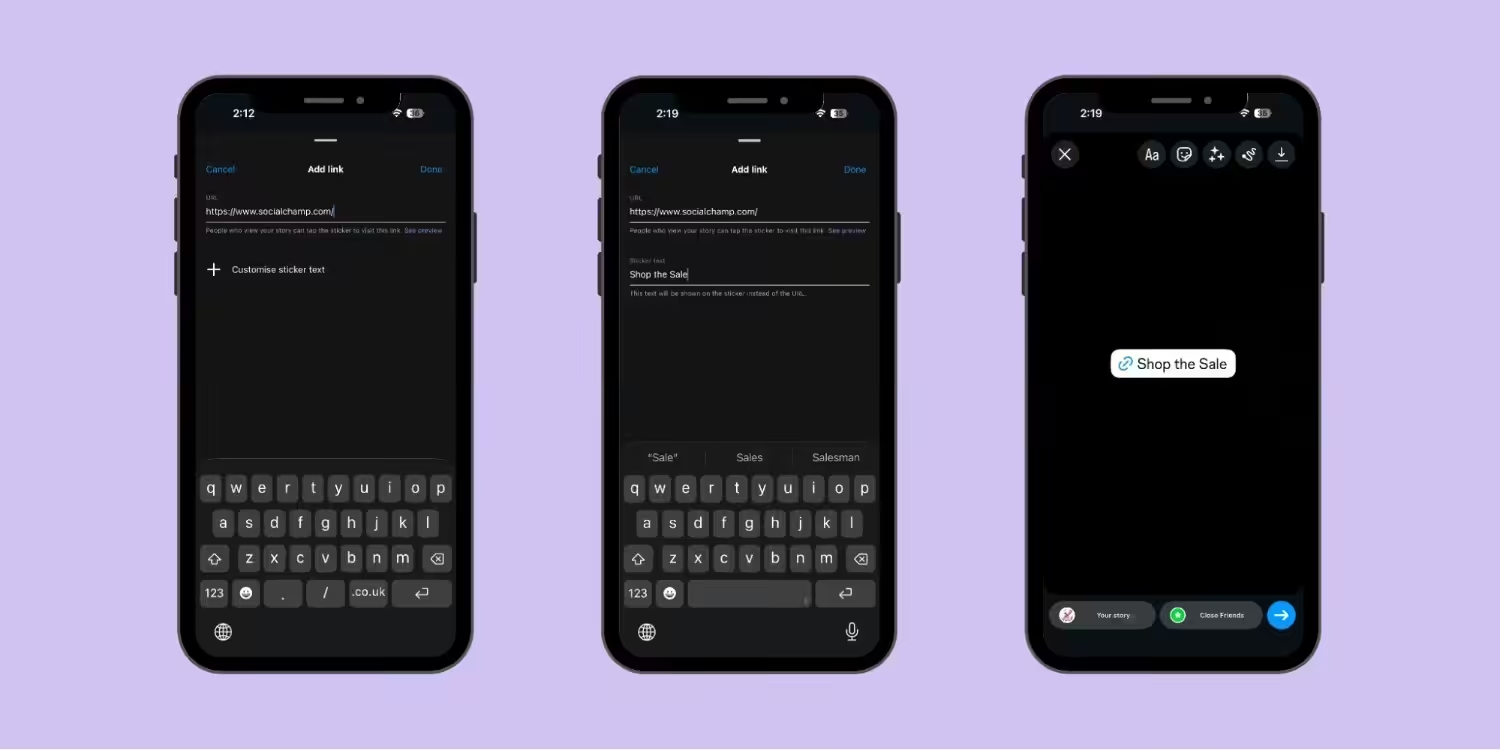
To customize your Link sticker, tap “Customize sticker text” right under the URL field. Just add your own call to action and place it on your Story. That’s it.
What I’ve learned is that if your Story link doesn’t get enough taps, start tweaking the text and colors to make them appealing to your audience.
For more tips and tricks to make your Stories look great overall, read these Instagram Story hacks that really work!
How to Edit the Sticker Text (Creating a CTA)
To be honest, a raw URL looks messy and feels untrustworthy. If I talk about myself, I don’t open the links that look like spam.
Similarly, when someone sees any messy URL on your Story, their brain registers it as spam, and they just pass it right by.
But don’t worry. You can follow these tips to correct it:
- Once you paste your URL in the Link sticker, tap on that “Customize sticker text” option.
- Here, you can type your own CTA (short, action-driven phrase).
- Tap Done.
Isn’t it easy? This is just four seconds of extra effort, which can greatly increase your taps.
Now, let’s go through the examples of text that I’ve recently tested for being high-converting stickers:
- “Read the Blog” (it works great for content creators and bloggers)
- “Shop the Sale” (it’s ideal for ecommerce and flash sales)
- “Grab Your Free Ticket” (it’s ideal for events and webinars)
- “Download the Template” (it’s strong for lead magnets and freebies)
How to Change the Link Sticker Color
After attaching the Link sticker to your Story, tap it once, then tap again. You’ll see the colors on each tap. But the colors are limited to white, black, blue, and a translucent “classic.”
You can go with the contrast. If you want to keep your sticker white, use a dark background for your Story. And, if you want to go with the dark sticker color, then a light background is a good option.
A sticker that blends into the background is invisible. And invisible stickers don’t get tapped.
Design Hack: Go to the GIF search bar in your sticker tray, and type “Tap Here” or “Arrow.” Place these animated elements so they point directly at your Link sticker. This unconsciously attracts the viewer’s attention and practically forces them to tap.
How to Use GIFs and Visual Cues to Drive Taps
It’s common for your link to get fewer taps or clicks even after doing all these steps. That’s okay. You can make it more appealing just by adding GIFs.
Here’s my go-to move:
- After placing your Link sticker on the Story, tap the sticker icon once again.
- Select the GIF sticker from the sticker tray.
- Search for “Arrow,” “Tap Here,” “Click Here,” “New Post,” or “Swipe.”
- Place the moving GIF and put it beside or pointing to your Link sticker.
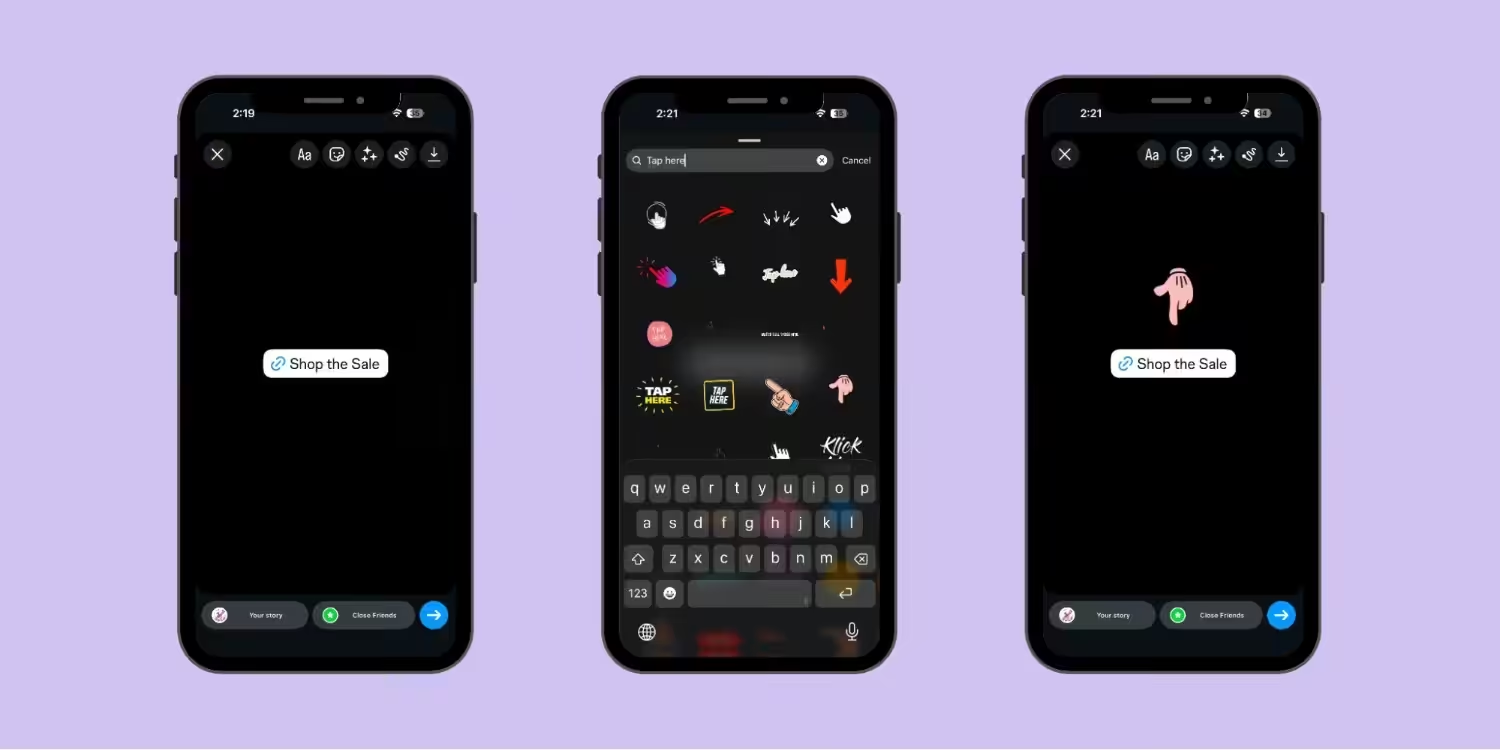
Also, you can have several cues on the same line. Add a “Tap Here” GIF to a text message that reads something like “I created this for you.” The combination of story context plus visual direction leads to more taps.
Timing matters too. When you post your Story at the right time, more people see it in the first hour. If you still haven’t mastered it, read up on this guide on the best time to post on Instagram.
Looking to batch-create these Stories in advance so you don’t have to do it manually each day?
You can queue, schedule, and prepare all of your content in advance with Social Champ’s publishing feature. Your future self will thank you.
Featured Article: How to Get Followers on Instagram Organically
How to Schedule an Instagram Story With a Link in Social Champ
If you’re managing multiple Instagram accounts and are tired of posting manually on weekends (or forgetting entirely), Social Champ is here to help you! You can use it to plan and schedule your Instagram Stories in advance.
Let me draw a picture for you so you can understand it easily.
It’s Sunday night. You’re on the couch watching something mindless. Then it hits you. You were supposed to post a Story on your new blog link 3 hours ago, when your audience was most active. That window? Gone. And the engagement you would have had? Lost.
I’ve been there a lot more times than I’d like to count. That’s why I started planning my Stories in advance.
How Do You Schedule an Instagram Story With a Link in Social Champ?
Here’s how it works in Social Champ:
- Log in to your Social Champ dashboard and choose your Instagram account.
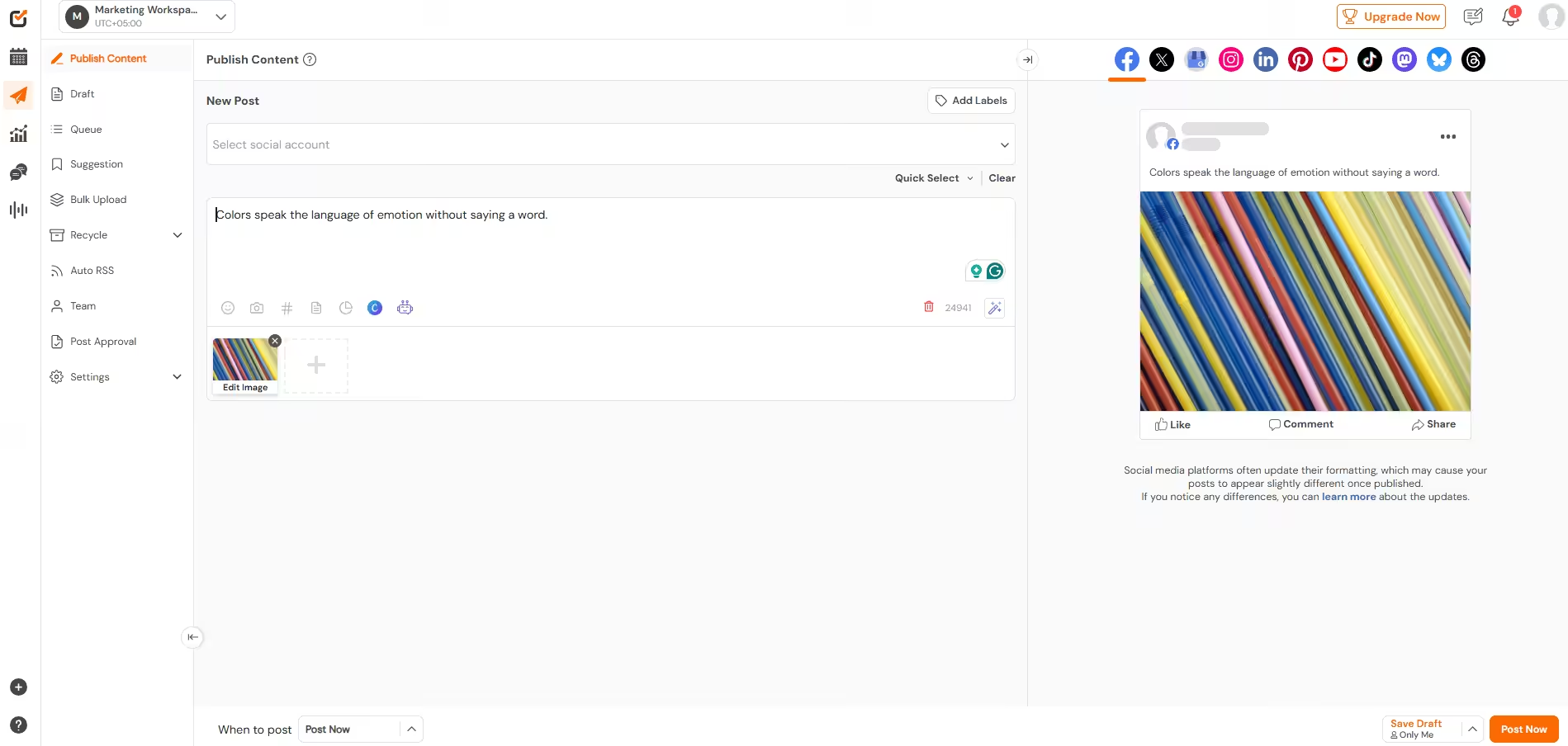
Social Champ’s Dashboard - Upload your Story media (image or video).
- Pick the exact date and time you want it to publish.
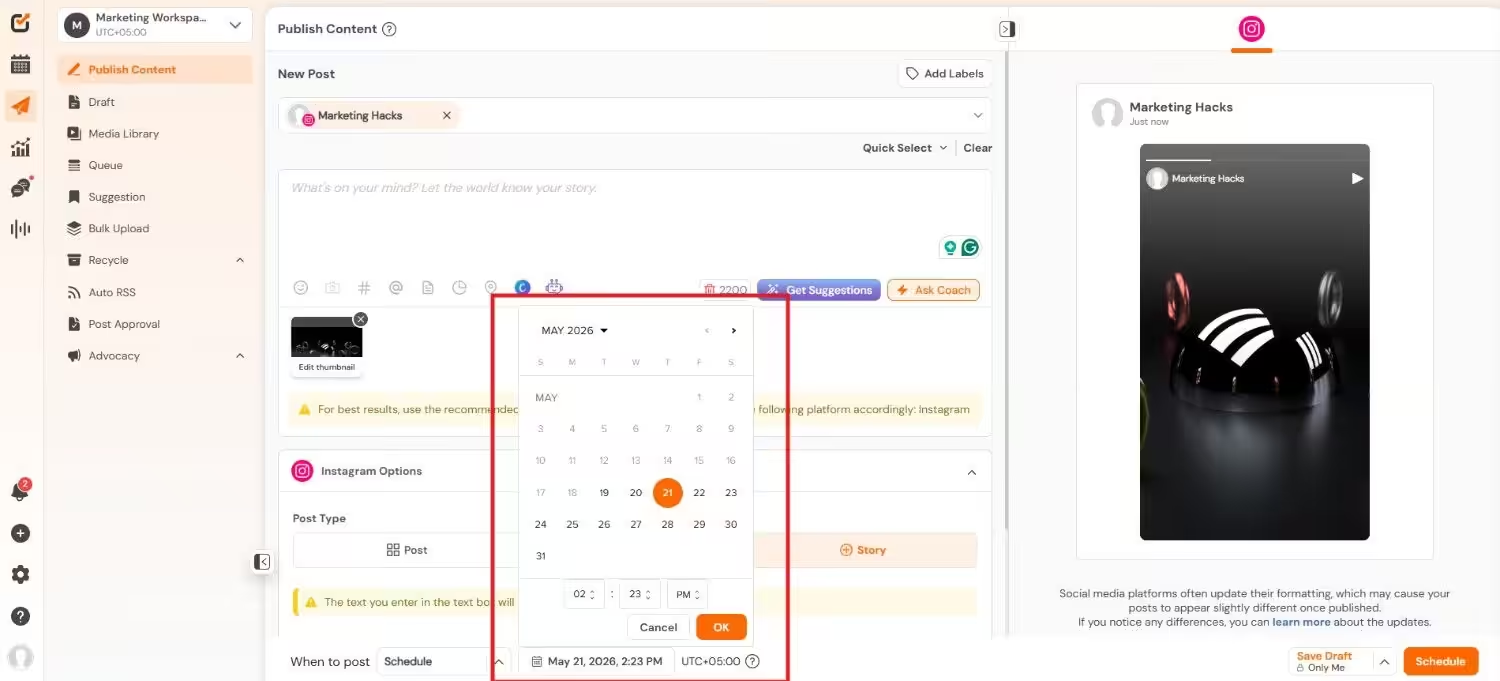
Set Your Time and Date - At the scheduled time, Social Champ sends you a push notification.
- Tap the notification to open Instagram, with your content ready to post.
- Add your Link Sticker, edit the text, position it, and click to publish.
- After the notification message appears, the process will take only 15 seconds and be done.
If you want to learn more deeply with screenshots, you can read our guide on how to schedule Instagram Stories to make your process easier.
Featured Article: Best Hootsuite Alternatives
How to Track Your Instagram Story Link Clicks (and Measure ROI)
There are two ways to track clicks on Instagram Story links: You can review the basic tap metrics directly within the native Instagram Insights, or you can add UTM parameters to your Instagram Story link and use a social media analytics tool to track actual website conversions.
When you are done adding the link, the challenging part is tracking whether those links are actually driving results or not.
Did Anyone Actually Convert With Your Link?
How Do You View Native Instagram Insights for Story Links?
To track your Story link clicks with native Instagram insights, you can follow these steps:
- Open your active Story (or go to Archive if it’s expired).
- Swipe up on the screen.
- You’ll see the bar chart icon.
- Tap on the “Link Clicks” or “Sticker Taps.”
This will only tell you about how many people tapped on the link. You won’t get any insights about whether they bought, bounced, or signed up.
How Do UTM Parameters Help You Track Conversions?
When you use UTM parameters, they will indicate what happened after someone taps your link. You can add a short tag to your link before pasting it into the Link sticker.
Your link will look like this:
www.yoursite.com/spring-sale?utm_source=instagram&utm_medium=story&utm_campaign=spring_promo
Use Google’s free Campaign URL Builder. Fill in source (instagram), medium (story), and campaign name. Then paste that tagged URL into your sticker.
This way, Google Analytics captures how the visitor found your site and what they did on it.
Warning: Native Insights are only available for 24 hours after the Story is posted. Use UTM parameters every time to ensure that click data is recorded forever in Google Analytics.
How Can You Automate Your Story Link Reports?
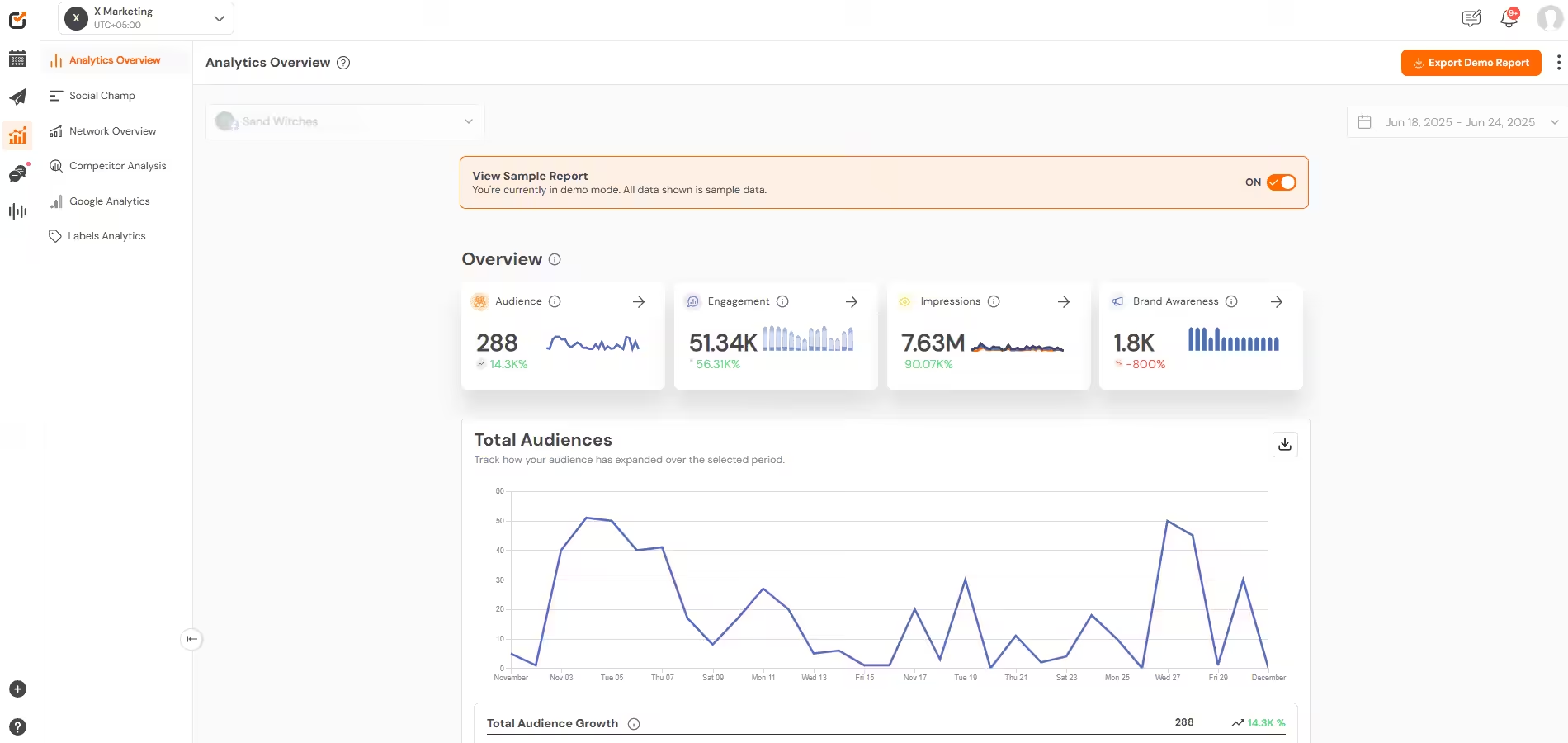
It feels exhausting to check in every 24 hours to screenshot stats before they disappear. A social media analytics tool lets you export historical data, compare trends over time, and spot patterns without chasing disappearing numbers.
Instagram Story Link Sticker vs. Link in Bio: Which is Better?
The Story link sticker generates quick, short-term traffic to specific pages. Your Link in Bio works as a permanent hub for your brand’s top resources. You need both.
| Feature | Story Link Sticker | Link in Bio |
| Lifespan | 24 hours | Permanent |
| Visibility | Only active Story viewers | Anyone visiting your profile |
| Best For | Flash sales, new blogs, time-sensitive offers | Storefronts, main website, lead magnets |
| Click Trigger | FOMO and urgency | Curiosity and intent |
When Should You Use the Instagram Story Link?
The Story link thrives on urgency. It goes away in 24 hours, and your audience knows that. You can use it for flash sales, a recently published blog post, or limited-time affiliate offers. This is the move when you have an upcoming deadline for your content.
When Should You Rely on Your Link in Bio?
Your bio link never expires and is always present to all of those who visit your profile. You can use it for a multi-link landing page (Social Champ’s Link in Bio feature works great for this!) that houses your homepage, YouTube, or primary lead magnet.
How Can You Combine Both for Maximum Traffic?
Use the Link Sticker to create a Story for immediate clicks. After that, put a text on the same Story that reads “Link also in bio!” This captures both types of users: sticker tappers and profile visitors. One piece of content, two traffic paths, and no additional effort.
Conclusion
Now you know exactly how to add Instagram link to Story, customize it to get more taps, schedule it in advance, and see if it really generated outcomes. The 10k follower gatekeeping phase has come to an end, and the Link sticker is available to all accounts.
The difference between two taps and two hundred is not your follower count. It’s about how you are setting up the sticker, when you post, and if you’re measuring results or not.
You have the full playbook now. Put it to work.