You are here because you’ve decided to delete or deactivate your Facebook account, but you don’t know how to do it, right?
Don’t worry. Many people do it for many reasons. That’s why I’ve created this simple guide for you so you don’t have to struggle with it in menus.
I’ll tell you:
- How to delete Facebook account (or deactivate it)
- The difference between the two of them, and when to choose which one
- How to download your important data before deleting your account
- How to recover the account if you change your mind
If you’re going to delete your personal account, but manage multiple Facebook Pages and accounts, try using Social Champ to handle everything from a single dashboard. Try it for free!
Short Summary
- Deactivation pauses your account and hides your profile. Deletion removes everything permanently.
- Facebook gives you a 30-day grace period to cancel a deletion request before your data is permanently deleted.
- After deactivation, friends can’t see your timeline, but your old Messenger chats may still show in their inboxes.
- Always download your photos, videos, and messages before deleting, since recovery is impossible later.
- Choose deactivation for a mental health break; choose deletion only if you are completely sure you want out.
- Reactivation occurs instantly after deactivation, but a deleted account is gone for good, with no way back.
- Assign a new admin to your Facebook Pages and groups before you step away, or they will lose leadership.
The Difference Between Deactivating and Deleting Facebook
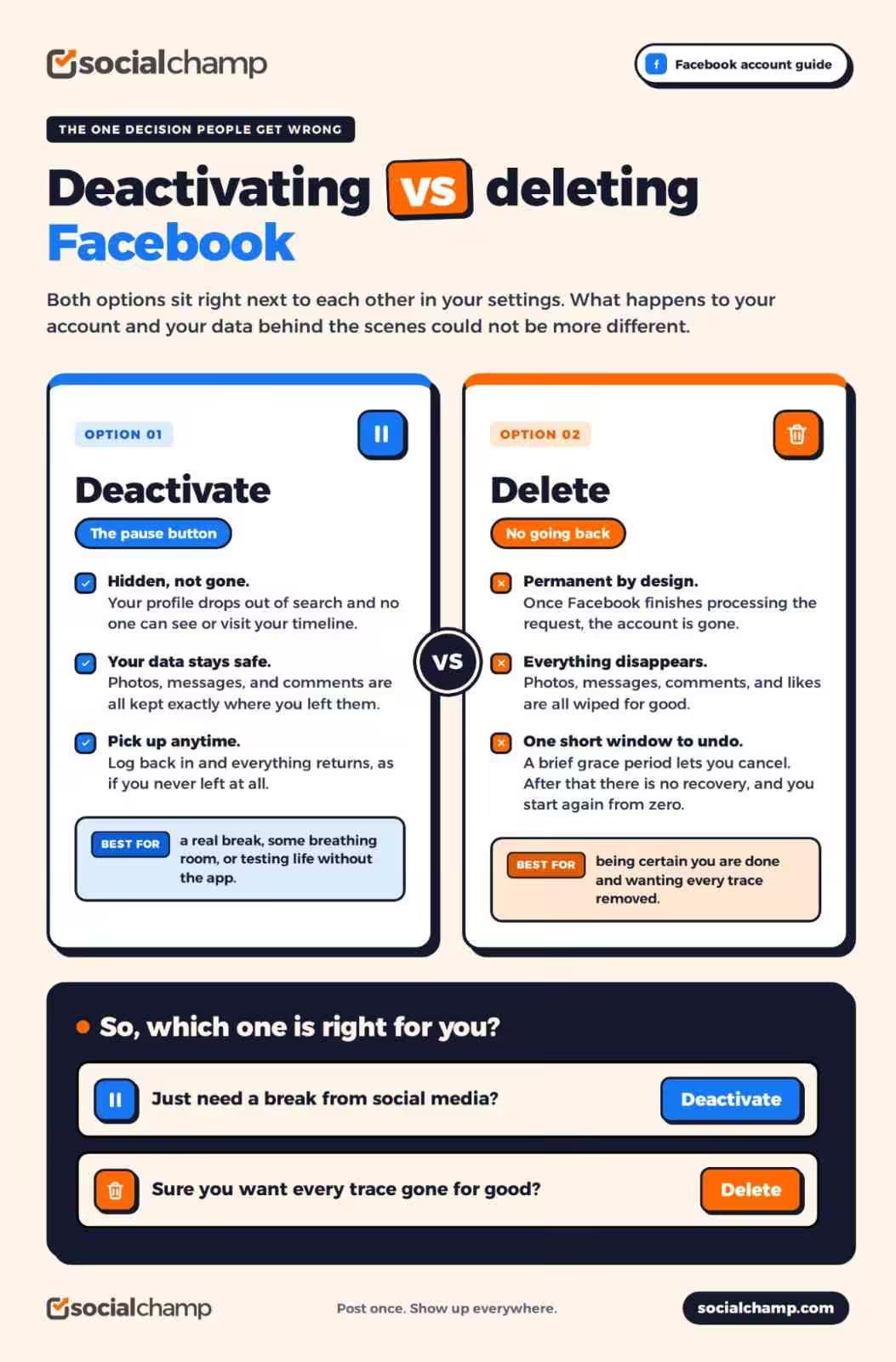
So you want to know how to delete Facebook account, but first, let’s clear up one thing: whether you want to take a break or permanently delete your account. Both options look the same, but the results are different.
You can say deactivation is a pause button. When you deactivate your Facebook account, it gets hidden, and no one can see or search your timeline.
Also, Facebook doesn’t delete your data. Your photos, messages, comments, and other information remain safe. And whenever you login again, everything returns as if you never left. This works if you feel overwhelmed, need space, or want to test life without the app.
When you want to delete your account, it’s a permanent decision. Once Facebook processes your request, your account, photos, messages, comments, and likes all disappear.
Facebook gives you a short grace period to change your mind and cancel the request to delete your account. But after that, your data is gone, and you can’t recover or restore it. If you want to use Facebook again, you have to create a new account and start from zero.
Which Option is Better?
If you want to take a break from social media, deactivate it. But, if you’re sure and want every trace removed, you can delete it.
You can also check out our more related guides:
What Actually Happens When You Delete Your Facebook Account?
You’ve clicked ‘Delete Account’. Now, what’s the next step? Let me tell you what happens when you delete Facebook account.
The Grace Period
When you click the ‘Delete Account’ button, Facebook doesn’t delete it immediately. You have a 30-day grace period to change your decision and cancel the request. During this duration, no one can see your account, but your data remains in Facebook’s system.
What Disappears Forever
When the grace period ends, Facebook starts the permanent removal. Then, all of your photos, videos, posts, comments, and likes vanish. If you logged into any app using Facebook, they will no longer recognize you.
What Might Stay Behind
The messages you sent to your friends may still show up in their inboxes. Also, copies of your data might exist in backup systems for a short time.
If you’ve made up your mind to delete your Facebook account, I recommend that you download your important data first. Also, if you’re concerned about your privacy, consider reading our guides:
What Actually Happens When You Deactivate Your Facebook Account?
If you want to deactivate Facebook account, it’s important to know what happens after doing it.
What Your Friends See?
When you deactivate your Facebook account, Facebook hides your profile from the platform. People can’t search for you or see your timeline. They can’t send you messages, and your comments on their posts vanish as if you never existed on the platform.
But if you’ve chatted with your Friends on Facebook Messenger, your chats still show up in their inbox. Also, your name appears as a Facebook User at some places.
What Happens to Your Data?
What I like most is that Facebook doesn’t delete your data. Your photos, videos, posts, friends, and other information remain safe. And whenever you log in to your account again, it restores it to the way you left it.
This makes deactivation perfect if you need a mental health break or want to focus on real life without losing years of digital history.
What About Your Pages and Groups
If you run a Facebook Page or Group, deactivation of your account may cause problems. Your page loses its admin unless you assign someone else first. Your groups lose their leader.
You should always make another person an admin of your Page or Group so they don’t go unattended while you recharge.
If you just want to take a clean break from social media, this option is best. You can test life without the noise and return whenever you want.
Additionally, if you plan to stay active on social media for work, you can schedule Facebook posts in advance so your business stays visible while you take personal time.
Keep Your Pages Alive Without the Daily Grind!
How to Delete Facebook Account
Since you’ve decided to delete your Facebook account, follow these simple steps one by one so you don’t get lost in Facebook’s maze of menus.
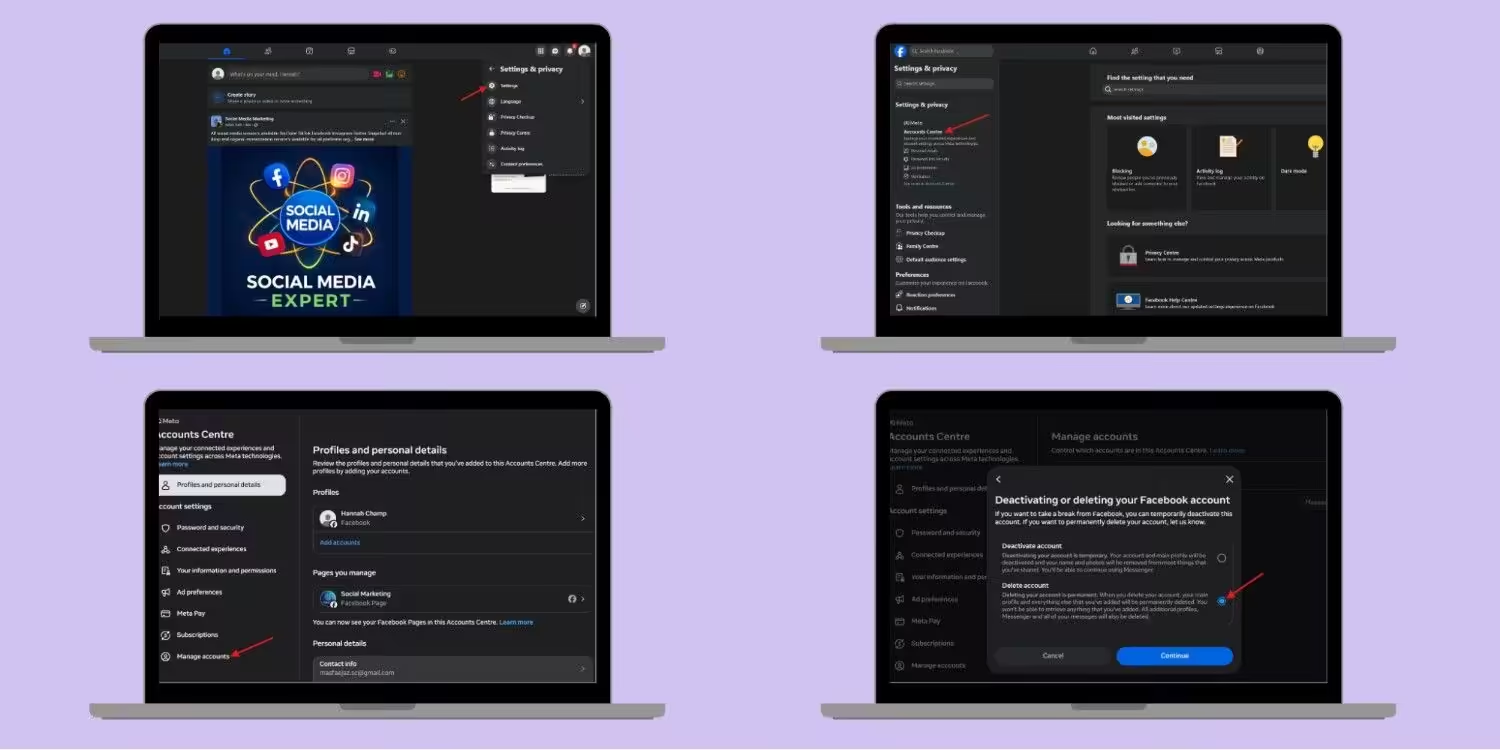
Step 1: Open Your Settings
First, log in to your Facebook account on your device. Click your profile picture in the top-right corner of your screen. Click “Settings & privacy” and select “Settings.”
Step 2: Find the Deletion Option
Now, click “Accounts Center” on the left side. Go to “Manage accounts” in the left side menu. Click “Manage” and then “Deactivation or deletion.”
Step 3: Confirm Your Choice
Select “Delete account” and click “Continue.” Facebook will ask why you want to leave. You can pick a reason or skip it if you want. They will show you warnings about what you lose. Read them. Then click “Delete account.” Enter your password one last time. Click “Continue.”
Step 4: Wait for the Grace Period
Facebook starts a 30-day countdown. Your profile vanishes immediately. But you can still cancel if you log back in during this window. After 30 days, the process becomes permanent. You can’t stop it.
Now, you know how to delete Facebook account. But you should always download your data before deleting it, so you won’t miss any important information.
Featured Article: How to Share Facebook Posts to Instagram
How to Deactivate Facebook Account
It’s not necessary to delete your account every time you need a break from social media. If you want to stay away from social media for some time but don’t want to lose your account, you can deactivate it temporarily. Let’s have a look at how to do it:
Step 1: Access Your Settings
Log in to your Facebook account. Click your profile picture, go to “Settings & privacy,” and select “Settings.”
Step 2: Find the Deactivation Menu
As in the previous step, click “Accounts Center,” then “Manage accounts,” then “Manage,” and select “Deactivate account.”
Step 3: Confirm and Walk Away
Click “Continue.” Then Facebook will ask for your password, enter it, and confirm.
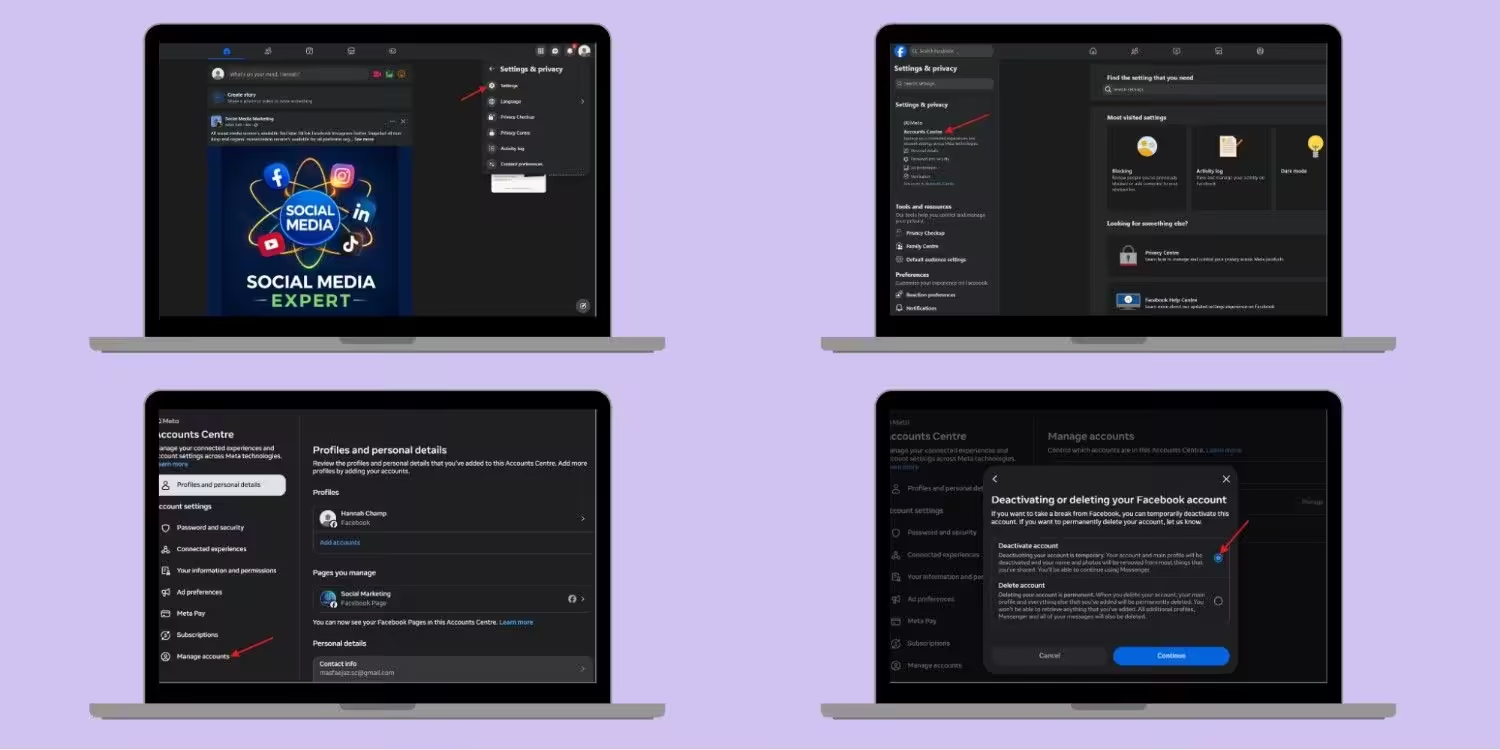
That’s it. Once you’re done, your Facebook profile will be hidden from the platform, and you can come back whenever you want.
Featured Article: How to Tag Someone on Facebook
How to Download Your Facebook Information
I recommend that you download your data before deleting your Facebook account. I mean, just don’t skip this method, because once you permanently delete your account, you can’t recover your photos, videos, or other information.
What You Can Save
You can download almost all of your data, including your photos, videos, posts, comments, messages, friend list, events, and profile information. You also get your login history, location data, and even the ads you clicked. It’s a complete snapshot of your digital life on the platform.
How to Request Your File?
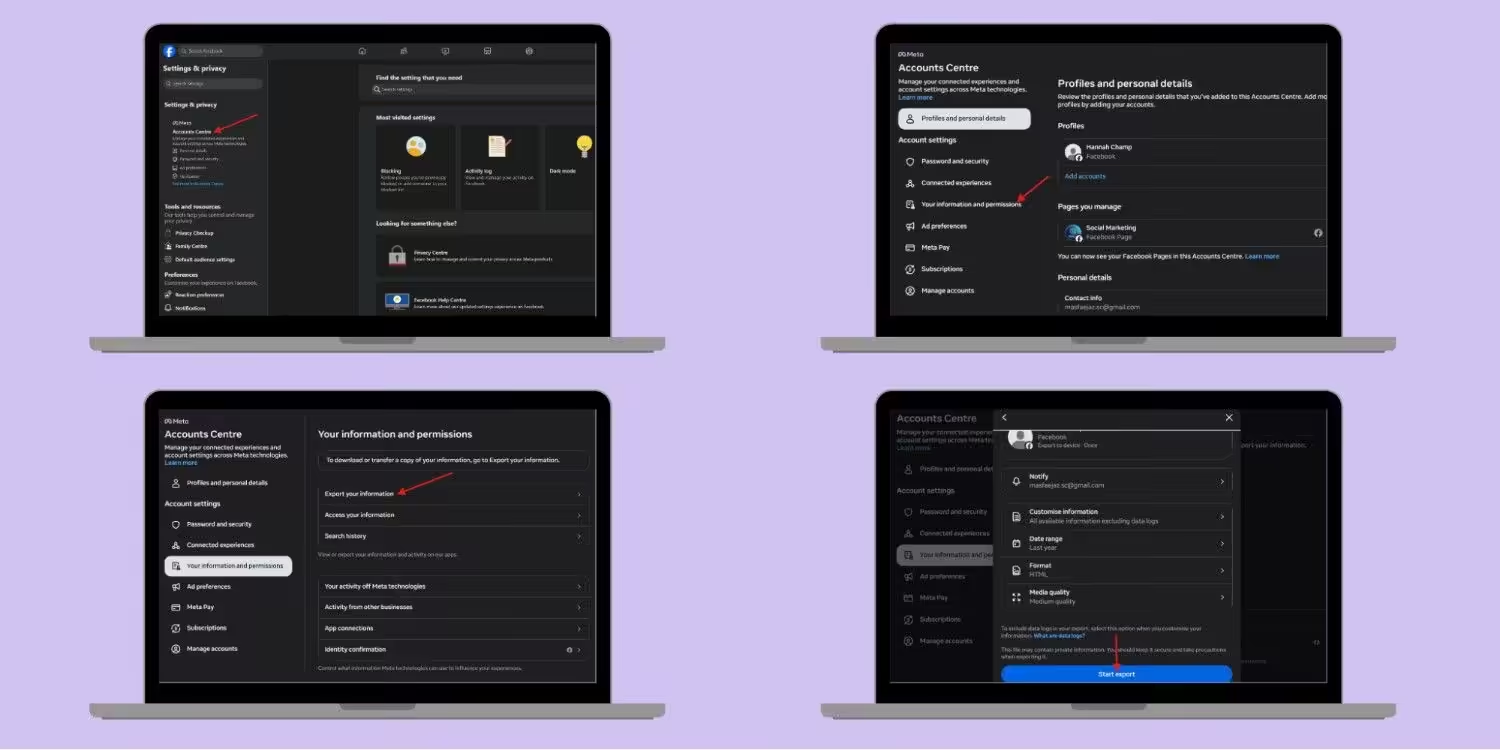
To request your file, first go to “Settings” and click “Accounts Center.” Now, select “your information and permissions.” Select “Export your information,” and click “Create export.”
Facebook will show you two options for exporting your data: to a device and to an external service. Choose your preferred option. You can customize your information, select a date range, choose the format, and the quality of media. Then click “Start export.”
Where to Store It
If you’ve downloaded the file to your device, you can back it up to an external drive or cloud storage. If you ever want to look back at old photos or find a lost conversation, this file holds the answer.
How to Reactivate Facebook Account
If you deactivated your Facebook account and now want to get back in, it’s very easy to reactivate it. Just follow these steps:
If You Deactivated
Just log in to Facebook with your email and password. That’s it, your profile returns instantly. Your photos, friends, and posts all reappear exactly where you left them. Facebook doesn’t ask questions. You can deactivate again later if you need another break.
If You Deleted
This is where it gets painful. During the 30-day grace period, you can log back in and cancel the deletion. Your account restores fully.
But after 30 days, the process becomes permanent. Facebook removes your data from its servers. You can’t recover it, nor ask for support to bring it back. Your only option is to create a brand-new account and start from scratch.
My Advice
Always think hard before you delete. Deactivation gives you freedom without finality. You can test life outside Facebook, feel the difference, and return if you miss it. Deletion closes the door forever. Make sure you are ready for that.
Additionally, if you return to Facebook for business, you might want to check out Facebook management tools to handle your page without the personal feed drama.
Take Your Break. Your Content Will Still Post.
Conclusion
You came here to know how to delete Facebook account or to step away without losing your account, and now you have the full picture.
You have learned the difference between deactivation and deletion. You also know what happens to your data with each choice, the exact steps to take, how to download your data before deleting your account, and how to reactivate if you change your mind.
Now the decision is yours. You can make it with your eyes open, and you won’t lose the photos and messages you want to keep.
Social media should serve you, not drain you. If Facebook stopped doing that, walking away is not a failure. It’s self-respect. Take the break you need. Delete if you must. And build a digital life that actually feels good.