This isn’t the first time I’ve seen someone ask how to tag someone on Facebook. I myself had asked Google a few years ago!
We all share our pictures on Facebook, and why not? We have a community of friends and family there who are happy to see updates from us. However, often times we have others in our pictures that deserve to get tagged!
So if you’re also wondering how to tag someone on Facebook, I’ll give you the answer in this blog by covering:
- How to mention someone on Facebook (yes, a tag and a mention are two different things).
- How to mention a Facebook page?
- How to tag someone on Facebook in a post, photo, and story on both desktop and mobile.
- I’ll also tell you if you can tag someone on Facebook with a Facebook scheduler.
- And when is the right time to mention someone on Facebook?
Short Summary
- To mention a friend, simply type their name starting with capital letters, or use the @ symbol followed by their name to pull up a broader directory that includes non-friends.
- When mentioning a business or organization’s Facebook Page, you must always use the @ symbol, as typing the name with capital letters alone will not trigger the profile dropdown.
- Using the official “Tag People” button on desktop or mobile attaches a friend’s name to the top of your post (e.g., “— with [Name]”), but this feature is strictly limited to your current Facebook friends.
- Facebook scheduling tools like Social Champ allow you to schedule posts with business page mentions, but Facebook completely blocks all outside apps from tagging personal profiles or photos ahead of time to prevent spam.
- Proper Facebook etiquette means tagging only when giving content credit, referencing a quote, or sharing something highly relevant, while avoiding tagging random influencers or blasting large groups of friends just to inflate your post’s reach.
- Mentions in comments act as low-key pings to draw someone into a specific thread, whereas mentions in main posts are broadcast to your entire friends list and can attach to the recipient’s timeline.
- Facebook enforces strict security limits, restricting users to a maximum of 50 profile tags or mentions per post, comment, or individual photo, 3,500 total tags per photo album, and allowing the @everyone group tag only once per day.
How to Mention Someone on Facebook (Users and Non-Friends)
Mentioning someone on Facebook is easy, but not if you don’t know how to! So here’s a straightforward method to do it!
-
Mentioning a Friend
If you are already Facebook friends with the person, you usually don’t even need any special characters. Just start typing their name with capital letters (like Sarah Jenkins) in a post or comment. Facebook algorithm will recognize it and automatically drop down a list of your friends matching that name.
-
Mentioning Someone Who Isn’t a Friend
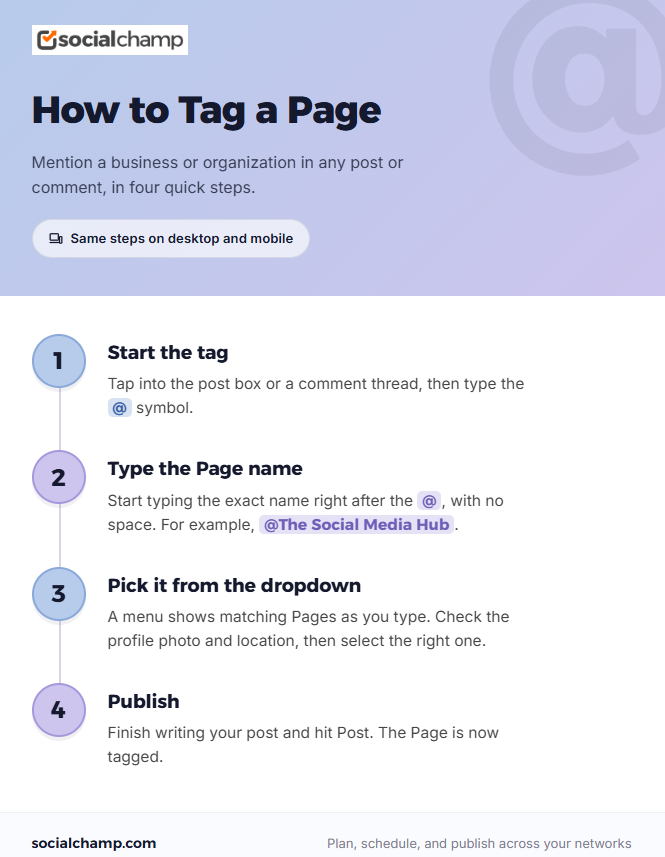
If you want to tag someone who isn’t on your friends list yet, like a mutual friend, a local business owner, or someone in a public group, you just need to use the @. Typing @ followed immediately by their name forces Facebook to search its broader directory, pulling up people outside your immediate network.
How to Mention a Facebook Page (Businesses and Organizations)
Unlike tagging your friend, tagging on Facebook pages is similar to how you tag someone who isn’t your friend. If you just type out a business’s name with capital letters, Facebook’s system usually won’t recognize it as an organization. Using the @ symbol is the right way to do it.
How to Tag Someone on Facebook in a Post (Desktop and Mobile)
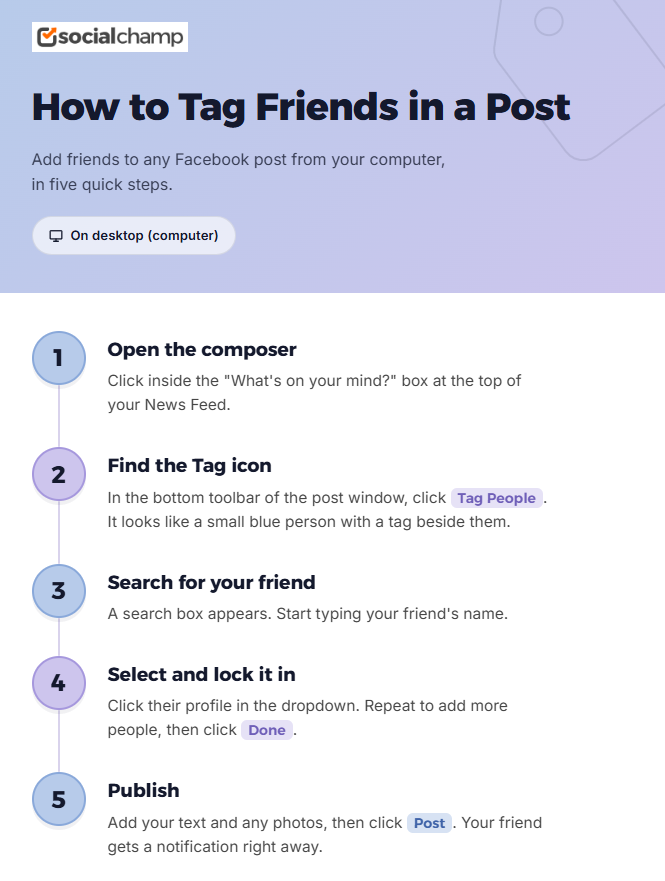
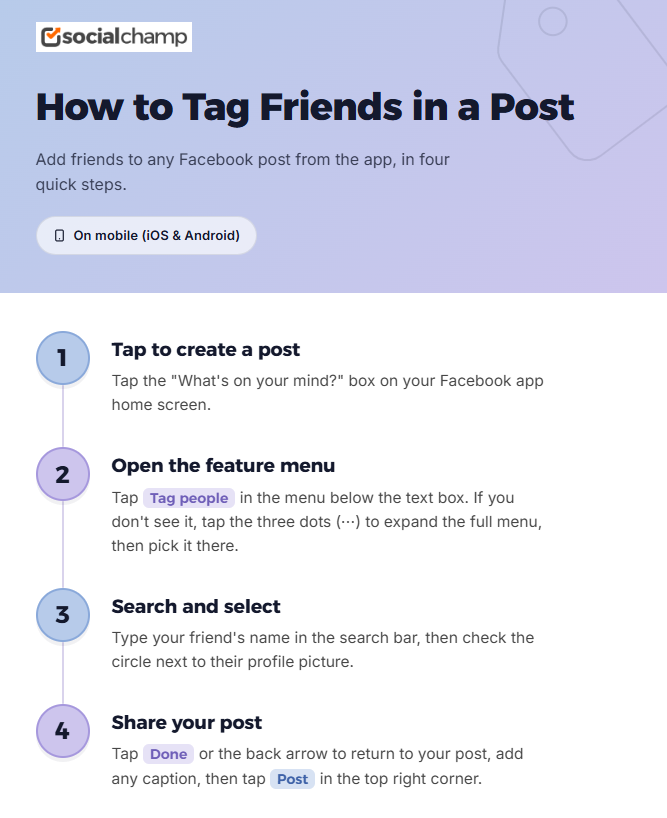
Tagging someone in a Facebook post is slightly different than tagging them in a photo. But that doesn’t mean it is any more difficult. Here’s how you can do it on your desktop and your mobile.
On Desktop
On Mobile
One Big Limitation to Keep in Mind
Unlike using the @ symbol in text, the official tag people button comes with a strict rule: you can only tag your current Facebook friends this way.
You cannot use this button to tag people you aren’t connected with, and you cannot use it to tag business Pages. If you want to loop in a non-friend or a business, you’ll need to use the @ mention method in the actual text body of your post instead.
Featured Article: How to Add Music to a Facebook Post?
How to Tag Someone on Facebook in a Photo
When you tag someone on a Facebook photo, you take your connection with them to a different level. I mean, you obviously don’t post pictures of others for no reason; they must be close to you to feature on your Facebook. Here’s how you can tag them!
- Open the photo
- Tap or click on the tag people icon
- Click or tap on the person
- Search for their name and select their profile
- Save your tags and publish the photo
Accidents can happen, and you might end up tagging the wrong profile. Don’t panic. If this happens, edit the photo, tap the tag icon, and you will see an “x” in the tag, which will allow you to remove that tag from your photo. Click on it, and that tag will be removed.
Can You Mention or Tag People Using Facebook Scheduling Tools?
Yes, you absolutely can. Facebook highly recommends you use Meta Business Suite, but if you ask me, using a Facebook publishing tool like Social Champ is a much better option for you.
When scheduling your Facebook posts through Social Champ, you can easily mention business pages, but personal profiles are a different story for all third-party tools. Facebook blocks all third-party tools from searching for personal profiles. This is all for safety purposes, I believe.
However, you are free to tag business pages, and if you wish to tag personal profiles as well, Meta Business Suite is always an option for you if you only want to schedule on Facebook and don’t want any other features.
Don’t Get Left Behind by the Algorithm!
When Should You Mention Someone on Facebook?
You know how to tag and mention someone on Facebook, great! However, it’s not the end of the battle. You must also know when to do it and what keeps you in good graces with everyone, because nothing can spoil your image for someone more than a wrong tag when it comes to Facebook.
-
When It’s Totally Fine to Mention Someone
Tags are to give credit where credit is due. If you are sharing a photo of someone, it is only right that you tag that person. Other cases where you must tag people include when you are sharing someone else’s work or promoting an event that’s hosted by someone else. In these scenarios, tagging the right people will take you a long way. You can also tag your friends in a post that you think they will like.
-
When to Proceed With Caution
Be careful when using mentions for networking. It is acceptable to occasionally share your own post and tag someone who writes on a similar topic, but only if your content directly relates to their work. Doing this too often comes across as spammy. The same goes for tagging people just to get their attention on something that has zero clear relevance to them; it quickly becomes annoying.
-
When You Should Avoid It Completely
There are a couple of major etiquette rules you should never cross. First, never drop mentions on high-profile influencers or pages you have absolutely no relationship with just to hijack their audience for exposure. Second, avoid blasting a massive group of your friends with a mention on a personal update or a random meme just to artificially inflate your post’s reach. If the post isn’t genuinely about them, leave their notification feed alone.
Are Facebook Mentions in Comments the Same as in Posts?
Technically, the basic action is the same: you type the @ symbol, select a name, and create a blue clickable link. However, how they behave out in the open is completely different, and it all boils down to visibility and privacy.
When you mention someone in a main post, it is highly visible. If their privacy settings allow it, that post will actually travel over and attach itself to their personal timeline for their own friends to see. It acts like a major announcement.
Mentions in comments are much more low-key. A comment mention will never show up on someone’s timeline, no matter what their privacy settings are. Instead, it acts purely as a direct “ping” to draw their attention to that specific conversation thread.
The audience changes, too. A post mention is broadcast to your entire friends list, while a comment mention is usually only seen by people who are already tracking or scrolling through that specific post’s conversation.
Featured Article: 12+ Sources to Find Social Media Icons
Is There a Limit on Facebook Mentions and Tags?
Yes, Facebook does put a cap on how much you can tag and mention, mostly to stop spammers from blowing up everyone’s notifications.
The main rule to remember is the 50-profile limit. You can only mention or tag up to 50 people or business pages within a single Facebook post or comment. If you try to add a 51st person, Facebook will usually stop pulling up the suggestion dropdown or throw an error when you try to publish.
There are also a couple of photo-specific limits to keep in mind:
- Per Photo: You can tag up to 50 people or pages in a single image.
- Per Album: If you are uploading a massive batch of vacation or event photos, you can hit a maximum of 3,500 total tags across the entire photo album.
If you are using the broad broadcast tags in a Facebook Group, like typing @everyone, Facebook restricts you to using that power once per day per group.
Ultimately, unless you’re trying to tag your entire graduating class in one go, you likely won’t hit these ceilings. And honestly, keeping your tags well under the limit is usually better for etiquette anyway!
Your Competitors Already Automate Their Feed!
Conclusion
I hope I answered all your questions regarding how to tag and mention someone on Facebook. To be honest, it’s not that difficult and doesn’t even take 2 minutes if you only want to tag two people. But the outcome is great, your Facebook engagement gets better, and you make stronger friendships.
Just remember not to tag too many people and follow the steps for desktop and mobile that I shared in this guide, and you won’t be facing any problems.