Does Facebook notify screenshots? I have wondered about this every time I’m about to take a screenshot of a post!
The one thing that has often made me anxious about social media is that I don’t know when the platforms decide to notify people when someone takes a screenshot!
If you have also wondered like me about Facebook screenshot notification, you have come to the right place, because as someone who’s interested in Facebook scheduling and privacy, I have done my research on this topic.
Short Summary
- Facebook does not notify users when you take a screenshot of their standard posts, profiles, photos, or stories.
- While regular chats remain anonymous, Facebook will notify the other person if you take a screenshot inside Messenger’s Vanish Mode before the messages disappear.
- Saving photos directly to your device or screen-recording content is completely anonymous and does not trigger any alerts.
- Anyone can screenshot or download content from public and business accounts, but personal content on private accounts is restricted only to approved friends.
- If you lock your Facebook profile, the platform actively blocks Android users from taking screenshots of your profile page and photos.
- You can protect your content from unwanted screenshots by locking your profile, limiting your Story audience to “Friends Only,” retroactively restricting past public posts, and double-checking your default post audience.
In this blog, I’ll tell you:
- Whether Facebook notifies screenshots or not!
- Why do people think that Facebook notifies users of screenshots?
- Does it notify of screen recordings and saved photos?
- And lastly, how you can protect your Facebook privacy without worrying about screenshots.
Your Competitors Are Saving 15 Hours a Week!
Does Facebook Notify Screenshots? The Quick Answer
The quick and easy answer to this question is NO, Facebook doesn’t notify users of screenshots. You can easily save standard content on Facebook without alerting the profile owner. However, there are some conditions when the user might be notified about the screenshot. Let’s discuss one by one!
Does Facebook Notify Screenshots of Posts, Profiles, Photos, and Stories?
As I said, Facebook does not notify the owner when someone takes a screenshot of their profile, regardless of the content types. Be it their posts, profiles, photos, or stories, you can easily add a post you like to your gallery.
Does Facebook Notify Screenshots in Messenger and Vanish Mode?
This is where things get a little interesting! Generally, if you take a screenshot of someone’s chat on Facebook Messenger, it doesn’t notify the other person; however, the case is different in Vanish Mode.
If someone has enabled Vanish Mode on their Messenger, they indirectly forbid anyone from taking screenshots. It’s a privacy setting that makes messages disappear after 24 hours, so Facebook will inevitably notify the owner if someone takes a screenshot before then.
And not to mention, it is unethical to take screenshots of someone’s chat when they’re concerned about their privacy, as it might tarnish your image and friendship with them. So, it’s better not to take screenshots in such cases because Facebook notifications of screenshots can do more damage than you think!
Featured Article: How to Add Admin on Facebook Page?
Why Do People Think Facebook Sends Screenshot Notifications?
Ever since Snapchat started screenshots notifications, people have been on edge about all social media platforms. I bet everyone secretly thinks that all platforms by now notify the person of screenshots!
And in all honesty, why wouldn’t we wonder? Looking at the speed at which social media platforms are evolving, it’s understandable that they would want to protect their users, and Facebook is no different.
This makes people think that Facebook show screenshots notifications to users, but in reality, it doesn’t, not for standard posts at least!
The only time Facebook notify of screenshots is in Vanish Mode, and that’s also a choice. If someone wants to get notified of such activities in their chat, they can enable Vanish Mode. But if they don’t care, it’s their choice not to enable it!
For example, I don’t have Vanish Mode active on Facebook, so if someone takes a screenshot of my chat on Messenger, I wouldn’t get notified, but that’s my choice, and I think every social media platform should give this choice to the users.
Featured Article: How to Link Instagram to Facebook?
Does Facebook Notify Screen Recordings or Saved Photos?
Screenshots are not the only thing that Snapchat made impossible to take; it was also the first platform that started sending notifications for screen recordings and saved photos.
So it’s natural that you wonder whether there is such a case with Facebook as well. However, I have good news or bad news for you (depending on your intention!). You can easily screen record and save photos without worrying about Facebook notifying the owner.
There is one condition, though!
You cannot save photos from a private account unless you are in their friends list. Facebook’s private accounts don’t allow people outside their circle to view their posts, photos, or stories. You need to be connected to the profile’s owner to be able to screen record or save photos from a private account.
Facebook business accounts don’t have any such restrictions. You can freely screen record, take screenshots, or save photos as you like, and no one will know. You can say it’s one of the drawbacks of having a business account for Facebook monetization.
But then, if you keep your Facebook private, how can you promote your business on Facebook? So, you can’t get both at the same time!
Protect Your Facebook Privacy Without Worrying About Screenshots
We’ve all been there: you want to share a cute picture of your kids on Facebook, but there’s that nagging voice in the back of your head. “What if someone screenshots this and passes it around?”
While Facebook doesn’t have a magic button that blocks screenshots entirely across the app, you don’t have to live in worry. By setting up a few smart digital boundaries, you can lock down your profile so tightly that only the people you actually trust will ever see your content in the first place.
Here is how to take control of your privacy and post without the anxiety.
-
Lock Down Your Entire Profile
If you want a quick solution, locking your profile is your best bet.
When you lock your profile, a little blue badge appears on your page. It instantly changes your settings so that anyone who isn’t your approved friend can only see a tiny preview of your profile picture and cover photo. They can’t click them, zoom in on them, or view any of your past or future posts.
What’s even better is that on many devices (especially Android), Facebook actually blocks people from taking a screenshot of a locked profile altogether. Here’s how to do it!
- Go to your profile
- Tap the three dots (…) on the top left corner
- Select “Lock Profile”.
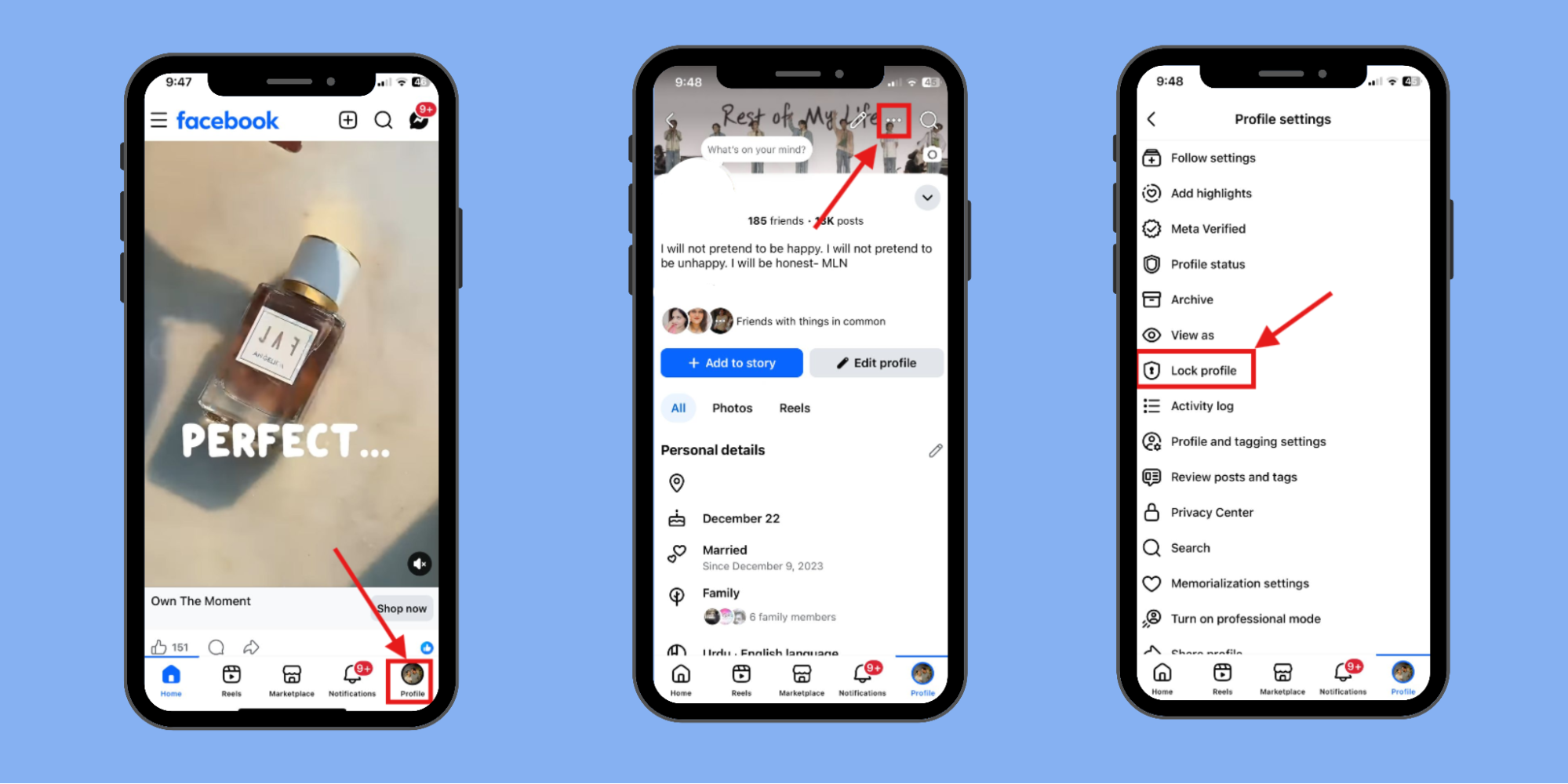
Steps to Lock Profile on Facebook
-
Keep Your Stories for Eyes Only
Facebook Stories are great because they disappear after 24 hours, but they are also prime targets for quick screenshots. By default, your Stories might be visible to “Friends of Friends” or even the public.
You can easily narrow this down so only your core circle sees them:
- Go to Settings & Privacy > Settings > Stories > Story Privacy.
- Change it from Public to Friends. If you’re sharing something extra personal, use the Hide Story From or Custom options to hand-pick exactly who can view it.
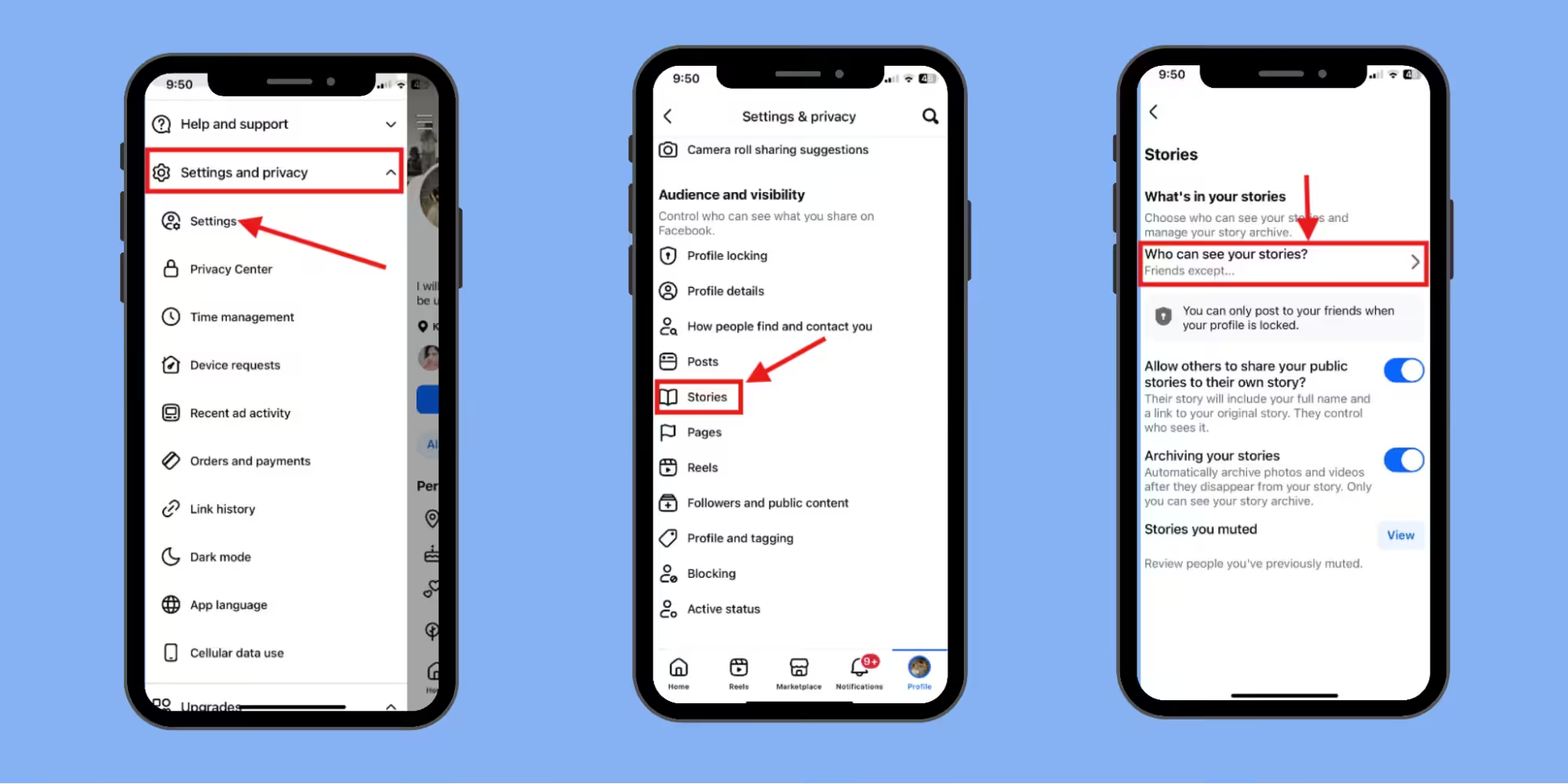
Steps to Set Privacy for Facebook Stories
-
Audit Your Past Posts
Maybe you were a lot more open with your privacy settings a few years ago, and you have old public posts floating around that you’d rather not have screenshotted today. You don’t have to go through them one by one to change them.
Facebook has a nuclear option for old posts that flips them all to private instantly.
Go to Settings & Privacy > Settings > Privacy (or Posts). Look for Limit who can see past posts and confirm. This instantly changes every public post you’ve ever made to “Friends Only.”
-
Get Strict With the Friends Only Default
It sounds obvious, but it’s easy to forget to check your default audience button when making a new post. If it says “Public,” literally anyone on the internet can see it, search for it, and screenshot it.
Before you hit post, look at the little dropdown menu under your name. Make sure it’s set to Friends, or even Specific Friends if you only want a few close buddies to see a particular update.
While these settings do an amazing job of keeping strangers and web crawlers away from your life, remember the golden rule of the internet: The ultimate privacy filter is your own judgment.
Even with every security setting turned on, a trusted friend can still take a photo of their phone screen using a second device. If you’re sharing something incredibly sensitive, confidential, or something you wouldn’t want leaked under any circumstances, it’s always safest to send it in an encrypted private message or skip posting it altogether.
Don't Be the Last to Automate!
Conclusion
Asking “Does Facebook notify screenshots?” is natural, especially when our lives are all on social media; it’s on us to protect ourselves and our families. Even if you don’t have your personal pictures up on Facebook, you might not want your general content to travel to someone’s gallery!
However, I hope I have answered all your questions regarding this topic. If I did, go ahead and change your settings because the Facebook algorithm won’t protect you from getting screenshotted, but you surely can with just a few clicks!
Featured Article: How to Lock Facebook Profile in 2026?