Let’s say you post a photo on Facebook and you don’t get any likes or comments. Meanwhile, your friend posts the photo and gets more than 50 reactions.
You may be wondering what they did differently? Sometimes the only difference is music!
I’ve learned it from my experience when I posted a concert clip with zero audio, and my friend commented, “This would have hit different with a song.” She was right. If you post on Facebook with music, you get better reach.
In this guide, I’m going to show you:
- How to add music to Facebook post and photo?
- The easiest way to create a Facebook video with music for more views
- Why can’t you see the music option, and how to fix it
- How can you use a Facebook post scheduler to plan your content during the peak hours?
Short Summary
- You can add music to Facebook photos, videos, Stories, and Reels, but you cannot add it after posting.
- Photo posts let you attach a short song clip before you publish, though availability varies by region.
- Video posts work best when you edit the audio beforehand to avoid copyright strikes.
- Stories and Reels have built-in music stickers, with Reels getting the most reach from trending audio.
- Business Pages face stricter music limits than personal profiles due to licensing rules.
- You can plan your content ahead with Social Champ to keep your feed consistent without daily stress.
Can You Add Music to a Facebook Post?
Yes! You can add music to a Facebook post, but not every post type works the same way.
I noticed that when I wanted to add a song to an old photo, I didn’t see any option. Then I found out that Facebook only supports music in specific post formats.
Personal Profiles vs. Business Pages
If you run a personal profile on Facebook, you’ll have access to the most music features, and you can easily add songs to photos, videos, Stories, and Reels.
However, if you run a Facebook Page, you may face some limits. Basically, Facebook doesn’t let business pages use popular tracks.
You might see a smaller music library or no option at all. This is a licensing thing. Meta pays for personal use, not business promotion.
So, if you run a Facebook Page, I recommend that you use Facebook’s free audio library or original sounds.
Where the Music Feature Works
- Photo posts (You can add a song clip before publishing the post. It plays when someone scrolls past.)
- Video posts (You can add music during upload or edit before you publish.)
- Stories (Music stickers are built in. You get lyrics, album art, and timed clips.)
- Reels (Full music library access. This is where Facebook pushes audio the hardest.)
What You Cannot Do
Facebook doesn’t let you add music to a post after you publish it. You should always add the audio before you publish the post. Also, your region plays a big role. Some countries block certain songs due to licensing.
You can only add music to Facebook posts on the mobile app. The desktop version does not have this option. I discovered this after searching my laptop for ten minutes. Grab your phone. The music button shows up instantly there.
How to Add Music to a Facebook Photo Post
At first, I didn’t think the process would be this easy, but when I tried, it was super easy. Let’s take a look at the exact process of how to add music to Facebook post:
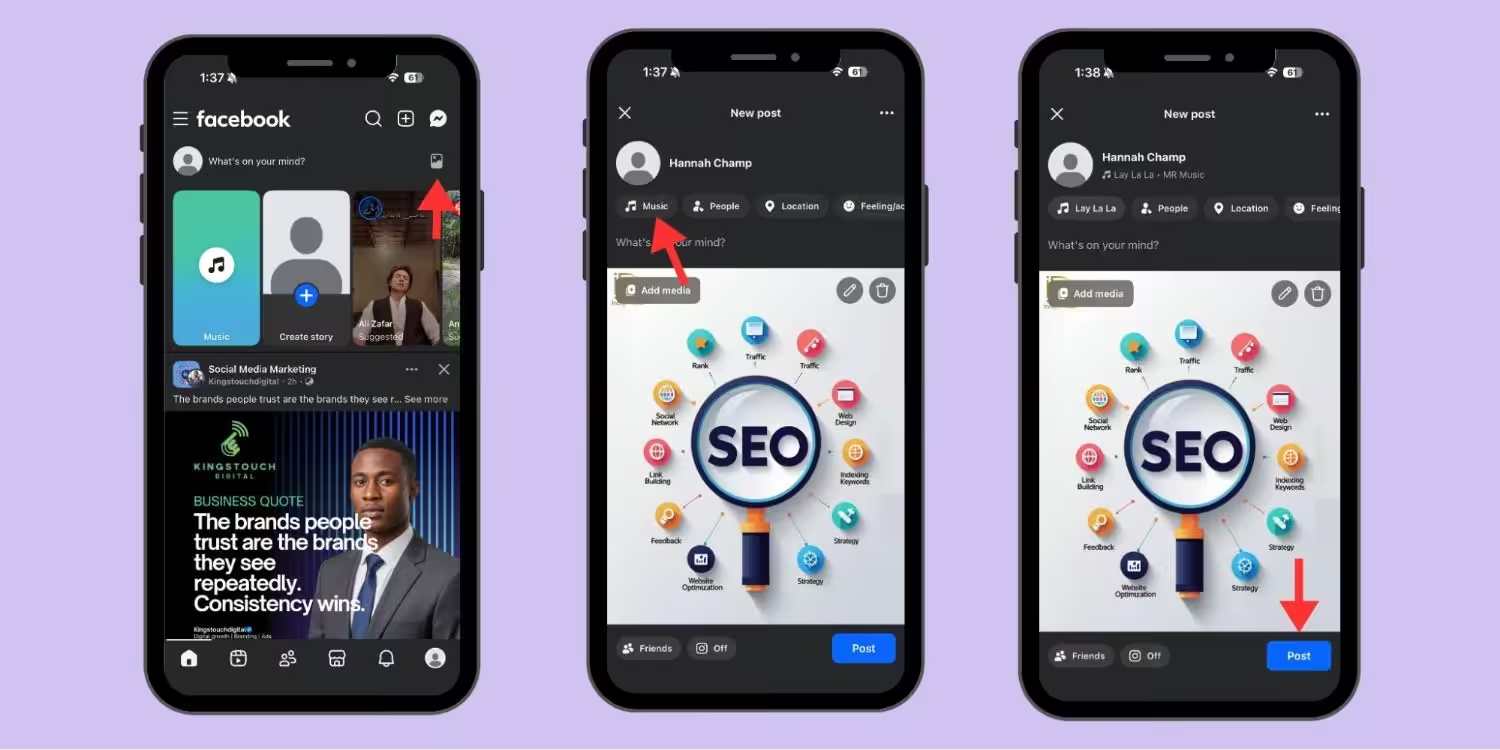
- Open facebook.com on your phone. Tap the photo icon under the message icon. Choose the image you want to upload.
- Look for the “Music” option. It’s above your image. Tap it.
- When you tap it, you’ll see a list of trending tracks. You can select from the list or search for your favorite song by artist, mood, or genre.
- Now, you can’t add the full song to your photo. You’ll see a slider. Drag it to choose which part of the song you want to add, and tap “Done” at the upper right corner of your screen.
- The song is added. You can add your captions and hashtags. Tap the “Post” option to upload your image. That’s it.
A Few Things to Remember
- Some regions block the music feature. If the feature is not available for you, your region may not support it.
- Facebook doesn’t allow you to edit the song after posting. You should double-check your clip before posting.
- If you run a Business Page, you may see fewer songs than personal profiles.
If you post photos daily, you need a system that can do your work so you can save your hours. You can plan your posts with Facebook publishing tools to draft your posts, pick music, and schedule them in one place.
How to Add Music to a Facebook Video Post
We all know that videos without audio don’t look engaging. I even saw a travel clip last month with zero sound, and I nearly scrolled past it immediately. There was no engagement at all on that video.
Let’s understand how to add music to a Facebook video post:
Edit Before You Upload
The best trick that I learned from my experience is to add your music to a video editor first. You can use some free tools, such as CapCut, to get full control over the track, volume, and timing.
Additionally, you avoid the awkward moment when Facebook mutes your video because of a copyright claim.
Upload With Facebook’s Native Tools
If you want to add music to a Facebook post directly, this process is simple too.
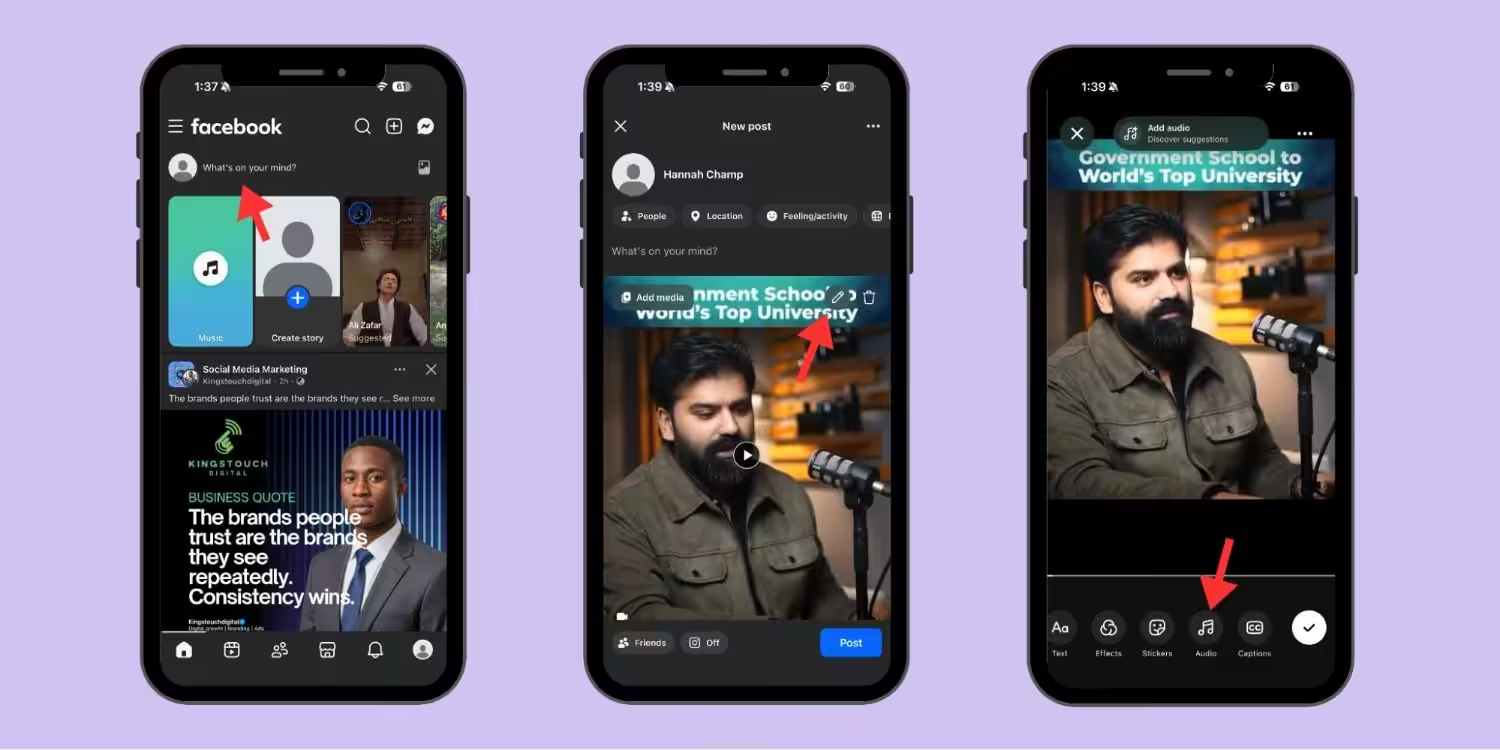
For this, tap “What’s on your mind” and select the video you want to upload. You’ll see a pencil icon in the corner of your video; tap it. Now, you can adjust your video, trim it, add stickers, text, effects, and audio.
You can also lower the volume of the original sound of your video. There’s also a voiceover option, which means you can add your own voiceover to your video.
After finishing it, tap it. Add your caption and hashtags and tap “Post.” That’s it.
Best Practices That Actually Work
- You should keep your video under 60 seconds for better engagement.
- Match the song mood to your content. A sad track over a party clip confuses people.
- Test your audio on mute. Many users scroll with sound off. Add captions if you can.
- Always try to post during your audience’s active hours to get more views.
- Post when your audience is active. A great video with perfect audio flops at 3 AM.
If you’re serious about creating video content for your own business or any other brand, you can rely on Facebook tools to stay organized.
Your Content Calendar Needs an Upgrade!
How to Add Music to Facebook Stories
You may see that everyone adds music to Stories more than anything else, and this whole process takes a few seconds.
Let’s take a look at this process:
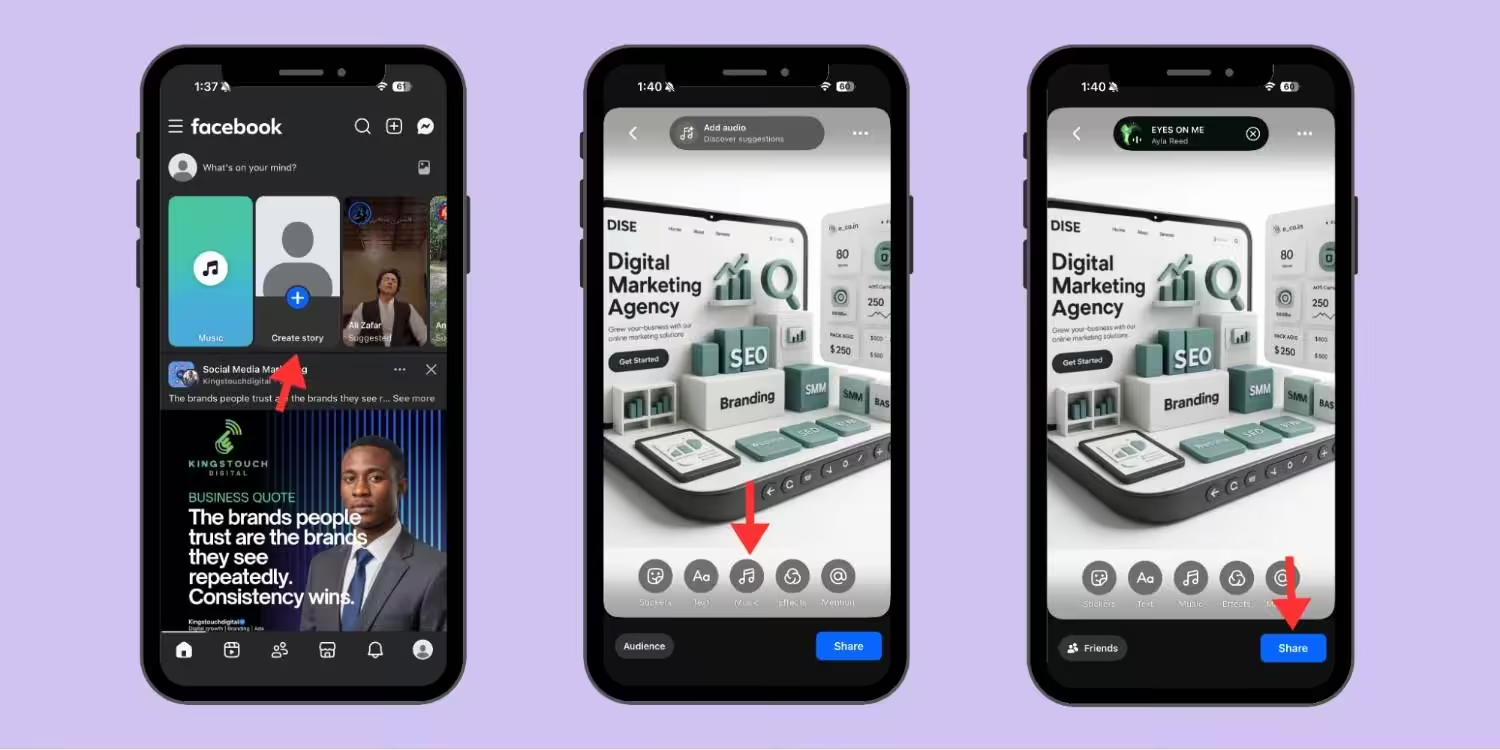
- Open Facebook and tap “Create Story.”
- Add the photo or video you want to upload.
- Tap the “Audio” option.
- Select the music you want to add from the list or search for your favorite one.
- You can tap on the music sticker and drag the slider to choose which part of the music you want to add.
- You can also tap the music sticker to change its variation.
- Add text, stickers, effects, etc.
- When you’re done, tap “Share” to upload your Facebook Story.
How to Add Music to Facebook Reels
You’ve learned how to add music to Facebook post, photo, video, and Story. Now you probably want to know how to add music to Facebook Reels.
This is a simple process that you can follow to add music to Facebook Reels:
- Open your Facebook account.
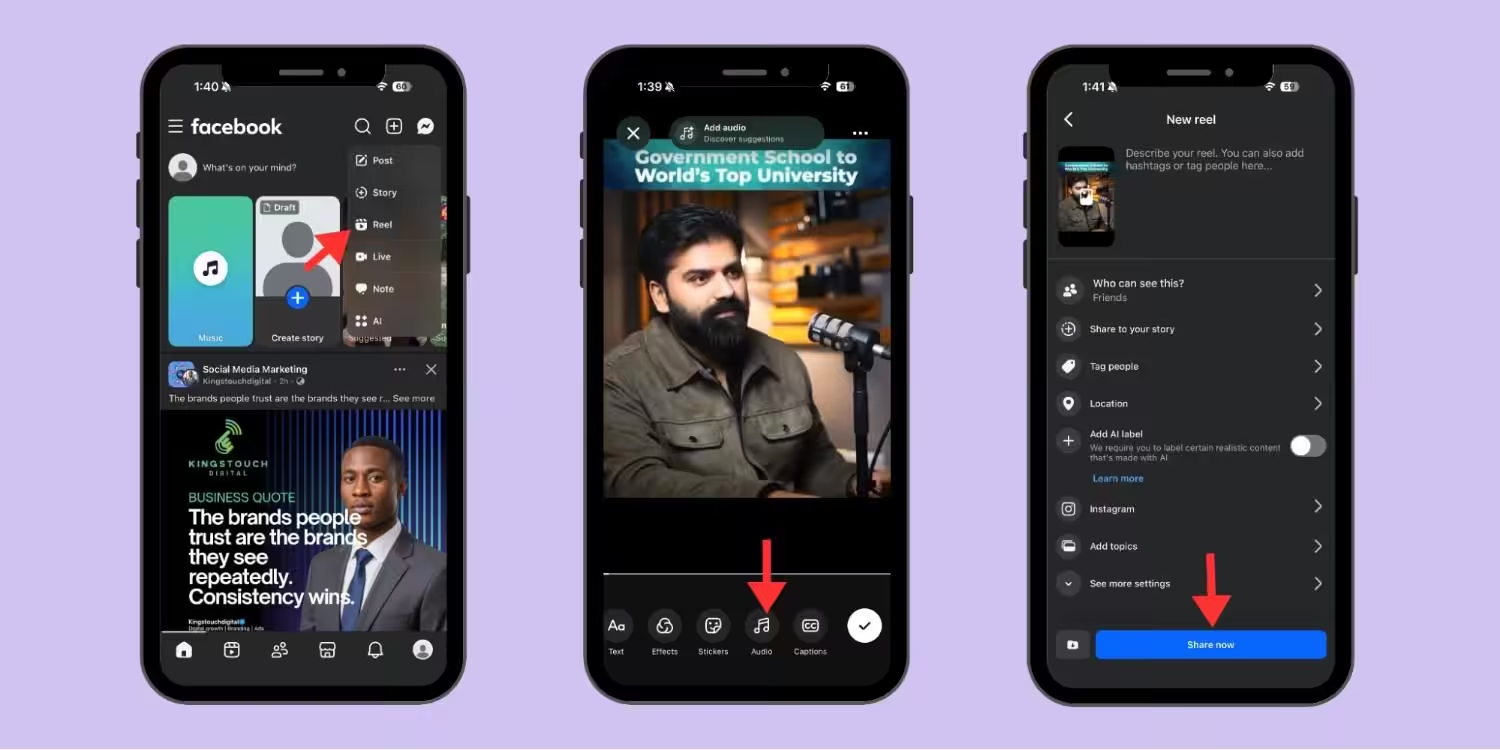
- Tap the “+” icon next to the search icon.
- Select “Reel” from the menu.
- Choose the video you want to upload.
- Tap “Audio.” You’ll see the list of trending audios.
- Pick the one you want to add or search by typing the name of your favorite track.
- You can lower the original sound of the video or add your own voiceover.
- Tap “Done,” edit it, add a sticker, text, effects, and tap “Next.”
- Write your caption and add hashtags.
- Tap “Share now” to upload your Reel.
Featured Article: Best FeedHive Alternatives
How Social Champ Helps Plan and Schedule Facebook Content
I have to be honest with you. Social Champ does not add music to your Facebook posts, but let me tell you how Social Champ can help you.
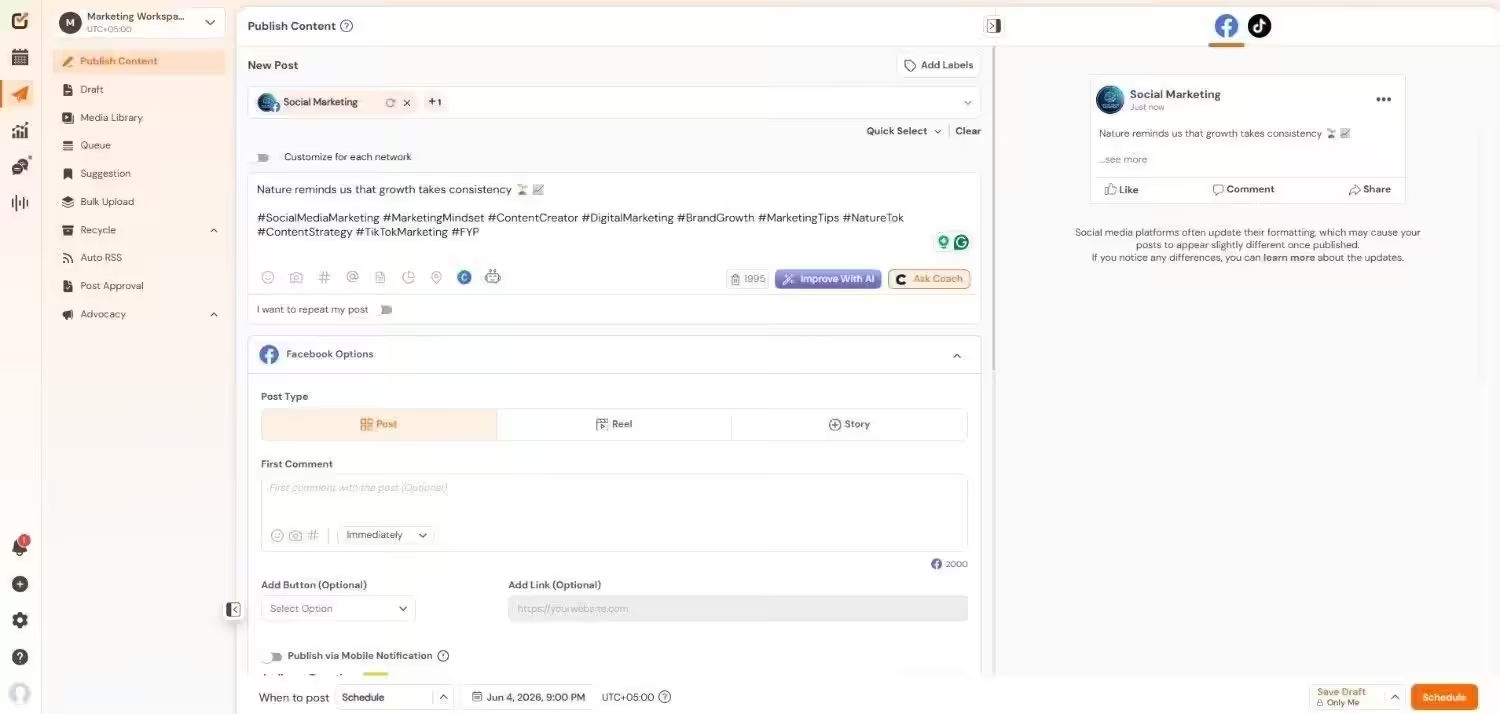
Social Champ is one of the best Facebook management tools for individuals, startups, and small to enterprise-level businesses. Let’s check how it helps you plan and schedule your Facebook content:
Plan Your Content Calendar
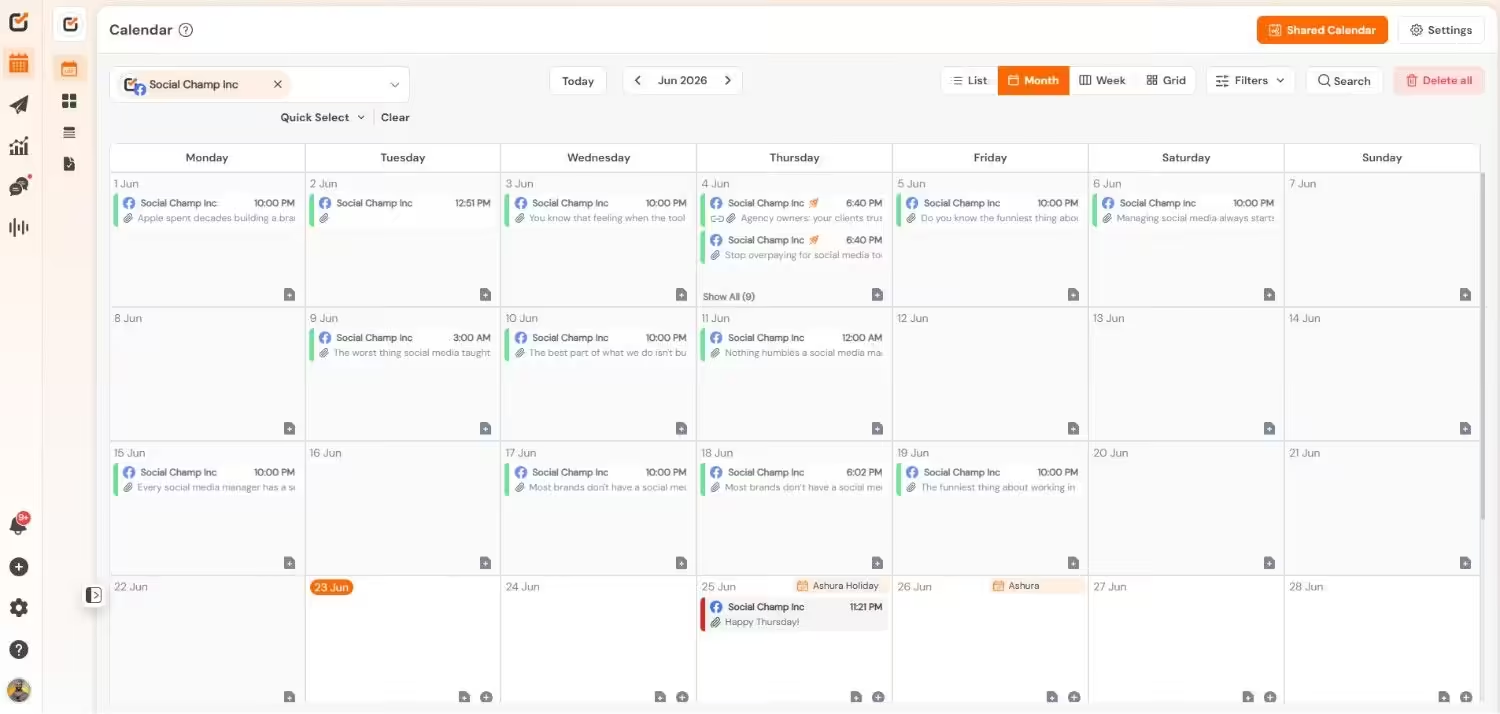
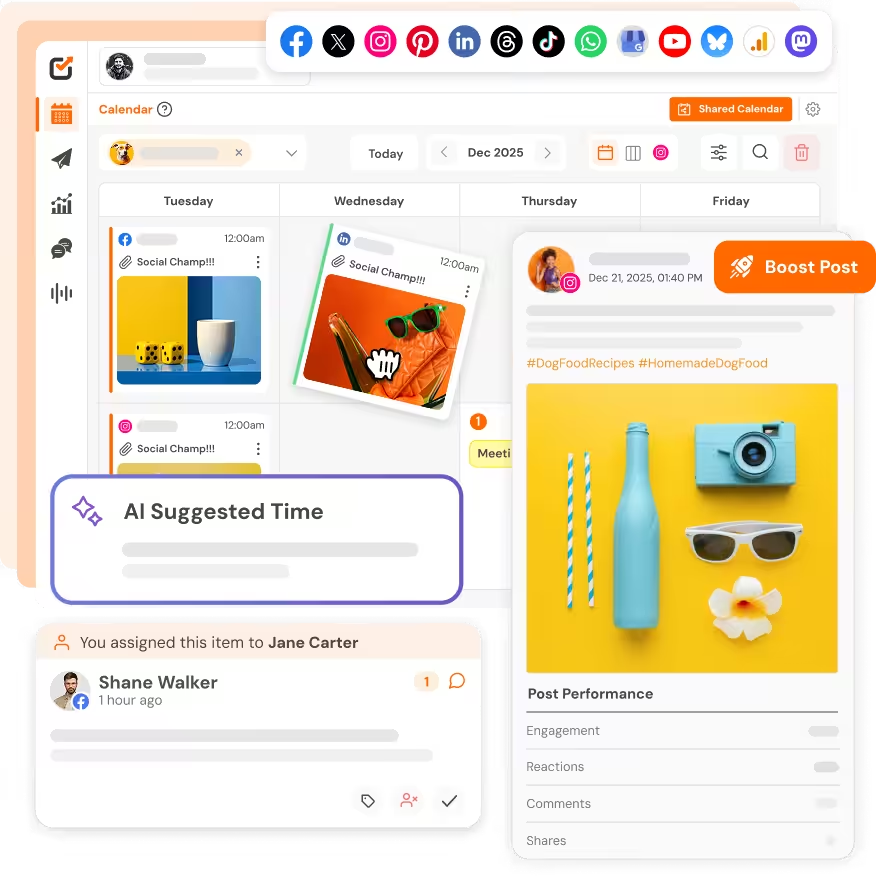
With Social Champ, you can map out your whole week of content in one sitting. You can draft your posts, pick images, write captions, and schedule them at the peak hours when your audience is most active.
Post to Multiple Platforms
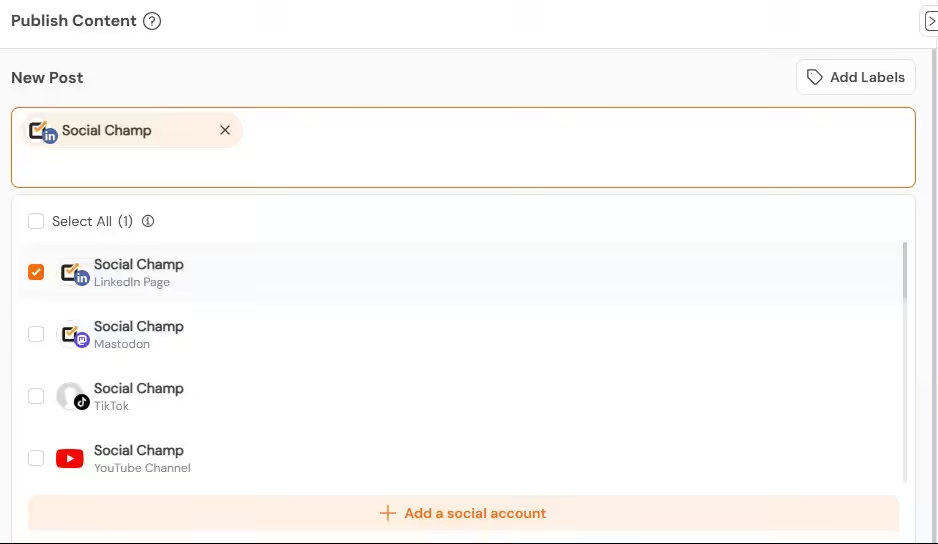
If you manage multiple platforms and upload the same content across platforms, Social Champ is your go-to option. You don’t have to upload the same content to Facebook, Instagram, and X separately. Write once and schedule it everywhere.
Track What Works
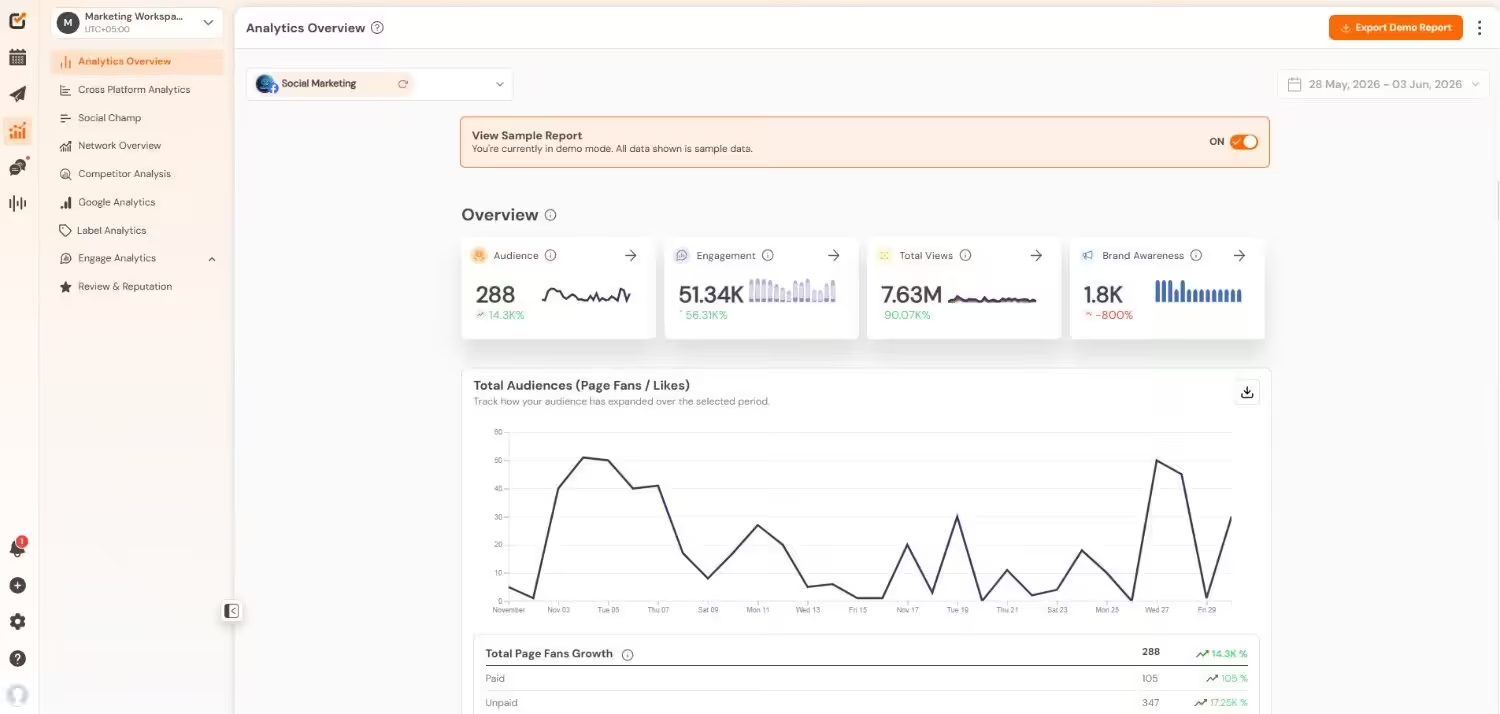
You can also track which posts get traction, see your best times to post, your top formats, and where your engagement comes from. You can simply adjust your strategy based on this data and increase your reach.
Stay Consistent
If you want to be in front of everyone’s eyes, you have to stay consistent with your posting. With Social Champ, you can keep your feed alive even when you’re busy, sick, or on vacation.
Featured Article: How to Tag Someone on Facebook
Conclusion
Now, you’ve learned how to add music to Facebook post across every format, such as Photos, video, Stories, and Reels. You also know that some regions don’t support this feature.
What I want you to take from this guide is that music changes everything. When your posts are with the right song, they get reactions, shares, and actual comments. The difference is not subtle. It is huge.
And if you are regular with posting, plan and schedule your Facebook posts with Social Champ to save your hours every week.