Let me ask you something. You post your story on Facebook and just realize that your boss saw it. Has this ever happened to you?
Don’t worry, you’re not alone. I faced the same situation last month when I posted a meme and saw a stranger comment on my post who was not even in my friend list.
That’s the moment I found out that I needed to learn to lock my Facebook profile.
To save you from facing the same situation next time, I’m here to tell you how to lock Facebook profile.
In this guide, you’ll learn:
- What happens when you lock your profile
- How to lock Facebook profile on iPhone, Android, and desktop
- How profile locking compares to restricting someone or making your whole account private
- And how to unlock it, if you ever change your mind.
Let’s get into it.
(P.S. I use a Facebook post scheduler (Social Champ) to schedule my posts now, so nothing goes public by accident. You can try it free for 14 days if you want to keep your content lowkey too.)
Short Summary
- Locking your Facebook profile takes literally two minutes and works on any device.
- Once you lock it, strangers can’t see your photos, posts, or friend list at all.
- It’s different from restricting someone because locking blocks everyone outside your friends list.
- You can always unlock it later if you need public visibility for something specific.
- Using a tool like Social Champ helps you schedule posts without accidentally going public.
What Happens When You Lock Your Facebook Profile?
Okay, let me tell you exactly what happened to me so you can understand better.
As I mentioned above, about the meme I posted, and that one stranger commented on that, even when he’s not in my friend list.
I figured out the whole process of how to lock Facebook profile, and locked it the same night. Now, this is what has changed after locking my profile.
Who Can Still See Your Stuff?
When you lock your profile on Facebook, only your friends can see your photos, posts, stories, and even your whole feed.
Other people who’re not in your friend list can only see your name and profile picture. That’s it. They can’t even scroll to see anything, and can’t open your profile or cover picture.
What About Your Old Posts?
Even if your old posts were public earlier, no one outside your friend list can see those posts.
You don’t have to delete anything to hide, but just hide it from people you don’t want to.
Is This the Same as Restricting Someone?
No. It’s not the same.
I know many people get confused about this, but locking a profile means you hide your posting from anyone who’s not your friend.
And restricting someone on Facebook means you block one specific person. That’s it.
If you post often and want to increase your reach, you can read our guide on How often you should post on Facebook to grow your engagement even when you’re private.
How to Lock Facebook Profile on iPhone or Android
Now I’m telling you the true steps of how to lock Facebook profile for both iPhone and Android users.
The steps are simple, and they’ll take you only two minutes, and you’re done.
How to Lock Facebook Profile on an iPhone
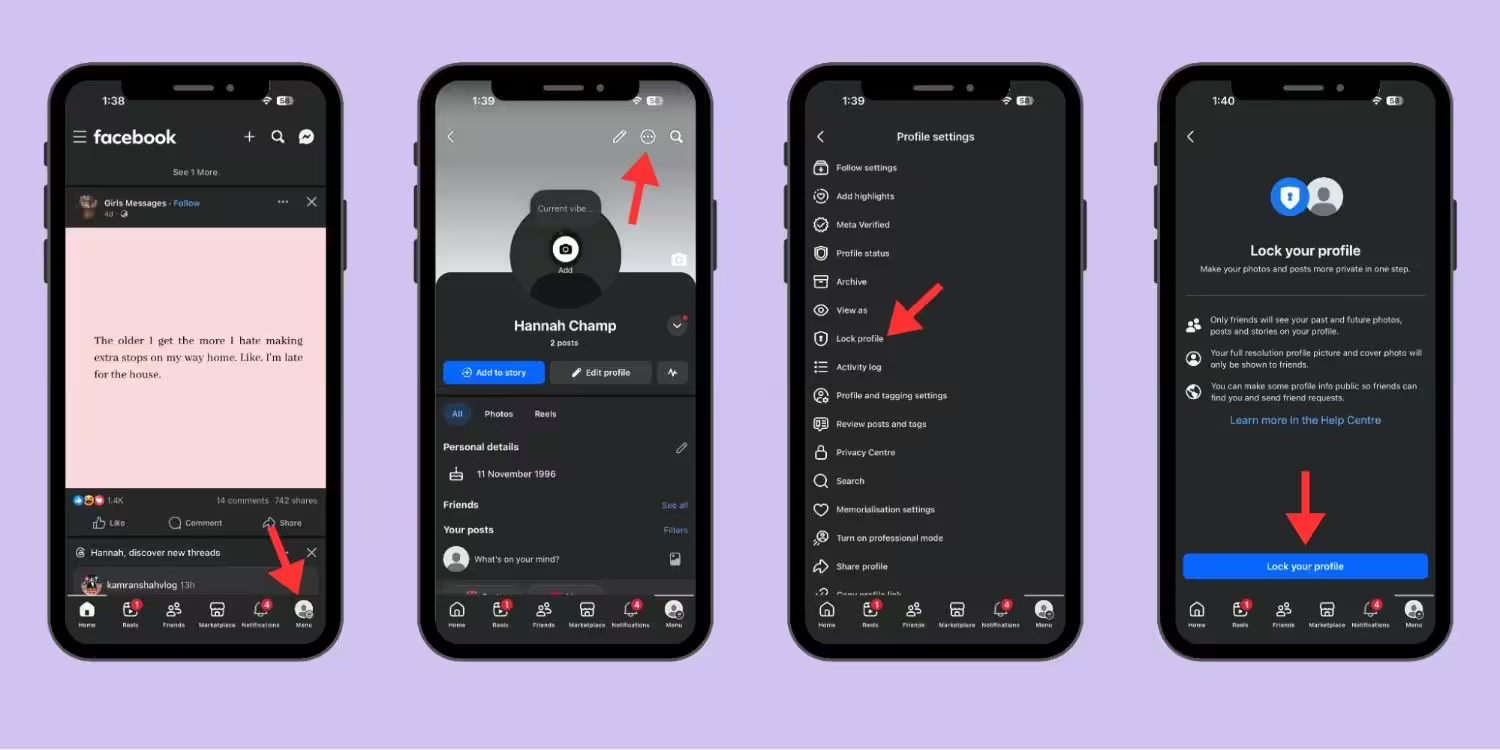
If you’re an iPhone user, this is how you can lock FB profile:
- First, open the Facebook app on your phone
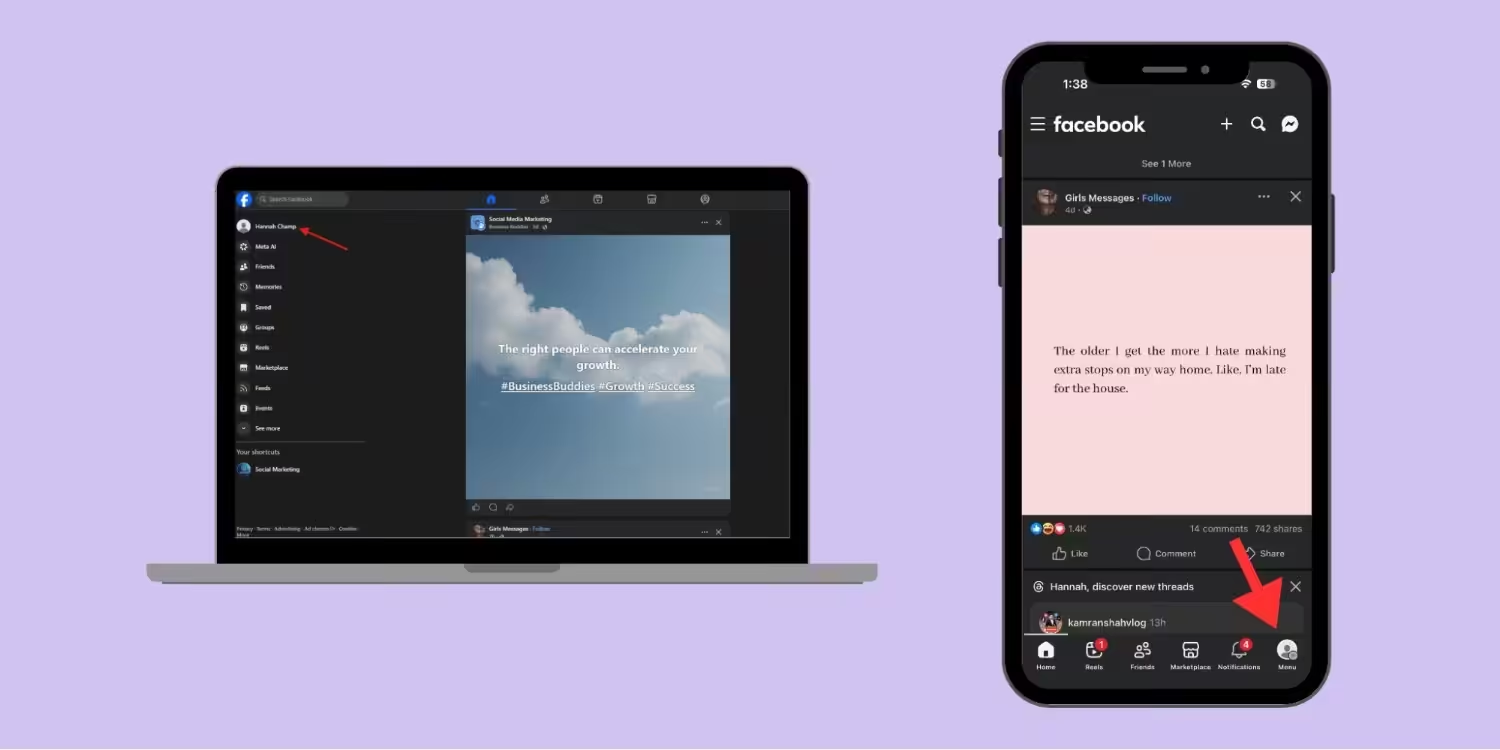
- Tap your profile picture at the bottom right corner of your screen and go to your profile
- Tap the three dots in the upper-right corner
- Select the “Lock profile” option
- Tap “Lock your profile”
That’s it. Now your profile is locked.
For many people, the option is not visible because of the outdated app. If you don’t find the option, please update your app first, then try doing it.
Featured Article: 550+ Best Facebook Captions Ideas for Different Posts
How to Lock Facebook Profile on Android
If you use an Android phone, the process is the same. Follow these steps:
- Open the Facebook app on your phone
- Head to your profile by tapping on your profile picture
- Tap the three dots on the upper right corner of your screen
- Select the “Lock profile” option
- Tap “Lock your profile”
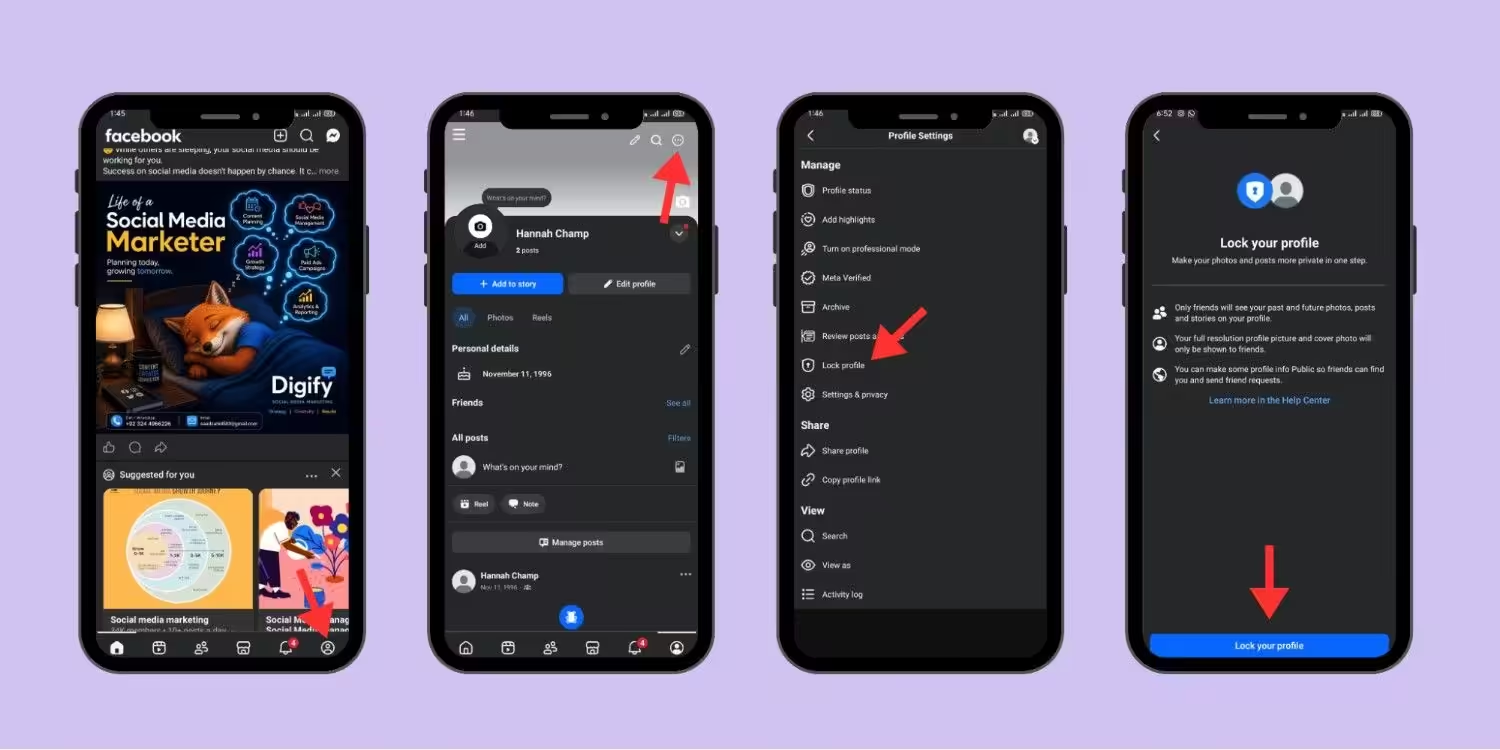
No matter if you have an iPhone or an Android, the process is the same for both users.
If you want your friends to always interact with your content, you can check out our guide Best time to post on Facebook so you can have an idea of when your friends are active.
How to Lock Facebook Profile on Desktop and Web Browser
This section is for those who use Facebook on their laptops or computers. The process on the desktop is also very simple, like on the phone. The only difference you’ll notice is the layout.
Let’s look into this method:
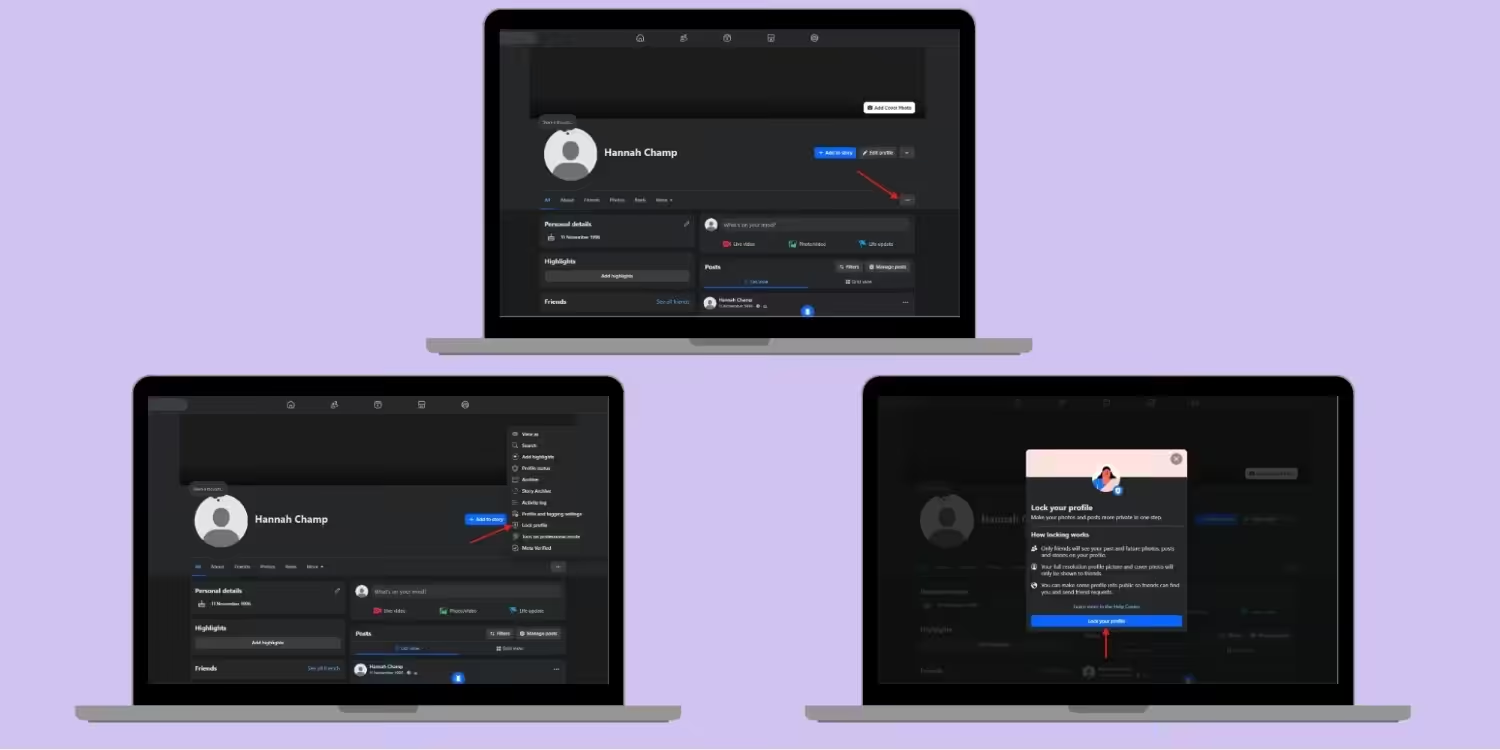
Step 1: Open Facebook in Your Browser
Go to facebook.com and log in to your account. Click on your name to open your profile. Make sure you’re on your main profile, not on your business page.
Step 2: Click the Three Dots
Click the three dots on the right side. You’ll see a dropdown with several options.
Step 3: Select Lock Profile
Select the “Lock profile” option from the list. Click the “Lock your profile” button. And you’re done.
You can also preview your profile to get an idea of how strangers will see your profile.
The Difference Between Mobile and Desktop
The only difference is that on mobile, the menu sits above your cover photo while on desktop, it sits right above your feed.
The settings do the same job either way. Your Facebook profile status syncs across all devices instantly. You do not need to repeat the process on your phone.
Never Post After Midnight Again!
How to Lock Facebook Profile vs Restrict Someone or Make Facebook Private
I used to think a locked profile and a restricted stranger were the same thing. But they’re not.
Let me tell you what I’ve learned from my experience so you don’t make the same mistake that I did.
Profile Locking
When you lock your profile on Facebook, that means you’ve built a safety wall around your profile.
This way, no stranger can see your photos, posts, or friend list. Only the people in your friend list can see your feed.
Restricting Someone
As I told you above, restricting someone on Facebook means they stay your friend, but they can only see your posts when you tag them.
They can’t see your stories while your profile stays open to everyone else. This is perfect for that one relative you cannot unfriend without drama.
Limiting Past Posts
When you limit your past posts, that means only your friends can see them, even if they were public earlier.
It doesn’t lock your profile, but just cleans up your history. New posts can still be public if you forget to change the audience.
Making Your Account Private
Making your account private means setting everything to friends only. You can do this by changing your default setting.
But it doesn’t lock your profile, and strangers can see your friend list. People can still find you and send requests.
Which One Should You Pick?
Now the main question is which one should you pick?
Let me help you to decide this. If you don’t want your posts to be visible to strangers, simply lock your Facebook profile. And if you just want a cleaner history and limit past posts, you can use all three.
You know what I did? I locked my profile, restricted my annoying relatives, and limited my old posts, which I found to be the safest combo.
Since you’re here anyway, it might be worth peeking at our other Facebook guides too. They’re basically here to make Facebook less confusing.
Manage Your Facebook Privacy More Easily With Social Champ
I spent an hour last month tweaking my privacy settings. I checked every post, every album, every tag. It was exhausting.
Then I realized I needed a better system. I needed to control what went out before it went public.
That’s where I found Social Champ, and it helped me a lot in handling my Facebook presence. Let me tell you how:
Schedule Posts Without Stress
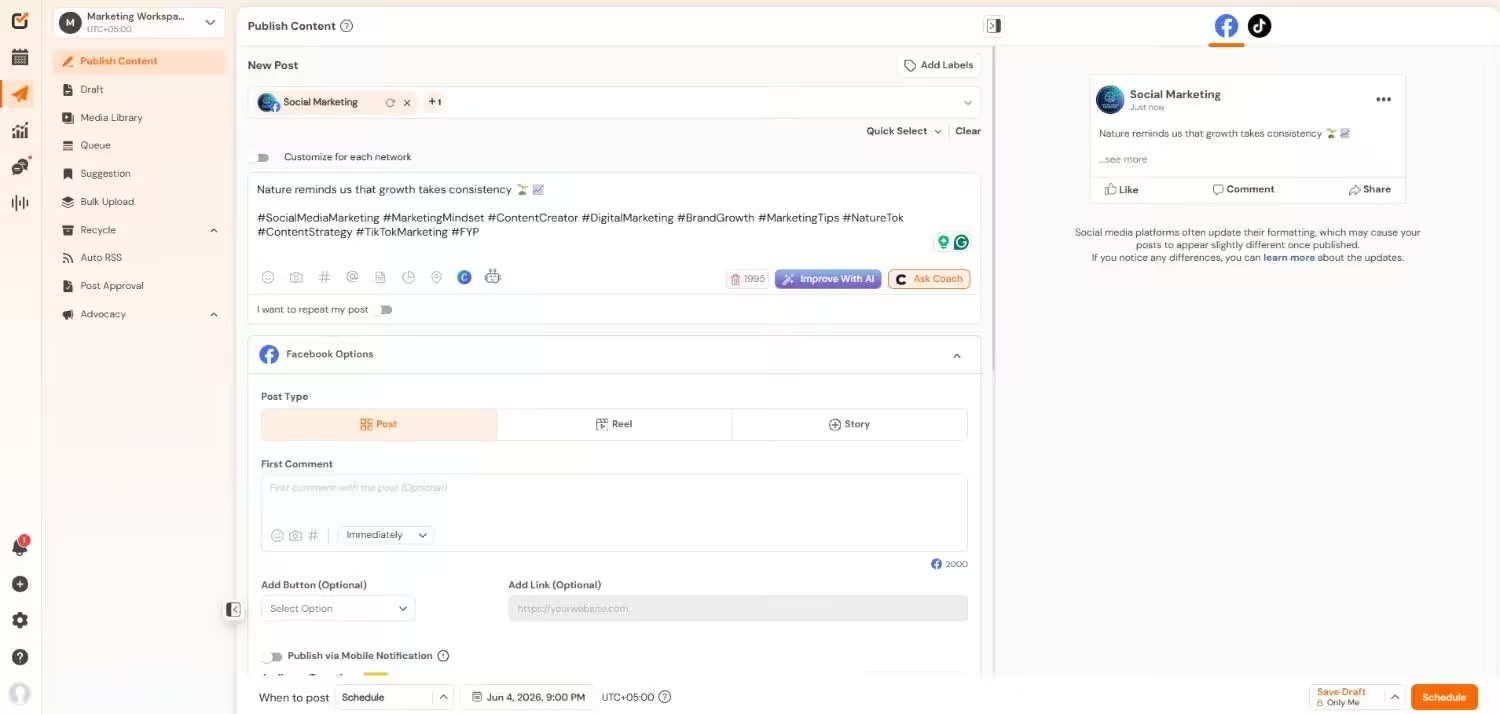
Earlier, I used to post rashly, like uploading a photo at 2 AM, posting a rant after my class, or uploading a story that I regretted by morning.
If you’ve been there, Social Champ can help you with this. It lets you write your posts in advance, review them, and pick the audience before the post goes live.
You can set your Facebook to private by default, so every post starts as friends only. You change it only when you want to.
Manage Multiple Pages and Profiles
If you have your personal Facebook profile and a business page, you may get confused while switching between them.
I, myself, have made this mistake of posting my personal stuff on the business page.
With Social Champ, you can manage both your personal profile and your business page from one dashboard
Additionally, you can queue content for the whole week. You set it and forget it. Your posts go out at the best times without you hovering over your phone.
Avoid Accidental Public Posts
You know what’s even worse? It’s when you realize that your post went public by mistake. You see the globe icon and feel your heart sink.
If you use Social Champ, you can set your default audience once, and every post that you plan follows that rule unless you change it.
Apropos to that, you can still boost a post or make it public when you want. The control stays with you. You just remove the accidents.
Analytics That Help You Stay Private
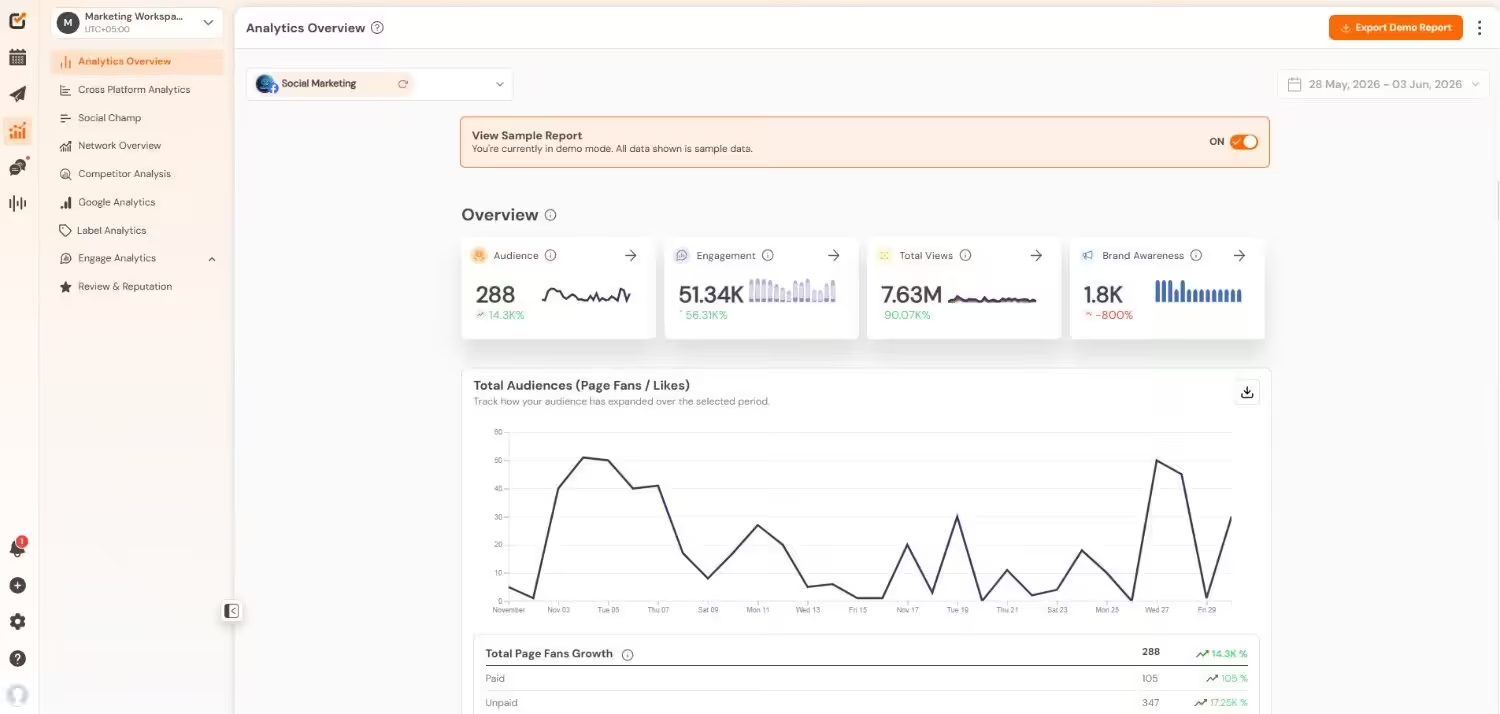
When you start planning your posts with Social Champ, it shows you which content performs well and which doesn’t.
You can see your engagement without assuming the numbers. You don’t need public posts to get data. Your private content still tells you what works.
Featured Article: Manage Multiple Facebook Accounts and Pages Smoothly
How to Unlock Your Facebook Profile
If, after locking your profile, you change your mind and want to unlock your profile again, you can follow these steps.
This process is also very simple and can even take less than two minutes.
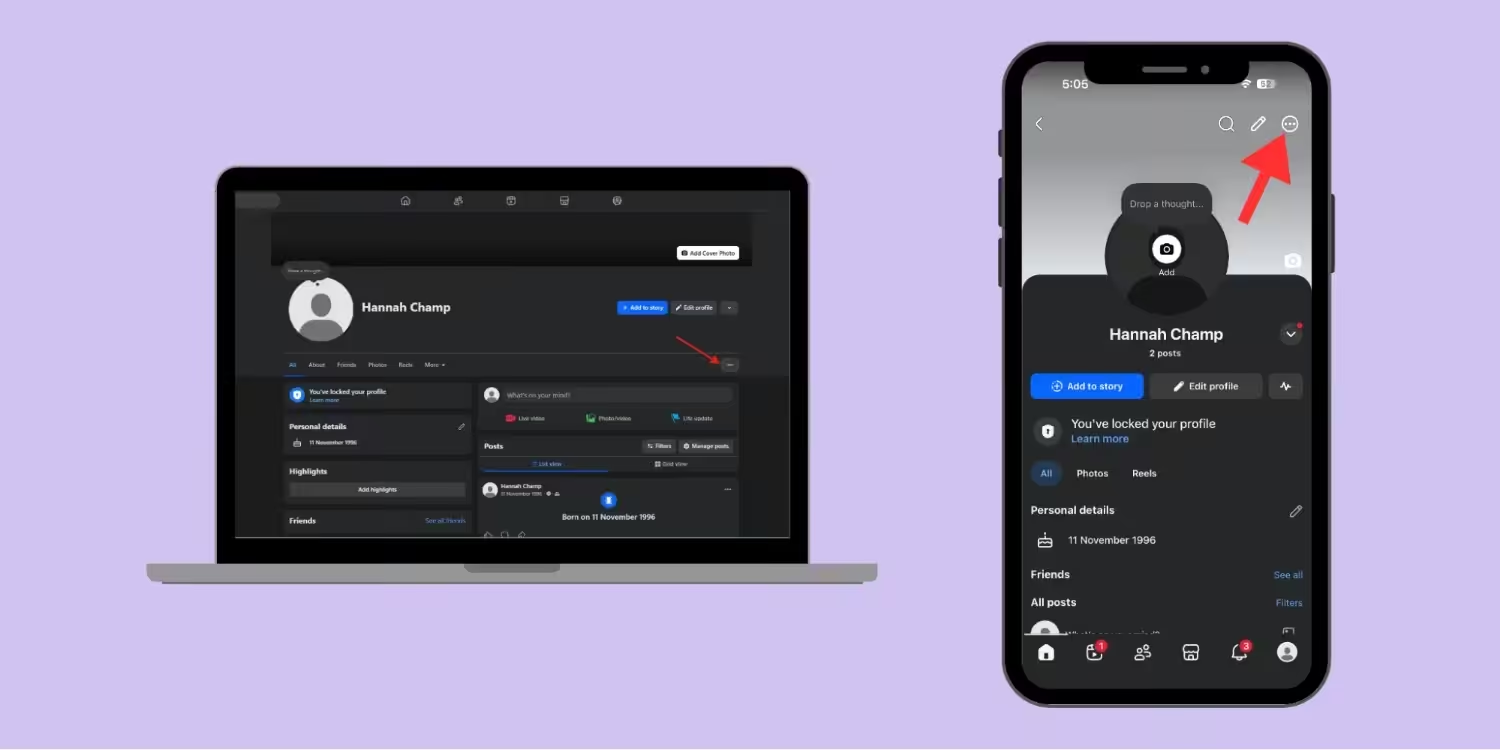
Step 1: Go to Your Profile
Open the Facebook app or browser. Click or tap your profile picture to head to your profile.
Step 2: Tap the Three Dots
Tap or click the three dots that you used to lock your profile.
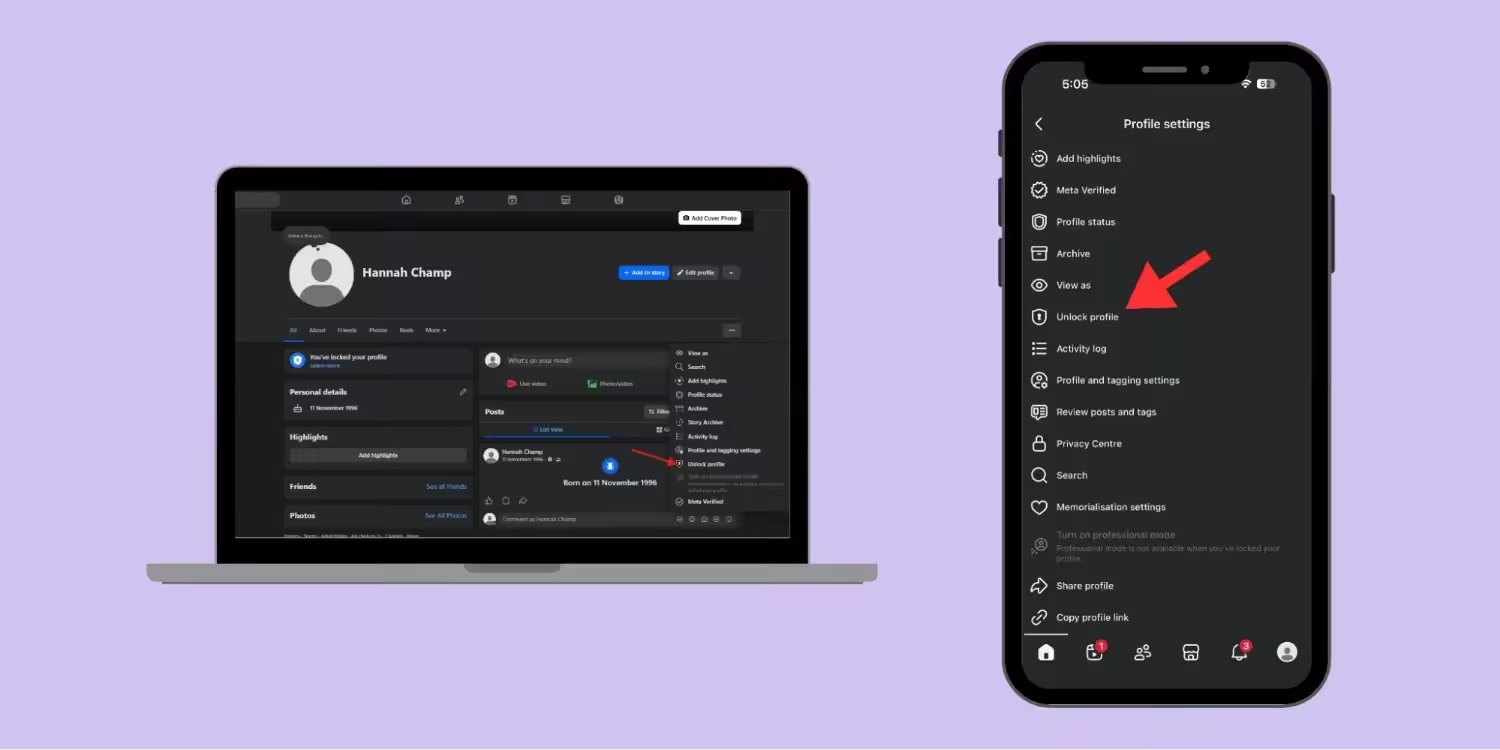
Step 3: Select Unlock Profile
Now, since your profile is locked, this time you’ll see the “Unlock profile” option. Click or tap it.
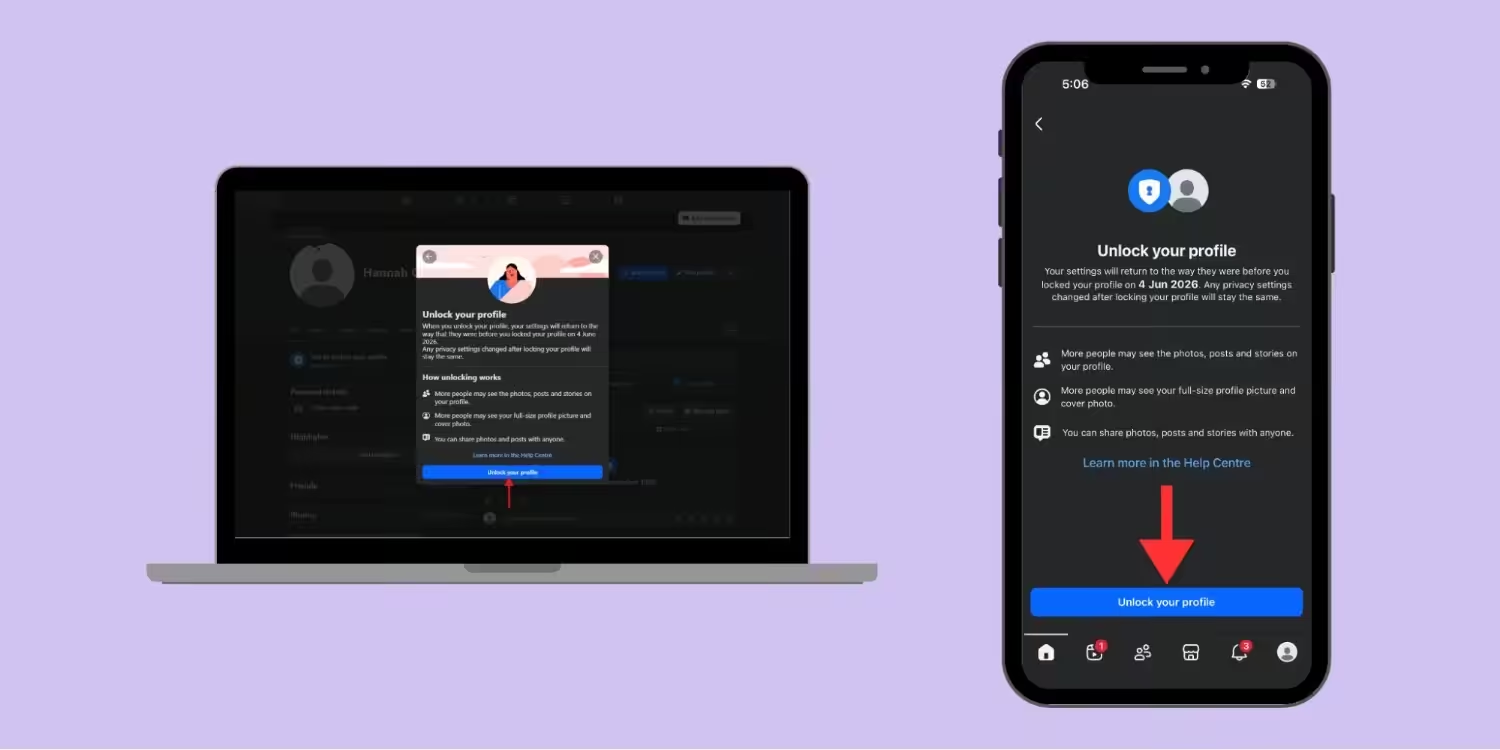
Step 4: Confirm
Click or tap the “Unlock your profile” button. That’s it. Your profile is unlocked now.
Start Free. Pay Later.
Conclusion
Now you know how to lock Facebook profile on desktop, iPhone, and Android.
You’ve also learned what happens when you lock your profile, how it’s different from restricting someone, and how to unlock your profile if you change your mind.
All the steps are super easy, and you can do them in just a few minutes. I made the switch after that creepy moment, and now my profile seems safer.
Go lock your profile now and hide your posts from all the strangers.
Featured Article: Does Facebook Notify Screenshots?