If you’re managing social media for even one brand, you already know the real job isn’t “be creative”; it’s juggling fifteen small tasks before lunch. Write a caption, check yesterday’s numbers, reply to three DMs, figure out what to post tomorrow, repeat.
That’s exactly the kind of grind an AI social media assistant is built to take off your plate. Here’s how to actually use one day-to-day, not just what it is on paper.
Short Summary
- An AI social media assistant acts like a teammate that handles repetitive daily work, drafting captions, scheduling, replying, and reporting, while you make the final calls.
- It’s different from automation: instead of rigid rules, it understands context and adapts to plain-language requests.
- Before it’s useful, you need to set it up, connect your channels, feed it brand voice/context, and choose autonomy levels (Draft, Approve, or Auto) per task.
- Biggest daily wins are content ideation, caption writing, and repurposing one post into multiple formats across platforms.
- Scheduling and performance reporting are also strong use cases, though some flows (like bulk CSV uploads) still route back to the main platform.
- Comment/DM replies are best used as AI-drafted, human-approved for now; full auto-reply is still rolling out for narrow cases only.
- Social Champ’s Switch brings all of this together with layered autonomy controls, platform safeguards, and a kill switch, letting you get speed without losing control.
What Does an AI Social Media Assistant Actually Do?
Think of it less like a tool and more like a teammate who’s read every post you’ve ever published and never gets tired of drafting captions at 4 pm on a Friday.
You give it a request in plain language, “write me three hook ideas for this Reel”, and it hands back something you can actually use, in your brand’s voice, without you digging through five different tabs to get there.
Where It Fits Into Your Daily Workflow
Realistically, it slots into the parts of your day that are repetitive but still need judgment: ideation, first-draft writing, pulling up performance numbers, prepping replies. It’s not there to replace the final “yes, post this” decision; it’s there so you’re not starting every single task from a blank page.
Setting Up Your AI Assistant for Daily Use
Before it can actually save you time, it needs a bit of setup. This part’s boring, but skipping it is why some people end up saying, “the AI didn’t get my brand voice.” Usually, it just wasn’t given the chance to learn it.
Connecting Your Social Accounts and Brand Voice
Start by connecting the channels you actually post on; most tools cover the big ones (Instagram, Facebook, LinkedIn, YouTube), and then feed it context: past top-performing posts, your tone, any brand references you have. The more it has to learn from, the less “generic AI voice” you’ll get back. This part is honestly worth the 20 minutes it takes.
What You Let It Do vs. What Needs Your Approval
A good AI assistant doesn’t work on all-or-nothing; it should let you choose how much rope to give it per task. Draft everything, and I’ll review it. Queue it for approval.
Or, for very specific low-risk stuff, let it go on its own. Set this deliberately rather than accepting whatever the default is.
| Autonomy Level | What Happens | Best For |
|---|---|---|
| Draft | AI prepares the work; you make every final call | New workflows, sensitive brand messaging |
| Approve | AI queues the work; a person signs off before it goes live | Most day-to-day content and replies |
| Auto | AI completes a narrowly-defined, eligible task on its own, within strict limits | Very specific, low-risk, repetitive tasks only |
Featured Article: Top 12 Free and Low-Cost Social Media Management Tools
Content Ideation and Caption Writing
This is the task people use AI for first, and honestly, it’s the easiest win. Staring at a blank caption box is a special kind of tired, and you don’t have to do it anymore.
-
Turning a Rough Idea Into Platform-Ready Copy
You don’t need a fully formed idea; “something about our new feature launch, keep it casual” is enough. A good assistant will give you hooks, captions, and even suggest images or a carousel, already adjusted for the platform you’re posting to (LinkedIn caption ≠ Instagram caption, and it should know that).
-
Repurposing One Post Into Multiple Formats
My favorite use, genuinely. One blog post or announcement becomes a LinkedIn post, three Instagram caption variations, and a carousel outline, without you rewriting it three separate times. This alone can save an hour a week if you’re posting across more than two platforms.
Scheduling and Posting Times
Once the content exists, getting it live shouldn’t be its own project.
-
Letting AI Suggest Optimal Posting Slots
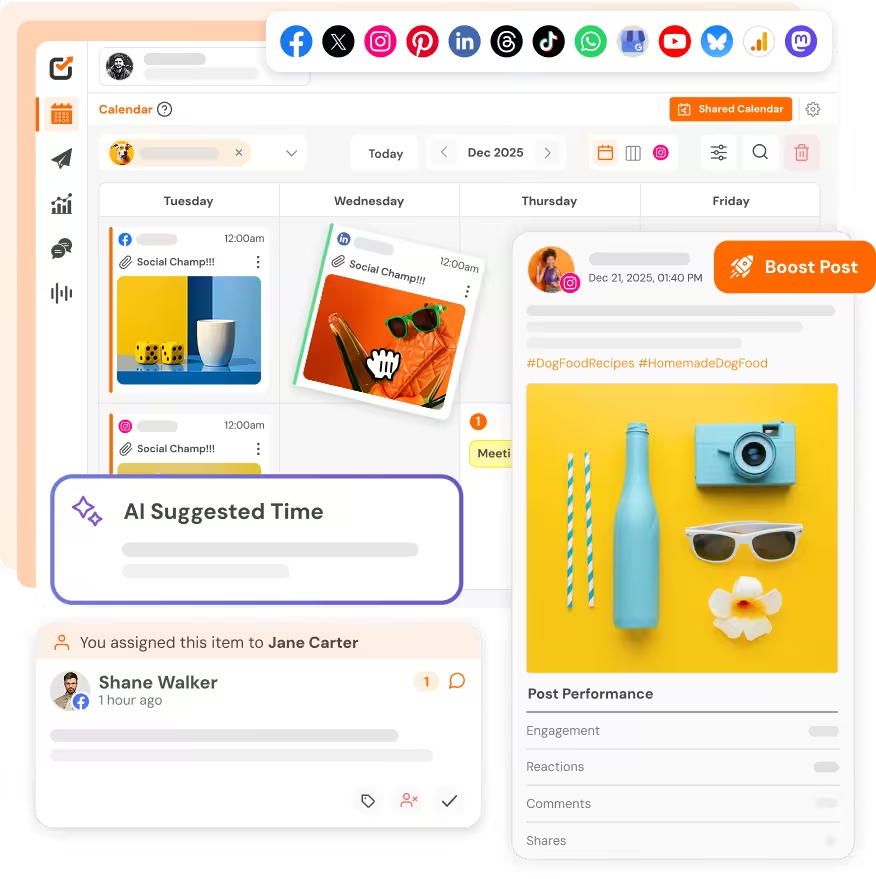
Rather than guessing (or googling “best time to post on Instagram 2026” for the hundredth time), the assistant can look at your actual channel performance and suggest when your audience is around. It’s data you already own, just surfaced without the manual digging.
-
Batch-Scheduling a Week’s Content in Minutes
You can hand over several posts at once and get a scheduled preview back, genuinely useful for a Monday-morning “let’s set up the week” session.
One honest caveat: if you’re used to dumping a CSV of 50 posts at once, that specific bulk-upload flow isn’t something the AI assistant handles yet; that part still lives in the regular publishing screen. Not a dealbreaker, just worth knowing so you’re not surprised.
Get Your Week Scheduled in Minutes!
Replying to Comments and DMs
This is where people get the most excited, and where I’d encourage a bit of caution too.
-
Drafting Responses vs. Auto-Replying
The safer, more realistic day-to-day use right now is: AI drafts a reply, you glance at it, you hit send. It’s fast; most of the “thinking of what to say” work is done for you, but a human is still the last checkpoint.
Full auto-reply exists in theory for very narrow, well-defined FAQ-type questions, but it’s still being rolled out carefully rather than something I’d lean on for your whole inbox. I’d treat it as “coming into its own soon” rather than “hand it the keys today.”
-
Handling Tone-Sensitive or Negative Comments
Good assistants are built to recognize when something’s risky, a complaint, an angry comment, anything legally sensitive, and route it to a person instead of trying to handle it solo. That’s a feature, not a limitation. You want your AI to know what it shouldn’t touch.
Monitoring Performance and Reporting
The part everyone skips because it’s tedious. AI is genuinely great at this one.
-
Getting Daily/Weekly Performance Summaries
Instead of opening five analytics tabs, just ask: “How did last week’s posts do?” and get a straight answer, best posts, best times, a readable summary instead of a raw spreadsheet.
-
Spotting Trends Without Digging Through Analytics Dashboards
Ask it to explain a dip or a spike, and it’ll dig into the “why,” not just the “what.” One thing I’d still sanity-check myself: topic-level suggestions (“post more of X”) are helpful directionally, but I wouldn’t treat them as gospel yet; spot-check them against your own gut before building a whole content plan around one suggestion.
Featured Article: How to Post to All Social Media at Once?
Meet Switch: Social Champ’s AI That Handles This For You
If everything above sounds like the dream, that’s basically what Switch is built for. It’s Social Champ’s AI assistant, and honestly, it’s the reason I don’t dread Monday content planning anymore.
Instead of bouncing between five different screens, you just tell Switch what you need- a caption, a schedule, a performance recap, a reply draft- and it handles the heavy lifting while keeping you in the driver’s seat.
How Switch Fits Into Draft, Approve, and Auto Modes
Switch runs on that same three-tier autonomy model we talked about above. You choose how hands-off you want to be per task, have it draft everything for your review, queue things up for approval, or let it run solo on the small, low-risk stuff once you trust it. It’s flexible enough to match how cautious (or confident) you actually feel that week.
Staying in Control With Platform Rules and a Built-in Kill Switch
Here’s what I actually appreciate: your settings aren’t the only safety net. Switch also respects plan limits and platform rules automatically, and there’s a kill switch that can pull things back to manual control instantly if something feels off. It’s built so you’re never left wondering, “Wait, is this thing doing something I didn’t approve?”
How to Use Switch for Daily Tasks?
Using Switch for your daily social media tasks is the best decision. Here’s how you can do it!
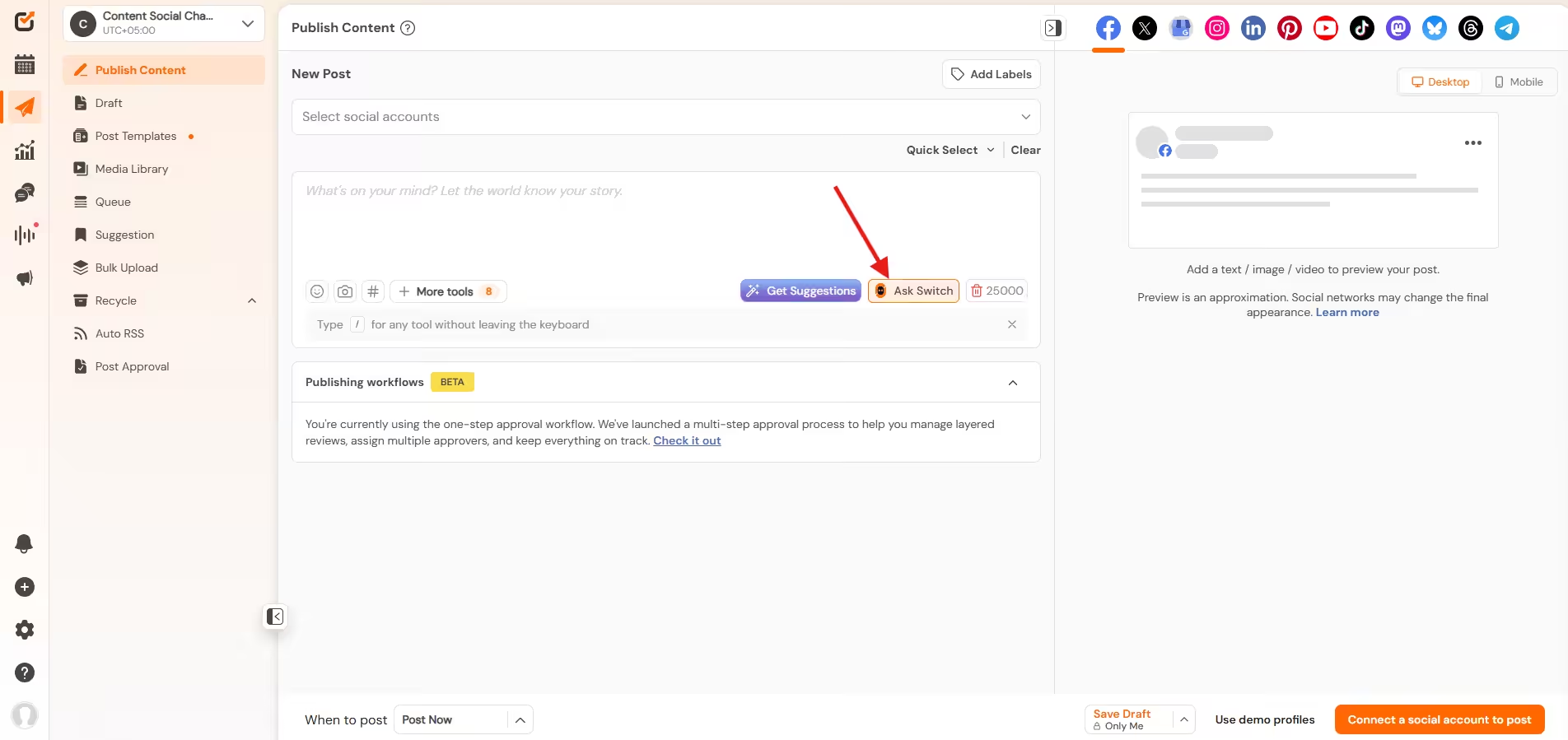
- Login on your Social Champ account and click on “Ask Switch”
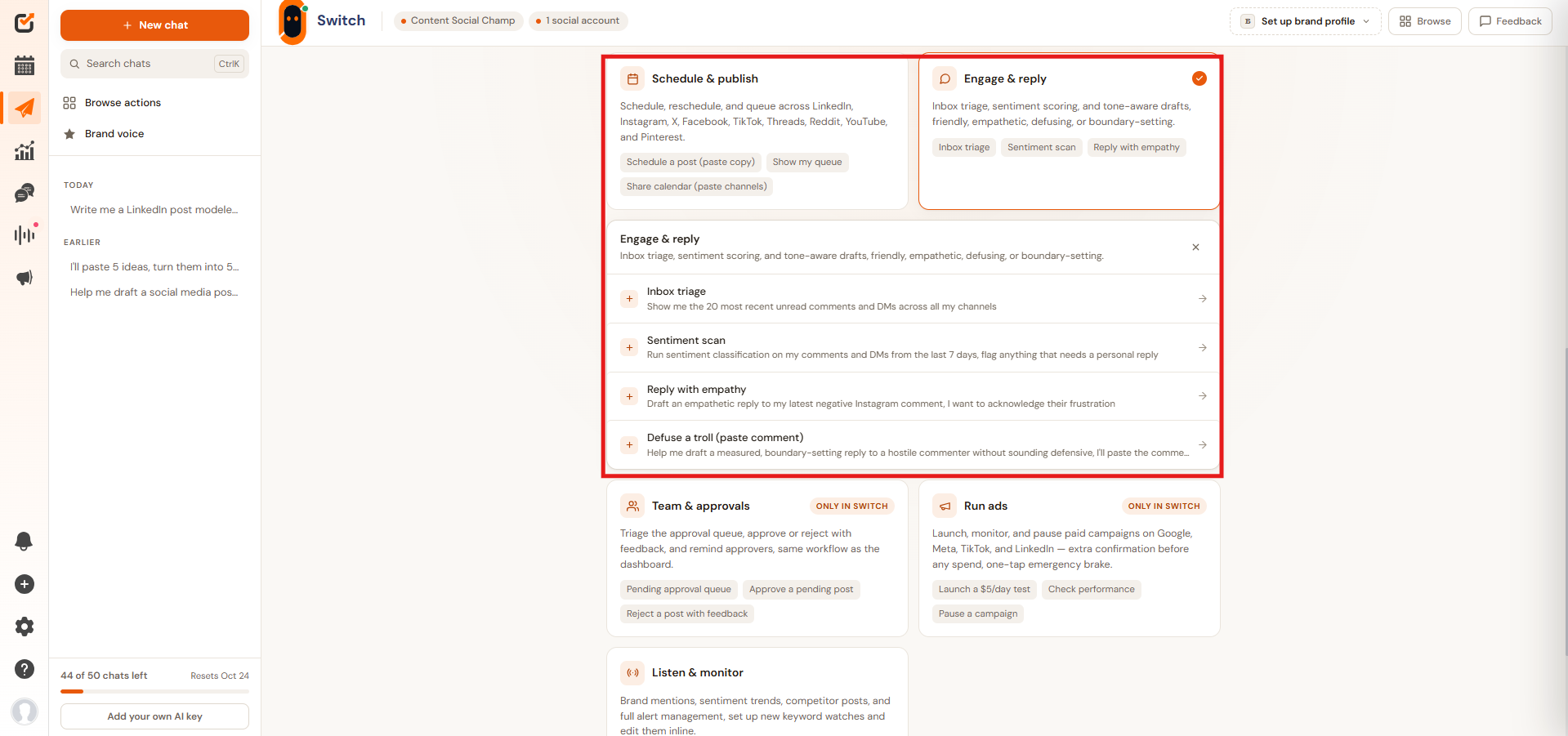
Click on Ask Switch - Scroll down to see the option, and select what you need to do for today. I’ve selected Engage and Reply.
Click on Engage and Reply - Send the prompt, and Switch will analyze your comments from the connected accounts to give you the right response.
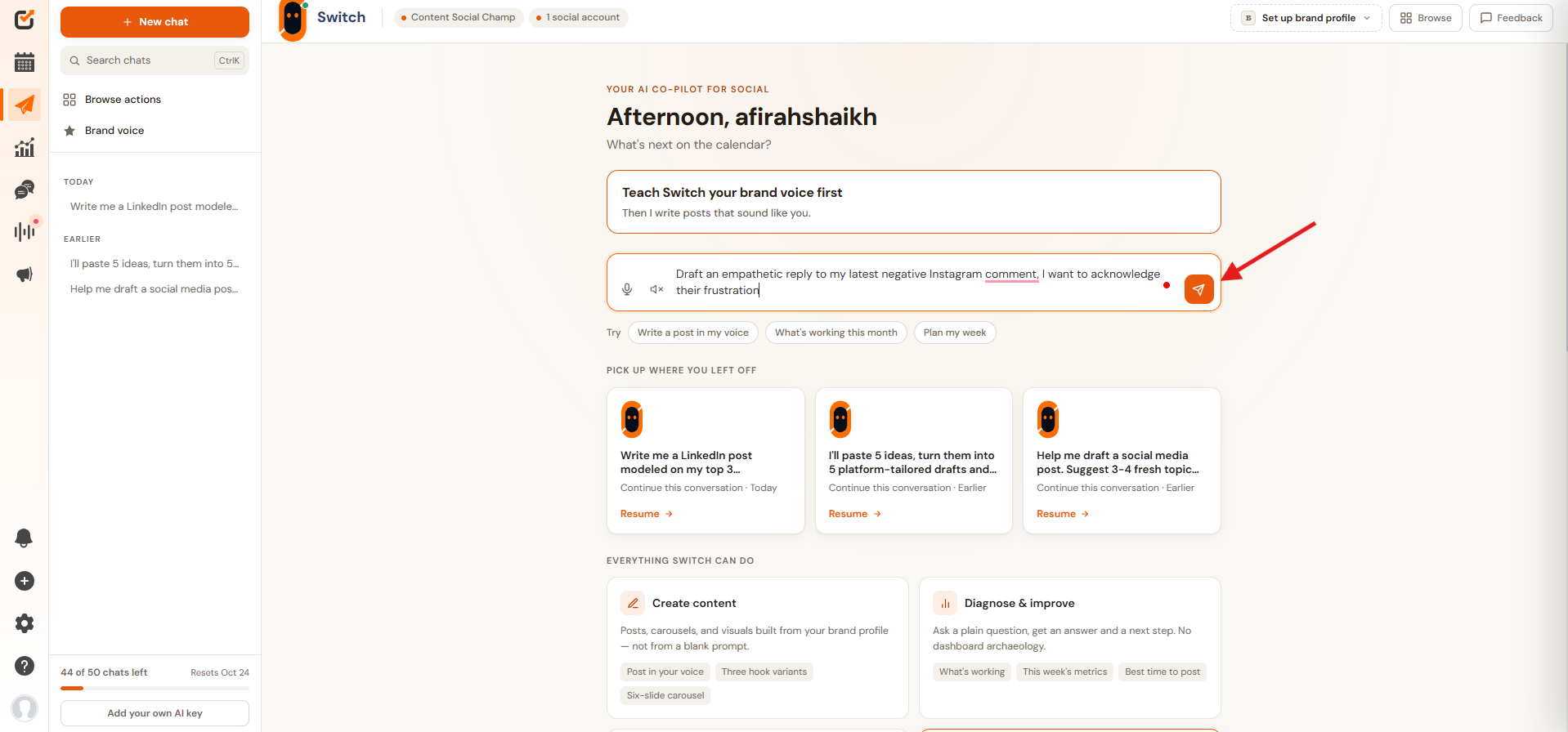
Send the Prompt
Try Switch for Yourself!
Conclusion
An AI social media assistant isn’t going to run your whole strategy for you, and honestly, you don’t want it to.
What it’s genuinely good at is clearing out the repetitive, time-eating parts of your day so you can spend your energy on what actually needs a human brain: strategy, brand judgment, and the occasional gut call. Start small, hand it your captions or your weekly report first, and build up from there.