

Social media burnout is a thing. There can be days when you feel like scrolling the Instagram news feed isn’t your thing anymore, or maybe a sudden wave of midday blues hits you hard while you see your friends enjoying a vacation and yourself sitting ahead of the office desk.
What happens, then?
You feel like quitting the app and giving yourself a break, right?
Well, that is quite possible with Instagram, as you can easily delete your account and give yourself a breather of fresh air and productive activities.
But wait, do not go on pressing the delete button directly. It will take you nowhere, and you might even get your precious data deleted.
Sit back and read this guide to get yourself to know the steps of how to delete Instagram account properly.
Pro Tip: It is not necessary that you delete your Instagram account.
Suppose you are unable to manage your social presence. In that case, you can try integrating a social media management tool to take charge of your digital presence and automate your marketing workflows.
Let’s begin!
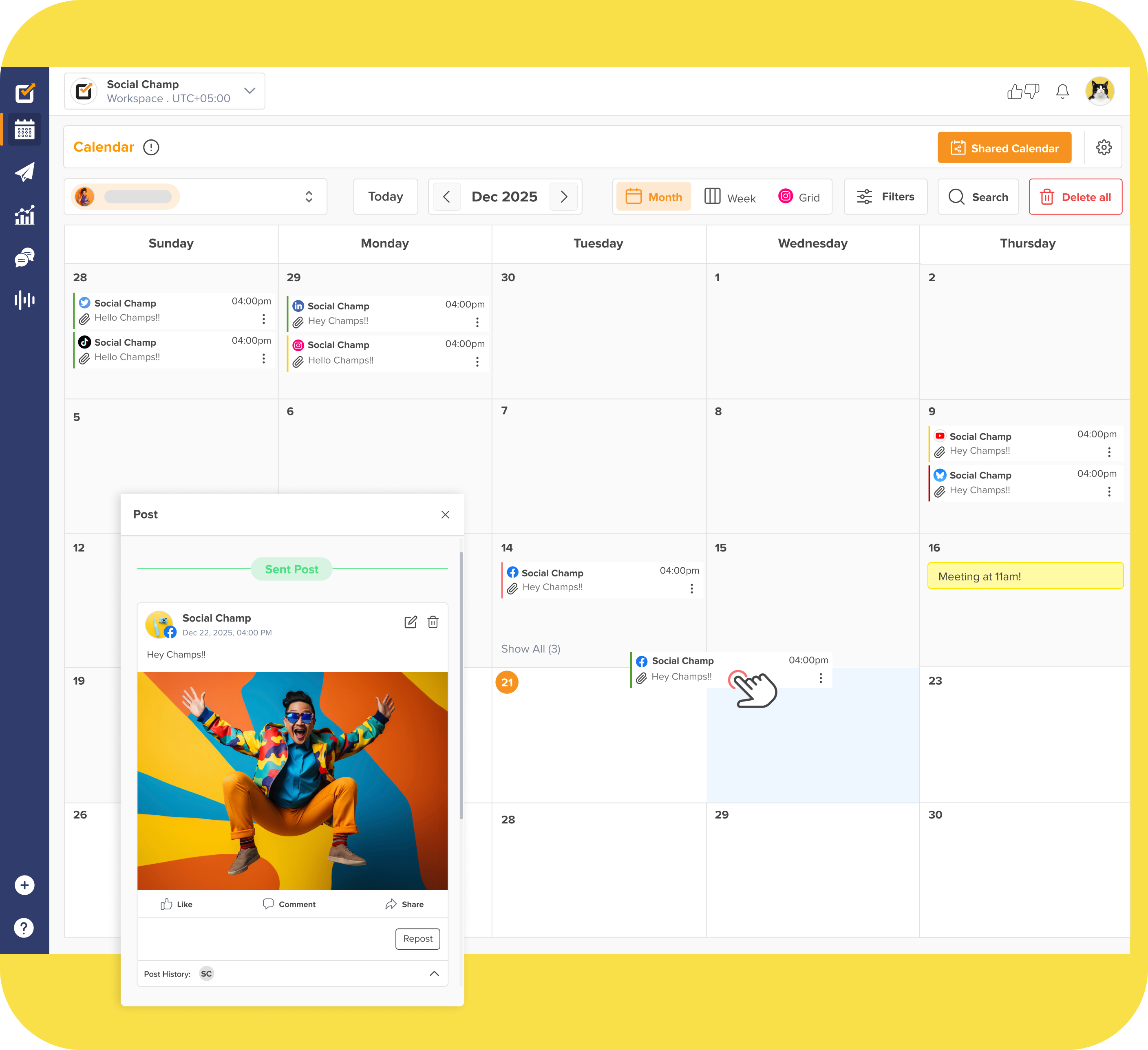
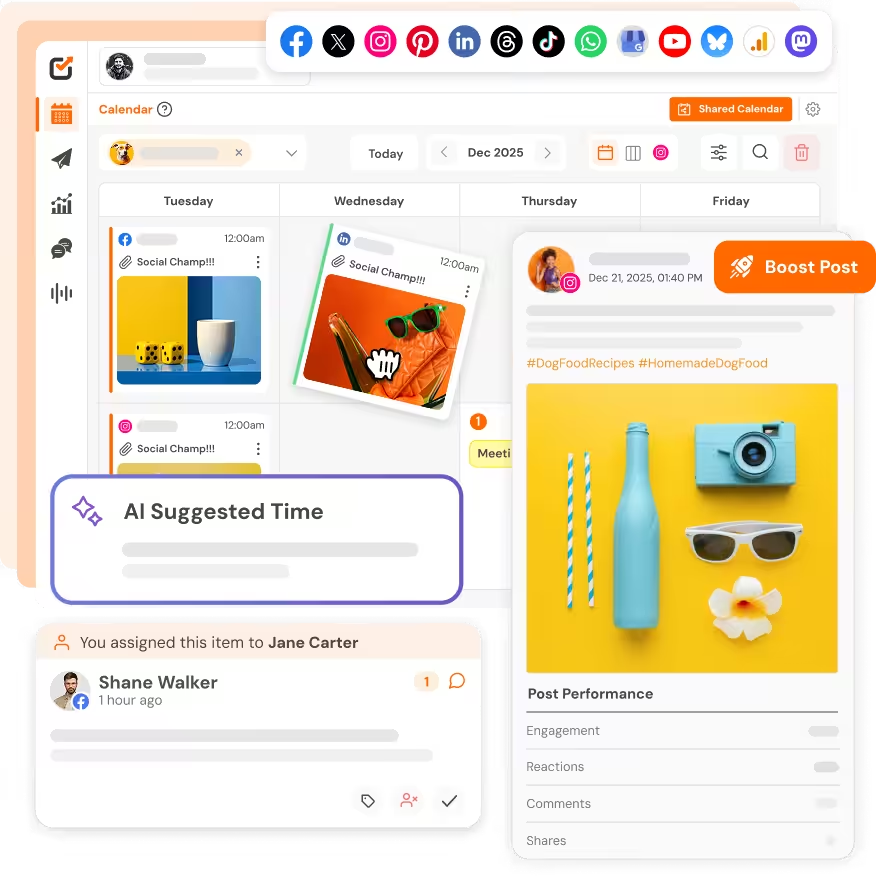
Social Champ’s quick and super easy Instagram scheduling with a vibrant & easy-to-use dashboard helps you to stay ahead in the social media game.
Why Delete Your Instagram Account?
Before I tell you the ways using which you can delete your Instagram account, you must have clear reasons why you are doing it.
I will not recommend deleting your account if you are unsure about it or are temporarily feeling a block.
In this case, you can opt for temporarily deactivating your account instead of permanently deleting it.
Deactivation will help you take a break from the everyday hassle of Instagram, you will be away from the eyes of everyone and will get ample time to restore your energy, energize yourself, and come back with your maximum potential to make the most out of the platform.
Moreover, if you feel confused about whether to delete your Instagram account or opt for a deactivation, here are a few points to help you decide wisely.
- Instagram affects your mental health.
- Your focus is disturbed.
- You spend more time scrolling on Instagram rather than doing something productive.
- Instagram gives you a sense of failure, and you compare yourself with others.
- Your time and efforts are going in vain, and your Instagram strategy is not generating favorable outcomes.
So, if you find any of these scenarios valid in your case, or maybe you are out of ideas for Instagram, it might be a sign for you to leave the space for a while and get a break. However, that’s not always the case!
Handling Instagram or social media in general can be overwhelming especially because you always have to keep up with trends and quality content. If that’s the only reason of your breakdown, deleting the account is going too far!
You can get a social media management tool like Social Champ to handle content creation, scheduling, and analyzing data more efficiently. Here are some features of Social Champ that might stop you from deleting your Instagram account.
- Create high-quality content with AI Content Wizard.
- Generate captions and relevant hashtags for your content.
- Schedule your content in advance so you never miss the right time to post it.
- Analyze your engagement and reach to make better strategies.
Handle all social media accounts from one simple dashboard and save your time and energy! Sign up for free.
Featured Article: How to Get in Touch with LinkedIn Customer Support
How to Delete an Instagram Account
Now, let us get back to the actual discussion of how to delete your Instagram account. Below are the steps elaborated that can lead to the deletion of your account according to the device you are using.
How to Delete an Instagram Account on a Desktop
Following are the steps to follow if you want to delete your Instagram account through a desktop.
- Go to Instagram.
- Log into your account by entering your credentials.
- Go to the page ‘Delete Your Account’.
- Select a reason from the drop-down menu ‘Why do you want to delete [account name]’ and enter your password again.
- Once you have selected a reason and re-entered your password, the option to permanently delete your account will appear.
This way, your account will be deleted. However, you can sign up again with the same username and information as long as another person on Instagram has not taken it.
How to Delete an Instagram Account on Android
If you aim to delete your Instagram account through an Android mobile, below are the steps.
- Open your profile.
- Click on the three horizontal lines on the top right and then select the option ‘Settings’.
- Go to the Accounts Centre and tap the option ‘Personal Details’.
- Choose the option ‘Account Ownership and Control’ and then choose ‘Deactivation or Deletion’.
- If you have multiple accounts, choose the one you want to delete.
- Select ‘Delete account’ and then tap ‘Continue’.
Following these steps, your Instagram account will be deleted. However, it might take 90 days to complete the process of deletion once requested.
How to Delete an Instagram Account on iOS
Wondering how to delete your Instagram account through an iOS device? I have got your back here as well. Follow the below-mentioned steps.
- Open your profile.
- Click on the three horizontal lines on the top right and then select the option ‘Settings’.
- Now select the option ‘Account’, then select ‘Delete Account’ at the bottom.
- Select a reason from the drop-down menu ‘Why do you want to delete [account name]’ and enter your password again.
- Tap ‘Delete’ and then choose ‘OK’ to confirm.
How to Create a Data Backup Before Deleting Your Instagram Account
Deleting your Instagram account might get you a break, but be mindful, you might lose all your data stored within your Instagram account.
All your posts on Instagram along with the audience you generated over a number of years can be deleted with the death of your account.
Hence, it is important that you take control of your data on Instagram and learn how you can create a backup before your account gets deleted.
Nothing is hard to learn, just a few steps that can help you create a copy of your Instagram data.
Create a Backup of Your Data on Instagram
Here is how you can create a copy of your data on Instagram.
- Go to the three horizontal lines at the bottom left. Then, choose the option ‘Your Activity’.
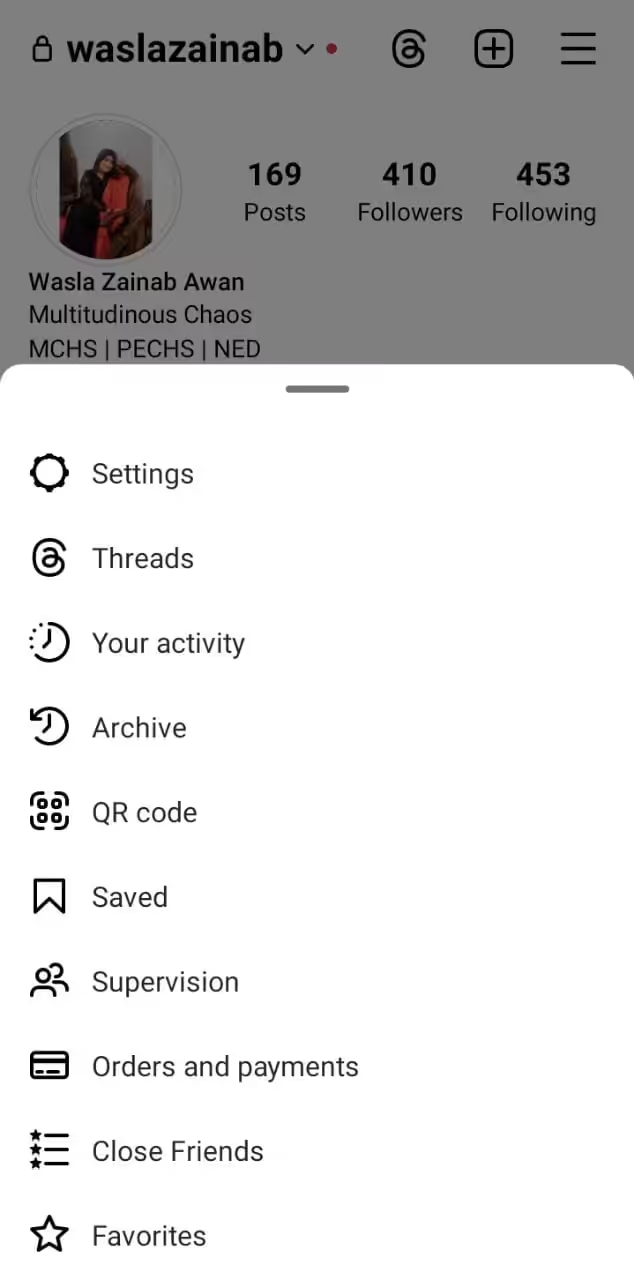
Step 1: Go to ‘Your Activity’ on Instagram. - Click on the option ‘Download Your Information’.
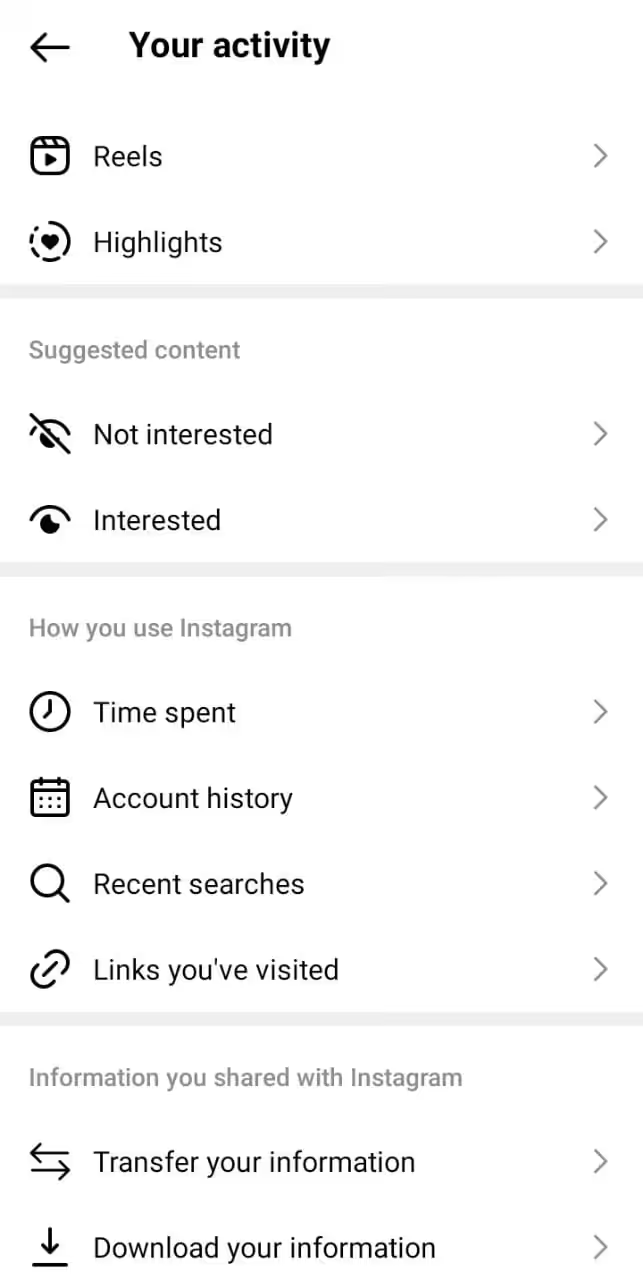
Step 2: Download Your Information. - Enter an email address where you want to receive a copy of your data.
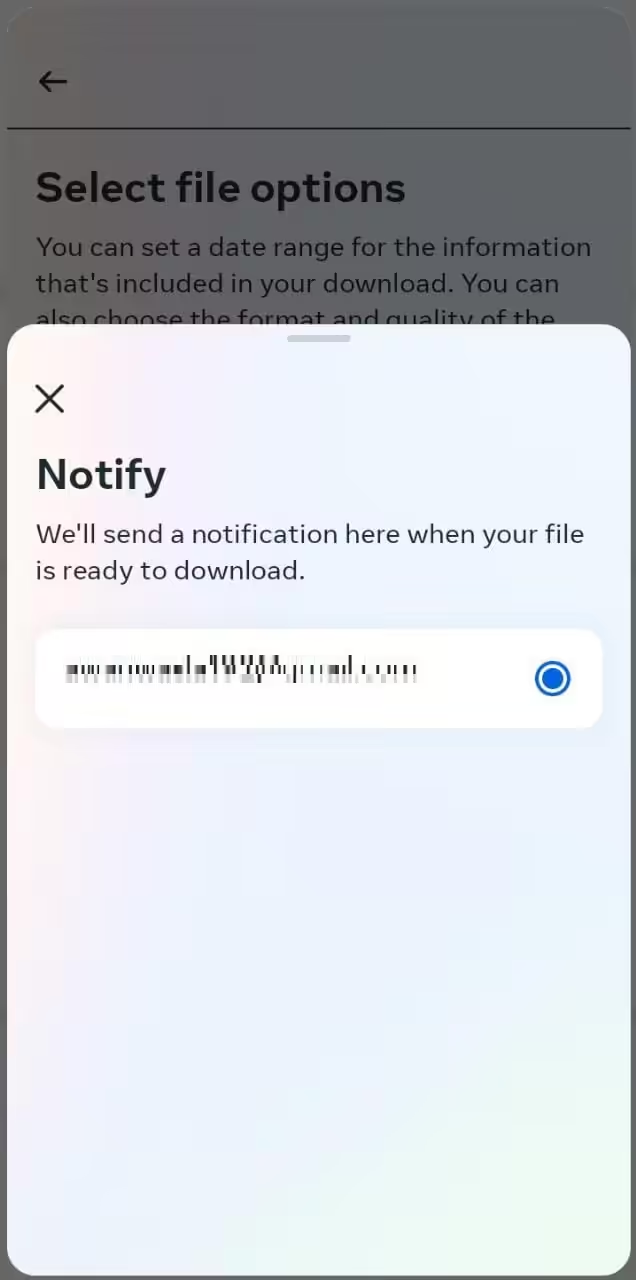
Step 3: Enter an email address. - Select the format: HTML or JSON in which you want to receive your data, and then click ‘Next’.
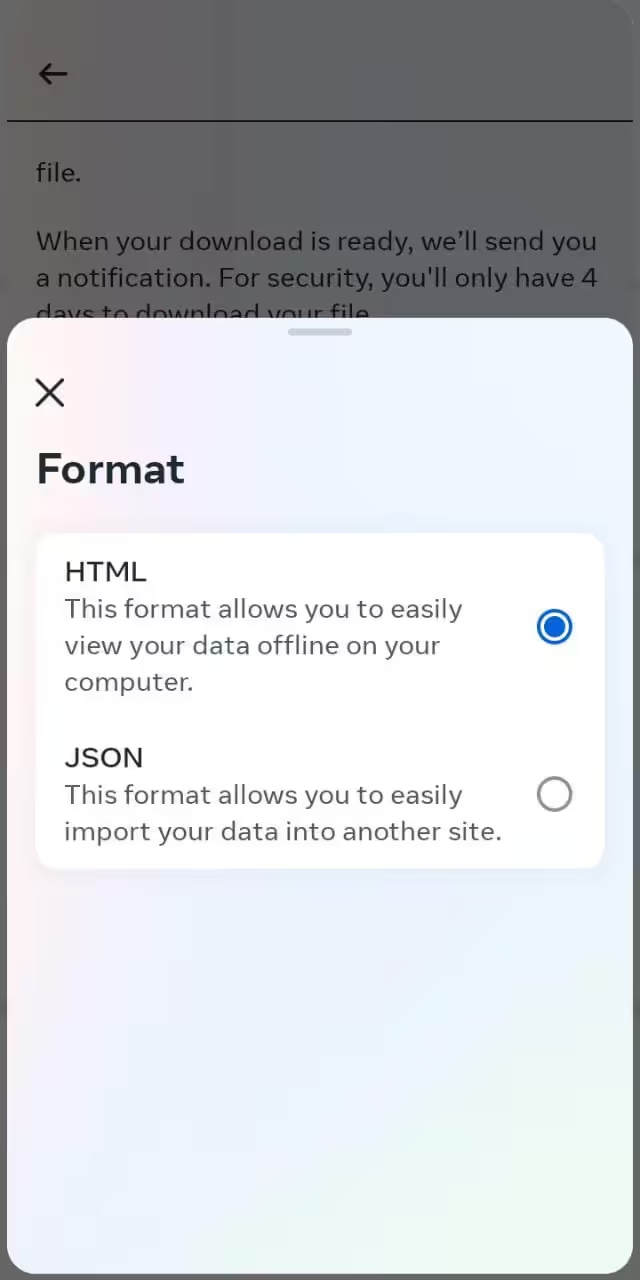
Step 4: Select a Format. - Now enter your Password and then click on the option ‘Request Download’.
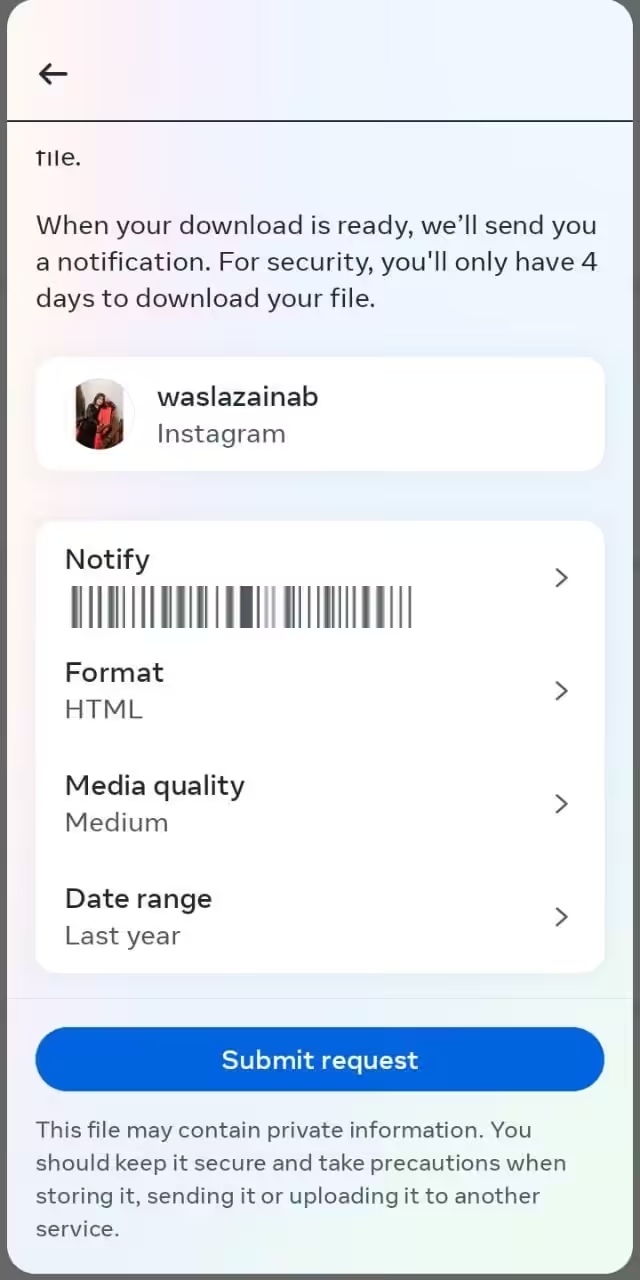
Step 5: Request Download. - Once requested, you will soon receive an email with the title ‘Your Instagram Data’ with a link attached. This link will contain your Instagram data that you can download anytime.
Create a Backup Using an iOS or Android Device
For an iOS or an Android device, the following are the steps to create a backup.
- Go to your profile by tapping on your profile picture.
- Tap the three horizontal lines at the top right. Go to the ‘Your Activity’ option.
- Below the option of ‘Information You Have Shared With Instagram’, tap the option to download.
- ‘Next’.
- Now enter your Password and then click on the option ‘Request Download’.
- Once requested, you will soon receive an email with the title ‘Your Instagram Data’ with a link attached. This link will contain your Instagram data that you can download anytime.
Featured Article: Hootsuite vs Sprout Social – Comparison
Automate the creation and scheduling of posts through a unified dashboard and take charge of your social media like a pro
How Can You Delete Your Instagram Account Permanently
Moving ahead, if you are wondering any way you can put a full stop to your journey on the platform, you can do that as well. There are steps that can lead to the permanent deletion of your Instagram account. Check out below.
Request Permanent Deletion of Your Instagram Account From Your Computer
- Log into your Instagram account.
- Go to the page that says ‘Delete Your Account’.
- Now, from the drop-down menu below, choose a reason stating why you want to delete your account and enter your account password again. Once you are done with this step, an option to delete your account will appear.
- Click the ‘Delete (Username)’ option.
If you want to delete your account from the Accounts Center, follow these steps.
- Go to the settings.
- Go to the Accounts Centre then go to ‘Personal Details’.
- Select the option ‘Account Ownership and Control’ then choose either option ‘Deactivation or Deletion’.
- Choose the account you want to permanently delete.
- Click on the option ‘Delete Account, then click on ‘Continue’.
Request Permanent Deletion of Your Instagram Account From Your Android App
- Go to your profile.
- Tap the three horizontal lines in the top right.
- Go to ‘Settings and Privacy’.
- Go to ‘See more in the Accounts Centre. Then, select Personal Details.
- Select the option ‘Account Ownership and Control’ then choose either option ‘Deactivation or Deletion’.
- Choose the account you want to permanently delete.
- Click on the option ‘Delete Account, then click on ‘Continue’.
Request Permanent Deletion of Your Instagram Account From Your iOS Device
- Go to your profile.
- Tap the three horizontal lines in the top right.
- Go to ‘Settings and Privacy’.
- Choose the ‘Account’ option. Then, click on ‘Delete Account’ at the bottom.
- Now tap ‘Continue deleting account’.
- Now, from the drop-down menu below, choose a reason stating why you want to delete your account and enter your account password again. Once you are done with this step, an option to delete your account will appear.
- Click the ‘Delete (Username)’ option.
- Tap ‘OK’ to confirm.
For deleting your account permanently through the Accounts Centre.
- Go to your profile.
- Tap the three horizontal lines in the top right.
- Go to ‘Settings and Privacy’.
- Choose the option ‘See more in the Accounts Centre’. Then, tap ‘Personal Details’.
- Select the option ‘Account Ownership and Control’ then choose either option ‘Deactivation or Deletion’.
- Choose the account you want to permanently delete.
- Click on the option ‘Delete Account, then click on ‘Continue’.
You are free to follow any of these steps according to the device you have. Follow the guidelines thoroughly and get your Instagram account permanently deleted with ease.
However, before you do so, do not forget to create a backup of your data using the steps elaborated above.
How to Temporarily Disable/Deactivate Your Instagram Account
Disabling or deactivating your Instagram account on a temporary basis means hiding your presence, for example, photos, videos, posts, etc for a while until you reactivate your account again.
Below are the steps that you need to follow for deactivating your Instagram account temporarily.
How to Temporarily Disable/Deactivate Your Instagram Account From Computer
- Log into your Instagram account.
- Click on your profile picture at the top right, then click on ‘Profile’. Now, go to ‘Edit Profile’.
- Scrolling down a little, you will find the option ‘Temporarily deactivate my account’ on the bottom right.
- From the drop-down menu below, choose a reason for ‘why are you deactivating your account’ and enter your password again.
- Now, select the option ‘Temporarily Deactivate Account’.
- Click ‘Yes’ to confirm.
For temporarily disabling your account through Accounts Center:
- Tap the circle icon at the top.
- Select the option ‘See more in the Accounts Centre’. Now, tap personal details.
- Select ‘Account Ownership and Control’. Now, tap ‘Deactivation’.
- Tap ‘Continue’.
How to Temporarily Disable/Deactivate Your Instagram Account From Android Device
- Log into Instagram.com from a mobile browser.
- Click on your profile picture at the top right, then click on ‘Profile’. Now, go to ‘Edit Profile’.
- Scrolling down a little, you will find the option ‘Temporarily deactivate my account’ on the bottom right.
- From the drop-down menu below, choose a reason for ‘why are you deactivating your account’ and enter your password again.
- Now, select the option ‘Temporarily Deactivate Account’.
- Click ‘Yes’ to confirm.
How to Temporarily Disable/Deactivate Your Instagram Account From iOS Device
- Go to your profile.
- Tap the three horizontal lines at the top right. Then, go to ‘Settings and Privacy’.
- Tap ‘Account’ and then tap ‘Delete account’ at the bottom.
- From the drop-down menu below, choose a reason for ‘why are you deactivating your account’ and enter your password again.
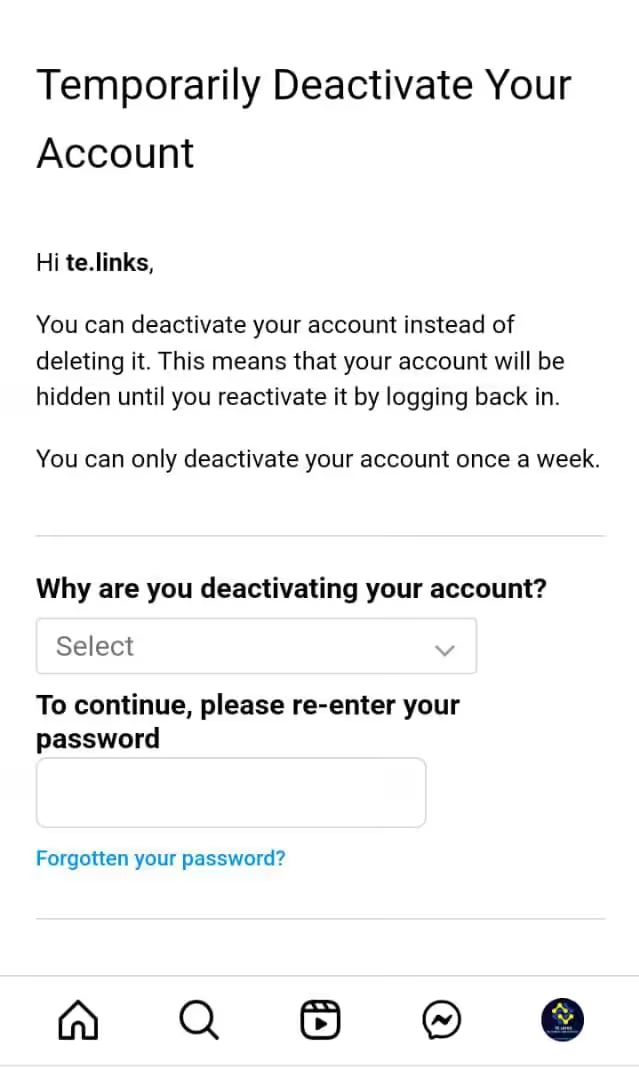
Step 4: Deactivate Account On Instagram - Now, select the option ‘Temporarily Deactivate Account’.
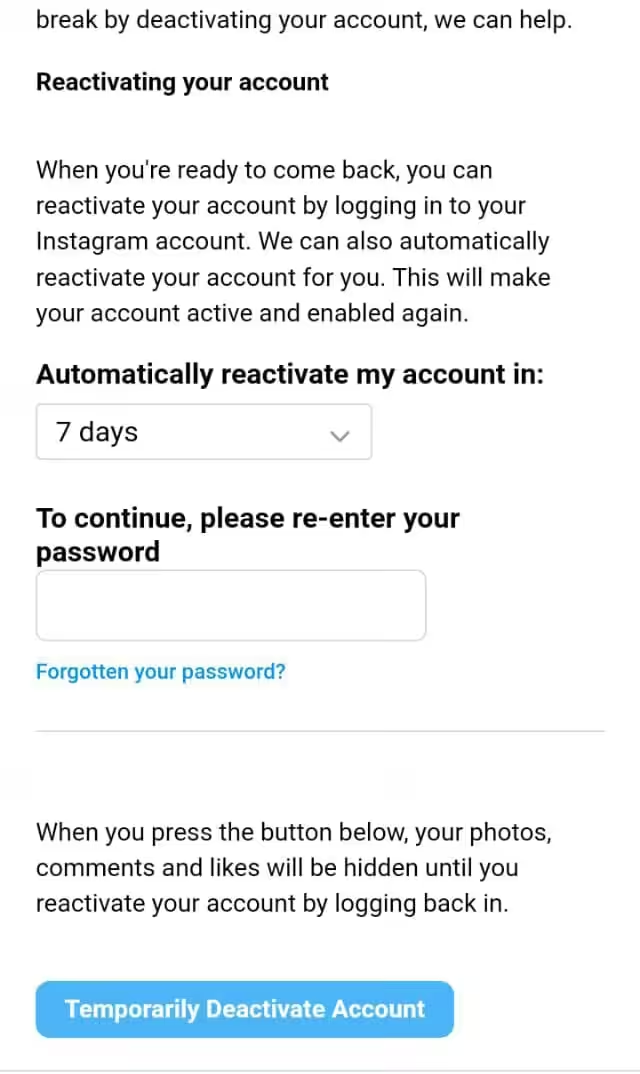
Step 5: Submit the Request
Following these steps, you will be able to easily deactivate or disable your account anytime you want.
How Can You Reactivate Your Instagram Account
Until this point of the discussion, have you thought a little if there is any way to go back once you delete or deactivate your account?
Well, it is quite complicated.
Instagram offers a period of 30 days to retrieve your account counting from the day you deleted it. In the meantime, you can go back, enter your login credentials, and select the option to ‘Keep Account’ in order to get it back.
However, on the 30th day, your account will completely disappear, and there will be no way to restore it unless you create a new one.
The Finale
Summing up the discussion, deleting your Instagram account can be a powerful decision to regain control over your digital presence and prioritize your well-being.
However, it is essential to weigh the pros and cons carefully. You must critically analyze if taking the decision to put your Instagram presence on hold is an advantageous one.
Do not forget to create a backup of your data, analyze the outcomes, and choose the ideal situation for you.
Featured Article: Trending Community Management Strategies











Bottleneck Calculator
Here’s a clear and comprehensive guide on how to delete or deactivate your Instagram account. It will be extremely helpful!
Sophie Williams
Thanks for sharing this straightforward guide! Deleting an Instagram account can be a daunting task, but your step-by-step instructions make it feel much more manageable.