Let me grab a coffee first, because this is a topic I’ve strong opinions about.
I test apps for a living, which means I’ve spent a lot of time poking at chatbots and auto-replies. And honestly, nothing makes me lose interest in a brand faster than a reply that clearly came from a template.
You ask a real question, you get a stiff “Thank you for reaching out! We value your feedback,” and the conversation is over before it even started.
Here’s the thing, though. I get why brands do it. Comments, DMs, mentions, and questions keep arriving all day, and one person (or one small team) can only answer so many of them.
So automation looks like the obvious fix. It can be. But if you set it up the wrong way, you end up with a fast inbox and a frustrated audience.
So in this post, I’ll walk you through what’s worth automating, what should stay in human hands, and how to keep your brand sounding like people instead of a script.
Let’s get into it.
Short Summary
- AI can handle repetitive social media replies without taking people out of the conversation.
- FAQs, simple acknowledgments, message sorting, and draft replies are good tasks to automate.
- Complaints, sensitive issues, sarcasm, and high-value conversations should stay with a human.
- A clear brand voice guide helps automated replies sound more natural and consistent.
- Start with drafts and approvals before allowing automation to handle low-risk messages on its own.
- Set clear escalation rules so risky or unclear messages always reach a real person.
- Regularly review automated replies to catch mistakes and improve your rules over time.
- Switch supports this approach with Draft, Approve, and Auto controls for managing social media tasks.
Why Replying to Everything by Hand Stops Working
If you manage a brand’s social channels, you probably know this feeling. You clear your inbox in the morning, and by lunch it’s full again. Then a campaign goes live, a post gets shared, or someone tags you in a thread, and suddenly there’s a pile of messages nobody planned for.
The Volume Problem
As your audience grows, so does the number of conversations. However, your team usually doesn’t grow at the same pace. In other words, the gap between what comes in and what you can realistically answer gets wider every month.
Meanwhile, the same handful of questions show up again and again. “Where can I find this?” “Do you ship to my country?” “How does pricing work?” Typing out the same answer for the tenth time in a day isn’t a great use of anyone’s brain.
What Slow Replies Cost You
Silence sends a message too. When someone asks a question publicly and nobody answers, other people watching the thread notice. Besides, the person who asked will probably look for an answer somewhere else, and that “somewhere else” could easily be a competitor.
On the flip side, fast but robotic replies don’t solve the problem either. A canned response that ignores what the person actually said can feel worse than no reply at all. So the goal is speed that still sounds like a human wrote it.
The good news is that you don’t have to pick one or the other. You just have to be smart about where automation goes.
What If Replies Took Less Time?
What You Can Safely Automate
Let’s start with the easy wins. Not every message needs a person’s full attention, and some are perfectly fine to hand off, especially when you keep a human in the loop at the start.
Frequently Asked Questions
This is the obvious starting point. If a question has one clear, factual answer, such as store hours, shipping regions, plan details, or where to find a setting, it’s a great candidate. To get started, pull the top five to ten repeat questions from the last few weeks and begin there.
First-Response Acknowledgments
Sometimes people just want to know someone saw their message. A short, warm note like “Thanks for flagging this, we’re looking into it and will get back to you soon” buys you time without ignoring anyone.
That said, keep it specific. If the message is about a broken link, mention the link. A generic thank-you feels like a brush-off.
Sorting and Tagging
Not all automation has to reply. Sorting incoming messages by topic, urgency, or sentiment saves a ton of time, because your team can see what needs attention first. Think of it as a good receptionist, not a replacement for the whole office.
Drafts for a Human to Review
This one is my favorite. Let the tool write a first draft, then have a person read it, tweak it, and hit send. You get the speed of automation and the judgment of a human. Plus, you catch weird phrasing before your audience does.
Here’s a quick green-light list:
- Repeat questions with one clear answer
- Simple acknowledgments
- Message sorting and tagging
- First drafts that get a human review
What Should Always Stay Human
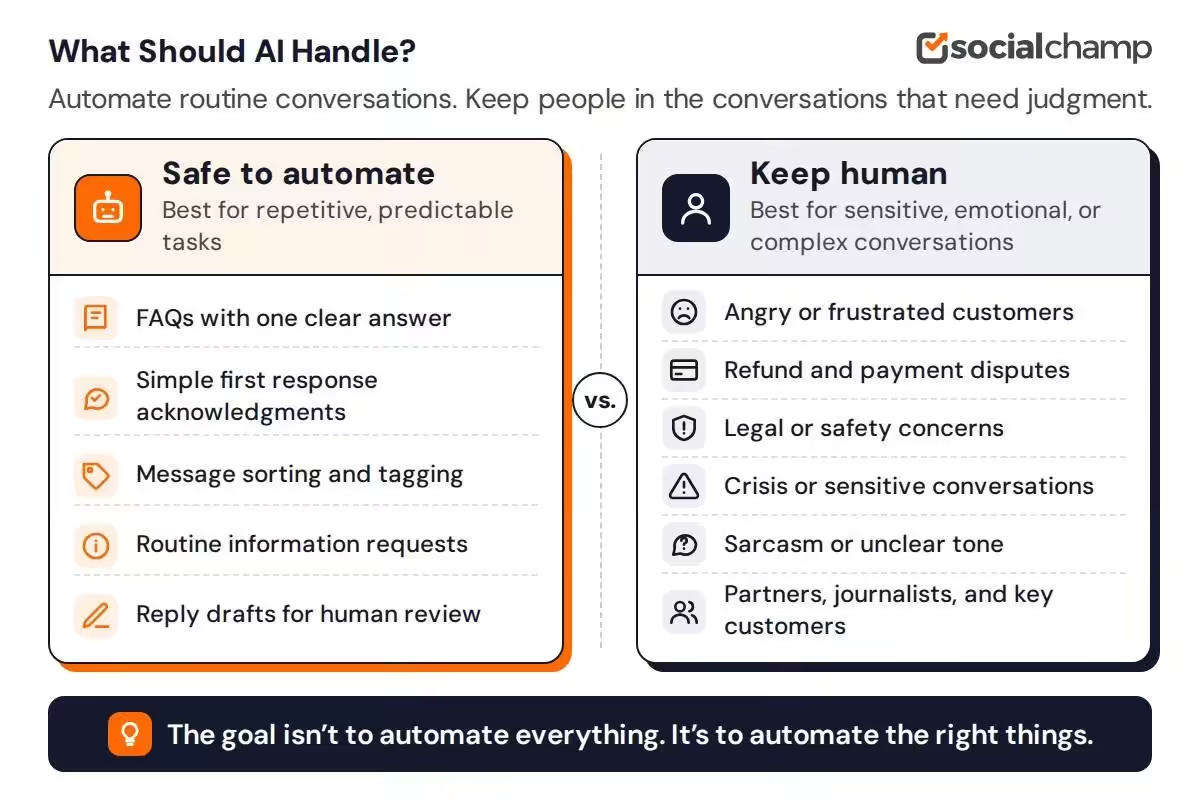
Now for the part I feel most strongly about. Some conversations need a person, no matter how good the tool is.
Complaints and Upset Customers
When someone is frustrated, they don’t want a polished template. They want to feel heard. A real person can apologize in a way that sounds sincere, ask the right follow-up question, and fix the actual problem.
In contrast, an automated “We’re sorry for any inconvenience” often makes things worse.
Sensitive Topics and Crisis Moments
If a message involves health, safety, legal issues, money disputes, or anything that could turn into a public problem, a human should handle it. In these moments, one wrong sentence can travel a long way.
Humor, Sarcasm, and Context
Tools can misread tone. A comment like “Oh great, another outage” can look like praise to software. A person catches the sarcasm right away.
Partners, VIPs, and High-Value Conversations
Collaborators, customers with big accounts, and press inquiries deserve a personal reply. Those relationships are worth the extra few minutes.
Here’s a red-flag checklist. Send a message to a person when it:
- Sounds angry or upset
- Mentions a refund, a legal issue, or a safety concern
- Comes from a partner, a journalist, or a key customer
- Doesn’t match any FAQ you’ve written
- Leaves you unsure about the tone
How to Keep the Human Touch While You Automate
Alright, this is where the real work happens. Anyone can turn on auto-replies. Making them sound like you takes a bit of setup, but it pays off.
Write a Simple Voice Guide First
Before you automate anything, put your brand’s voice on one page. How do you greet people? Do you use emojis? Are there phrases you’d never say? Even a few short rules help. For example:
- We use first names.
- We keep replies to three sentences or fewer when possible.
- We say “we’re on it,” not “your request has been received.”
That page becomes the standard every automated reply gets measured against.
If you use Switch (Social Champ’s AI Assistant), this is what its Brand Profile is for. The Voice section captures how you open and close posts, your tone, and your emoji habits, so drafts start closer to how you actually sound.
Not Every Reply Needs You
Move Up in Stages
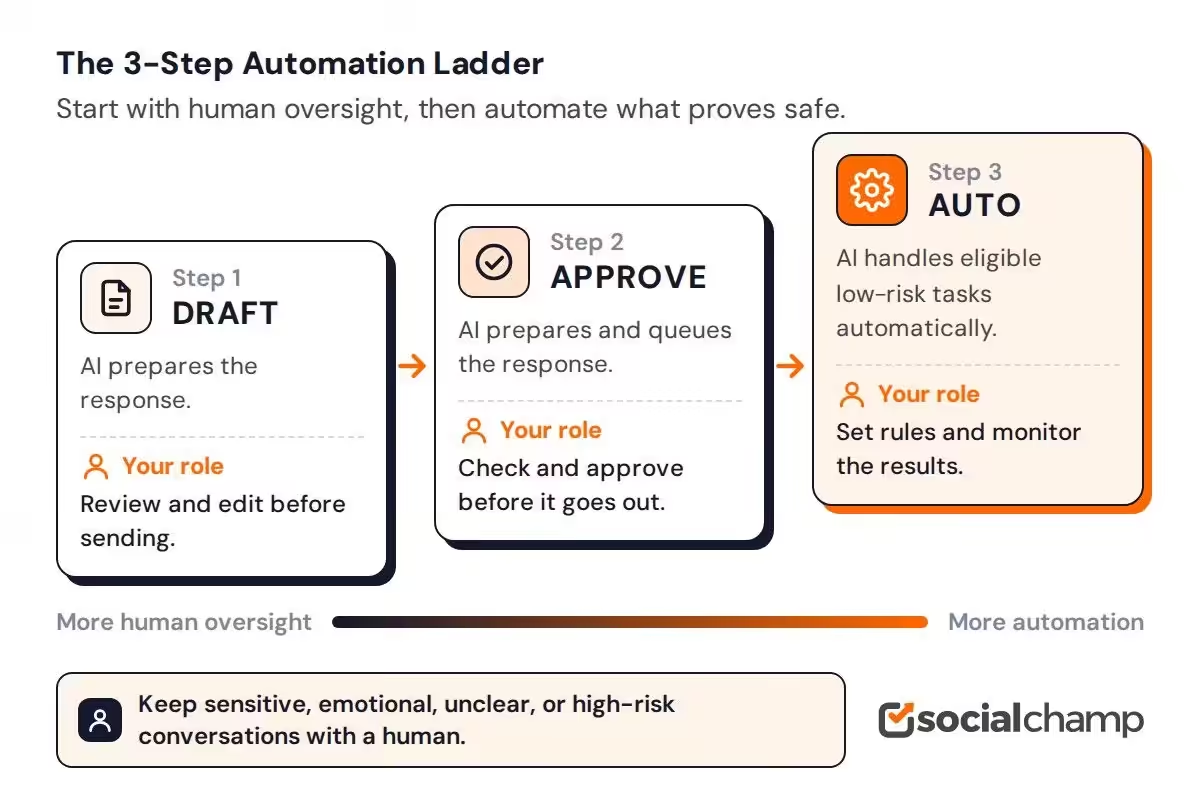
Don’t hand over the keys on day one. Start with drafts that a person approves. Once you trust what’s coming out, let approved replies go through with a lighter review.
After that, and only after weeks of good results, think about letting anything send on its own, and even then, only for low-risk questions.
Example: A Three-Step Ladder
- Week one: The tool drafts, and you review every reply.
- Weeks two to four: You approve replies in batches and edit as needed.
- After that: Routine FAQs can go out automatically, and everything else still goes to a person.
Set Clear Escalation Rules
Decide in advance what counts as too risky to automate. Then write it down so everyone on the team follows the same rules. If a message hits one of your red flags, it goes to a person, no exceptions.
Review Replies Every Week
Automation isn’t set-it-and-forget-it. Spend about twenty minutes each week reading what actually went out.
Look for replies that missed the point, sounded off, or answered the wrong question. Then update your rules. As a tester, I can tell you this is how you catch bugs before your users do.
Featured Article: 10 Best Brand Management Software Platforms
Where Switch Fits In
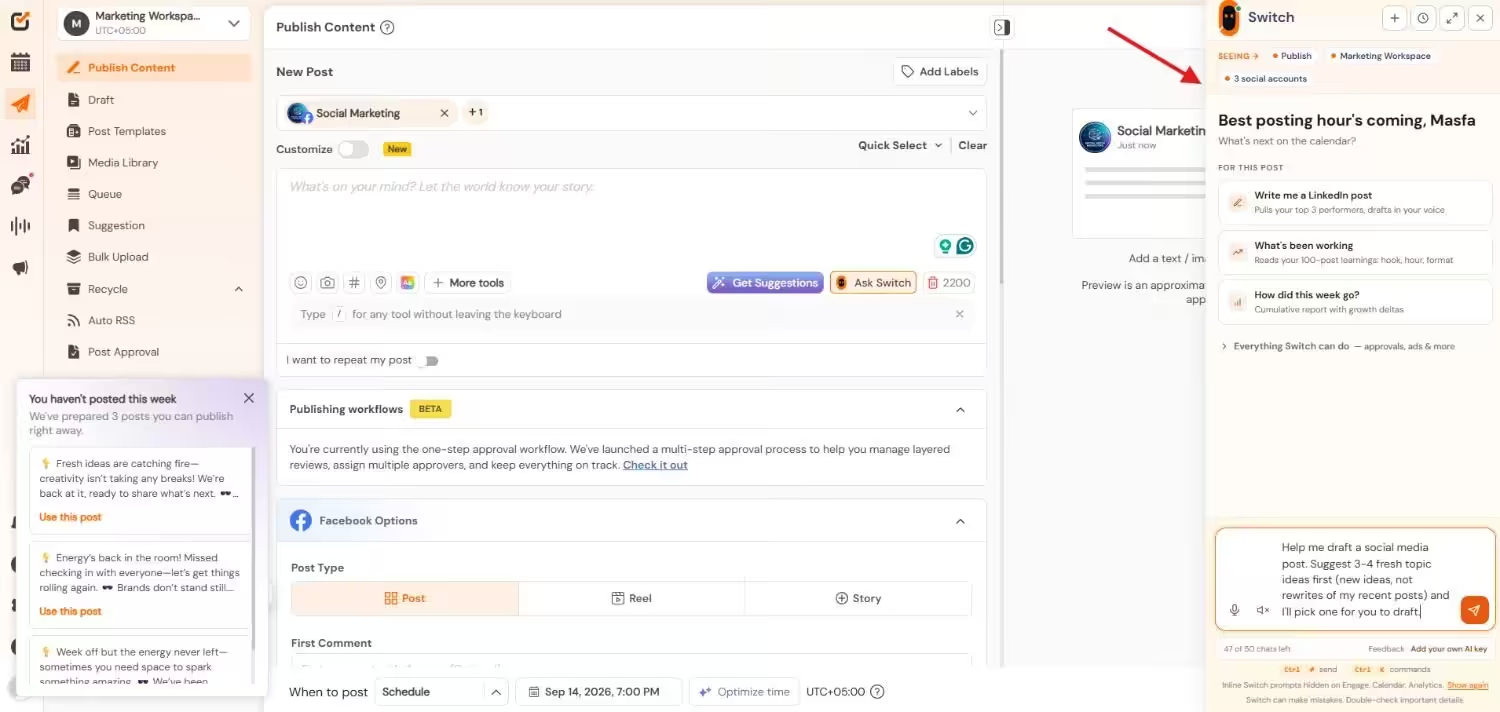
At Social Champ, we recently launched Switch, our AI Assistant, and it lines up with a lot of what I just covered. So here’s what the product documentation says about how it works for community teams.
Switch is designed to turn your request into a useful social media outcome without making you jump between a bunch of screens. You ask for what you need, review what Switch proposes, confirm any sensitive actions, and then check the final result.
For community work specifically, Switch drafts or queues replies to frequently asked questions, and it escalates risky messages.
How Community Management Works in Switch
Switch groups its community tools under Engage & Reply. To find them, open Switch and click Browse to see all its actions.
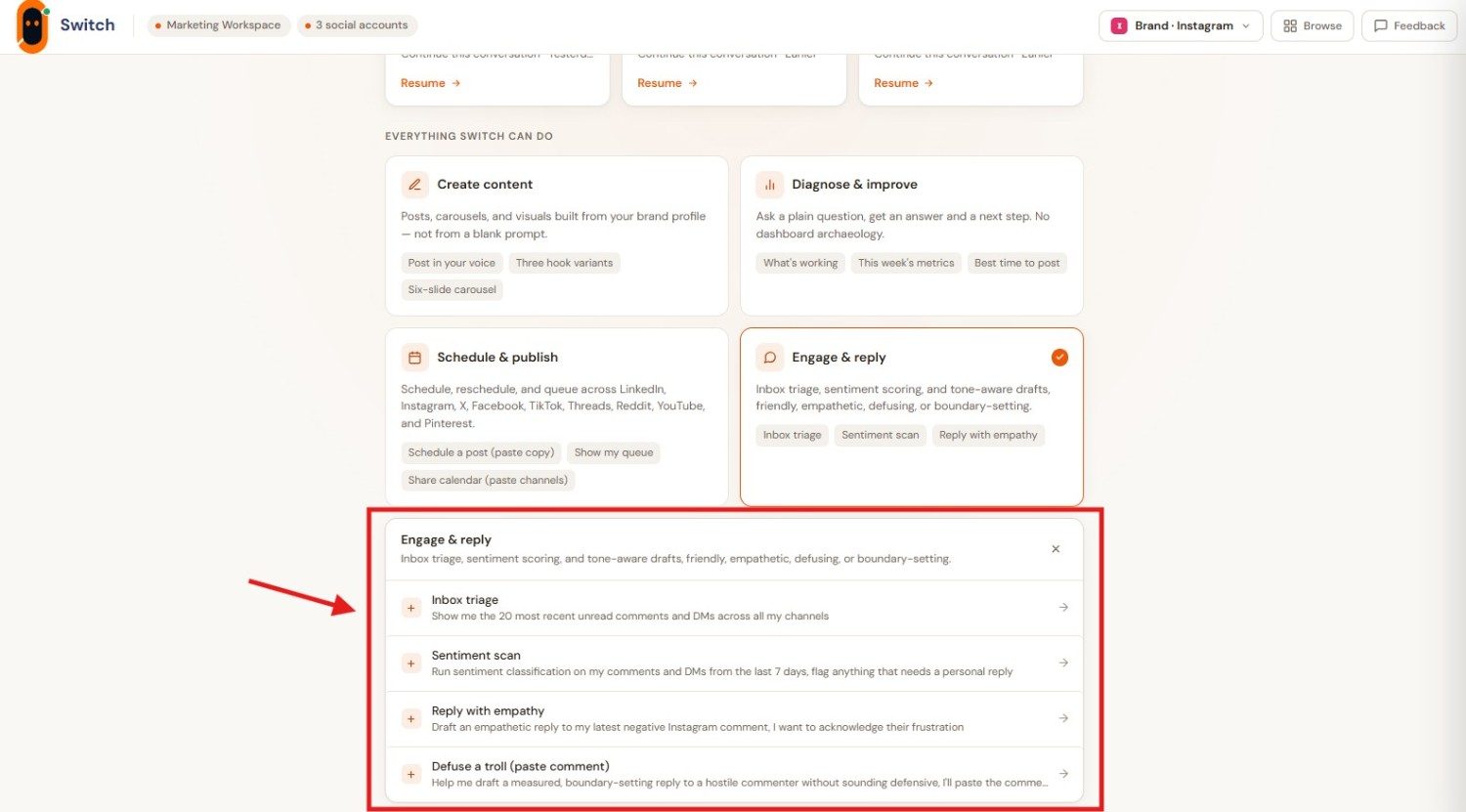
Picking an action doesn’t run it silently. It simply drops a ready-made prompt into the chat, so you can edit it before sending. Here’s what each Engage & Reply option does.
-
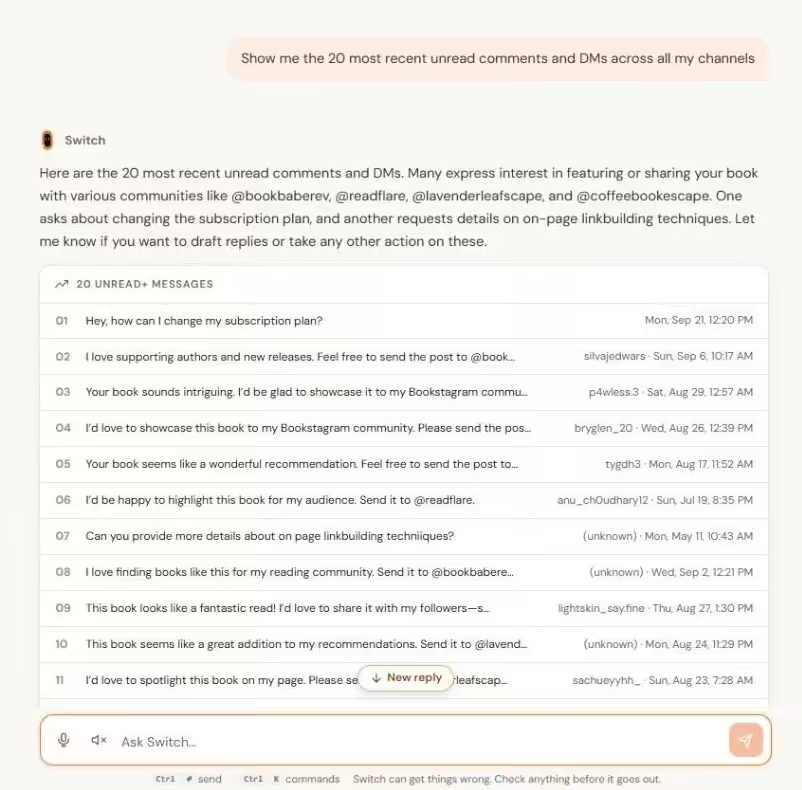
Inbox Triage
This is the good receptionist I mentioned earlier. Switch sorts your incoming messages and scores them by sentiment, so your team can see what needs attention first.
Switch Inbox Triage -
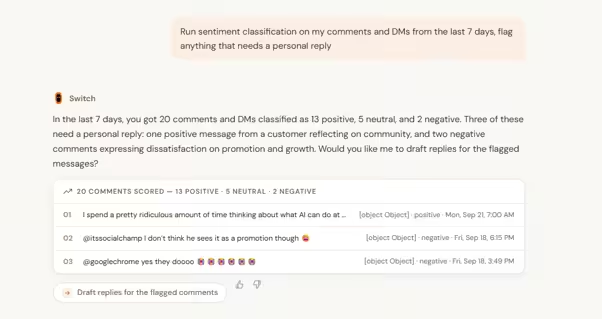
Sentiment Scan
A quick read on the overall mood of your recent conversations. It’s handy for spotting a shift from positive to frustrated before it turns into a bigger problem.
Switch Sentiment Scan -
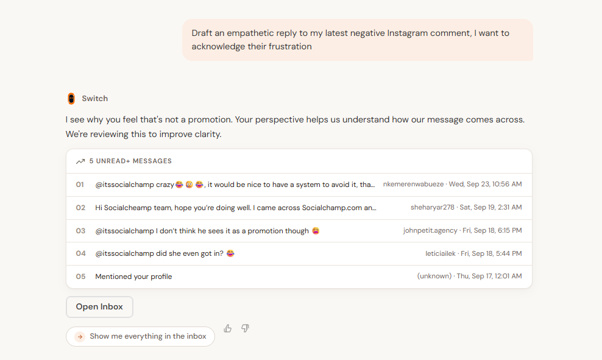
Reply With Empathy
When someone is upset, Switch drafts a warm, understanding reply as a starting point. You still read it, add the personal details, and decide when it goes out.
Switch Reply With Empathy -
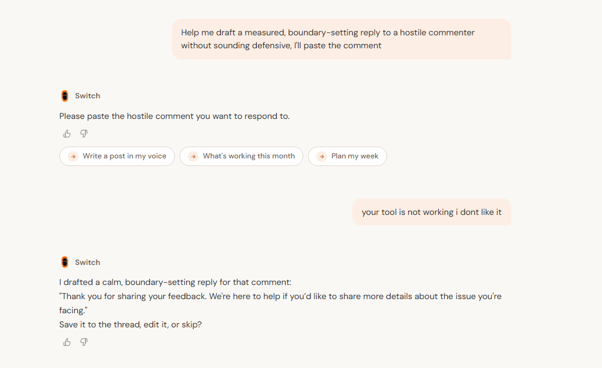
Defuse a Troll
Paste in a difficult comment, and Switch drafts a calm reply that either de-escalates or sets a clear boundary, depending on the situation.
Switch Defuse a Troll
You also decide how much control it gets, through three levels:
- Draft: Switch prepares the work.
- Approve: Switch queues the work for a person to review.
- Auto: Switch may complete an eligible task within strict limits.
Notice how that mirrors the ladder from earlier? Drafts first, then approval, then automation where it makes sense.
Your setting isn’t the only safeguard, either. Switch has a kill switch that drops every automatic task back to Draft and cancels anything already queued, plus an action log so you can see exactly what it has done. Meanwhile, for agency teams, workspace context, approval flows, and action history help keep everyone accountable.
Common Mistakes to Avoid
Before you go set anything up, watch out for these:
- Automating everything at once. Start small, and expand once the results look good.
- Skipping the voice guide. Without one, replies drift and start sounding like they came from different brands.
- Never checking what got sent. A weekly review catches problems early.
- Treating every message like an FAQ. Some messages only look simple. Watch for emotion and context.
- Hiding the human side. If a person is involved, let it show. Signing a reply with a name goes a long way.
Featured Article: Instagram DM Automation: Grow More, Sound Human
Final Thoughts
So, can you automate replies without losing the human touch? Yes, but only if you treat automation as a helper and not a replacement.
Let it handle the repetitive stuff, keep people in the conversations that matter, and check the results regularly.
If you want to start this week, here’s a simple plan:
- Pick your top five repeat questions and write clear answers for them.
- Put together a one-page voice guide.
- Write your escalation rules so everyone knows when a person steps in.
Do those three things, and you’ll already be ahead of many inbox setups. Besides, every day you put this off, the pile only gets bigger. And if you’d like help with the drafting and queuing part, Switch is worth a look.