Last month I wrote a post (the best post, according to me), but it never even made it to social media. It just stayed in Claude, half-edited, because I just didn’t get the time to copy it, reformat it, and queue it to the scheduler.
As a writer, basically, I live in Claude. I brainstorm, write drafts, and even overthink commas like everything I do there.
But it always feels like a second job to get those drafts from Claude to the scheduler. I wanted to post to all social media at once without putting in much effort. I mean… work smarter, not harder, right? 👀
And then I connected Claude to Social Champ’s MCP server. Now, I only draft my posts and ask Claude to schedule them, and move on. Sigh, finally.
So, let me tell you how to post on social media from Claude and the exact process that I use daily.
Short Summary
- Your best drafts in Claude mean nothing if they never reach your scheduler.
- The Social Champ MCP connects Claude to your social accounts in two minutes with one URL and zero code.
- You can check your queue, draft posts, adapt across platforms, and schedule everything without leaving your chat window.
- The setup is faster than making coffee and works on the first try.
- You can bulk schedule a full week of content in under an hour.
- If you still copy and paste every caption, you are working harder than you need to.
Why Use Claude for Social Media?
Every AI tool can write text, but not all of them write text that you like and really post. I’ve tested enough tools to know the real difference. If you want to know how to post on social media from Claude, first you need to learn why I use Claude for social media.
It Gets Your Voice
I gave Claude six months of my best posts in one chat. Then I asked it to study my tone, sentence length, and even my cringe-level bad jokes.
Now whenever I write my drafts with Claude, the output feels the same as my voice. Literally, this is the reason why I use Claude for social media. I think other AI tools make my personality sound like any other person.
It Connects the Dots
Most AI tools treat every post like a blank page. Claude looks at the full picture. I can easily hand it a blog draft, product update, and even a random messy note in my phone. Claude can literally connect all of that and create a week’s worth of content without even repeating anything.
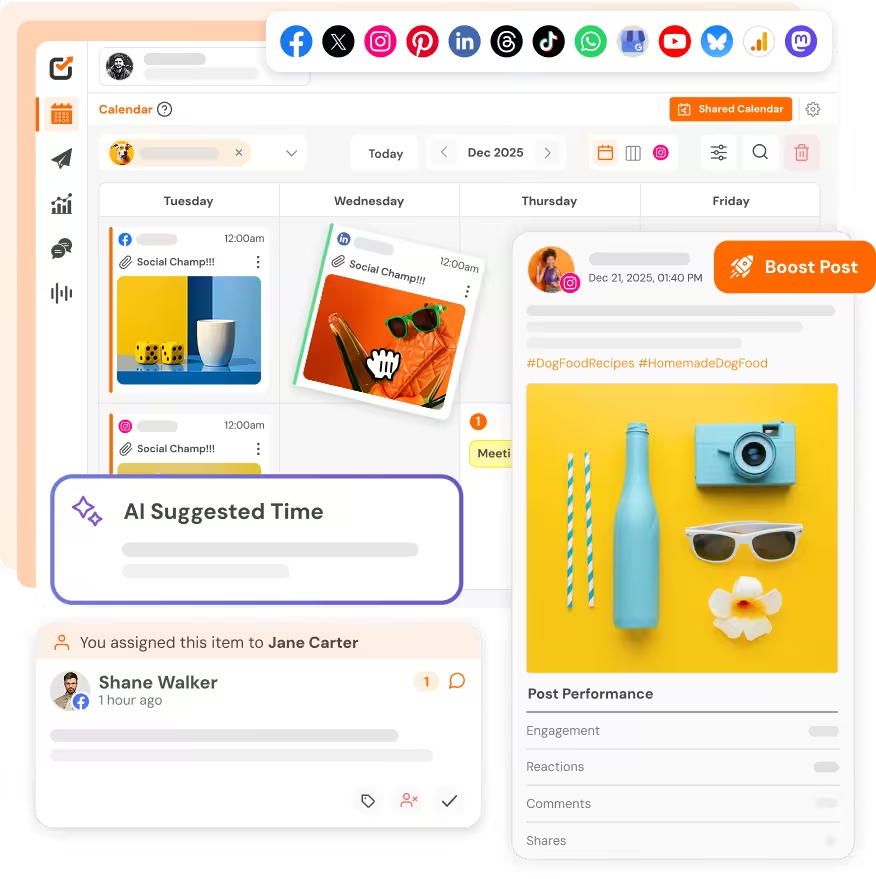
And when you post on social media from Claude through Social Champ, the workflow becomes even easier. Just create content, schedule it, and publish it across multiple platforms from only one window. That means you can use social media cross-posting tools without opening another tab.
It Saves You From Awkward Posting
We’ve all published a post with a typo and noticed it literally 30 seconds later. Even I’ve scheduled tweets that aged badly within an hour.
Claude can help you with this, like it spots weird wording, checks the tone, and flags the awkward lines. And sometimes it seriously asks you, “Are you *sure* you want to post this at midnight?”
It’s not the perfect one, but it catches the small mistakes that make you feel regret when you delete them.
If you still copy text and paste it into dozens of tabs, then a slightly simpler setup is worth it. You can connect AI to auto-posting tools and use your brain just to make the content. That’s the reason why I post on social media from Claude, because it saves my brain for the actual writing.
What Is Social Champ MCP and How Does It Work With Claude?
Earlier, I didn’t know what MCP means. I thought it was some developer thing for which I’d need a degree to touch and coding skills. Turns out, it’s not like that.
If you want to learn how to post on social media from Claude, this is the piece that makes it all work.
The Bridge in Plain English
MCP stands for Model Context Protocol. It might look scary from the name, but the concept is really simple. Basically, it’s a bridge!
You can think of it like Claude is on one side and Social Champ is on the other side. And MCP is a bridge that lets them talk.
You type a request in Claude, and Claude can do things inside your Social Champ account. For example:
- It can see your connected channels
- It can check your posting queue
- It can schedule your posts
- It can edit your existing posts
- It can delete your posts
And the best part is, it all happens in one window. I mean, you don’t have to repeatedly switch between apps.
Quick note: You stay in control the whole time. Claude only sees what you let it see, and you can cut the connection anytime from your Social Champ settings.
What Can You Do After Connecting It?
Okay, so from here the things become fun!
- You can ask Claude about how many accounts are connected in your Social Champ account. It will show you the list.
- You can ask about the schedule for this week. Claude will pull out your upcoming post details from Social Champ.
- You can just ask Claude, “Write a caption for Tuesday and schedule it.” It will write the caption, schedule it, and the post will land in your calendar.
- You can ask Claude to change the caption, move the time, and delete your post completely.
Social Champ runs its MCP server at https://mcp.socialchamp.com/mcp (full guide here). You just have to paste this URL into Claude, approve the connection, and the bridge is live. The setup usually takes around 90 seconds.
I tried a few setups before landing on this one. Some made me install extra software, and some needed API keys that expired in a week.
Social Champ lowkey kept it simple, and that’s the reason why I use this setup.
If you are ready to stop swapping tabs and start posting, the full list of features shows you everything Social Champ can do once Claude is connected.
Tired of Tab Hell?
How to Connect Social Champ to Claude: Step-By-Step Guide
I braced for a total nightmare. Usually, most integrations make me download something, restart the laptop, and just sit and pray that it will work. But you know this setup literally takes less than two minutes.
Let me tell you what I did to learn how to post on social media from Claude without losing my mind.
Open Claude
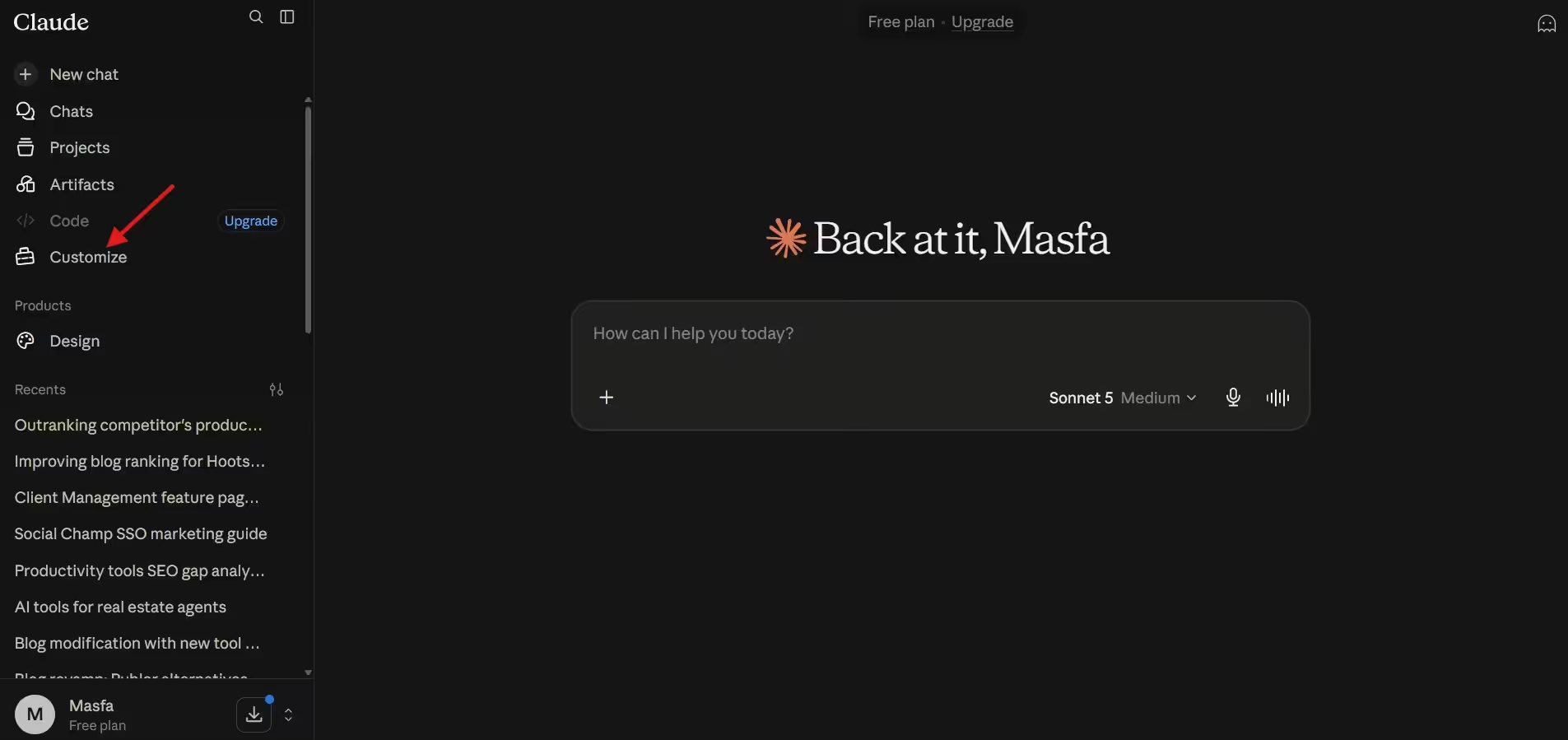
First of all, I opened Claude on my laptop. In the sidebar menu, there’s an option: “Customize.” I clicked it.
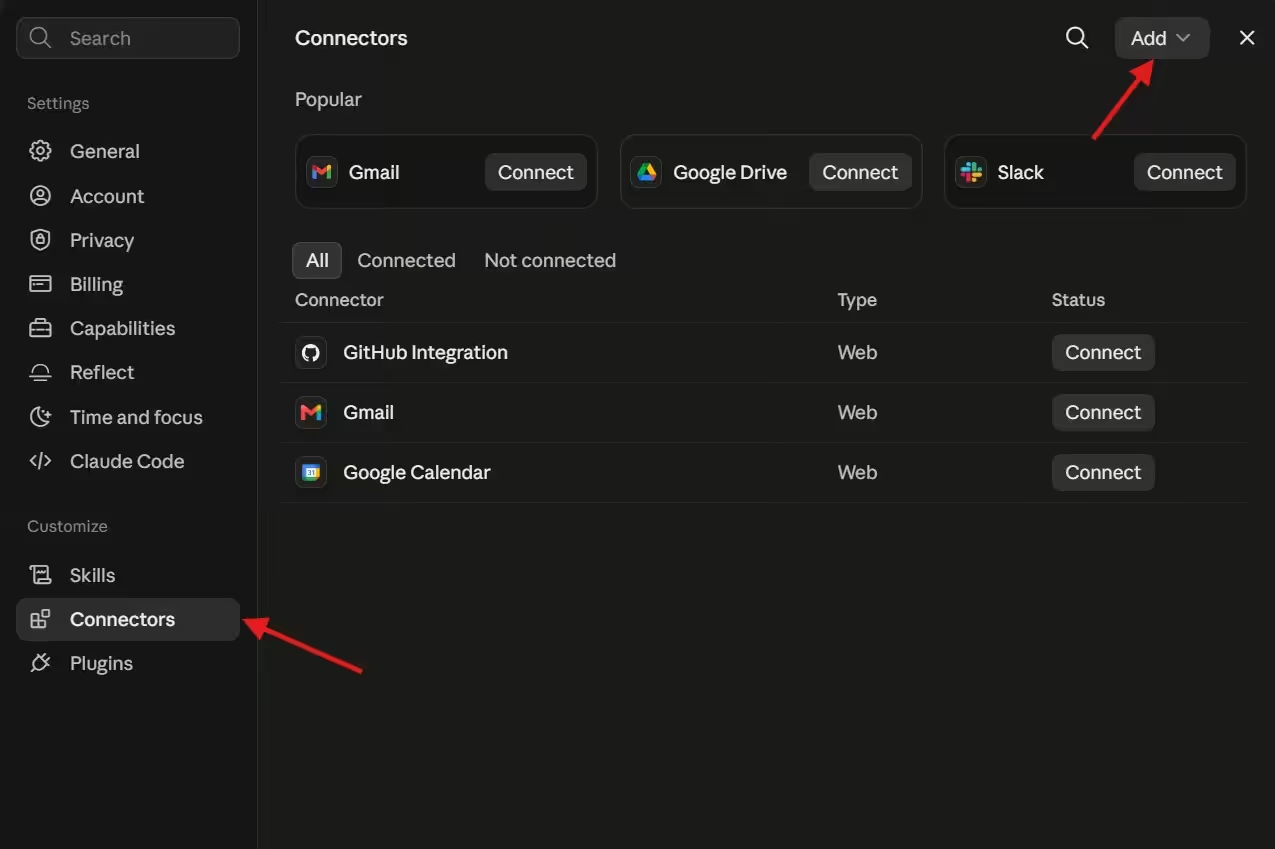
After that, there were many options. I clicked “Connectors” in the customize options.
Add the Social Champ MCP Server
Now, in the connectors option, there was a dropdown “Add” in the upper right corner. I clicked it and selected “Add custom connectors.”
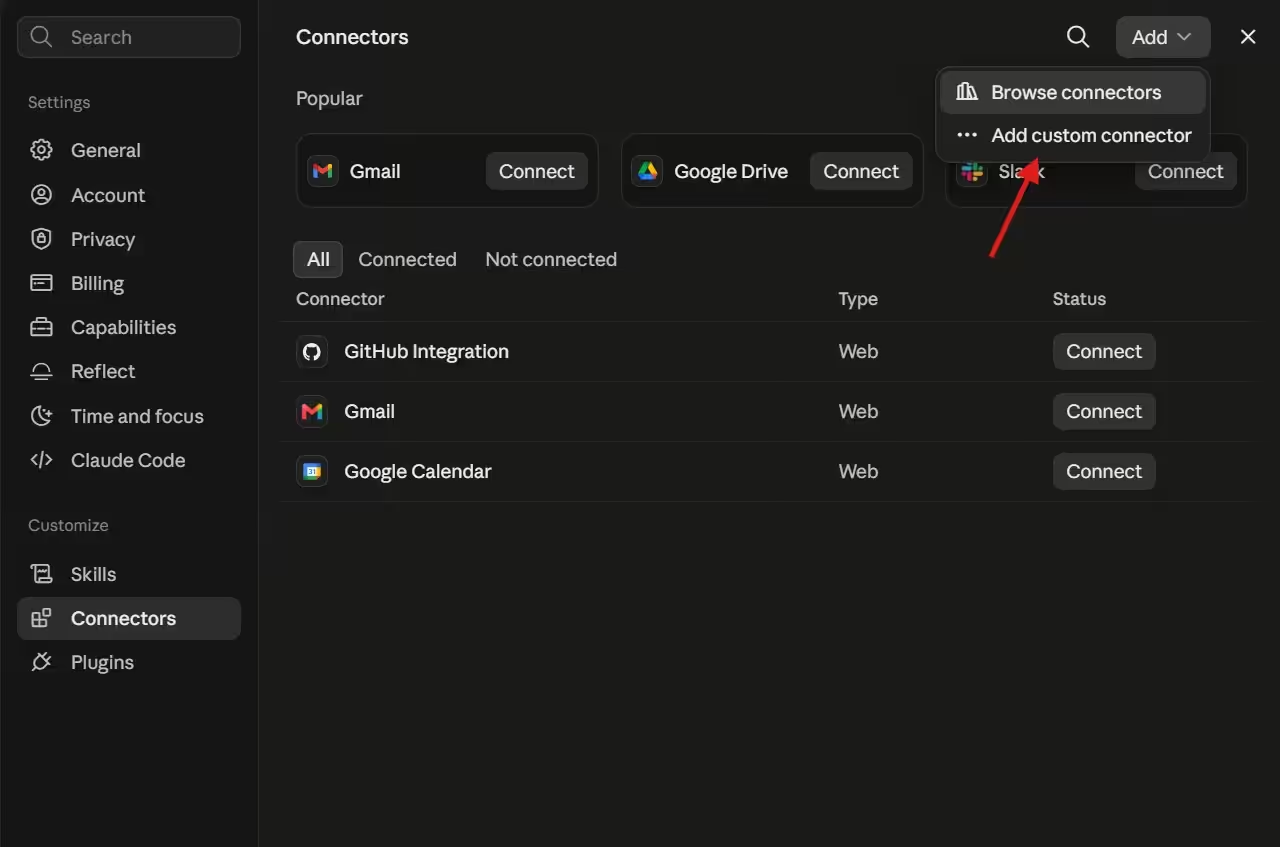
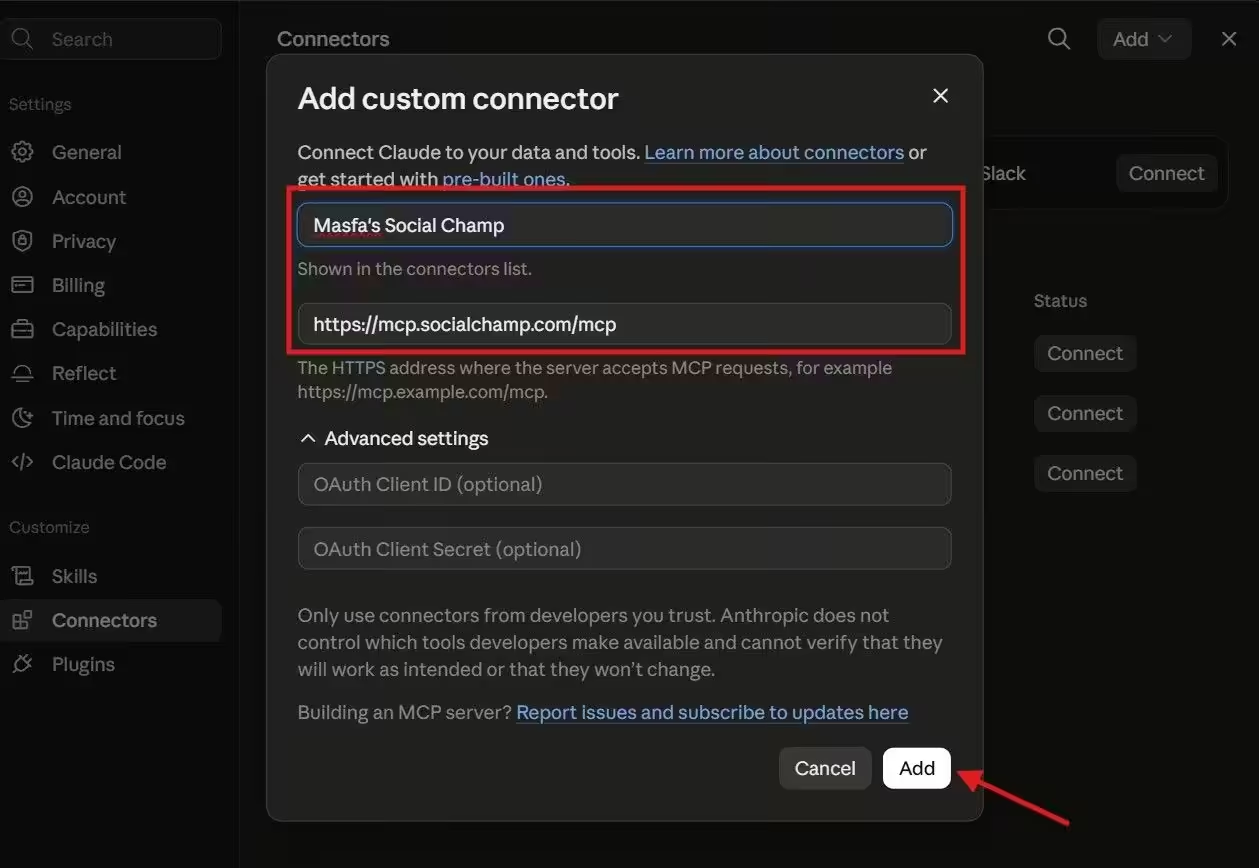
Then I pasted the Social Champ MCP server “https://mcp.socialchamp.com/mcp” in the URL option and added a name for it. Then I clicked “Add.”
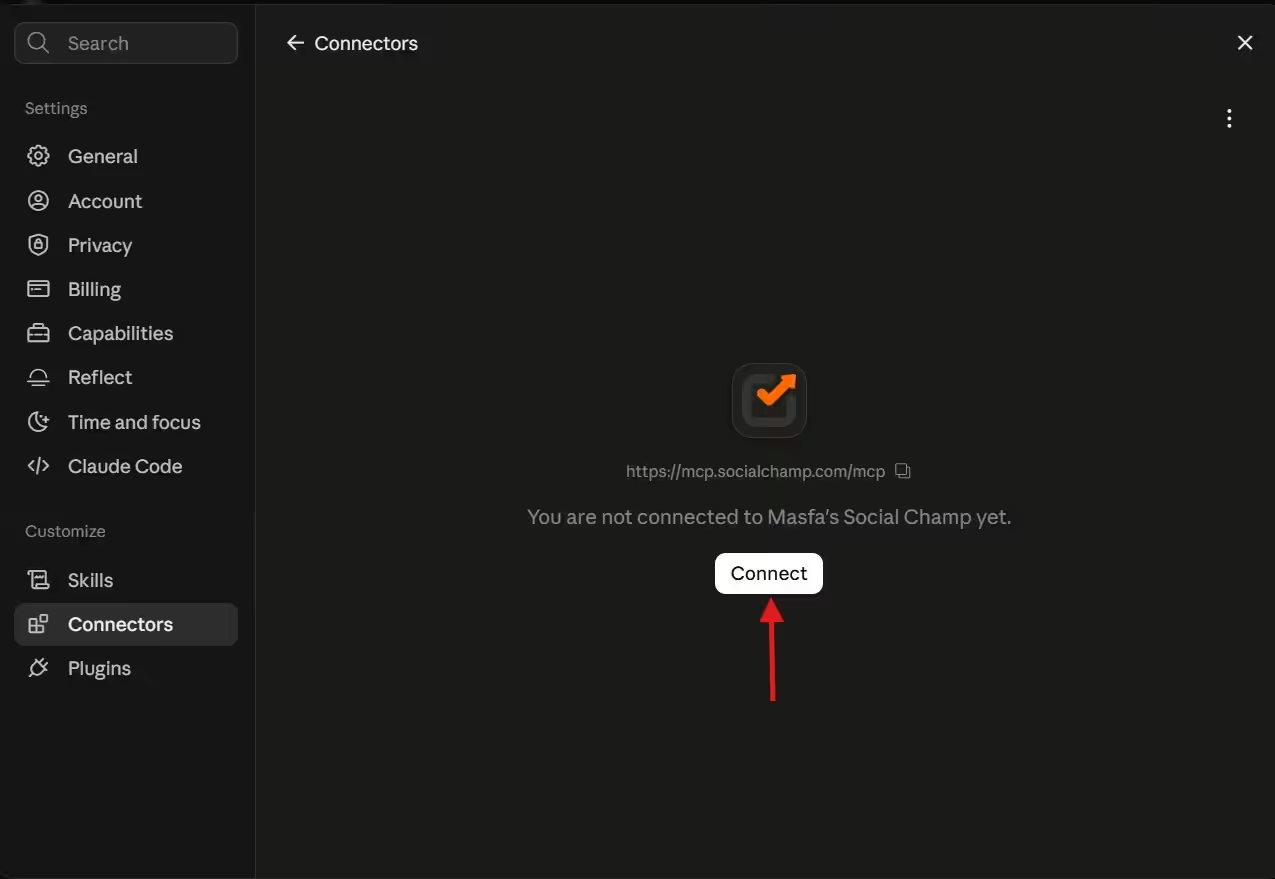
After that, when I clicked “Connect,” I was asked to login to my Social Champ account.
I logged in and clicked “Authorize.” That’s it, and my Claude is connected to Social Champ.
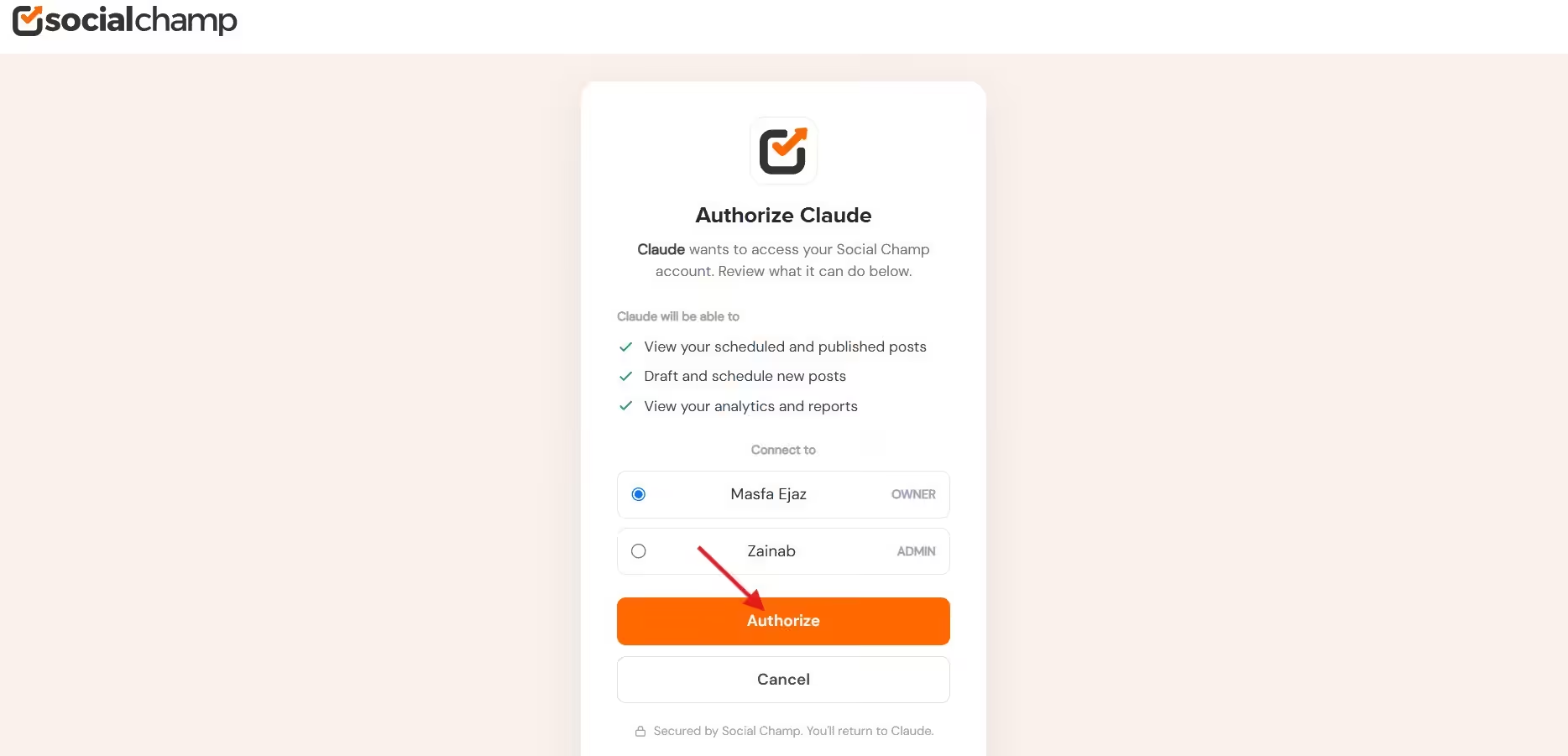
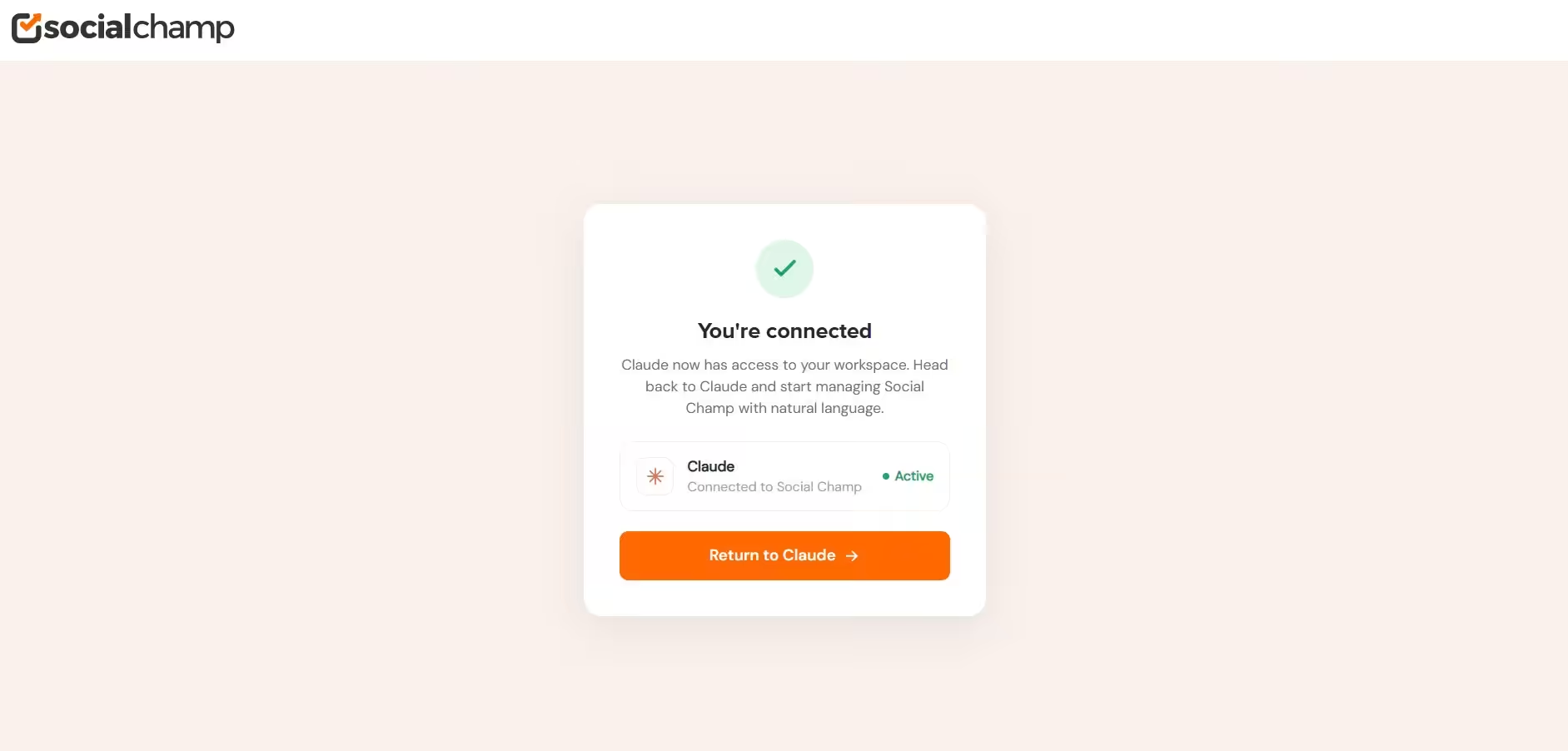
You can also grant Claude permission for which tools you want it to use.
Test It Before You Trust It
When I connected it, I wanted to test it out to check if it really works or not. I opened Claude again and asked it to show my Social Champ scheduled posts for this week. And guess what? It literally showed me the list of all my scheduled posts for that week.
If you want to get the most out of your schedule, check the best times to post on social media once your connection is live. Because timing matters just as much as the content itself.
Featured Article: Productivity Tools That Somehow Escaped the Digital Graveyard
How I Use the Social Champ + Claude Setup to Post on Social Media
I don’t use this integration because it looks cool, but I use it because it literally doesn’t let me do those boring tasks that drain my energy.
Now that I know how to post on social media from Claude, my normal workday looks like this:
I Check My Queue Before Coffee
Every morning I open Claude and simply type “Show me what posts go out today.” Claude pulls my scheduled queue straight from Social Champ, and I can easily see the text, channels, and the posting times all in one place.
And if anything feels weird, I immediately ask Claude to fix that. Basically, my morning check covers:
- The exact copy of every scheduled post
- On which channels and at what time the posts are getting published
- Does any post need edit or rescheduling
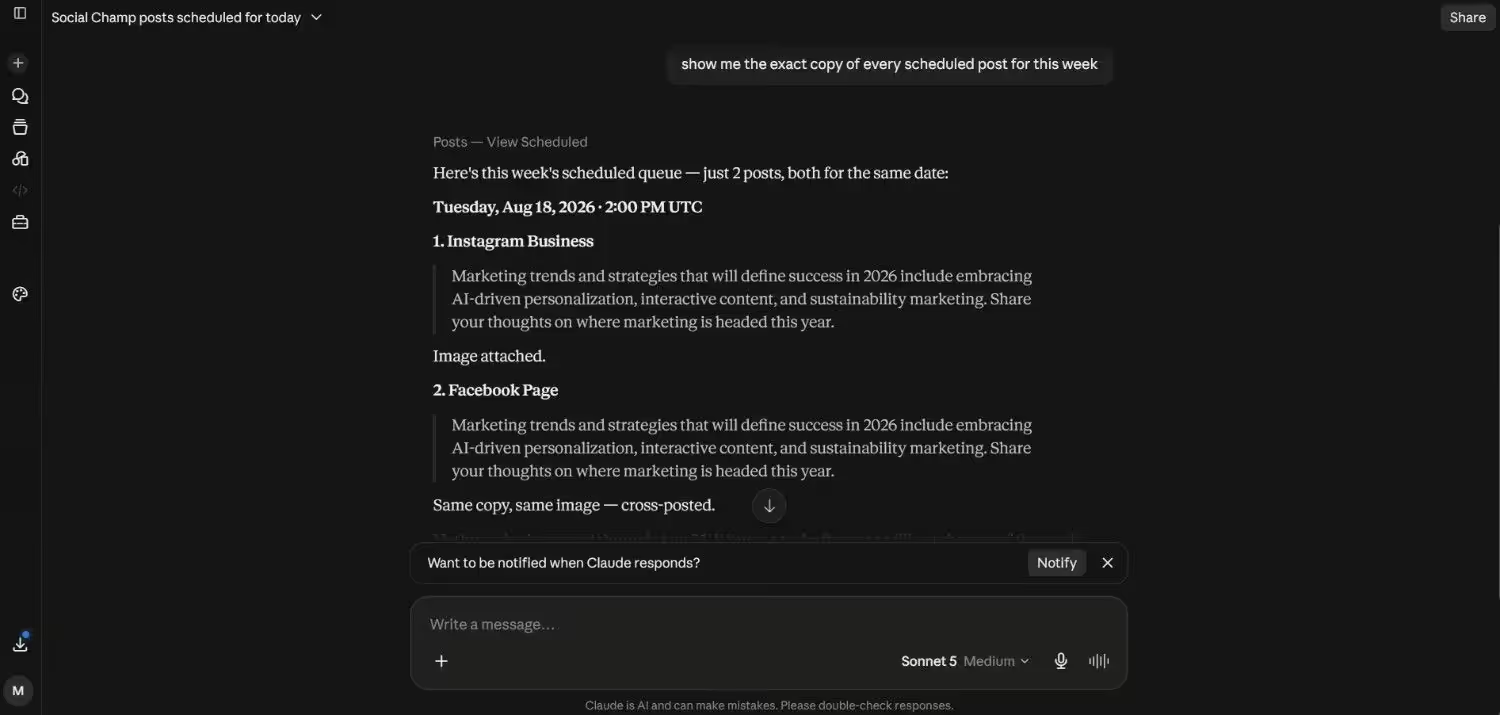
Now, I don’t have to login to the three different apps before breakfast. I don’t even open Social Champ. I just review, drink my coffee, and move on with my life. This alone cut my morning routine by fifteen minutes. That adds up fast.
I Draft and Cross-Post in One Go
I write most of my content in Claude. And when the draft is ready, I tell Claude to adapt it for each platform.
For example: Turn this into a LinkedIn post, tweet, and Instagram caption and schedule all three for tomorrow afternoon.
Claude rewrites the tone for each channel, keeps the core message, and drops every version into my Social Champ queue. I used to do all of this manually before. I would copy the same idea into four different tabs and tweak each one until my eyes hurt. But now, I can do all of this in one chat.
And honestly, if you need a setup that doesn’t just look like a fancy demo but really works, Social Champ ranks among the best MCP servers I have tested.
I Let Claude Handle the Boring Rewrites
Some posts need a second round. And that second round is extremely boring. Last week, I wrote a draft that looked very serious for Instagram. I just copied it into Claude and asked it to make it shorter, funnier, and include hashtags.
The version that Claude provided me felt more natural. Then I asked it to schedule that to Instagram for Friday at 2 PM, and Claude did it. It landed in my queue with the right hashtags and a first comment for the extra tags.
Real Talk: I also use this when I recycle old posts. I grab a post that did well three months ago, ask Claude to rewrite it with a fresh angle, and schedule it again. The whole cycle takes two minutes.
I Bulk Schedule an Entire Week
I usually plan the whole week’s content on Monday. I provide Claude five topic ideas, brand guidelines, and my channel list and ask it: “Write a post for LinkedIn and X on every topic and schedule them Tuesday through Friday at the best times.”
Claude generates posts, adjusts them for each platform, and queues them all at once. And you know what I like the most? I don’t have to babysit every post. Claude handles the grunt work:
- It picks the right tone for every platform
- It spaces the posts so I don’t flood one channel
- It handles hashtags and formatting
After all that, I still review everything before publishing. I open Social Champ’s calendar, scan drafts, and approve the ones I like. But the actual creation part is done by Claude, which used to take me four hours. Now, I spend roughly 45 minutes! From four hours to 45 minutes? Yeah, I’ll take that. 😌
I Pause Everything When News Breaks
Sometimes the world shifts and your scheduled post about “productivity hacks” looks tone-deaf. At that moment, I tell Claude, “Pause my queue for today.”
The outgoing posts pause till I resume them. I don’t scramble to log in and manually cancel six posts. I just type one sentence and fix the problem.
This setup has literally changed my workflow. Now, I don’t have to spend much time moving text between boxes. If you still copy, paste, tweak, and schedule every caption manually, then you run your life on unnecessarily hard mode.
Stop Losing Good Ideas!
The Real Reason I Am Keeping This Setup
Basically, I treated social media like a data entry job for a long time. Writing in one app, scheduling in another, and checking analytics in the third. And then formatting the content for different platforms.
If you want to know how to post on social media from Claude without the usual headache, this is it. Social Champ MCP has changed the whole scene! Now, I write, draft, schedule, and manage my queue all in one chat. I don’t have to format the same text for three different platforms anymore. And the setup takes only 2 minutes.
Now, I write more, post consistently, and my queue stays full without me staring at a calendar all day. That means I can focus on the actual writing instead of the logistics, and that feels so much better.
If you are still jumping between five tabs to post one update, you are doing it the hard way. Connect Claude to Social Champ. Test it for a week. See if your workflow actually gets better. I bet it will. Your future self will thank you when Monday morning rolls around, and your queue is already full.
Featured Article: Agentic Workflows